Why People Park Their Google Photos in pCloud
A full Google account is the usual trigger: photos share their storage with Gmail and Drive, and the next tier up is another subscription. pCloud attracts people who would rather keep the photos somewhere separate and stop paying monthly for them.
- 💳 Pay once if you want to — pCloud sells its 500 GB, 2 TB and 10 TB plans monthly, yearly, or as a one-off lifetime purchase. Prices differ by country and change with promotions, so check the pricing page for yours.
- 🌍 US or EU storage — When you sign up you choose where your files live: Dallas, Texas, or Luxembourg. Moving later is a paid service.
- 🖥️ A drive on your desktop — The pCloud Drive app for Mac and Windows shows your storage as a drive in Finder or File Explorer, so the archive is a folder away rather than a website away.
- 🗓️ A photo timeline — pCloud's web app and pCloud Drive now have a Photos view that lays your pictures out as a timeline, with a map for photos that carry GPS data.
What You're Moving, and Where It's Going
📦 A Google Photos Takeout export
Google doesn't let outside apps download your whole library anymore — since March 31, 2025, its Photos API only hands third-party apps the photos you pick one by one. For an entire library, Google Takeout is the way out. Takeout can deliver to Drive, Dropbox, OneDrive or Box, but pCloud isn't on that list, so you download the export yourself.
- Large libraries arrive as numbered .zip parts, each up to the size you picked.
- Photos sit in year folders such as
Photos from 2019; every album gets its own folder holding second copies of photos that are already in the year folders. - Each photo comes with a JSON file holding what Google knows about it, including the capture time. Unzip the export and the photos themselves show the day of the export as their date. Why Takeout dates look wrong explains this in detail.
☁️ pCloud
pCloud is a Swiss-based cloud drive with its own apps for the web, desktop and phones.
- A new account starts with 2 GB free, and you can unlock up to 10 GB by finishing pCloud's tutorial steps and inviting friends — enough to test with, rarely enough for a library.
- pCloud publishes no file-size cap, but its plan page lists an upload allowance per 30 days (for example up to 1 TB on Premium), worth knowing before a multi-terabyte move.
- The Crypto folder (pCloud Encryption, a paid add-on) only accepts files from pCloud's own apps, so none of the tools below can copy into it.
- Deleted files go to pCloud's trash, kept for 15 days on the free plan and 30 days on paid plans.
pCloud's Own Google Photos Backup — Good for a Few Thousand Photos
Before downloading anything, know that pCloud has a built-in option: in the web app, Backups → Third-party lists Google Photos. According to pCloud's help article, it is now a one-time backup you start by hand, you select up to 2,000 photos per run, and the files are grouped by date. Ongoing Google Photos backups are no longer available because of Google's API changes.
pCloud doesn't document what the copy keeps. Google's own documentation for photos that apps receive through its picker says downloads keep the EXIF data except location, and videos arrive as a high-quality transcoded version rather than the original file. If your library runs to tens of thousands of photos, or you want originals and albums, the Takeout routes below are the practical ones.
Method 1: Unzip the Export and Upload It to pCloud Yourself
The no-extra-software route. It works, but it costs disk space and leaves the dates wrong.
- 📥 Export and download — At Takeout, deselect everything except Google Photos, keep the
.zipfile type, and download every part from the email Google sends. - 🗜️ Unzip every part — Each part unzips into its own
Takeoutfolder, so you need free space for the .zip files and the extracted copy, and the same year can be split across parts. - 🧹 Decide what to upload — Upload only the
Photos from …folders unless you want album folders duplicating them, and leave the JSON files behind if you don't want them cluttering pCloud. - 📤 Upload — Use the Upload button in pCloud Drive, which pCloud recommends for large uploads over copying and pasting into the drive, or drag folders into my.pcloud.com (folder uploads work in Chrome and Edge).
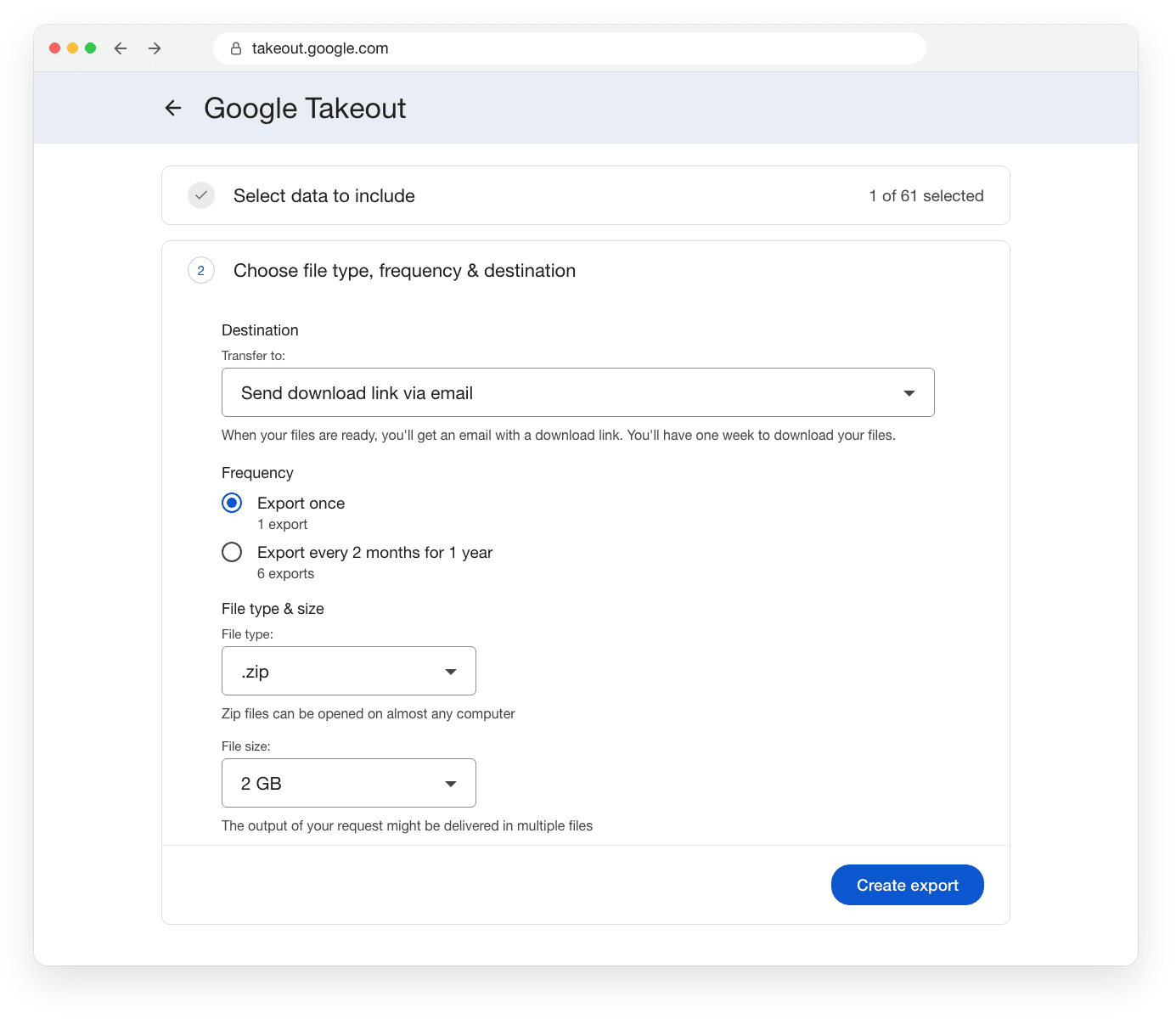
A diagram of Takeout's export options; Google's actual page looks different.
What you end up with: photos dated by when the export was made rather than when they were taken, which matters for anything that sorts by file date — and screenshots or chat images with no date inside the file lose their real date entirely.
Method 2: Copy Google Photos to pCloud with OurClone, Straight from the .zip Files
OurClone opens a Takeout export as a read-only storage called Google Photos (Takeout). It reads photos out of the .zip parts as needed, pairs each one with its JSON file, and shows the library once, sorted into year folders. You need OurClone v1.5.0 or later on Mac or Windows (download page); the free plan's two storages cover this job exactly.
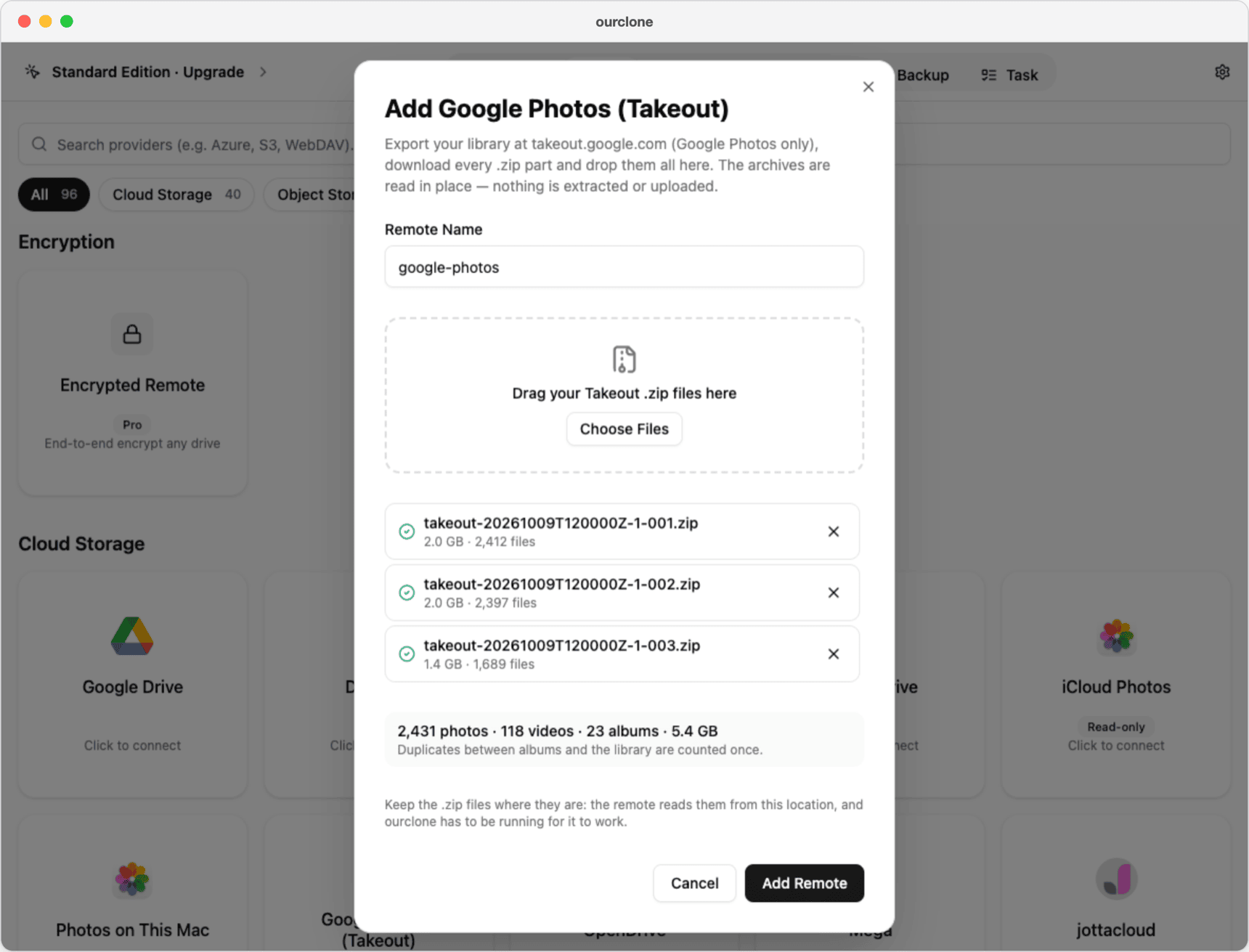
- 📦 Step 1: Export Google Photos as .zip — Same export as Method 1, but don't unzip it. Choose a large part size to have fewer files, and keep all parts together in one folder you won't reorganize, since OurClone reads them from there. The
.tgzoption can't be read. - 🗂️ Step 2: Add the Export as the Source — In the
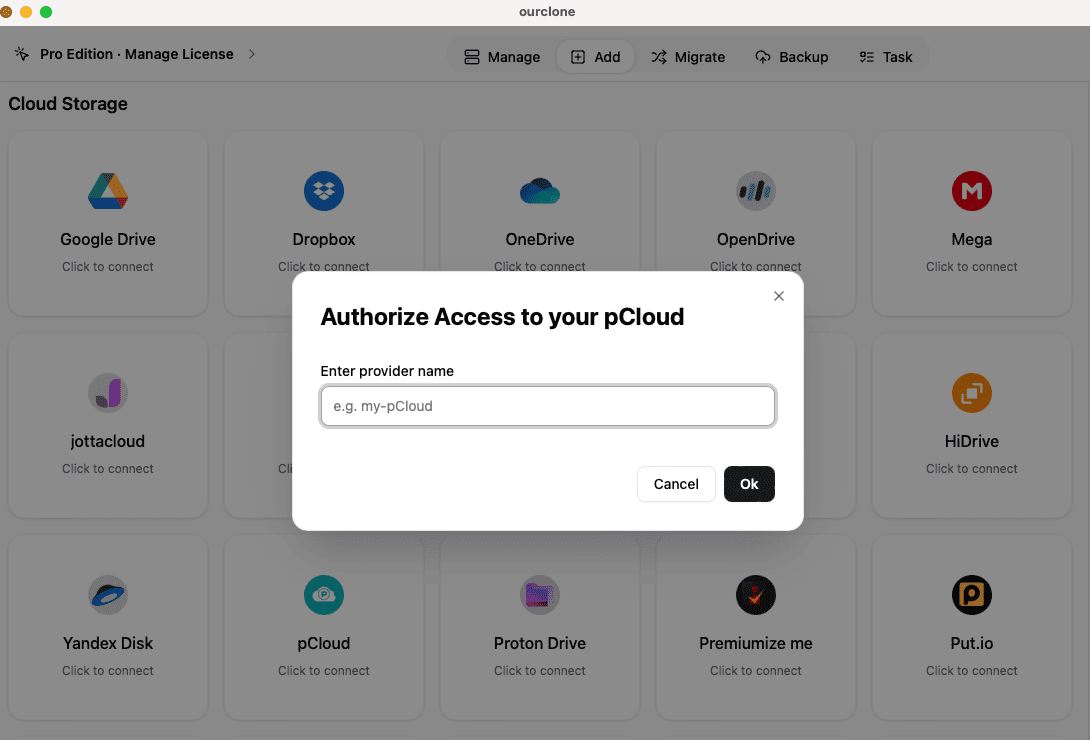
Addtab choose Google Photos (Takeout) and drop all the parts into the dialog. OurClone checks each archive first: incomplete downloads are flagged, a missing part number is named, and the totals count photos that appear in several albums only once. Click Add Remote. - 🔗 Step 3: Add pCloud as the Destination (Browser Sign-In) — Back in
Add, pick pCloud, give it a name and click Ok. Your browser opens pCloud's sign-in page; log in and authorize OurClone. Accounts in the EU region work the same way, because the right pCloud server is recorded during that sign-in. - 🎛️ Step 4: Copy Library into a pCloud Folder — Open
Migrate. As the source, pick the Takeout storage and selectLibrary, which holds every photo and video exactly once. As the destination, pick pCloud and a folder such asGoogle Photos(you can create one in the picker). Leave Copy selected and click Start Transfer. - 📈 Step 5: Watch It Finish — The
Taskpanel shows progress, speed and any failed files until the job reads Completed. Keep OurClone open while it runs. If a run is interrupted, click Run again: files already in pCloud are skipped.
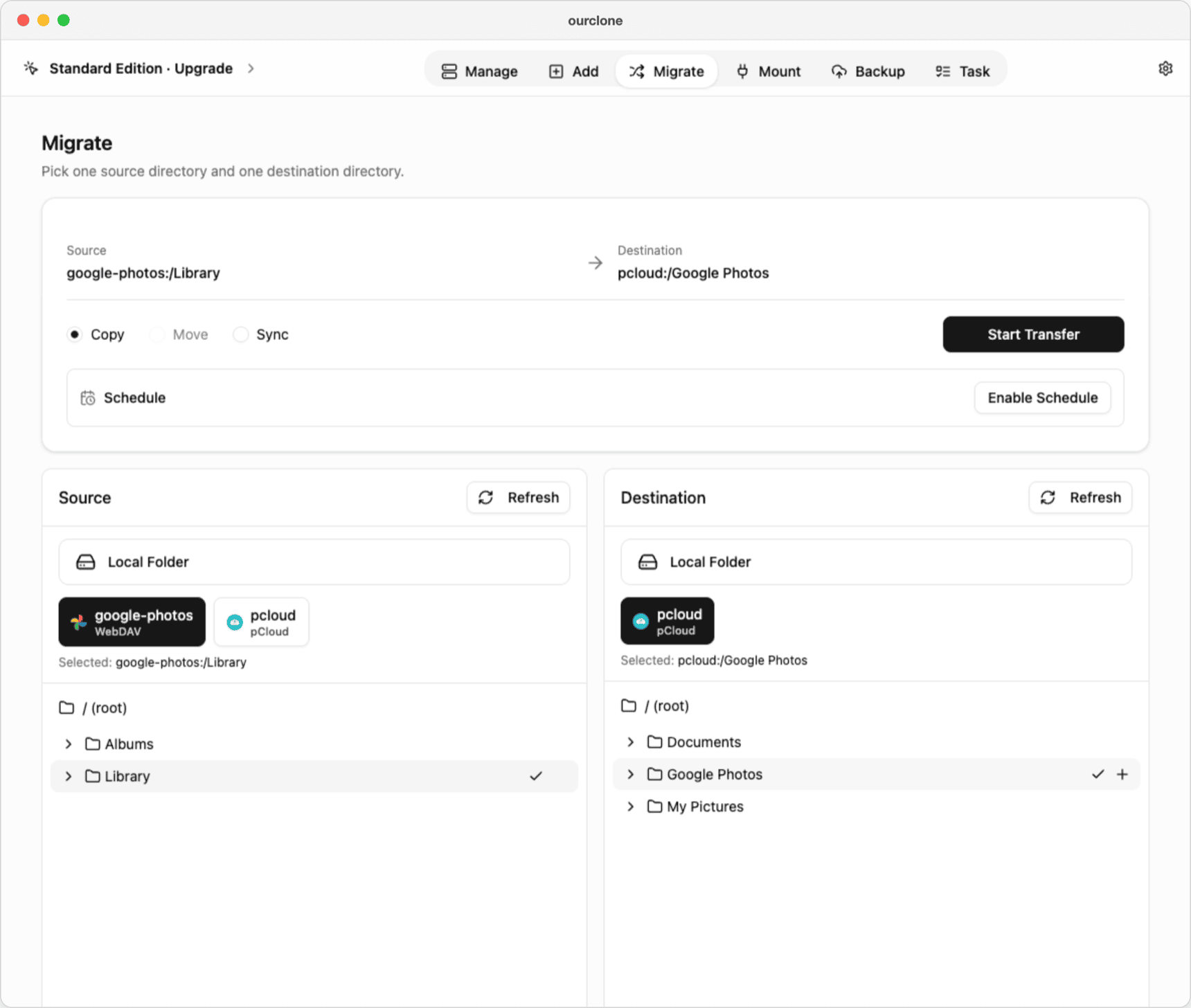
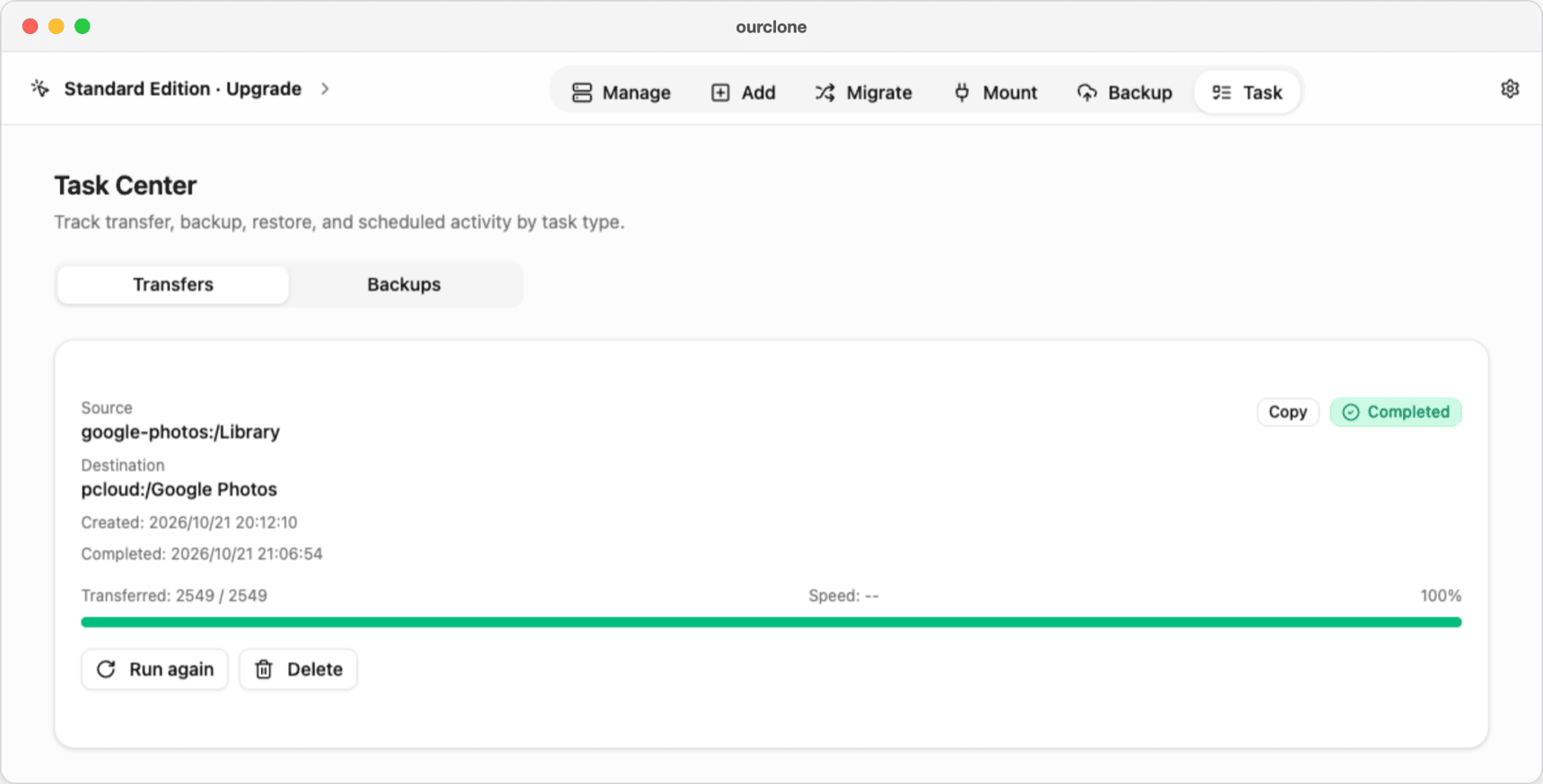
Move isn't offered, because the export is read-only and nothing in your Google account is touched. Skip Sync for this job: it makes the pCloud folder match the export exactly, so anything you add to that folder later would be deleted on the next run.
What lands in pCloud
- 📅 One folder per capture year, in your time zone. Items without a Google capture time go by Google's own year folder, or into
Unknown. - 🕒 File dates that match the capture time from Google's JSON, including dates you corrected in Google Photos. pCloud stores the modification time it is given, so the dates survive the upload. The photo files themselves are copied byte for byte, so the EXIF inside them is unchanged.
- 🧾 No JSON files, and nothing Google had in the trash.
- 🎞️ Every format, including HEIC, RAW and videos; a Live Photo arrives as its image and its short video side by side.
Albums are optional: run another Copy with one folder under Albums as the source if you want a particular album as its own folder in pCloud. Each album folder is a second copy of its photos, so pick the ones you care about.
Method 3: Upload the Unzipped Export with rclone
OurClone runs on rclone, which is a good fit if you'd rather script the upload. rclone has no way to read a Takeout .zip or its JSON files, so this route starts from the unzipped folders of Method 1 and inherits their dates.
Step 1: Install rclone
Download it from rclone.org/downloads, or run brew install rclone on a Mac.
Step 2: Create the pCloud remote
Run rclone config, add a remote named pcloud of type pcloud, and accept the browser sign-in. rclone records your account's US or EU server during that sign-in; only if you set it up on a machine without a browser, using rclone authorize, do you need to set hostname to eapi.pcloud.com yourself for an EU account. See rclone's pCloud docs.
Step 3: Upload the year folders
Point rclone at one unzipped part's Google Photos folder, keep the year folders, and drop the JSON files and album folders:
rclone copy "$HOME/Downloads/Takeout/Google Photos" "pcloud:Google Photos" \
  --filter "- *.json" \
  --filter "+ /Photos from */**" \
  --filter "- **" \
  --progress --dry-run
Check the dry-run list, then run it again without --dry-run, and repeat for Takeout 2, Takeout 3 and so on. The folder names follow your Google account's language, so adjust Photos from if yours differ.
Caveats
- ⚠️ Files keep the dates they have on your disk — the export date, not the capture date. Fix them first with a tool that reads Google's JSON if dates matter to you.
- ⚠️
rclone syncdeletes files in the destination that aren't in the source; stick withcopyfor an archive. - ⚠️ You still need free disk space for the unzipped copy.
The Routes Compared
| pCloud's own backup | Unzip and upload | OurClone | rclone | |
|---|---|---|---|---|
| Library size | Up to 2,000 photos per run | Any | Any | Any |
| Unzip first | No export needed | Yes | No | Yes |
| File dates | Not documented | Export date | Capture time from Google's JSON | Export date |
| Album duplicates | Not documented | Up to you | Each photo stored once; albums optional | Filtered out by the command |
| Interrupted uploads | Start again | Start again | Run again skips what's done | Re-run skips what's done |
| Needs a computer | No | Yes | Mac or Windows | Yes, plus a terminal |
When the Move Doesn't Go to Plan
- 🚦 Uploads stop partway through a huge library — pCloud counts upload traffic per 30 days on each plan. Split the job by year folder and spread it out, or check your plan's allowance first.
- 💾 pCloud runs out of space — Failed files are listed in the Task panel. Free up space or upgrade, then Run again; uploaded files are skipped.
- 🧩 A part is missing — Download it, add it with the Takeout storage's Archives button in Manage, and run the copy again.
- 📁 The .zip files were moved — The storage reads them from where they were when you added them. Move them back, or remove the storage and add it again.
- 🔐 pCloud sign-in fails — Remove the pCloud storage in OurClone and add it again, so the browser authorization runs fresh.
Quick Answers
Will this delete anything from Google Photos?
No. OurClone only reads the .zip files you downloaded, and never signs in to your Google account.
Can I put the photos in pCloud's Crypto folder?
Not with OurClone or rclone; pCloud only lets its own apps write to the Crypto folder. If you want encryption that works through OurClone, its encrypted vault (Pro) encrypts files before they reach any cloud, pCloud included.
Will pCloud's Photos timeline show the right dates?
pCloud describes its Photos view as a timeline but doesn't document whether it orders photos by the date inside the file or by the file's date. After the copy, check a few screenshots, which have no date inside, to see where they land.
Can I keep the photos on my Mac as well?
Yes. The same Takeout storage can import into the Photos app on a Mac with albums rebuilt, or copy to Proton Drive, a NAS or an external drive.