Why Push NFS Data into Google Drive at All?
NFS shares are brilliant inside the house and useless outside it. A Synology, QNAP, TrueNAS, or plain Linux box exports a folder, every machine on the LAN mounts it at wire speed, and then you try to open a file from a coffee shop and remember it lives behind your router. Copying that data into Google Drive fixes the reach problem without touching the NAS itself.
- 📱 Reach it from anywhere — Drive's apps run on every phone and browser. A photo archive or document tree that only existed on
/volume1/becomes searchable from the Drive app on your phone. - 🤝 Share without opening ports — Handing a client or family member an NFS export means VPNs and firewall rules. Handing them a Drive link takes one click.
- 🏚️ Retire an old NAS — When a five-year-old box is on its way out and you don't want to buy another, Drive's paid tiers are a cheap landing spot for the data that still matters.
- 📄 Work on it in Google's tools — Once a folder of spreadsheets or docs is in Drive, Sheets and Docs can open them in place, and Workspace users get them under the company's admin controls.
- 🗄️ Keep a second copy off-site — A NAS with RAID survives a dead disk, not a house fire. A copy in Google's data centres is the simplest off-site location most people already pay for.
An NFS Share and Google Drive Are Different Animals
One is a network filesystem protocol from 1984 that your OS mounts like a disk; the other is a web service with an API and a quota. That difference decides which tools can even see each side.
🖧 The NFS share
NFS (Network File System) is how Linux servers and most NAS units — Synology, QNAP, TrueNAS, Unraid — export a folder to other machines on the network. Your Mac or PC mounts the export and it shows up as a normal path.
- LAN-speed reads and writes — a gigabit link moves roughly 100 MB/s, far faster than any cloud upload.
- No subscription and no per-GB fee; the limit is the disks in the box.
- Only reachable on the local network (or over a VPN). There is no web app and no share link.
- Permissions are Unix UIDs mapped by the server's export rules, which is where most "Operation not permitted" errors come from.
- Neither Google's web uploader nor rclone has an NFS client built in — the share has to be mounted by the operating system first.
🟡 Google Drive
Google Drive is the storage layer behind Gmail, Photos, and Docs. Anything you put in it is instantly available on every device signed into that Google account.
- 15 GB free, shared across Drive, Gmail, and Google Photos; paid Google One plans run from 100 GB up to 2 TB and beyond.
- Native Docs, Sheets, and Slides files have counted against the quota since June 2021, so an already-busy account has less free room than the headline number suggests.
- Google caps uploads at about 750 GB per account per day and 5 TB per single file — relevant if you're draining a large NAS.
- Excellent search, link sharing, and mobile apps; no filesystem semantics like symlinks or Unix permissions.
First, Mount the NFS Share on Your Computer
Every method below starts the same way: the share needs to be mounted so it looks like a local folder. This is the step people skip, and it's the reason "copy NFS to Google Drive" searches end up on pages that never mention NFS. It takes a minute.
On macOS
In Finder press ⌘K (Go → Connect to Server), enter nfs://192.168.1.50/volume1/photos — your NAS address and export path — and click Connect. The share appears under /Volumes/photos. If Finder refuses with "Operation not permitted", the export is insisting on a privileged source port; mount it from Terminal instead:
mkdir -p ~/nfs-photos
sudo mount -t nfs -o resvport,rw 192.168.1.50:/volume1/photos ~/nfs-photos
The resvport option is the usual fix for Synology and Linux exports. Alternatively, enable "Allow connections from non-privileged ports" on the NAS's NFS settings and Finder will work.
On Windows
Windows 10 and 11 Pro, Enterprise, and Education include a Client for NFS; turn it on under Settings → Optional features → More Windows features → Services for NFS. Then, in Command Prompt:
mount -o anon \\192.168.1.50\volume1\photos N:Windows Home doesn't ship the NFS client. Almost every NAS exports the same folder over SMB as well, so on Home editions map the share as a normal network drive instead — the rest of this guide works identically, and this SMB guide covers the mapping step.
From here on, /Volumes/photos (or N:\) is just a folder as far as your browser, OurClone, and rclone are concerned.
Method 1: Drag the Mounted Folder into the Google Drive Web App
With the share mounted, the no-tools route is the same as uploading anything else: open Drive in a browser and drag folders in. Fine for a few hundred files; frustrating past that.
- 📂 Open the share in Finder or File Explorer — Navigate to
/Volumes/photos(Mac) orN:\(Windows) and locate the folders you want in Drive. - ⬆️ Drop them into Drive — Sign in at drive.google.com, open the destination folder, and drag the folders from the share into the browser window. Chrome and Edge upload whole folder trees; a small progress panel at the bottom right tracks each file.
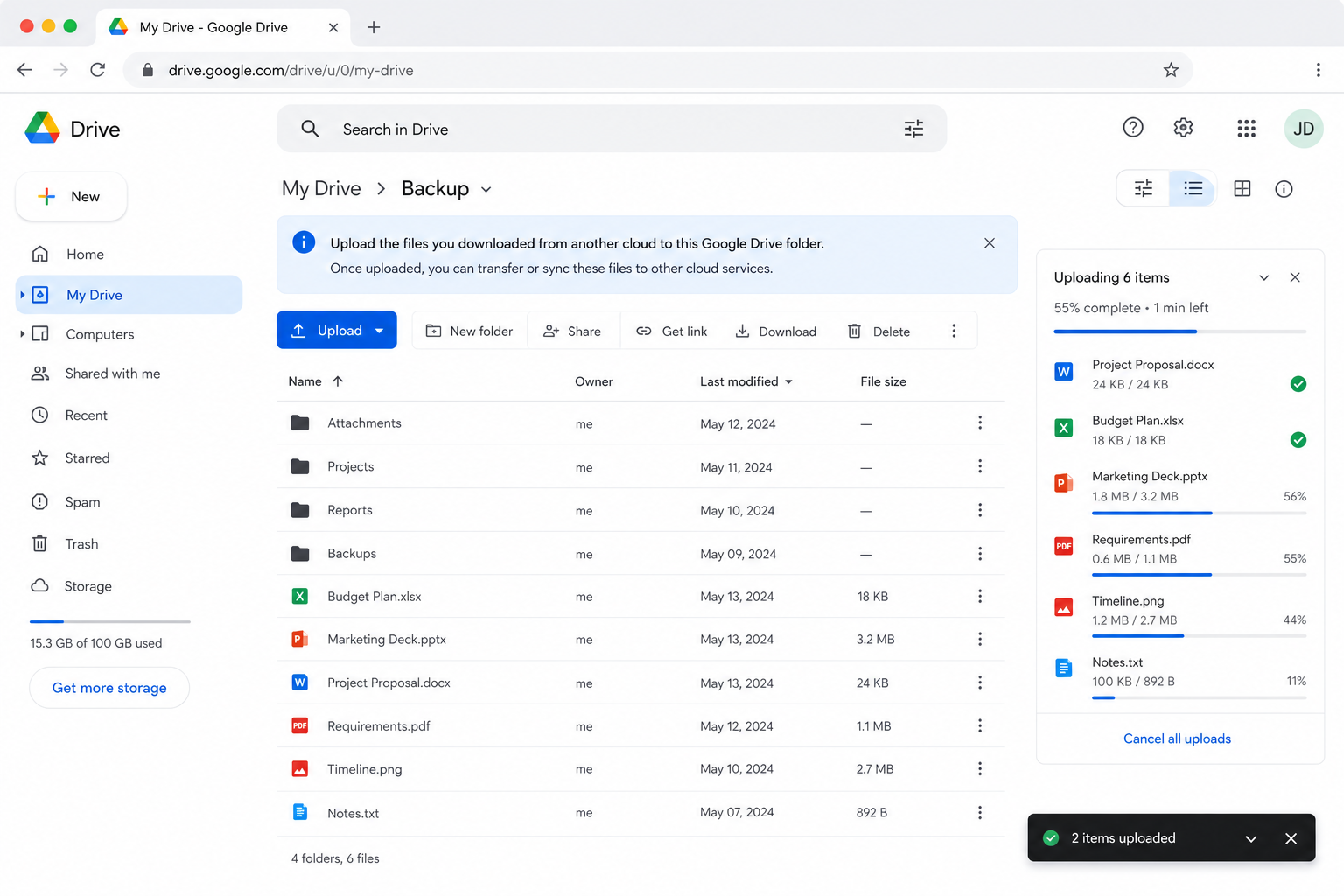
The catch: the browser reads every byte off the NAS and pushes it up in one sitting, the tab has to stay open, and there's no resume — a dropped Wi-Fi connection or a laptop lid closing means starting the folder over. Nothing tells you which files failed, either. That's why the next two methods exist.
Method 2: Copy the NFS Share to Google Drive with OurClone
OurClone reads the mounted share as a local folder and uploads straight to Google's API from your Mac or PC — no relay server, and every file's status is visible in the Task panel. Because the NFS side needs no account, it's really two steps plus a verification.
- 🗂️ Step 1: The share is already your source — Nothing to add for the NFS side. As long as the mount from the previous section is in place, OurClone's folder picker can browse into
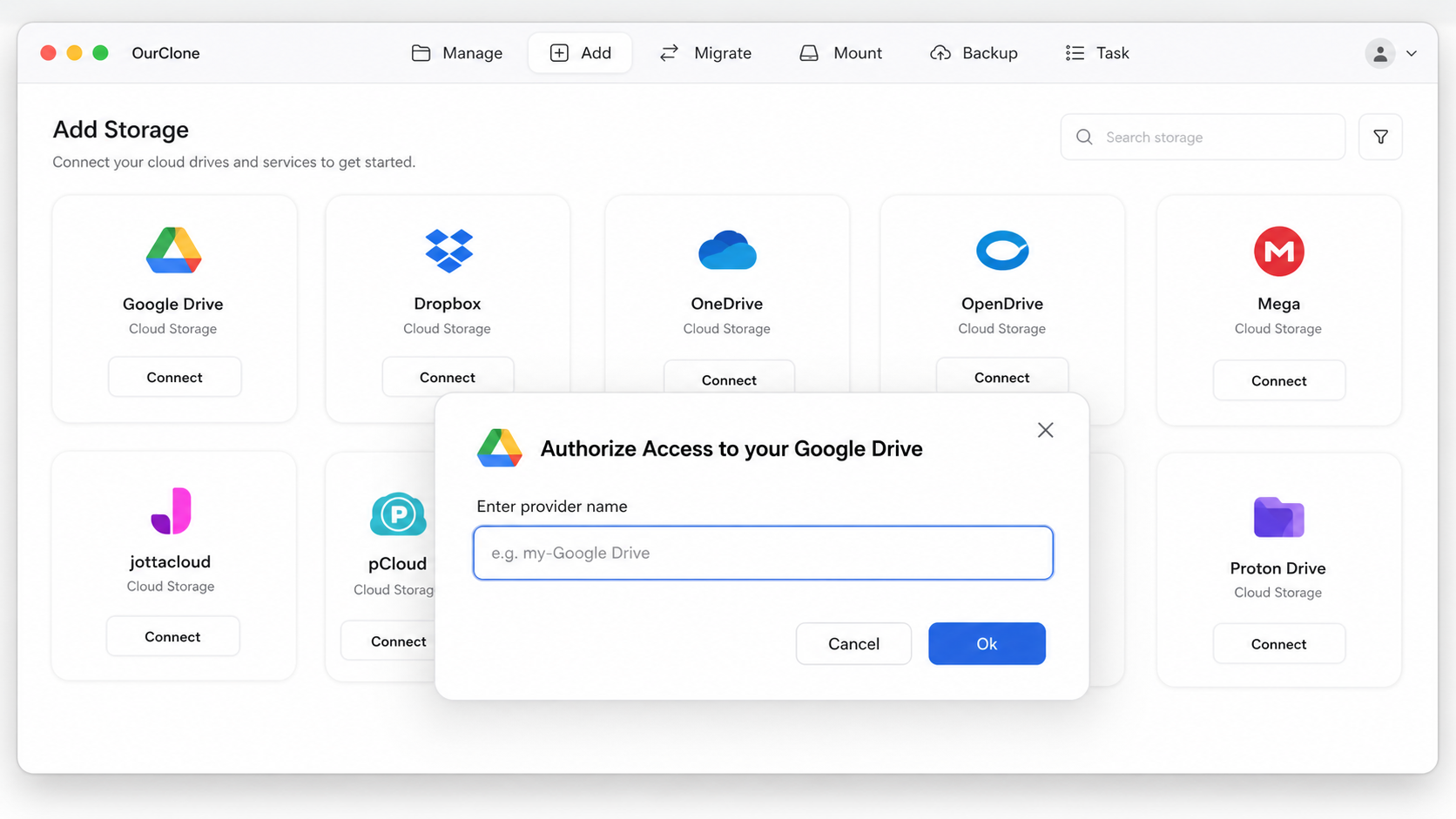
/Volumes/photosorN:\like any other directory. - 🔗 Step 2: Add Google Drive as the Destination (Browser Sign-In) — In OurClone open
Add Storageand pick Google Drive. Give the connection a name; a browser window opens to Google's sign-in. Choose the account, click Allow, and Google Drive appears in your storage list. The free tier of OurClone allows two connected storages, which is plenty for this job. - 🎛️ Step 3: Pick the Share, the Drive Folder, and a Mode — Open the
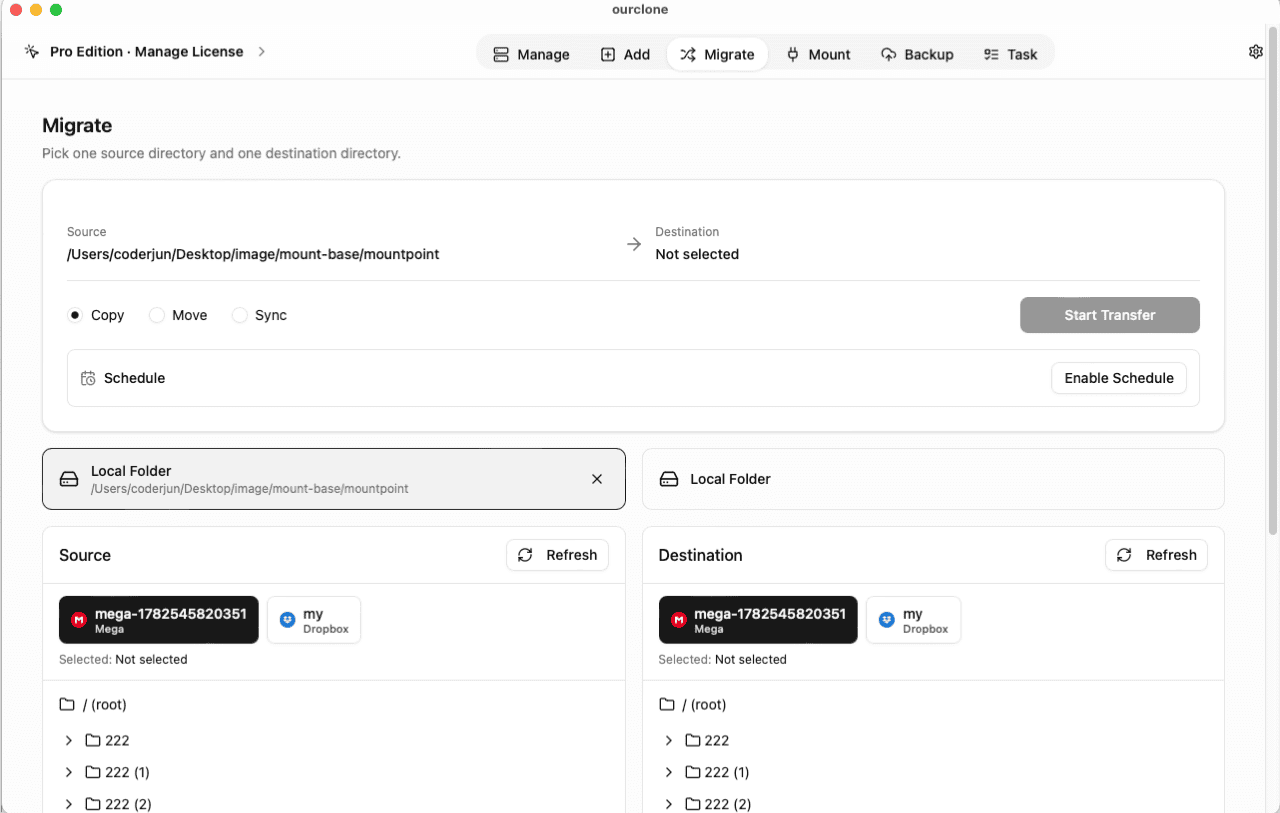
Migratetab. On the source side choose Local and browse to the mounted share (or a subfolder of it). On the target side choose Google Drive and select or create the destination folder. Then choose what "copy" should mean:- Copy — uploads everything to Google Drive and leaves the NFS share exactly as it was. This is the one you want for an off-site copy.
- Move — uploads, then deletes the originals from the share. Use it only when you are decommissioning the NAS, and remember the NFS export must be mounted read-write for the delete to succeed.
- Sync — makes the Drive folder mirror the share: files that exist only in the Drive folder are removed; the share itself is never touched.
- 📈 Watch It Land, Then Spot-Check — The
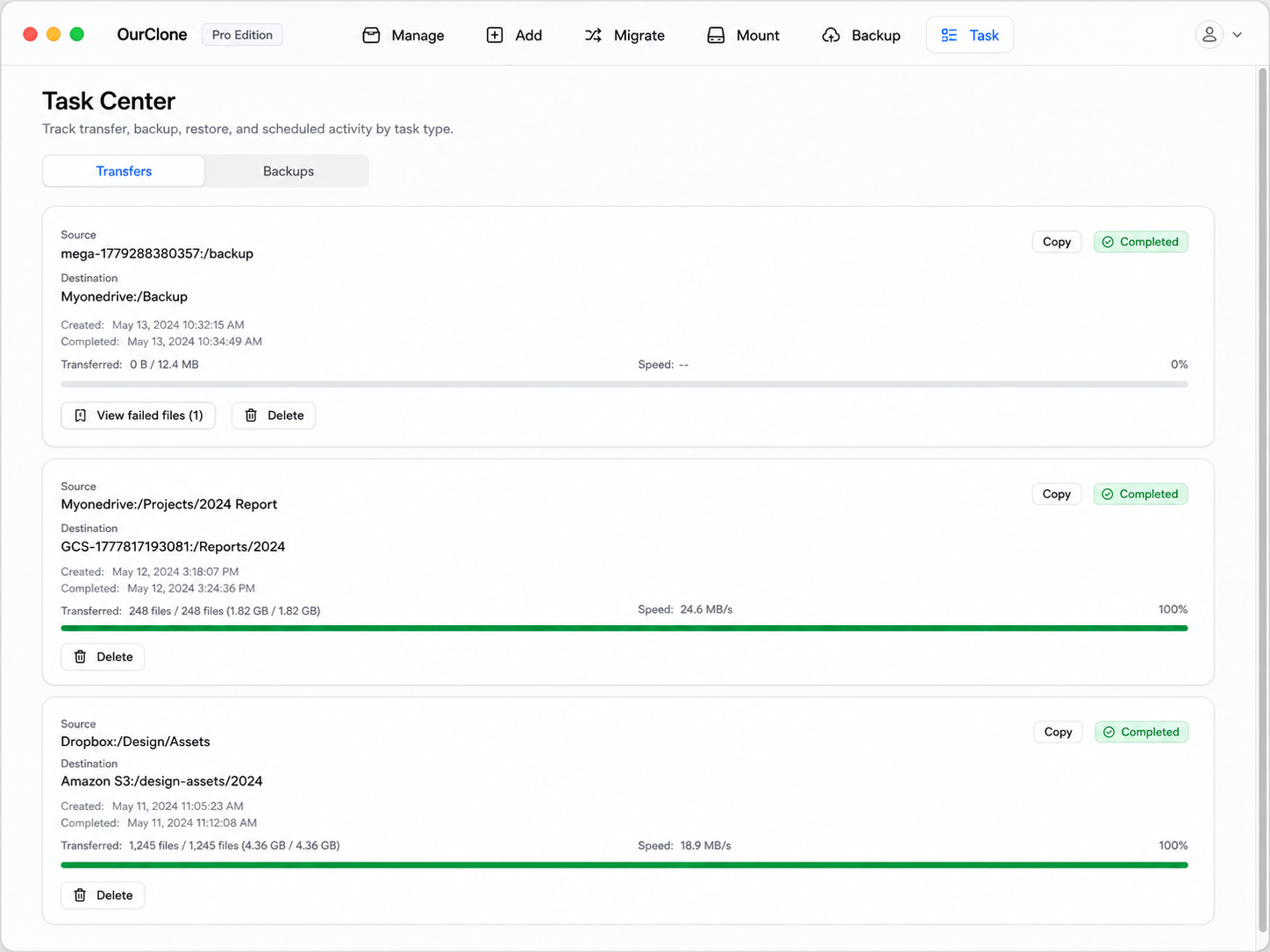
Taskpanel shows files done, current speed, ETA, and a list of anything that failed. When it reads completed, open Google Drive in OurClone or in the browser and check a couple of deep folders. If a run is interrupted, start the same Copy again — files already in Drive with matching size and modification time are skipped, so it picks up where it stopped rather than re-uploading.
Run a Copy on one subfolder first and open it in Drive. Once you trust the result, queue the rest — a multi-hundred-gigabyte share is fine to leave running overnight, and if Google's 750 GB-per-day upload cap kicks in the job simply resumes the next day with the same Copy.
Method 3: Copy NFS to Google Drive with rclone (Command Line)
OurClone is built on rclone, so on a headless Linux box that already mounts the export, or in a script, you can run the identical transfer from a shell. One thing to know up front: rclone has no NFS backend. It reads the share through the OS mount as a local path, which is why the mount step above is not optional.
Step 1: Install rclone
Grab it from the official downloads page, or brew install rclone on macOS and your distro's package manager on Linux.
Step 2: Configure the Google Drive remote
Only one remote is needed — the NFS side is a local path. Run rclone config, choose n for a new remote, name it gdrive, pick the drive backend, and accept auto-config so a browser opens for Google's OAuth consent. Leave the client ID blank unless you have your own.
Step 3: Run the transfer
The three verbs match OurClone's modes exactly:
# Copy — share untouched, only new/changed files upload on re-runs
rclone copy /Volumes/photos gdrive:NAS/photos --progress

# Move — delete from the share after each file lands in Drive
rclone move /Volumes/photos gdrive:NAS/photos --progress

# Sync — make the Drive folder mirror the share (deletes extras in Drive only)
rclone sync /Volumes/photos gdrive:NAS/photos --progress --dry-run
On Windows the source is the mapped letter: rclone copy N:\ gdrive:NAS/photos --progress. For a big Synology share a more realistic command line is:
rclone copy /Volumes/photos gdrive:NAS/photos --progress \
  --transfers 4 --drive-chunk-size 64M \
  --exclude "@eaDir/**" --exclude "#recycle/**" \
  --drive-stop-on-upload-limit
--drive-stop-on-upload-limit makes rclone stop cleanly when Google's 750 GB/day cap is reached instead of retrying for hours; run the same command again tomorrow and it continues.
Caveats
- ⚠️
movedeletes from the NAS andsyncdeletes from Drive — run--dry-runfirst and read the output. - ⚠️ Symlinks on the share are skipped with a notice unless you add
--copy-links; hard-coded absolute links inside the export usually don't resolve on your machine anyway. - ⚠️ Progress and errors live in the terminal only, and if the NFS mount drops mid-run rclone sees an empty source — with
syncthat is dangerous, which is another reason to prefercopy.
Which Method for Which Job?
| Drive web app | OurClone | rclone | |
|---|---|---|---|
| Setup | None beyond the mount | Sign in to Google once | Install + rclone config |
| Comfortable size | Hundreds of files | Whole share | Whole share |
| Interrupted transfer | Start the folder over | Re-run Copy, skips what landed | Re-run, skips what landed |
| See which files failed | No | Task panel list | Terminal log |
| Delete from NAS after upload | By hand | Move mode | rclone move |
Exclude @eaDir and friends | Skip them manually | Copy subfolders individually | --exclude |
| Runs on a headless server | No | No (desktop app) | Yes |
What Goes Wrong Between a NAS Export and Google Drive
Most surprises here come from the NAS side, not from Google.
- 🔒 "Operation not permitted" or an empty mount — The export doesn't trust your machine. Check the NAS's NFS permissions: your computer's IP (or subnet) must be listed, and the squash setting needs to map you to a user who can read the folder. On macOS, add
resvportas shown above. - 🗃️ Mystery
@eaDirand#recyclefolders in Drive — Synology hides these over SMB but not over NFS. They hold thumbnails and deleted files, and they'll be copied like anything else. Exclude them with rclone, or in OurClone copy the real subfolders instead of the share root and delete any strays in Drive afterwards. - 🐌 Slow over Wi-Fi — The data crosses your network twice: NAS to computer, computer to Google. Plug the computer into Ethernet for the initial copy; a laptop on Wi-Fi can easily halve the throughput.
- ⏳ Upload stalls after a few hundred gigabytes — That's Google's roughly 750 GB per day account cap, not a fault. OurClone and rclone back off; the job finishes on the following day's run.
- 🔗 Symlinked folders didn't come across — NFS exposes symlinks as symlinks, and both OurClone and rclone skip them by default. Copy the folder they point to instead.
- 🧮 File counts don't match — Beyond symlinks and the special folders above, look for files your user can't read on the share (permission-denied entries appear in the Task panel's failed list) and for filenames with characters Google rejects, which are rare but real.
Quick Answers
Will this delete anything on my NAS?
Only Move does, and only after each file has been uploaded. Copy never deletes anywhere; Sync deletes only extra files inside the Google Drive target folder.
Can I run the copy on a schedule?
OurClone Pro can save a Migrate job as a one-time, weekly, or monthly schedule with a run time of your choosing. There's no hourly interval or continuous background sync, and the computer must be on with the share mounted when the job fires. On a Linux server, a cron entry calling rclone copy does the same thing.
Is a copy in Google Drive a backup?
It's a second copy, which is already better than one — but it has no history, so a file deleted or corrupted on the share and then re-synced is gone in both places. If you want versioned, encrypted snapshots of the share in Google Drive, use OurClone's Backup feature instead: this guide walks through it with the mounted share as the source.
What about the other direction?
Swap source and target on the Migrate page: Google Drive as source, the mounted share as target, and Copy pulls everything down to the NAS. If you would rather browse Drive from the NAS side without copying, mount Google Drive on your Mac and use Finder.