Google Drive and Proton Drive Are Built for Different Things
It helps to be honest about the trade you're making. Google Drive is a collaboration platform that happens to store files; Proton Drive is an encrypted vault that happens to have sharing. Neither is "better" — they answer different questions.
🟡 Google Drive
Google Drive is where Docs, Sheets, and Slides live, and where every Android phone and Gmail account already has a foothold. Search inside PDFs and images, live co-editing, and a share dialog everyone already understands are its real strengths.
- 15 GB free, shared with Gmail and Google Photos; Google One takes that to 100 GB, 2 TB, and beyond.
- Native Docs, Sheets, and Slides have counted against storage since June 2021 like everything else — and they aren't ordinary files, which matters when you leave (see the FAQ).
- Excellent full-text search and OCR across your whole Drive.
- Encrypted in transit and at rest with Google's keys; content is readable by Google's systems for search, spam, and abuse scanning.
🟣 Proton Drive
Proton Drive encrypts every file and file name on your device before upload, using the same open-source cryptography that runs Proton Mail. Proton cannot index, scan, or hand over readable copies of what you store, because it never holds the keys.
- Free plan unlocks up to 5 GB; Drive Plus is 200 GB, Proton Unlimited bundles 500 GB with Mail, Calendar, VPN, and Pass.
- End-to-end encryption on file bodies and metadata; independently audited, open-source clients.
- Swiss jurisdiction, with data centres in Switzerland and Germany.
- Proton Docs covers encrypted document editing, but there's no full-text search inside your files — the server can't read them by design — so Docs-heavy workflows still need to change.
Reasons to Move Files Out of Google Drive
Few people close their Google account. What actually happens is a sorting exercise: the shared spreadsheets stay, and the things that never needed Google's eyes on them leave.
- 🪪 Sensitive personal records — passport scans, medical letters, tax returns, contracts. These are the files people most regret leaving in a scanned, indexable cloud.
- 🧹 Reclaiming the shared 15 GB — Drive, Gmail, and Photos draw from one pool. Moving 10 GB of old archives to Proton is often cheaper than upgrading Google One just to keep receiving email.
- 📷 Original photo and video exports — Google Takeout dumps and old camera folders are large, static, and private — an ideal first batch to migrate.
- 🧭 Consolidating around Proton — if Proton Mail is already your inbox, Drive shares that account and storage, and the migration finishes the move.
- 🏛️ Jurisdiction and compliance — freelancers and small practices in Europe increasingly want client files held under Swiss or EU law rather than a US provider.
Method 1: Download from Google Drive, Upload to Proton Drive
The manual route works, and for a couple of folders it's the fastest thing to reach for. It stops being fun the moment Google starts splitting your download into a stack of zip files.
- 📥 Download from Google Drive — In the Drive web app, select folders and choose Download. Google zips them and splits large selections into roughly 2 GB archives; native Docs, Sheets, and Slides are converted to .docx, .xlsx, and .pptx inside the zip.
- 📦 Unzip and check — Expand each archive in Finder. Google occasionally renames files that share a name, so glance through before uploading.
- 📤 Upload to Proton Drive — Open the Proton Drive web app, navigate to the destination, and drag the folders in. The browser encrypts every file before sending it, so keep the tab open and the Mac awake until the upload queue is empty.
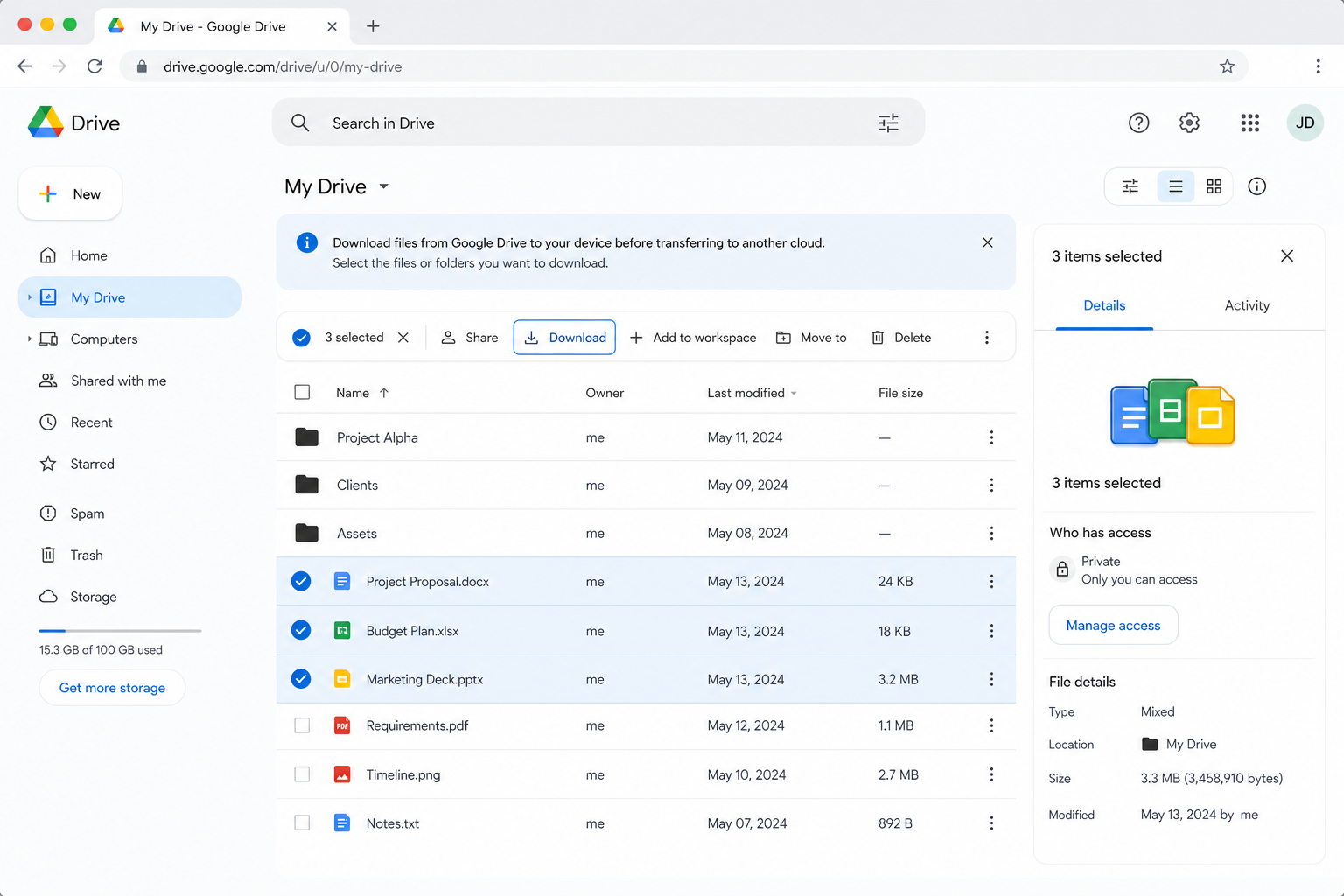
Two copies of everything on your disk, no resume, and no report of what failed. That's acceptable for 3 GB of documents and a bad idea for a decade of photos — which is what the next two methods are for.
Method 2: Transfer Google Drive to Proton Drive with OurClone
OurClone talks to Google's API and Proton's API directly from your Mac — nothing passes through a third-party server — and shows you every file as it moves. Here's the whole thing in under two minutes, followed by the steps in detail.
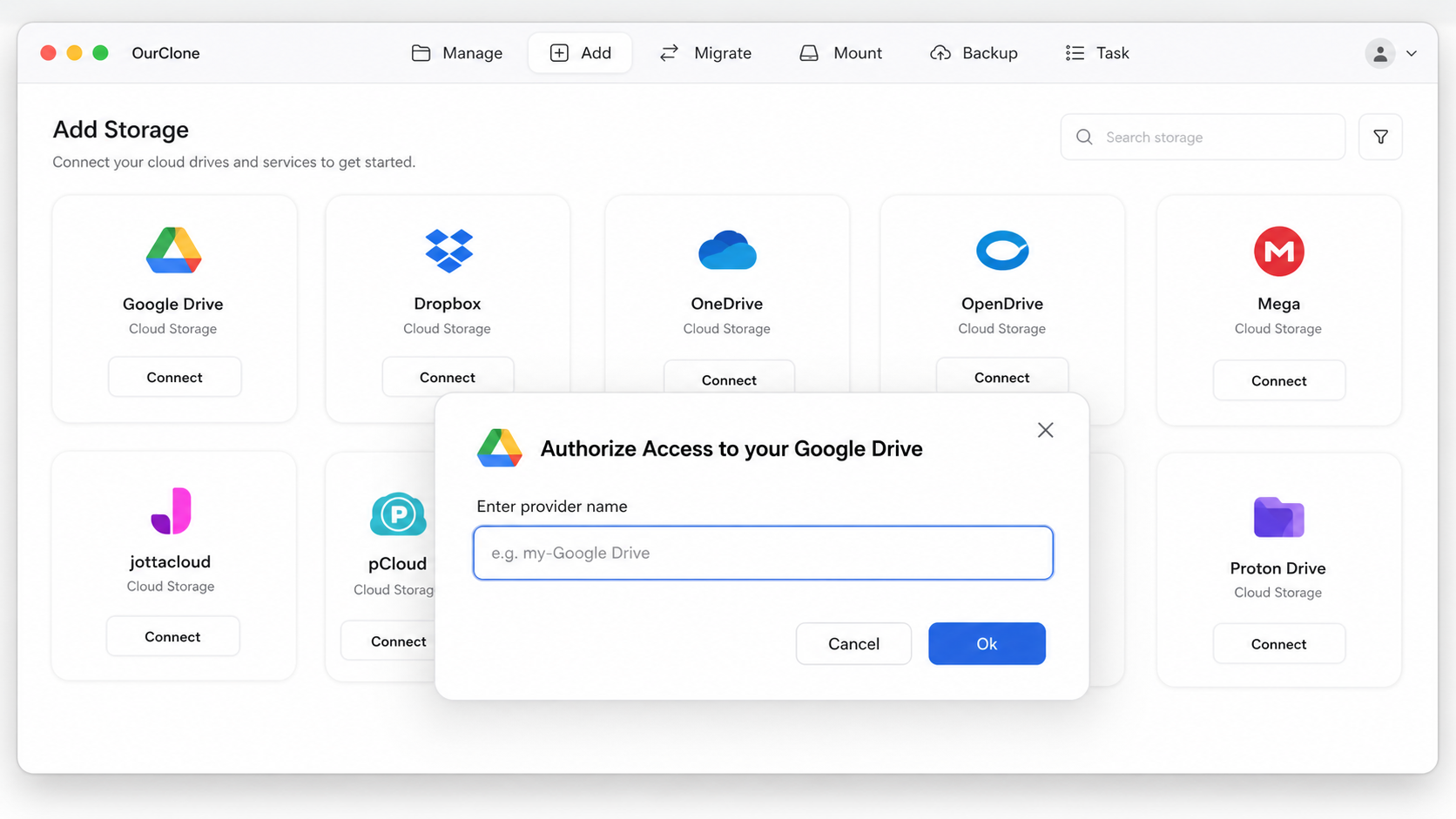
- 🔗 Step 1: Add Google Drive as the Source (Browser Sign-In) — In OurClone open
Add Storageand pick Google Drive. Name the connection, and a browser window opens to Google's sign-in — choose the account, click Allow, and Google Drive appears in your storage list. If you have several Google accounts, add each one separately. - 🔐 Step 2: Add Proton Drive as the Destination — Open
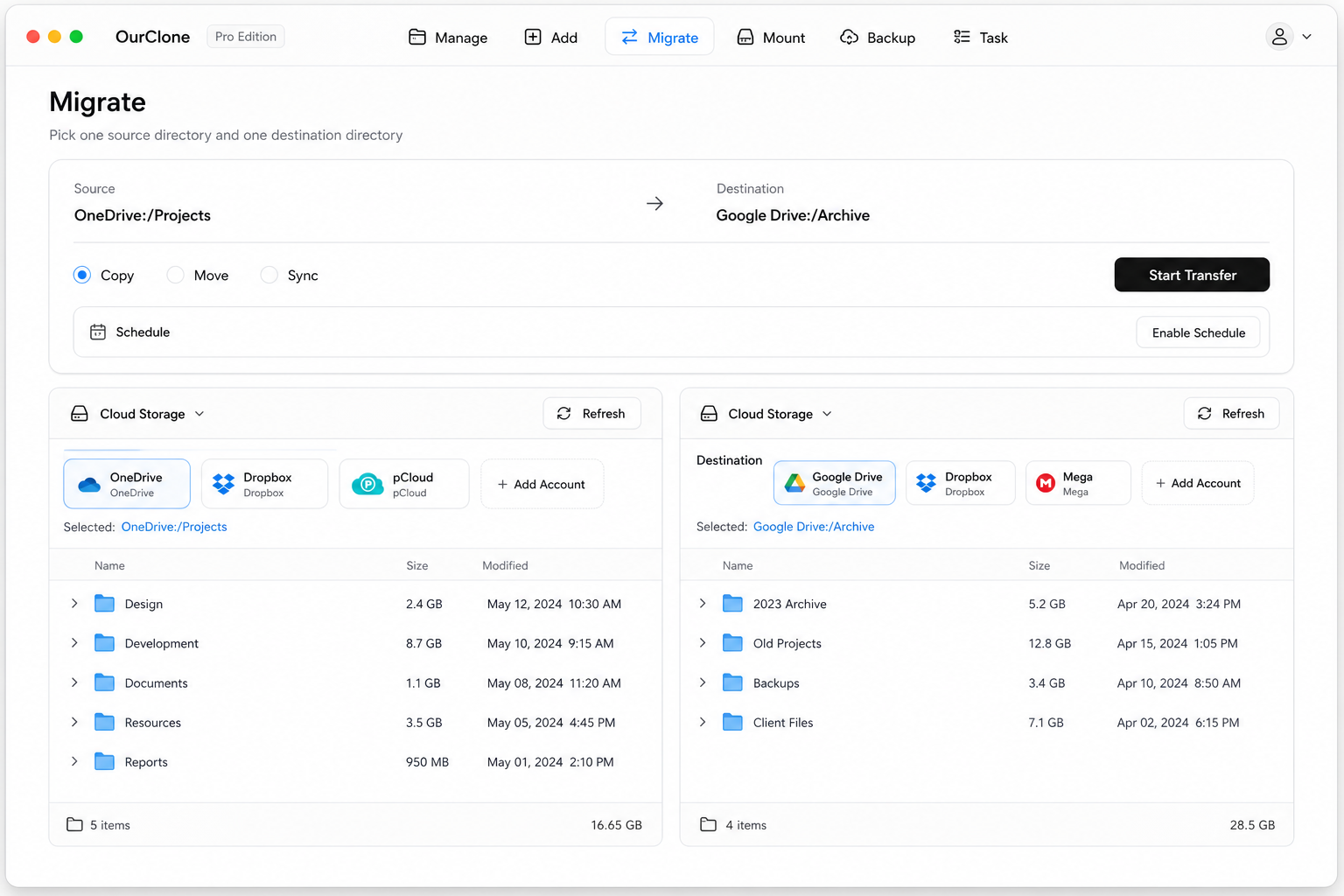
Add Storageagain and pick Proton Drive. Enter your Proton email and password, plus the current 2FA code if you've enabled two-factor. The first connection pauses briefly while your encryption keys are initialised, then Proton Drive joins the list. - 🔀 Step 3: Set Source, Target and Mode on the Migrate Page — Open the
Migratetab. Pick Google Drive and browse to the folders you're moving, then pick Proton Drive and choose or create the destination folder. Select a mode:- Copy — duplicates files to Proton Drive; nothing is deleted from Google Drive.
- Move — transfers to Proton Drive, then deletes the originals from Google Drive. They go to Drive's Trash, so empty the Trash afterwards to actually free up the shared 15 GB.
- Sync — makes Proton Drive mirror Google Drive; extra files in Proton Drive are removed, but Google Drive is left untouched.
- 📊 Watch Progress and Confirm — The
Taskpanel shows counts, speed, ETA, and any failed files. When it reads completed, open Proton Drive in OurClone or the web app and spot-check a few folders. After a Move, the originals sit in Google Drive's Trash and still count against your quota: empty the Trash (Google auto-purges it after 30 days otherwise), then give the storage meter a little while to catch up.

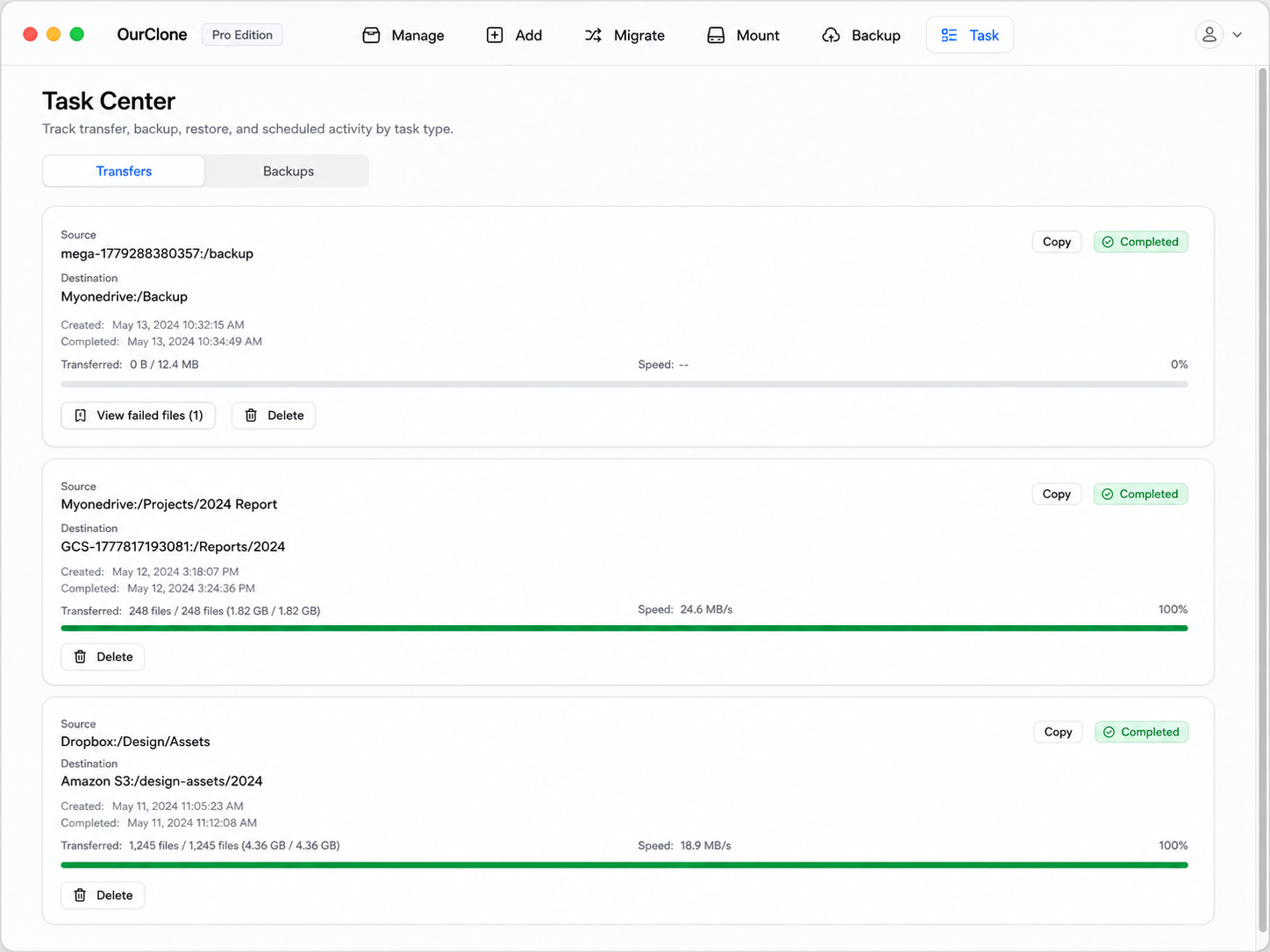
Start with Copy on one folder, open it in Proton, and only then run Move on the rest — the transfer resumes after a Google rate limit or a Proton throttle, so a big library is safe to leave running overnight.
Method 3: Transfer Google Drive to Proton Drive with rclone
Under the hood OurClone runs rclone, so anyone comfortable in Terminal can do the same job by hand — useful for scripting or for a Mac that runs unattended.
Step 1: Install rclone
brew install rclone, or download from the official downloads page.
Step 2: Configure both remotes
Run rclone config. The drive backend walks you through Google OAuth in a browser; the protondrive backend asks for your Proton username and password, and a 2FA code if enabled.
Step 3: Run the transfer
# Copy — keep Google Drive intact
rclone copy gdrive:Documents proton:Documents --progress

# Move — delete originals from Google Drive after transfer
rclone move gdrive:Documents proton:Documents --progress

# Sync — make Proton Drive mirror Google Drive (deletes extras in Proton Drive)
rclone sync gdrive:Documents proton:Documents --progress
The Google-specific flag worth knowing: --drive-export-formats docx,xlsx,pptx controls what native Docs become on the way out (that set is rclone's default, so you can omit it). A cautious first command looks like rclone copy gdrive:"Scans" proton:Archive/Scans --progress --dry-run.
Caveats
- ⚠️
syncandmovedelete files — check the direction and run with--dry-runfirst. - ⚠️ Google's API returns rate-limit errors on heavy bursts; rclone backs off and retries, but the terminal will look alarming.
- ⚠️ Terminal-only progress, and both credentials configured by hand — the parts OurClone takes care of for you.
Things That Catch People Out on This Pair
Google Drive is unusual among cloud storage services in that some of its "files" aren't files at all, and that's the source of most surprises here.
- 📝 Native Google Docs, Sheets, and Slides — These exist only inside Google. rclone (and therefore OurClone) exports them on the way out as .docx, .xlsx, and .pptx by default, so what lands in Proton Drive is an Office file, not a live document. Comments and revision history don't come with it. Anything you still co-edit should stay in Drive.
- 🐢 Proton is the bottleneck — Every file is encrypted client-side before upload and Proton throttles bursts, so a library that Google served up in minutes can take hours to land. Normal; let it run.
- ⏳ Google rate limits — Drive's API pushes back on aggressive parallel reads. OurClone slows down and retries automatically; the manual route just fails silently on big zips.
- 🔁 Shortcuts and "Shared with me" — rclone resolves Drive shortcuts by default, so the file a shortcut points to is copied to Proton as a real file (expect a duplicate if the target also lives elsewhere in your tree). Files under "Shared with me" aren't part of your My Drive tree and don't appear in the source listing; make a copy in Drive first if you need them.
- 🧮 Duplicate names — Google allows two files with the identical name in one folder; Proton (like any filesystem) doesn't. The Task panel flags the loser — rename it in Drive and re-run Copy.
Quick Answers
Will this delete my Google Drive files?
Only with Move. Copy leaves Google Drive fully intact, and Sync only removes extra files in Proton Drive, never in Google Drive.
Do my Google Photos come across?
Not through Drive — Photos has been a separate product since 2019. Export them with Google Takeout to a local folder, then use OurClone's Migrate page with that folder as the source and Proton Drive as the target.
Is the transfer itself encrypted?
Google to your Mac and your Mac to Proton both run over TLS, and Proton additionally encrypts each file client-side before storing it. Nothing is staged on a third-party server at any point.
What about the other direction, or other clouds?
Swapping source and target on the Migrate page runs the reverse. Leaving Dropbox instead? See transferring Dropbox to Proton Drive; coming from MEGA, this guide. And once you're settled, mount Proton Drive in Finder to work with it like a local folder.