🔍 Why Sync Google Drive to OneDrive Locally?
Many users have both Google and Microsoft accounts and prefer to consolidate or back up their files across platforms. Syncing via your local computer offers full control, avoids third-party server involvement, and lets you verify the result yourself.
What this guide is — and isn't. It moves files between the two storage services, in either direction: Google Drive → OneDrive and OneDrive → Google Drive. If you were looking for OneNote, Gmail or Google Sheets integrations with OneDrive, that is an app setting inside Microsoft 365 or Google Workspace, not a file transfer, and OurClone doesn't do it. If you want a one-time move rather than an ongoing mirror, use Copy or Move below and ignore Sync.
Quick answer: The safest way to sync Google Drive folders to OneDrive with OurClone is to connect both accounts through OAuth, open the Migrate tab, select Google Drive as the source, select OneDrive as the destination, then choose Copy, Move, or Sync. Use Copy for a one-time backup, Move when you are leaving Google Drive, and Sync only when you want both folders to stay aligned over time.
⚙️ Method Overview
- Install OurClone (recommended for privacy and control)
- Add Google Drive with browser authorization
- Add OneDrive with Microsoft browser authorization
- Use the Migrate tab to choose source, destination, and transfer mode
💡 What is OurClone?
OurClone is a free desktop software for cloud-to-cloud and local-to-cloud data sync. It runs transfers on your own machine and only uses your bandwidth—no cloud relay server in the middle. It is useful for anyone who wants more control than a browser import tool, especially when moving work folders, project archives, or mixed Google and Microsoft files.
✅ Before You Start
Watch the transfer run end to end — or keep reading for all the modes.
- Make sure both Google Drive and OneDrive have enough storage for the folders you plan to move.
- Decide whether you need a one-time copy or a recurring sync. A recurring sync can mirror deletions if configured that way.
- Check shared folders carefully. Files owned by another Google account may have different permissions than files you own.
- Start with a small folder such as
/Documents/TestSyncbefore running a large migration. - Keep your Mac or Windows computer awake during the first large transfer so the local job can finish cleanly.
🛠 Step-by-Step Setup
1. Install OurClone
Download and install OurClone for your operating system (macOS or Windows) from the official download page.
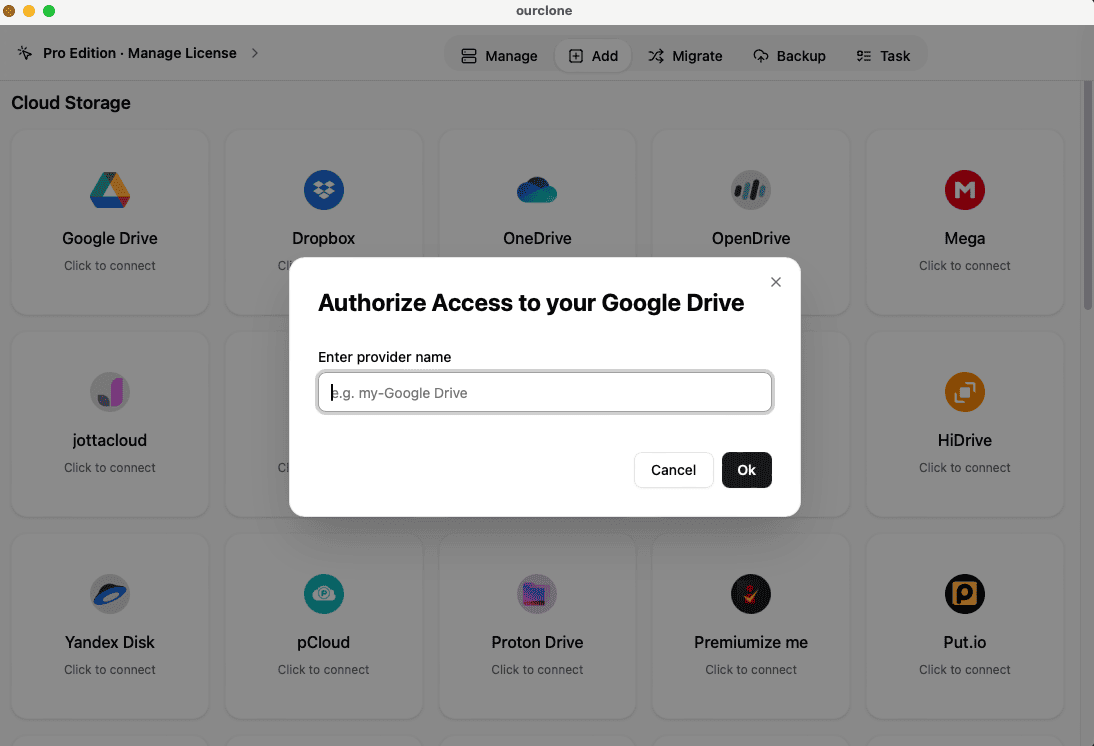
2. Connect Google Drive
- Open OurClone
- Click Add Cloud → Select Google Drive
- Authenticate using your Google account and authorize access
3. Connect OneDrive
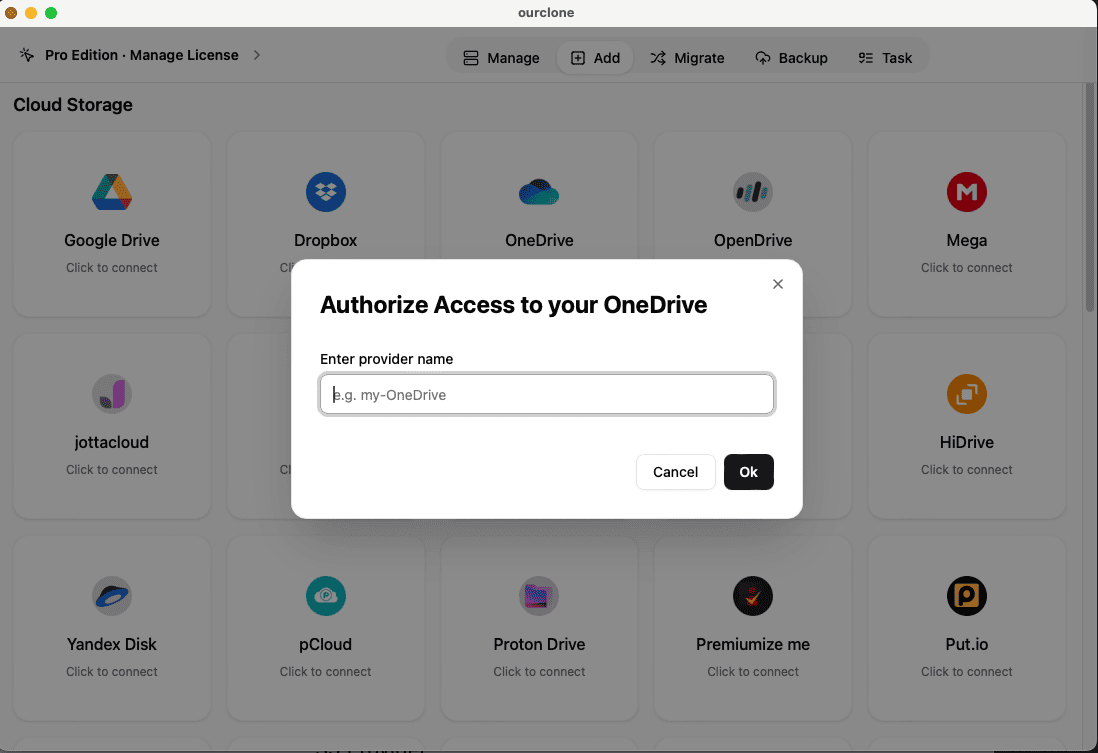
- Repeat the same steps to add Microsoft OneDrive
- Login and authorize access to your OneDrive files
4. Create a Migrate Task
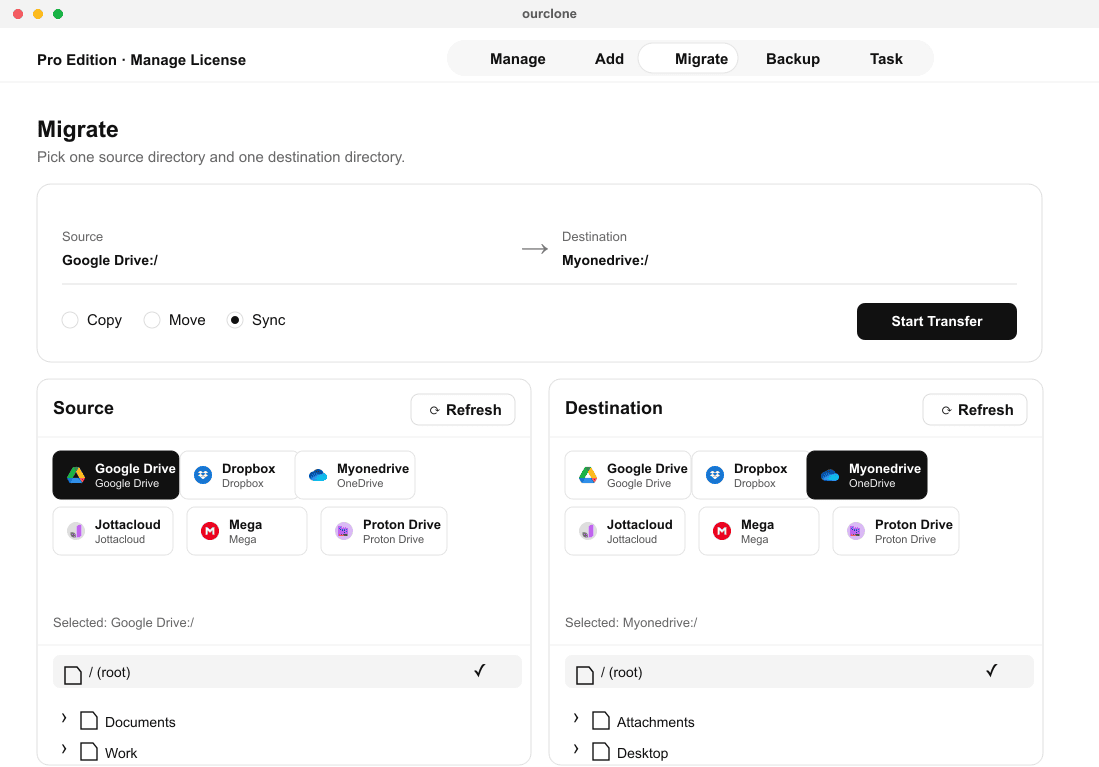
- Go to Migrate in the sidebar
- Set your source path to your Google Drive folder
- Set the target path to your OneDrive folder
- Choose options like
syncorcopy, delete extra files if desired - Click Start to begin the sync
🔁 Going the Other Way: OneDrive → Google Drive
Same tool, swapped roles. On the Migrate tab pick OneDrive as the source and Google Drive as the destination, then choose Copy, Move or Sync exactly as above. Three things are specific to this direction:
- 📄 Office files stay Office files. A .docx from OneDrive lands in Google Drive as a .docx; nothing becomes a Google Doc unless you open it in Docs and save a copy. Plain Office files always counted against Drive's 15 GB, and native Docs files have too since June 2021.
- 🔗 Shortcuts and "Shared with me" don't travel. OneDrive shortcuts to folders someone shared with you aren't part of your own drive, so they aren't copied — copy from the shared location directly or ask the owner.
- ⏳ Microsoft Graph throttles bulk reads. A large pull from OneDrive slows down rather than fails; OurClone retries with backoff, so leave the Task panel running.
From a terminal the reverse is one swap of arguments: rclone copy onedrive:Documents gdrive:FromOneDrive --progress.
🔐 Security Benefits
Unlike web-based sync services, OurClone runs the job on your own computer, talking to Google's and Microsoft's official APIs over TLS. Your files never touch a third-party server. A Migrate task is a plain copy: files land in OneDrive exactly as they were in Google Drive. If you want an encrypted copy instead, that is a separate workflow -- point a password-protected Backup repository at OneDrive, or transfer into an Encrypted Remote (Pro).
📌 Additional Features
| Mode | Best For | What to Watch |
|---|---|---|
| Copy | Creating a OneDrive backup of selected Google Drive folders. | Files remain in Google Drive, so this is the safest first run. |
| Move | Leaving Google Drive and freeing up source storage after transfer. | Run a small test first because source files are removed after a successful move. |
| Sync | Keeping a Google Drive folder and OneDrive folder aligned over time. | Deletion rules matter. Confirm whether you want removed files mirrored to the other side. |
- 🕒 Save a transfer as a scheduled job — one-time, weekly, or monthly (Pro)
- 🧩 Choose Copy, Move, or Sync per task and pick any source and target folder
- 📁 Cloud-to-cloud, local-to-cloud, or cloud-to-local -- the same workflow
- 🔔 Task history, progress monitoring, and logs
🧯 Troubleshooting Google Drive to OneDrive Sync
Reconnect Google Drive or OneDrive from OurClone's Add Storage flow if a task starts failing after a password change or account security update.
Check your Microsoft storage before a large copy. OneDrive may reject uploads even if Google Drive still has plenty of space.
Native Google Docs, Sheets, and Slides are not the same as ordinary files. Export them when you need editable Office copies in OneDrive.
Open the Task log and look for permission errors, long paths, unsupported characters, or temporary network failures.
📣 Final Tips
Make sure your Google and Microsoft accounts have sufficient storage quota before syncing. For large datasets, you can upgrade to OurClone Pro for enhanced support and parallel processing.
❓ FAQ
Can I sync Google Drive to OneDrive without downloading everything manually?
Yes. OurClone connects to both cloud accounts and runs the transfer through its desktop app, so you do not need to manually download a ZIP from Google Drive and upload it to OneDrive.
Is this a one-way transfer or a two-way sync?
All three modes run in one direction. Choose Copy for a one-way transfer, Move for migration, or Sync to make the OneDrive folder mirror the Google Drive source — extras on the OneDrive side are removed, while Google Drive itself is never touched.
Does OurClone store my files on its own servers?
No. The transfer runs locally on your computer. Your files move between your connected accounts using your machine and your network connection.
Should I use Sync for everything?
Not always. Sync is powerful, but it can also mirror deletions or unwanted changes depending on your settings. For the first run, Copy is usually safer.
📥 Download & Try OurClone
Get started with the free version of OurClone today: https://www.ourclone.app/download