Every Photo Says It Was Taken on Export Day
Open an unzipped Google Takeout export in Finder or File Explorer and sort by date: a photo from 2019 sits next to one from last week, both dated the day Google built the archive. Next to almost every photo there is a file with the same name ending in .json.
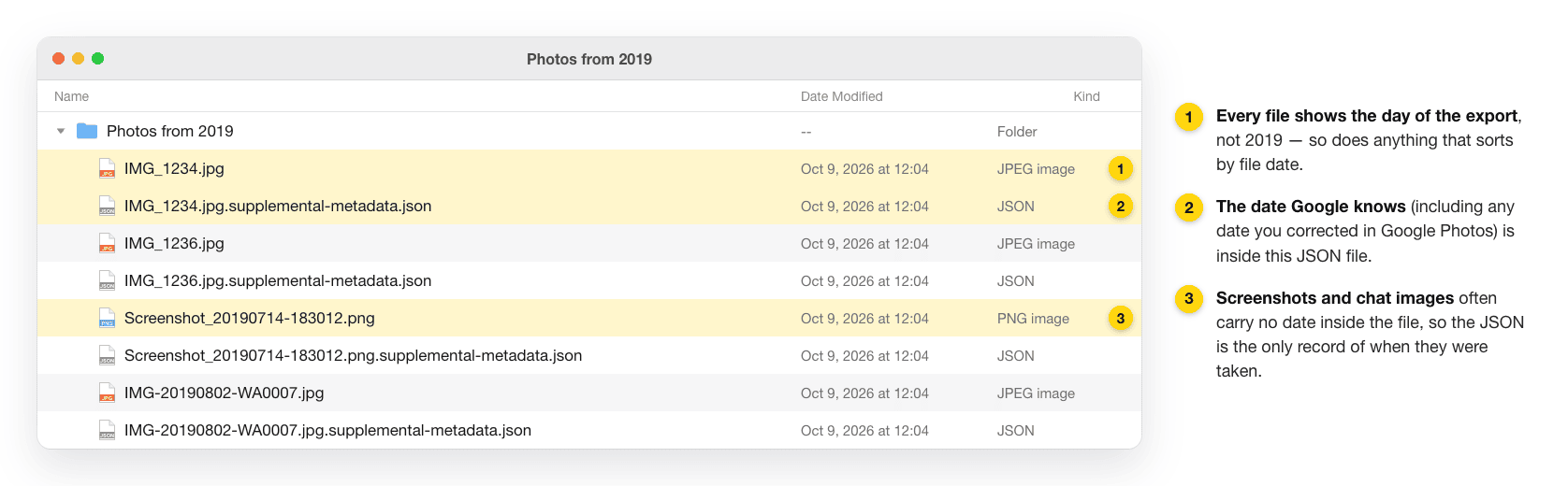
A diagram with example file names and dates; your export's names and dates will differ.
Google's own help page on downloading your data describes this split: your operating system may give a downloaded file a new timestamp, while the original time stays in the metadata embedded in the file, and extra information such as comments goes into a secondary JSON file. So there are two dates to care about — the date inside the photo, and the file's own date that most folder views and many cloud drives sort by.
Which Photos Really Lose Their Date
- 📷 Photos straight from a camera or phone — These carry their capture time inside the file (EXIF). Apps that read EXIF, such as Apple Photos, Lightroom or digiKam, show the right date. Only things that sort by file date get it wrong.
- 📱 Screenshots and chat images — Screenshots and images saved from apps like WhatsApp often have no date inside the file at all. For them, the JSON is the only record of when they were taken.
- ✏️ Dates and places you corrected in Google Photos — Users who have taken exports apart report that these edits exist only in the JSON; the photo file keeps whatever the camera wrote.
- 🖌️ Edited copies — A photo you edited in Google Photos usually arrives twice, as
IMG_1234.jpgandIMG_1234-edited.jpg, and the edited copy normally has no JSON of its own. The suffix is translated into your account's language (-bearbeitet,-modifiéand so on).
What's Inside the JSON File
Google doesn't publish a format for these files, but exports look consistent. Here is a trimmed example; the values are made up:
{
  "title": "Screenshot_20190714-183012.png",
  "description": "",
  "creationTime": { "timestamp": "1563283212", "formatted": "Jul 16, 2019, 1:20:12 PM UTC" },
  "photoTakenTime": { "timestamp": "1563129012", "formatted": "Jul 14, 2019, 6:30:12 PM UTC" },
  "geoData": { "latitude": 0.0, "longitude": 0.0, "altitude": 0.0 },
  "geoDataExif": { "latitude": 0.0, "longitude": 0.0, "altitude": 0.0 },
  "favorited": true
}photoTakenTime— The capture time Google shows in Photos, as Unix seconds in UTC. This is the field every fix uses.creationTime— Commonly read as when the item was added to Google Photos. It is not the capture date.geoData/geoDataExif— Location. Zeros mean "no location"; a tool that writes them as GPS coordinates puts the photo at 0°, 0° in the Gulf of Guinea.title— The full original file name, even when the file names in the export are shortened.descriptionandfavorited— Your caption and the star, which no photo file holds.
Why a Simple Script Misses Files
"Read photo.jpg.json, write its date into photo.jpg" works for most of an export and quietly fails on the rest. Projects that parse Takeout exports document these naming patterns:
| Photo | Its JSON | Why it trips scripts up |
|---|---|---|
IMG_1234.jpg | IMG_1234.jpg.json | The classic pattern, found in older exports |
IMG_1234.jpg | IMG_1234.jpg.supplemental-metadata.json | The naming in exports since late 2024 |
PXL_20240817_202602411.mp4 | PXL_20240817_202602411.mp4.supplemental-metada.json | Sidecar names are cut at 51 characters, chopping the suffix or even the photo's name |
IMG_3479(1).jpg | IMG_3479.jpg.supplemental-metadata(1).json | The duplicate number moves to the end of the JSON name |
IMG_1234-edited.jpg | (none, shares IMG_1234.jpg's) | Edited copies have no JSON of their own |
Two more catches: on a large export, a photo and its JSON can land in different .zip parts, so unzip every part into one parent folder before running anything; and album folders hold second copies of photos already in the Photos from … year folders. When a tool can't find a photo's JSON, it falls back to a guess, which is how people end up with photos dated 1970 or decades in the future.
Four Ways to Get the Dates Back
1. Skip the files: Apple's direct transfer (iCloud Photos only)
If iCloud Photos is the destination, Takeout can send a copy straight there with no download. Apple's article lists file name, description, file type and location among what's transferred, but doesn't mention capture dates or albums; everything lands in an album called "Import from Google". It isn't available with Advanced Data Protection turned on, and Live Photos and Motion Photos aren't transferred.
2. Write the dates into the files with exiftool
ExifTool can read the JSON as a tag source. A pattern shared in the community for the classic naming:
exiftool -r -d %s -tagsfromfile "%d/%F.json" \
  "-DateTimeOriginal<PhotoTakenTimeTimestamp" \
--ext json -overwrite_original -progress ~/Takeout- For newer exports, use
%d/%F.supplemental-metadata.jsoninstead; neither version catches truncated or numbered names, so expect a second pass for those. -d %sconverts the UTC timestamp using your computer's time zone, so photos taken while travelling get your home time.- To make the file dates match afterwards:
exiftool "-FileModifyDate<DateTimeOriginal" -r ~/Takeout. - It rewrites your files in place. Work on a copy.
3. Let Google Photos Takeout Helper do the matching
The open-source Google Photos Takeout Helper (GPTH) was built for exactly this. The original project's last release was in 2023; the actively developed continuation is GooglePhotosTakeoutHelper_Neo, with builds for Windows, macOS and Linux. Its README says it handles the newer and truncated JSON names, writes dates, GPS and captions into the files (using ExifTool for formats other than JPEG), and offers several ways to deal with album duplicates. Note that it moves files by default, so point it at a copy.
4. Use a tool that reads the JSON while it copies: OurClone
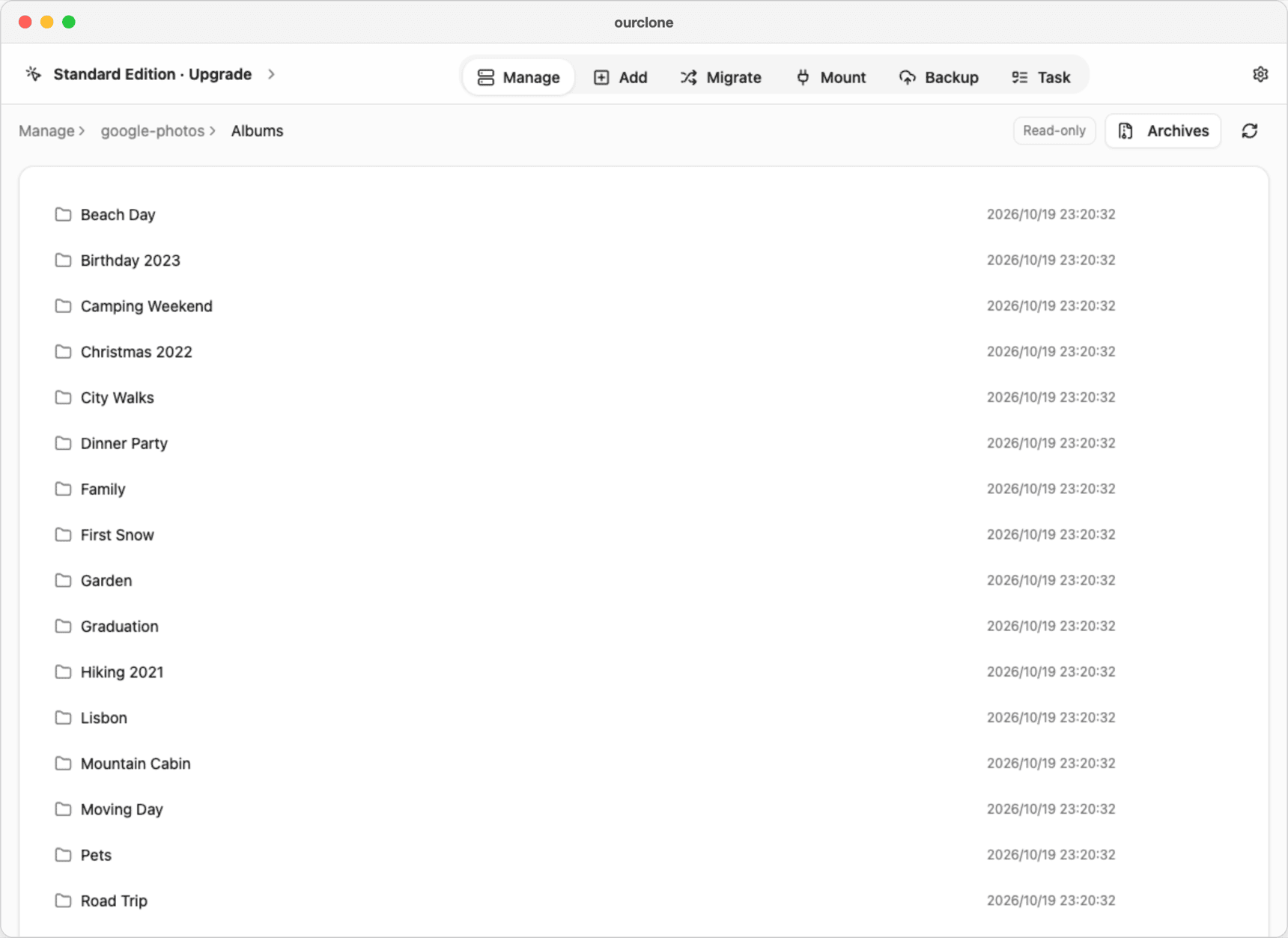
OurClone (v1.5.0 and later, Mac and Windows) opens the Takeout .zip files as a read-only storage called Google Photos (Takeout), without unzipping them. It pairs every photo with its JSON — classic and supplemental names, truncated names, numbered duplicates and edited copies included — and presents the library once, in Library/<year> folders by capture year. From there:
- ☁️ Copy to a cloud drive or local folder — Each file's modification time is set to
photoTakenTime, on any destination that keeps modification times. The photo files are copied byte for byte: OurClone does not write EXIF. Guides: to pCloud, to Proton Drive. - 🍎 Import into the Photos app (macOS) — Capture time, location and favorites are set on each photo in your library, Google albums are rebuilt and Live Photos are paired. With iCloud Photos on, macOS then uploads them. Guide: Move Google Photos to iCloud.
If what you need is the date written into the photo files themselves — say, for an app that ignores file dates — use exiftool or GPTH instead. Captions aren't carried over by OurClone either way.
Side by side
| Apple transfer | exiftool | GPTH Neo | OurClone | |
|---|---|---|---|---|
| Writes the date into the photo file | — | Yes | Yes | No |
| Sets the file's date | — | With a second command | Yes | Yes, when copying |
| Copes with new and truncated JSON names | — | Only with extra passes | Yes, per its README | Yes |
| Needs the export unzipped | No download at all | Yes | See its README | No |
| Destination | iCloud Photos | The files in place | An output folder | Any connected cloud, a local folder, or Photos on a Mac |
| Interface | Web | Command line | Command line | Desktop app |
How to Tell Whether a Photo's Date Is Fixed
- 🗂️ The file date — Finder's Date Modified column, or Date modified in File Explorer. This is what most cloud drives and folder views sort by.
- 🔎 The date inside the file — On a Mac, open the photo in Preview and choose Tools → Show Inspector, then the EXIF tab. On Windows, right-click → Properties → Details and look at Date taken.
- 🧪 Test with a screenshot — Screenshots have no date inside, so they show quickly whether the JSON date made it across.
Questions People Ask
Can I delete the JSON files?
Once their dates and locations are where you want them, yes. Keeping the original .zip files somewhere safe is the easiest insurance: they hold every photo and its JSON untouched.
Why are some of my photos dated 1970?
1970 is time zero for Unix timestamps. It usually means a tool couldn't find the right JSON for that photo, often because of a truncated or numbered name, and wrote an empty date.
Does choosing .tgz instead of .zip change anything?
Not the dates. It matters for tools, though: OurClone only reads .zip exports, and Google notes that .tgz may need extra software on Windows.
Will Google's export ever include the dates in the files?
Google hasn't said. Plan around the JSON files, since that is how exports have worked for years.