Proton's Import Fills the Timeline, OurClone Fills a Folder
Proton Drive has two places a photo can live. The Photos section is a timeline with albums, filled by Proton's photo uploads and its Google Photos import. My files is ordinary folder storage, and a picture copied into a folder there stays in that folder; it doesn't appear in the Photos timeline. Which place you want decides which route fits.
- 🖼️ You want to scroll your photos in Proton Photos — Use Proton's own import (Method 1). It is the only way into the timeline from a Takeout export.
- 🗄️ You want the whole library archived in Proton Drive — Use OurClone (Method 2). It copies straight from the downloaded .zip files into a folder you choose, so you never need room for an unzipped copy.
Both start from the same thing: a Google Takeout export of Google Photos. Neither route touches your Google account, so you can try one and still use the other.
The Hidden Cost of Unzipping: Disk Space
Takeout delivers a large library as numbered .zip parts, anywhere from 1 GB to 50 GB each depending on the size you picked. Proton's import reads folders, not .zip files, so its instructions start with unzipping every part. While you do that, your computer holds the archives and the extracted copy.
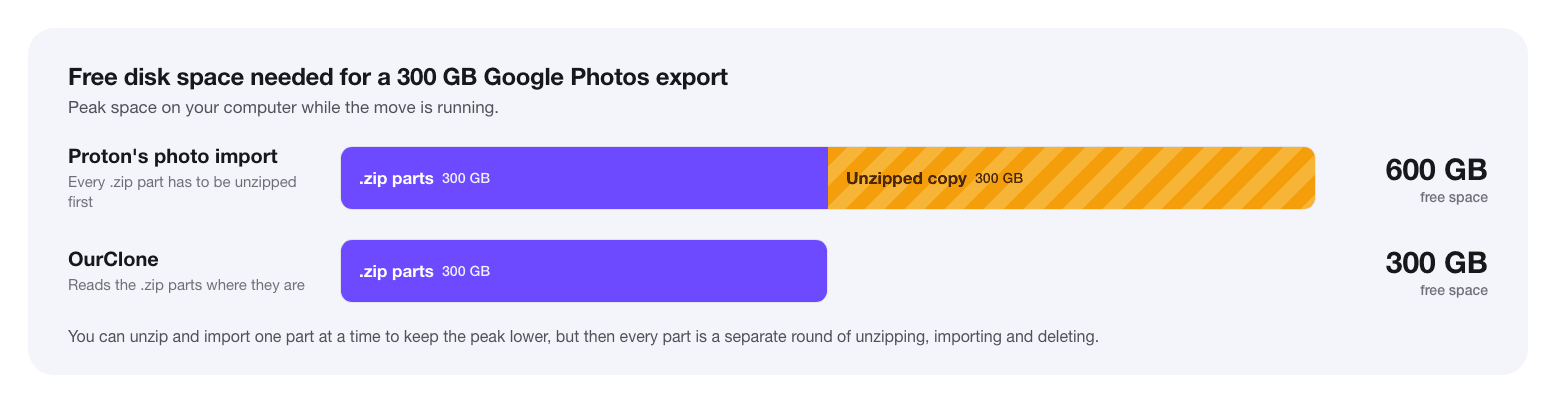
On a laptop with a 512 GB drive, that difference decides whether the move happens at all. Working one part at a time keeps the peak lower, but every part then becomes its own round of unzipping, importing and deleting.
The Two Routes Side by Side
| Proton's Google Photos import | OurClone | |
|---|---|---|
| Where the photos end up | Proton Photos (timeline; albums with the Windows app) | A folder in My files, sorted into year folders |
| Unzip first | Yes, every part | No, the .zip parts are read in place |
| Free disk space during the move | .zip parts plus the unzipped copy | .zip parts only |
| On a Mac | Web app (drag the unzipped folders in); the desktop import is documented for Windows | Mac and Windows apps |
| Google albums | Windows app creates albums from the folders | Optional: copy album folders as well (they hold second copies) |
| Capture dates from Google's JSON | Not described in Proton's documentation | Used as each file's modification time; the photo files themselves are unchanged |
| Duplicates | Windows app skips duplicates | Each photo stored once; running the copy again uploads only what's missing |
Method 1: Proton's Built-in Google Photos Import
The steps below follow Proton's support article.
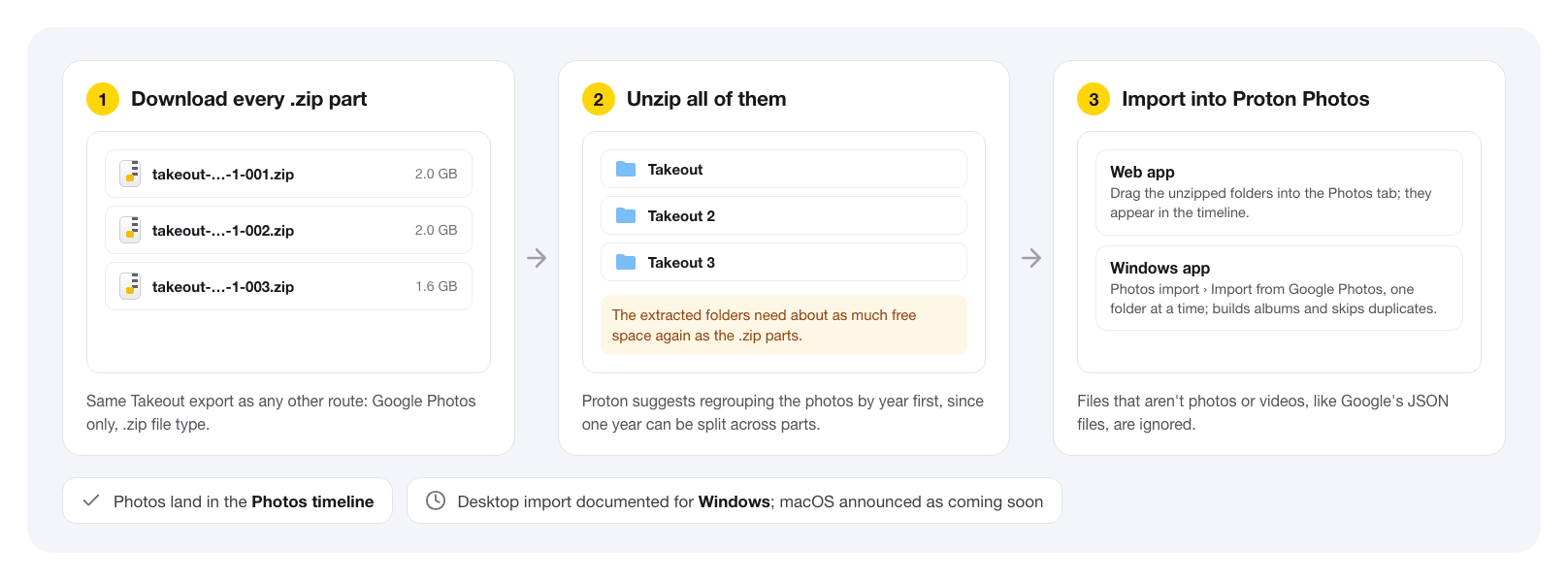
A diagram of the steps in Proton's support article; Proton's own screens look different.
- 📦 Export Google Photos — At Takeout, select only Google Photos, keep the .zip file type, create the export and download every part from the email Google sends (the links last a week).
- 🗜️ Unzip every part — Proton recommends tidying the extracted photos into year folders first, because Takeout can spread one year across several parts.
- ⬆️ Import — In the web app, drag the unzipped folders into the Photos tab and they appear in the timeline. In the Windows app, choose Import from Google Photos under Photos import and select each folder; it builds albums from the folder structure and skips files it already has. Files that aren't photos or videos, such as Google's JSON files, are ignored.
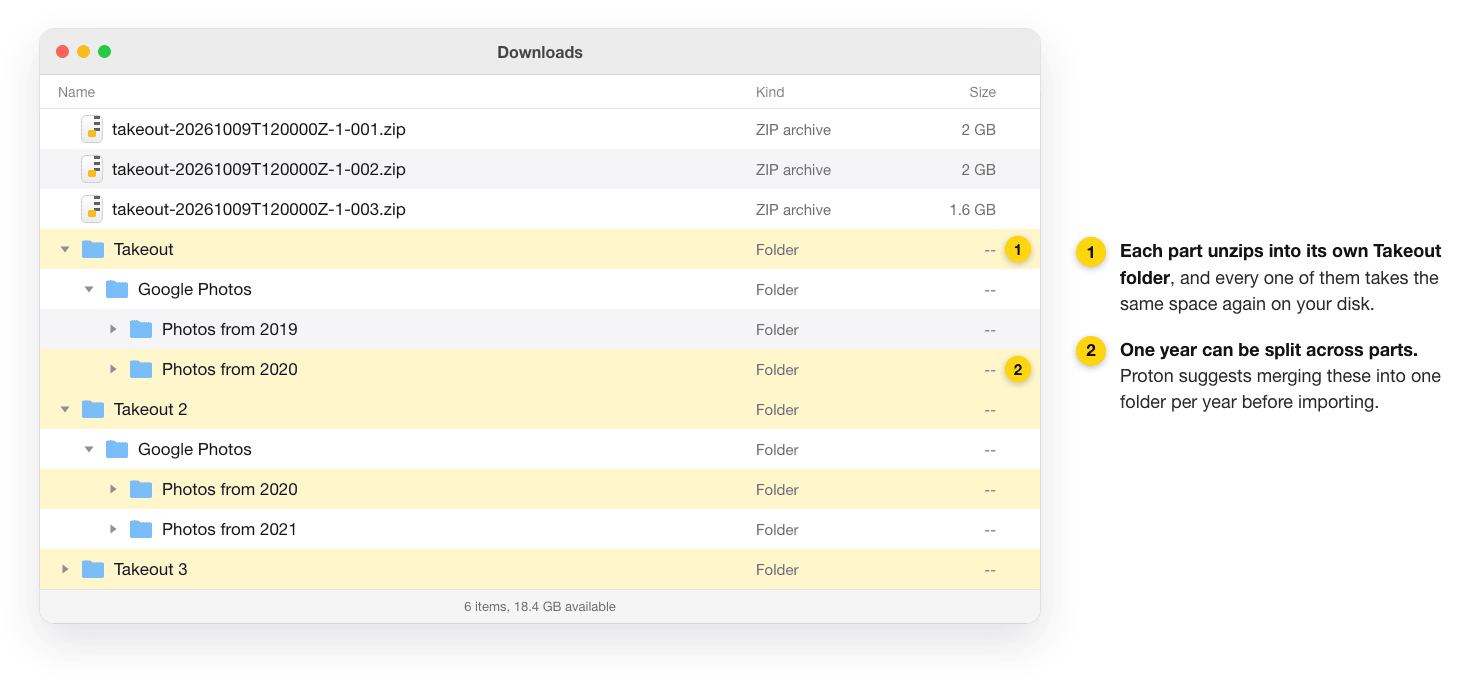
Unzipping is where it gets fiddly. Every part contains its own top-level Takeout folder, so on a Mac three parts become Takeout, Takeout 2 and Takeout 3, and the same year can turn up in more than one of them.
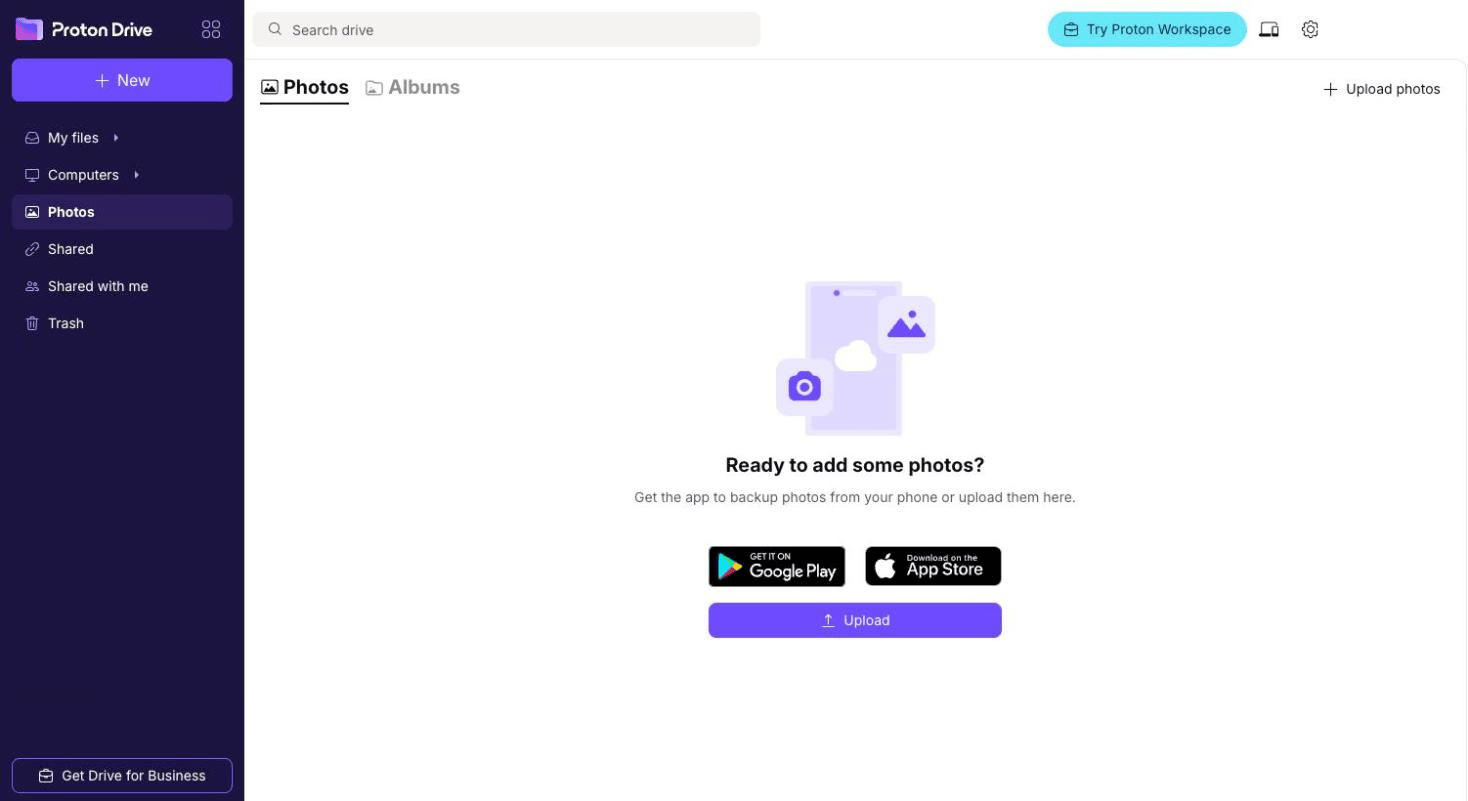
In the web app the import happens on the Photos page, not in My files: drag the unzipped folders onto it, or use Upload photos. There is no separate Google Photos button on the web; that option lives in the Windows app.
Proton's announcement listed the desktop import for macOS as coming soon, so on a Mac check whether your Proton Drive app offers it before planning around the web app.
Method 2: Copy the Takeout .zip Files to Proton Drive with OurClone
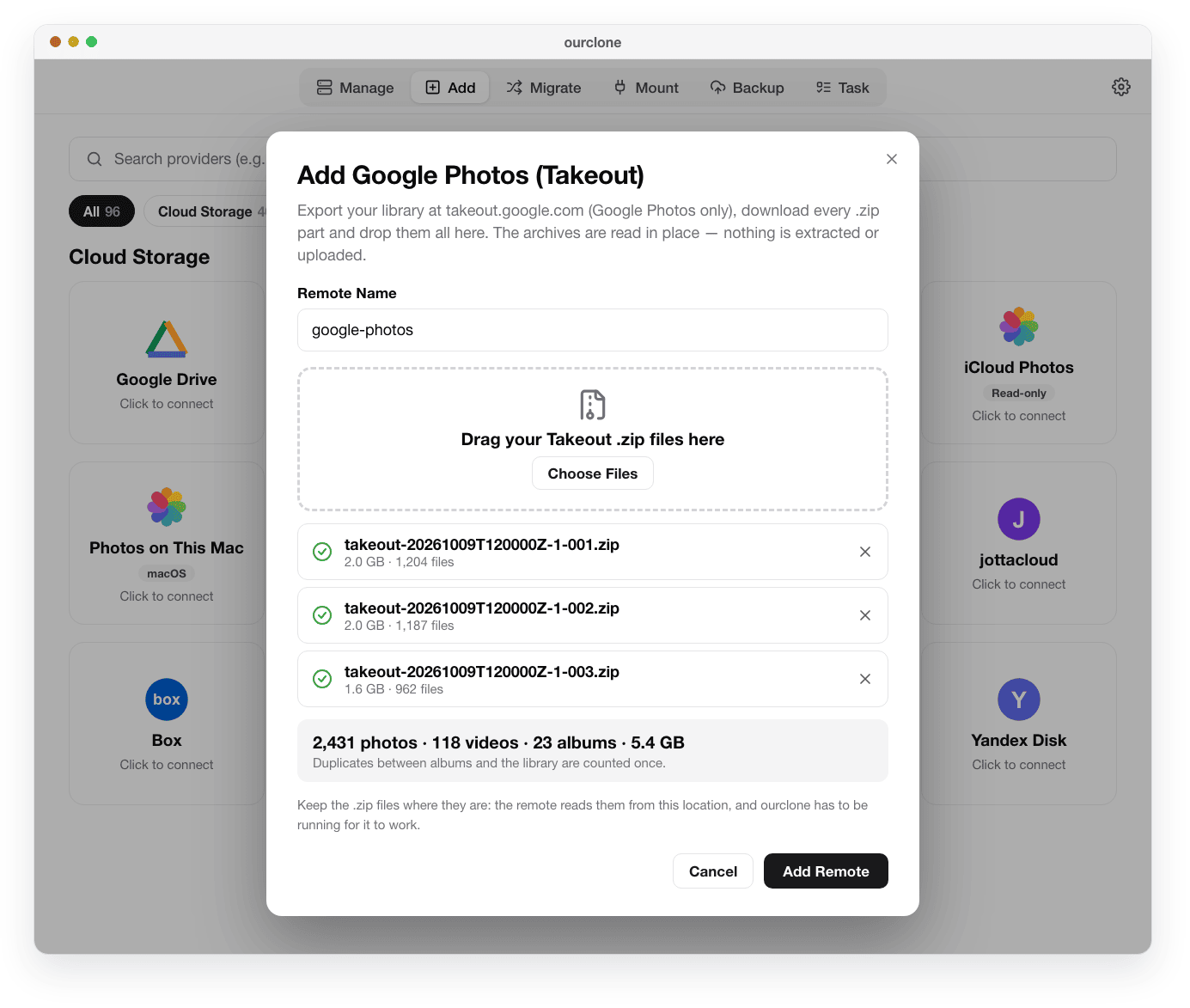
OurClone opens the export as a read-only storage called Google Photos (Takeout), reading photos out of the .zip parts as they're needed and pairing each one with its JSON file. You need OurClone v1.5.0 or later on Mac or Windows (download page). The free plan allows two storages, which is exactly what this takes: the export and Proton Drive.
- 📦 Step 1: Export Google Photos as .zip — Same as above: Takeout, Google Photos only, file type
.zip(the.tgzoption can't be read). Larger parts mean fewer downloads. Put every part in one folder you won't reorganize, because OurClone reads them from there. - 🗂️ Step 2: Add the Export — In the
Addtab choose Google Photos (Takeout) and drop all the parts into the dialog. Each archive is checked before anything is added: incomplete downloads are flagged, a missing part number is pointed out, and the total shows photos, videos and albums with duplicates counted once. Click Add Remote. - 🔐 Step 3: Connect Proton Drive — Back in
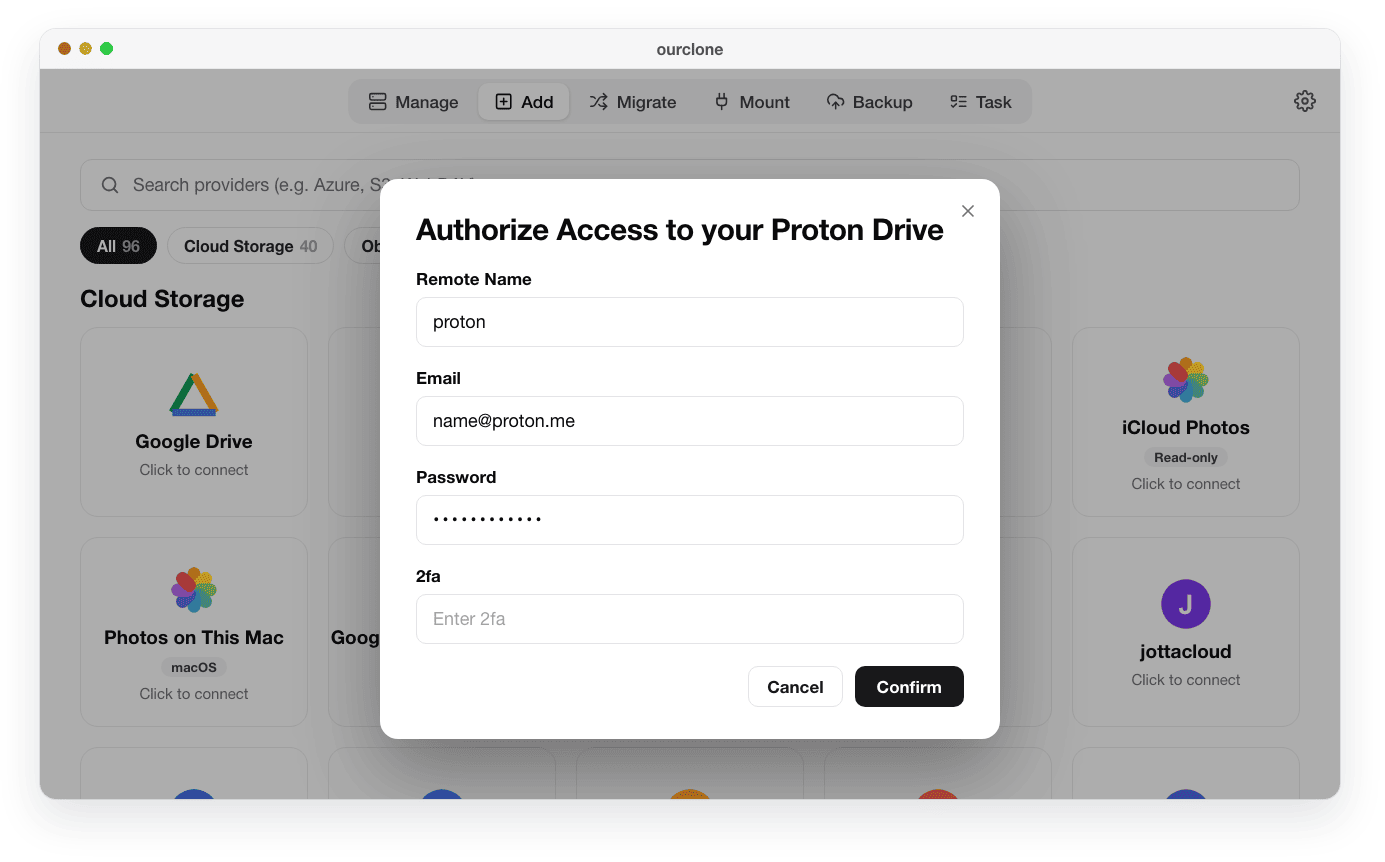
Add, pick Proton Drive and sign in with your Proton email and password. If your account uses two-factor authentication, enter the current code in the 2fa field. Click Confirm. - 🎛️ Step 4: Choose Library as the Source — Open
Migrate. On the source side pick the Takeout storage and selectLibrary: it holds every photo and video exactly once, in year folders. On the destination side pick Proton Drive and a folder (you can create one in the picker). Keep Copy selected and click Start Transfer. - 📈 Step 5: Let It Run — The
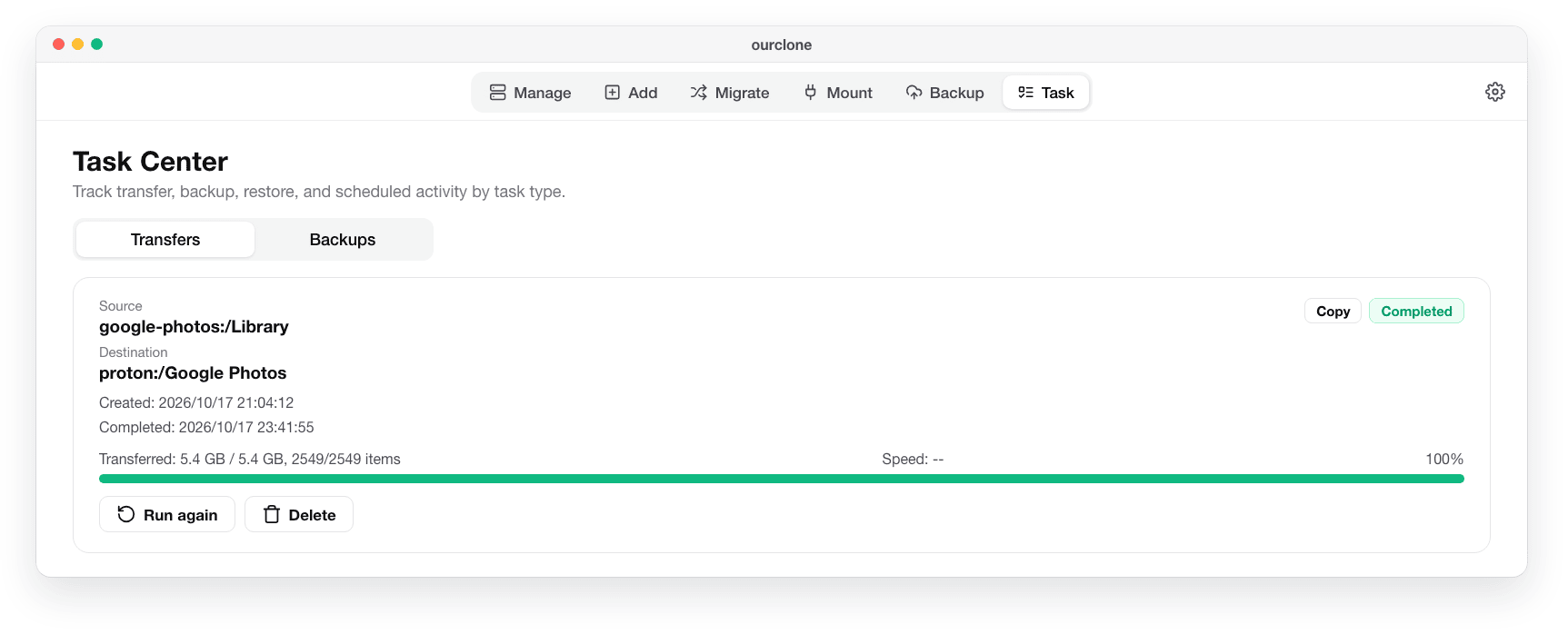
Taskpanel shows progress until the job reads Completed. Proton Drive encrypts each file on your computer before upload, so expect a large library to take hours; keep OurClone open and the computer awake. If a run stops halfway, click Run again and only the files that aren't in Proton Drive yet are uploaded.
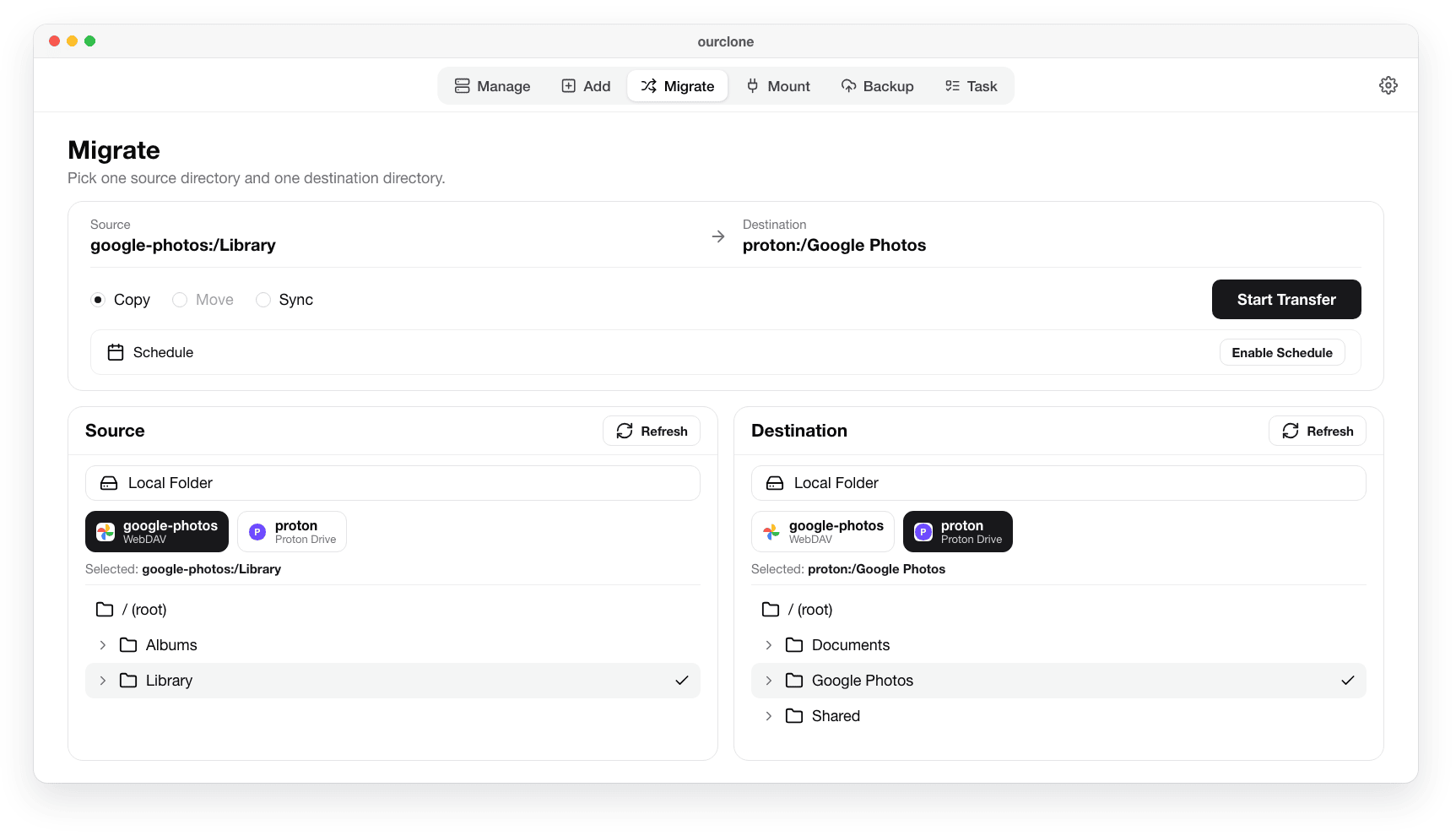
Copying the export's top level would also upload the Albums folder, where every album holds second copies of photos already in Library.
Avoid Sync for this job. Sync makes the destination match the source exactly, so anything else you later put in that Proton Drive folder would be deleted on the next run. Move isn't offered because the export is read-only.
What You'll Find in Proton Drive Afterwards
- 📅 Year folders —
2017,2018and so on, by the capture year in your time zone. Items Google had no date for are filed by Google's own year folder, or underUnknownif there is none. - 🕒 Capture time as the file date — Each file is uploaded with its modification time set to the capture time from Google's JSON, including dates you corrected in Google Photos; items without one get the export time. The photo files are copied byte for byte, so the EXIF inside them is not rewritten.
- 🧾 No JSON clutter — Google's metadata files stay behind, and photos Google marked as in the trash are left out.
- 🎞️ Every format as-is — Unlike an import into a photo app, nothing is skipped for its format: HEIC, RAW, MKV or AVI files are copied like any other file. A Live Photo arrives as its two halves, the image and the short video, side by side.
- 💬 No captions — Google's photo descriptions live in the JSON and aren't carried over.
Want your albums too? Run a second Copy with a single album under Albums as the source and its own destination folder. Each album folder stores another copy of its photos, so pick the ones that matter rather than the whole Albums folder if your Proton storage is tight.
If Something Goes Wrong
- 🤖 "Proton needs to verify you're human" — Proton sometimes asks for a CAPTCHA when a new app signs in. That's not a wrong password. Sign in to Proton once in your browser, come back and click Confirm again, and don't retry over and over, because Proton then blocks sign-ins for longer.
- 🐢 Uploads are slow — Encryption on your computer plus Proton's upload pace make this slower than copying to a plain cloud. OurClone connects through rclone's Proton Drive backend, which rclone itself still labels beta; start with one year folder to see the speed you get.
- 💾 Proton storage fills up — Uploads start failing once the account is full, and the Task panel lists the files that didn't make it. Free up space or upgrade, then click Run again; files already uploaded are skipped.
- 🧩 A part is missing — Download it, add it from the Takeout storage's Archives button in Manage, and run the copy again.
- 📁 The .zip files were moved — The storage reads them from where they were when you added them. Move them back, or remove the storage and add it again from the new location.
Quick Answers
Will these photos show up in Proton Photos?
No. They're files in a My files folder. If you want them in the timeline, use Proton's import for that part of the library.
Do I need to keep the .zip files after the copy?
Only until you've checked the result in Proton Drive. After that you can delete them, or keep them as an offline copy. The Takeout storage in OurClone stops working once they're gone.
Can I send the same export somewhere else as well?
Yes. The Takeout storage works as a source for any storage OurClone connects to, such as pCloud, a NAS over SFTP or SMB, or an external drive. On a Mac it can also import into the Photos app with albums and Live Photos restored.
Does OurClone see my Google password or my Proton files?
It never signs in to Google; it only reads the .zip files you downloaded. Your Proton sign-in is used on your computer to reach your own Drive, and the copy runs from your computer straight to Proton.