Why a WebDAV Server Is a Solid Backup Target for Mac
WebDAV is the quiet workhorse of self-hosted storage. If you run NextCloud, ownCloud, or a simple WebDAV share on a VPS, you already have a backup destination you fully control -- no new vendor, no surprise quota. OurClone wraps that server in an encrypted repository so your Mac folders are both private and recoverable.
Picture a two-person studio keeping project files on a self-hosted ownCloud: instead of trusting a consumer drive, they snapshot ~/Projects straight to their own WebDAV server every week.
- 🏠 Storage You Own -- A WebDAV server runs on hardware or a VPS you control, so retention and access rules are yours to set.
- 🔐 Encrypted Before Upload -- OurClone encrypts repository data locally, so even your own server only ever stores ciphertext.
- 🧩 Works With Many Backends -- The same flow targets NextCloud, ownCloud, or a generic WebDAV endpoint without changing how you back up.
- 💻 Any Mac Folder -- Back up
~/Documents,~/Desktop, or a deep project tree, not just one designated sync folder.
Incremental Snapshots Keep WebDAV Backups Light
Re-uploading an entire folder every time is slow, and WebDAV servers on modest home connections feel that pain quickly. Incremental snapshots fix it: after the first full snapshot, only changed data is sent.
That matters most when your WebDAV box sits behind a residential upload link. The initial backup is the heavy one; everything after stays small and quick.
- 🚀 Only changed files and blocks move after the first snapshot
- 💾 Saves space on a server where you pay for the disk
- 🔐 Plays nicely with the encrypted repository model
- 📅 Keeps multiple restore points without storing full copies
Get Your WebDAV Details Ready First
A few minutes of prep prevents a failed first backup:
- 🔗 Find the Exact WebDAV URL -- On NextCloud and ownCloud it usually looks like
https://your-server.com/remote.php/dav/files/USERNAME/. A generic server uses whatever path your admin set up. - 🔑 Create an App Password if 2FA Is On -- NextCloud and ownCloud let you generate an app password under Settings → Security; use it instead of your login password when two-factor is enabled.
- 📁 Pick the Right Folders -- Focus on files with real recovery value such as
~/Documents,~/Pictures, or a project directory; skip caches and system files. - 🔒 Confirm HTTPS and Certificates -- Prefer an
https://URL with a valid certificate so credentials aren't sent in the clear. - 🧪 Start Small -- Test with one modest folder to confirm the URL, login, and restore path before moving large archives.
Backing Up to WebDAV with OurClone, Step by Step
Once you have the server URL and credentials, the whole flow takes only a few minutes.
- 🔗 Add Your WebDAV Server -- In
Add Storage, choose WebDAV (or your specific provider), enter a custom name, then paste the WebDAV URL, username, and password or app password. Confirm to connect. - 📦 Create a Backup Repository -- Open
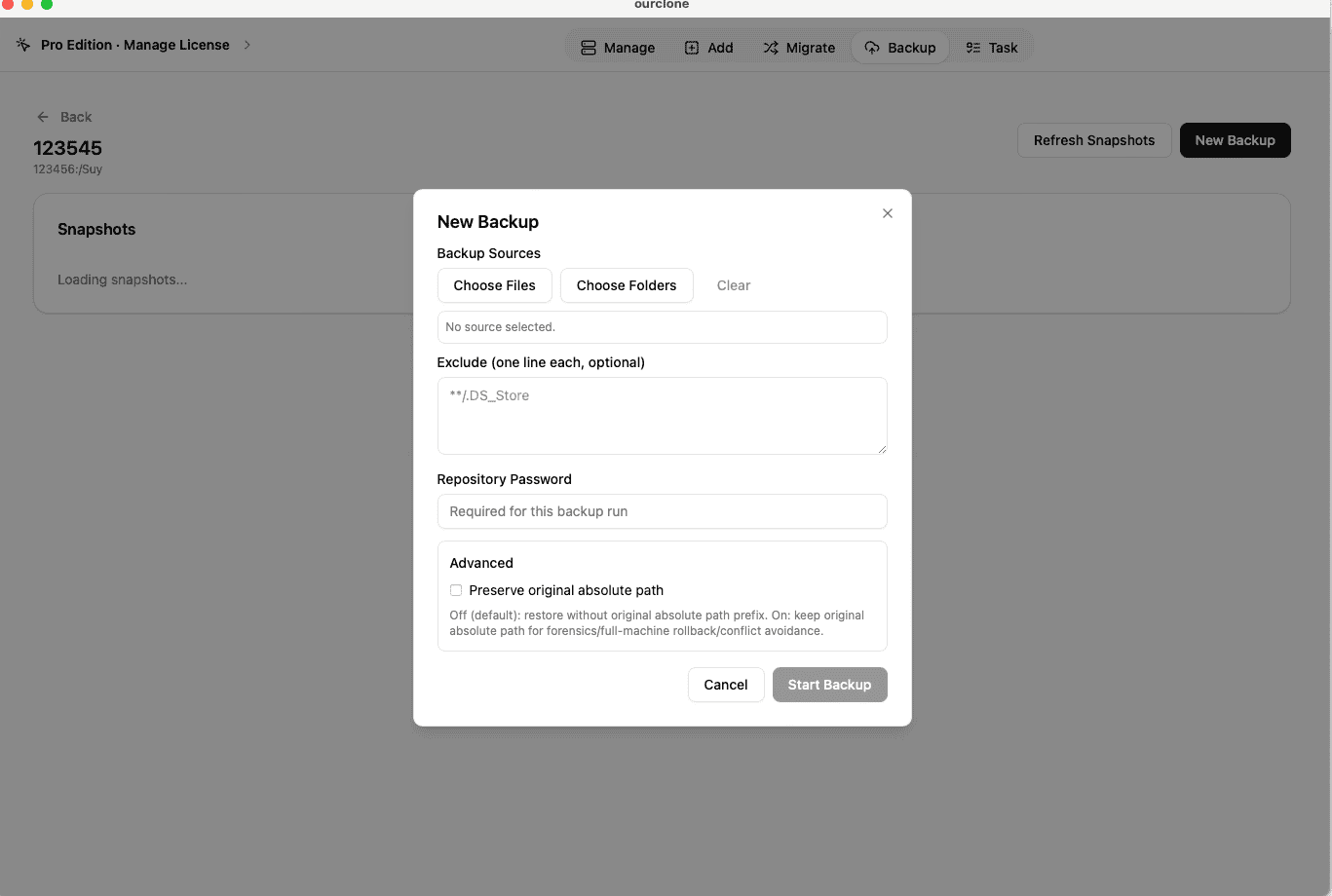
Backup, create a repository, and choose a path on the WebDAV server (for example/ourclone-backups). Name it and set a repository password -- this password encrypts the backup and is required for every restore, so store it safely. - 🗂️ Select Mac Folders and Snapshot -- Open the repository, click
New Backup, and pick local folders such as~/Documentsor~/Projects. Start the snapshot; the first run uploads everything, later runs are incremental. - 🕒 Watch the Task -- Go to
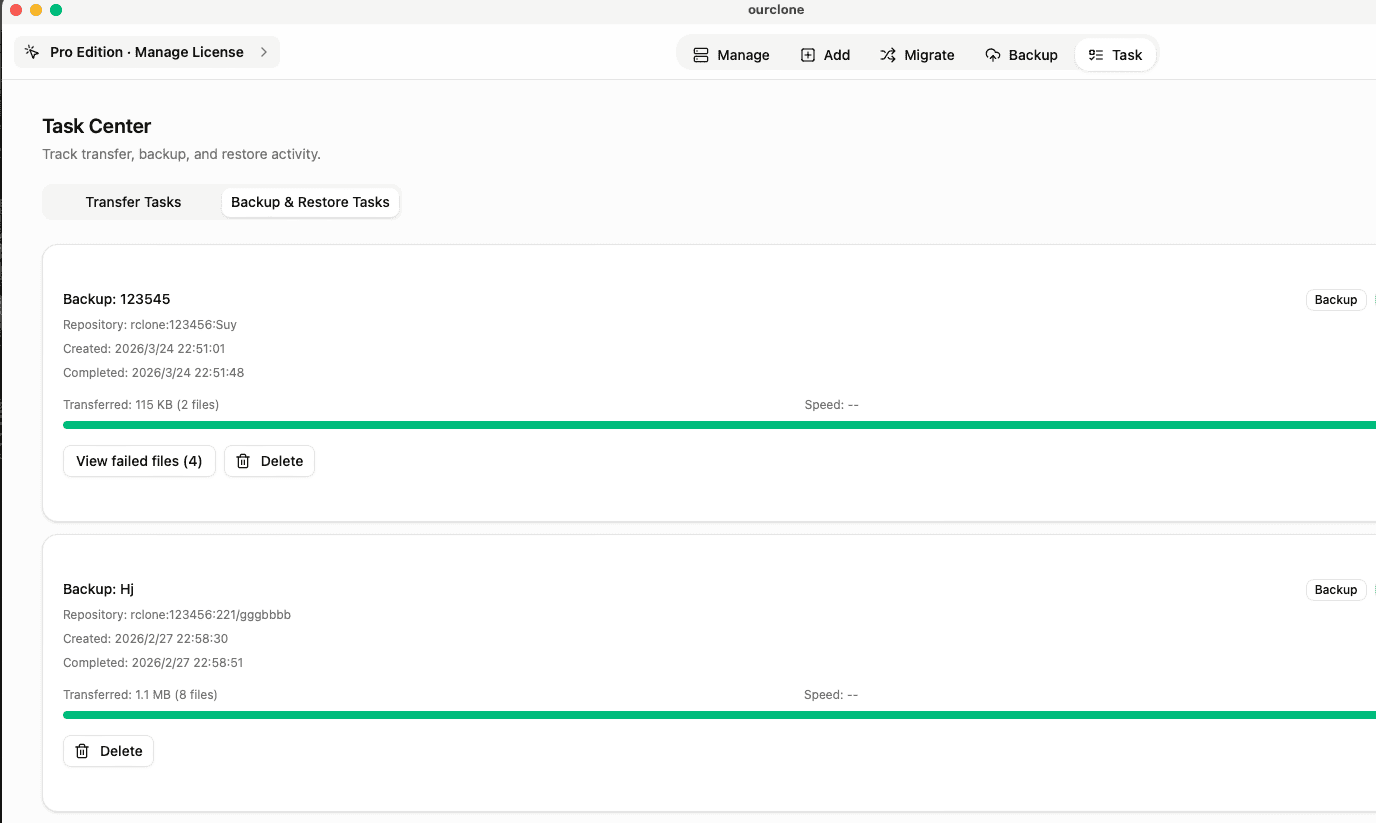
Task→Backup & Restoreto follow progress, speed, and any skipped files in real time. - 🔁 Restore When Needed -- To recover, open the repository, pick a snapshot, click
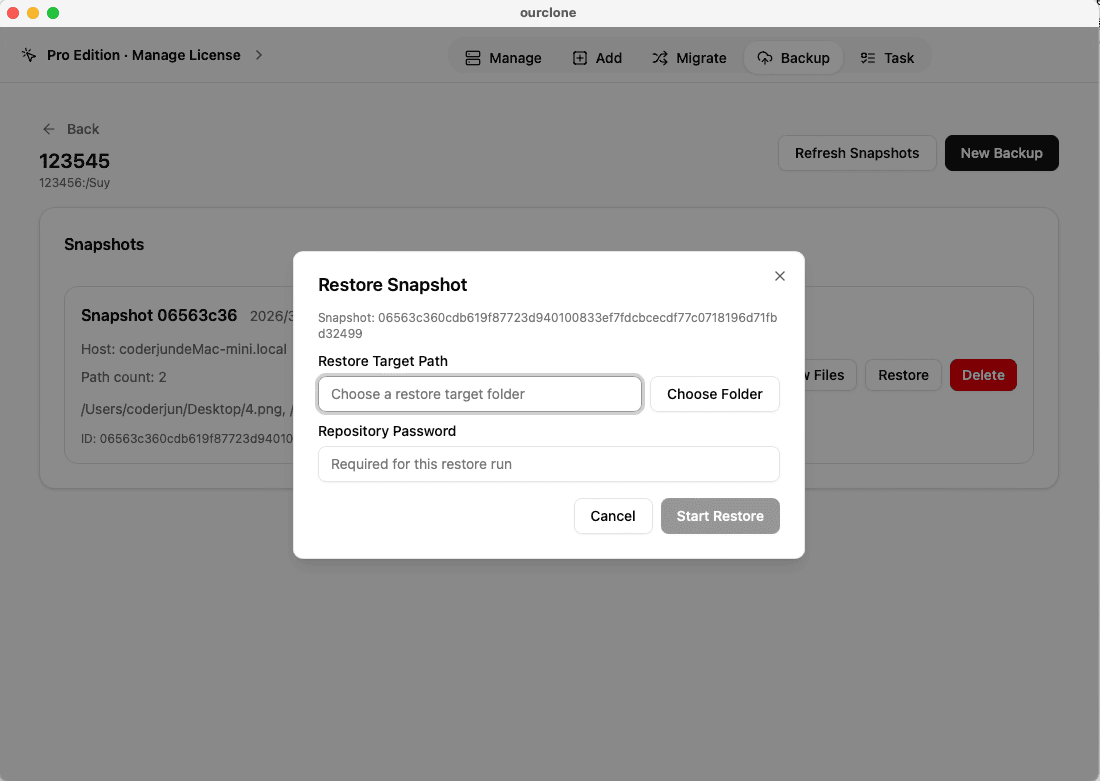
Restore, enter the repository password, and choose a local destination folder.


Verify the Backup and Keep It Healthy
Creating a backup is only half the job -- confirm it actually worked.
- 📄 Check Task Status -- Under
Task→Backup & Restore, a clean completion means the snapshot landed. Failed uploads and skipped files are flagged. - 🧩 Review Skipped Files -- Permission errors or locked files show up in the logs, so you can fix them without redoing the whole run.
- 🔐 Trust the Encryption -- Because data is encrypted before it reaches the server, your WebDAV host stores only protected blocks tied to the repository.
Watch for Server-Side Changes
WebDAV setups drift: an app password can be revoked, a certificate can expire, or the server URL can change after a migration. If a backup suddenly fails, re-check the URL and regenerate the app password before re-running.
Run a Test Restore Early
Don't wait for a real emergency. Restore a small folder from a completed snapshot to confirm both that your backups are recoverable and that you still have the repository password.