Why MEGA S4 Is a Practical Backup Target for Mac Users
If you already use MEGA S4 object storage, it can double as a serious offsite backup destination for your Mac. You get S3-compatible buckets inside an account you already manage, and OurClone adds encrypted repositories, snapshots, and a restore workflow that does not depend on a sync folder in Finder.
- 🔑 S3 Keys, Not Account Login -- MEGA S4 issues an Access Key ID and Secret Access Key, so backups never need your MEGA account password sitting in a config file.
- 🧱 Bucket-Style Layout -- You can keep one MEGA S4 bucket for work archives and another for personal media, then point a separate OurClone repository at each path. That keeps restore decisions cleaner later.
- 🔐 Two Layers of Encryption -- MEGA's platform handles its own storage-side protection, and OurClone encrypts the repository with a password you control before any bytes leave your Mac.
- 🍎 Mac-Friendly Workflow -- OurClone runs natively on macOS and treats MEGA S4 as a plain S3 backend, so you can back up
~/Documents,~/Desktop, or external project drives without juggling extra clients. - ♻️ Snapshot History You Can Walk Back Through -- Each backup run creates a new snapshot in the same MEGA S4 repository, so you can restore yesterday's version of a file even if today's copy already overwrote it locally.
Why Incremental Snapshots Matter on MEGA S4
Re-uploading the same folders to MEGA S4 every time is wasteful, especially once your project trees and photo libraries grow into tens of gigabytes. Most files do not change between backups, so pushing them again only burns time and bandwidth.
OurClone solves that by writing the first snapshot in full, then only sending changed data on the runs that follow. The repository on MEGA S4 grows mostly with the new content you actually produced, not with repeated copies of the same archive.
For object storage like MEGA S4, smaller incremental snapshots also mean fewer overnight uploads on a home connection and a more predictable storage footprint over time.
- 🚀 Cuts upload time on every run after the first snapshot
- 💾 Keeps your MEGA S4 bucket from filling up with duplicate copies
- 🔐 Each incremental snapshot still goes into the encrypted repository
- 📅 Lets you restore a folder as it looked on a specific previous run
Get the MEGA S4 Side Ready Before You Back Up
A short setup pass on the MEGA side makes the OurClone steps go smoothly and keeps your first restore from being a surprise.
- 🔑 Create a Dedicated MEGA S4 Access Key -- Generate a fresh Access Key ID and Secret Access Key for backup use only, instead of reusing a key you also use for application code or scripts. If a key ever leaks, you can rotate just the backup credential.
- 🪣 Decide on a Bucket and Path -- Pick (or create) a MEGA S4 bucket that will host your Mac backup repository, and choose a sub-path such as
/mac-backup. OurClone needs a destination path that the Access Key has permission to write to. - 📁 Pick the Right Folders -- Focus on folders with real recovery value:
~/Documents,~/Pictures, code projects, and anything on an external drive that does not already live somewhere else. Skip caches and system folders. - 📶 Plan Around Your First Upload -- The first MEGA S4 snapshot is the heavy one because every selected file is uploaded fresh. After that, incremental runs are usually small enough to ignore.
- 🧪 Start With a Small Test Folder -- Run a first backup against a folder of just a few hundred megabytes so you can verify the keys, the bucket path, and the restore workflow before you commit a multi-gigabyte archive.
Backing Up macOS Folders to MEGA S4 With OurClone
Once your MEGA S4 access keys are ready, the rest of the workflow lives inside OurClone. Five steps take you from connecting MEGA S4 all the way through to restoring a file.
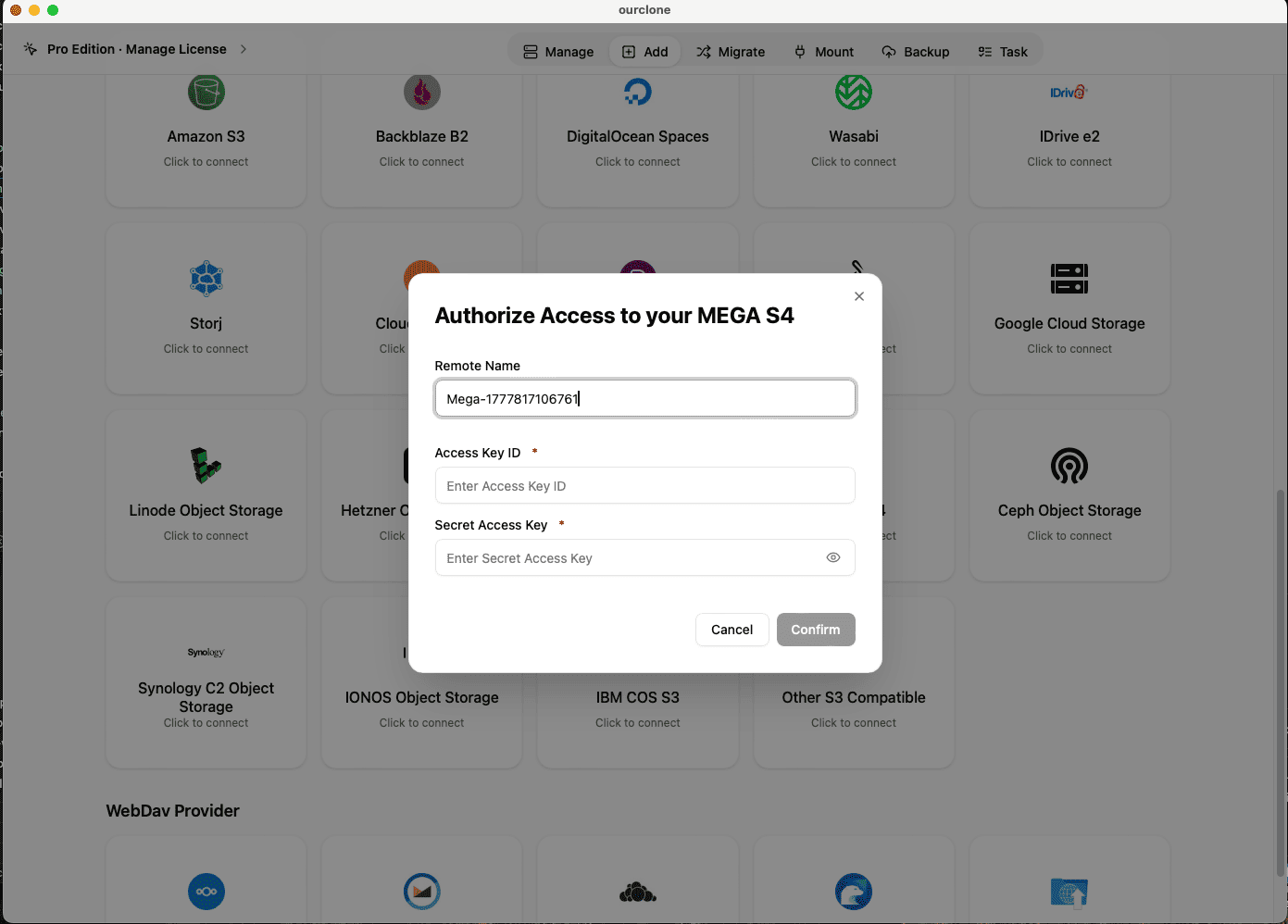
- 🔗 Add MEGA S4 in Add Storage -- In OurClone, open
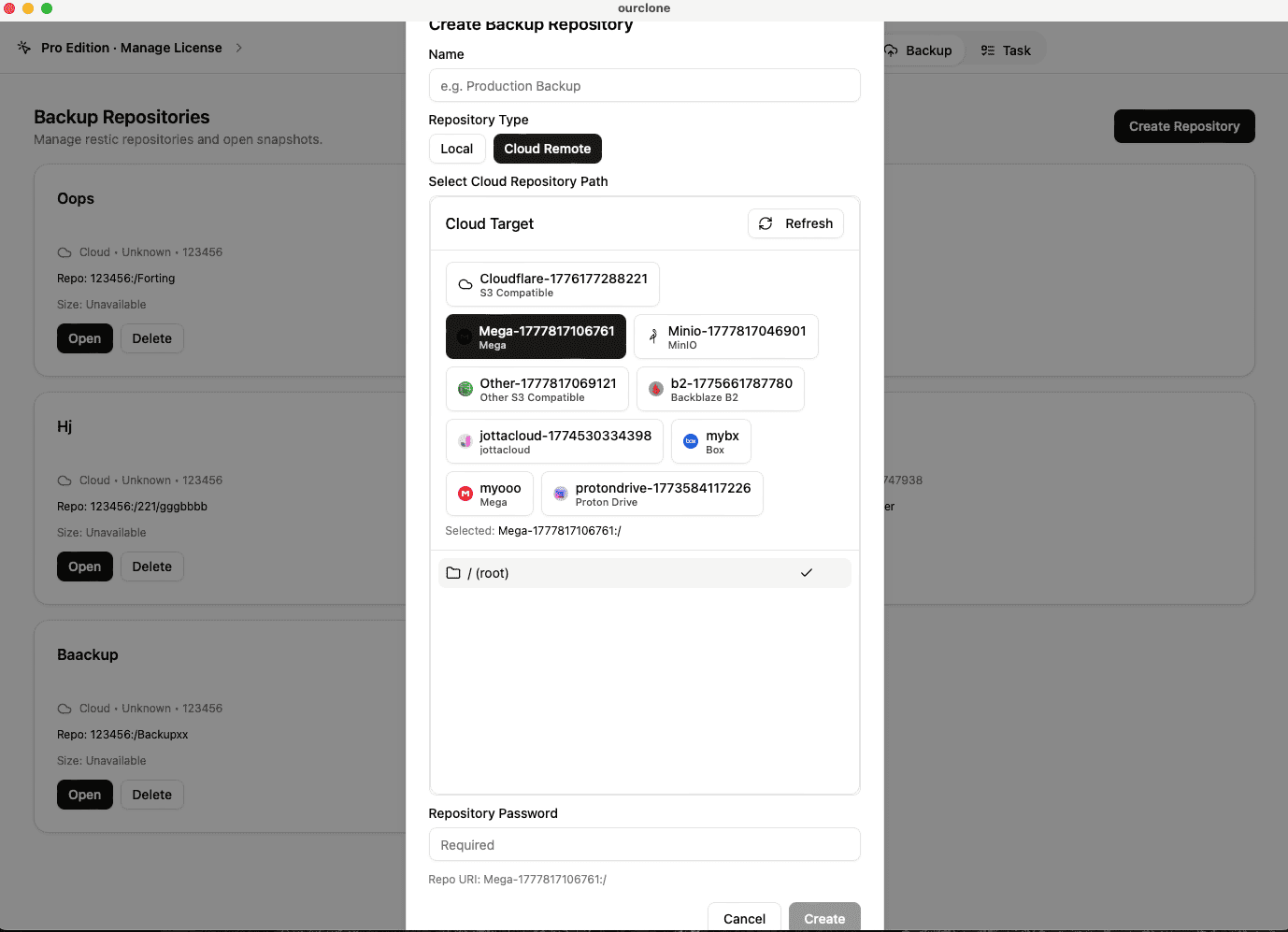
Add Storage, select MEGA S4, give the connection a custom name like "MEGA S4 -- Mac Backup", and paste your Access Key ID and Secret Access Key. OurClone uses the MEGA S4 provider profile, so you do not need to fill in a separate endpoint field. Save to add it to your storage list. - 📦 Create a Backup Repository on MEGA S4 -- Open the
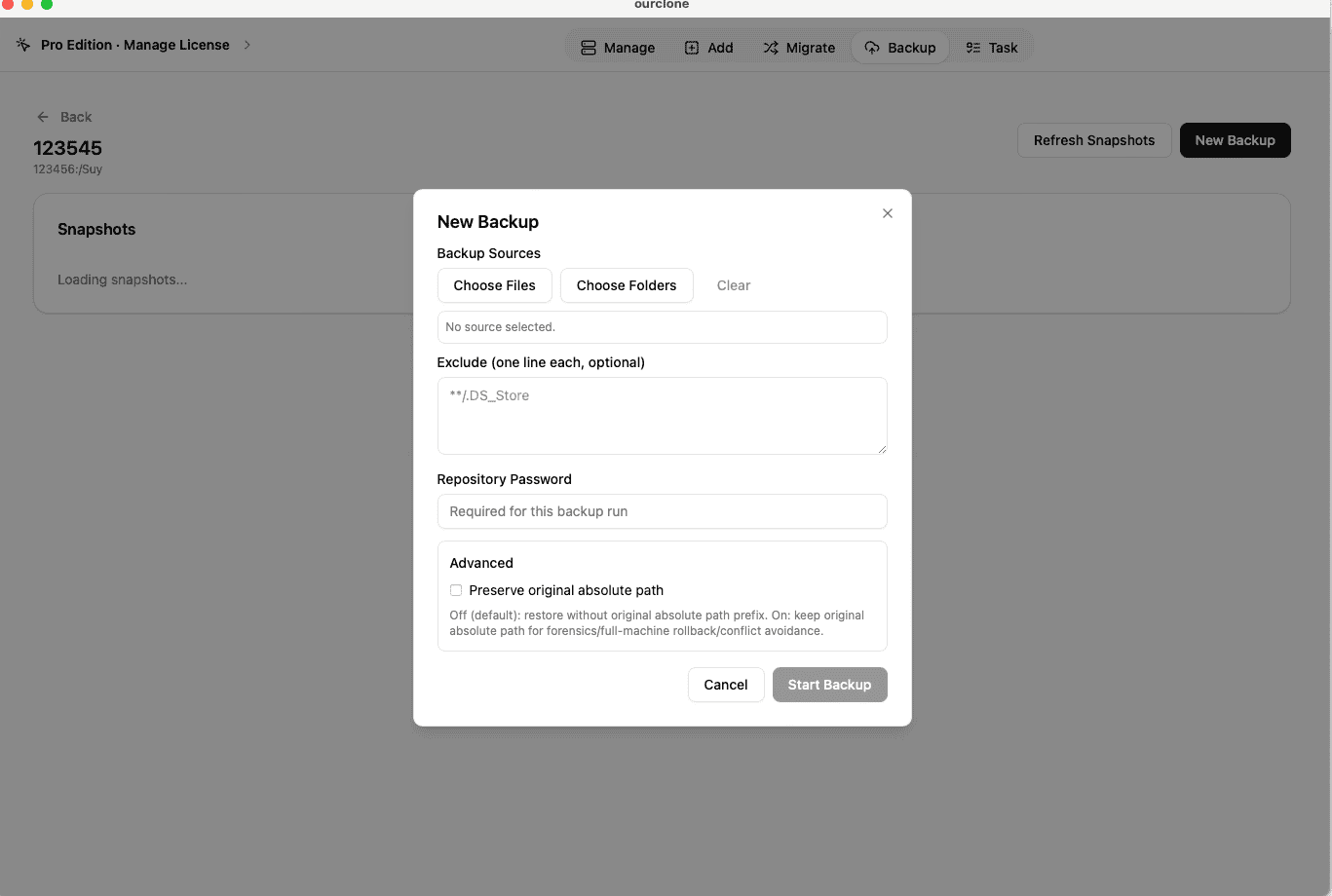
Backuptab and create a new repository. Choose your MEGA S4 connection as the destination, point it at a path inside your bucket such as/mac-backup, give the repository a clear name, and set a strong repository password. That password encrypts the repository and is required for every snapshot and restore -- store it somewhere safe. - 🗂️ Select Mac Folders and Run a Snapshot -- Open the new repository and create a new snapshot. Pick the macOS folders you care about, such as
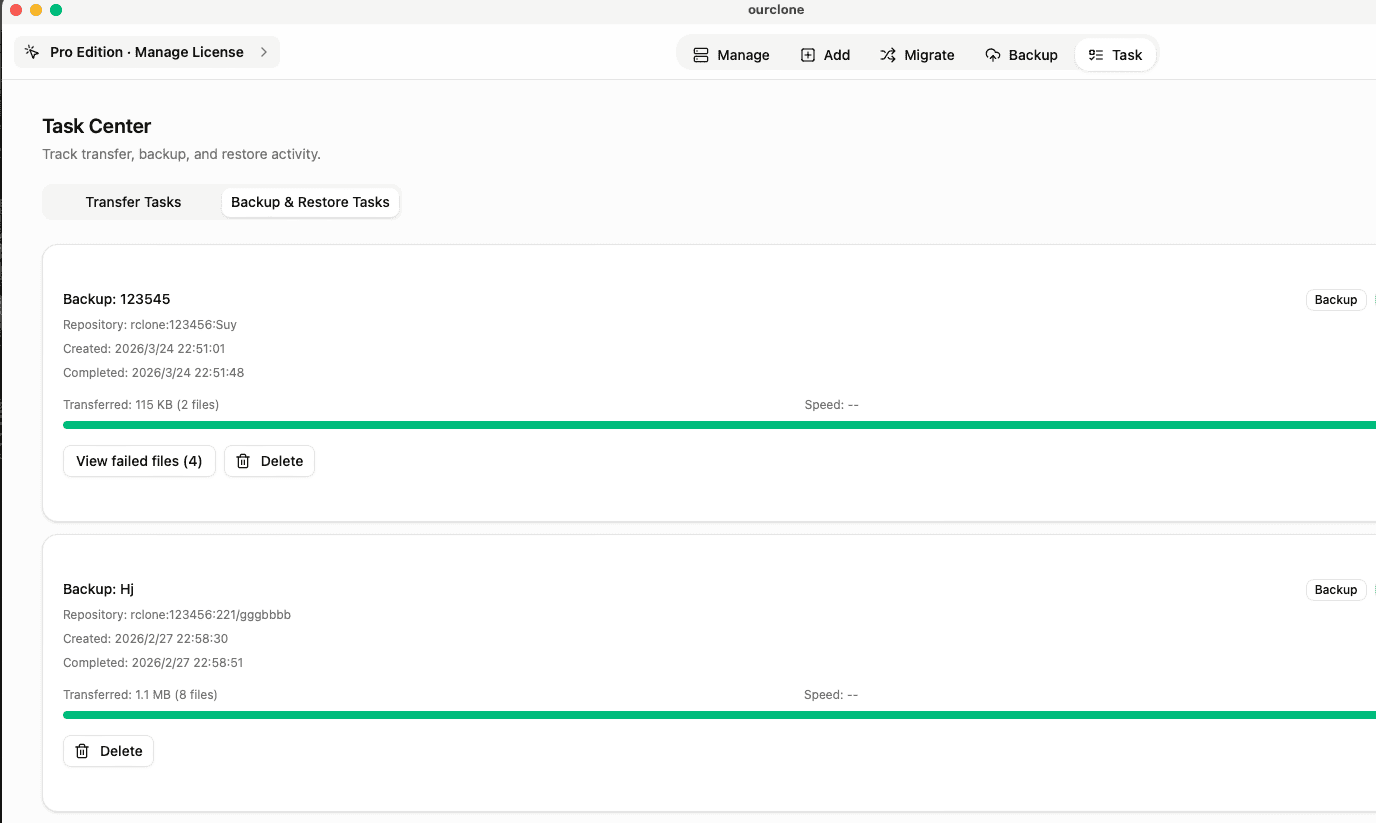
~/Documents, a working project folder, or an external drive directory. OurClone packages, encrypts, and uploads the data to your MEGA S4 bucket. After this first full snapshot, later runs of the same folders are incremental. - 🕒 Watch It Run From Task -- Backup & Restore -- Switch to the
Tasktab and openBackup & Restore. There you can see the active MEGA S4 backup task, its progress, and any warnings. Files are processed in chunks so the run can continue smoothly even with mixed file sizes. - 🔁 Restore From a Snapshot When You Need It -- Open the MEGA S4 repository, pick the snapshot that has the files you want, and choose
Restore. OurClone asks for the repository password, decrypts the data, and writes it to a local folder you choose. You can restore one folder, a subset, or the whole snapshot.
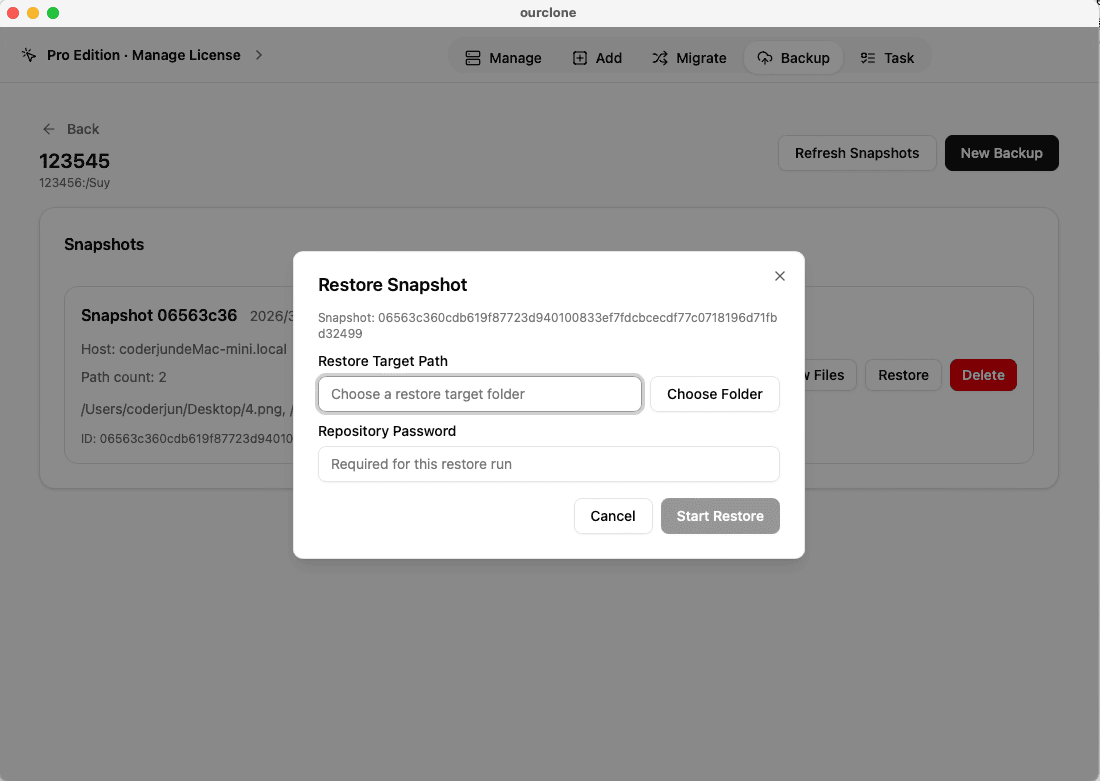
Because OurClone treats MEGA S4 as an S3-compatible target with chunked uploads, large folders survive flaky home connections better than a one-shot copy ever would.
Confirm the MEGA S4 Backup and Keep It Healthy
Creating a backup is only half the job. The other half is checking, on a regular cadence, that the MEGA S4 backup is still actually running and still actually restorable.
- 📄 Check Task Status -- In
Task->Backup & Restore, confirm that the latest MEGA S4 task finished without errors. A clean completion is the first signal the snapshot landed properly. - 🧩 Read Skipped Files and Permission Warnings -- macOS sometimes blocks access to files OurClone tries to read. The task log lists skipped files and permission issues so you can grant Full Disk Access or move a file out of a protected location and re-run.
- 📜 Inspect the Detailed Log -- Open a finished MEGA S4 task to see which files were new, which were unchanged, and how much data the incremental run actually uploaded. That is also the easiest way to spot a folder that is bigger than expected.
- 🔐 Treat the Repository Password as a Backup of Its Own -- The MEGA S4 bucket only stores encrypted repository data. Without the repository password, even you cannot restore. Store it in a password manager, not just in your head.
Rotate Keys and Recheck Bucket Access Periodically
MEGA S4 access keys can be rotated, revoked, or scoped down at any time. If a backup task suddenly fails, the cause is often a key that was deleted, a permission that changed, or a bucket policy that was tightened. Re-paste a fresh key into the OurClone storage entry and the schedule resumes.
Run a Practice Restore Before You Need One
Pick a small folder from a recent MEGA S4 snapshot and restore it into a throwaway directory on your Mac. That single dry-run confirms the keys, the bucket path, the repository password, and the OurClone restore flow all still work together -- which is what you actually want to know before a real incident.