What Makes Amazon S3 a Dependable Backup Destination for Mac Folders
Most people think about backups only after a drive fails, a laptop is stolen, or a folder gets deleted by mistake. Amazon S3 gives you an offsite copy that lives far away from your Mac, on storage built for long-term durability rather than convenience syncing.
The trade-off is that S3 is raw object storage -- it has no Finder integration and no backup logic of its own. OurClone is the piece that turns an S3 bucket into a usable, encrypted Mac backup workflow.
- 💸 Pay Only for What You Store -- Amazon S3 has no fixed plan. You pay per gigabyte and per request, so a 30 GB backup costs a fraction of a flat 2 TB subscription you would never fill.
- 🗄️ Storage Classes That Cut Archive Cost -- Older snapshots can move to cheaper tiers like S3 Glacier or Deep Archive, which suits backups you rarely touch but never want to lose.
- 🔑 Access You Can Scope Down -- S3 uses IAM access keys, so you can issue one key limited to a single backup bucket instead of exposing your whole AWS account.
- 🌍 Eleven Nines of Durability -- Amazon designs S3 for 99.999999999% durability by spreading each object across multiple facilities, so one failed disk never costs you a backup.
- 📂 Back Up Any Folder, Not a Sync Folder -- Unlike consumer drives that only watch one special folder, you point OurClone at any path --
~/Documents,~/Pictures, or an external project disk.
Why Incremental Snapshots Keep S3 Backups Affordable
Re-uploading an entire folder every night would be slow and, on Amazon S3, genuinely wasteful -- you would pay storage and request costs for data that never changed.
The first snapshot to S3 is always the heavy one because every selected file is new. After that, OurClone fingerprints your files and sends only the differences, so a daily backup of a large photo library might move just a few megabytes. That efficiency is what makes object storage practical for everyday Mac backups instead of a once-a-year chore.
- 🚀 Faster runs after the first snapshot by skipping unchanged files
- 💾 Lower S3 storage and request bills, since duplicate data is not re-sent
- 🔐 Every block is encrypted before it ever reaches your bucket
- 📅 Multiple snapshots let you roll back to an earlier version of a folder
Set These Up Before Your First Amazon S3 Backup
A little preparation on the AWS side prevents the most common first-backup failures -- the wrong region, an over-privileged key, or a bucket that does not exist yet.
- 📁 Choose What Actually Matters -- Focus on irreplaceable data:
~/Documents,~/Pictures, client work, or a developer's project folders and database dumps. Skip caches and macOS system files. - 🪣 Create the Bucket and Note the Region -- Make your S3 bucket first and remember its region, such as
us-east-1. OurClone needs that region, and bucket names are globally unique across all of AWS. - 🔒 Use a Dedicated IAM Key -- Create an IAM user with permissions scoped to that one backup bucket, then generate its access key. Avoid root-account keys entirely.
- 📶 Plan the First Upload -- The initial backup can be large, so run it on a stable connection and keep your Mac awake until it finishes.
- 🧪 Start With a Test Folder -- Back up something small first to confirm your region, keys, and bucket all line up before committing your whole archive.
How to Back Up Mac Folders to Amazon S3 with OurClone
OurClone connects to Amazon S3 with access keys, so once your bucket and IAM key are ready, the whole flow takes only a few minutes -- no AWS CLI or scripting required.
- 🔐 Add Amazon S3 with Your Access Keys -- In OurClone, open
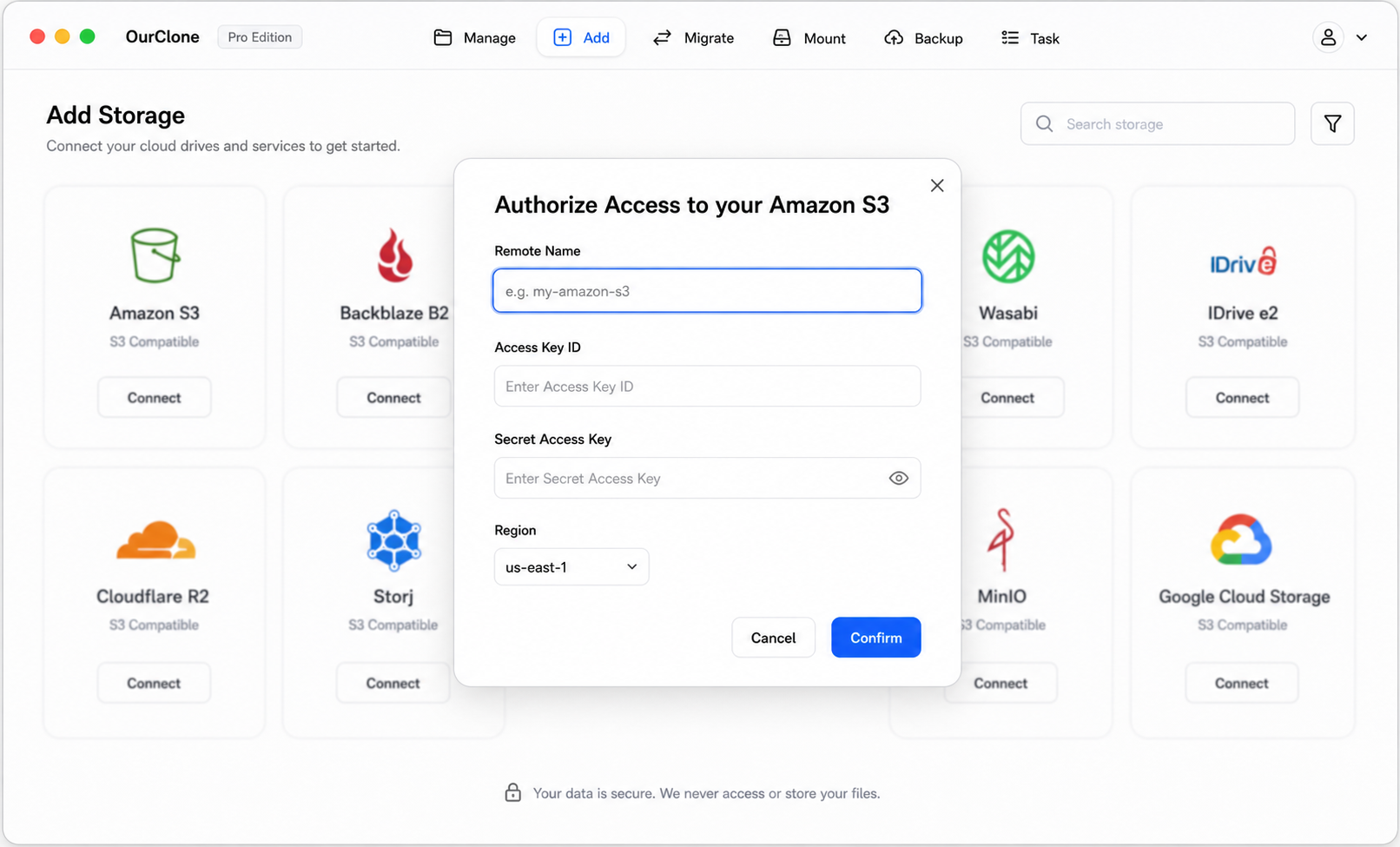
Add Storageand choose Amazon S3 from the S3 providers. Confirm or edit the Remote Name, then enter your Access Key ID, Secret Access Key, and Region (it defaults tous-east-1and is selectable from the list). OurClone uses these to create the connection, and your Amazon S3 backend appears once it verifies. - 🗄️ Create an Encrypted Backup Repository -- Open the
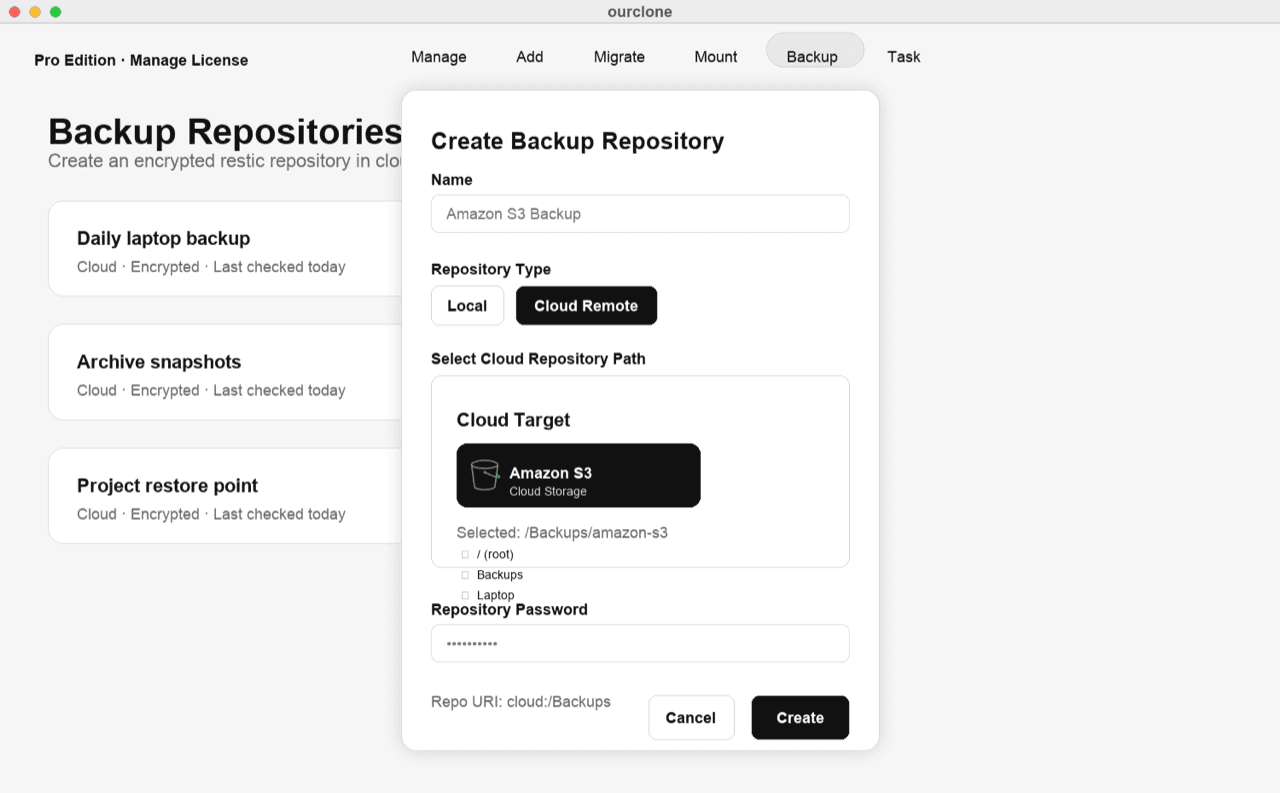
Backuptab and create a repository. Choose a destination path inside your bucket, like/macos-backup, give the repository a name, and set a repository password. That password encrypts everything and is required for restores -- store it somewhere safe, because it cannot be recovered. - 📁 Select the macOS Folders to Back Up -- Open the repository, start a new snapshot, and pick your local folders, such as
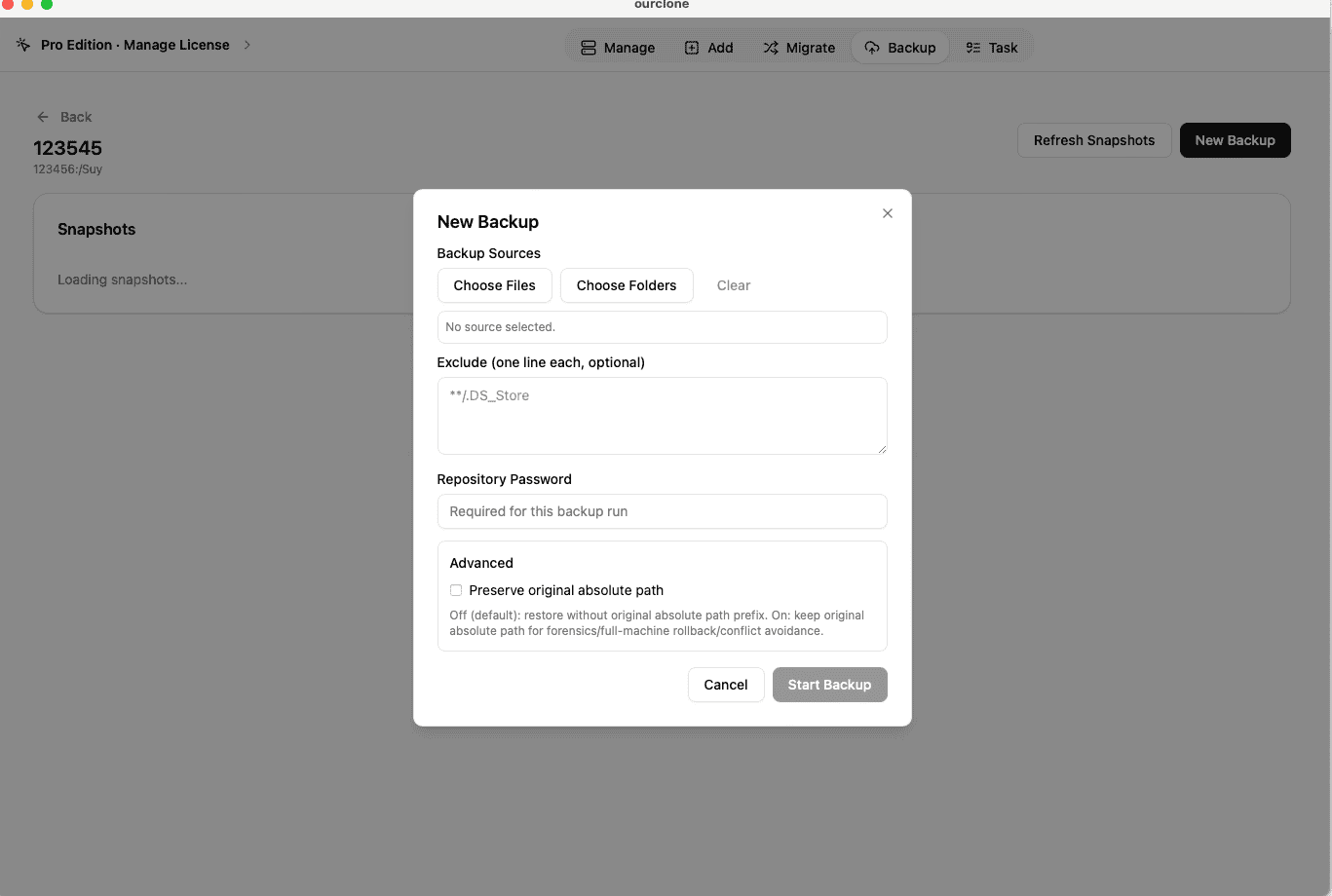
~/Documentsor~/Pictures. Repeated snapshots of the same folders are incremental after the first one, so you can run them often. - 📊 Watch the Task Progress -- Go to
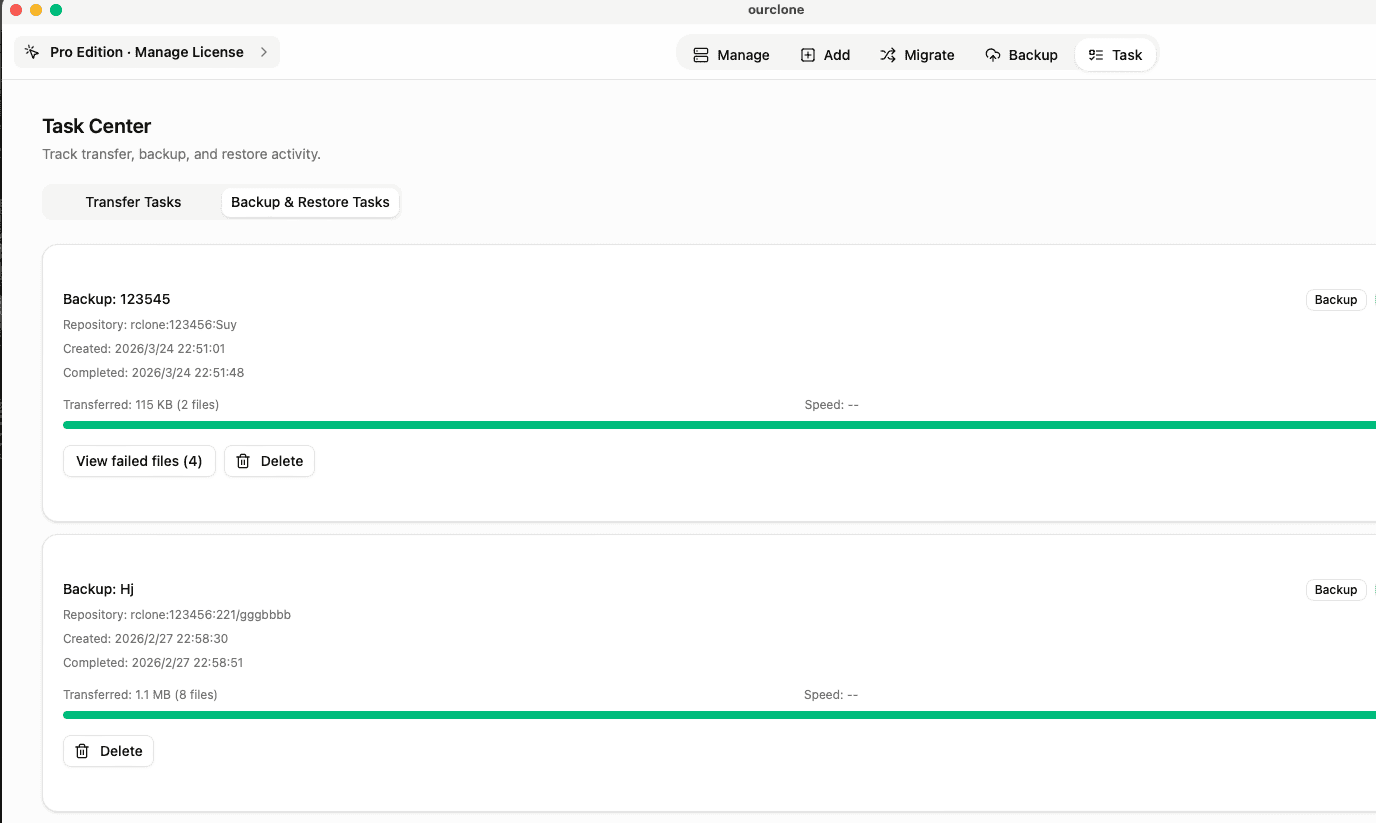
Task→Backup & Restoreto follow the upload. OurClone sends data to Amazon S3 in encrypted blocks, so large jobs can pause and resume without starting over. - 🔄 Restore From a Snapshot -- When you need a file back, open the repository, pick a snapshot, and click
Restore. Enter your repository password and choose where on your Mac to recover -- the folder structure comes back intact.
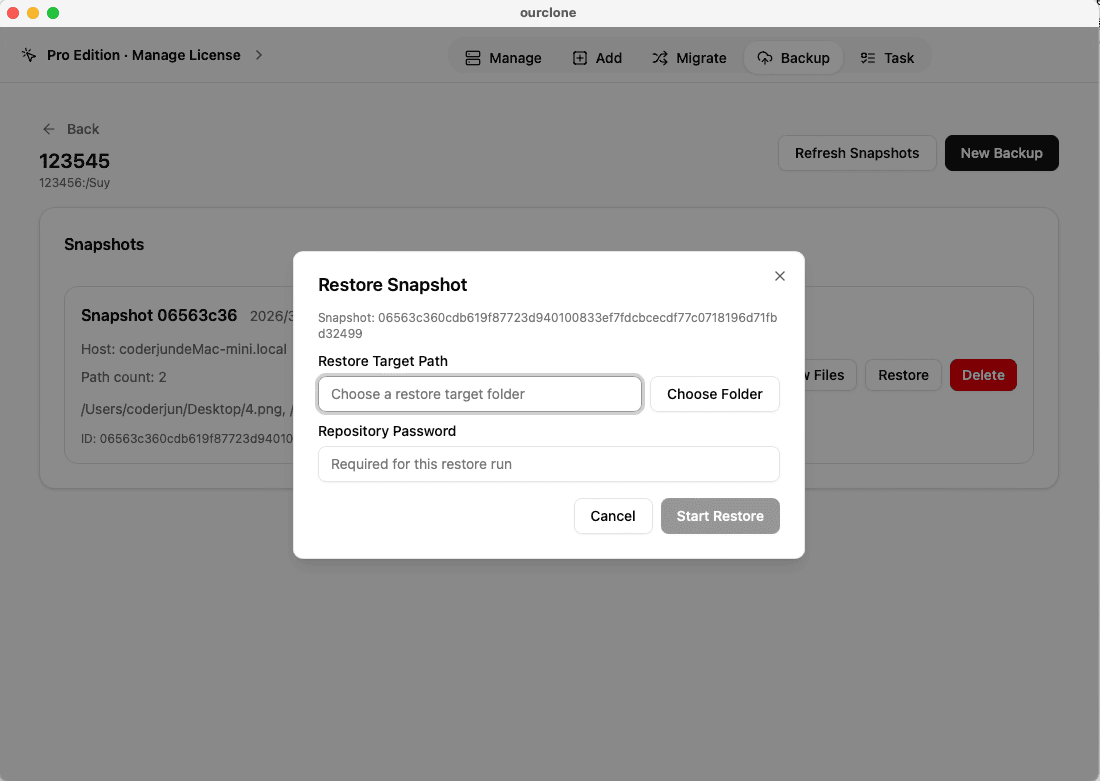
The division of labor is simple: Amazon S3 provides durable, low-cost storage, and OurClone handles the encryption, incremental snapshots, and restores from your Mac.
Confirming and Maintaining Your Amazon S3 Backups
Creating a backup is not the same as having a working one. Spend a minute verifying the result so you are not relying on guesswork the day you actually need a file back.
- 📄 Check Task Completion -- In
Task→Backup & Restore, a task that finishes without warnings means success. Failed uploads are flagged clearly so you can act on them. - 🧩 Look for Skipped Files -- A file that was locked or lacked permissions shows up in the task logs, so you can re-run just those items instead of the whole job.
- 📜 Read the Detailed Logs -- Open any backup task to see its full log with file paths, sizes, and whether each item was newly uploaded or unchanged.
- 🔐 Verify the Encrypted Repository -- OurClone encrypts your data before it leaves your Mac, so without the repository password even AWS cannot read what sits in your bucket.
Keep an Eye on Keys and Regions
S3-based backups break quietly when their credentials change. IAM access keys can be rotated or revoked, a bucket's region or lifecycle rule can be edited, and any of those can stop a scheduled backup without an obvious error. Re-check the connection in OurClone after you rotate keys or move a bucket.
Run a Restore Test Before You Need One
The only real proof of a backup is a restore. Pull a small folder from a recent snapshot into a temporary location and confirm the files open correctly. It also reminds you that the repository password -- not your AWS keys -- is what decrypts the data.