When Other S3 Compatible Is the Right Pick
There are far more S3-compatible object stores in the wild than any backup app can name explicitly. Regional hosting providers, in-house platforms running on top of Ceph or SeaweedFS, edge object stores tied to a specific cloud, and small commercial offerings all share one trait: they speak the S3 API. OurClone's Other S3 Compatible option is the path for all of them.
- 🌐 Use the Provider You Actually Want -- A regional cloud, a sovereign-data provider, or a small specialist S3 service can all sit at the other end of the connection without waiting for a dedicated entry in OurClone.
- 🏢 Internal Object Stores Work Too -- An ops team running its own S3-compatible cluster can hand a developer an endpoint and a key pair, and OurClone treats it the same as any hosted service.
- 🔧 Real S3 Behavior -- Bucket paths, Access Key ID, Secret Access Key, endpoint -- the same fields you would use anywhere else in the S3 ecosystem.
- 🔐 Encryption You Control -- OurClone encrypts the repository on your Mac with a password you set before any data ever leaves the machine, regardless of what the upstream provider does on its side.
- ♻️ Snapshot History -- Each backup run creates a new snapshot in the same repository, so you can restore an older version of a file even if today's copy already overwrote it on your Mac.
Why Incremental Snapshots Matter on a Generic S3 Endpoint
Generic S3-compatible providers vary widely in pricing, bandwidth limits, and underlying hardware -- which makes wasted uploads especially painful. Re-pushing the same project folder every night to a service you may be paying for both storage and egress on adds up fast.
OurClone runs the first snapshot in full and then sends only changed data on the runs that follow. Most of the bytes you push are bytes that actually changed, not duplicates of the same archive.
For S3-compatible services with non-trivial transfer or per-request costs, incremental snapshots also keep your monthly bill predictable instead of bouncing with how big the source folder happened to be that day.
- 🚀 Skips re-uploading files that have not changed
- 💾 Keeps the bucket from filling up with duplicate copies
- 🔐 Each snapshot still goes through the encrypted repository
- 📅 Lets you walk back through snapshots and restore an older version
Get the Provider Side Sorted Before You Start
Most "it just will not connect" reports against generic S3 endpoints come down to one of three things: wrong endpoint, wrong region, or wrong key scope. Knock them out before you open OurClone.
- 🌐 Get the Exact Endpoint From Your Provider's Docs -- The Endpoint field is required for Other S3 Compatible. Use the S3 API endpoint -- usually something like
https://s3.region.example.com-- not a console or dashboard URL. Copy it from the provider's official documentation rather than guessing. - 🪣 Match Bucket and Region -- Some providers route requests strictly by region, so a bucket created in one region cannot be reached through another region's endpoint. Confirm the bucket's region matches the endpoint you plan to use.
- 🔑 Create a Backup-Only Access Key -- Generate an Access Key ID and Secret Access Key scoped just to the bucket and operations OurClone needs. Avoid pasting in an admin or root key -- a backup credential should be replaceable on its own.
- 📁 Pick the Right Folders -- Focus on folders that would actually hurt to lose:
~/Documents,~/Pictures, code projects, and external drive folders. Skip caches, temporary files, and dependency directories. - 🧪 Start Small -- Run the first snapshot against a small folder so you can confirm the endpoint, the region, the keys, and the restore flow before committing a multi-gigabyte archive to a service you have not used for backup before.
Backing Up Mac Folders to a Generic S3-Compatible Service
Once the endpoint and key pair are ready, the rest happens entirely inside OurClone. Five steps cover the whole flow from connecting the provider to restoring a file.
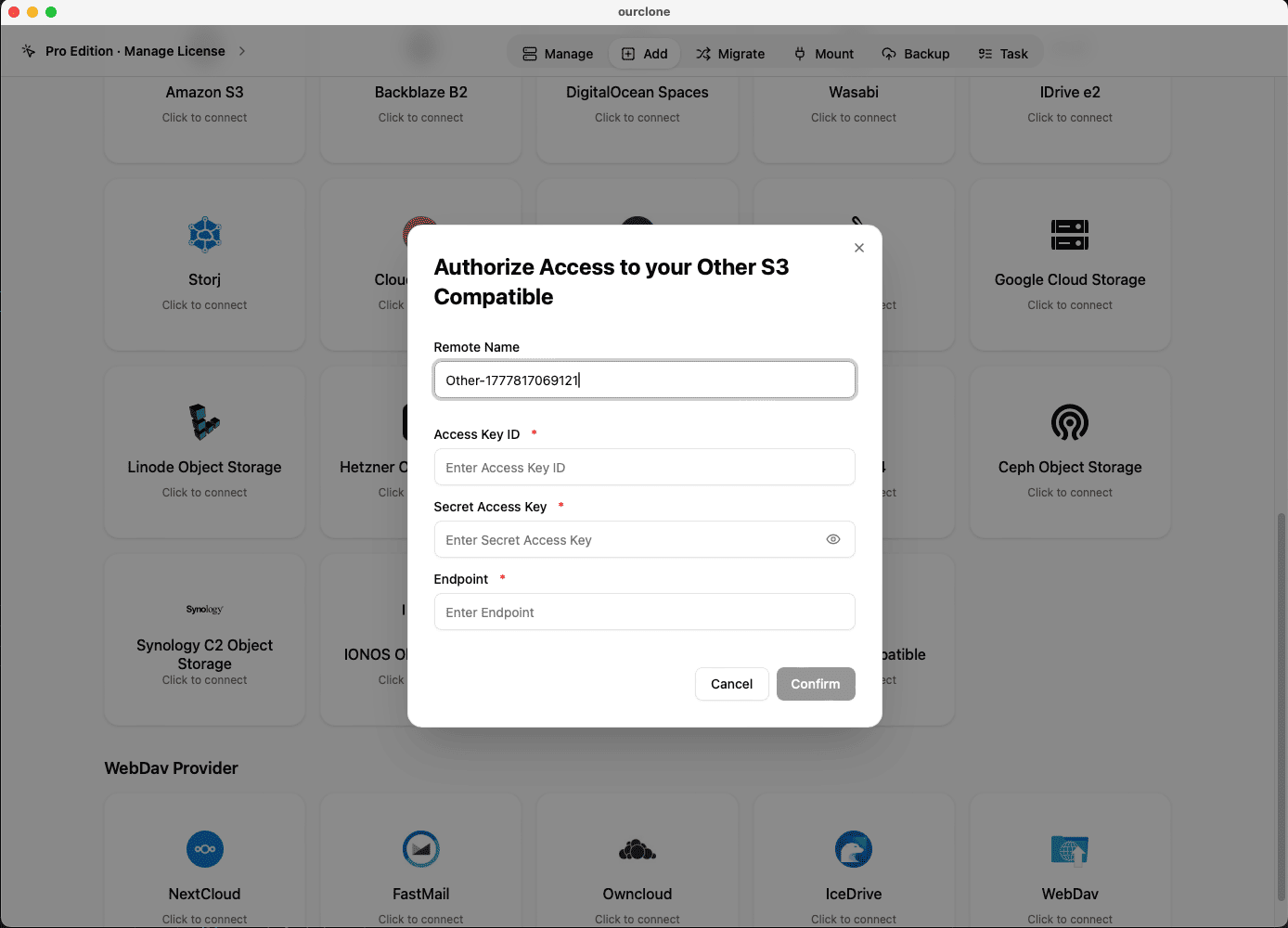
- 🔗 Add Other S3 Compatible in Add Storage -- In OurClone, open
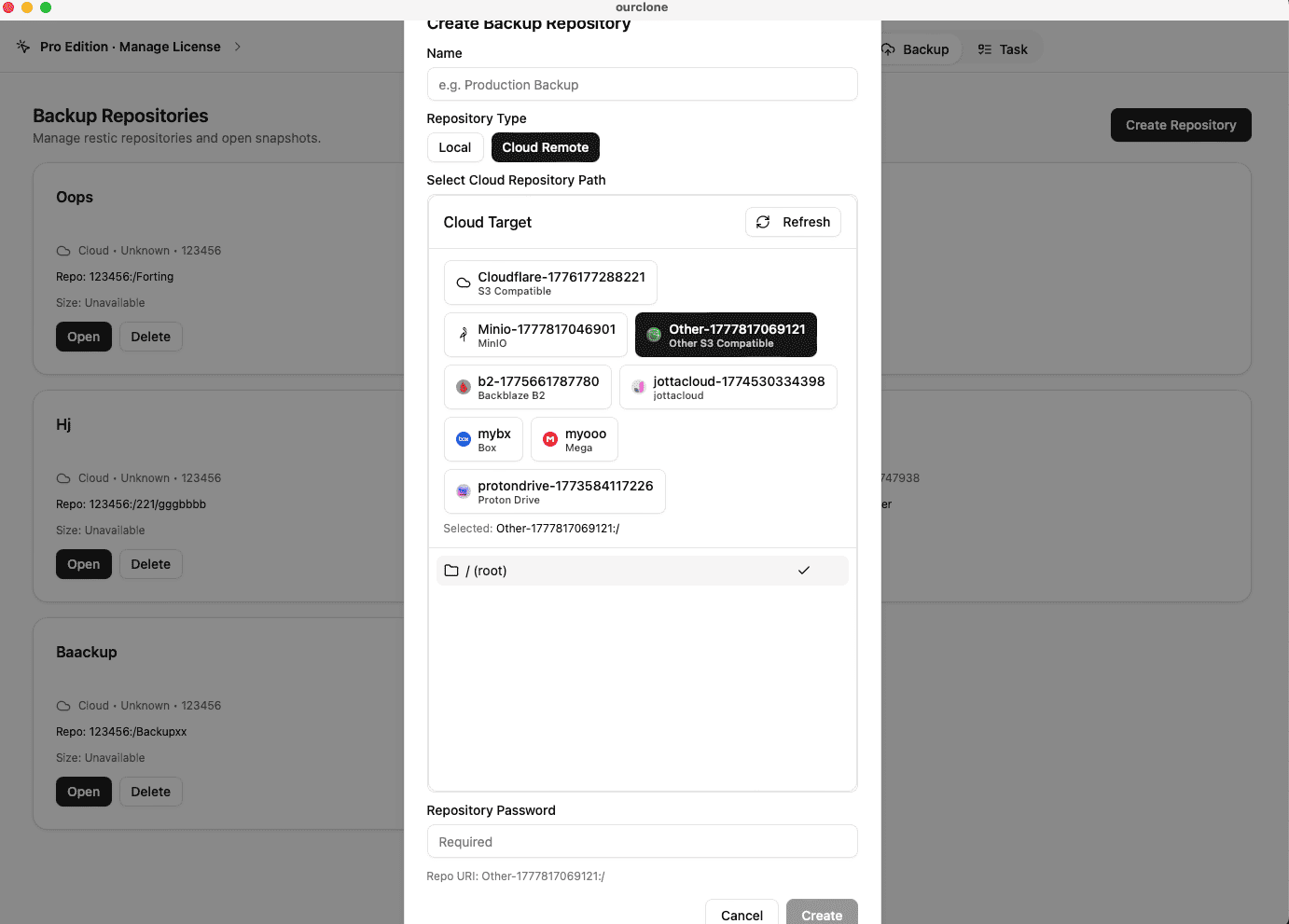
Add Storageand choose Other S3 Compatible. Give the connection a custom name that reflects the provider (for example "Acme Cloud S3 -- Mac Backup"), then paste your Access Key ID, Secret Access Key, and the S3 API endpoint. Save the connection. - 📦 Create a Backup Repository on the Provider -- Open the
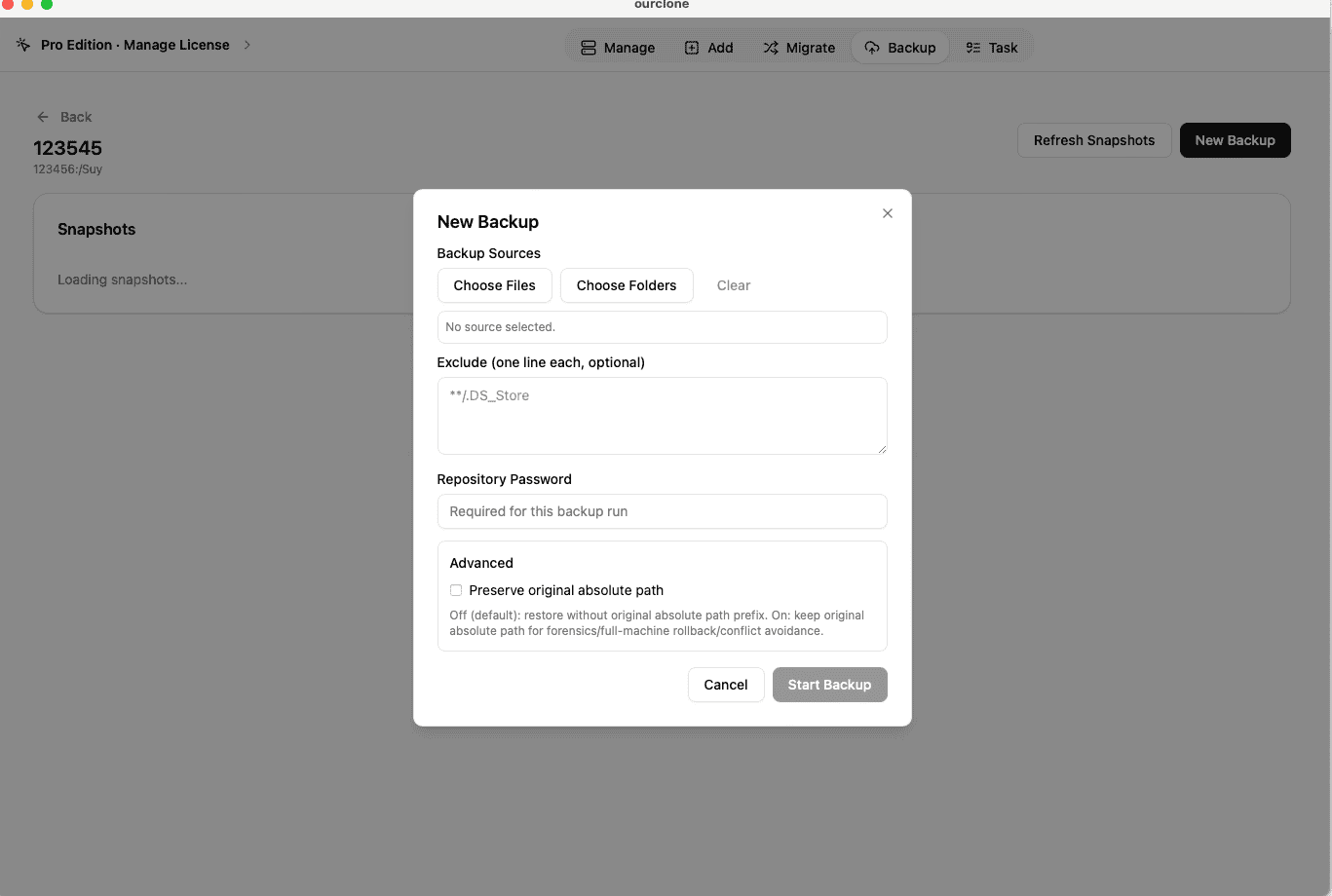
Backuptab and create a new repository. Choose your Other S3 Compatible connection as the destination, point it at a path inside an existing bucket (for examplebackups/mac-laptop), give the repository a clear name, and set a strong repository password. That password encrypts the entire repository and is required for snapshots and restores -- save it in a password manager. - 🗂️ Snapshot Local Folders -- Open the new repository and create a snapshot. Pick macOS folders such as
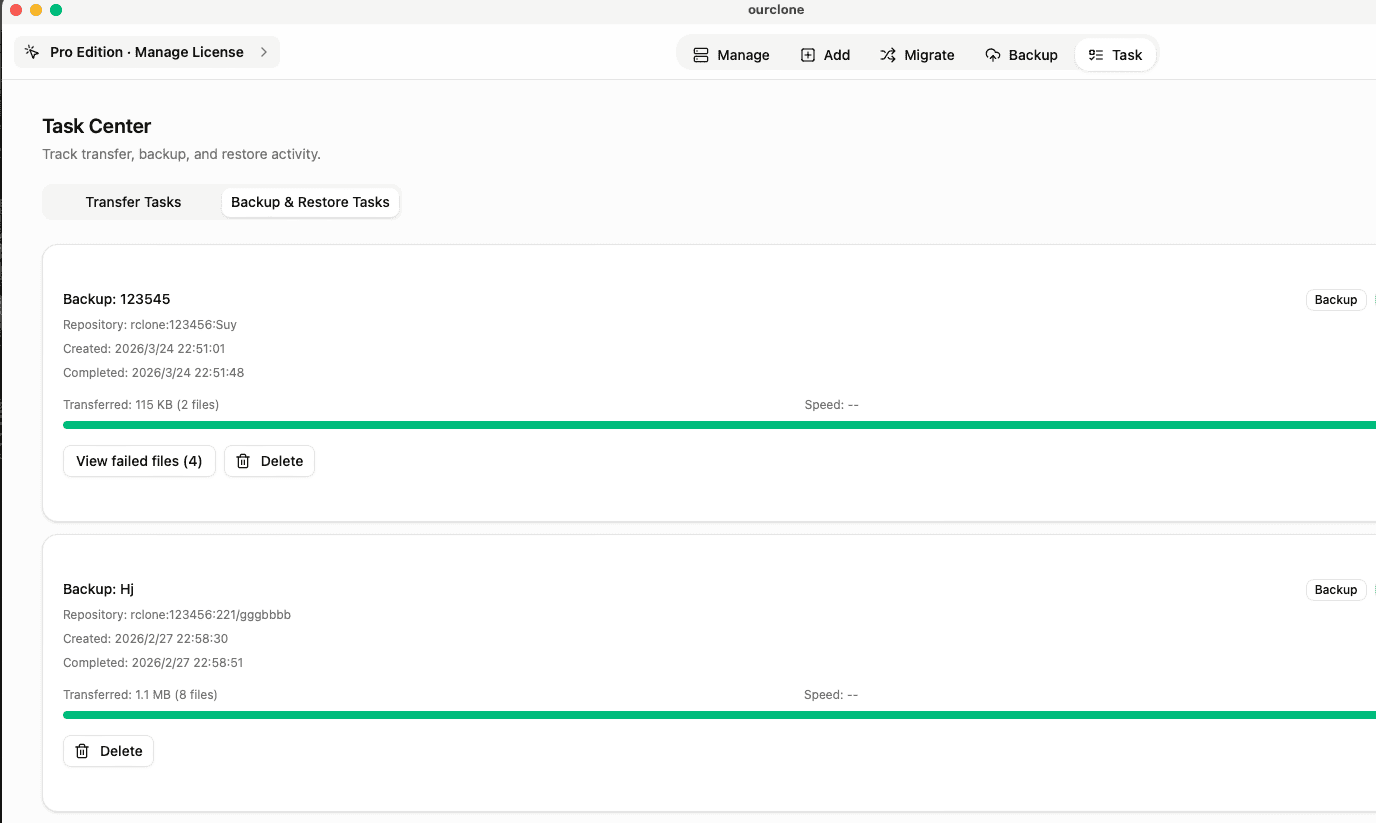
~/Documents, a working~/Projectsdirectory, or a folder on an external drive. OurClone packages, encrypts, and uploads the data to your bucket. The first run is a full snapshot; later runs of the same folders are incremental. - 🕒 Watch It Run From Task -- Backup & Restore -- Open the
Tasktab and switch toBackup & Restore. The active backup task shows progress, throughput, and any warnings. Chunked uploads keep the snapshot moving even if the upstream provider has occasional latency spikes. - 🔁 Restore From a Snapshot -- Open the repository, pick the snapshot with the files you want, click
Restore, enter the repository password, and choose a local destination on your Mac. OurClone decrypts the data and writes the files back. You can restore one folder, a subset, or the whole snapshot.
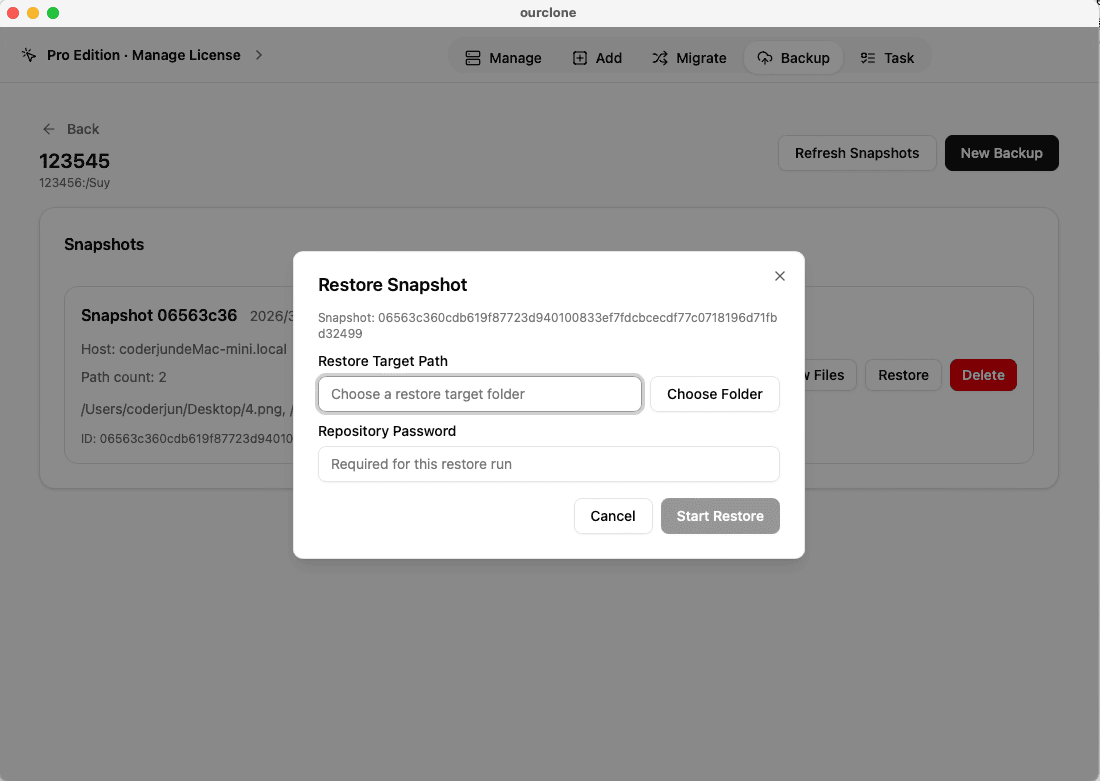
Because OurClone speaks plain S3 to the endpoint, the same workflow keeps working even if you migrate the bucket to a different provider later -- you only need to update the endpoint and keys.
Confirm the Backup and Keep It Healthy Over Time
Generic S3-compatible providers can change pricing, endpoint hostnames, or key formats with much less ceremony than the big hyperscalers. A short check-in routine catches problems before they bite.
- 📄 Check Task Status After Each Run -- In
Task->Backup & Restore, confirm the latest task finished cleanly. Repeated failures usually point back to the endpoint, the region, or the access key. - 🧩 Read Skipped File Notes -- macOS file permissions can block OurClone from reading specific files. The task log lists which files were skipped, so you can grant the right permissions or move a file out of a protected location and re-run.
- 📜 Inspect the Detailed Log -- Open a finished task to see what was new, what was unchanged, and how much data the incremental run actually uploaded. That is the easiest way to spot a folder that has unexpectedly grown.
- 🔐 Treat the Repository Password as Critical -- The bucket only stores encrypted repository data. Without the repository password, even an admin with full bucket access cannot restore. Store the password in a password manager.
Watch for Endpoint and Credential Drift
Generic providers occasionally rename endpoints, deprecate regions, or rotate signing requirements. If a backup task suddenly fails, recheck the S3 endpoint URL and re-paste a valid Access Key ID and Secret Access Key. If the provider has moved a bucket between regions, update the endpoint in OurClone before the next run.
Test a Restore Before You Need One
Pick a small folder from a recent snapshot and restore it into a throwaway directory on your Mac. That single dry-run confirms the endpoint, the keys, the repository password, and the OurClone restore flow are all still working together -- which is the only honest way to trust an S3-compatible backup you have not had to use yet.