Why People Move from OneDrive to Google Drive
Going the other direction? See transfer files from Google Drive to OneDrive — or, to keep both clouds aligned over time, connect Google Drive to OneDrive.
The usual trigger is money or gravity. A Microsoft 365 subscription lapses and that roomy 1 TB OneDrive suddenly shrinks back toward its 5 GB free floor — meanwhile your Gmail, Google Docs, and Android phone all already orbit Google Drive. Pulling everything into one ecosystem just makes daily life simpler.
- 📉 Your OneDrive Free Tier Is Tiny — When a Microsoft 365 plan ends, OneDrive drops to 5 GB. Google Drive's 15 GB free baseline gives you three times the breathing room before you pay a cent.
- 🧲 Everything Else Lives in Google — If you're already in Gmail, Google Docs, and Google Photos all day, keeping files in Google Drive means one login and one search box instead of bouncing between Microsoft and Google.
- 📝 Native Google Docs Editing — Word files moved into Google Drive can open and edit as Google Docs, which is handy if you've left the Office apps behind along with the subscription.
- 💸 Cheaper Mid-Tier Storage — Google One's 100 GB and 200 GB plans are inexpensive stepping stones, whereas OneDrive's standalone storage jumps quickly toward the full Microsoft 365 bundle.
OneDrive vs Google Drive: What Each One Is Good At
Before you move a single file, it's worth knowing what you're leaving and what you're landing in — the two services are built around very different ecosystems.
🪟 OneDrive
OneDrive is Microsoft's storage layer, baked into Windows and tied to Office and Microsoft 365.
- 5 GB free; 1 TB bundled with Microsoft 365 Personal and up to 6 TB shared across Microsoft 365 Family.
- Deep Word, Excel, and PowerPoint integration with real-time co-authoring.
- Personal Vault for sensitive files and Files On-Demand to save local disk.
- Stricter rules on file names — characters like
" * : < > ? / \ |aren't allowed, which can trip up a transfer.
🅖 Google Drive
Google Drive is the hub of Google's productivity world, shared across Gmail and Google Photos.
- 15 GB free, pooled with Gmail and Photos; Google One scales to 100 GB, 200 GB, 2 TB and beyond.
- Google Docs, Sheets, and Slides for browser-native collaboration.
- Strong search and sharing, plus tight Android and Chrome integration.
- Bulk web downloads get zipped on the fly and can fail on very large folders — a reason to avoid the manual route for big libraries.
Method 1: Download from OneDrive and Upload to Google Drive by Hand
If you only have a few folders to shift, the no-tools route works fine — though it leans on your Mac as a middleman and falls apart once libraries get large.
- 📥 Download from OneDrive — Sign in to the OneDrive web app, tick the files or folders you want, and click Download. OneDrive zips multi-file selections, so grab them into a clean folder like
~/Downloads/onedrive-export. - 📤 Upload to Google Drive — Open the Google Drive web app, unzip the export if needed, then drag the files into your destination folder. Watch for OneDrive-only file names with characters Google Drive handles differently.
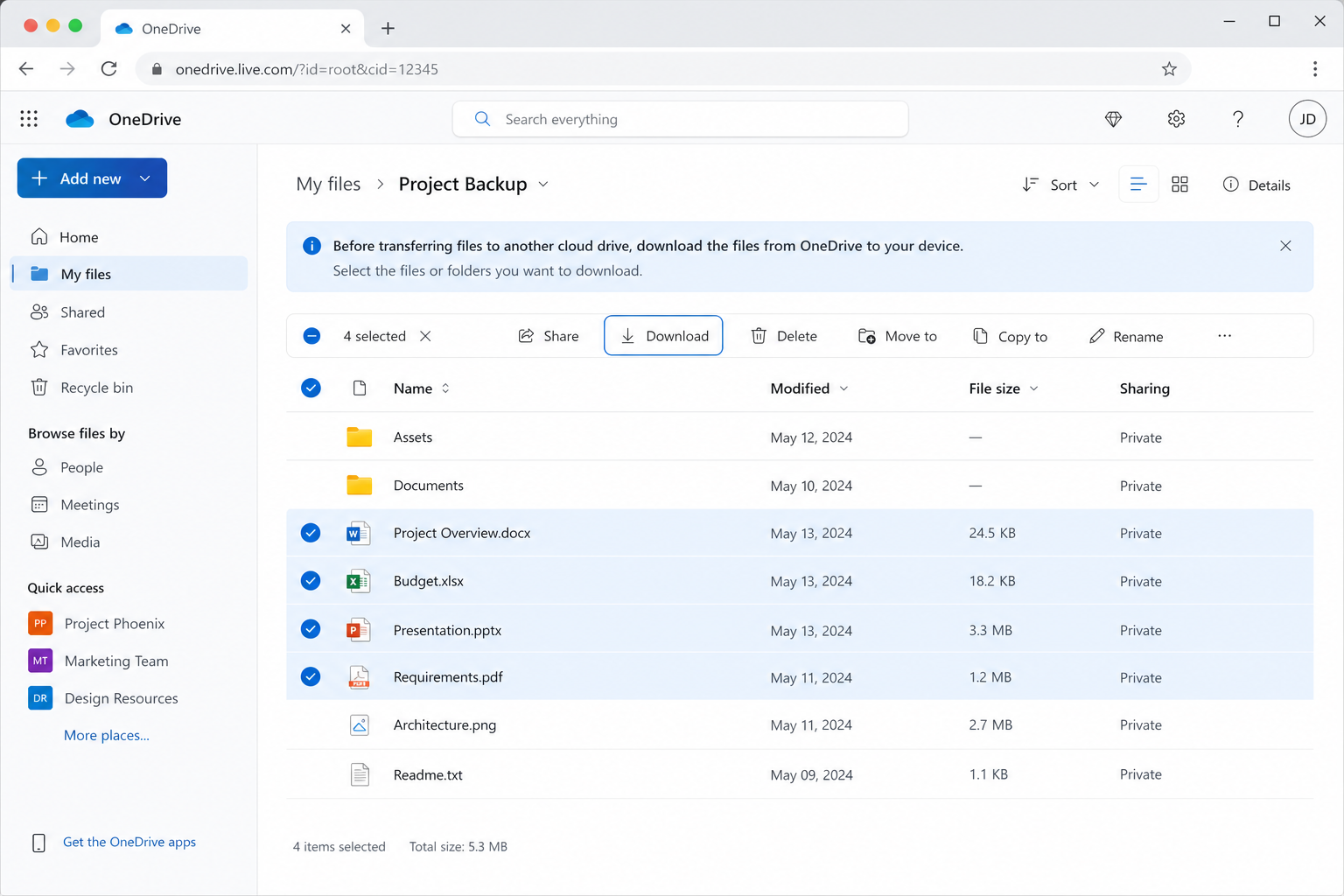
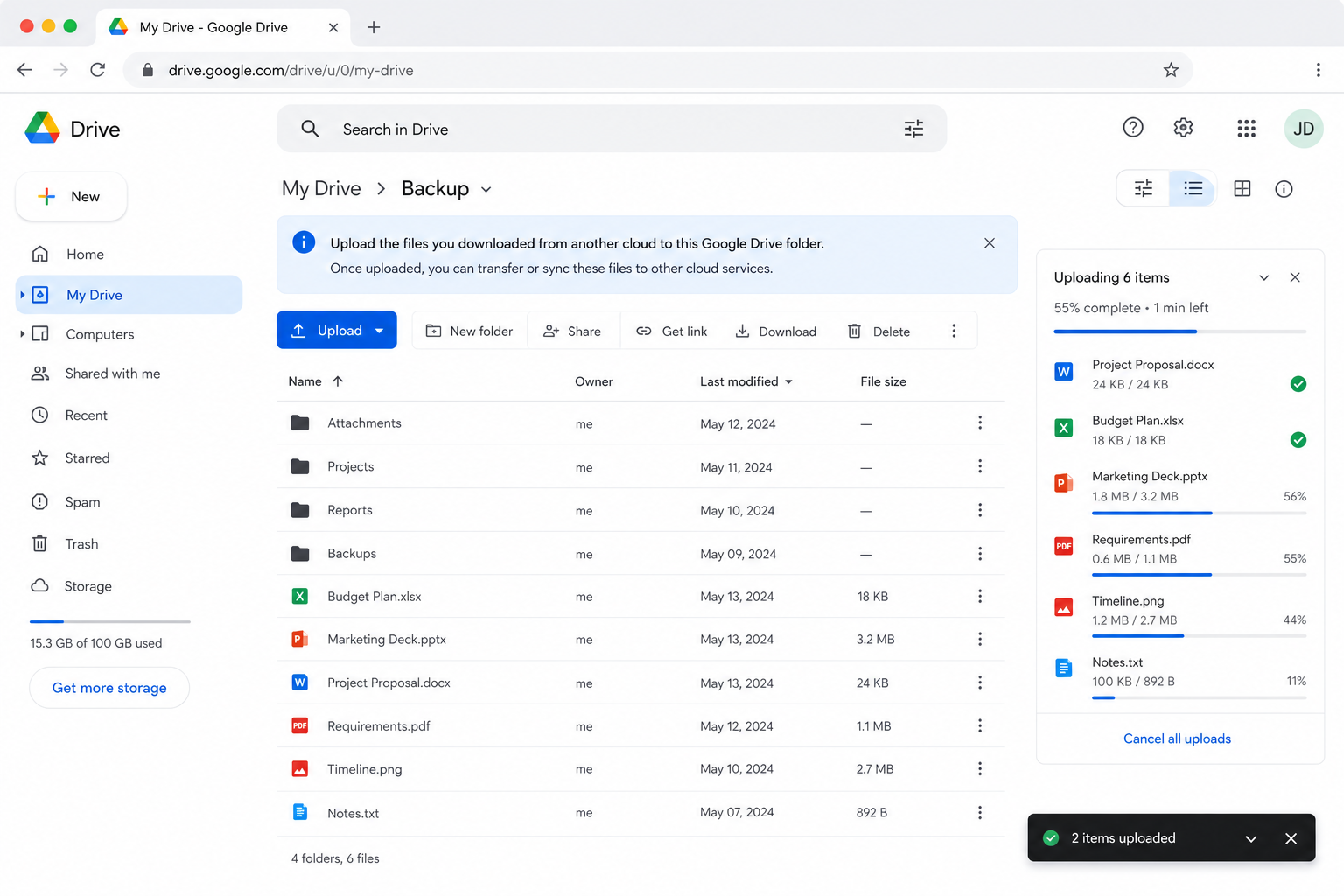
It's serviceable for a handful of documents, but there's no resume if your connection drops, your files briefly take up double the local disk, and large OneDrive zips frequently time out mid-download — which is exactly why most people switch to Method 2.
Method 2: Transfer OneDrive to Google Drive with OurClone
OurClone moves files between OneDrive and Google Drive directly through your Mac — no third-party relay server in the middle, and live progress the whole way. It's three steps: add the source, add the target, run the migration.
- 🔗 Step 1: Add OneDrive as the Source (Browser Sign-In) — In OurClone open
Add Storageand pick OneDrive. A browser window opens — sign in to your Microsoft account and authorize OurClone. Once approved, OneDrive shows up in your storage list. (On a Microsoft 365 Business account you may need admin approval for third-party apps.) - 🔗 Step 2: Add Google Drive as the Destination (Browser Sign-In) — Still in
Add Storage, pick Google Drive. Another browser window opens — log in to your Google account and grant access. Google Drive now sits alongside OneDrive in your storage list. - 🔀 Step 3: Set Source, Target and Mode on the Migrate Page — Open the
Migratetab. Pick OneDrive and browse to the files or folder you want to move, then pick Google Drive and choose (or create) the destination folder. Select a transfer mode:- Copy — duplicates files to Google Drive; nothing is deleted from OneDrive.
- Move — transfers to Google Drive, then deletes the originals from OneDrive.
- Sync — makes Google Drive mirror OneDrive; extra files in Google Drive are removed, but OneDrive is left untouched.
- 📊 Watch Progress and Confirm — The
Taskpanel shows live counts, speed, ETA, and any failed files. When it reads completed, open Google Drive in OurClone (or at drive.google.com) to confirm everything landed. If you chose Move, double-check OneDrive no longer holds the originals.
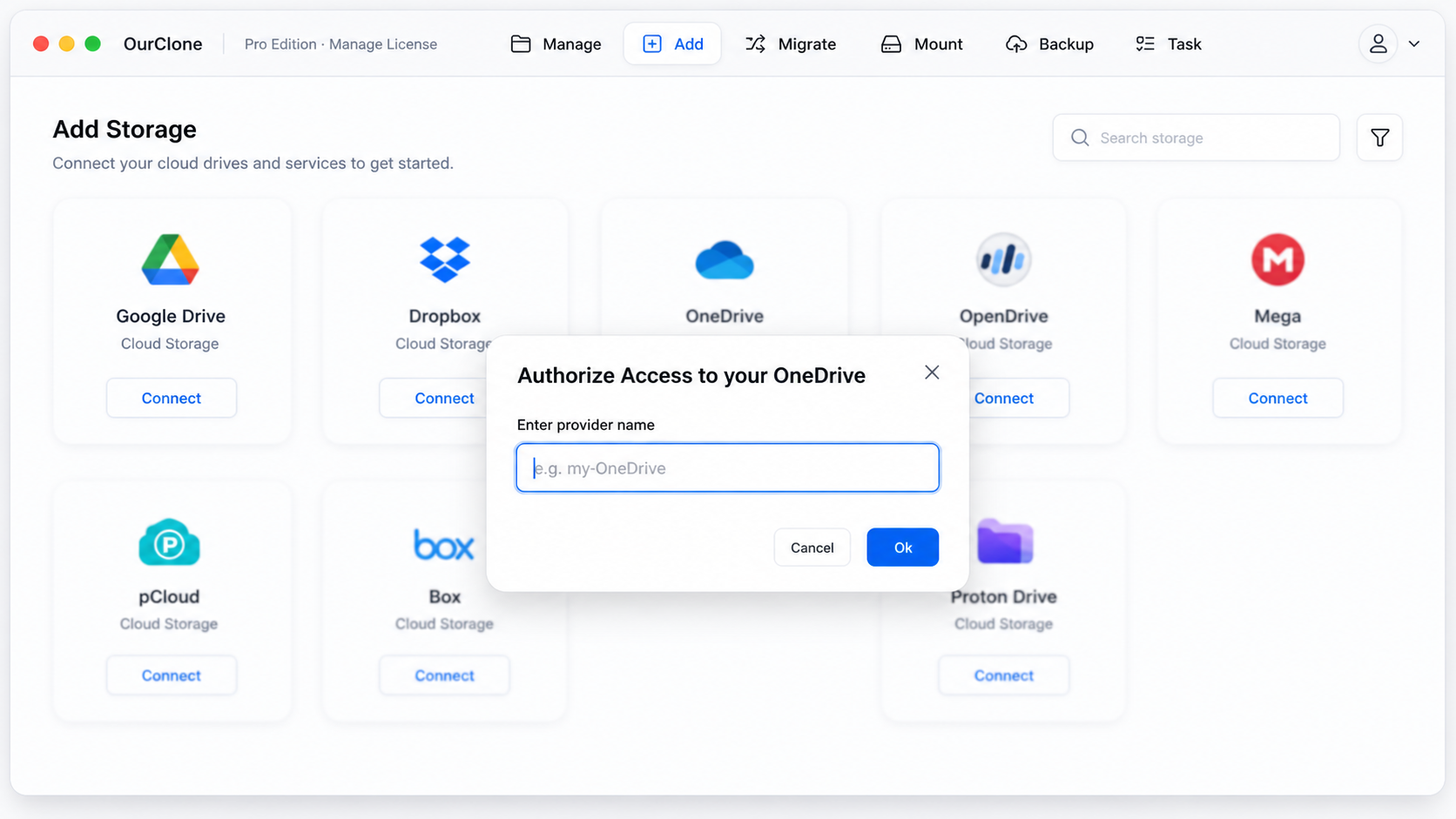
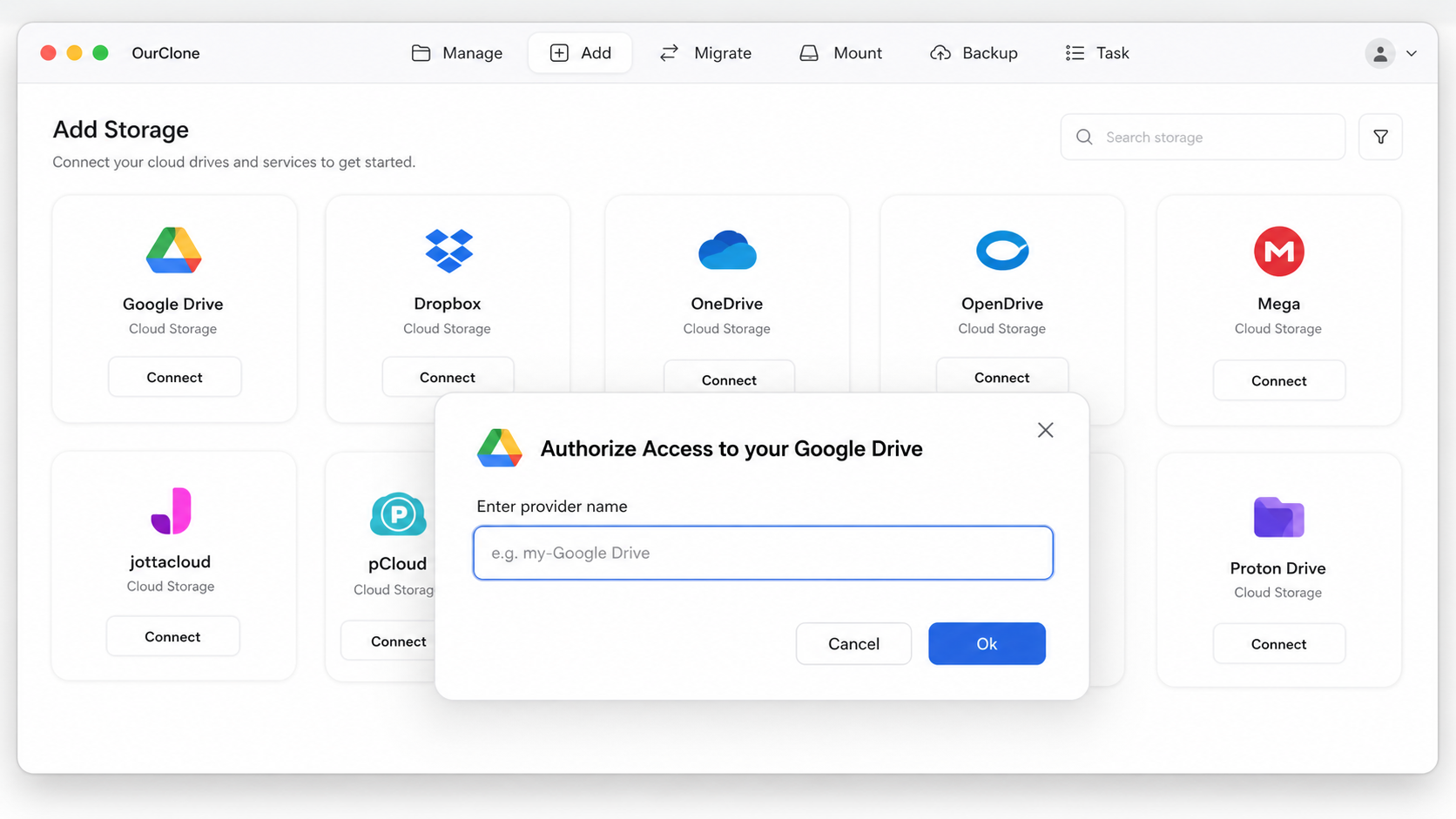
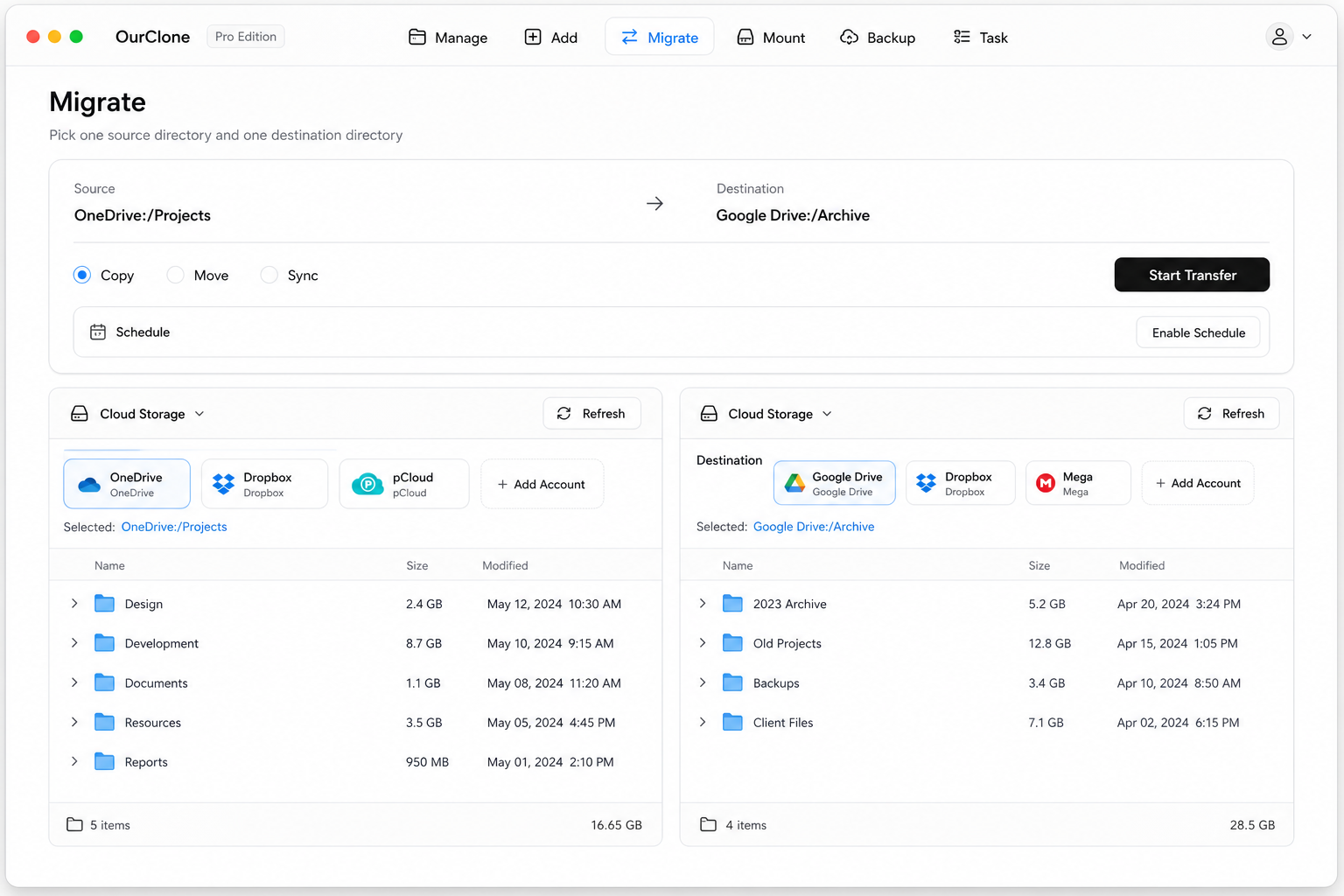
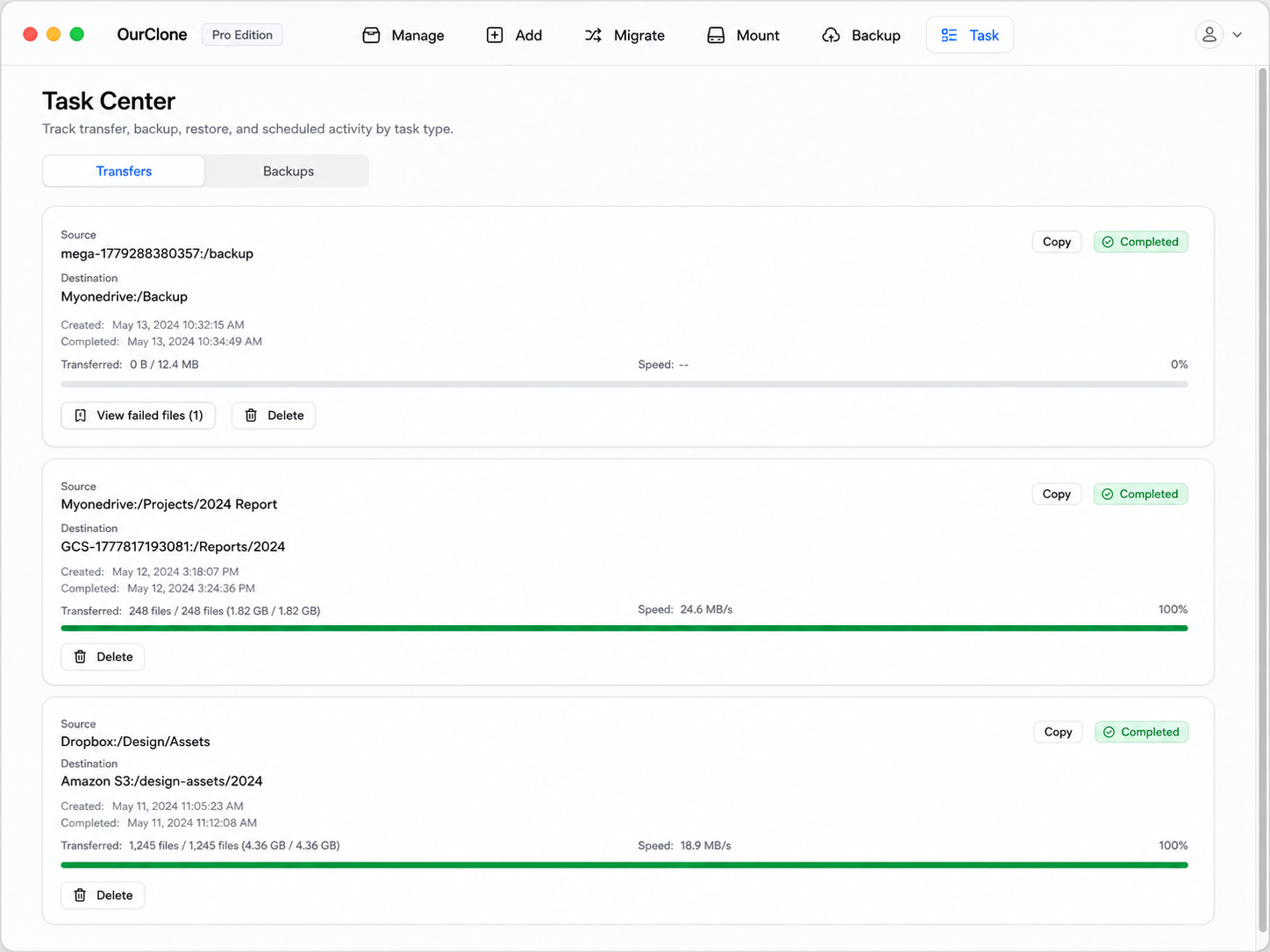
Because the transfer runs on your Mac and is mode-aware, you decide exactly whether OneDrive keeps its copy — and a big migration resumes from where it stopped instead of starting over.
Method 3: Transfer OneDrive to Google Drive with rclone (Command Line)
OurClone is built on rclone, so if you live in a terminal you can run the same OneDrive-to-Google-Drive move yourself — useful for scripting or repeating the job on a schedule you control.
Step 1: Install rclone
Grab it from the official downloads page, or run brew install rclone on macOS.
Step 2: Configure both remotes
Run rclone config and add one remote for OneDrive and one for Google Drive. Both use OAuth, so rclone opens a browser for each sign-in — name them something memorable like onedrive and gdrive.
Step 3: Run the transfer
Pick the verb that matches OurClone's modes:
# Copy — keep OneDrive intact
rclone copy onedrive:Documents gdrive:Documents --progress

# Move — delete the OneDrive originals after transfer
rclone move onedrive:Documents gdrive:Documents --progress

# Sync — make Google Drive mirror OneDrive (deletes extras in Google Drive)
rclone sync onedrive:Documents gdrive:Documents --progress
For example, rclone copy onedrive:Projects gdrive:Projects --progress copies your Projects folder across while leaving OneDrive exactly as it was.
Caveats
- ⚠️
syncandmovedelete files — confirm the direction and run with--dry-runfirst. - ⚠️ No GUI; progress and errors are terminal-only.
- ⚠️ Each remote's OAuth must be set up by hand — exactly the friction OurClone removes.
Common OneDrive → Google Drive Transfer Headaches
A few things reliably go sideways when moving between these two clouds — here's what to expect.
- 🐢 Big Google Drive web downloads stall — Google Drive zips bulk downloads and can choke on large folders, and OneDrive's export zips are just as fragile. OurClone and rclone sidestep this by streaming file-by-file with resume.
- 🔡 Illegal file-name characters — OneDrive blocks names with
" * : < > ? / \ |; files that slipped in via sync can fail on transfer. Check the Task panel's failed-file list and rename the offenders. - ⏳ API throttling — Both Microsoft Graph and the Google Drive API rate-limit heavy transfers. OurClone retries with backoff so the job keeps crawling forward instead of erroring out.
- 🔐 Auth expires mid-transfer — A changed password or a Conditional Access policy can revoke the OneDrive token. Re-authorize under
Add Storageand the migration picks back up. - 🧮 File counts don't match — Google Docs created in Drive have no real OneDrive equivalent, and OneDrive shortcuts won't carry over. Compare the Task summary rather than raw folder counts.
Quick Questions
Will this delete my OneDrive files?
Only if you choose Move. Copy leaves OneDrive fully intact, and Sync only removes extra files in Google Drive, never in OneDrive.
Do my Office files become Google Docs?
The transfer copies the original Word or Excel files as-is. Google Drive can then open them and, if you choose, save a Google Docs copy — but OurClone doesn't force a conversion.
Which Method Should You Use?
| What matters | Manual Web | OurClone | rclone CLI |
|---|---|---|---|
| Ease of use | ✅ No install | ✅ Point-and-click GUI | 🛠 Terminal only |
| Handles large libraries | ❌ Times out | ✅ Streams with resume | ✅ Streams with resume |
| Uses local disk as middleman | ❌ Doubles disk use | ✅ Direct transfer | ✅ Direct transfer |
| Copy / Move / Sync control | ❌ Manual only | ✅ Built in | ✅ Built in |
| Live progress & failed-file list | ❌ | ✅ | 📉 Console text |