Why OneDrive for Business Fits Mac Backups in a Microsoft 365 Shop
When your company already lives in Microsoft 365, it makes sense to back up to storage that's part of that world. OneDrive for Business is provisioned per user and managed by your IT team, and OurClone can use it as an encrypted repository for the Mac folders that aren't in the synced OneDrive folder.
Think of an employee whose real work sits in ~/Projects and ~/Desktop -- folders outside the synced area. OurClone snapshots those straight into the company tenant where backups belong.
- 🏢 Storage Your Org Owns -- Backups land in the Microsoft 365 tenant your team already governs.
- 🔐 Encrypted Before Upload -- OurClone encrypts repository data locally, so the tenant holds only protected blocks.
- 💼 Beyond the Sync Folder -- Protect any local folder, not just the one OneDrive syncs by default.
- 🌍 Recover on a New Mac -- Sign back in from another machine and restore what you need.
Incremental Snapshots Keep OneDrive for Business Backups Efficient
Per-user tenant storage is generous but not infinite, and re-uploading whole folders wastes both quota and time. Incremental snapshots send only what changed after the first run, keeping routine backups light.
The initial snapshot uploads your full selection; after that, OurClone adds just new and modified data to the repository.
- 🚀 Only changed data uploads after the first snapshot
- 💾 Respects per-user tenant storage limits
- 🔐 Works with the encrypted repository model
- 📅 Maintains multiple restore points without duplicates
Sort Out Account Access Before You Start
OneDrive for Business backups depend on organizational access, so confirm these first:
- 🪪 Use Your Work Account -- Sign in with the organizational Microsoft account, not a personal one; they behave differently.
- ✅ Check Admin Consent -- Some tenants require an administrator to approve third-party app access. If sign-in is blocked, ask IT to grant consent.
- 📁 Choose Folders Worth Restoring -- Prioritize
~/Projects,~/Documents, and~/Desktop; skip caches and system paths. - 📶 Plan the First Upload -- The initial snapshot is the heaviest, so run it on a reliable connection.
- 🧪 Start Small -- Back up one folder first to confirm sign-in, consent, and the restore flow.
Set Up a OneDrive for Business Backup in OurClone
Setup uses a browser sign-in, so no passwords are stored in the app.
- 🔗 Add OneDrive for Business -- In
Add Storage, choose OneDrive, enter a custom name, and confirm. A browser opens; sign in with your organizational account and approve access (admin consent may be required). It then appears in OurClone. - 📦 Create a Backup Repository -- Open
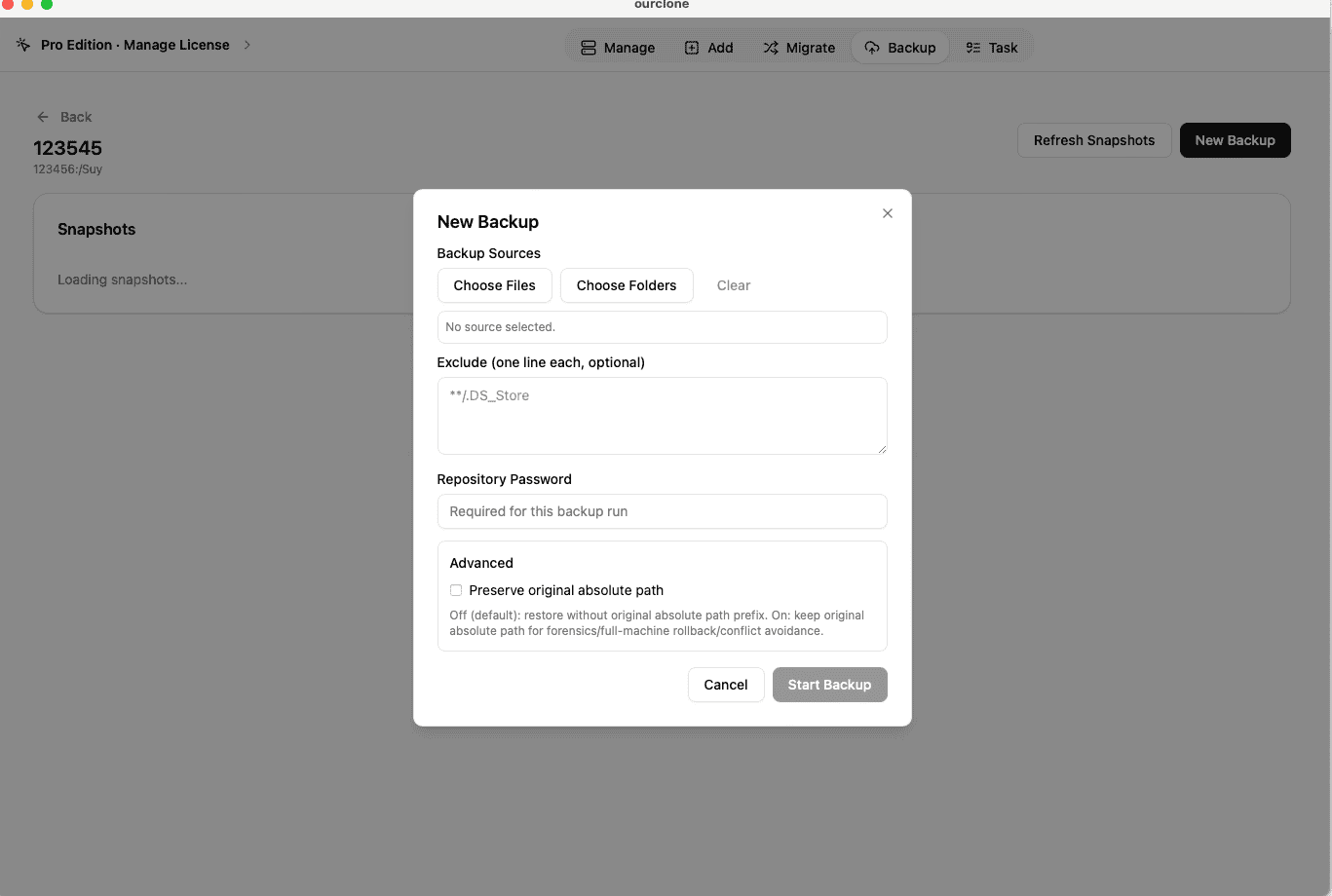
Backup, create a repository, and choose a path in the tenant storage (for example/ourclone-backups). Name it and set a repository password that encrypts the backup -- it's required for every restore, so store it safely. - 🗂️ Select Mac Folders and Snapshot -- Open the repository, click
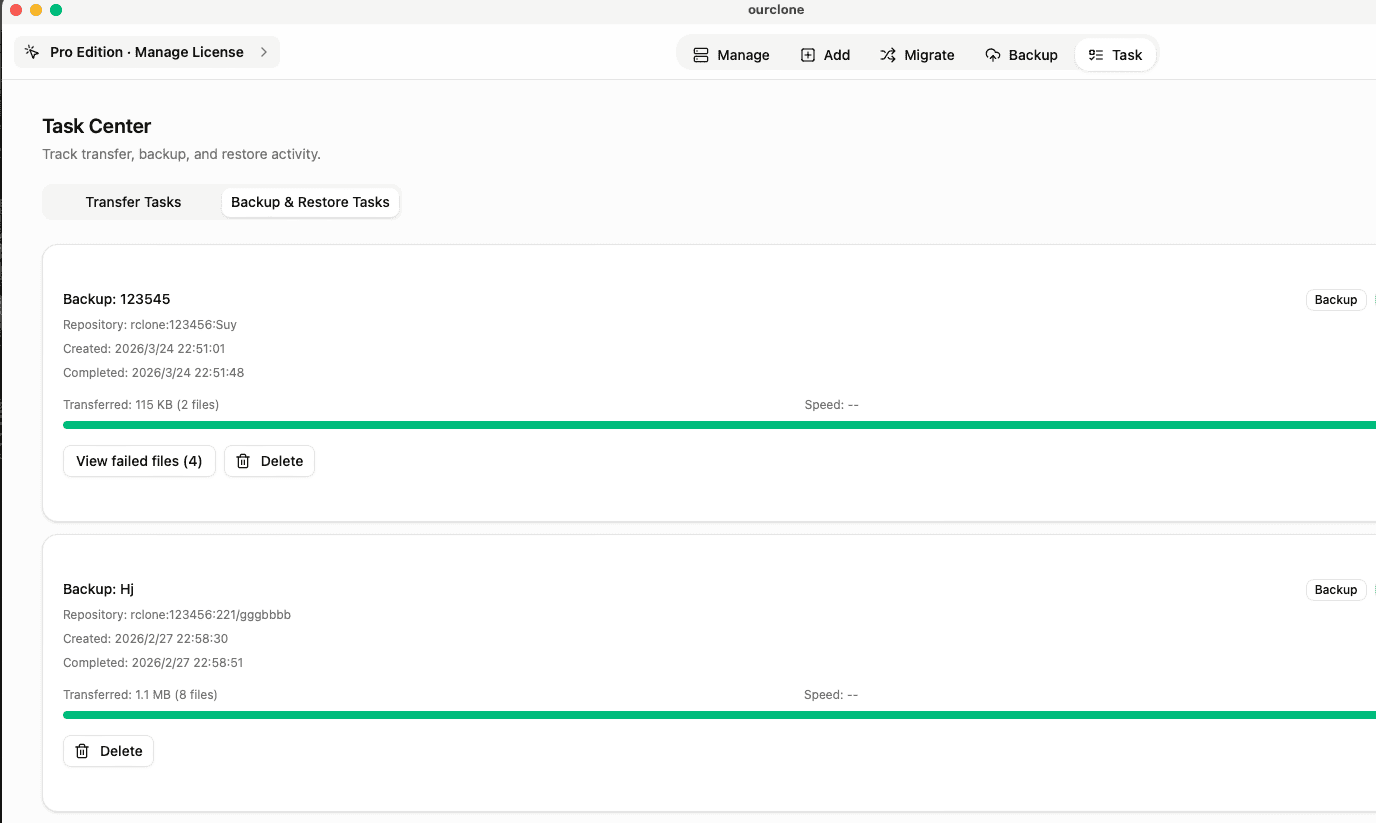
New Backup, choose folders like~/Projectsor~/Documents, and start. The first run is full; later runs are incremental. - 🕒 Monitor the Task -- Open
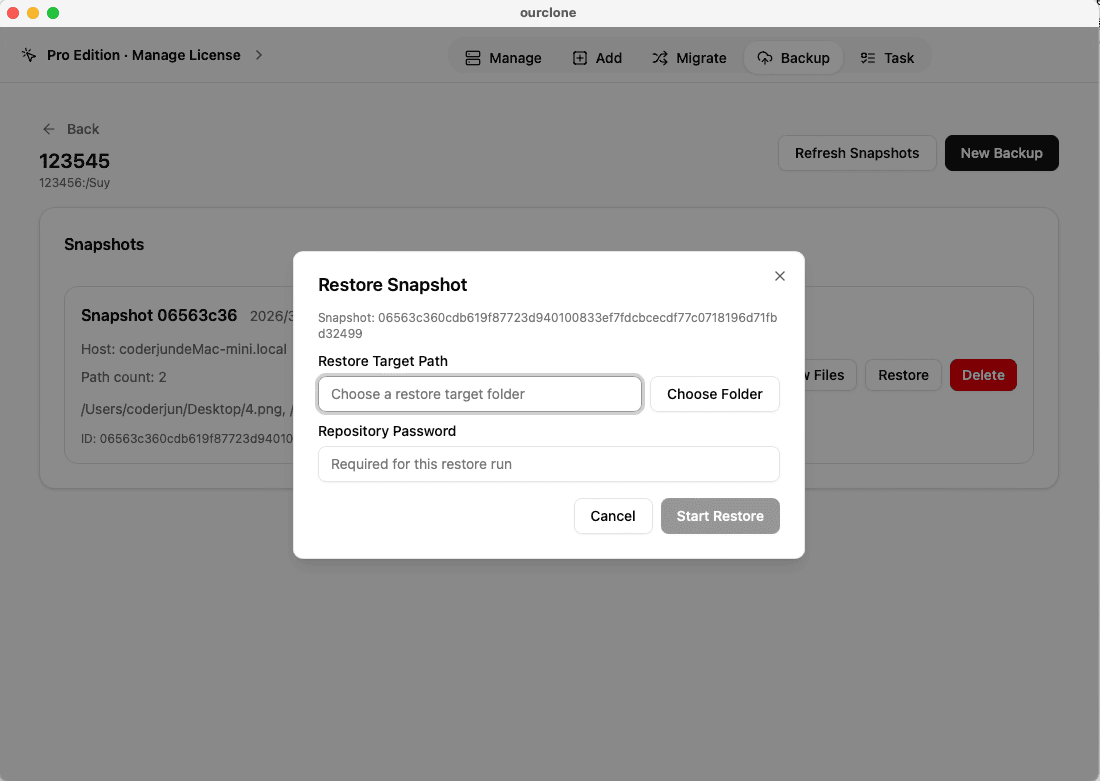
Task→Backup & Restoreto follow progress, speed, and any skipped files. - 🔁 Restore When Needed -- Open the repository, select a snapshot, click
Restore, enter the repository password, and choose a local destination.


Confirm the Backup and Maintain Organizational Access
In a managed tenant, it's worth confirming both the backup and your ongoing access.
- 📄 Check Task Completion -- In
Task→Backup & Restore, a clean finish means the snapshot is stored; failures are flagged. - 🧩 Review Skipped Files -- Locked or permission-restricted files appear in the logs so you can address them directly.
- 🔐 Encryption Verification -- Data is encrypted before upload, so the tenant stores only protected repository blocks.
Watch for Access Changes
Organizational access can change: IT may revoke app consent, reset your account, or adjust conditional-access policies. If backups start failing, reconnect OneDrive in OurClone and confirm with your admin that app access is still allowed.
Test a Restore Before You Need One
Restore a small folder from a completed snapshot now. It proves your tenant backups are recoverable and that you still hold the repository password every restore requires.