🔄 From OneDrive to Jottacloud: My Syncing Experience
I’ve used OneDrive for years, mostly because it integrates so well with Microsoft 365. But for long-term archiving, I wanted my files stored in Europe, under GDPR. That’s where Jottacloud came in. In this post, I’ll walk you through how I moved and synced my data from OneDrive to Jottacloud using OurClone. Spoiler: everything runs locally, no hidden servers in between.
Heads up: The process isn’t complicated. You install OurClone, log into OneDrive, and then generate a token in Jottacloud. After that, you’re good to go.
🌍 Why bother syncing to Jottacloud?
Jottacloud is based in Norway, and that means your files are stored under some of the strictest privacy rules in the world. For me, it’s less about replacing OneDrive and more about having a secondary vault. If Microsoft goes down, I still have a copy. If I want my photo library to live outside the U.S., Jottacloud gives me that option.
✅ Before You Sync OneDrive to Jottacloud
OneDrive is often tied to Microsoft 365, shared folders, Teams files, and Office documents. Before copying everything into Jottacloud, decide what should become an archive and what should keep living in Microsoft’s ecosystem.
- Separate active work from archive data -- Current Microsoft 365 collaboration folders may be better left in OneDrive, while completed projects can be copied to Jottacloud.
- Create a clean destination folder -- Use a folder such as
/OneDrive Backupin Jottacloud to avoid mixing imported files with existing Jottacloud sync folders. - Generate a fresh Jottacloud token -- A newly created token reduces the chance of an auth error halfway through the first transfer.
- Test Office documents -- Open a few DOCX, XLSX, and PDF files after transfer to confirm they landed correctly.
⚙️ How I Set It Up
1. Grab OurClone
Download OurClone from the official site. It runs on Windows and macOS. Installation is quick — like installing Dropbox or OneDrive itself.
2. Add OneDrive
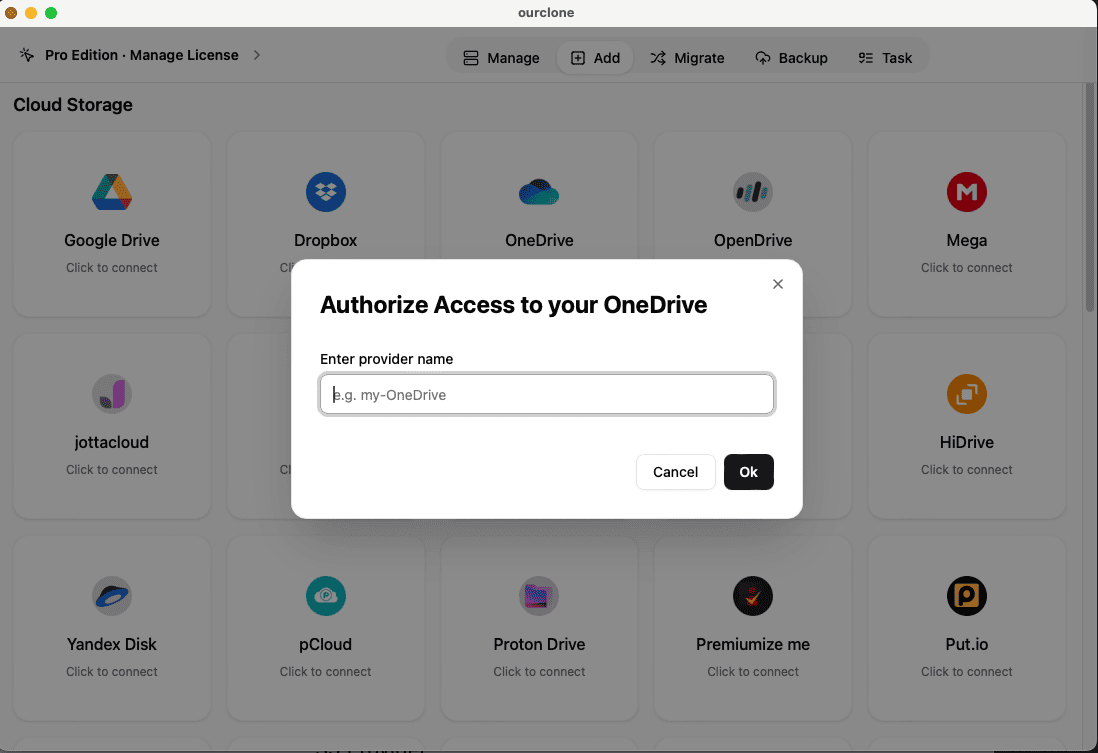
Inside OurClone, click Add Cloud → choose OneDrive. A Microsoft login page will pop up; sign in with your account and give permission. That’s it, OneDrive is now linked.
3. Link Jottacloud (Token step)
Jottacloud works differently. Instead of OAuth, it uses Personal Tokens:
- Log into your Jottacloud account
- Go to Settings → Security
- Click Personal Token, confirm your password, then generate a token
- Copy the token and paste it into OurClone when adding Jottacloud
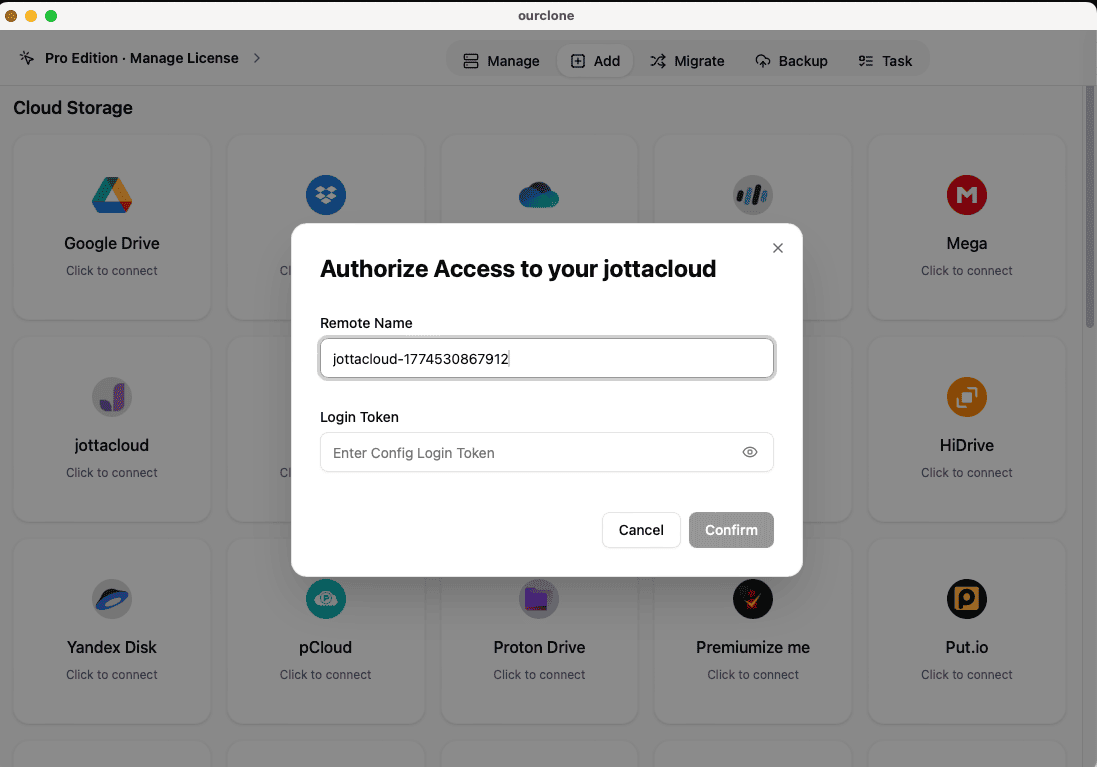
Important: Tokens don’t last forever. If yours expires, you’ll need to repeat this step.
4. Create the Sync
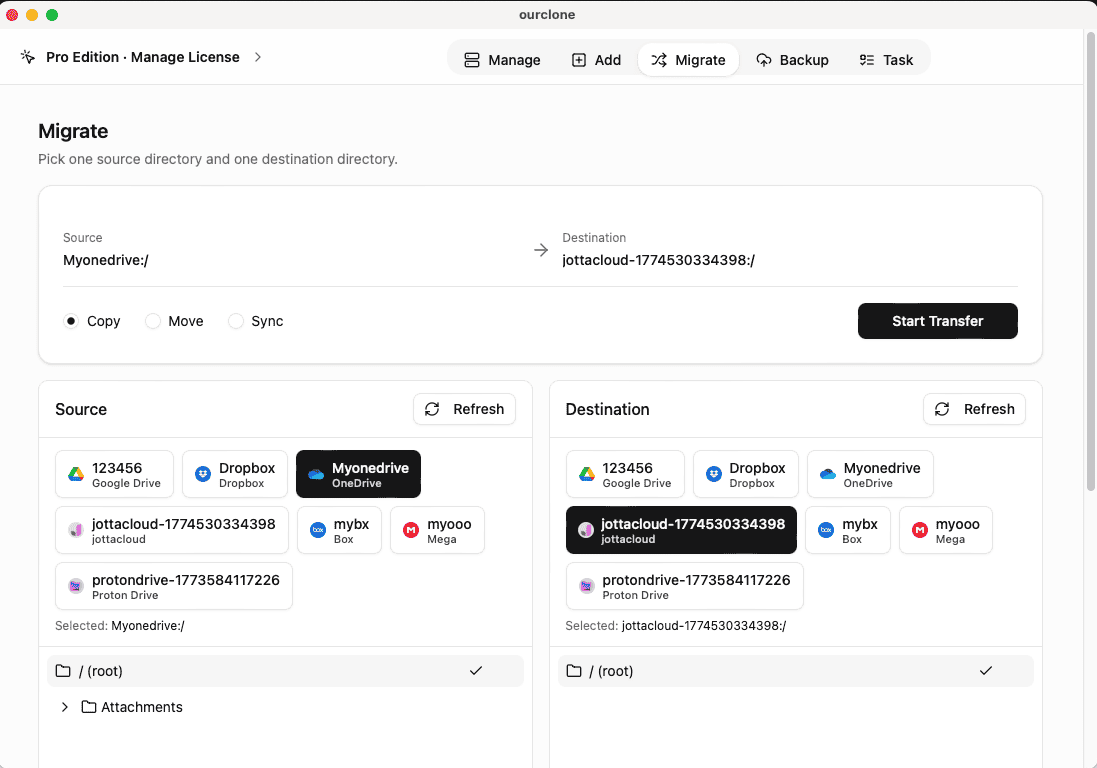
In the OurClone sidebar, go to Migrate. Choose OneDrive as the source, Jottacloud as the destination. Pick your mode:
Copy→ Keeps OneDrive intact, just pushes files to JottacloudSync→ Makes both folders identicalMove→ Transfers files, then deletes them from OneDrive
Click Start, sit back, and let it do its thing.
5. Watch the Task
Once the job begins, head to the Task panel. Here you’ll see live progress, speeds, and error logs. It’s worth keeping an eye here during your first big transfer.
✅ After the First Sync
When the files land in Jottacloud, don’t just walk away. A few things I recommend:
- Check that your most important folders (Docs, Photos, Work) are intact
- Re-organize files inside Jottacloud if needed — it’s a good time to tidy up
- Enable two-factor authentication for your Jottacloud account
- Schedule recurring syncs in OurClone so you don’t forget
- Keep an eye on token validity — expired tokens will break your sync until re-added
🧭 Which Transfer Mode Fits This Workflow?
| Mode | Use It For | Caution |
|---|---|---|
| Copy | A safe Jottacloud backup of OneDrive folders. | Best first run because OneDrive remains unchanged. |
| Move | Reducing Microsoft storage after you have verified Jottacloud. | Do not use on shared folders until you understand ownership and collaboration impact. |
| Sync | Keeping a selected OneDrive folder mirrored to Jottacloud. | Review deletion behavior before syncing active work folders. |
⚠️ Things That Might Go Wrong
If OurClone suddenly says “authorization failed,” your Jottacloud token may have expired. Just generate a new one in Settings → Security.
Jottacloud plans have quotas. Check you have space before a huge migration.
Large jobs may stall if your Wi-Fi drops. Use the retry option instead of starting over.
If two files share the same name, OurClone may skip or duplicate them. Set conflict rules before syncing.
Sync at night or off-peak hours if you notice bottlenecks.
❓ FAQ
Will this replace the OneDrive desktop app?
No. OurClone is for transferring, moving, or syncing selected cloud folders. You can keep using the OneDrive desktop app for daily Microsoft 365 work.
Can I sync only one OneDrive folder?
Yes. In the Migrate view, choose the exact OneDrive folder you want as the source instead of selecting the whole account.
What happens if the Jottacloud token expires?
The task will fail authorization until you generate a new token and reconnect Jottacloud in OurClone.
Is Copy safer than Sync?
For the first run, yes. Copy creates a destination copy without changing OneDrive, which makes it easier to validate before you automate anything.
🚀 Ready to back up your OneDrive?
Download OurClone today: https://www.ourclone.app/download