Why People Move from Google Drive to OneDrive
Going the other direction? See move files from OneDrive to Google Drive — or, to keep both clouds aligned over time, connect Google Drive to OneDrive.
The pull toward OneDrive usually comes bundled with something else you already pay for or already use every day.
- 💼 Microsoft 365 Includes 1 TB — A Microsoft 365 Personal plan bundles 1 TB of OneDrive (up to 6 TB shared on Family). If you subscribe for Word and Excel anyway, that storage is already yours — while Google's free tier stays at 15 GB shared across Gmail, Drive, and Photos.
- 🪟 Windows and Office Integration — OneDrive is built into Windows and saves directly from Word, Excel, and PowerPoint. If your daily work happens in Office, files in OneDrive simply live closer to where you use them.
- 🏢 Work or School Runs on Microsoft — Many companies and universities issue OneDrive/SharePoint storage. Consolidating personal project files there keeps everything searchable in one place.
- 📬 Your Gmail Is Full — Because Google's quota is shared, a heavy Drive means bounced emails. Moving archives to OneDrive frees the quota without deleting anything.
Before You Start the Transfer
A few Google-to-Microsoft quirks are worth knowing up front — they cause most of the surprises people hit mid-migration.
- 📝 Native Google Docs Aren't Regular Files — Docs, Sheets, and Slides created in Google Drive are cloud-native formats. Export the ones you need as Word/Excel/PowerPoint (or PDF) before migrating; transfer tools copy ordinary files as-is.
- 🔡 OneDrive Rejects Some File Names — Names containing
" * : < > ? / \ |are not allowed on OneDrive. Files like these will show up in the failed list — rename them and re-run. - 📏 Check the Destination Quota — Compare the size of what you're moving (Google Drive's Storage page shows totals) against your free OneDrive space before starting, not after.
- 👥 "Shared with Me" Files Aren't Yours — Files other people shared to your Google Drive may not transfer, depending on their permissions. Copy the ones you're allowed to into your own Drive first.
Method 1: Download from Google Drive, Upload to OneDrive
For a handful of folders, no tools are needed — your computer just becomes the middleman.
- 📥 Download from Google Drive — In the Google Drive web app, select the files or folders and click Download. Google zips bulk selections on the fly, so unzip them into a clean local folder.
- 📤 Upload to OneDrive — Open the OneDrive web app and drag the unzipped files into the destination folder.
- ✅ Verify and Clean Up — Spot-check the uploaded folders, then delete the local copies to reclaim disk space.
The catch: Google Drive's bulk zips frequently fail on large folders, there's no resume when a download or upload drops, and everything briefly occupies double the space on your disk. Fine for a few gigabytes — painful beyond that, which is where Method 2 comes in.
Method 2: Transfer Google Drive to OneDrive with OurClone
OurClone connects both accounts and moves files between them directly through your Mac or Windows PC — with live progress, retries, resume, and a failed-file list. No third-party server sits in the middle.
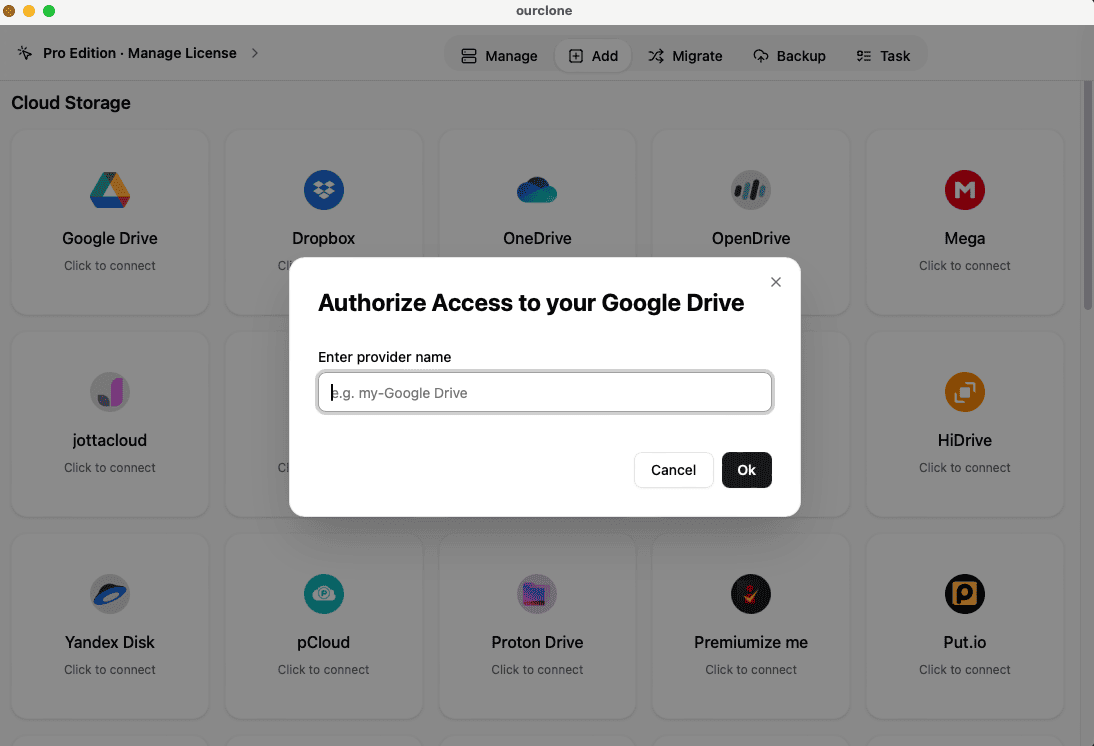
- 🔗 Step 1: Connect Google Drive — Open OurClone, go to
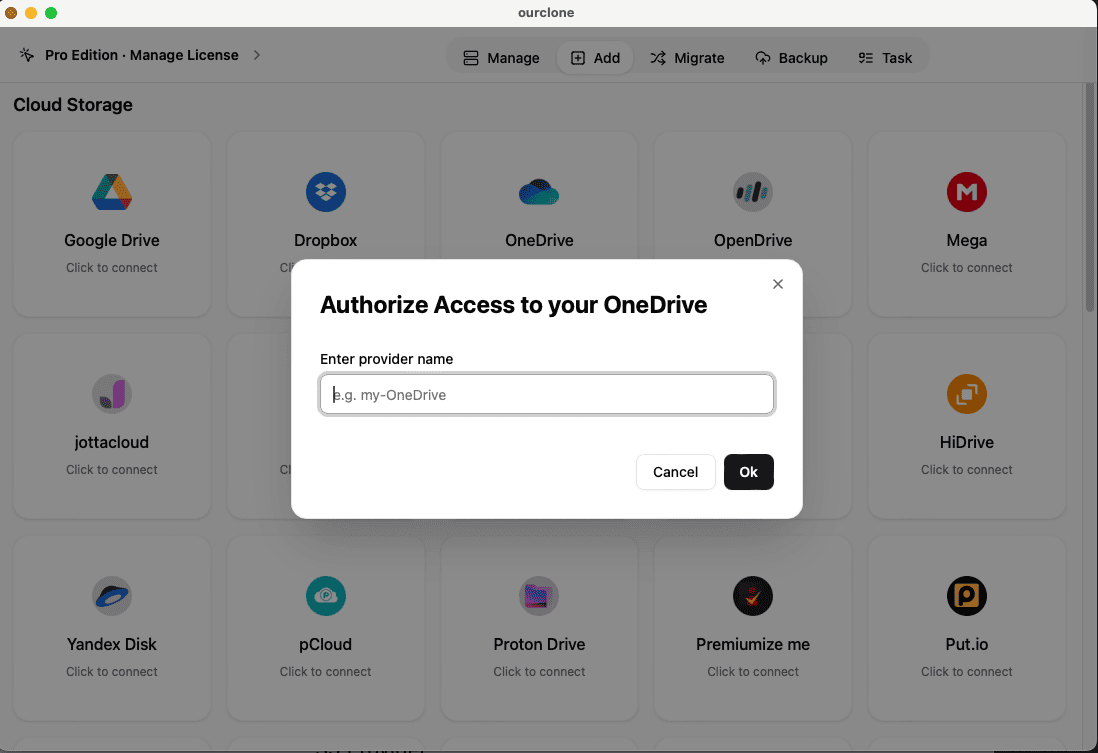
Add, and pick Google Drive. A browser window opens — sign in to your Google account and authorize access. - 🔗 Step 2: Connect OneDrive — Back in
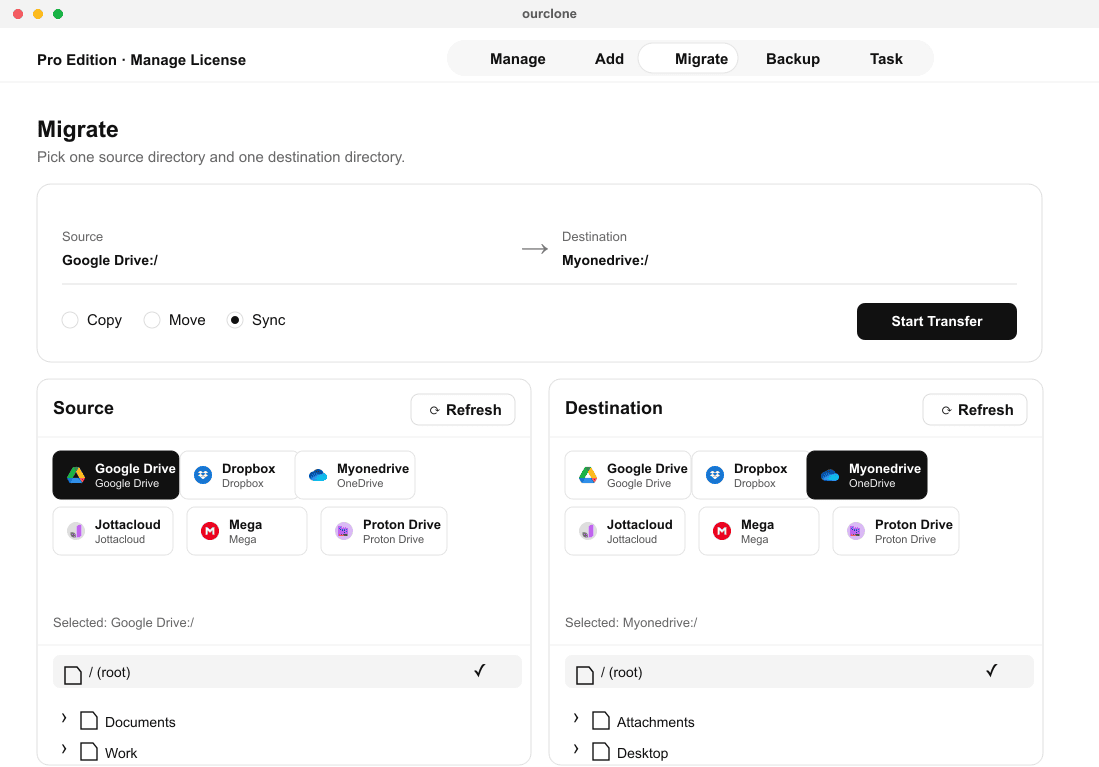
Add, pick OneDrive and sign in to your Microsoft account the same way. Both clouds now sit in your storage list — and two connected remotes is exactly what OurClone's free tier includes. - 🔀 Step 3: Set Up the Migrate Job — Open the
Migratetab. Choose Google Drive as the source and browse to the folder you're moving, then choose OneDrive and pick (or create) the destination folder. Select a mode:- Copy — duplicates files to OneDrive; Google Drive keeps everything. The safest first run.
- Move — transfers to OneDrive, then deletes the originals from Google Drive — this is what actually frees your Google quota.
- Sync — makes the OneDrive folder mirror the Google Drive source; extras on the OneDrive side are removed, Google Drive is untouched.
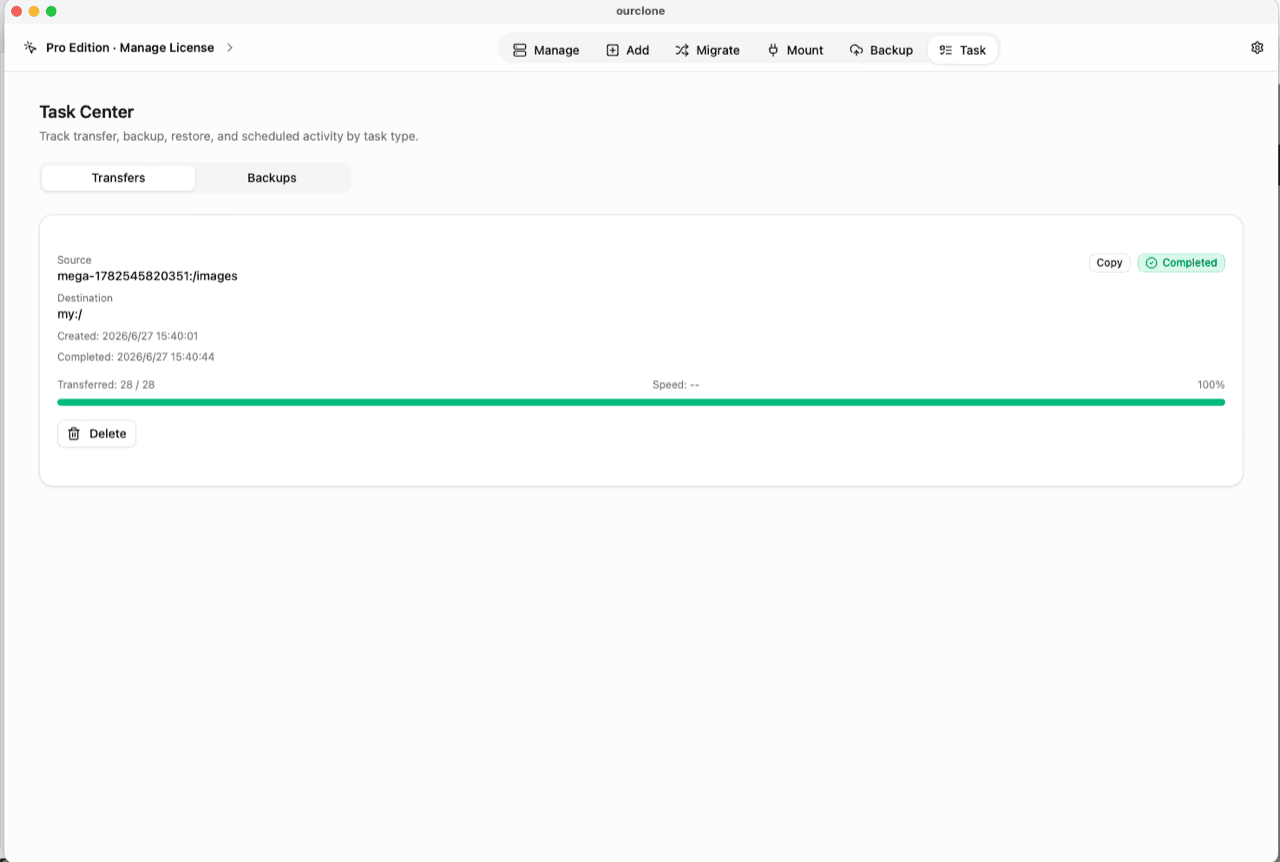
- 📊 Step 4: Watch It Finish in the Task Center — The
Tasktab shows live progress, speed, and any failed files (file-name offenders land here). History survives app restarts, and an interrupted job resumes instead of starting over. When it completes, spot-check OneDrive — and if you chose Move, confirm Google Drive is lighter.
Frequently Asked Questions
Will my files be deleted from Google Drive?
Only if you choose Move. Copy leaves Google Drive fully intact, and Sync only removes extra files on the OneDrive side — never in Google Drive.
What happens to my Google Docs and Sheets?
Native Google formats don't exist as regular files, so export them (File → Download in each doc, or Google Takeout for bulk) as Word/Excel/PDF before the transfer. Ordinary files — photos, videos, PDFs, Office documents — copy over exactly as they are.
Is OurClone free for this job?
Yes — the free tier includes two connected remotes, which is precisely Google Drive plus OneDrive, and transfers run within the free plan's limits. See pricing for what Pro adds.
Can I schedule the transfer to repeat?
With OurClone Pro you can save the Migrate job to run automatically on a one-time, weekly, or monthly basis — useful for topping up the migration or keeping a recurring one-way copy.
Does the transfer go through OurClone's servers?
No. The job runs on your own computer using your network connection — files move from Google Drive to OneDrive without any relay server in between.