Why Schedule a Cloud-to-Cloud Transfer
Most recurring transfer needs sound like one of these:
- 🗃️ A second-cloud safety copy — every week, copy the working folder from Dropbox into Google Drive (or any other pair), so one account's disaster isn't your data's disaster.
- 📦 Slow-motion migration — moving providers without a big-bang cutover: a monthly Move drains the old account folder by folder.
- 🧾 Archival routine — sweep finished projects from a collaboration cloud into cheap object storage on the first of each month.
- 🔄 Mirror for a team — keep a folder in one cloud synced into another so a second tool or team always reads a current copy.
Doing any of these by hand means remembering — and remembering is exactly what schedules replace. Backing up local folders instead? See scheduling automatic cloud backups.
What OurClone's Scheduled Transfers Can Do
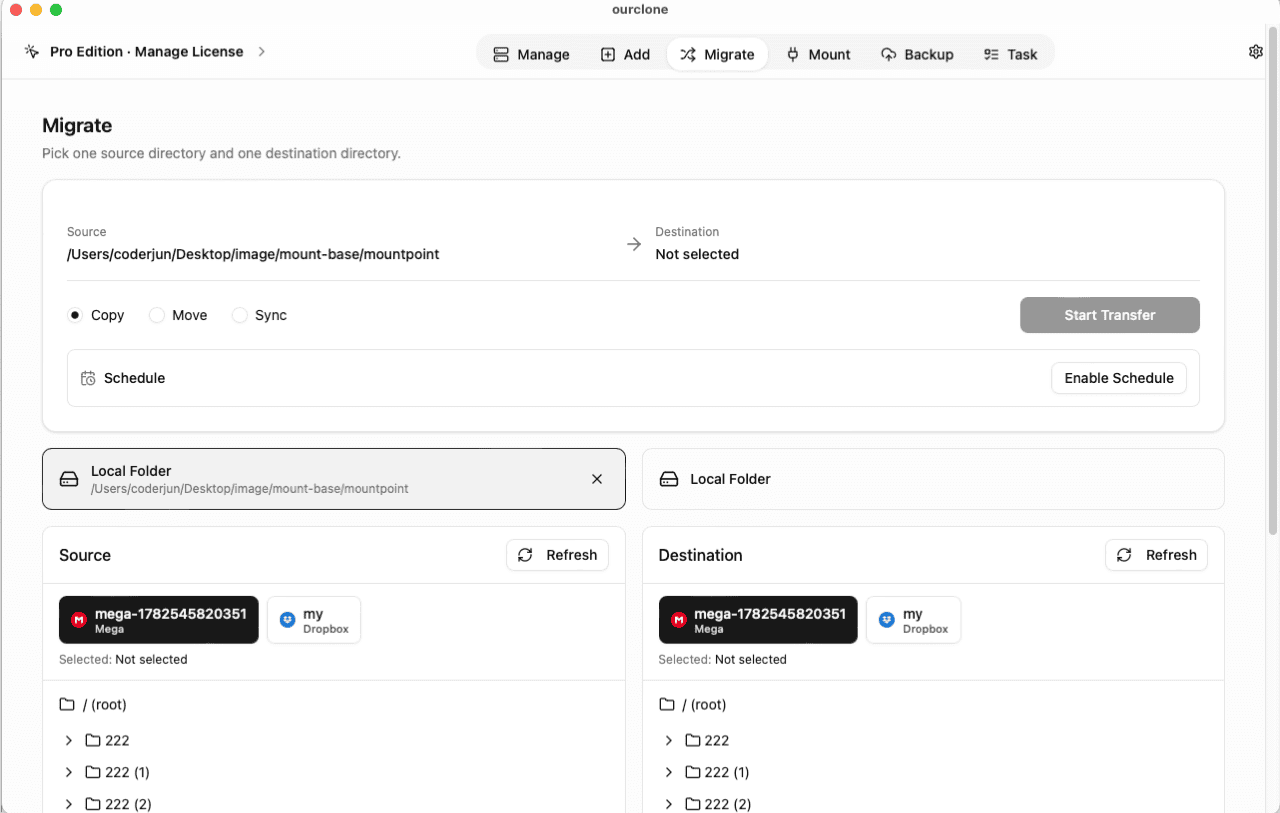
Scheduling is an OurClone Pro feature built into the Migrate page. Any transfer you can run manually, you can save as a plan:
- 📅 One-time — run date plus run time; good for a big migration you want to fire tonight.
- 🗓️ Weekly — one or more days of the week, at a run time you choose.
- 📆 Monthly — one or more days of the month; months without the selected date are skipped.
- 🔀 Copy, Move, or Sync semantics — the saved plan keeps your transfer mode: Copy duplicates, Move deletes the source after transfer, Sync makes the destination mirror the source.
- 🖥️ Local execution, no relay — triggered transfers run through your computer, exactly like manual ones; your files never pass through a third-party server.
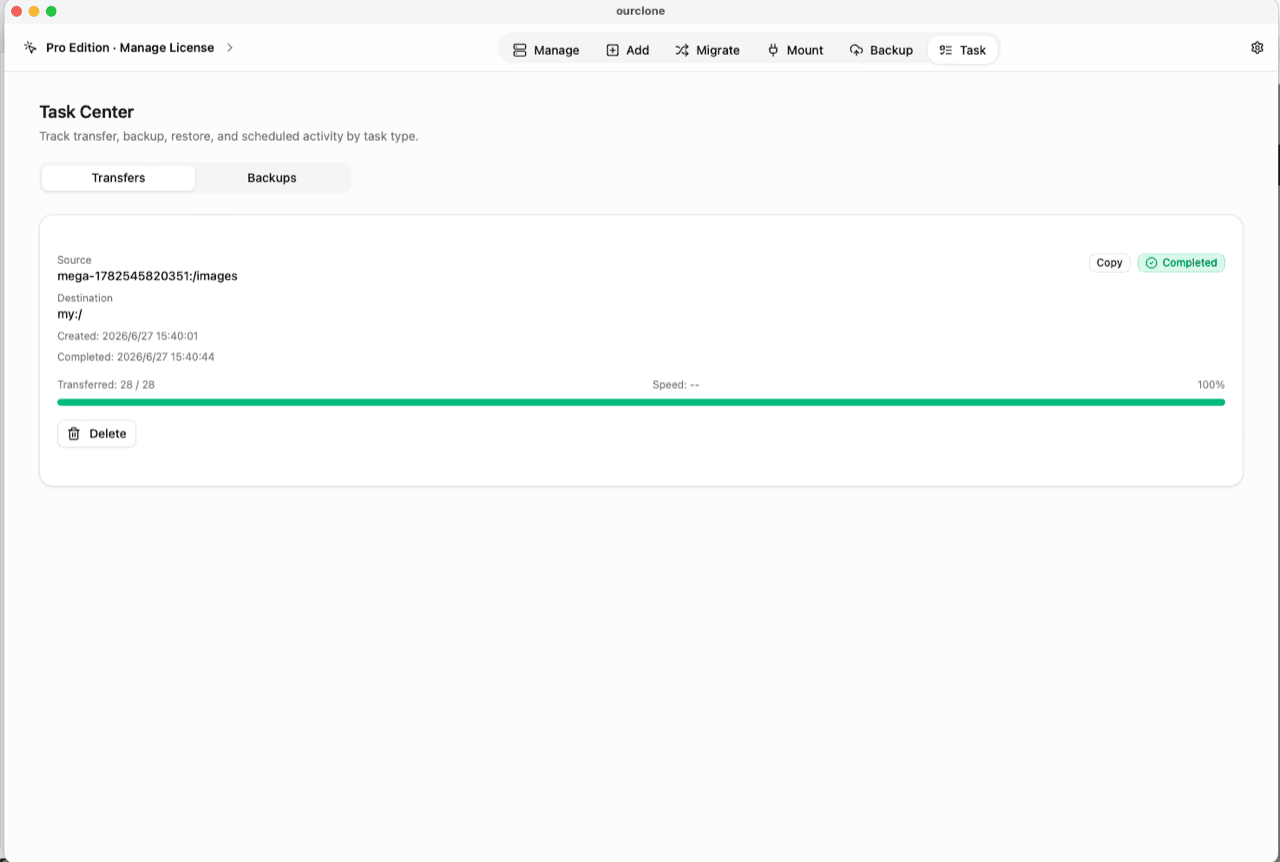
Triggered runs appear in the Task Center under Transfers with live progress, a failed-file list, and desktop notifications.
Set Up a Scheduled Transfer (Dropbox → Google Drive Example)
- 🔗 Step 1: Connect both clouds — In
Add, connect the source and destination — for this example, Dropbox and Google Drive, both via browser sign-in. Two connected remotes is exactly what the free tier includes; scheduling itself is Pro. - 🔀 Step 2: Build the Migrate job — Open
Migrate, pick the Dropbox folder as the source and a Google Drive folder as the destination, and choose the mode — Copy for a safety duplicate, Sync if the Google Drive side should mirror Dropbox exactly (extras there get removed). - 🕒 Step 3: Save it as a schedule — Enable the schedule option, pick Weekly, select the days (say, Friday), set the run time, and save the plan.
- 📊 Step 4: Check the first triggered run — When it fires, the transfer appears in the
Tasktab under Transfers. Verify the destination folder once — after that, the routine runs itself.
Keep OurClone available when schedules are due: closing the window sends it to the system tray where plans still fire, and start-at-login brings it back after a reboot.
Frequently Asked Questions
Is this real-time sync between clouds?
No — OurClone doesn't run a continuous sync daemon. A scheduled Sync keeps two folders aligned at the cadence you choose (weekly on chosen days, or monthly), which covers most "auto sync Dropbox to Google Drive" needs without a server watching your accounts.
Is scheduling free?
Scheduling is a Pro feature; manual transfers work on the free tier within its limits. See pricing.
Does the transfer use my bandwidth?
Yes — data flows from the source cloud through your computer to the destination cloud. That's the privacy trade: no relay server ever holds your files. Schedule runs for hours when your connection is idle.
Can I run it every day?
Select all seven days in a weekly schedule and it runs daily at your chosen time. There's no hourly or custom-interval type.
What happens if my computer is off when a run is due?
Schedules fire from the app on your computer, so OurClone needs to be running (the tray counts). Stale-schedule protection keeps old plans from piling up or getting stuck if runs were missed.
Which cloud pairs work?
Any two connected storages — consumer clouds, S3-compatible object storage, WebDAV, SFTP and more. For a concrete pair walkthrough, see connect Google Drive to OneDrive.