Video Tutorial: Schedule Weekly Cloud Backups with OurClone
Follow the weekly backup walkthrough in OurClone, then use the written steps below to set up your own schedule.
Why Scheduled Backups Beat Manual Ones
Everyone runs their first backup enthusiastically. The gap between backup number one and backup number two is where data gets lost.
- 🧠 Memory is the weakest link — the week you're busiest is the week you skip the backup, and it's also the week you're producing the most data worth protecting.
- 📉 Stale backups restore stale data — a three-month-old snapshot turns a disk failure into three months of lost work.
- 🔁 Incremental runs are cheap — OurClone's restic-powered backups upload only what changed, so a weekly run typically takes minutes, not hours.
- 🔐 Everything stays encrypted — scheduled runs write to the same encrypted repository as manual ones; the cloud only ever stores ciphertext.
Backing up between clouds instead of from your computer? See scheduling cloud-to-cloud transfers.
What OurClone's Scheduling Can Do
Scheduling is an OurClone Pro feature. When you create a backup, you can save it as a plan instead of (or as well as) running it immediately. Three schedule types are available:
- 📅 One-time — pick a run date and a run time (at least a couple of minutes in the future). Good for "tonight after I stop working".
- 🗓️ Weekly — pick one or more days of the week and a run time. The workhorse for most backup routines.
- 📆 Monthly — pick one or more days of the month and a run time. Months without a selected date (like the 31st) are simply skipped.
Saved schedules keep the repository password with them so recurring runs don't stop to ask, and every triggered run shows up in the Task Center under Backups — same progress, same logs, same notifications as a manual run.
Set Up a Scheduled Cloud Backup
- 🔗 Step 1: Connect a cloud and create a repository — Any connected storage works as a backup destination. If you haven't set one up yet, follow a provider guide first — for example back up your Mac or PC to Dropbox or back up folders to Google Drive — through the "create repository" step.
- 🗂️ Step 2: Create the backup and choose folders — In the
Backuptab, start a new backup, select the folders to protect, and add exclude patterns for anything you don't want. - 🕒 Step 3: Save it as a schedule — Instead of just running once, enable the schedule option, pick One-time, Weekly, or Monthly, set the run time (and days, for recurring plans), and save.
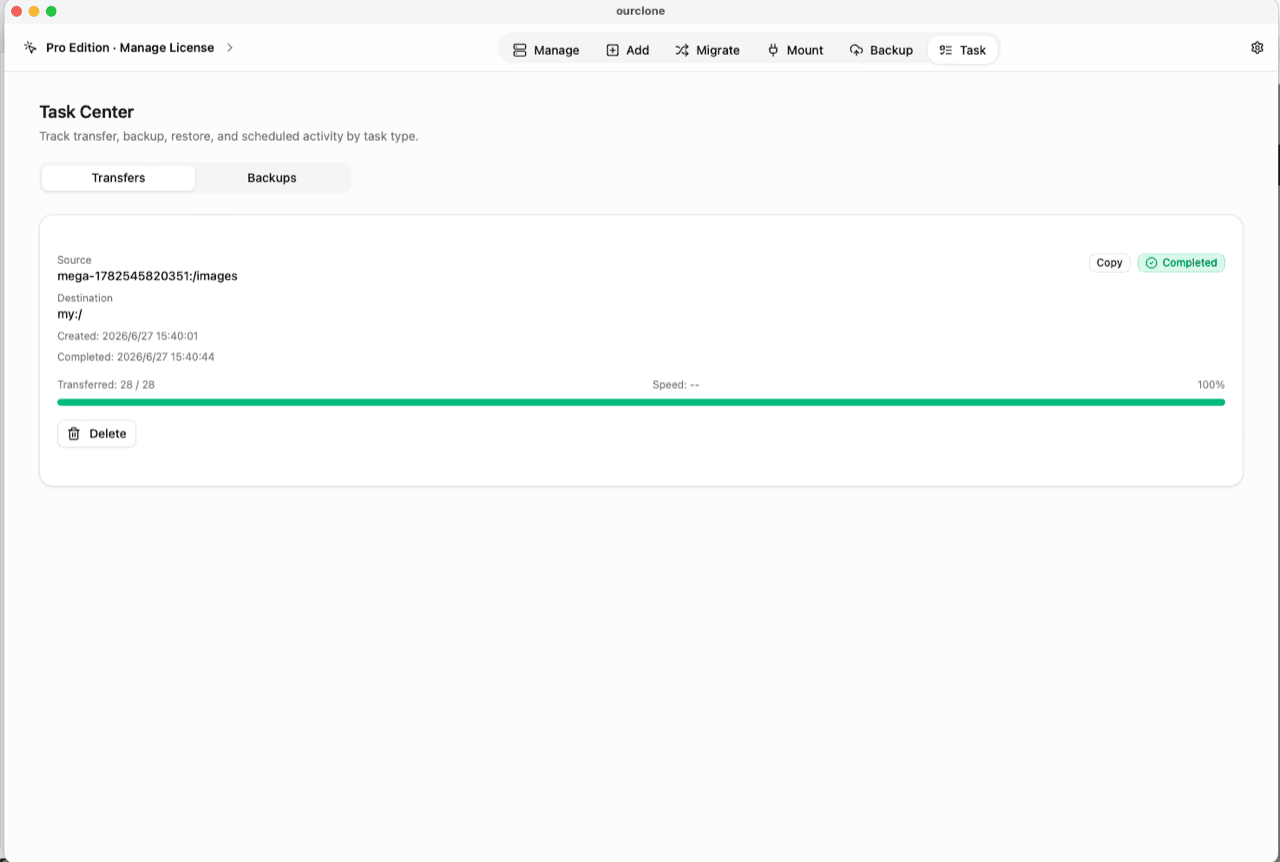
- 📊 Step 4: Verify the first triggered run — When the schedule fires, the run appears in the
Tasktab under Backups, with live progress and a desktop notification on completion or failure. Check the first one — then trust the routine.
Keep Schedules Firing Reliably
- 🫥 Close to tray, don't quit — OurClone keeps running in the system tray when you close the window, so schedules fire while you work on other things.
- 🚀 Start at login — enable autostart in settings and OurClone launches into the tray when you sign in, so a reboot doesn't silently end your backup routine.
- 🧹 Add a retention policy — recurring backups accumulate snapshots; retention rules (keep last N, plus daily/weekly/monthly/yearly history) with automatic cleanup keep the repository from growing forever.
- 🔔 Watch for failure notifications — a schedule that fails quietly is worse than no schedule. OurClone raises a desktop notification when a run fails; don't ignore it.
Frequently Asked Questions
Is scheduling free?
Scheduling is a Pro feature. Manual backups work on the free tier within its limits (2 repositories, 2 remotes); see pricing.
Can I run a backup every day?
There's no separate daily type, but a weekly schedule lets you select multiple days of the week — selecting all seven runs the backup every day at your chosen time.
Does my computer need to be on?
Yes — schedules run from the OurClone app on your computer, so it needs to be awake with OurClone running (the tray counts; the window doesn't need to be open). Pair start-at-login with a run time when your machine is normally on.
Where do scheduled runs show up?
In the Task Center under Backups, exactly like manual runs — live progress, history that survives restarts, and desktop notifications on completion or failure.
Is this real-time backup?
No — OurClone doesn't run a continuous background sync. Runs happen when a saved schedule fires. For most personal backup routines, a weekly schedule on a few chosen days covers the risk without the overhead.