Reasons to Migrate from Dropbox to OneDrive
The most common driver is the Microsoft 365 bundle. Once you're paying for Office anyway, the included 1 TB of OneDrive is essentially free storage — so keeping a paid Dropbox plan on the side feels like double-paying for space you already have.
- 🎁 OneDrive Comes Free with Microsoft 365 — A Personal plan bundles 1 TB and Family shares up to 6 TB. If you already subscribe for Word and Excel, that storage is sitting there unused.
- 🏢 You Live in Office — Word, Excel, and PowerPoint files open and co-author natively from OneDrive, with no export-import dance.
- 🪟 Built into Windows — If you also use a Windows PC, OneDrive is wired straight into File Explorer, no extra app required.
- 💳 Cut a Redundant Subscription — Dropbox's smallest paid plan is 2 TB; consolidating onto OneDrive you already pay for trims a recurring bill.
Dropbox and OneDrive, Side by Side
They're both mature, reliable clouds — but one is a focused sync tool and the other is an Office companion. The differences matter when you decide what to move.
🗃️ Dropbox
Dropbox is the gold standard for fast, dependable file sync.
- 2 GB free on Basic; 2 TB on Plus and 3 TB on Professional.
- Block-level sync uploads only the changed chunks of a file.
- Long version history and easy shared links with granular controls.
- A huge catalog of third-party app integrations.
📘 OneDrive
OneDrive is Microsoft's storage layer, deeply tied to Office and Windows.
- 5 GB free; 1 TB with Microsoft 365 Personal and up to 6 TB with Family.
- Real-time co-authoring in Word, Excel, and PowerPoint.
- Personal Vault for sensitive documents and Files On-Demand to save disk.
- Rejects file names containing
" * : < > ? / \ |— worth checking before you move.
Method 1: Download from Dropbox and Upload to OneDrive by Hand
No tools required — just use your Mac as the go-between. Reasonable for a few folders, painful for a whole account.
- 📥 Download from Dropbox — Sign in to the Dropbox web app, select what you want, and download it into a folder like
~/Downloads/dropbox-export. Folders come down as a zip. - 📤 Upload to OneDrive — Open the OneDrive web app, unzip if needed, and drag the files into the destination folder. Rename anything with characters OneDrive won't accept.
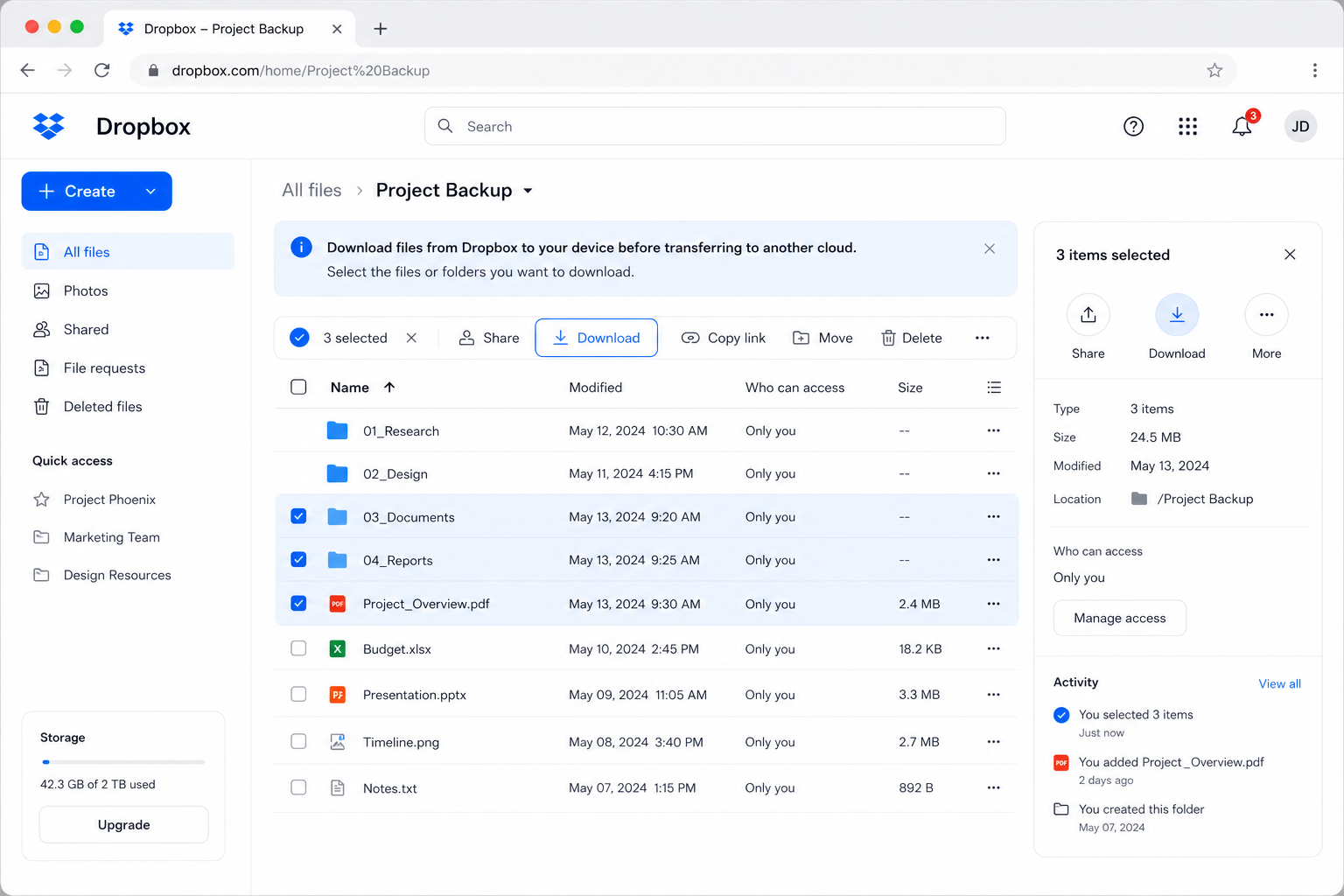
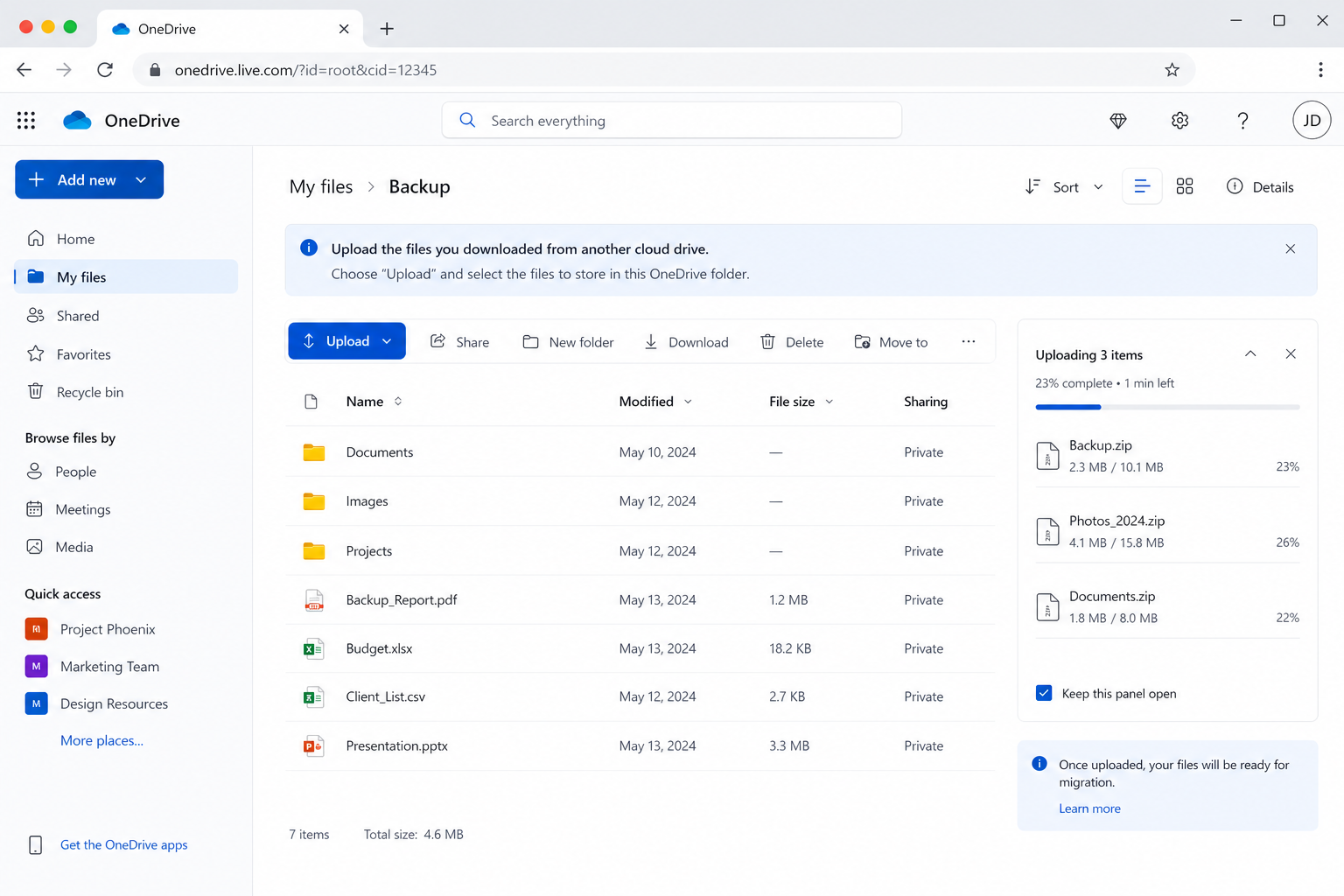
It gets small jobs done, but there's no resume, your Mac holds a duplicate copy in the middle, and large Dropbox zips often fail. Method 2 avoids all three.
Method 2: Transfer Dropbox to OneDrive with OurClone
OurClone moves your files from Dropbox to OneDrive directly on your Mac, with live progress and no third-party relay. The flow is three steps: add the source, add the target, run the migration.
- 🔗 Step 1: Add Dropbox as the Source (Browser Sign-In) — In OurClone open
Add Storageand pick Dropbox. A browser window opens — sign in and authorize OurClone. Dropbox then appears in your storage list. - 🔗 Step 2: Add OneDrive as the Destination (Browser Sign-In) — Still in
Add Storage, pick OneDrive and sign in to your Microsoft account in the browser. OneDrive joins Dropbox in your storage list. (Business accounts may need admin approval for third-party apps.) - 🔀 Step 3: Set Source, Target and Mode on the Migrate Page — Open the
Migratetab. Pick Dropbox and browse to the files or folder to move, then pick OneDrive and choose (or create) the destination. Select a transfer mode:- Copy — duplicates files to OneDrive; nothing is deleted from Dropbox.
- Move — transfers to OneDrive, then deletes the originals from Dropbox.
- Sync — makes OneDrive mirror Dropbox; extra files in OneDrive are removed, but Dropbox is left untouched.
- 📊 Watch Progress and Confirm — The
Taskpanel shows live counts, speed, ETA, and failed files. When it reads completed, open OneDrive in OurClone (or at onedrive.live.com) to confirm. If you chose Move, check that Dropbox no longer holds the files.
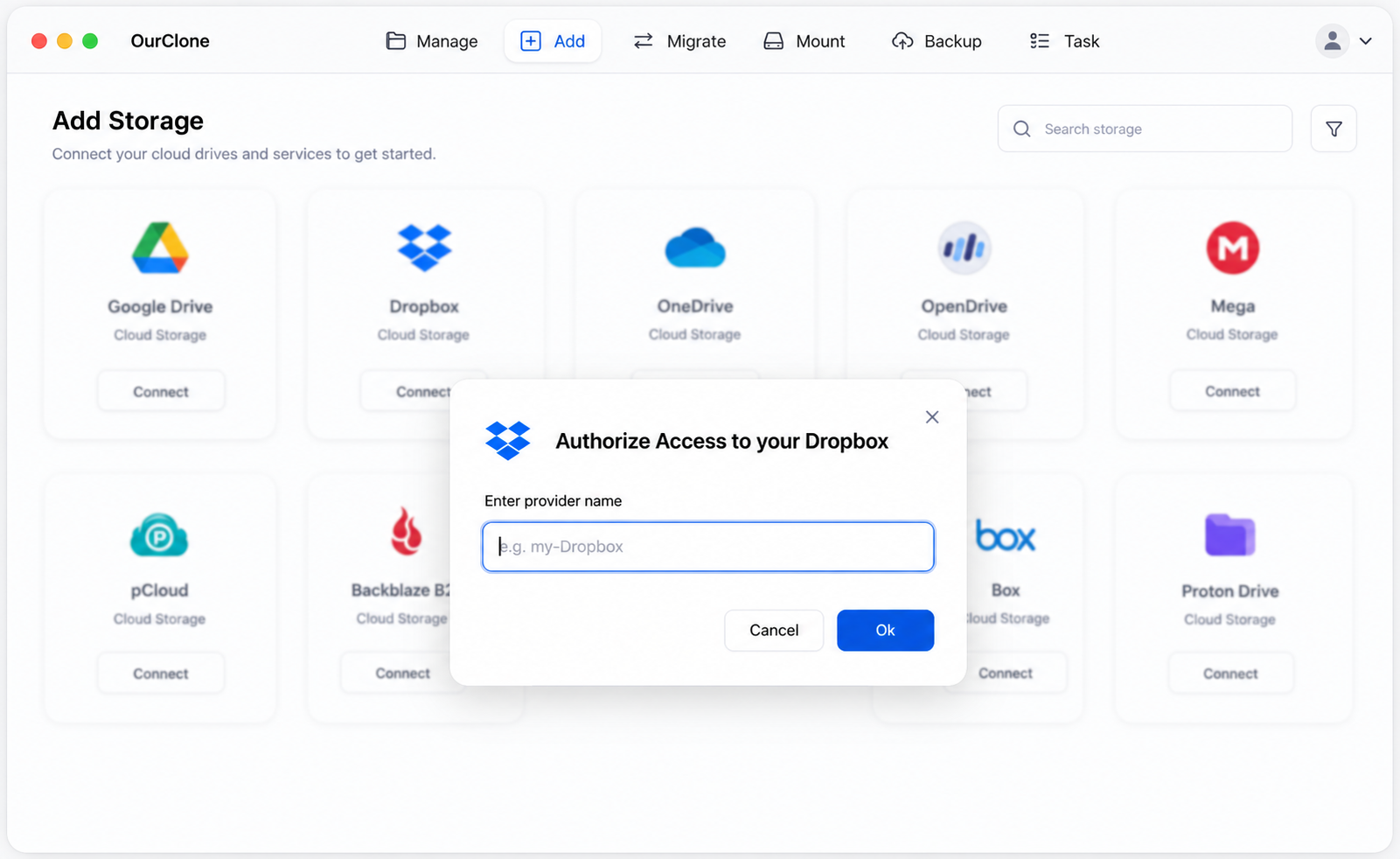
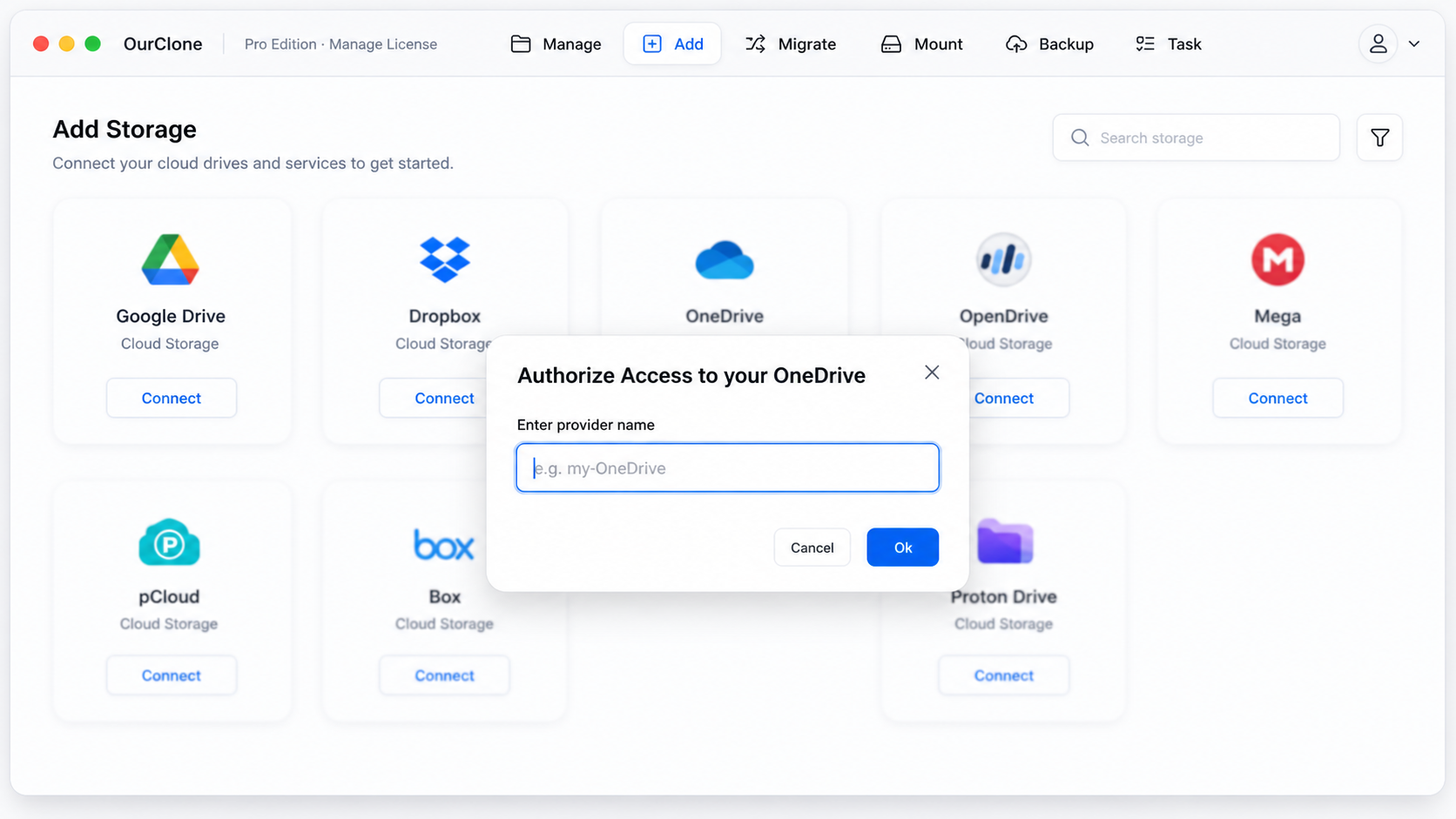
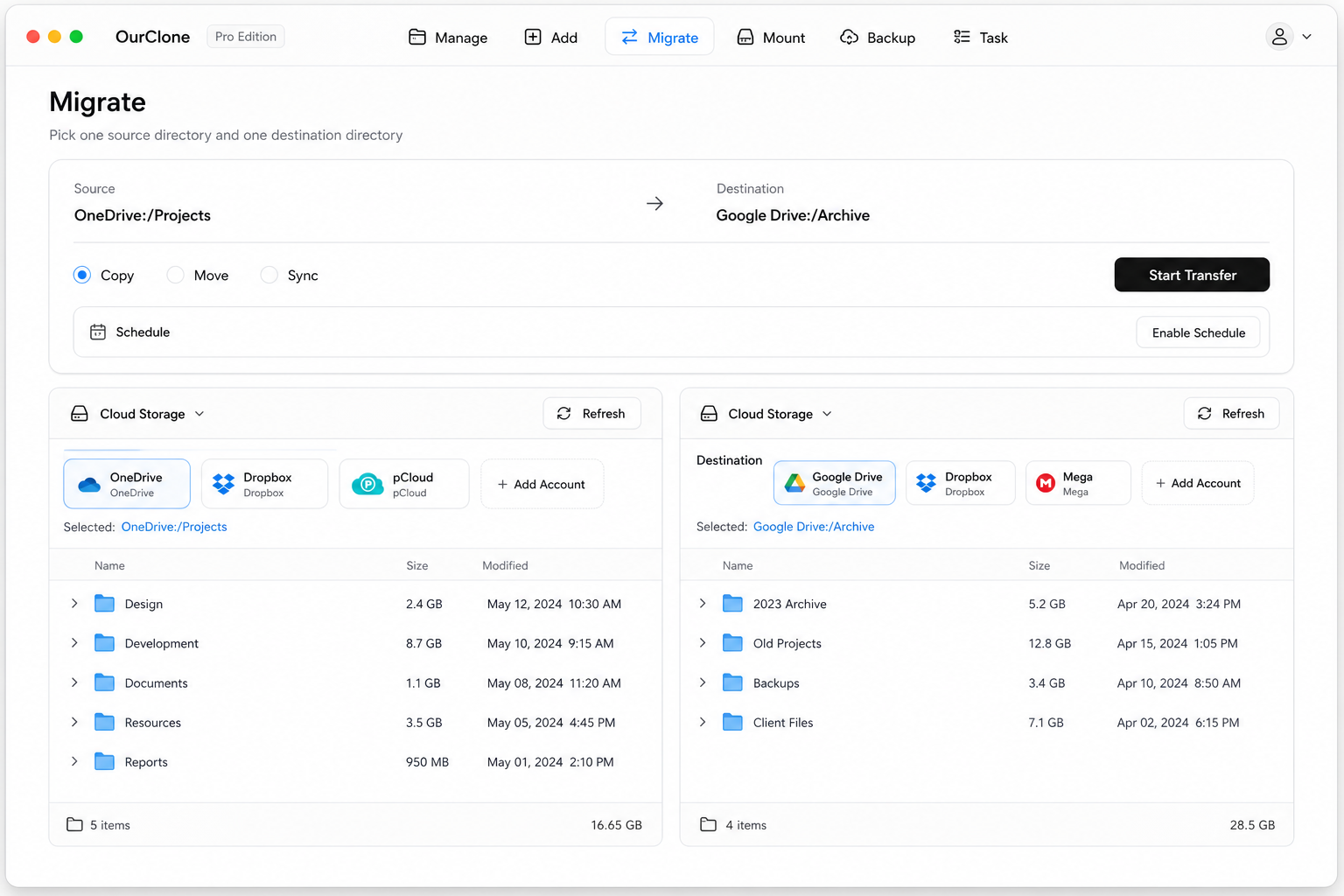
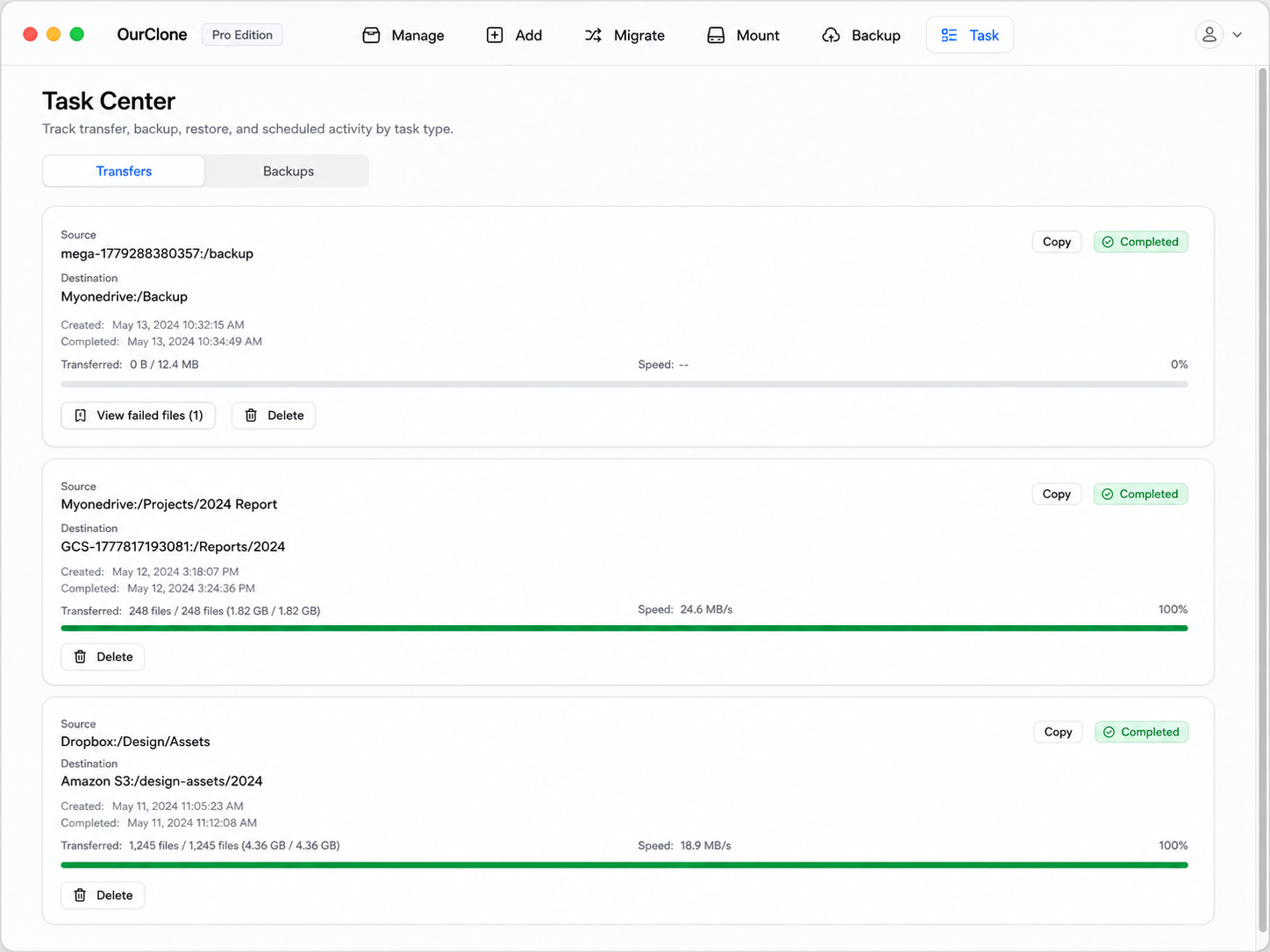
Since the job runs locally and respects the mode you pick, you stay in control of whether Dropbox keeps its copy — and interrupted transfers resume rather than restart.
Method 3: Transfer Dropbox to OneDrive with rclone (Command Line)
OurClone is powered by rclone, so if the terminal is home turf you can run the Dropbox-to-OneDrive move yourself — perfect for automation or headless machines.
Step 1: Install rclone
Get it from the official downloads page, or brew install rclone on macOS.
Step 2: Configure both remotes
Run rclone config and add a remote for Dropbox and one for OneDrive. Both use OAuth — rclone opens a browser for each sign-in. Name them dropbox and onedrive.
Step 3: Run the transfer
Match the verb to OurClone's modes:
# Copy — keep Dropbox intact
rclone copy dropbox:Work onedrive:Work --progress

# Move — delete the Dropbox originals after transfer
rclone move dropbox:Work onedrive:Work --progress

# Sync — make OneDrive mirror Dropbox (deletes extras in OneDrive)
rclone sync dropbox:Work onedrive:Work --progress
For instance, rclone copy dropbox:Photos onedrive:Photos --progress copies your Photos folder into OneDrive and leaves Dropbox alone.
Caveats
- ⚠️
syncandmovedelete files — check the direction and run--dry-runfirst. - ⚠️ No GUI; everything is terminal output.
- ⚠️ You configure each remote's OAuth by hand — the friction OurClone removes for you.
Common Dropbox → OneDrive Snags
Keep an eye out for these when moving between Dropbox and OneDrive.
- 🔡 Illegal file names — OneDrive rejects names with
" * : < > ? / \ |. Files allowed in Dropbox can fail here; the Task panel flags them so you can rename and retry. - 🐢 Web zips time out — Big Dropbox folder downloads and OneDrive uploads strain the browser route. OurClone and rclone stream each file with resume.
- ⏳ Microsoft Graph throttling — OneDrive rate-limits heavy transfers. OurClone backs off and retries so the migration keeps progressing.
- 🔐 Expired authorization — Password changes or security policies can revoke a token mid-transfer. Re-authorize under
Add Storageand resume. - 📄 Dropbox Paper won't move as docs — Paper files aren't standard documents; export them from Dropbox before transferring if you still need them.
Will this remove files from Dropbox?
Only if you pick Move. Copy leaves Dropbox untouched, and Sync only deletes extra files on the OneDrive side.