Many people begin their cloud journey with Mega because of its generous free storage and simple sharing features. But if your priority shifts to security, end-to-end encryption, and data residency under strict Swiss privacy laws, then Proton Drive is a natural choice. In this guide, I’ll show you how I migrated my files from Mega to Proton Drive using OurClone — a lightweight desktop utility that runs entirely on your own computer and keeps you in control from start to finish.
Quick overview: The process is straightforward — download and install OurClone, sign in with your Mega account, and connect Proton Drive with your Proton email, password, and 2FA code if your account uses two-factor authentication. Once both clouds are connected, you can kick off the transfer without relying on external relay servers.
🔒 Why Switch to Proton Drive?
While Mega is known for affordable storage and link-based file sharing, Proton Drive takes a different path by focusing on privacy-first design. Developed in Switzerland, Proton Drive follows the same zero-access principles as Proton Mail, meaning that even Proton itself cannot read your files. With seamless integration across web and mobile apps, plus encrypted sharing features, it has become a strong alternative for anyone who values security and compliance with European data standards. You can also review Proton’s plans and pricing to choose the option that best fits your needs.
✅ Before You Move Mega Files to Proton Drive
Proton Drive is privacy-focused and encrypted, which is exactly why many people choose it. That also means the first large migration may feel different from moving files between less protected cloud drives. Prepare the job before you press Start.
- Confirm Mega access -- OurClone needs your Mega email and password. If Mega two-factor authentication is enabled, confirm your current login requirements before starting.
- Check Proton storage -- Proton Drive plans vary by account, so confirm the destination has enough room for your Mega archive.
- Expect encrypted-service overhead -- Proton Drive prioritizes privacy. Large uploads may take longer than a simple Dropbox or OneDrive transfer.
- Use a clean destination folder -- Create something like
/Mega Importin Proton Drive so you can verify the migration before reorganizing. - Start with Copy -- Copy is safer than Move for the first pass because it leaves your Mega files untouched.
⚙️ Step-by-Step Migration
1. Install OurClone
Download the installer for Windows or macOS. The setup is quick and feels very similar to installing any desktop sync client, so you’ll be ready to go in just a couple of minutes.
2. Connect Your Mega Account
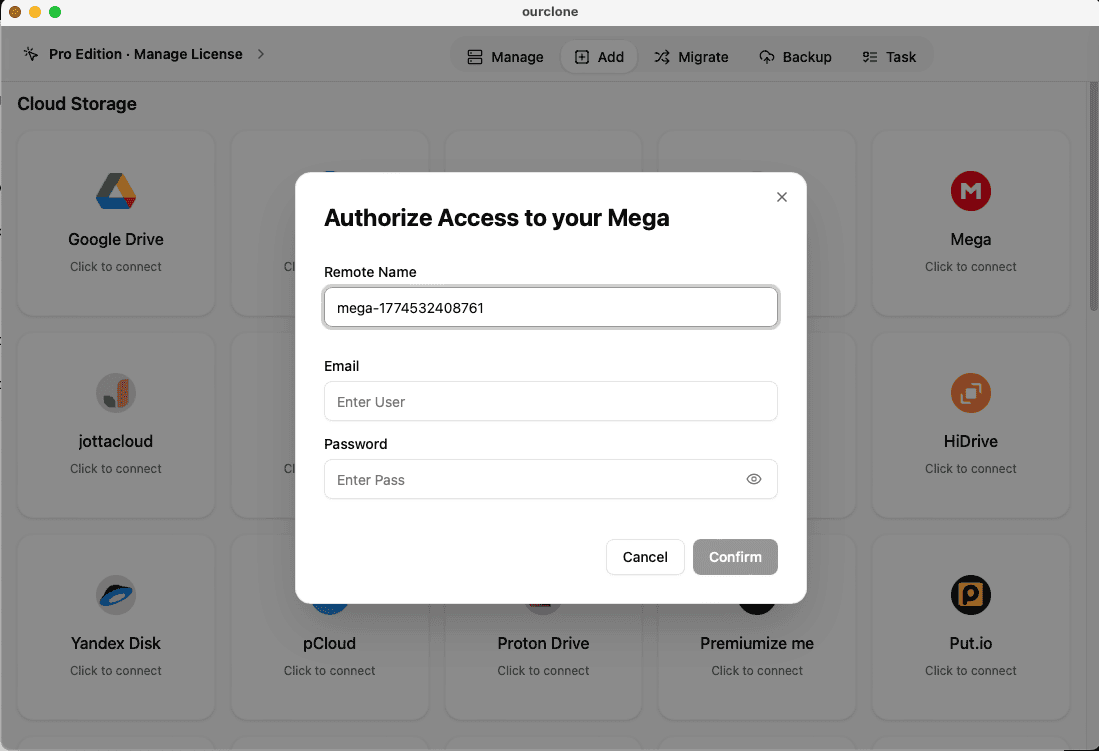
Launch OurClone and click Add Cloud. Select Mega from the list of supported services. You’ll be asked to provide your Mega email and password (this is handled securely within OurClone). Once authenticated, your Mega folders will appear inside the application, ready to be used as a source.
3. Add Proton Drive (Email + Password)
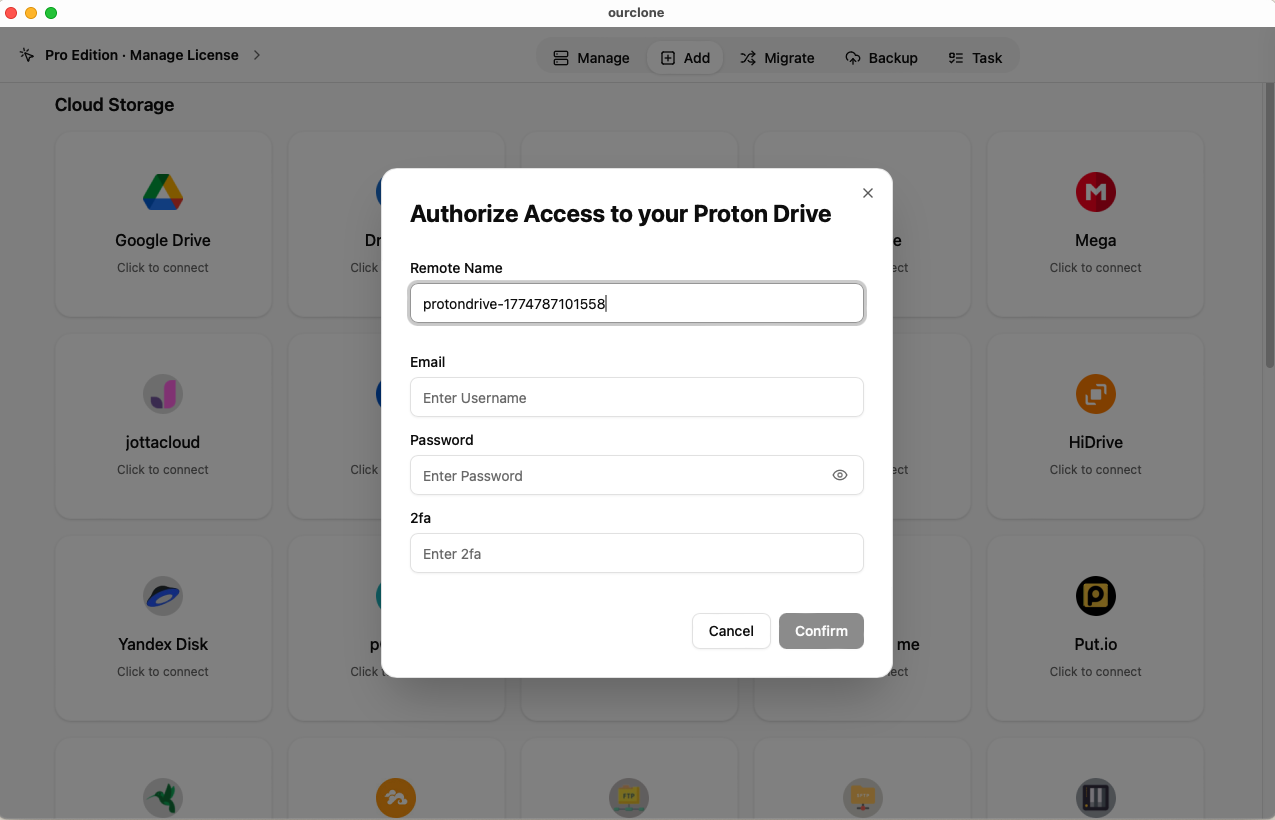
Proton Drive works differently than token-based services. When you choose Proton Drive in the Add Cloud screen, you’ll need to enter your Proton account email and password. If you have two-factor authentication enabled (2FA), the app will also ask for the verification code from your authenticator or Proton account. This extra step ensures that your Proton Drive connection remains protected by Proton’s strict security model.
- Go to your Proton Drive account
- Enter your Proton email address and password
- If prompted, input your 2FA code to complete the login
4. Configure the Transfer
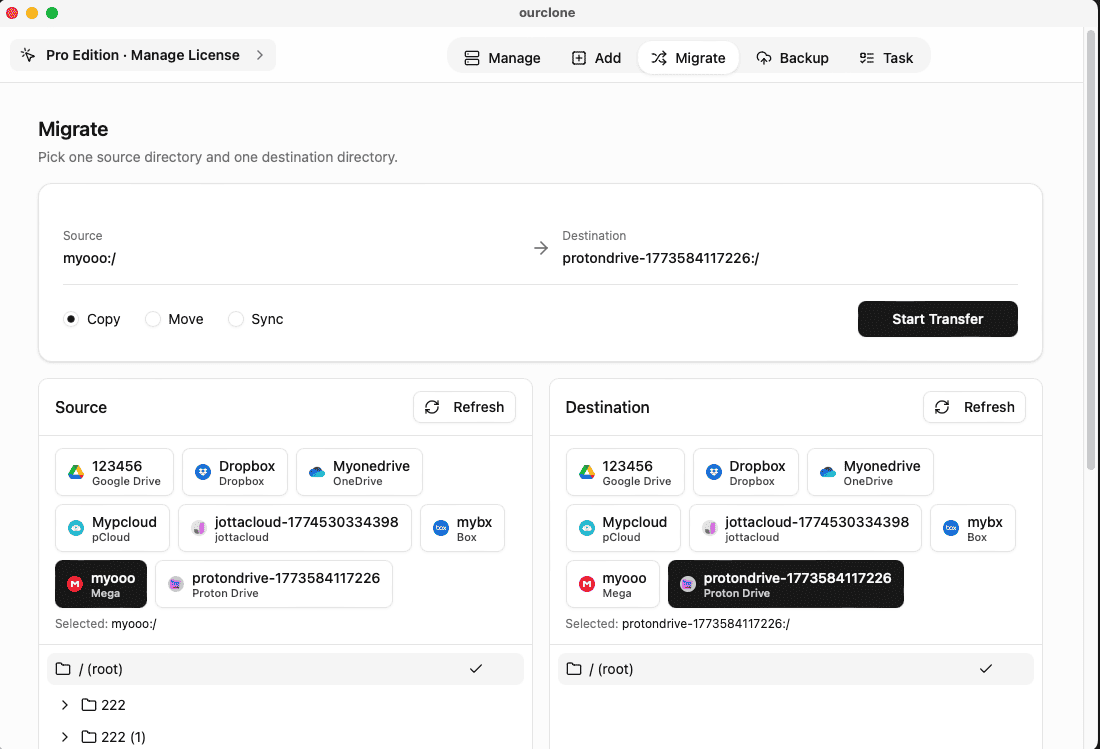
With both accounts connected, head over to the Migrate tab. Set Mega as your source and Proton Drive as the target. Then select how you want the transfer to behave:
-
Copy→ Keeps your Mega files intact and duplicates them in Proton Drive -
Sync→ Mirrors updates both ways, keeping Mega and Proton Drive aligned -
Move→ Transfers files into Proton Drive and removes them from Mega
Once your settings are ready, hit Start. You’ll be able to watch progress in real time as the migration runs.
5. Monitor Tasks and Progress
After the job begins, go to the Task view in the sidebar. This panel shows current transfer speed, percentage complete, and any errors. If something interrupts the connection — like a brief network issue — you can retry or resume without losing progress.
Security First
The migration runs on your own computer — no third-party servers ever see your data. OurClone uses AES-256 encryption, so everything you move from Mega to Proton Drive stays private and under your control.
✅ After Moving Your Files
Once the migration finishes, confirm your key folders in Proton Drive. For a clean, long-term setup:
🔑 Enable Two-Factor Authentication
Turn on 2FA for your Proton account to add an extra layer of protection.
🧭 Copy, Move, or Sync for Mega to Proton Drive?
| Mode | Best Use | Why It Matters |
|---|---|---|
| Copy | Building a Proton Drive copy of your Mega files. | The safest first run because Mega stays intact while you verify Proton Drive. |
| Move | Leaving Mega after a successful test migration. | Useful for cleanup, but only after confirming file counts and key folders. |
| Sync | Keeping both accounts aligned during a transition period. | Review deletion and conflict behavior carefully before using it on your only copy. |
📂 Organize Your Drive
Build a clear folder structure so projects, photos, and documents are easy to find later.
🔄 Schedule Syncs
Use OurClone to create recurring jobs if you plan to keep Mega and Proton Drive in sync.
💾 Watch Your Storage
Keep an eye on your Proton Drive plan to avoid running into storage limits.
⚠️ Troubleshooting Tips
🔑 Login Problems
Re-enter your Proton email and password. If 2FA is enabled, make sure the code is fresh and not expired before submitting.
📦 Running Out of Space
Large Mega archives fill quotas fast. Review your Proton Drive plan and upgrade if needed.
🌐 Interrupted Connection
If the network drops, use OurClone’s resume rather than restarting the whole job.
📁 Duplicates or Conflicts
Files with identical names may be skipped or duplicated. Adjust OurClone’s conflict rules, then rerun the specific task.
❓ FAQ
Is Proton Drive slower than other destinations?
It can be, especially for large archives. Proton Drive is built around strong privacy and encryption, so plan big migrations for a time when your computer can stay online.
Can I move everything from Mega and delete Mega afterward?
Yes, but do it in two stages. Run Copy first, verify important folders in Proton Drive, then remove Mega files only after you are confident the transfer completed.
Does OurClone see my Proton Drive password?
OurClone uses the credentials you enter to establish the provider connection on your computer. For account safety, keep 2FA enabled and only run OurClone on a trusted machine.
What if Proton asks for a 2FA code?
Enter the current code from your authenticator when OurClone prompts for it. If the code expires, generate a fresh one and retry the connection.
🚀 Ready to start your move?
Migrate from Mega to Proton Drive with privacy and ease using OurClone.
Download OurClone🎥 Watch the Video Tutorial
Prefer to follow along visually? Here’s a step-by-step walkthrough of moving your files from Mega to Proton Drive using OurClone: