Why Mounting Proton Drive on Windows Is a Smart Move
Proton Drive is built around end-to-end encryption under Swiss privacy law, so your files are encrypted before they ever leave your device. Mounting it on Windows means those encrypted files show up as a regular drive in File Explorer and stream on demand, so you can work on them like local files while the privacy model stays intact.
- 🧩 Native File Explorer Integration — Your Proton Drive shows up as a regular drive in File Explorer's "This PC" view, so every Windows app can open and save into it without a special plugin.
- 💾 No Full-Disk Mirror — Mounting streams files on demand through WinFsp, so your PC only spends disk space on the files you actually open, not your entire Proton Drive.
- 🔁 Live Two-Way Access — Files you drop into the mount upload to Proton Drive, and remote changes appear in File Explorer after the next poll cycle.
- 🛡️ Read-Only Mode for Safety — Mount Proton Drive read-only when you only need to browse an archive, and Windows will block any write.
- 🔐 End-to-End Encrypted by Default — Proton Drive encrypts your data under Swiss jurisdiction, so privacy is part of the storage itself, not an add-on.
How Mounting a Cloud Drive Works (and Why It's Different from Sync)
A sync client downloads every file to your PC and keeps both sides matched — reliable, but it can eat hundreds of gigabytes of local storage you may not have to spare.
Mounting takes the opposite approach. OurClone presents Proton Drive as a virtual filesystem through WinFsp — the folder structure is visible immediately, but file contents are only fetched when you actually open something. Recently used files are cached locally so the second open is instant, and writes are pushed back to Proton Drive in the background.
OurClone makes both the polling interval (how often it checks Proton Drive for remote changes) and the maximum cache size configurable, plus a read-only switch for extra protection against accidental writes.
- 🚀 Stream files on demand — no need to download the whole drive
- 💾 Saves PC disk space by caching only what you actually open
- 🔁 Two-way sync — edits in the mounted drive push back to Proton Drive
- 🛡️ Read-only mode prevents accidental writes when you only need to browse
What to Know Before You Mount Proton Drive
A few minutes of planning before you click Mount will save you from cleaning up a messy mount point later.
- 🧩 Install WinFsp First — Mounting on Windows relies on WinFsp (Windows File System Proxy), a free, open-source driver that lets OurClone expose Proton Drive as a real Windows volume. Install it once before your first mount — without it, the mount won't start.
- 🔑 Have Your Proton Credentials Ready — Proton Drive connects with your Proton account email and password; if two-factor authentication is enabled, have your current 2FA code handy.
- ⏳ Allow for Key Initialization — Because Proton Drive is end-to-end encrypted, the first connection may take a moment to set up encryption keys before the storage is ready to use.
- 🖥️ Choose a Sensible Local Mount Point — Point the mount at a dedicated, empty folder like
C:\CloudMounts\ProtonDrive. Don't aim it at your Desktop or any folder that already has files — the mount needs an empty target. - 🔒 Read-Only vs Read-Write — Read-only is safer for browsing; pick read-write to drag files in, save from apps, or rename and delete. Read-only mode literally cannot upload — Save dialogs will fail.
- 💽 Plan Your Cache Size — A bigger cache makes repeat opens snappy but eats local SSD space. Match it to the files you regularly reopen.
How to Mount Proton Drive on Windows with OurClone
Once WinFsp is installed, OurClone makes mounting Proton Drive on Windows straightforward. Step 1 uses your Proton account email and password directly in OurClone — no browser redirect, no API keys — and from there you're a few clicks away from a File Explorer-ready drive.
- 🔗 Add Proton Drive with Your Account Credentials — Open OurClone and go to
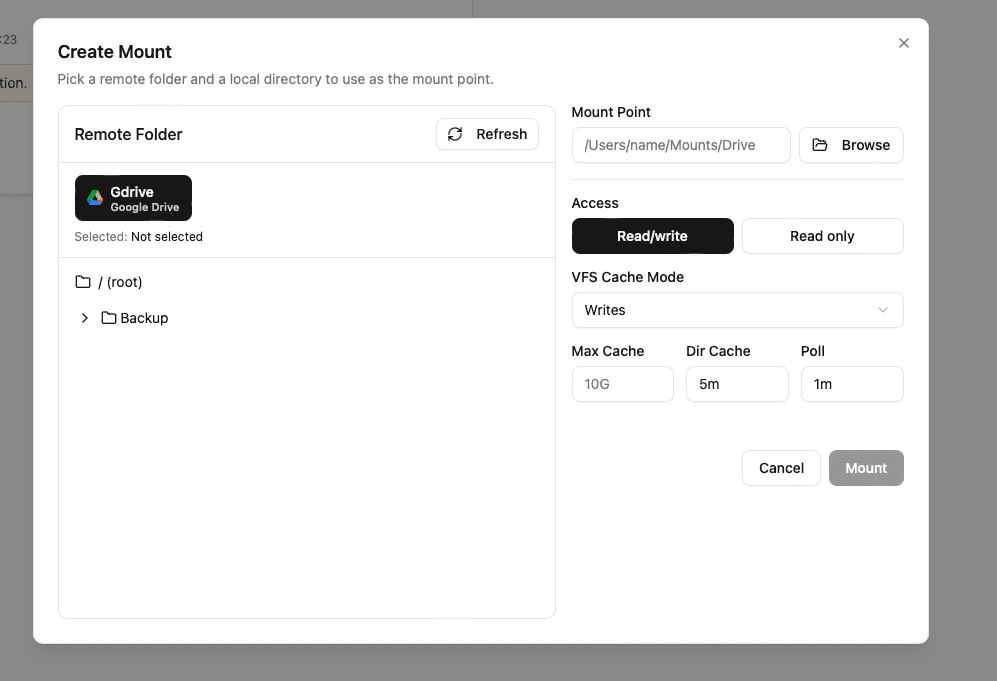
Add Storage. Select Proton Drive and enter a display name, then your Proton account email and password. If you use two-factor authentication, enter your current 2FA code. The first connection may pause briefly to initialize encryption keys, then Proton Drive appears as a connected storage. - 📂 Open the Mount Tab and Click New Mount — Once Proton Drive is connected, go to the
Mounttab in OurClone. Click the New Mount button in the top-right corner to open the mount configuration dialog. - ⚙️ Configure the Mount Settings — In the dialog, pick Proton Drive as the authorized source. Choose what to mount — a specific folder or the entire drive. Then pick an empty local folder as the mount point (something like
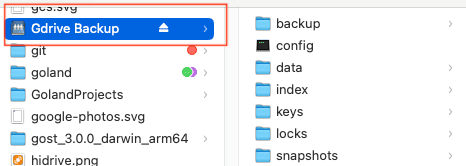
C:\CloudMounts\ProtonDrive). Choose Read-only if you just want to browse, or Read-write if you need to upload and edit. Optionally tweak the polling interval and max cache size. Click Mount to finish. - 🗂️ Use Your Proton Drive Mount Like a Local Drive — Open the mount point in File Explorer (it appears under "This PC" as a mounted volume). Windows now treats it as a real drive — browse, open, create folders, drag in files, and delete items just like any local folder. Create a new
backupfolder, drop in a few files, and OurClone streams the changes to Proton Drive in the background. - ✅ Confirm the Sync on Proton Drive — Switch back to OurClone and open your Proton Drive storage from the file browser — your new
backupfolder and uploaded files should already be listed. For extra peace of mind, log in to the Proton Drive web app and confirm the files appeared there too.



Account credentials, WinFsp, and OurClone's mount engine turn end-to-end-encrypted Proton Drive into a native-feeling drive on Windows — no manual uploads, no full-disk mirror, just encrypted files where you expect them.
Getting the Most Out of Your Proton Drive Mount
A live mount is convenient, but it behaves slightly differently from a synced folder. Keep these in mind once your Proton Drive mount is up and running.
- 🔁 Edits Sync Both Ways — Anything you add, rename, or delete in the mounted drive propagates to Proton Drive. Changes made on other devices appear after the next poll cycle.
- 🛑 Read-Only Means Read-Only — If you mounted read-only, drag-and-drop uploads and Save dialogs will fail. Remount as read-write to enable uploads.
- 💽 Cache Lives on Your PC — Recently opened files are cached locally for speed. If your PC is low on disk space, reduce the max cache size in the mount settings.
- ⏱️ Polling Interval Affects Freshness — A short polling interval picks up remote changes faster but increases API calls. For Proton Drive, a 30-60 second interval is usually a good balance.
- 🔌 Unmount Cleanly Before Shutdown — Before shutting down or signing out, click Unmount in the Mount tab to release the volume cleanly.
When Your Mount Stops Working
Proton Drive mounts on Windows usually break for one of a few reasons: WinFsp isn't installed (or needs a reboot after install), the account password or two-factor settings changed, a network drop, or a mount point that's no longer empty. If your Proton Drive mount refuses to start, first confirm WinFsp is installed, then unmount, re-enter your Proton credentials (and a fresh 2FA code if needed) under Add Storage, and remount.
Verify the Sync Anytime
Any time you're unsure whether something made it up to the cloud, open your Proton Drive storage view inside OurClone's file browser, or sign in to the Proton Drive web app directly. Whatever File Explorer shows in your mount point should match.