Box and Proton Drive Solve Different Problems
Box is a business collaboration platform that also offers free personal accounts. Proton Drive is a privacy product first. Knowing what each is good at tells you what will and won't come across.
📦 Box
Box is strongest in companies: granular permissions, admin controls, audit trails and integrations with business apps.
- The free Individual plan includes 10 GB, with a 250 MB limit per uploaded file.
- Box keeps version history and lets admins see and manage what's stored — useful for a company, less so for private files.
- Box Notes and Box Canvas are Box-specific formats that only open inside Box.
🔐 Proton Drive
Proton Drive encrypts files and file names on your device before upload, so Proton can't read them.
- Free plan with up to 5 GB; Drive Plus has 200 GB and Proton Unlimited 500 GB.
- Swiss company, part of the same account as Proton Mail, Pass and VPN.
- Built for individuals and small teams rather than enterprise administration.
Reasons to Move Files Out of Box
- 🏠 Personal files in the wrong place — Scans, photos and documents saved to a free Box account over the years are better off somewhere encrypted and personal.
- 🚪 Leaving a job — Your own files in a work Box account should come with you before access ends. Check your employer's policy first: company data stays with the company.
- 📏 The 250 MB file cap — Free Box accounts can't take larger files, which gets in the way for video or disk images.
- 🔏 Encryption you control — Box encrypts data on its servers, but Box manages those keys. In Proton Drive the keys stay with you.
Method 1: Download from Box, Upload to Proton Drive
The web apps work fine for a handful of folders.
- 📥 Download from Box — Sign in at app.box.com, select files or folders and choose Download. Several items or a folder arrive as a zip file; unzip it on your Mac.
- 📤 Upload to Proton Drive — Open drive.proton.me, go to the destination folder and drag the files in. Leave the tab open until every upload finishes.
Every file passes through your disk twice, a closed tab means starting over, and a big Box account turns into an afternoon of babysitting downloads.
Method 2: Migrate Box to Proton Drive with OurClone
OurClone reads from Box and writes to Proton Drive directly from your Mac, keeps the folder structure, and shows progress as it goes.
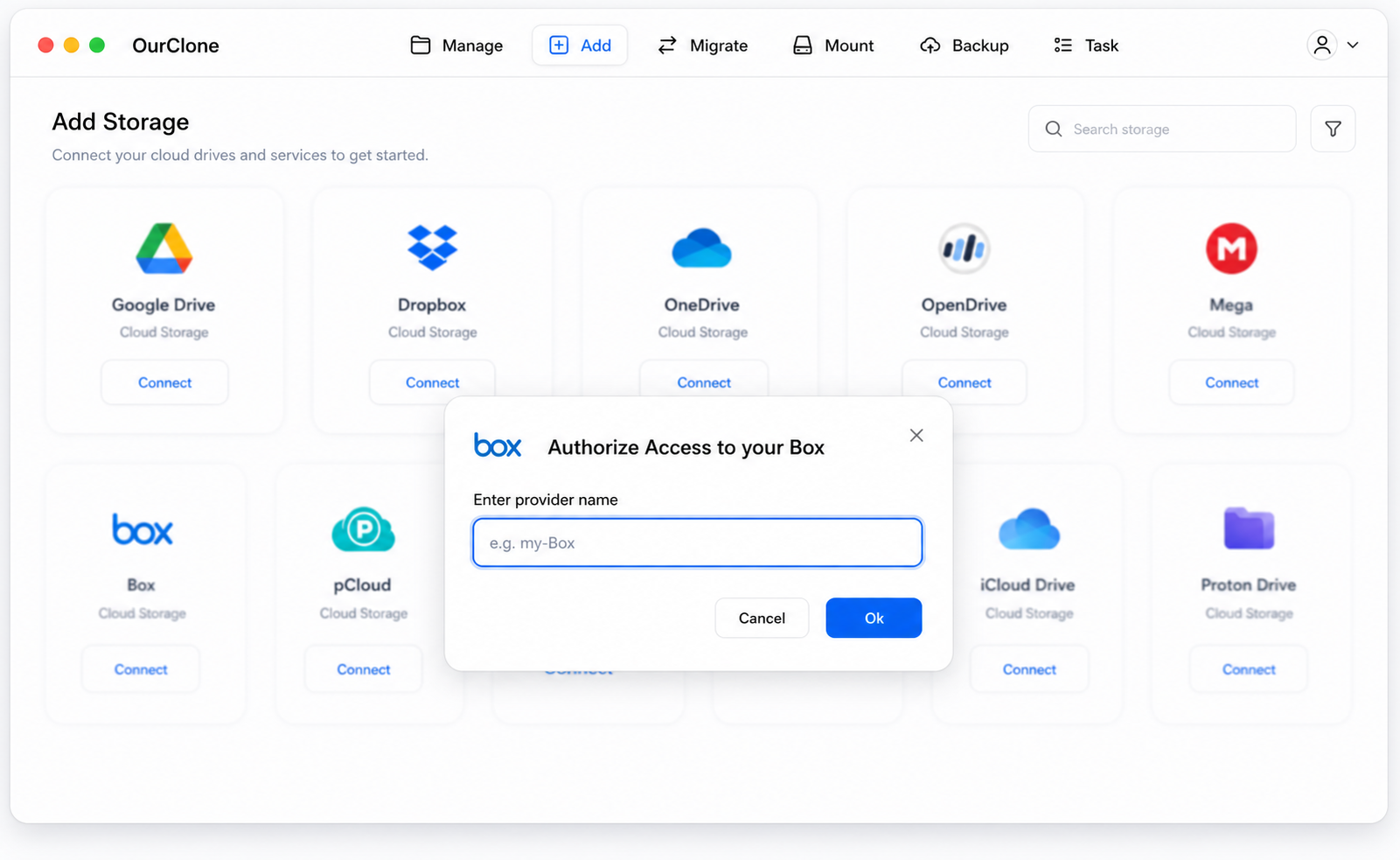
- 🌐 Step 1: Add Box as the Source — Open OurClone, go to the Add tab, search for box and pick Box. Enter a name (here
box) and click Ok. Your browser opens Box's sign-in page; log in and grant access. On a work account, your Box admin may need to allow third-party apps. - 🛡️ Step 2: Add Proton Drive as the Destination — Search for proton on the Add tab and pick Proton Drive. Fill in a Remote Name (here
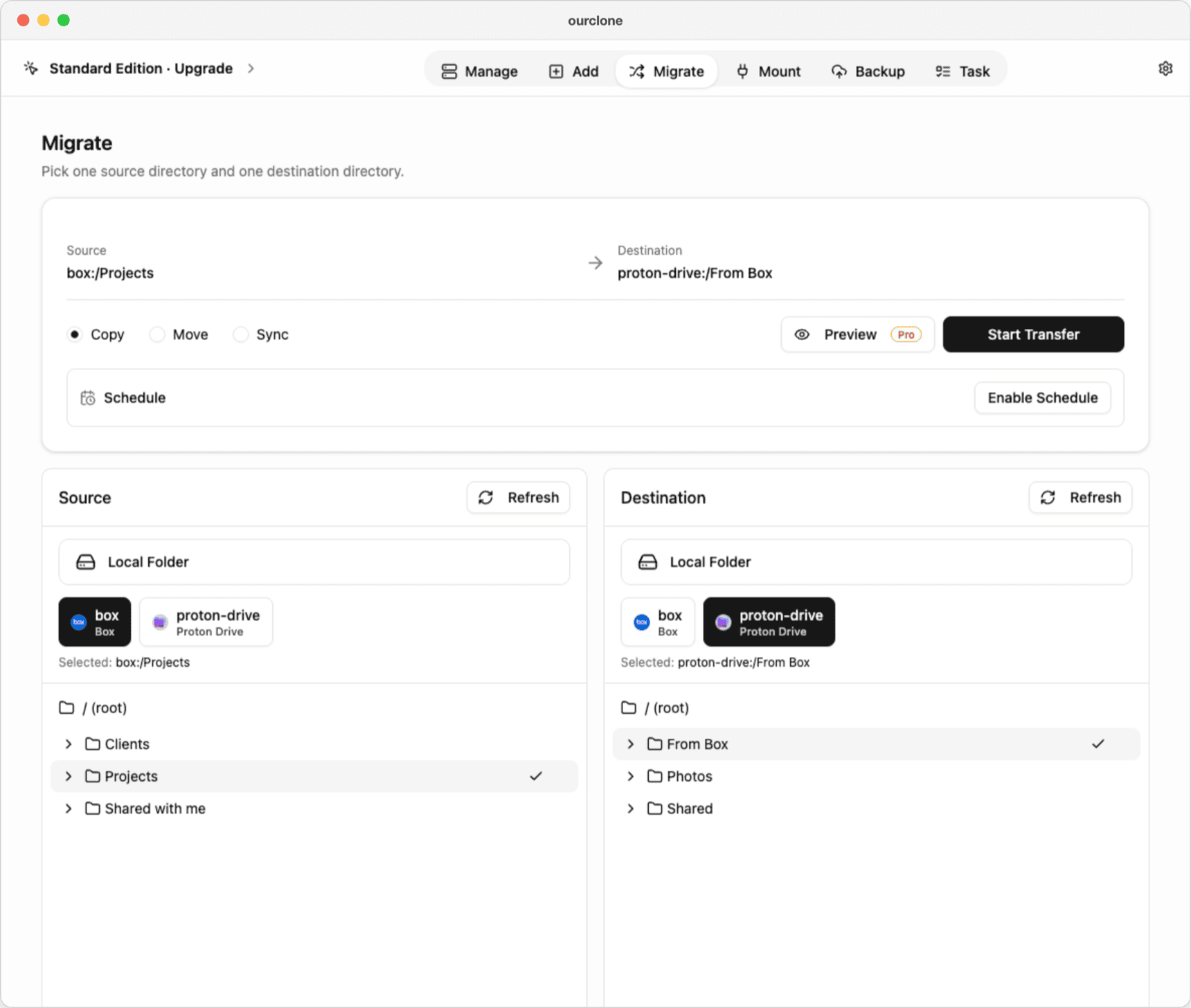
proton-drive), your Proton email, your password and — if two-factor is on — the current code in 2fa. Click Confirm. A CAPTCHA request isn't a password error; OurClone tells you to complete it in your browser and try again. - 🔀 Step 3: Choose What to Move on the Migrate Page — Open Migrate. In Source, pick
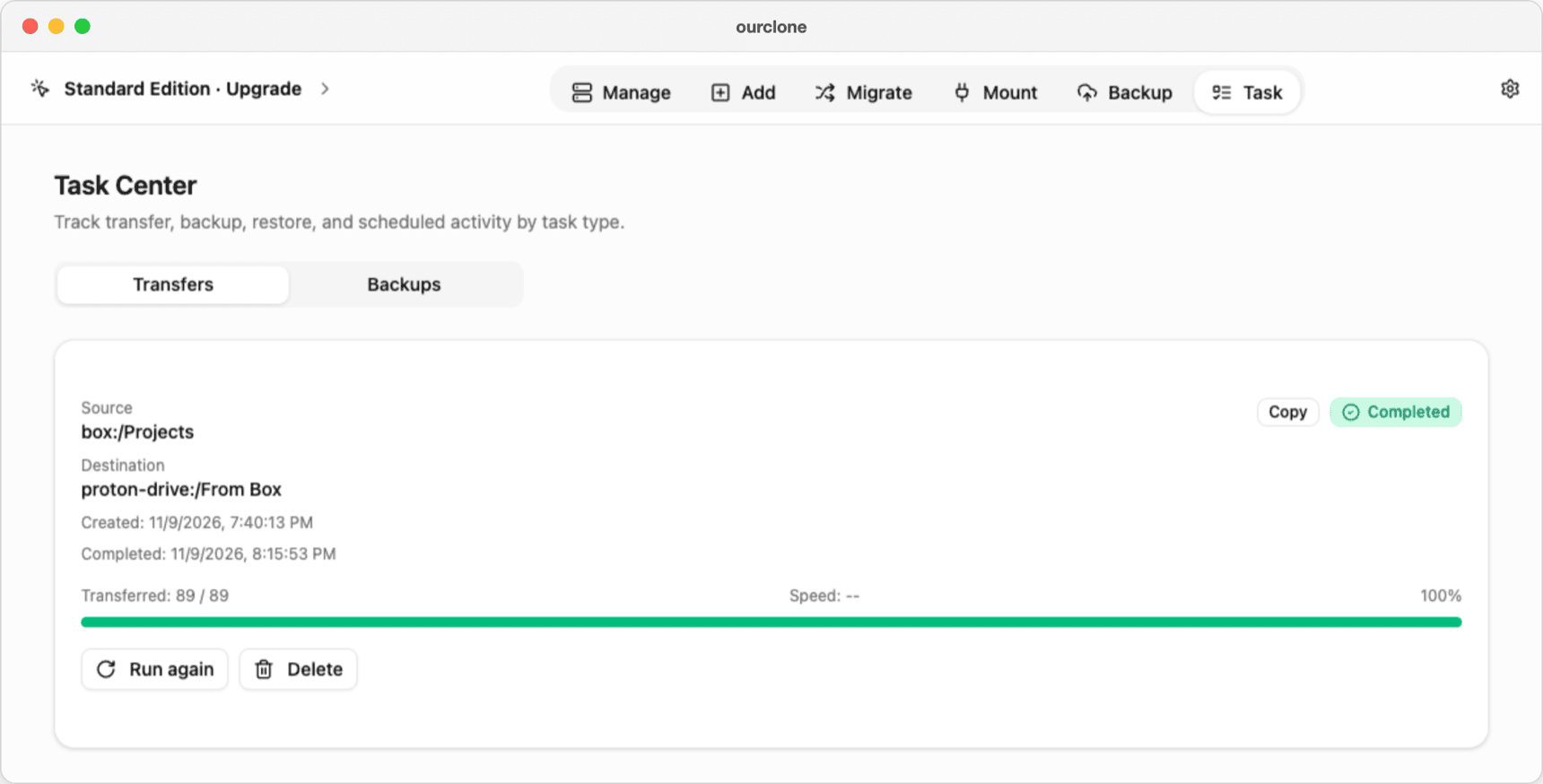
boxand the Box folder (hereProjects); in Destination, pickproton-driveand the folder that should receive it (hereFrom Box). Choose Copy to leave Box untouched, Move to delete the files from Box after they arrive, or Sync to make the Proton Drive folder match Box exactly (extra files there are deleted; Box is never changed). Click Start Transfer. - ✅ Confirm in the Task Center — The Task tab tracks the transfer until it reads Completed. Then open the folder in Proton Drive and spot-check a few files.

Method 3: Box to Proton Drive with rclone
If you'd rather script it, rclone — the engine inside OurClone — does the same job from the Terminal. Install it from the downloads page or with brew install rclone, then run rclone config to add a box remote (browser sign-in) and a protondrive remote (username, password, optional 2FA code).
# Preview first
rclone copy box:Projects proton:"From Box" --dry-run

# Copy for real
rclone copy box:Projects proton:"From Box" --progress

# Move: removes the files from Box once copied
rclone move box:Projects proton:"From Box" --progress
rclone sync also exists, but it deletes files in the destination that aren't in the source — double-check the direction before using it.
Which Method Fits Your Box Account?
| Web apps | OurClone | rclone | |
|---|---|---|---|
| Setup | None | Add two connections | Configure two remotes in the Terminal |
| Local disk needed | Whole download | Only temporary buffers | Only temporary buffers |
| Folder structure | Via zip files | Kept | Kept |
| Interrupted transfer | Start over | Run again; finished files are skipped | Re-run; finished files are skipped |
| Delete from Box afterwards | By hand | Move mode | rclone move |
Things That Don't Come Across from Box
- 🕰️ Version history — Only the current version of each file is transferred. Download older versions from Box first if you need them.
- 👥 Collaborators and shared links — Sharing settings stay in Box. Share again from Proton Drive.
- 📝 Box Notes — They come over as
.boxnotefiles that only open in Box. Export important notes from Box (for example as PDF or Word) before you leave. - 🐢 Upload speed — Proton Drive encrypts every file on your computer before upload, so large migrations take a while.
Will my Box files be deleted?
Only if you pick Move. Copy leaves Box as it is, and Sync only deletes extra files on the Proton Drive side.
How much space do I need in Proton Drive?
At least the size of the Box folders you move. The free Proton plan has up to 5 GB, which won't hold a full 10 GB Box account.