Why People Leave Dropbox for Proton Drive
Dropbox is still one of the smoothest sync clients ever made — but it can read every file you store, its free tier stopped at 2 GB years ago, and its pricing now assumes you want a whole productivity suite. Proton Drive answers the first concern directly: files are encrypted on your device before upload, and Proton's Swiss jurisdiction keeps them out of most data-request regimes. The move usually comes down to one of these:
- 🔐 Encryption you don't have to trust the vendor for — Dropbox encrypts at rest and in transit but holds the keys; Proton Drive is end-to-end encrypted, so Proton can't open your files even if asked.
- 🇨🇭 Jurisdiction — Proton is headquartered in Geneva under Swiss privacy law, which matters for legal, medical, and journalistic archives that Dropbox's US footing doesn't suit.
- 💸 Paying for storage, not a suite — Dropbox Plus bundles Paper, Sign, and Dash whether you use them or not; Proton Drive Plus sells you 200 GB and encryption, full stop.
- 📬 Already on Proton Mail — if your inbox and calendar live at Proton, Drive shares the same account and storage pool, and the migration finishes a consolidation you already started.
- 🗃️ Splitting a library — plenty of people keep Dropbox for shared team folders and move personal documents, tax records, and scans to Proton. That's a Copy job, not a full switch.
Two-minute walkthrough of the OurClone route — or read on for all three methods.
Dropbox vs Proton Drive: What Each One Is Good At
These two services optimise for opposite things, which is exactly why the migration is worth doing deliberately rather than dragging folders around and hoping.
📦 Dropbox
Dropbox is the reference implementation of "it just syncs". Block-level uploads mean a one-line edit to a 2 GB video only re-sends the changed blocks, and its desktop client has been stable for well over a decade.
- Free Basic plan is capped at 2 GB; Plus is 2 TB, Essentials 3 TB, with Business tiers above that.
- Block-level and LAN sync make repeated small edits to big files fast.
- Version history and deleted-file recovery for 30 days on Plus, 180 days on higher tiers.
- Encrypted in transit and at rest, but Dropbox holds the keys — there is no end-to-end option for ordinary folders.
🛡️ Proton Drive
Proton Drive comes from the team behind Proton Mail. Every file name, folder name, and file body is encrypted client-side before it leaves your Mac, and the apps are open source and independently audited.
- Free plan unlocks up to 5 GB; Drive Plus is 200 GB, and Proton Unlimited bundles 500 GB with Mail, Calendar, VPN, and Pass.
- End-to-end encryption on everything, including metadata like file names.
- Swiss-based, with servers in Switzerland and Germany.
- Newer platform: the desktop apps arrived later than Dropbox's, and heavy API use is throttled more aggressively — worth knowing before you push 300 GB through it in one night.
Method 1: Download from Dropbox and Upload to Proton Drive by Hand
No tools, no accounts to link — just two browser tabs. Perfectly reasonable for a few folders; miserable for a full library, because everything has to land on your Mac's disk first and Proton's web uploader has to run in a foreground tab the entire time.
- 📥 Download from Dropbox — Log in to the Dropbox web app, select the folders you want, and click Download. Dropbox zips folder downloads and caps each at 20 GB or 10,000 files, so bigger folders have to be split into several downloads.
- 📦 Unzip locally — Double-click each archive in Finder. You now have every file twice on your Mac: the zip and the extracted copy.
- 📤 Upload to Proton Drive — Log in to the Proton Drive web app, open the destination folder, and drag the extracted folders in. Encryption happens in the browser, so uploads are noticeably slower than a plain cloud upload and the tab must stay open until the progress bar finishes.
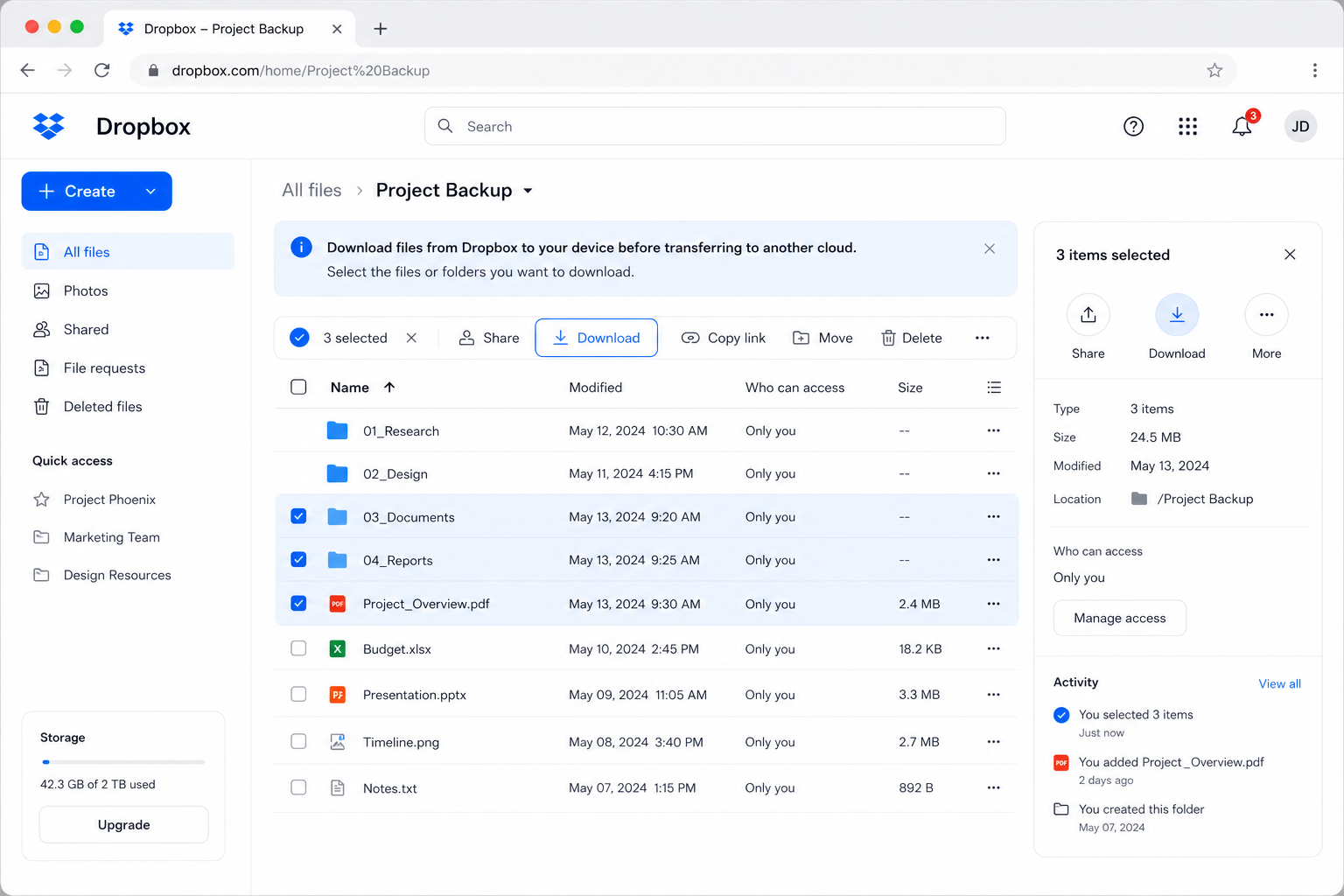
Fine for a weekend of tidying. For anything measured in tens of gigabytes there's no resume, no retry, and no way to know afterwards whether every file actually arrived — which is why Method 2 exists.
Method 2: Transfer Dropbox to Proton Drive with OurClone
OurClone moves files directly on your Mac, from Dropbox's API to Proton's, with live progress and no relay server in between. Three steps: add Dropbox, add Proton Drive, run the migration.
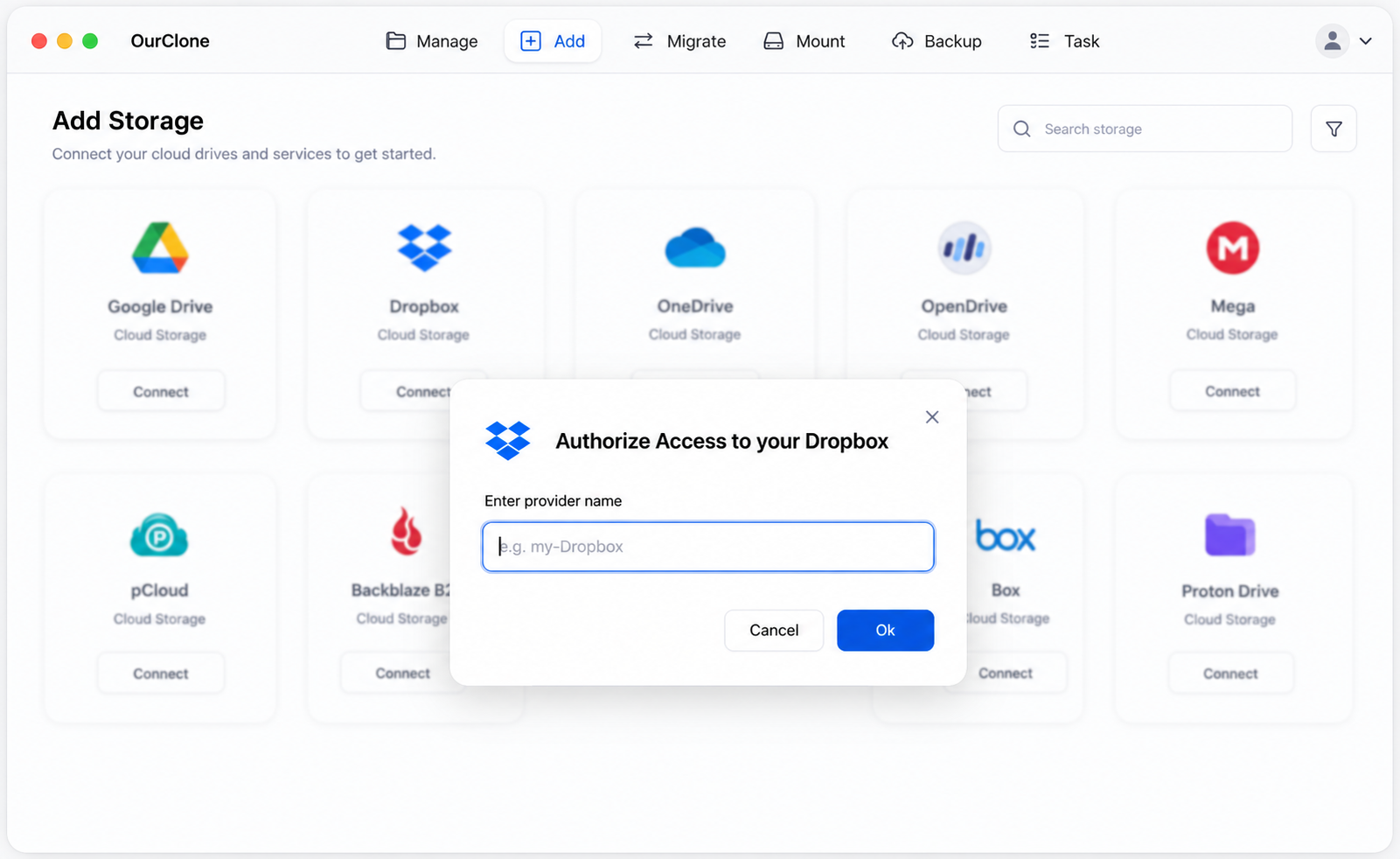
- 🔗 Step 1: Add Dropbox as the Source (Browser Sign-In) — In OurClone open
Add Storageand pick Dropbox. Give it a name, and a browser window opens — sign in to Dropbox and allow OurClone access. Once approved, Dropbox shows up in your storage list. - 🔐 Step 2: Add Proton Drive as the Destination — Open
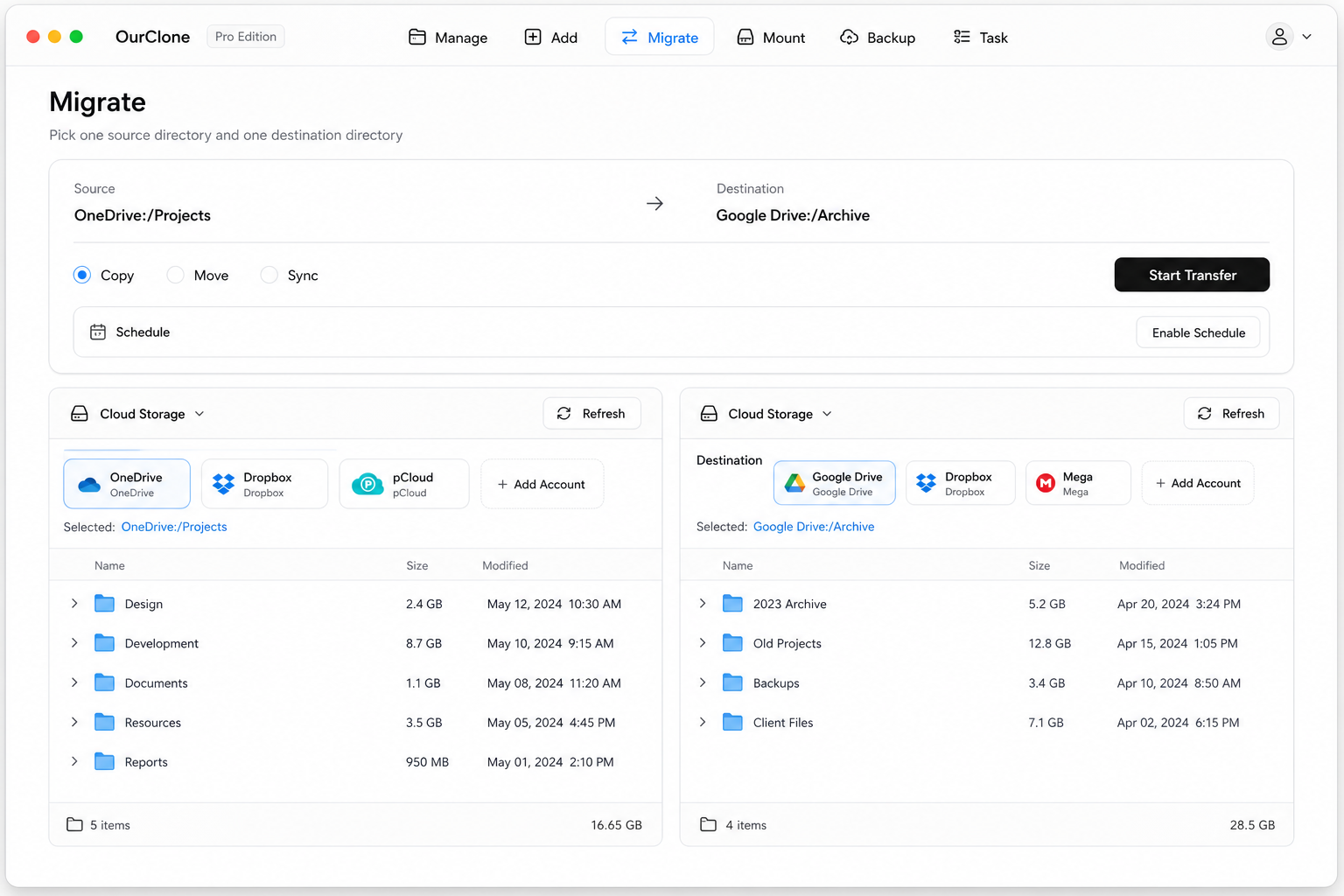
Add Storageagain, pick Proton Drive, and enter your Proton email and password. If you use two-factor authentication, enter the current 2FA code when prompted. The first connection pauses for a few seconds while your encryption keys are initialised — that's normal. Proton Drive then joins your storage list. - 🔀 Step 3: Set Source, Target and Mode on the Migrate Page — Open the
Migratetab. Pick Dropbox and browse to the folders you want to move, then pick Proton Drive and choose (or create) the destination folder. Select a transfer mode:- Copy — duplicates files to Proton Drive; nothing is deleted from Dropbox. The right default for a first pass.
- Move — transfers to Proton Drive, then deletes the originals from Dropbox. Use it once Copy has proven the connection.
- Sync — makes Proton Drive mirror Dropbox; extra files in Proton Drive are removed, but Dropbox is left untouched. Handy while you run both clouds side by side.
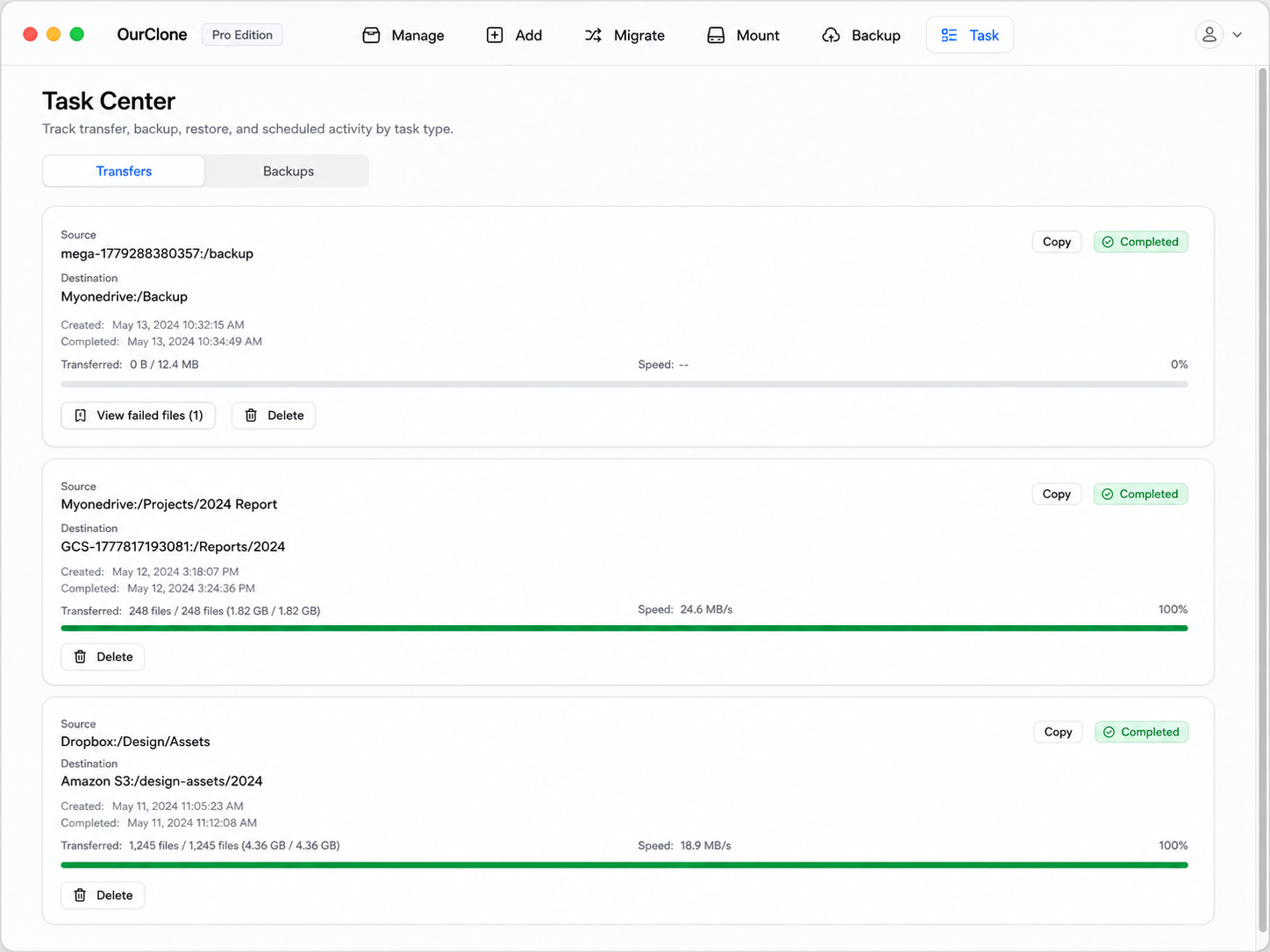
- 📊 Watch Progress and Confirm — The
Taskpanel shows live file counts, speed, ETA, and any failed files. Proton's API is slower than Dropbox's, so expect the speed to be set by the destination. When the task reads completed, open Proton Drive in OurClone or in the web app to confirm the files landed. If you used Move, check that Dropbox no longer holds them.

Because the job runs locally and each mode is explicit about deletion, you decide whether Dropbox survives the migration — and a 100 GB transfer that hits a Proton throttle resumes where it stopped instead of starting over. Once everything is across, mounting Proton Drive in Finder gives you back the "it's just a folder" feeling Dropbox users miss most.
Method 3: Transfer Dropbox to Proton Drive with rclone (Command Line)
OurClone is built on rclone, so the same transfer works from a terminal if you'd rather script it, run it on a headless Mac mini, or chain it into other jobs.
Step 1: Install rclone
Grab it from the official downloads page, or run brew install rclone on macOS.
Step 2: Configure both remotes
Run rclone config twice. For the dropbox backend, rclone opens a browser for OAuth sign-in. For the protondrive backend it asks for your Proton username, password, and — if enabled — a 2FA code; the first run also takes a moment to fetch your keys.
Step 3: Run the transfer
Pick the verb that matches what you want — they map one-to-one onto OurClone's modes:
# Copy — keep Dropbox intact
rclone copy dropbox:Documents proton:Documents --progress

# Move — delete originals from Dropbox after transfer
rclone move dropbox:Documents proton:Documents --progress

# Sync — make Proton Drive mirror Dropbox (deletes extras in Proton Drive)
rclone sync dropbox:Documents proton:Documents --progress
A realistic first run: rclone copy dropbox:"Tax Records" proton:Archive/Tax --progress --transfers 4 --dry-run, then drop --dry-run once the file list looks right. Proton tolerates fewer parallel transfers than Dropbox, so keep --transfers modest.
Caveats
- ⚠️
syncandmovedelete files — double-check the direction before running. Add--dry-runfirst. - ⚠️ No GUI: progress and errors live in the terminal, and a closed lid kills the job.
- ⚠️ Both remotes' credentials have to be set up by hand — exactly the friction OurClone removes.
Where Dropbox → Proton Drive Transfers Go Wrong
Most problems on this pair come from Proton's slower, encryption-heavy API meeting a Dropbox library that grew for ten years unsupervised.
- 🐢 The transfer crawls — Every file is encrypted client-side before Proton accepts it, and Proton throttles bursts. A 50 GB photo library can take an evening. OurClone keeps going and resumes after throttling; the web route simply stalls.
- 📚 Web downloads hit the 20 GB / 10,000-file zip cap — Dropbox splits big folders into several archives. Method 2 and 3 stream file-by-file and never touch a zip.
- 🔁 Duplicates after a second run — Copy skips files that already exist with the same size and modification time, so re-running is safe. Sync goes further and removes anything in Proton Drive that isn't in Dropbox — don't Sync into a Proton folder that already holds other files.
- 🔐 Proton asks for 2FA again — A password change or long idle period invalidates the session. Re-enter your credentials under
Add Storageand restart the task; finished files aren't re-sent. - 🧮 File counts don't match — Dropbox happily stores names with trailing spaces or characters Proton rejects, and skips
.dropbox.cachefolders. The Task panel's failed-file list tells you exactly which ones to rename.
Frequently Asked Questions
Will this delete my Dropbox files?
Only if you choose Move. Copy leaves Dropbox fully intact, and Sync only removes extra files in Proton Drive, never in Dropbox.
Are the files encrypted once they reach Proton Drive?
Yes. Proton encrypts everything client-side on the way in, so files transferred through OurClone or rclone are stored with the same end-to-end encryption as files uploaded through Proton's own apps. In transit between Dropbox and your Mac, and from your Mac to Proton, the connections use TLS.
Do shared Dropbox folders come across?
Folders shared with you appear in your Dropbox tree and transfer like any other folder — but the sharing itself doesn't, since Proton has its own sharing model. Re-share from Proton Drive afterwards.
Can I keep both clouds for a while?
That's what Sync is for: run it periodically and Proton Drive stays a mirror of Dropbox until you're ready to switch off Dropbox for good. Or leave the two side by side and back up your Mac folders straight to Proton Drive going forward.
Which Method Should You Use?
| Web upload/download | OurClone Migrate | rclone CLI | |
|---|---|---|---|
| Setup effort | None | Two sign-ins | Two rclone config runs |
| Practical size | Up to a few GB | Unlimited | Unlimited |
| Resume after interruption | No | Yes | Yes |
| Uses local disk | Twice (zip + extracted) | Streams through memory | Streams through memory |
| Control over deleting the source | Manual | Copy / Move / Sync | copy / move / sync |
| Progress and failed-file list | Browser progress bar | Task panel | Terminal output |
Coming from Google Drive instead? The same three routes apply — see moving Google Drive to Proton Drive. Leaving MEGA? That guide is here.