iCloud.com Takes Uploads by Hand — Tools Have to Import Instead
Google Drive, Dropbox, and OneDrive are folders behind a web page, and all three have public APIs, so a transfer tool can write straight into them. iCloud Photos isn't built that way. Your pictures live in the Photos library on an Apple device, and iCloud's job is to keep that library identical on your iPhone, iPad, Mac, and iCloud.com.
You can add pictures yourself: iCloud.com has an upload page (Add Photos → Choose Files → Upload), and Apple's guide says photos uploaded there are added to iCloud Photos. What you don't get is a way to have software do that for you. rclone's own documentation lists its iCloud Photos backend as read-only, with no upload, delete, rename, or move — and OurClone's iCloud Photos connection is read-only for the same reason. Tools built this way can read from iCloud Photos, but they can't add to it.
The route that works for software is a two-hop one: add the pictures to the Photos app on a Mac, and let the iCloud Photos switch in Photos' settings carry them to the cloud. That's the hop OurClone automates. Its Photos on This Mac connection treats your Mac's library as a destination, so you can point a Migrate job at a Google Drive folder and have the pictures arrive in a Photos album — no Apple ID sign-in inside OurClone, and no clicking through Photos' Import dialog for each batch.
One honest boundary up front: OurClone puts the files into the Photos app. Whether they then upload to iCloud depends on iCloud Photos being turned on for that Mac (Photos → Settings → iCloud), and Apple's sync does the rest. And because it works through the Photos app, this is a macOS-only feature.
Why Pull Photos Out of a Cloud Drive and into Photos?
Most people don't plan to keep pictures in a drive. They end up there — a phone's camera-upload setting, an old laptop's backup folder, an Android phone you've since swapped for an iPhone. At some point you want them in the same timeline as everything else.
- 🔀 Switching to an iPhone — Years of pictures in Google Drive don't appear in the Photos app on the new phone. Imported into a Mac's library and synced, they do.
- 📸 Rescuing camera uploads — Dropbox's Camera Uploads and OneDrive's camera roll backup pile photos into a folder nobody browses. The Photos app gives you search, People, Memories, and a real timeline.
- 🗓️ Old photos land in the right year — Photos files an import by its capture date, so a 2016 holiday shows up in 2016, not on the day you moved it.
- 🗂️ One library on every Apple device — Once the pictures are in iCloud Photos, any device signed into that Apple Account sees them without separate downloads.
- 🧹 Free the quota in the old drive — Google Drive's 15 GB is shared with Gmail, and Dropbox's free plan is tiny. After checking the import worked, Move mode clears the originals.
A Folder in Your Drive vs. an Album in Photos
The two ends of this transfer organise pictures in different ways, which explains a few of the quirks later in the guide.
☁️ Google Drive, Dropbox, and OneDrive
A Google Drive, Dropbox, or OneDrive account stores pictures as ordinary files in folders. Names and folder paths are what you see.
- Folders are the only organising tool — there's no timeline built from capture dates.
- Web downloads of a whole folder arrive as zip archives, and Google Drive splits big folders into several of them.
- Any file type can sit next to the photos: documents, edited exports, sidecar files.
- Storage is metered per service — 15 GB free on Google Drive (shared with Gmail), a small free tier on Dropbox, and the plan you picked on OneDrive.
🖼️ The Photos library on your Mac
iCloud Photos is a sync feature of the Photos app: whatever is in the library is mirrored to your iCloud account and your other Apple devices.
- The library is one pool of photos and videos sorted by capture date; albums are collections that point into it.
- It holds pictures and videos — a PDF or a text file doesn't belong in it.
- Everything uploaded counts against your iCloud storage, which is 5 GB on the free plan and grows with a paid iCloud+ plan.
- With Optimize Mac Storage on, full-size originals can live only in iCloud while the Mac holds smaller versions.
Before You Start: Four Things to Check
- 🍎 A Mac signed into the Apple Account you want — the Photos app on that Mac is where the pictures land.
- ☑️ iCloud Photos switched on — in Photos, open Settings → iCloud and tick iCloud Photos. Without it the pictures stay on this Mac only.
- 💾 Enough iCloud storage — a 60 GB archive won't fit in the free 5 GB. Photos will import everything locally, then stall while uploading.
- 🖼️ The right file types — OurClone imports JPG, PNG, HEIC/HEIF, GIF, TIFF, BMP, WebP, AVIF, DNG and the common camera RAW formats (Canon CR2/CR3, Nikon NEF, Sony ARW, Fujifilm RAF, and others), plus MOV, MP4, M4V, and 3GP video. Any other file is refused.
Method 1: Download from the Cloud, Then Import with Photos
No extra software, and perfectly fine for a few dozen pictures. You download from the cloud's website and use the Photos app's own Import command.
- 📥 Download the pictures — Sign in at drive.google.com (or Dropbox or OneDrive), select the photos or the folder, and download. Folders come down as a
.zip; double-click it in Finder to unpack it. - 📂 Import into Photos — Open the Photos app and choose File → Import…, select the unzipped folder, and choose an album from the Import To menu at the top of the import window if you want these pictures grouped. Click Import All New Items.
- ⏳ Let iCloud catch up — With iCloud Photos on, Photos starts uploading in the background. Leave the Mac awake and online until the library finishes updating.
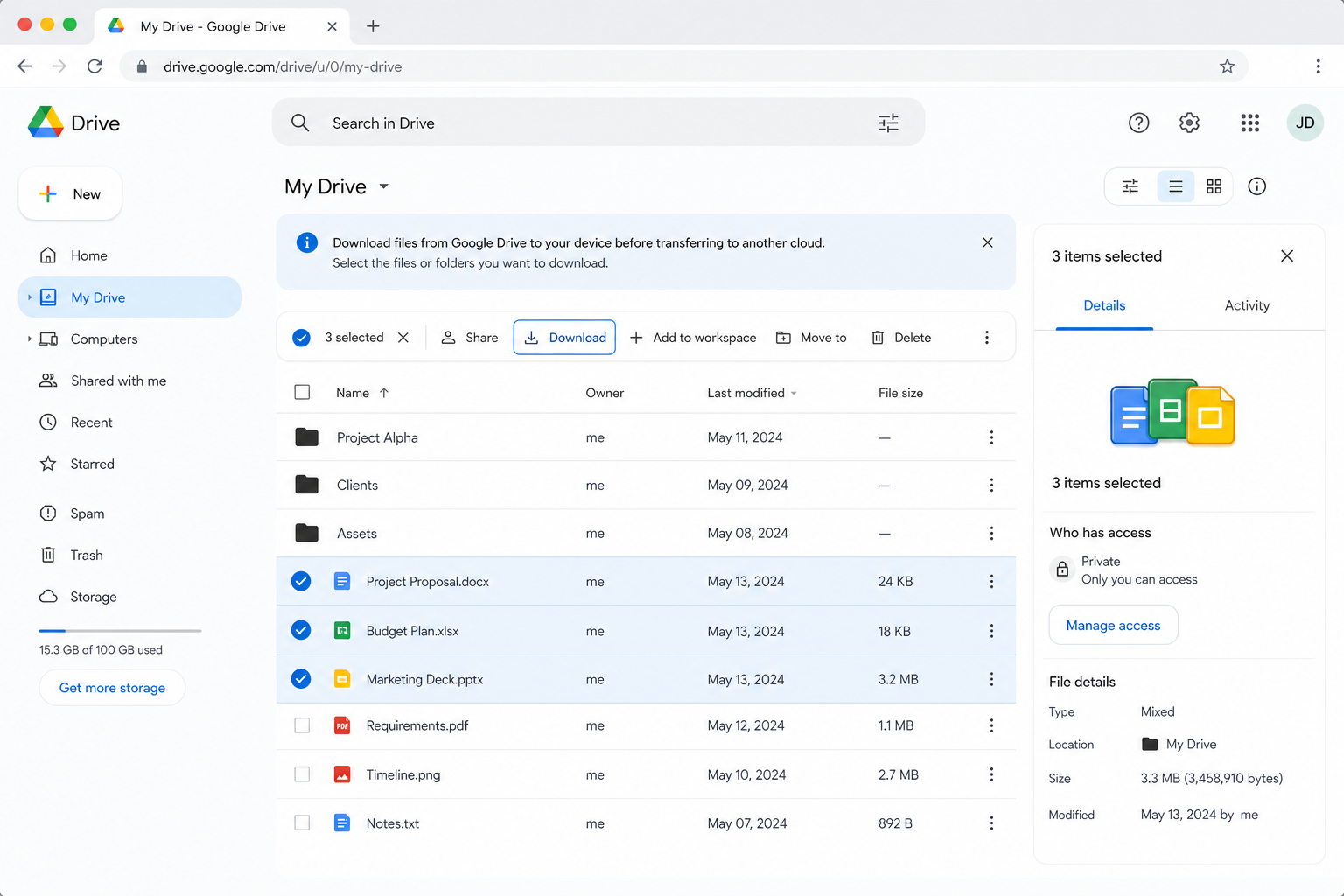
The catch is the middle of the process: everything is downloaded in full, unzipped to a second copy, and imported to a third. A big library doubles or triples its footprint on your Mac, and a dropped browser download means starting that zip over. That's where most people move on to Method 2.
On a PC, or without the Photos app? After downloading, you can skip the import step and upload in the browser instead: open icloud.com/photos, choose Library (or an album), click Add Photos and then Choose Files, select the pictures, and click Upload. Apple says photos uploaded this way are added to iCloud Photos and appear on every device that has it turned on. It works from any computer, but it's still pick-and-upload by hand, with the browser doing the transfer.
Method 2: Send Cloud Photos Straight into a Photos Album with OurClone
OurClone runs the transfer on your Mac, reading from the cloud and importing into Photos as the files arrive. It keeps only a short-lived temporary copy of each file while it hands it to Photos, so there's no folder of downloads to clean up afterwards. You need OurClone v1.4.0 or later — grab it from the download page.
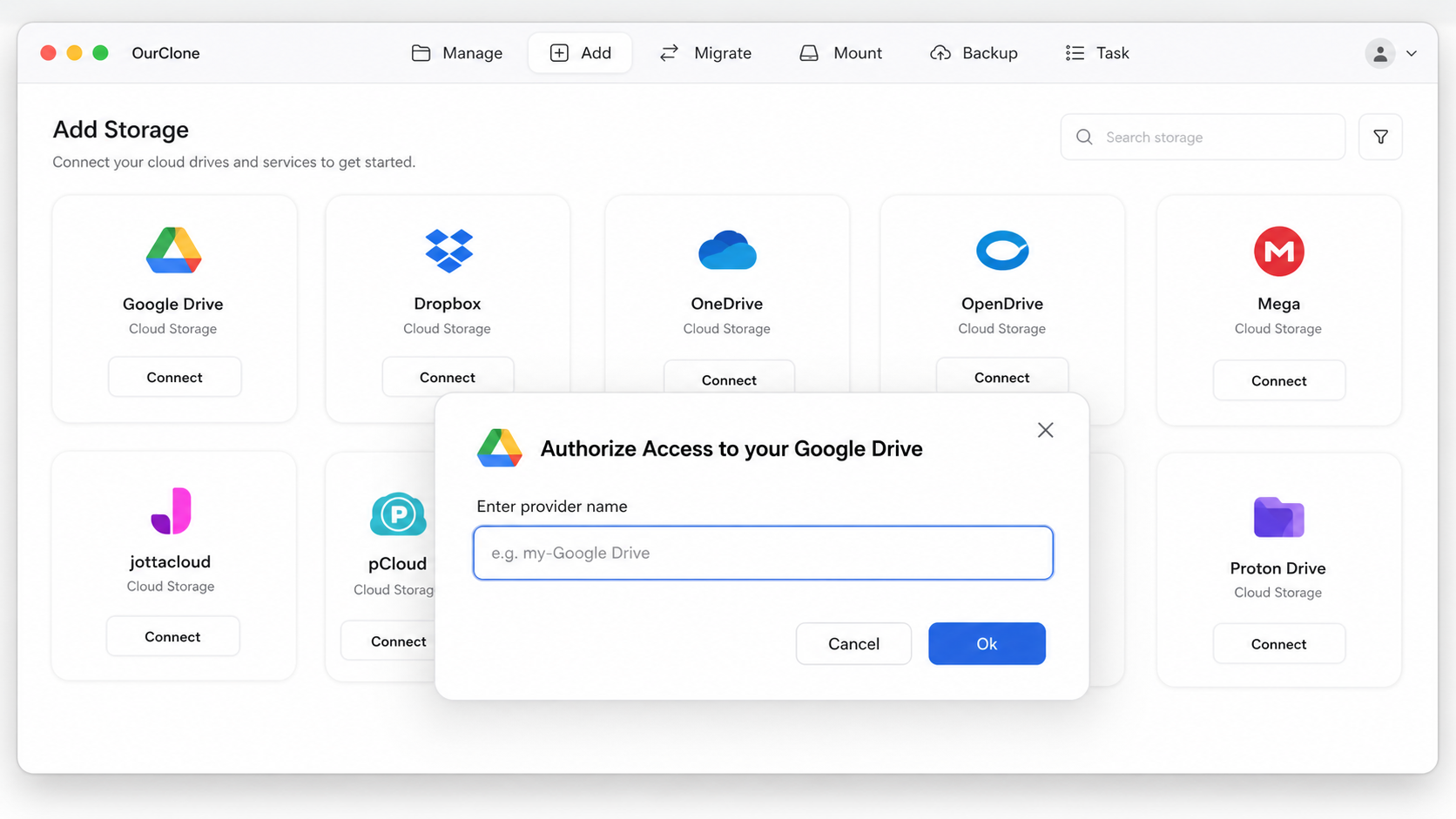
- 🔗 Step 1: Add Google Drive as the Source (Browser Sign-In) — In OurClone open the
Addtab and pick Google Drive. A browser window opens — sign in and authorize OurClone, and Drive appears in your storage list. Dropbox, OneDrive, and Box work the same way; see the Dropbox and OneDrive pages if you're starting there. - 📸 Step 2: Connect Photos on This Mac — Back in the
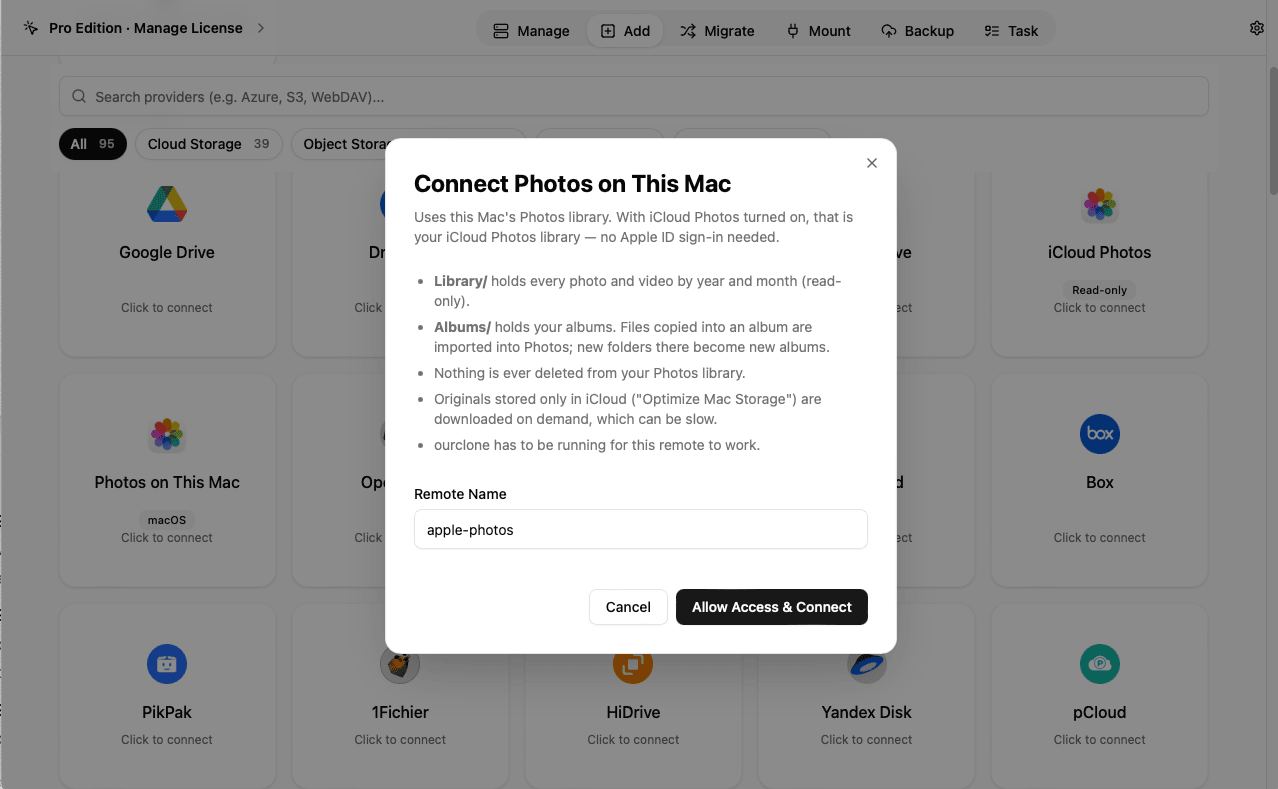
Addtab, choose Photos on This Mac (it carries a macOS tag) and click Allow Access & Connect. macOS shows its usual permission prompt for the Photos library; allow it. If you refused earlier, switch OurClone on under System Settings → Privacy & Security → Photos and try again. No Apple ID is typed into OurClone — it reads the library of the Mac you're sitting at, and with iCloud Photos on, that's your iCloud Photos library. - 🏷️ Step 3: Create the Album the Pictures Will Go Into — OurClone imports pictures into an album (the Library view is read-only), so make one first: open
Manage, choose Photos on This Mac, open theAlbumsfolder, click New Album, and name it — for exampleFrom Google Drive. A new album is also the easiest way to keep a batch together and spot it afterwards. - 🎛️ Step 4: Pick the Folder, the Album, and a Mode — Open the
Migratetab. As the source, choose Google Drive and browse to the folder of pictures. As the target, choose Photos on This Mac — it shows up under the remote name you gave it (apple-photosby default, with a WebDAV label) — openAlbums, and select the album you just made. Then choose a transfer mode:- Copy — imports the pictures into the album and leaves everything in Google Drive. The safe choice, and the one to use for the first run.
- Move — imports, then deletes the originals from Google Drive. Use it once you've checked a Copy result in Photos.
- Sync — greyed out when Photos is the target. Sync deletes files at the destination to match the source, and OurClone never deletes anything from your Photos library.
Albumsfolder, the Start Transfer button stays disabled with a note to choose an album inside it. Click Start Transfer once the album is selected. - 📈 Watch the Import, Then Open Photos — The
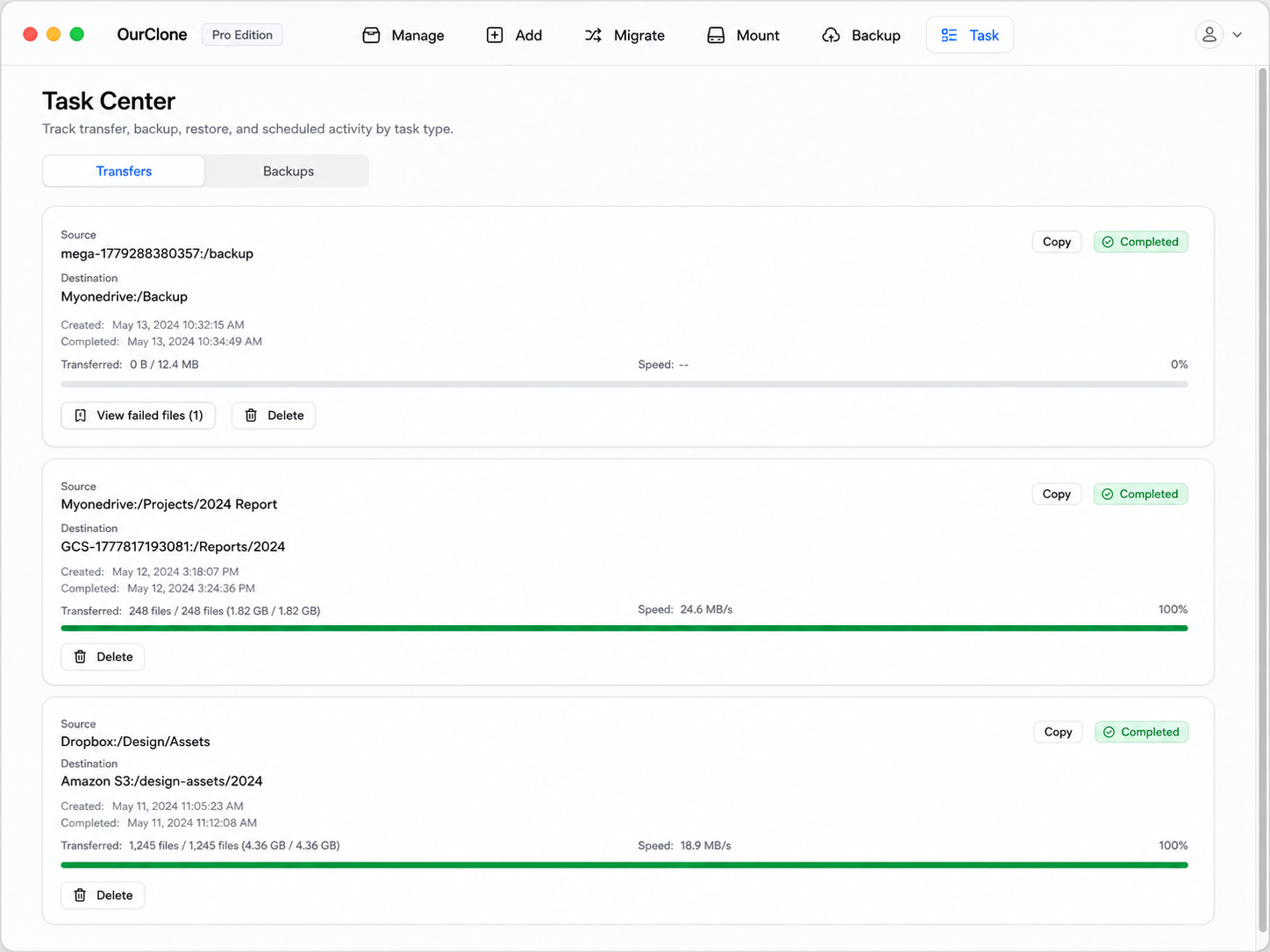
Taskpanel shows files imported, speed, ETA, and any file that failed. When it reads completed, open the Photos app: the new album sits under Albums, and the pictures appear in your Library at their capture dates. The Imports item in the sidebar lists each batch by the time it was imported, so the newest one is easy to spot. Keep OurClone running while the job is going — the connection to Photos only exists while the app is open.
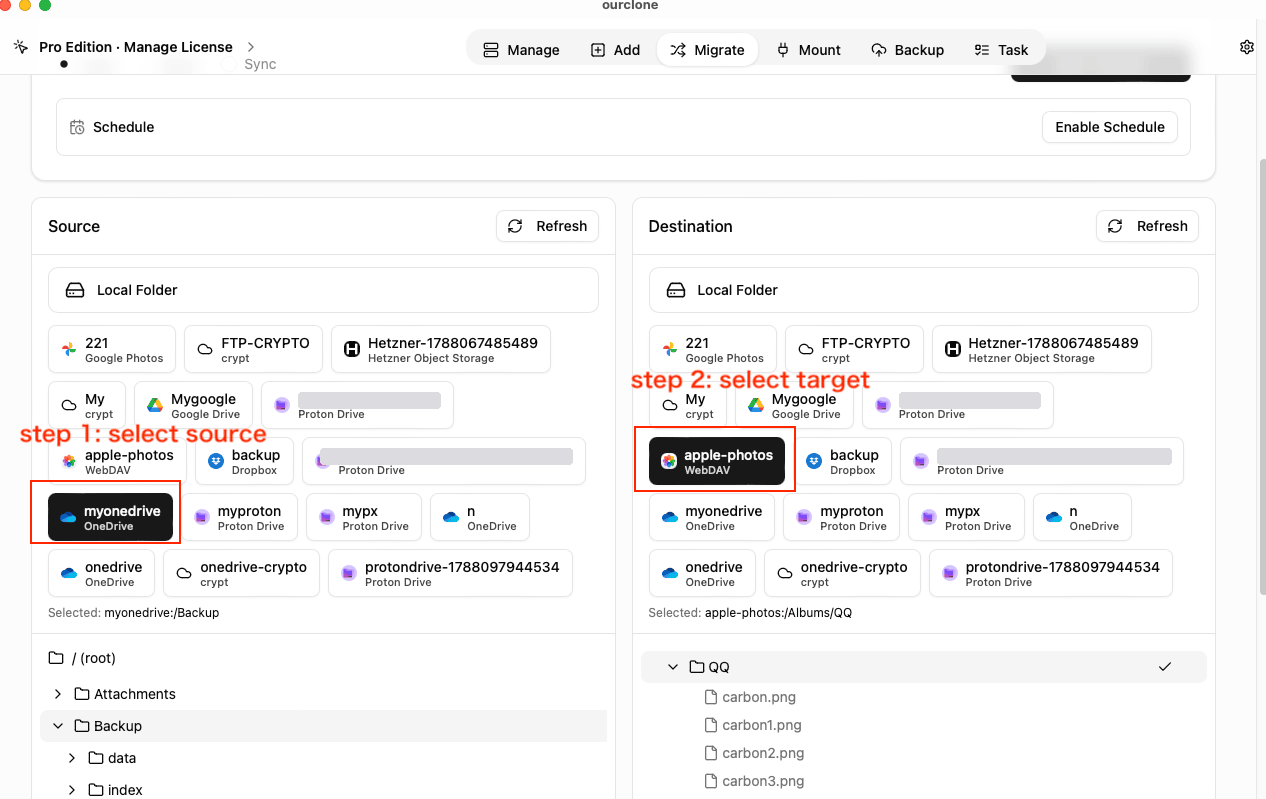
In this example the source is a OneDrive folder and the destination is an album named QQ. Google Drive and Dropbox are picked the same way.
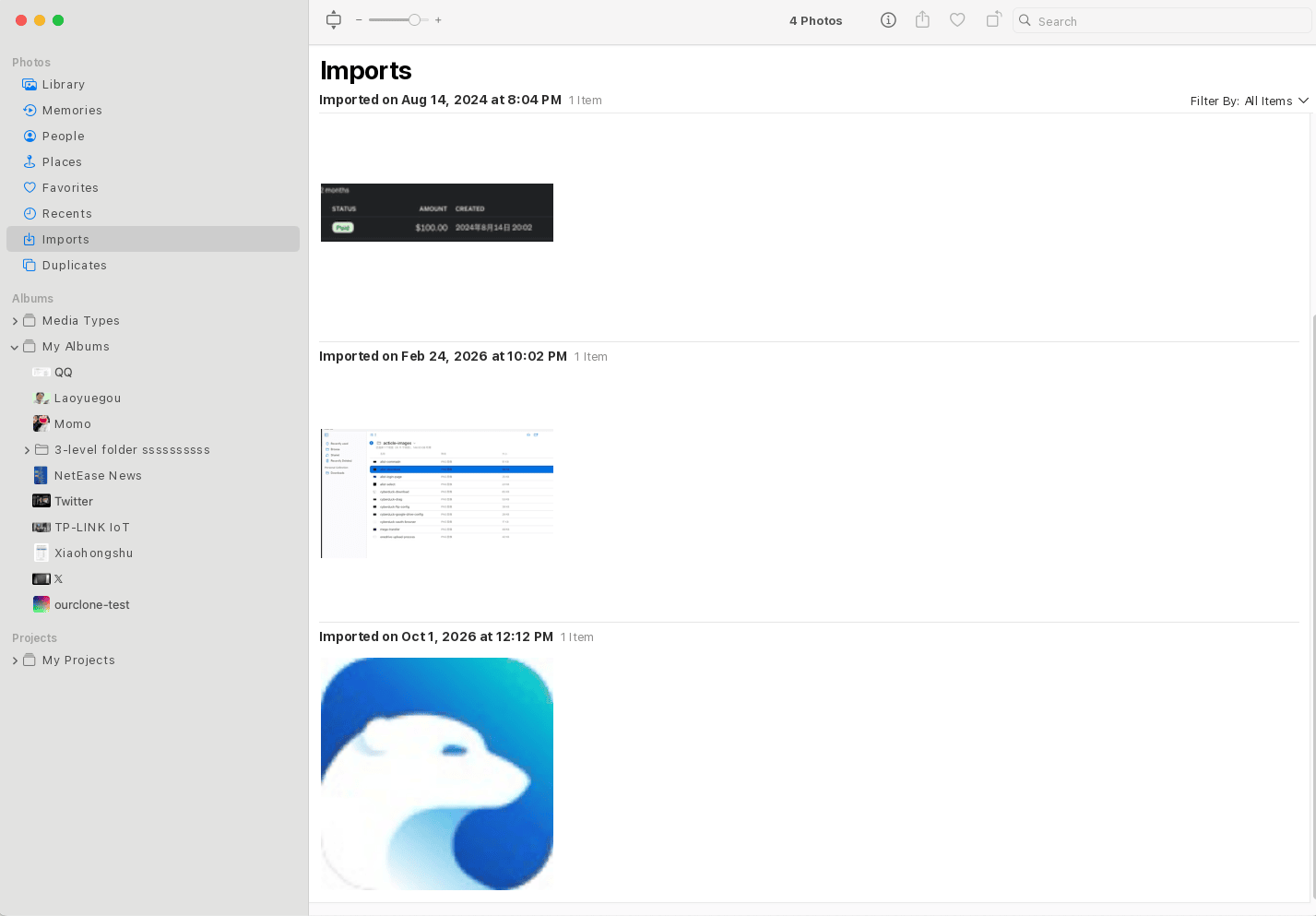
Run a Copy on one small folder first and look at it in Photos — the date placement, the album, the file count. Once it looks right, queue the rest. Whether and when iCloud uploads them is up to Photos and your iCloud Photos setting; OurClone's part ends when the pictures are in the library.
Method 3: Download with rclone, Then Import (Command Line)
OurClone is built on rclone, but this particular job has a limit worth knowing: rclone's iCloud Photos backend is read-only, so it can't put pictures into iCloud Photos, and the Mac's Photos library isn't a destination rclone can write to either. On the command line the transfer therefore stops at a local folder, and the Photos app finishes it.
Step 1: Install rclone
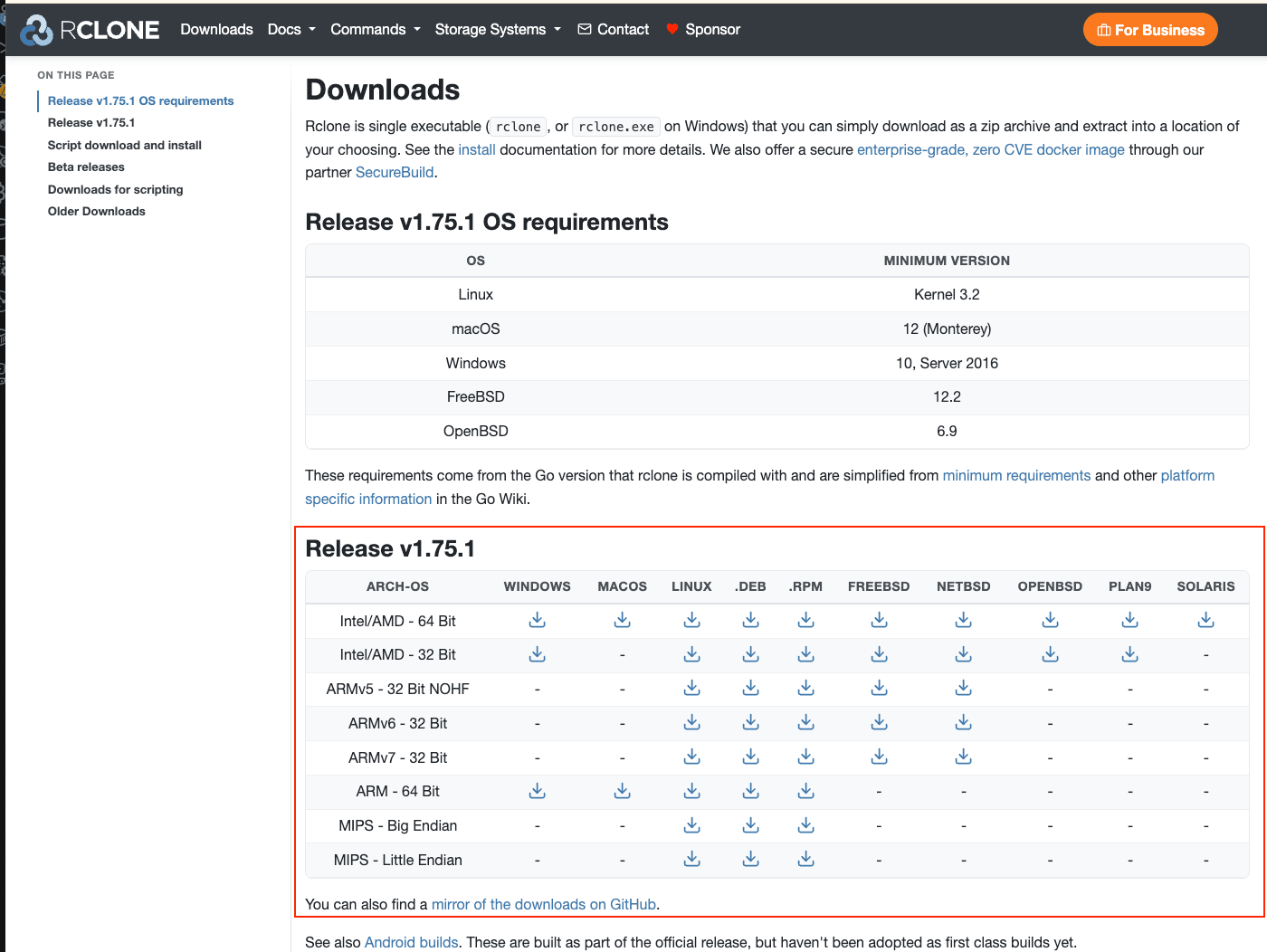
Download it from the official page, or run brew install rclone. On the download page pick the macOS column: ARM 64-bit for an Apple Silicon Mac, Intel/AMD 64-bit for an older Intel Mac.
Step 2: Configure the cloud remote
Run rclone config, create a new remote called gdrive with the drive backend, and finish the browser sign-in. Dropbox and OneDrive use the dropbox and onedrive backends and the same flow.
Step 3: Download only what Photos can import
Filtering by extension keeps documents and sidecar files out of the import folder:
rclone copy gdrive:Pictures/Old\ Phone ~/Pictures/to-import \
  --include "*.{jpg,jpeg,png,heic,heif,gif,tif,tiff,webp,dng,mov,mp4,m4v}" \
  --ignore-case --progress
Use copy, not move: rclone move deletes each file from the cloud as soon as it's downloaded, long before you've imported anything into Photos.
Step 4: Import with Photos
Open Photos, choose File → Import…, select ~/Pictures/to-import, pick the album from the Import To menu, and click Import All New Items. Delete the staging folder once the library shows the pictures.
Caveats
- ⚠️ Two-step by nature — a full local copy sits on disk until you remove it.
- ⚠️ Nothing tells rclone whether Photos accepted a file; you check the library yourself.
- ⚠️ OAuth for each remote is set up by hand — the friction OurClone's Add tab removes.
The Three Routes Side by Side
| Method 1: Web + Import | Method 2: OurClone | Method 3: rclone + Import | |
|---|---|---|---|
| Extra copy on your Mac | Zip plus unzipped folder | Short-lived temporary file per picture | Full staging folder |
| Choose the target album | In Photos' import window | On the Migrate page | In Photos' import window |
| Non-photo files | Skip them by hand | Refused and listed as failed | Filtered with --include |
| Remove the cloud originals | By hand | Move mode, after the import | Delete by hand — move runs before the import |
| See which files failed | Photos' import summary | Task panel failed-file list | Terminal log, then Photos' summary |
Where Photo Imports Trip Up
Most of the surprises come from how the Photos library is picky, not from the cloud you're copying from.
- 🚫 Some files fail while the rest import — OurClone imports pictures and videos only. A PDF, a
.jsonor.xmpsidecar, or a text file is refused and shows up in the Task panel's failed list. The supported types are listed under "Before You Start". - 🪪 Two photos, same file name — OurClone won't add a second file with the same name to the same album (and
IMG_0001.JPGandimg_0001.jpgcount as the same name). If two cameras both produced anIMG_0001, import their folders into separate albums. - 🗓️ A photo sits on the wrong date — Photos files imports by capture date from the file's own metadata. Pictures that were exported, edited, or sent through a messaging app can have that metadata stripped, and then Photos can't place them where they were taken. That's a property of the file, not of the transfer.
- ☁️ Imported, but not in iCloud — Check that iCloud Photos is on in Photos' settings, that the Mac is online, and that your iCloud storage isn't full. A free 5 GB plan fills quickly with a photo archive, and Photos imports locally even when the upload is stuck.
- 🔒 OurClone says it can't access Photos — Allow OurClone under System Settings → Privacy & Security → Photos. On a managed Mac, Screen Time or a device profile can block access entirely.
- 💤 The job stops when the Mac sleeps or OurClone quits — The connection to the Photos library lives only while OurClone is open. Reopen it and run the Copy again; the ones already in the album are not duplicated.
Quick Answers
Does OurClone upload to iCloud itself?
No. It imports the pictures into the Photos app on your Mac. Uploading them to iCloud is Apple's iCloud Photos sync, which you switch on in Photos' settings.
Will it delete anything from my Photos library?
Never. Photos on This Mac can only receive imports into albums — no deleting, renaming, or moving of what's already there. That's also why Sync is unavailable with Photos as the target.
Will it delete my Google Drive or Dropbox files?
Only if you choose Move, and only the files that were transferred. Copy leaves the cloud untouched.
Isn't putting photos in iCloud Drive the same thing?
No. Pictures stored in iCloud Drive are ordinary files that show up in the Files app, not in Photos — no timeline, no Memories, no albums. This guide puts them into the Photos library itself.
Does it work on Windows or from an iPhone?
The Photos on This Mac connection exists only in OurClone for macOS, because it talks to the Photos app on that Mac. It doesn't run on Windows or on an iPhone. On Windows you can still upload by hand at icloud.com/photos, or with Apple's iCloud for Windows app.