Most tools that write to iCloud want your Apple ID password and a six-digit code typed into them, and many cannot add photos to iCloud Photos at all; even rclone's own iCloud Photos backend is read-only. OurClone takes a different route on a Mac. For these two jobs it never contacts Apple: it writes to the Photos library and the iCloud Drive folder that already belong to your Mac, and macOS does the uploading with the account it is already signed in to.
Two ways in, and neither asks for your Apple ID
OurClone does not sign in to iCloud for these jobs. It writes to two places on your Mac that iCloud already syncs, then gets out of the way:
- Photos → iCloud Photos. The Photos on This Mac connection imports pictures and videos into an album in the Photos app. With iCloud Photos turned on in Photos settings, macOS uploads them to your iCloud library and they appear on your iPhone and iPad.
- Files → iCloud Drive. On the Migrate page, choose Local Folder as the destination and pick a folder under iCloud Drive in the standard macOS folder picker. OurClone copies files into it, and macOS uploads them to iCloud Drive.
What you give instead of a password is ordinary macOS consent: the first time you connect Photos on This Mac, macOS asks whether OurClone may access your Photos library; for iCloud Drive, macOS may ask once whether OurClone can access iCloud Drive.
Signing in vs. working through your Mac
OurClone also has iCloud Drive and iCloud Photos connections on its Add page that sign in with your Apple ID. Here is how the two approaches differ:
| iCloud sign-in connections | Through your Mac (this page) | |
|---|---|---|
| Apple ID password | Required, plus a verification code from a trusted device or text message | Not needed |
| Add photos to iCloud Photos | No, the iCloud Photos connection is read-only | Yes, imported into a Photos album and uploaded by macOS |
| Add files to iCloud Drive | Yes, written to iCloud directly | Yes, copied into your iCloud Drive folder and uploaded by macOS |
| Needs | "Access iCloud Data on the Web" turned on in your Apple account settings | A Mac signed in to iCloud, with iCloud Photos or iCloud Drive turned on |
| When a job says Completed | The files are in iCloud | The files are on your Mac; macOS finishes uploading them in the background |
Route 1: photos into iCloud Photos
- On the Add page, choose Photos on This Mac and click Allow Access & Connect, then approve the macOS Photos prompt.
- Connect the cloud that holds the photos, such as Google Drive, Dropbox or OneDrive. A local folder works as a source too.
- Open Migrate. Pick the photo folder as the source, and an album under
Albumsin Photos on This Mac as the destination. To make a new album, use New Album insideAlbumson the Manage page. - Choose Copy, or Move if you want the photos removed from the source cloud afterwards. Sync is not offered for Photos, because it would delete pictures from your library.
- Start the job and follow it in the Task Center. When it finishes, the photos are in that album, and iCloud Photos uploads them from there.
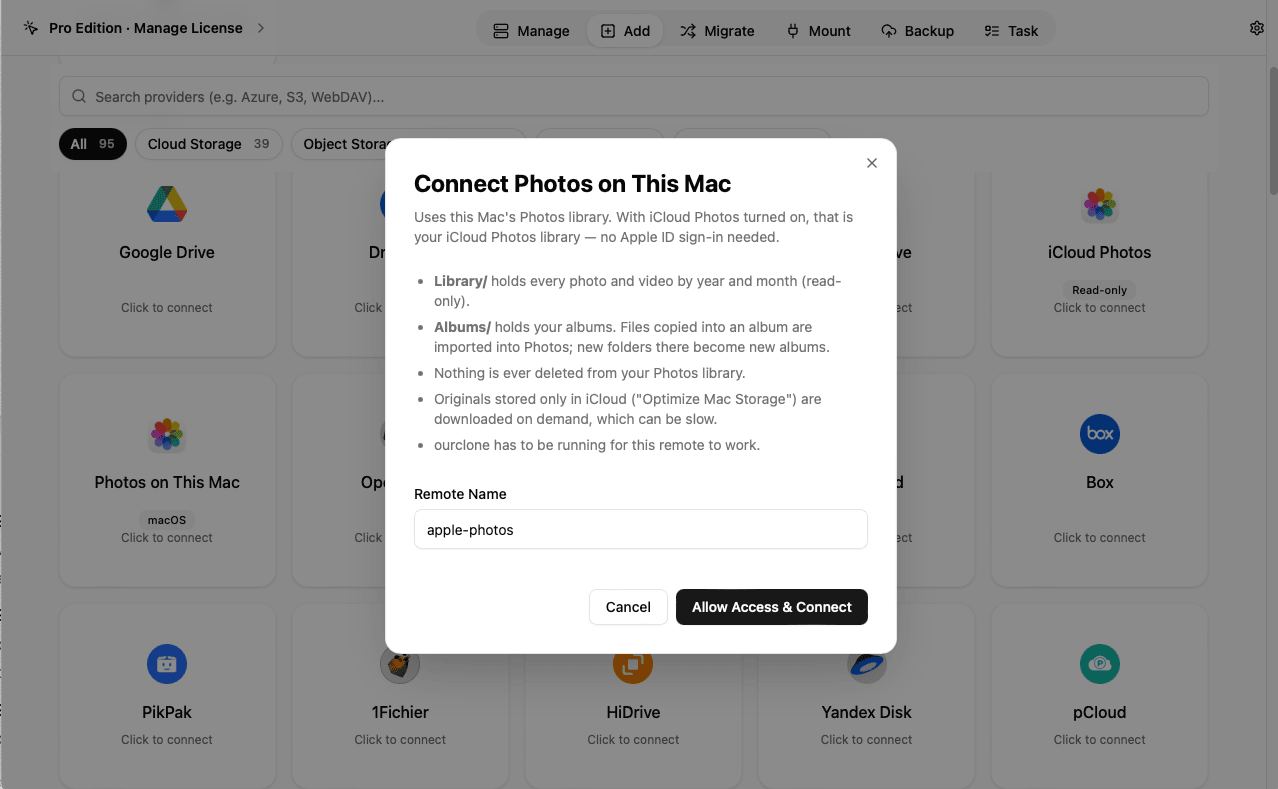
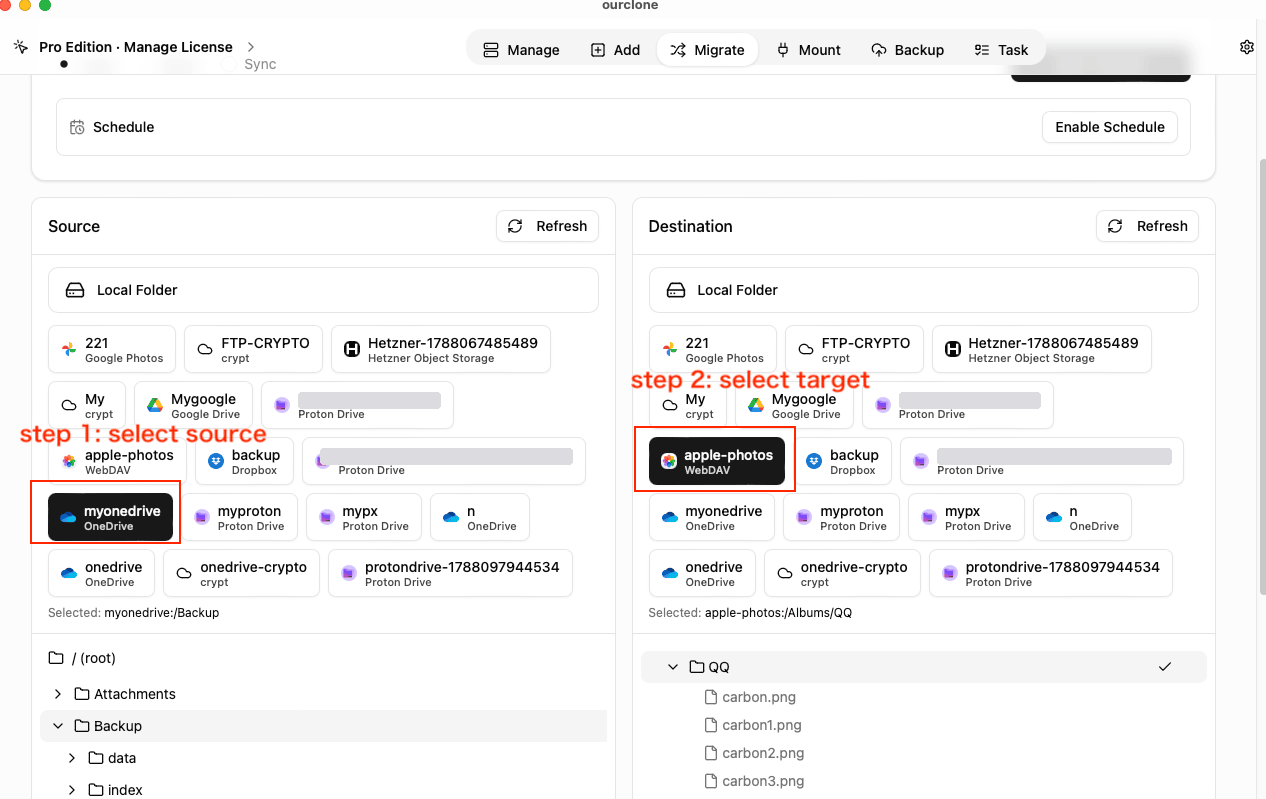
OurClone never deletes, renames or moves anything already in your Photos library, and it can only add files directly into albums. Keep OurClone running while you use this connection, since the app serves your library to the transfer. Step-by-step guides:
- Move Photos from Google Drive or Dropbox to iCloud Photos
- Move Google Photos to iCloud Without Losing Dates or Albums (from a Google Takeout export)
Route 2: files into iCloud Drive
Before you start, make sure iCloud Drive is turned on in System Settings → your name → iCloud, and that both your Mac and your iCloud plan have room for the files. Use an ordinary folder: app folders such as Pages or Numbers only hold that app's documents.
- Connect the cloud you are copying from.
- Open Migrate and choose the source folder.
- For the destination, click Local Folder. In the folder picker, select iCloud Drive in the sidebar, then choose a folder or create one with New Folder.
- Choose Copy and start the job. If macOS asks whether OurClone can access iCloud Drive, click Allow.
- When the job completes, the files are in iCloud Drive on this Mac. Finder shows each item's upload status (in list view, add the iCloud Status column); keep the Mac online until macOS has finished uploading, which can take hours for a large batch.
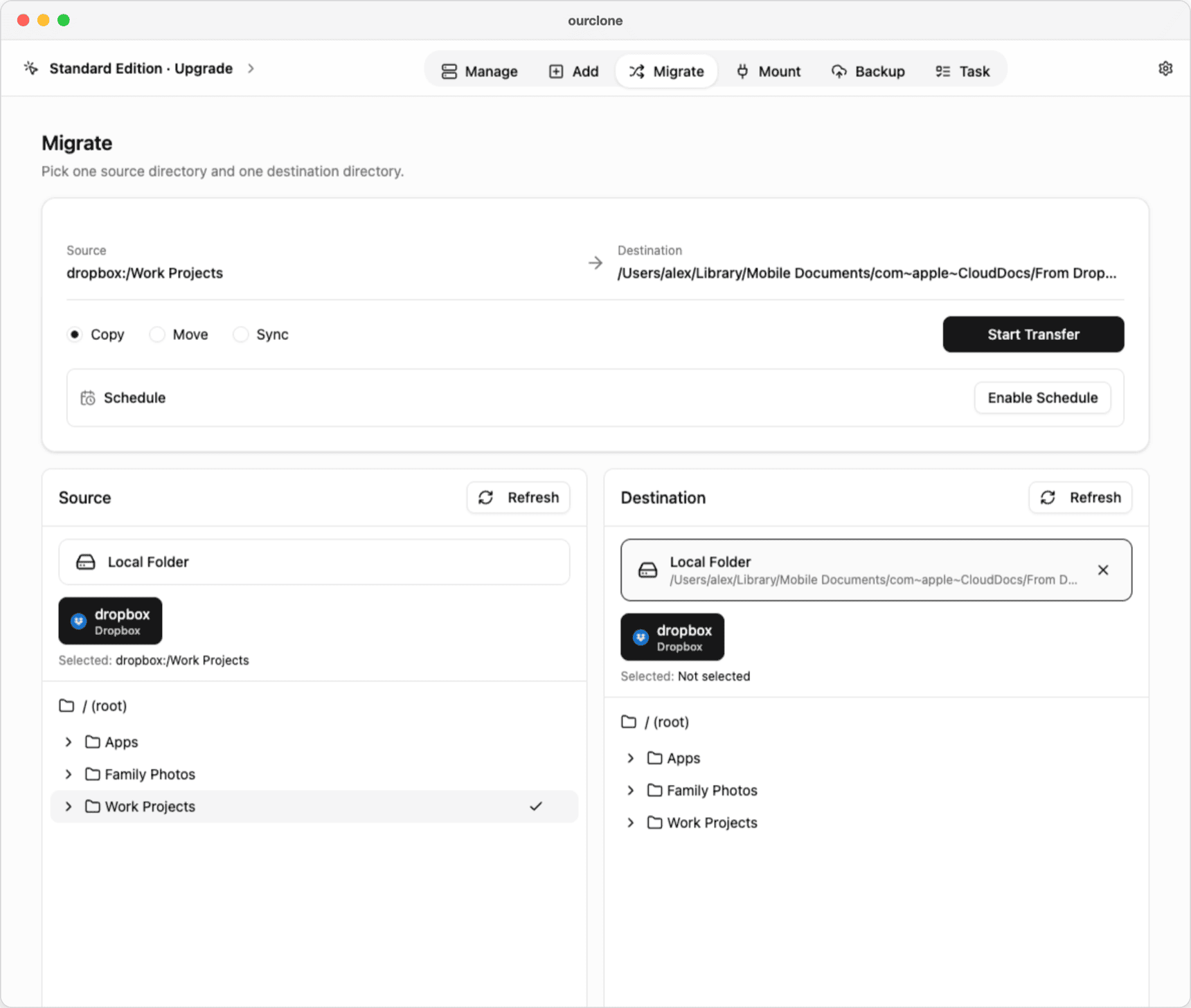
On disk, iCloud Drive is the Library/Mobile Documents/com~apple~CloudDocs folder in your home folder; the folder picker shows it as iCloud Drive.
The files are written to your Mac's disk first, so you need enough free space for the batch you are copying. If "Optimize Mac Storage" is on, macOS can remove local copies later once they are safely in iCloud. A single item can be up to 50 GB, and everything counts against your iCloud storage; if iCloud is full, files wait on your Mac until there is room.
It works in the other direction too: choose an iCloud Drive folder as a Local Folder source to copy files out to another cloud. Items that are stored only in iCloud have to download first, which can be slow or time out for a large folder; choosing Keep Downloaded on that folder in Finder beforehand avoids it. The iCloud Drive to Google Drive guide covers the sign-in route for that job.
What this does not do
- It does not upload to iCloud itself. macOS handles the upload in the background, so its speed and timing are Apple's, and OurClone cannot see upload progress.
- It needs a Mac. Both routes rely on the Photos library and the iCloud Drive folder of a Mac signed in to iCloud.
- It does not organize your library. No deleting, de-duplicating or reshuffling photos that are already in Photos.
- It is not continuous sync. Each transfer is a job you start, or a saved Pro schedule that runs one-time, weekly or monthly.
Questions
Does OurClone ever see my Apple ID password?
Not on these two routes. Only the separate iCloud Drive and iCloud Photos connections on the Add page sign in with your Apple ID and a verification code, and you only need those if you choose them.
Will the photos show up on my iPhone?
Yes, once macOS has uploaded them, as long as iCloud Photos is turned on both in Photos settings on the Mac and on the iPhone.
Why not just drag files into iCloud Drive in Finder?
If the files are already on your Mac, dragging is fine. OurClone helps when they are in another cloud: it reads them from Google Drive, Dropbox or wherever they live and writes them into iCloud Drive in one job, with progress, speed and a list of any files that failed.
Is this a Pro feature?
No. Both routes work on the free plan. Pro adds saved schedules and higher limits, as described on the pricing page.
On a Mac, OurClone gets photos into iCloud Photos and files into iCloud Drive without your Apple ID password, and macOS does the uploading. Photos go into an album through the Photos on This Mac connection, after a one-time macOS permission prompt. Files go into iCloud Drive by choosing your iCloud Drive folder as a Local Folder destination on the Migrate page. In both cases a finished job means the files are on your Mac; macOS completes the upload to iCloud in the background.
Try this workflow in OurClone
Connect your clouds, run local transfers, mount remote folders, and create encrypted restic backups from one desktop app.
The macOS download is for Apple Silicon (M1 or later). Using an Intel Mac? Download the Intel version