Why OneDrive Users Reach for Extra Encryption
OneDrive comes with credible security: encryption at rest and in transit, plus deep Windows and Office integration. But the encryption keys belong to Microsoft — so your documents are readable inside Microsoft's cloud, and a few OneDrive features are often mistaken for more than they are.
Watch the encrypted vault being created — or keep reading for the step-by-step.
- 🔑 Microsoft manages the keys — OneDrive's at-rest encryption shields you from external attackers, not from the platform itself.
- 🗄️ Personal Vault is access control, not end-to-end encryption — it re-verifies your identity and auto-locks, which is useful, but the files inside are still encrypted with Microsoft's keys, not yours.
- 🤖 Content can be processed — readable files are what enable indexing, previews, and policy scanning across Microsoft's services.
- 🎣 One phished login exposes everything — OneDrive is tied to your Microsoft account; whoever controls it reads every unencrypted file. Ciphertext stays useless to them.
- 📄 OneDrive collects sensitive files by default — Desktop and Documents folder backup is convenient, and it also means tax PDFs and scans often live in OneDrive without a second thought.
What OurClone's Encrypted Vault Actually Does
OurClone's Encrypted Remote puts a password-only encryption layer in front of OneDrive. Microsoft keeps storing your data — it just can no longer make sense of what's inside the vault folder.
- 🔐 Encrypted before upload — files are encrypted on your computer; OneDrive only ever receives ciphertext.
- 🕵️ File names hidden too — names and contents are both encrypted; the vault folder on onedrive.com shows only scrambled text.
- 🔑 Your password is the only key — it never leaves your device, and OurClone keeps no recovery copy.
- 🧰 Open format, not lock-in — built on rclone crypt, an open and documented standard.
- 📁 One folder, not your whole OneDrive — Office documents, the Desktop backup, shared libraries — everything outside the vault folder stays untouched.
- ⚙️ Behaves like a normal remote — transfer into it, sync it, mount it, or use it as a backup destination.
The Encrypted Remote is an OurClone Pro feature, and vaults always wrap a plain remote — nesting a vault inside another vault isn't supported.
How to Create an Encrypted Vault on OneDrive
The steps are the same on macOS and Windows.
- 🔗 Connect OneDrive — Open OurClone and go to
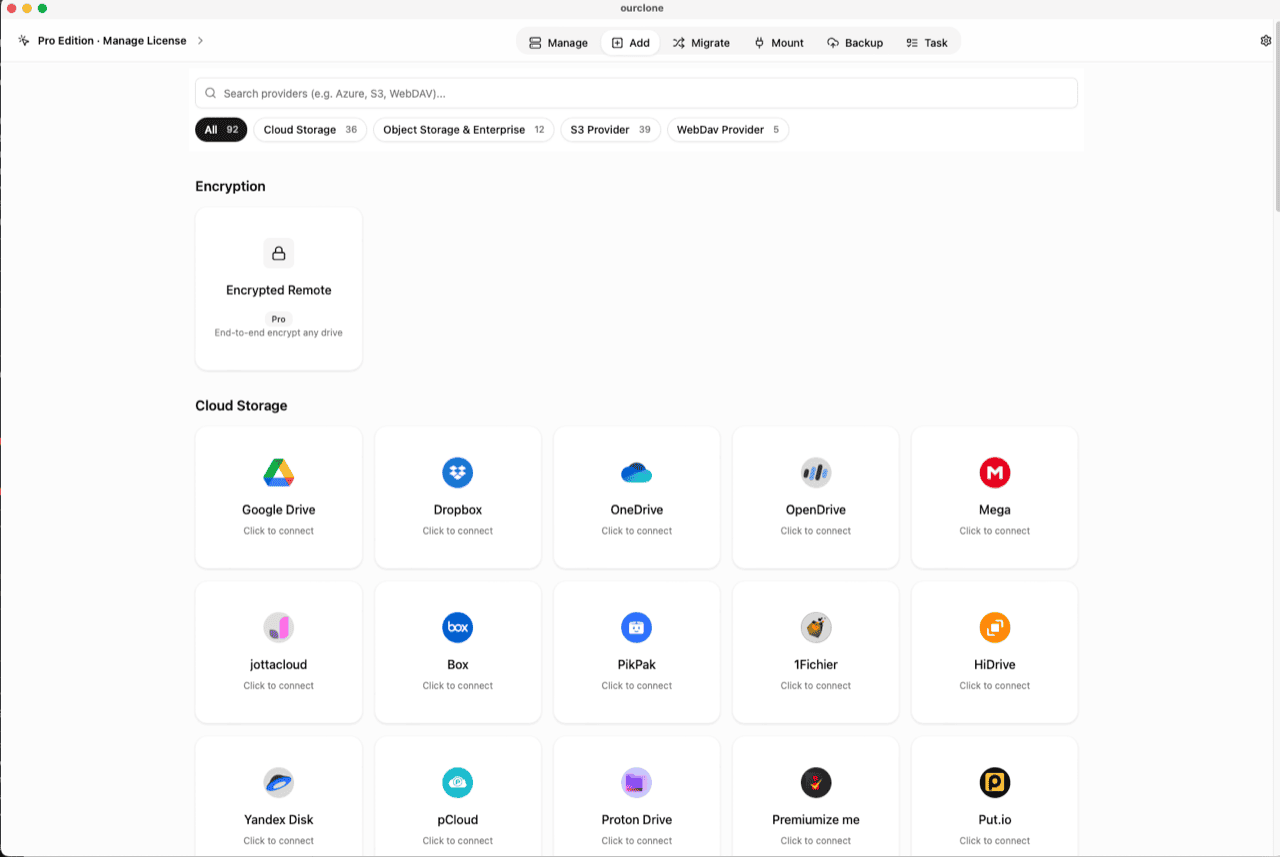
Add. Select OneDrive; sign in with your Microsoft account in the browser window and approve access. If OneDrive is already connected for backups or transfers, this step is done. - 🧭 Open the Encryption Category — In the
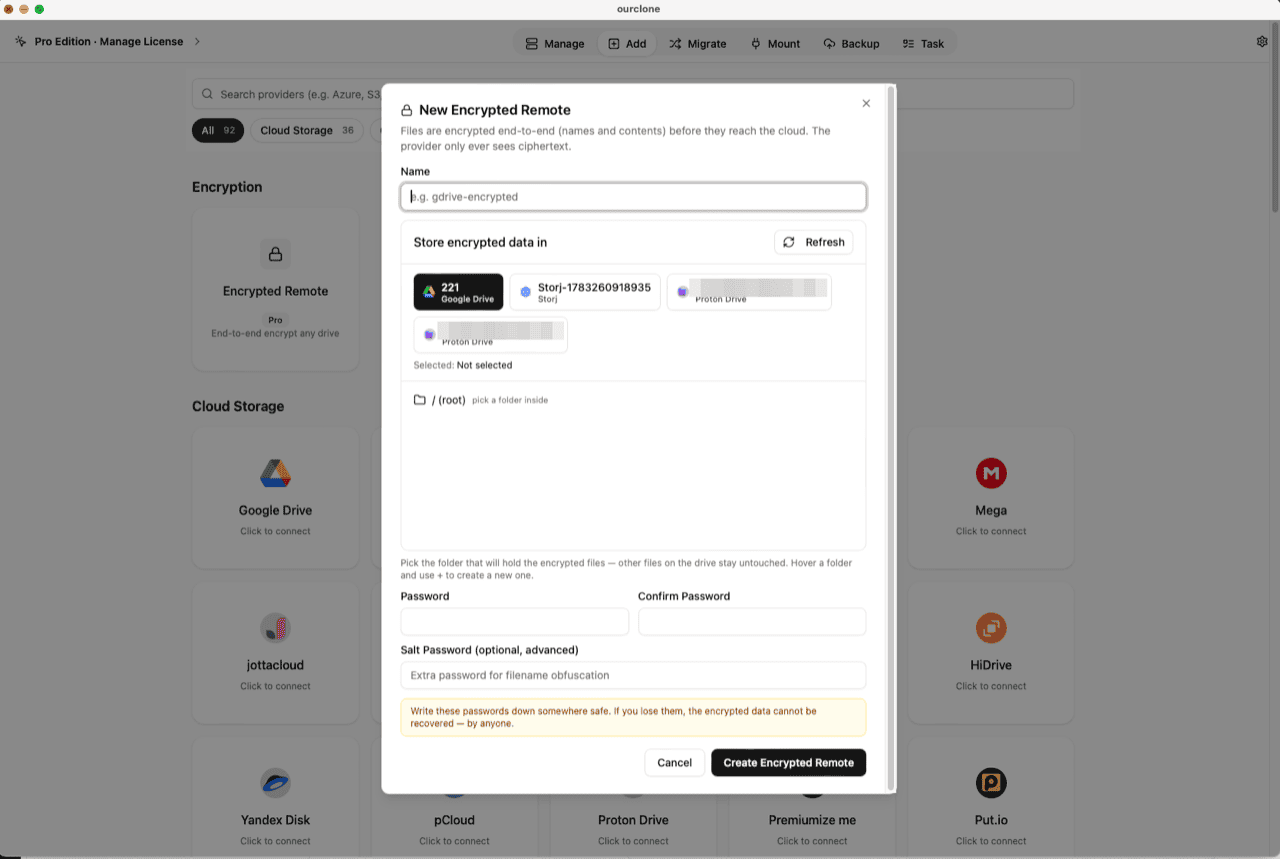
Addpage, the Encryption section sits above the provider grid. Click the Encrypted Remote card (marked Pro). - 🛠️ Create the Vault — Name it (e.g.
onedrive-encrypted), pick your OneDrive account as the base storage, then choose or create a folder inside it — the vault must live in a folder, not the drive root, and only that folder will hold encrypted data. Set your password (plus an optional salt password for stronger filename obfuscation) and click Create Encrypted Remote. - 📦 Move Files Into the Vault — Open
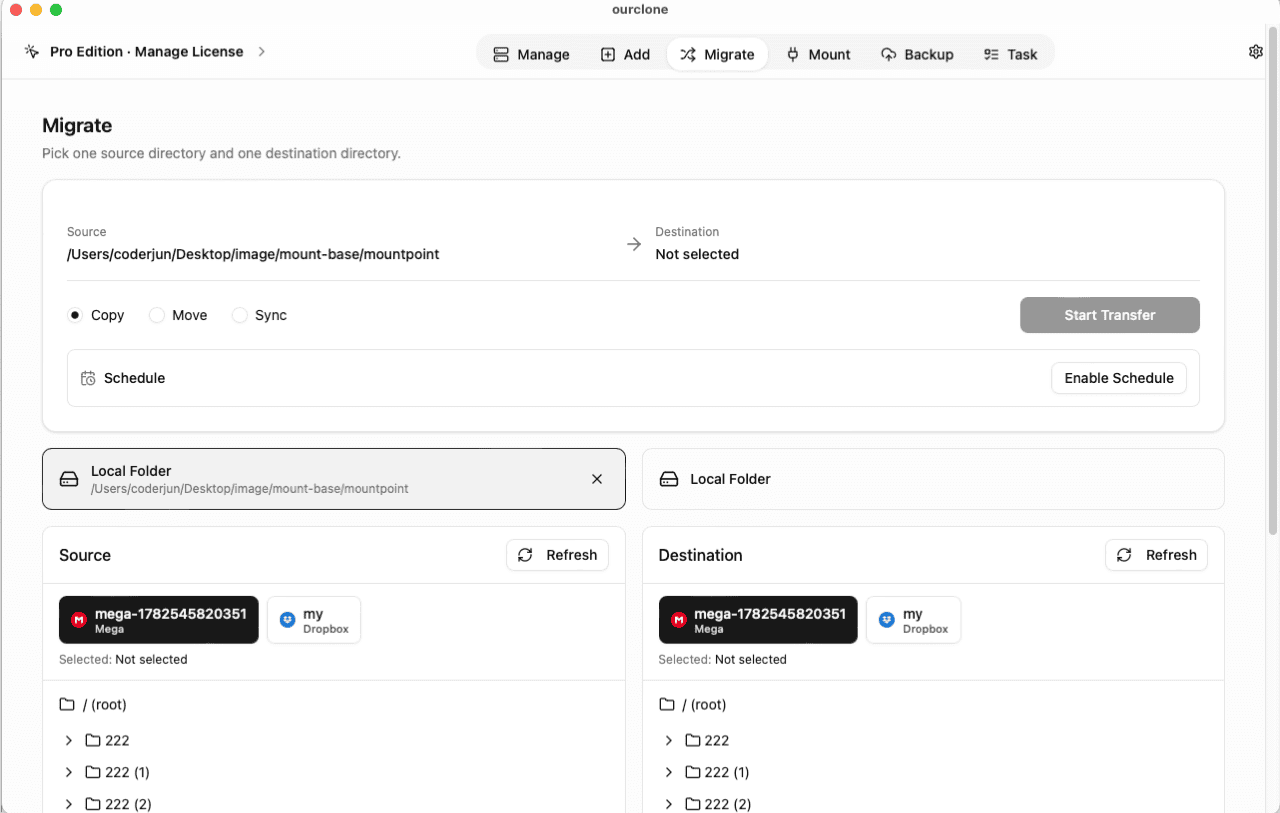
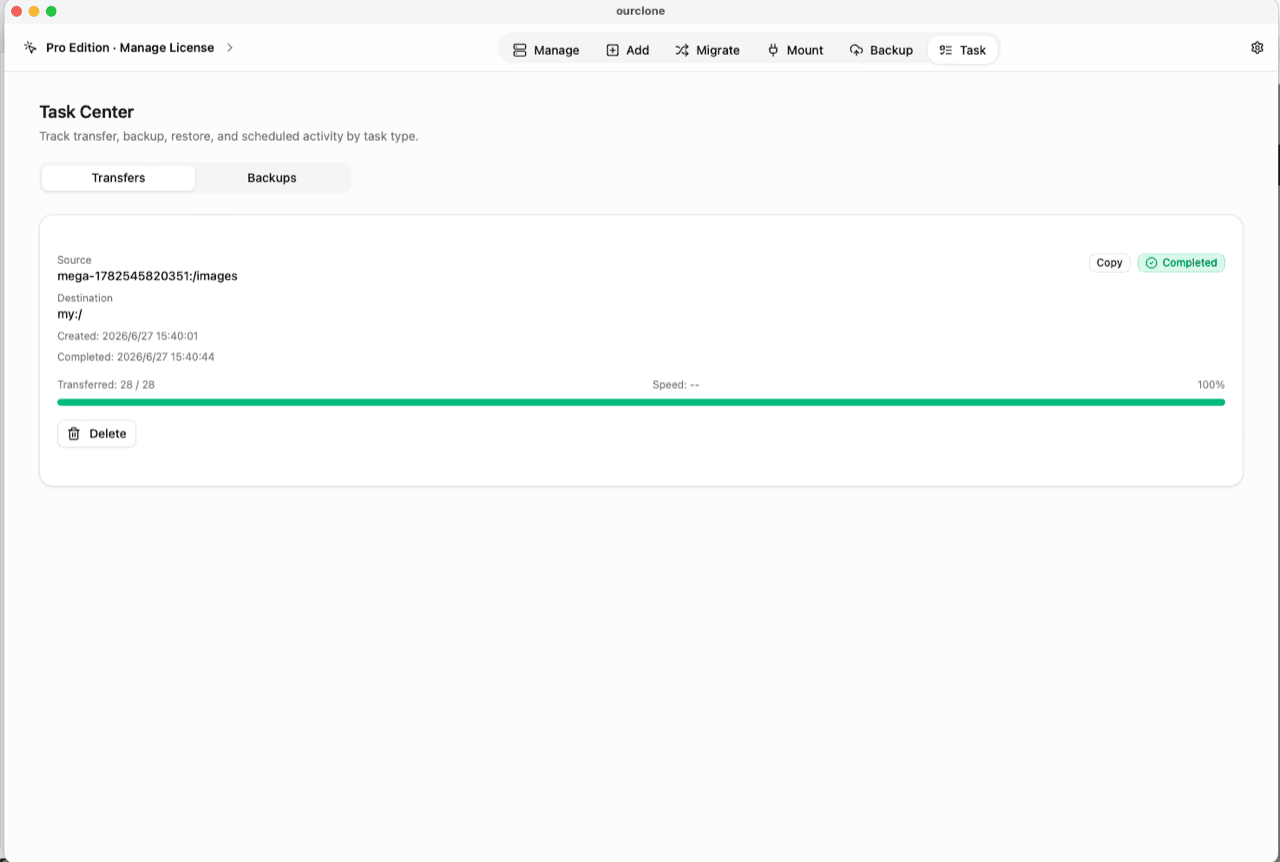
Migrate, choose a local folder (or another cloud) as the source and the vault as the destination, then run a copy, move, or sync. Files are encrypted on the fly as they upload. - 📊 Watch It in the Task Center — The
Tasktab shows live progress, speed and any failed files, and history survives app restarts.
Store the vault password in a password manager before you rely on it — there is no recovery path if it's lost.
Check What OneDrive Can See Now
Open onedrive.live.com (or the OneDrive app in File Explorer) and browse to the vault folder. You'll find files with scrambled names that produce no previews and no Office "open in browser" options — because what Microsoft holds is ciphertext, nothing more.
Inside OurClone, the vault carries a lock badge and the Manage page shows your real file names, decrypted locally. You can also mount the vault as a local drive to browse it in Finder or File Explorer (no extra driver on macOS; Windows needs WinFsp).
Frequently Asked Questions
Is the encrypted vault free?
No — it's an OurClone Pro feature. Connecting OneDrive, transfers and backups work on the free plan within its limits; see pricing.
Is this the same as OneDrive Personal Vault?
No. Personal Vault adds an identity check in front of a folder, but Microsoft still encrypts those files with its own keys. OurClone's vault encrypts with your key before upload — Microsoft never sees readable content.
What if I forget the vault password?
The data is permanently unreadable. No reset, no backdoor — that's the property that makes the encryption meaningful.
What is the salt password?
An optional second password that strengthens file-name obfuscation. Keep it as safely as the main password — both are required to read the vault.
Can I keep using the rest of OneDrive normally?
Yes. Office co-editing, shared folders, and Desktop/Documents backup all keep working — the vault only claims the one folder you picked.
Can I open the vault from another computer?
Yes — install OurClone on the other machine, connect the same OneDrive account, and add an Encrypted Remote pointing at the same folder with the same password (and salt, if set).