OneDrive vs Dropbox: What Each One Is Good At
If you're heading from OneDrive toward Dropbox, it's usually because you value sync reliability and a clean cross-platform feel over deep Office ties. Here's the honest contrast.
🟦 OneDrive
OneDrive is Microsoft's cloud, strongest inside the Office and Windows world.
- 5 GB free; 1 TB with Microsoft 365 Personal, up to 6 TB with Family.
- Native co-authoring across Word, Excel, and PowerPoint.
- Personal Vault and Files On-Demand built in.
- On macOS the sync client has historically felt heavier than on Windows.
🟫 Dropbox
Dropbox is the platform-agnostic sync veteran that just works everywhere.
- 2 GB free on Basic; 2 TB on Plus, 3 TB on Professional.
- Block-level sync transfers only the changed parts of a file — fast for big, active files.
- Consistent, lightweight client across macOS, Windows, Linux, iOS, and Android.
- Polished shared links and one of the broadest integration ecosystems around.
Why Leave OneDrive for Dropbox?
The pull toward Dropbox is rarely about price — it's about how the sync behaves day to day. If you're on a Mac, juggle multiple platforms, or share a lot with people outside the Microsoft world, Dropbox often just feels frictionless.
- ⚡ Sync That Just Works — Dropbox's block-level sync and rock-steady client are why creative and engineering teams stick with it for active project files.
- 🌍 Truly Cross-Platform — A consistent experience across macOS, Windows, Linux, and mobile, without OneDrive's Windows-first bias.
- 🤝 Easy External Sharing — Dropbox links are simple to send to collaborators who don't use Microsoft accounts.
- 🧩 Integration Ecosystem — A vast catalog of apps plug into Dropbox, from design tools to e-signature services.
Method 1: Download from OneDrive and Upload to Dropbox by Hand
The tool-free path routes everything through your Mac. It's fine for a small migration and frustrating for a big one.
- 📥 Download from OneDrive — Sign in to the OneDrive web app, select your files or folders, and download them into something like
~/Downloads/onedrive-export. Multi-file selections arrive zipped. - 📤 Upload to Dropbox — Open the Dropbox web app, unzip if necessary, and drag the files into your target folder.
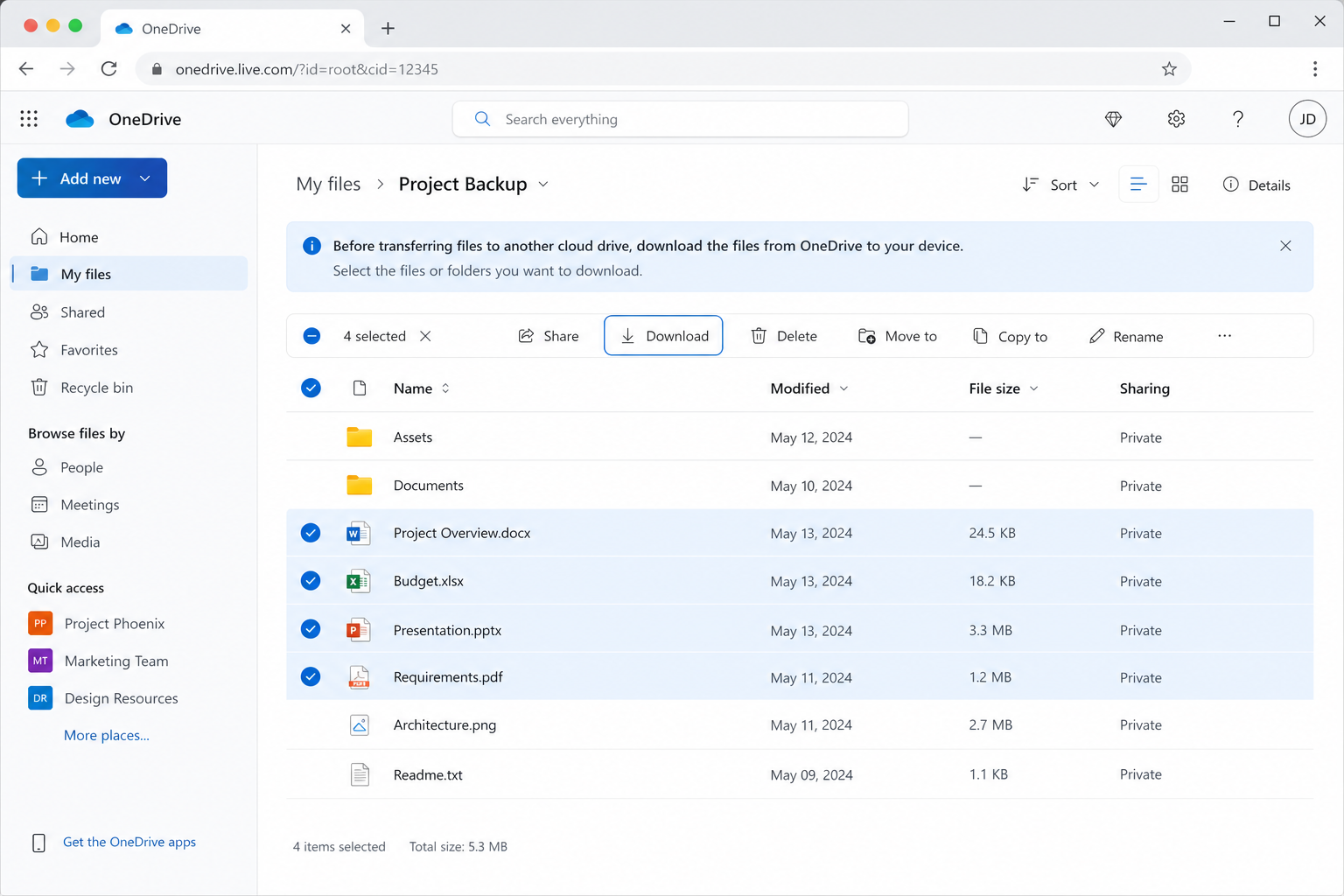
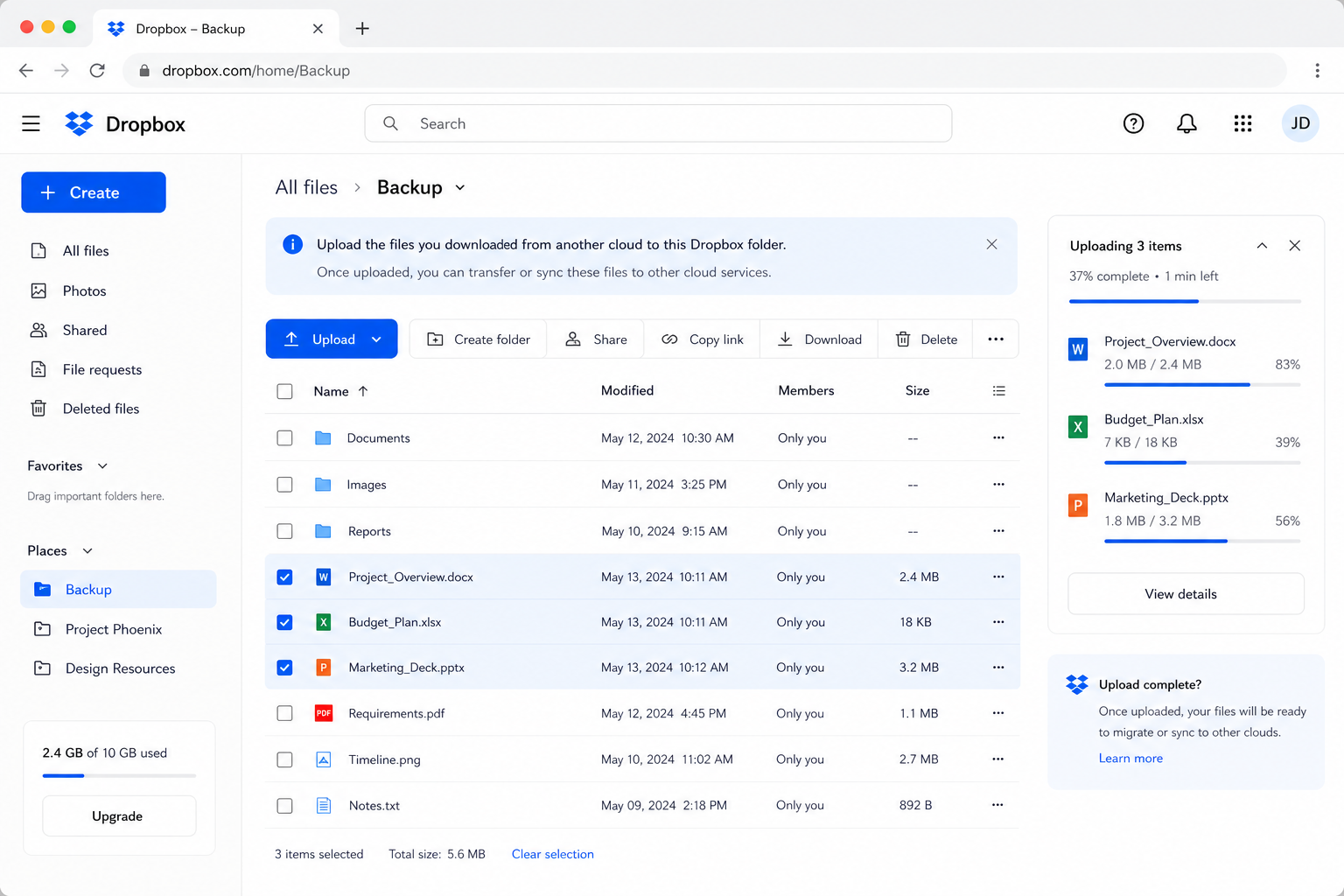
Workable for a few documents — but no resume, double the local disk usage in transit, and large OneDrive zips that tend to fail. For anything sizable, Method 2 is far less stressful.
Method 2: Transfer OneDrive to Dropbox with OurClone
OurClone migrates files from OneDrive to Dropbox directly through your Mac — no relay server, full live progress. Three steps: add the source, add the target, run it.
- 🔗 Step 1: Add OneDrive as the Source (Browser Sign-In) — In OurClone open
Add Storageand pick OneDrive. Sign in to your Microsoft account in the browser window and authorize OurClone. OneDrive then appears in your storage list. (Business accounts may need admin approval.) - 🔗 Step 2: Add Dropbox as the Destination (Browser Sign-In) — Still in
Add Storage, pick Dropbox, sign in, and authorize OurClone. Dropbox joins OneDrive in your storage list. - 🔀 Step 3: Set Source, Target and Mode on the Migrate Page — Open the
Migratetab. Pick OneDrive and browse to the files or folder to move, then pick Dropbox and choose (or create) the destination. Select a transfer mode:- Copy — duplicates files to Dropbox; nothing is deleted from OneDrive.
- Move — transfers to Dropbox, then deletes the originals from OneDrive.
- Sync — makes Dropbox mirror OneDrive; extra files in Dropbox are removed, but OneDrive is left untouched.
- 📊 Watch Progress and Confirm — The
Taskpanel shows live counts, speed, ETA, and failed files. When it reads completed, open Dropbox in OurClone (or at dropbox.com) to confirm. If you used Move, verify OneDrive no longer holds the files.
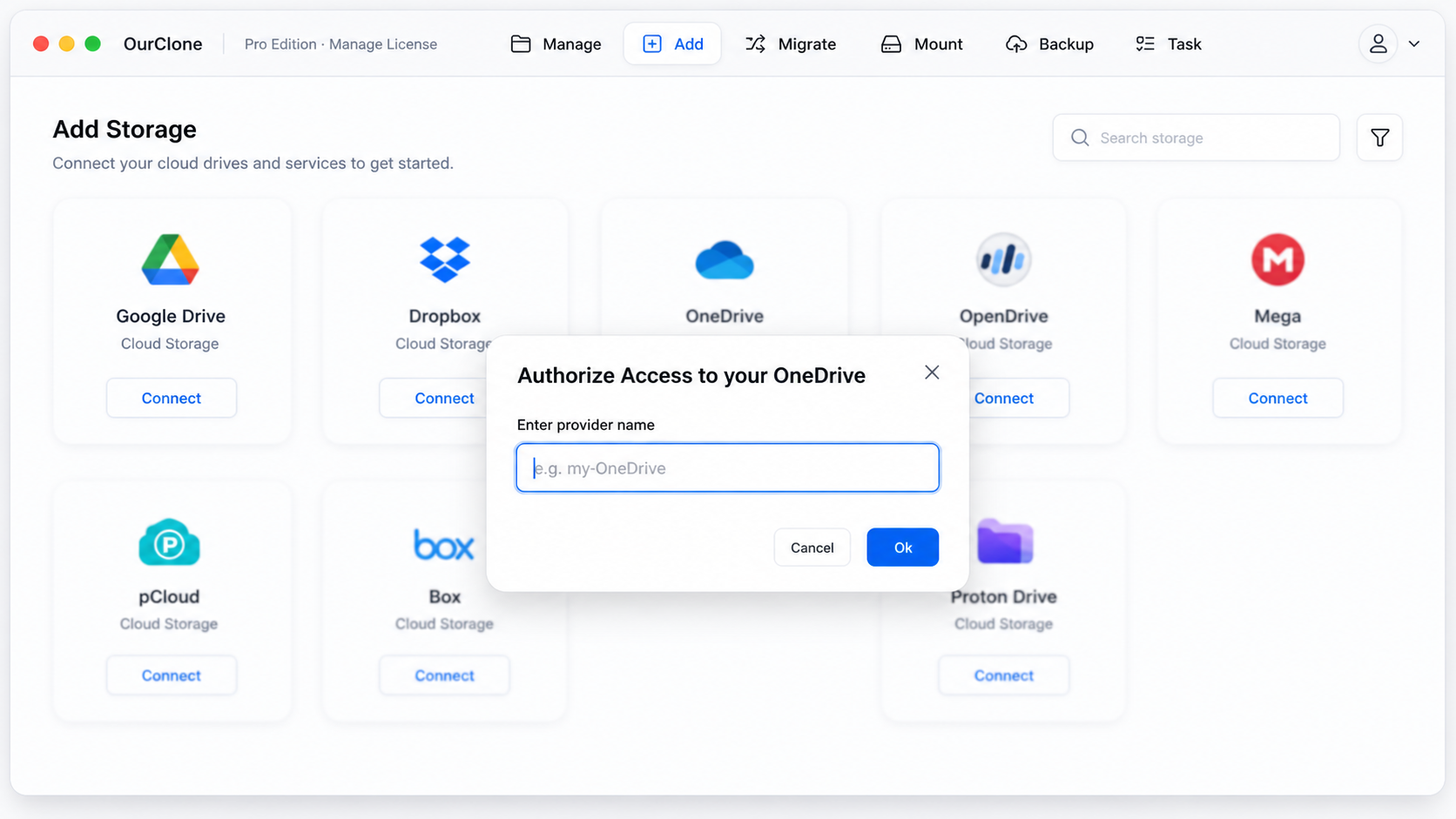
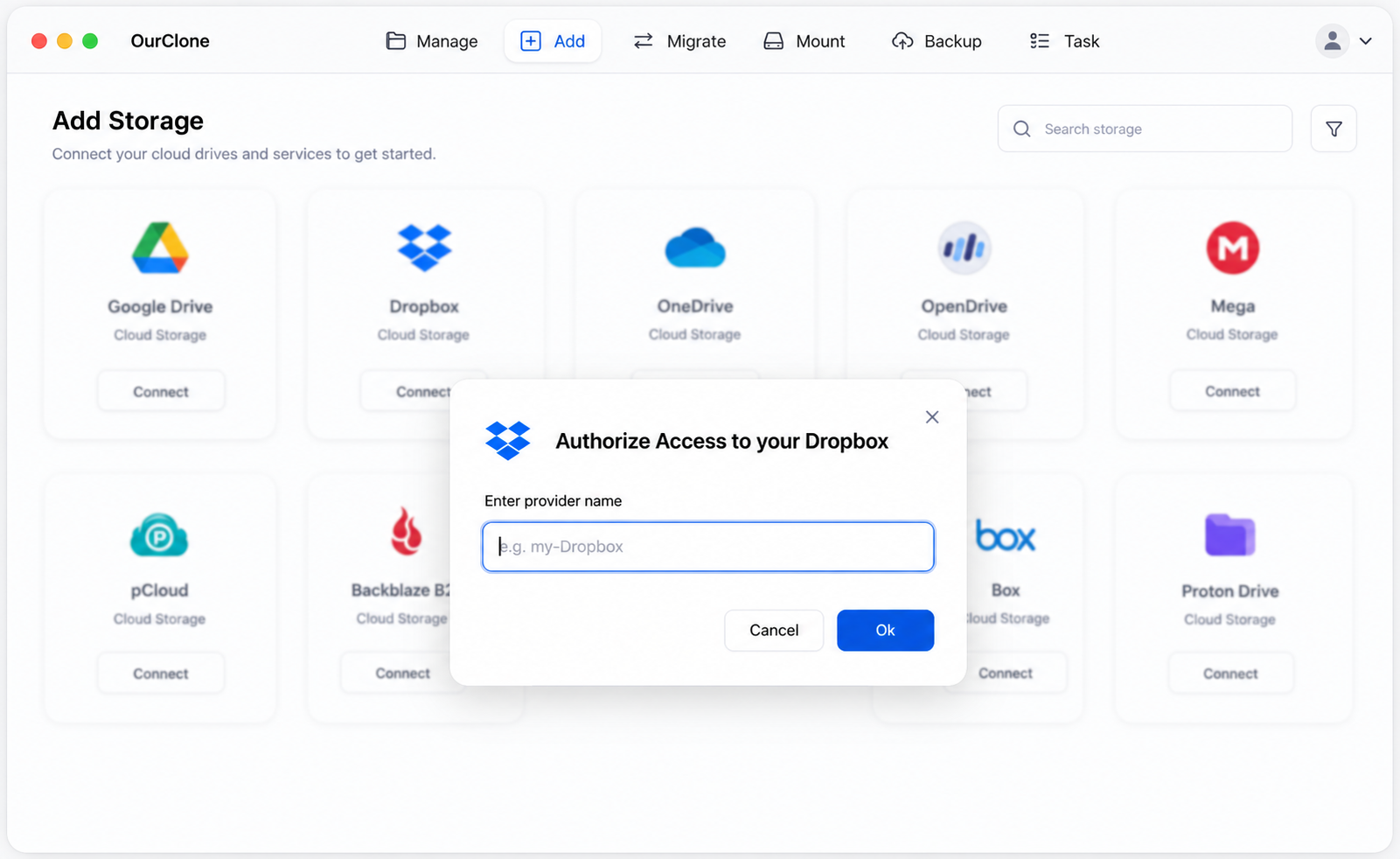
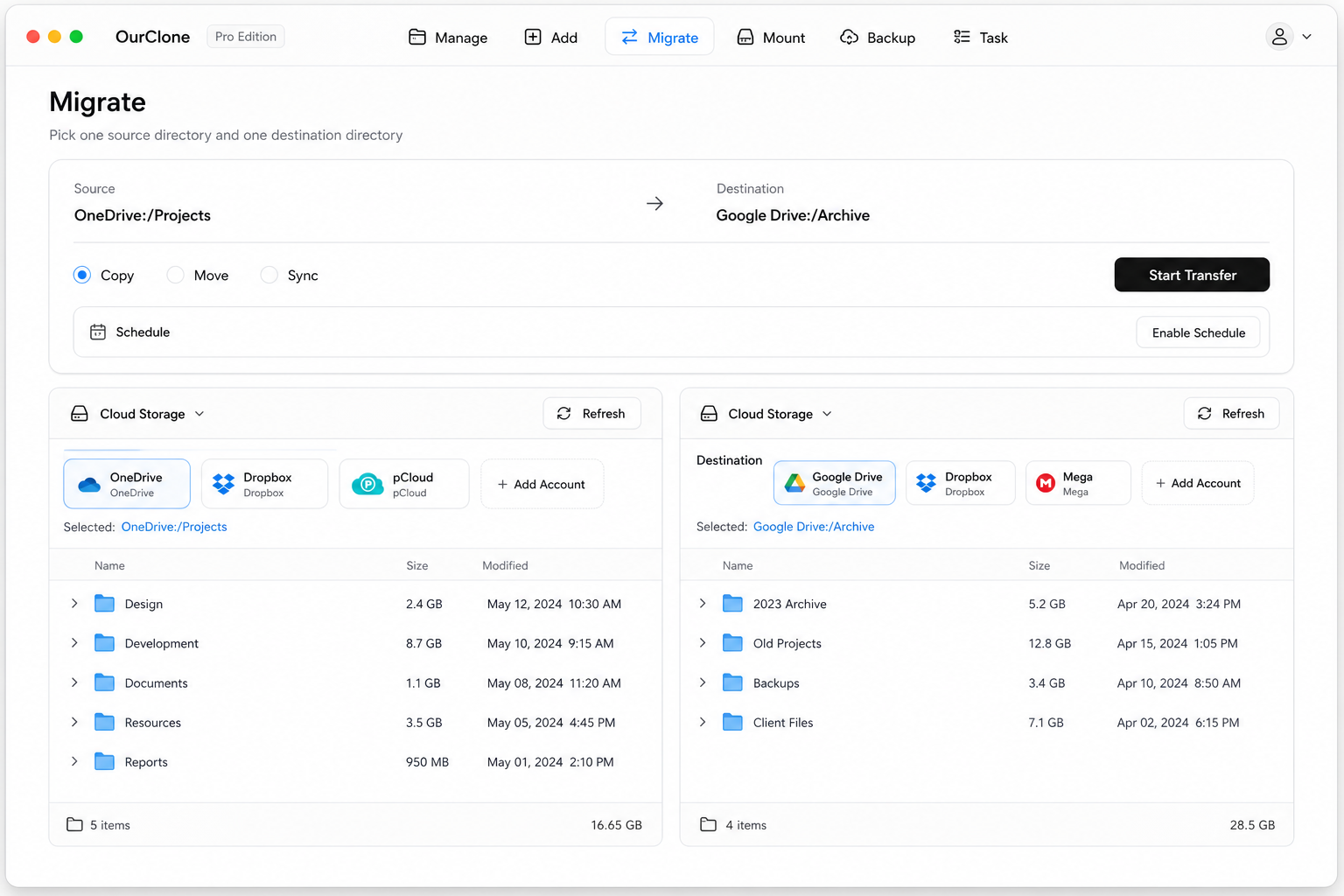
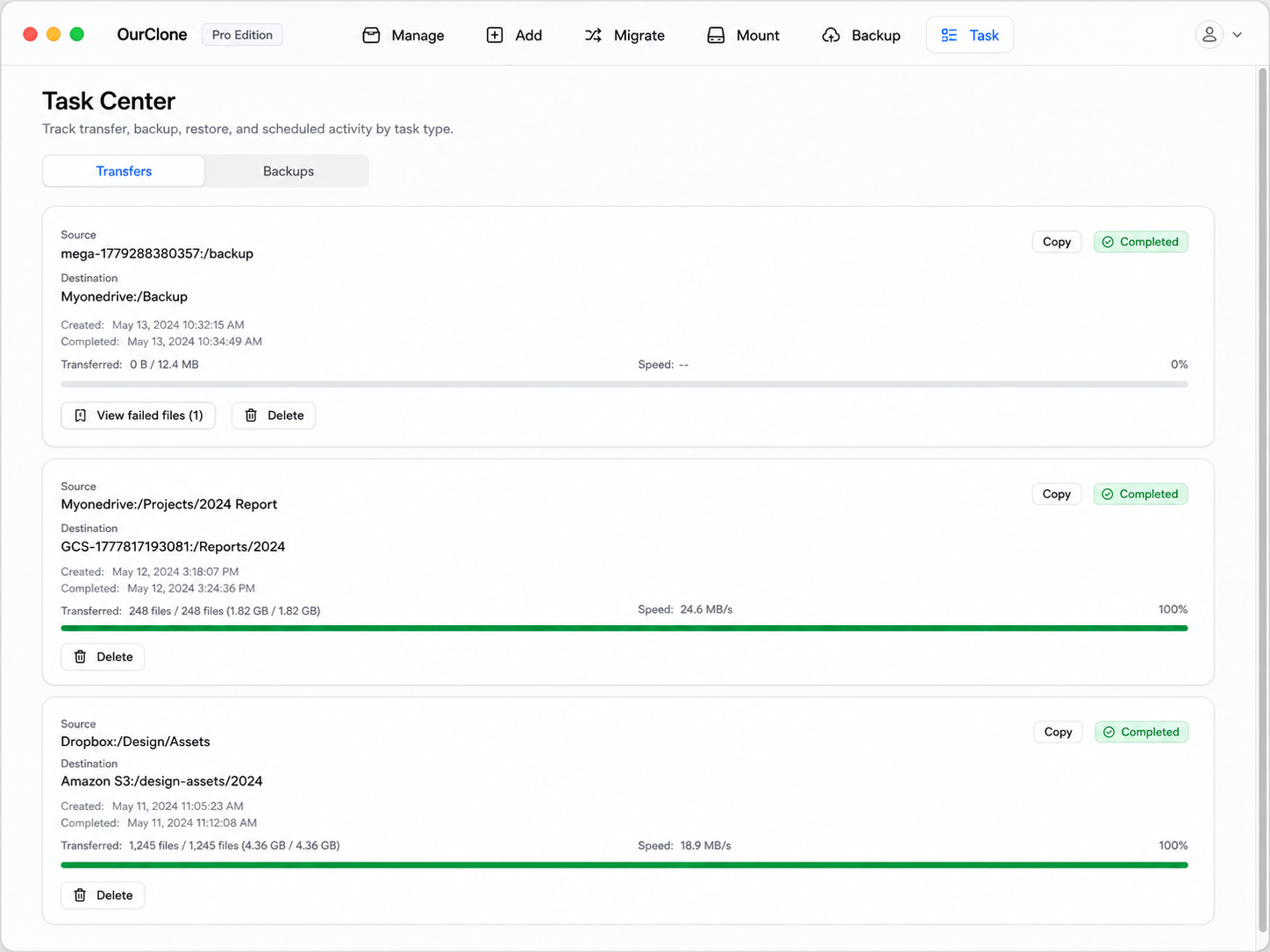
A local, mode-aware transfer means you decide whether OneDrive keeps its copy, and a large migration resumes after any interruption instead of starting from scratch.
Method 3: Transfer OneDrive to Dropbox with rclone (Command Line)
OurClone is built on rclone, so terminal users can run the OneDrive-to-Dropbox move directly — great for scripts and scheduled jobs you manage yourself.
Step 1: Install rclone
Download from the official downloads page or run brew install rclone on macOS.
Step 2: Configure both remotes
Run rclone config and add a remote for OneDrive and one for Dropbox. Both use OAuth, so rclone opens a browser for each. Name them onedrive and dropbox.
Step 3: Run the transfer
Pick the verb that maps to OurClone's modes:
# Copy — keep OneDrive intact
rclone copy onedrive:Archive dropbox:Archive --progress

# Move — delete the OneDrive originals after transfer
rclone move onedrive:Archive dropbox:Archive --progress

# Sync — make Dropbox mirror OneDrive (deletes extras in Dropbox)
rclone sync onedrive:Archive dropbox:Archive --progress
For example, rclone copy onedrive:Photos dropbox:Photos --progress copies your Photos folder to Dropbox while leaving OneDrive intact.
Caveats
- ⚠️
syncandmovedelete files — confirm direction and run--dry-runfirst. - ⚠️ No GUI; results are terminal-only.
- ⚠️ Each remote's OAuth is configured by hand — the exact step OurClone handles for you.
What Can Go Wrong Moving OneDrive → Dropbox
A few quirks specific to this pair are worth knowing up front.
- 🐢 Large web exports stall — OneDrive download zips and Dropbox bulk uploads both struggle with big libraries. OurClone and rclone stream file-by-file with resume.
- ⏳ Microsoft Graph rate limits — Pulling a lot from OneDrive can hit throttling; OurClone retries with backoff so the job keeps moving.
- 🔁 Overwrite behavior — Copy adds to whatever's already in Dropbox; Sync makes Dropbox match OneDrive exactly and deletes anything extra on the Dropbox side.
- 🔐 Token expiry — Password changes or Conditional Access policies can revoke the OneDrive token mid-job. Re-authorize under
Add Storageto continue. - 🧮 Mismatched counts — OneDrive shortcuts and shared items may not carry over one-to-one. Trust the Task summary over a raw folder count.
Quick Answers
Will my OneDrive files be deleted?
Only with Move. Copy leaves OneDrive fully intact, and Sync only removes extra files on the Dropbox side.
Going from Dropbox to OneDrive instead?
Same tool, swapped roles: pick Dropbox as the source and OneDrive as the destination on the Migrate page. Modes, the Task panel and the rclone verbs are identical — rclone copy dropbox:Photos onedrive:Photos --progress — and the throttling side changes: Dropbox's API is the more lenient of the two, so this direction is usually the faster one.
Picking the Right Method
| What matters | Manual Web | OurClone | rclone CLI |
|---|---|---|---|
| Setup effort | ✅ None | ✅ One-click sign-ins | 🛠 Manual config |
| Best for big migrations | ❌ | ✅ | ✅ |
| Resume after interruption | ❌ | ✅ | ✅ |
| Copy / Move / Sync modes | ❌ | ✅ | ✅ |
| Visual progress | ❌ | ✅ Task panel | 📉 Console |