Why Mounting a NAS over SMB on Windows Is a Smart Move
Windows already speaks SMB, so you could map a network drive — but OurClone gives you a smarter mount: it streams files on demand through WinFsp and keeps a local cache, so reopening that 4K video or large PSD off a busy NAS feels instant. It also manages your NAS alongside every cloud you connect, in one consistent workflow.
- 🧩 Native File Explorer Integration — Your NAS share shows up as a regular drive in "This PC", so every Windows app can read and write to it directly.
- ⚡ On-Demand Streaming with a Local Cache — Recently opened files are cached on your PC, so repeat access is fast even when the NAS or network is slow.
- 🗂️ One Workflow for NAS and Cloud — Manage a Synology, QNAP, or any SMB share next to your cloud remotes, all from the same OurClone interface.
- 🛡️ Read-Only Mode for Safety — Mount read-only when you only need to browse a media library or archive, and Windows will block any accidental write or delete.
- 🏠 Works with Any SMB Server — Synology, QNAP, TrueNAS, a Windows share, or a Linux Samba box — if it speaks SMB, OurClone can mount it.
How Mounting a NAS Drive Works (and Why It's Different from a Plain Map)
A plain mapped network drive talks to the NAS directly for every read, which can feel sluggish over Wi-Fi or a saturated LAN, and re-downloads the same file each time you open it.
OurClone presents your NAS share as a virtual filesystem through WinFsp — the folder structure is visible immediately, file contents are fetched on demand, and recently used files are cached locally so the second open is instant. Writes are pushed back to the NAS in the background.
OurClone makes both the polling interval (how often it checks the NAS for changes) and the maximum cache size configurable, plus a read-only switch for extra protection against accidental writes.
- 🚀 Stream files on demand — no need to copy the whole share
- 💾 Local cache keeps repeat access fast over slow networks
- 🔁 Two-way access — edits in the mounted drive push back to the NAS
- 🛡️ Read-only mode prevents accidental writes when you only need to browse
What to Know Before You Mount Your NAS
A few minutes of planning before you click Mount will save you from cleaning up a messy mount point later.
- 🧩 Install WinFsp First — Mounting on Windows relies on WinFsp (Windows File System Proxy), a free, open-source driver that lets OurClone expose your NAS share as a real Windows volume. Install it once before your first mount — without it, the mount won't start.
- 🌐 Know Your NAS Address and Share — Have the NAS IP or hostname (e.g.
192.168.1.100), a user account, and the share name ready. SMB usually runs on port 445. - 📁 Pick the Right Mount Source — Mount a specific share or sub-folder (like
/media/photos) for focused access rather than the entire NAS. - 🖥️ Choose a Sensible Local Mount Point — Point the mount at a dedicated, empty folder like
C:\CloudMounts\NAS. Don't aim it at your Desktop or any folder that already has files. - 🔒 Read-Only vs Read-Write — Read-only is the safer pick for browsing media; pick read-write to upload, edit, or delete. Read-only mode literally cannot upload — Save dialogs will fail.
- 📶 Plan for Your Network — On Wi-Fi, a generous cache and a slightly longer polling interval make a mounted NAS feel much smoother.
How to Mount Your NAS over SMB on Windows with OurClone
Once WinFsp is installed, OurClone makes mounting your NAS on Windows straightforward. Step 1 connects the share over SMB — and from there you're a few clicks away from a File Explorer-ready drive.
- 🔗 Connect Your NAS via SMB — Open OurClone and go to
Add Storage. Select SMB. Enter the IP address or hostname of your NAS (e.g.,192.168.1.100), along with your username, password, and port (default 445). Once connected, your NAS share will appear as a storage destination. - 📂 Open the Mount Tab and Click New Mount — Once your NAS is connected, go to the
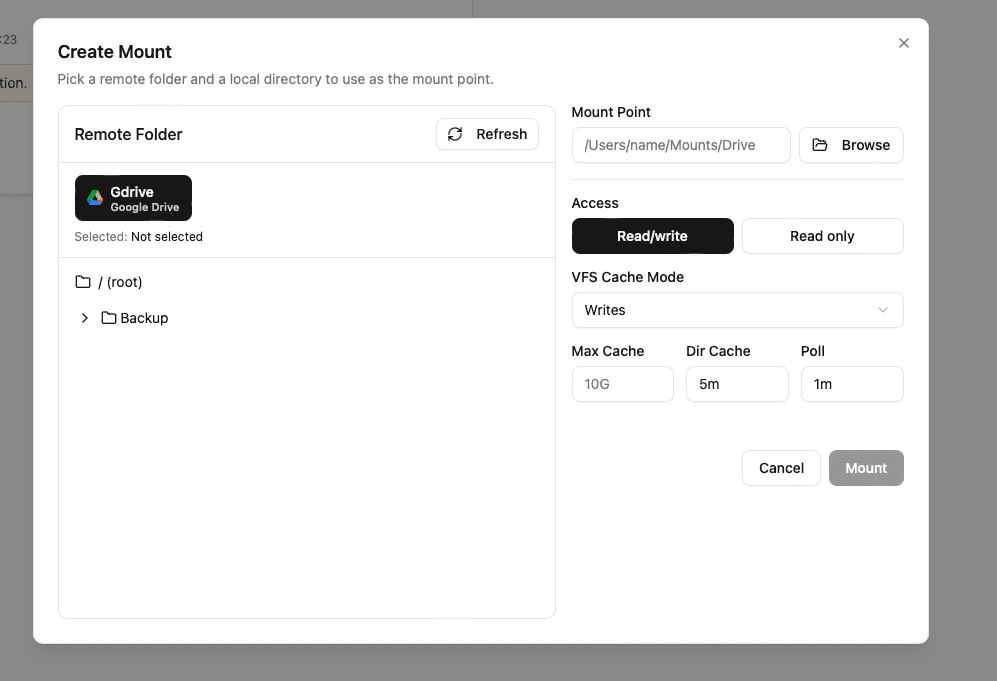
Mounttab in OurClone. Click the New Mount button in the top-right corner to open the mount configuration dialog. - ⚙️ Configure the Mount Settings — In the dialog, pick your NAS (SMB) as the authorized source. Choose what to mount — a specific share or sub-folder (e.g.,
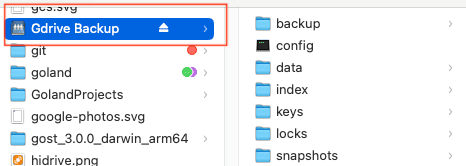
/media/photos) or the whole share. Then pick an empty local folder as the mount point (something likeC:\CloudMounts\NAS). Choose Read-only if you just want to browse, or Read-write if you need to upload and edit. Optionally tweak the polling interval and max cache size. Click Mount to finish. - 🗂️ Use Your NAS Mount Like a Local Drive — Open the mount point in File Explorer (it appears under "This PC" as a mounted volume). Windows now treats it as a real drive — browse, open, create folders, drag in files, and delete just like any local folder. Create a new
backupfolder, drop in a few files, and OurClone writes them to the NAS in the background. - ✅ Confirm the Files on Your NAS — Switch back to OurClone and open your NAS storage from the file browser — your new
backupfolder and uploaded files should already be listed. For extra peace of mind, check the share from your NAS's own web interface (DSM, QTS, etc.) and confirm the files appeared there too.

The combination of SMB, WinFsp, and OurClone's mount engine gives you a NAS that genuinely feels like a fast local drive on Windows — cached, browsable, and managed alongside your clouds.
Getting the Most Out of Your NAS Mount
A live mount is convenient, but it behaves differently from a plain mapped drive. Keep these in mind once your NAS mount is up and running.
- 🔁 Edits Sync Both Ways — Anything you add, rename, or delete in the mounted drive is written to the NAS. Changes made by other users appear after the next poll cycle.
- 🛑 Read-Only Means Read-Only — If you mounted read-only, uploads and Save dialogs will fail. Remount as read-write to enable writes.
- 💾 Cache Lives on Your PC — Recently opened files are cached locally for speed. If your PC is low on disk space, reduce the max cache size.
- 📶 Mind Wi-Fi Drops — If your laptop sleeps or leaves the network, the mount can stall. Reconnect to the LAN and remount if File Explorer stops responding.
- 🔌 Unmount Cleanly Before Shutdown — Before shutting down or signing out, click Unmount in the Mount tab to release the volume cleanly.
When Your Mount Stops Working
Most mount failures trace back to one of a few causes: WinFsp isn't installed (or needs a reboot after install), the NAS is unreachable (wrong IP, NAS asleep, or off the LAN), changed credentials, SMB disabled on the NAS, or a mount point that's no longer empty. If your NAS mount refuses to start, first confirm WinFsp is installed and the NAS is reachable, then re-check your credentials under Add Storage, and remount.
Verify the Files Anytime
Any time you're unsure whether something was written to the NAS, open your NAS storage view inside OurClone's file browser, or check the share from the NAS's own admin interface. Whatever File Explorer shows in your mount point should match.