Why Encrypting Your Google Drive Files Is Worth It
Google Drive is genuinely secure against outsiders — files are encrypted in transit and at rest, and your account can be locked behind two-factor authentication. The catch is who holds the keys: Google does. Anything you upload is readable on Google's side of the fence.
Watch the encrypted vault being created — or keep reading for the step-by-step.
- 🔑 Server-side encryption isn't private — Google Drive encrypts data at rest, but with keys Google manages. Encryption protects you from hackers, not from the provider.
- 🤖 Your files are scanned — Google's systems analyze Drive content for abuse detection, malware, and policy enforcement. That's only possible because the content is readable to them.
- 🏢 Client-side encryption is enterprise-only — Google Workspace offers client-side encryption for organizations, but there's no end-to-end option for personal accounts.
- 🎣 Account takeover exposes everything — if someone phishes their way into your Google account, every readable file in Drive is theirs too. Encrypted files stay gibberish.
- 📄 Some files deserve more — tax records, contracts, ID scans, medical documents. Convenient to keep in Drive, uncomfortable to keep readable.
What OurClone's Encrypted Vault Actually Does
OurClone's Encrypted Remote wraps your Google Drive in a password-only encryption layer. You keep using Drive as the storage — but for the vault folder, Google stores ciphertext it cannot interpret.
- 🔐 Encrypted before upload — files are encrypted on your computer; Google Drive only ever receives ciphertext.
- 🕵️ File names hidden too — names and contents are both encrypted; the vault folder in the Drive web app shows only scrambled text.
- 🔑 Your password is the only key — it never leaves your device, and OurClone keeps no recovery copy.
- 🧰 Open format, not lock-in — built on rclone crypt, an open and documented standard, so your data isn't tied to one app forever.
- 📁 One folder, not the whole Drive — the vault lives in a folder you pick; shared documents, photos and everything else on your Drive stay untouched.
- ⚙️ Behaves like a normal remote — transfer into it, sync it, mount it, or use it as a backup destination.
The Encrypted Remote is an OurClone Pro feature. One design boundary to know: a vault must be built directly on a plain remote — you can't nest one vault inside another.
How to Create an Encrypted Vault on Google Drive
The whole setup takes about two minutes and happens in a single dialog.
- 🔗 Connect Google Drive — Open OurClone and go to
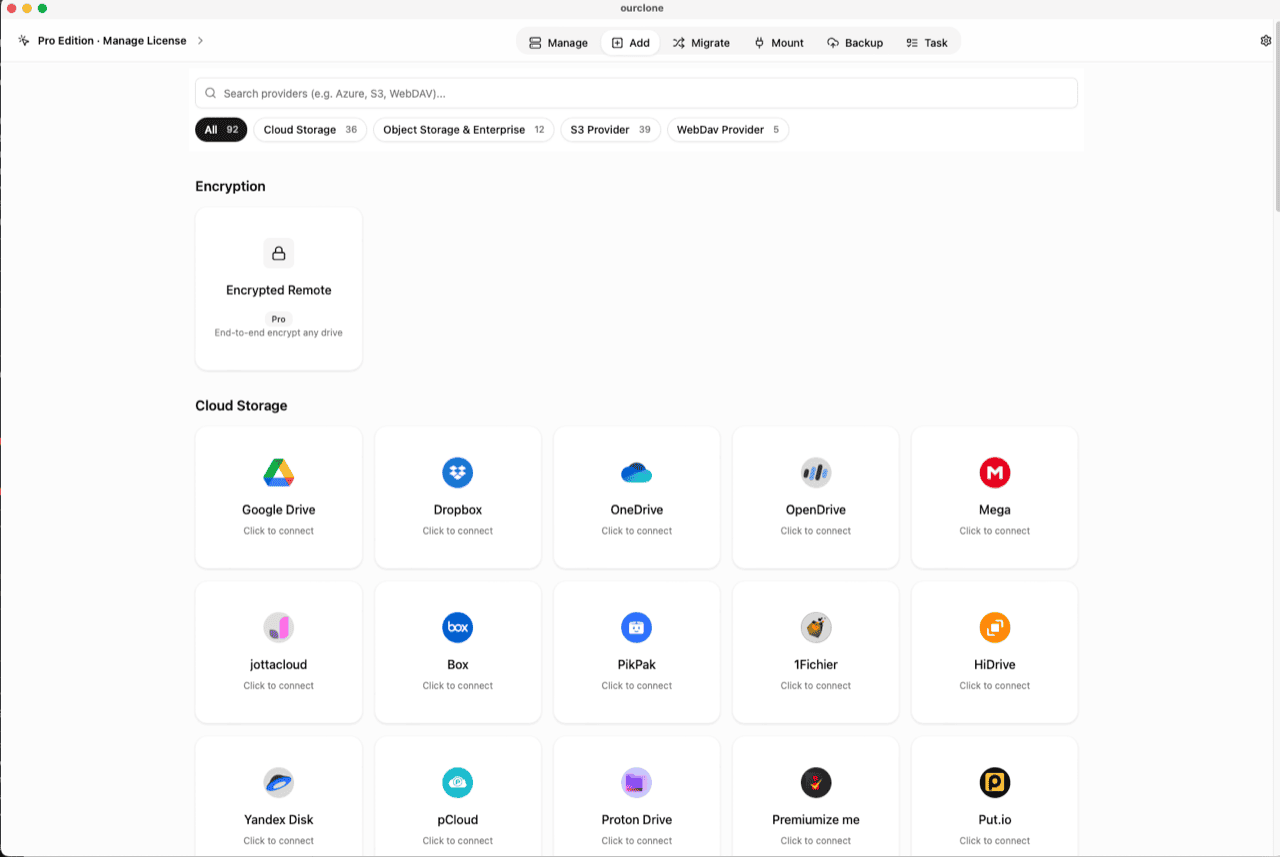
Add. Select Google Drive from the provider list; a browser window opens for you to log in and authorize access. If you already use Drive with OurClone for backups or transfers, this step is done. - 🧭 Open the Encryption Category — In the
Addpage, the Encryption section sits above the provider grid. Click the Encrypted Remote card (marked Pro). - 🛠️ Create the Vault — Name it (e.g.
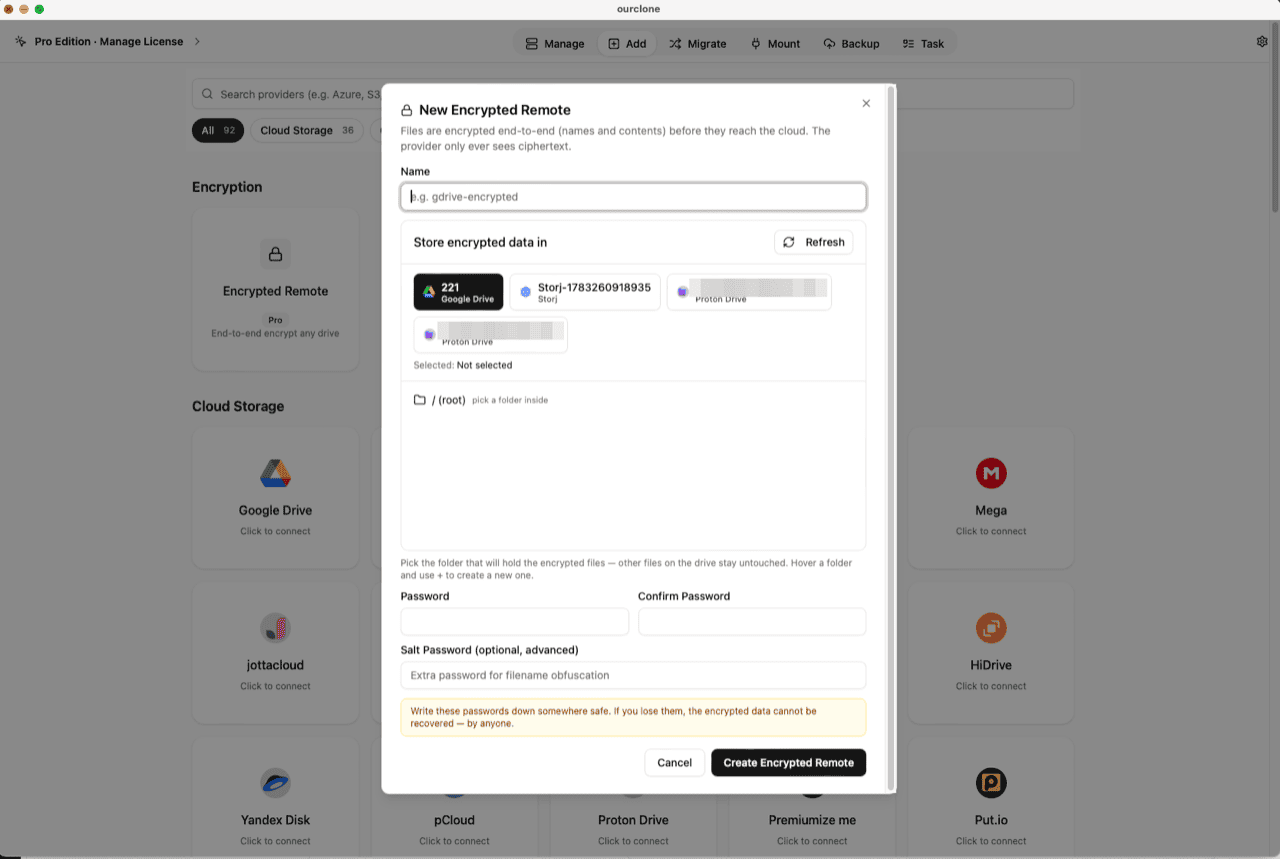
gdrive-encrypted), pick your Google Drive account as the base storage, then choose or create a folder inside it — the vault must live in a folder, not the drive root, and only that folder will hold encrypted data. Set your password (and an optional salt password for extra filename obfuscation), then click Create Encrypted Remote. - 📦 Move Files Into the Vault — Open
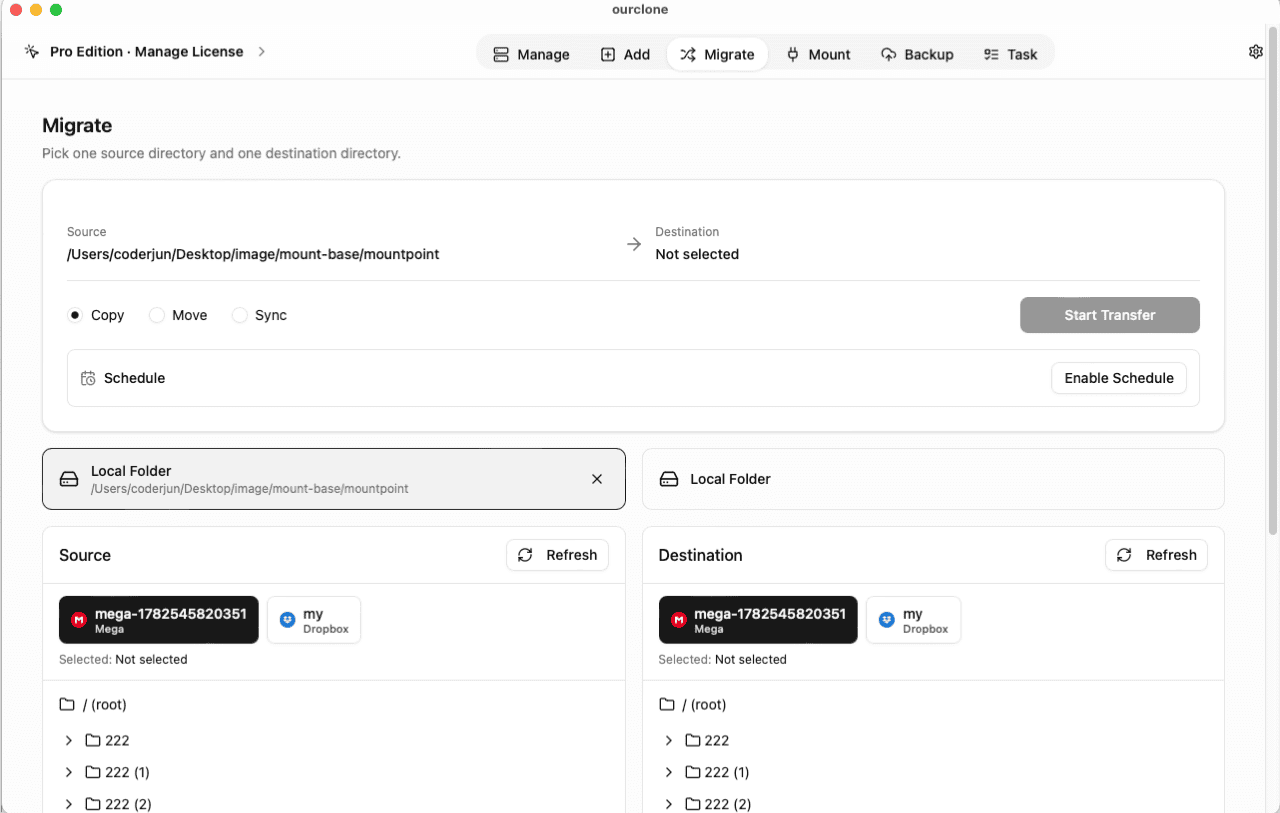
Migrate, pick a local folder (or another cloud) as the source and your new vault as the destination, and start a copy, move, or sync. Files are encrypted on the fly as they upload. - 📊 Watch It in the Task Center — The
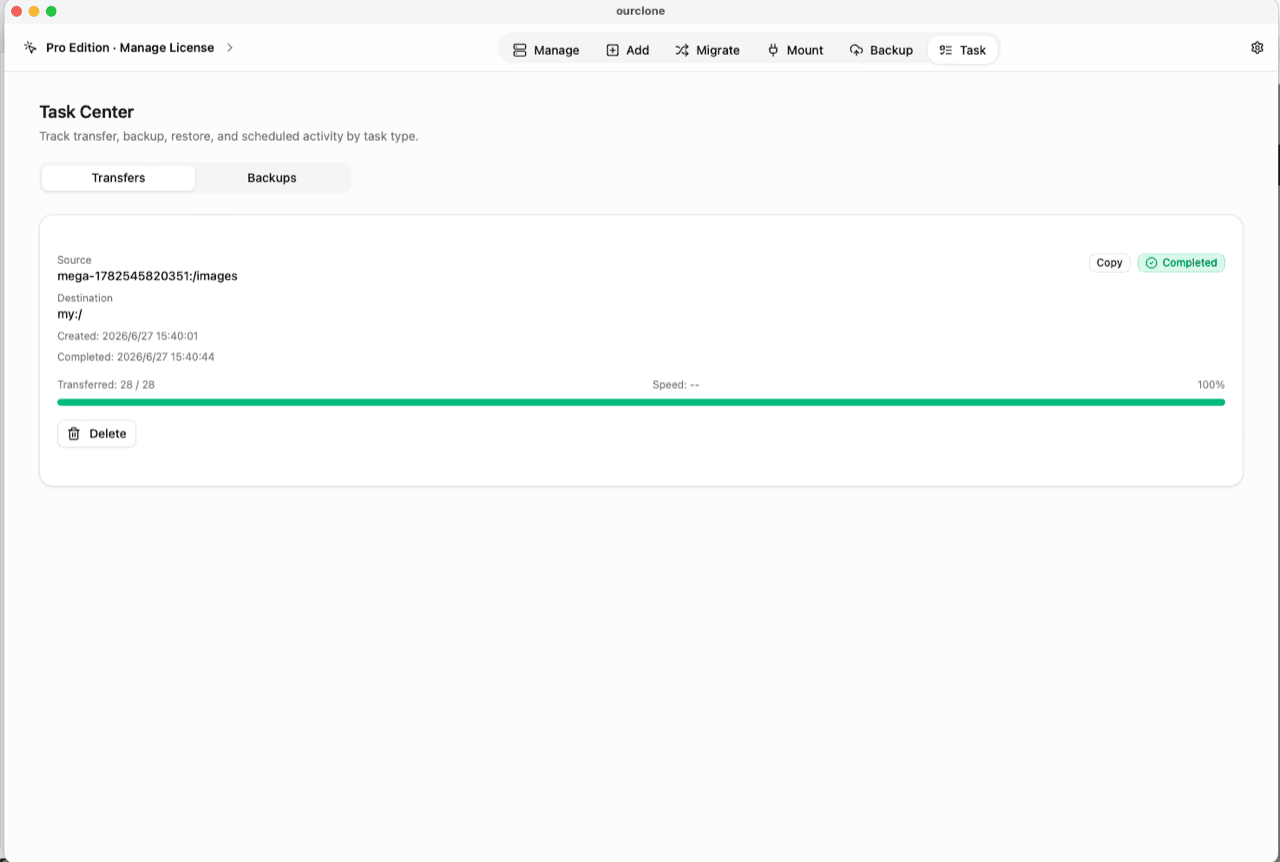
Tasktab shows live progress, speed and any failed files, and history survives app restarts.
Before you move anything important: write the password down somewhere safe. There is no recovery — not by OurClone, not by Google, not by anyone.
Check What Google Drive Can See Now
Open drive.google.com and navigate to the folder you picked for the vault. Instead of your documents, you'll see files and folders with scrambled, unreadable names — and previews that show nothing. That's your proof: what Google stores is ciphertext.
Back in OurClone, the same vault shows your real file names in the Manage page — the listing is decrypted locally, and the remote carries a small lock badge so you always know which storage is encrypted. You can also mount the vault as a network drive and browse it in Finder or File Explorer (no extra driver on macOS; Windows needs WinFsp).
Frequently Asked Questions
Is the encrypted vault free?
No — it's part of OurClone Pro. The free plan covers connecting Google Drive, transfers, and backups within its limits; see pricing for details.
What if I forget the vault password?
The data is permanently unreadable. That's not a missing feature — it's what makes the encryption real. Store the password in a password manager.
What is the salt password?
An optional second password that strengthens file-name obfuscation. If you set one, treat it exactly like the main password — both are required to read the vault.
How is this different from Google's own encryption?
Google encrypts your files with keys Google controls, so Drive can still read, index and scan your content. The vault encrypts with a key only you hold — Google stores the result without being able to interpret it.
Can I keep using the rest of my Google Drive normally?
Yes. The vault is one folder. Docs, shared files, photos — everything outside that folder works exactly as before, in the web app and everywhere else.
Can I open the vault from another computer?
Yes — install OurClone, connect the same Google Drive account, and add an Encrypted Remote pointing at the same folder with the same password (and salt, if you set one). The files decrypt anywhere the password is known.