Why Teams Move from Google Drive to Box
Google Drive is brilliant for everyday collaboration, but as an organization grows the conversation shifts to governance, compliance, and control. Box was built for exactly that — which is why IT and operations teams often consolidate content there.
- 🛡️ Compliance and Certifications — Box supports HIPAA, FedRAMP, GDPR, and industry-specific standards, making it a natural fit for healthcare, finance, and government workflows.
- 🔐 Granular Permissions — Box offers seven distinct access levels and detailed folder controls, going well beyond Google Drive's simpler viewer/commenter/editor model.
- 📋 Centralized Content Management — For regulated teams, Box acts as a single governed content layer with retention policies and audit trails baked in.
- ✍️ Built-In Workflows — Native Box Sign for e-signatures and Box Relay for automated approvals keep documents inside one platform.
Google Drive vs Box: What Each One Is Good At
One is a consumer-friendly productivity hub; the other is an enterprise content platform. The move makes more sense once you see where each shines.
🟢 Google Drive
Google Drive is the collaborative heart of Google Workspace.
- 15 GB free, pooled with Gmail and Photos; Google One and Workspace scale much higher.
- Google Docs, Sheets, and Slides for instant real-time collaboration.
- Powerful full-text search across file contents.
- Bulk web downloads are zipped on the fly and can fail on large folders.
🔵 Box
Box is a security- and governance-first content platform aimed at businesses.
- 10 GB free on Individual, with a 250 MB per-file cap on that tier; Business plans lift limits and add unlimited storage options.
- Enterprise-grade compliance certifications and detailed admin controls.
- Seven granular permission levels plus retention and legal-hold policies.
- Box Sign and Box Relay for signatures and automated workflows.
Method 1: Download from Google Drive and Upload to Box by Hand
The manual route needs no software, just your Mac as a waypoint. It's reasonable for a few folders but slow and limit-prone for a real migration — especially with Box's free-tier file cap.
- 📥 Download from Google Drive — Sign in to the Google Drive web app, select your files or folders, and download them into a folder like
~/Downloads/gdrive-export. Multi-file selections come down as a zip. - 📤 Upload to Box — Open the Box web app, unzip if needed, and drag the files into your destination folder. On a free Individual plan, mind the 250 MB per-file limit.
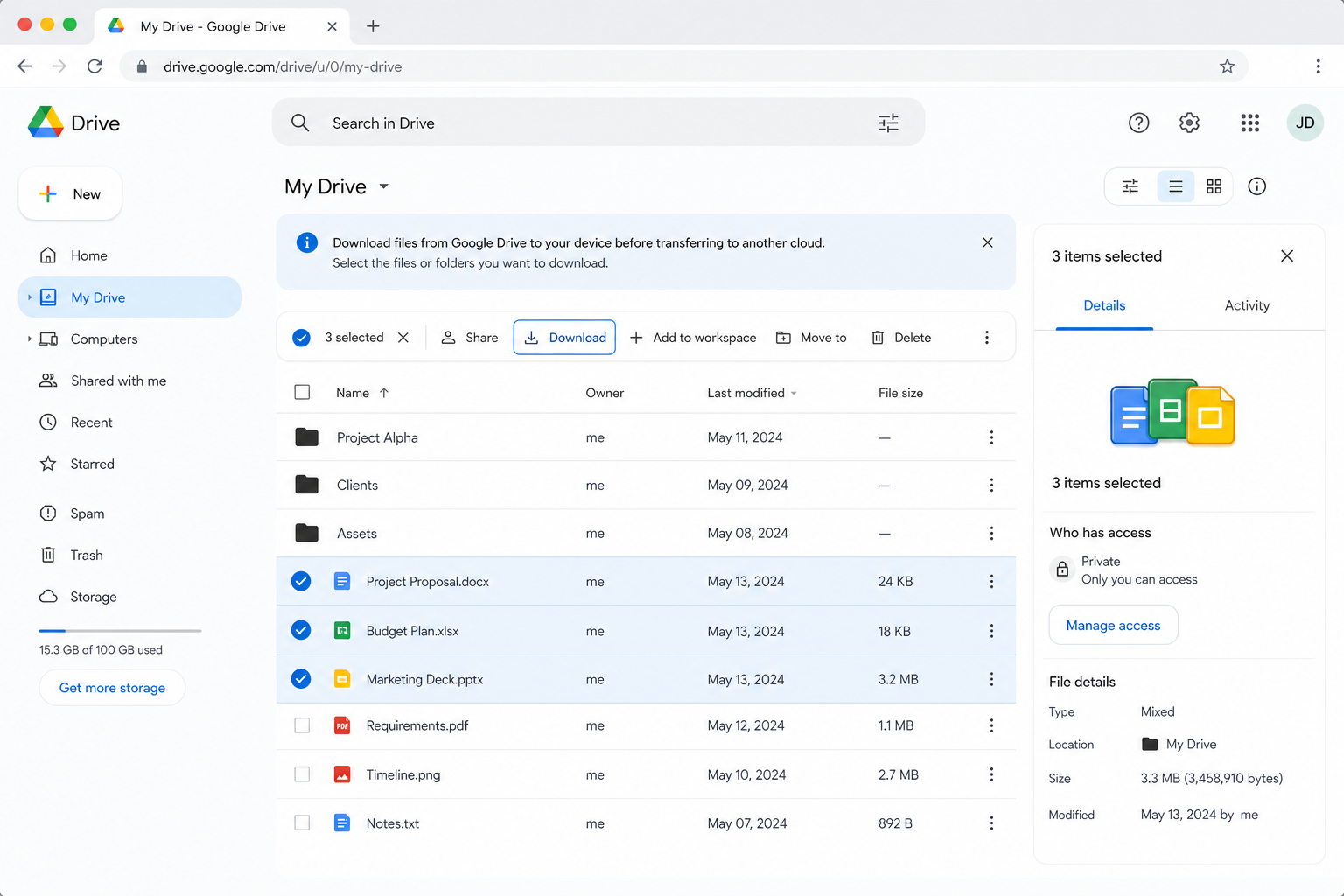
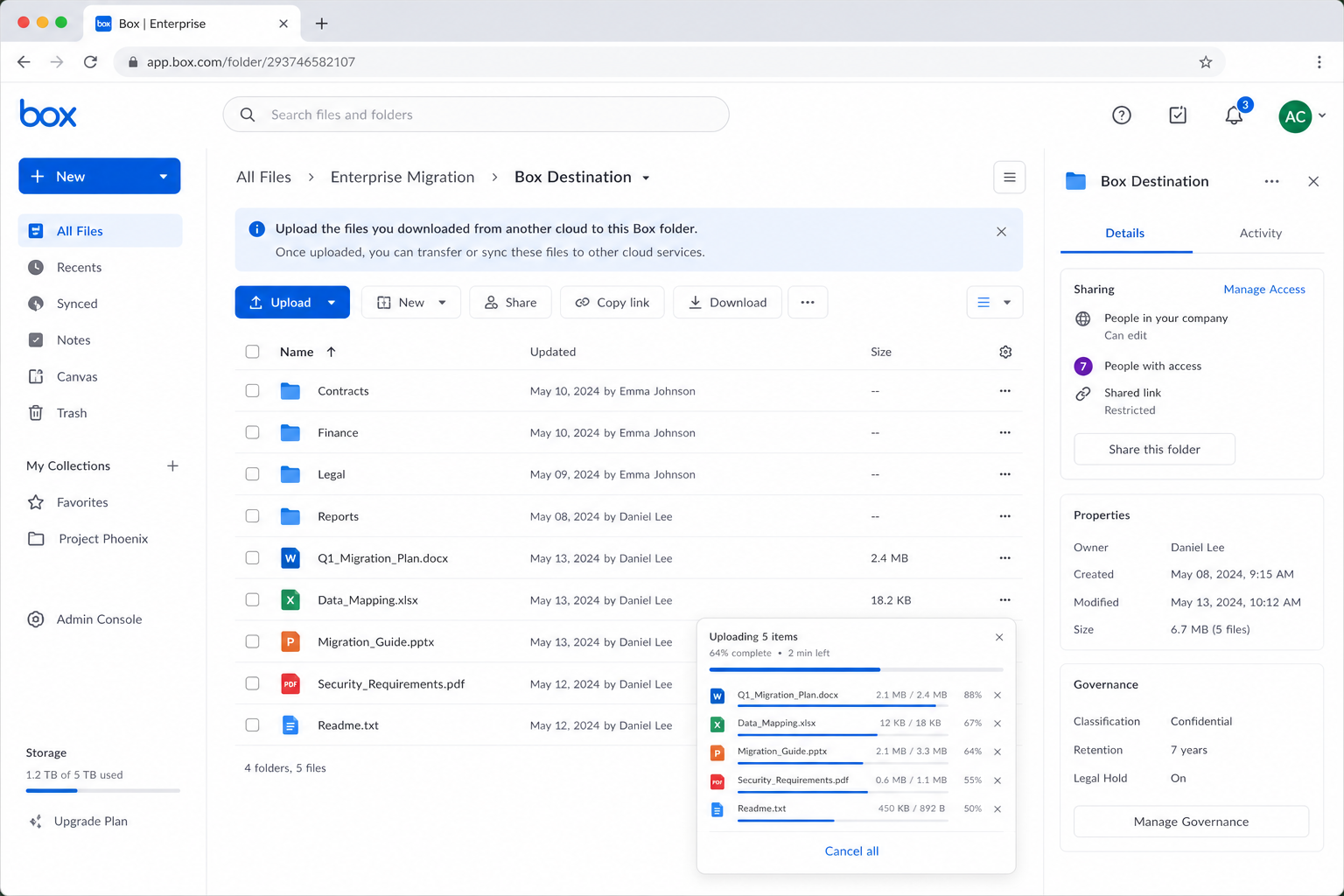
Acceptable for small jobs — but there's no resume, files briefly double up on local disk, large Google Drive zips time out, and Box's free-tier file cap can block bigger uploads. Method 2 handles all of that gracefully.
Method 2: Transfer Google Drive to Box with OurClone
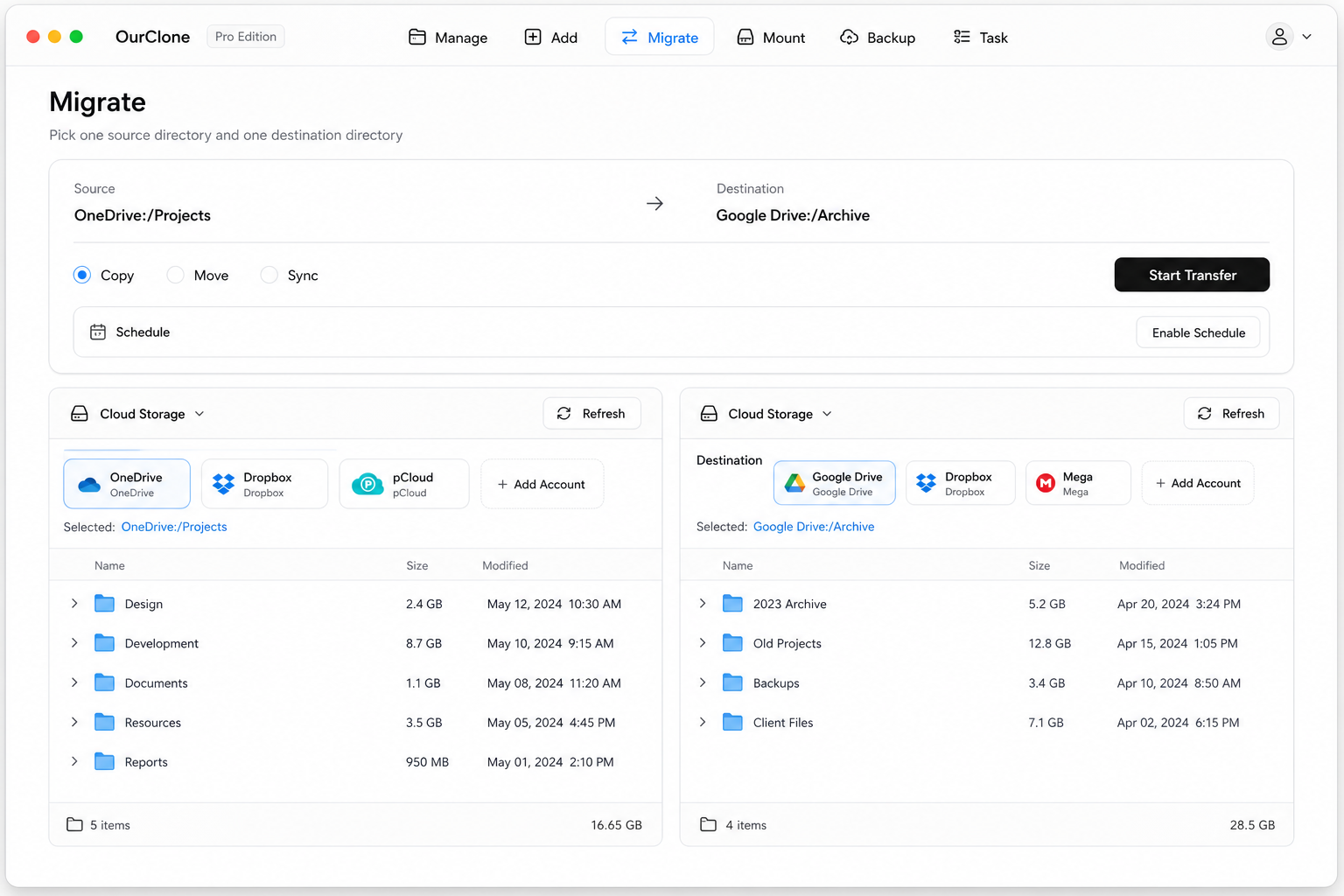
OurClone moves files from Google Drive to Box directly through your Mac, with live progress and no third-party relay server. The flow is three steps: add the source, add the target, run the migration.
- 🔗 Step 1: Add Google Drive as the Source (Browser Sign-In) — In OurClone open
Add Storageand pick Google Drive. A browser window opens — sign in to your Google account and authorize OurClone. Google Drive then appears in your storage list. - 🔗 Step 2: Add Box as the Destination (Browser Sign-In) — Still in
Add Storage, pick Box and sign in to your Box account in the browser, then authorize access. Box joins Google Drive in your storage list. (Enterprise accounts may require admin approval for third-party apps.) - 🔀 Step 3: Set Source, Target and Mode on the Migrate Page — Open the
Migratetab. Pick Google Drive and browse to the files or folder to move, then pick Box and choose (or create) the destination folder. Select a transfer mode:- Copy — duplicates files to Box; nothing is deleted from Google Drive.
- Move — transfers to Box, then deletes the originals from Google Drive.
- Sync — makes Box mirror Google Drive; extra files in Box are removed, but Google Drive is left untouched.
- 📊 Watch Progress and Confirm — The
Taskpanel shows live counts, speed, ETA, and any failed files. When it reads completed, open Box in OurClone (or at box.com) to confirm everything arrived. If you chose Move, check that Google Drive no longer holds the originals.
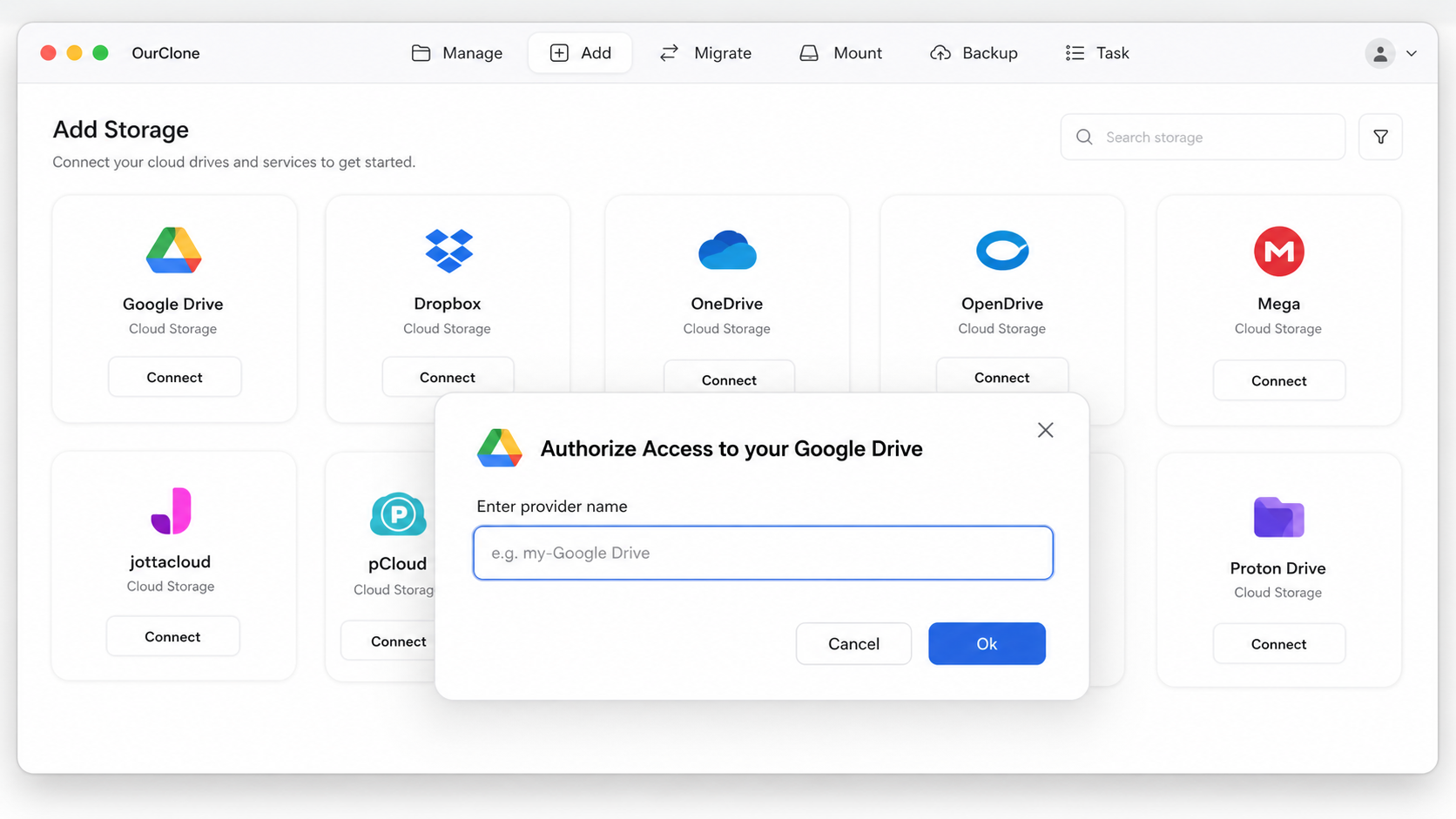
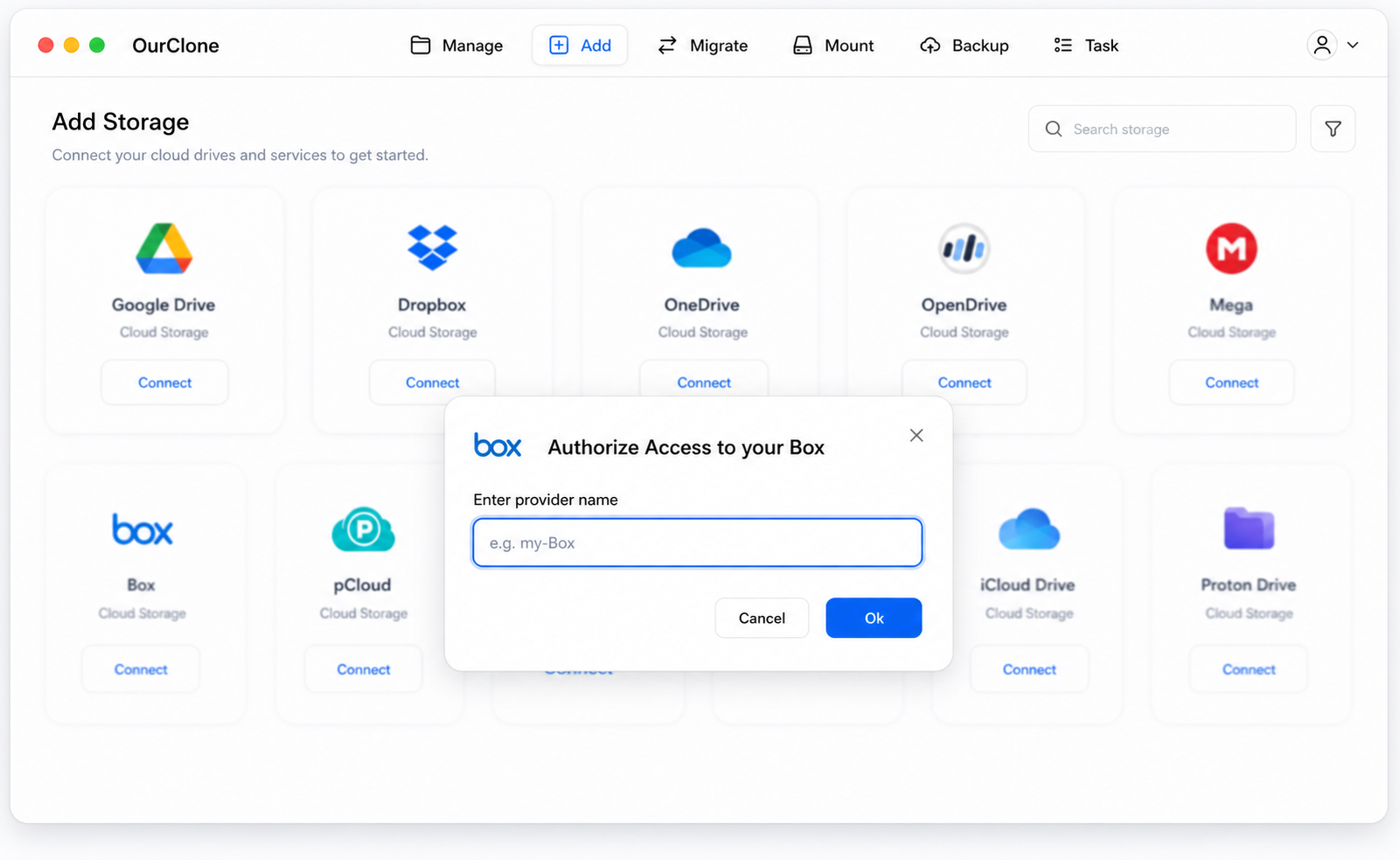
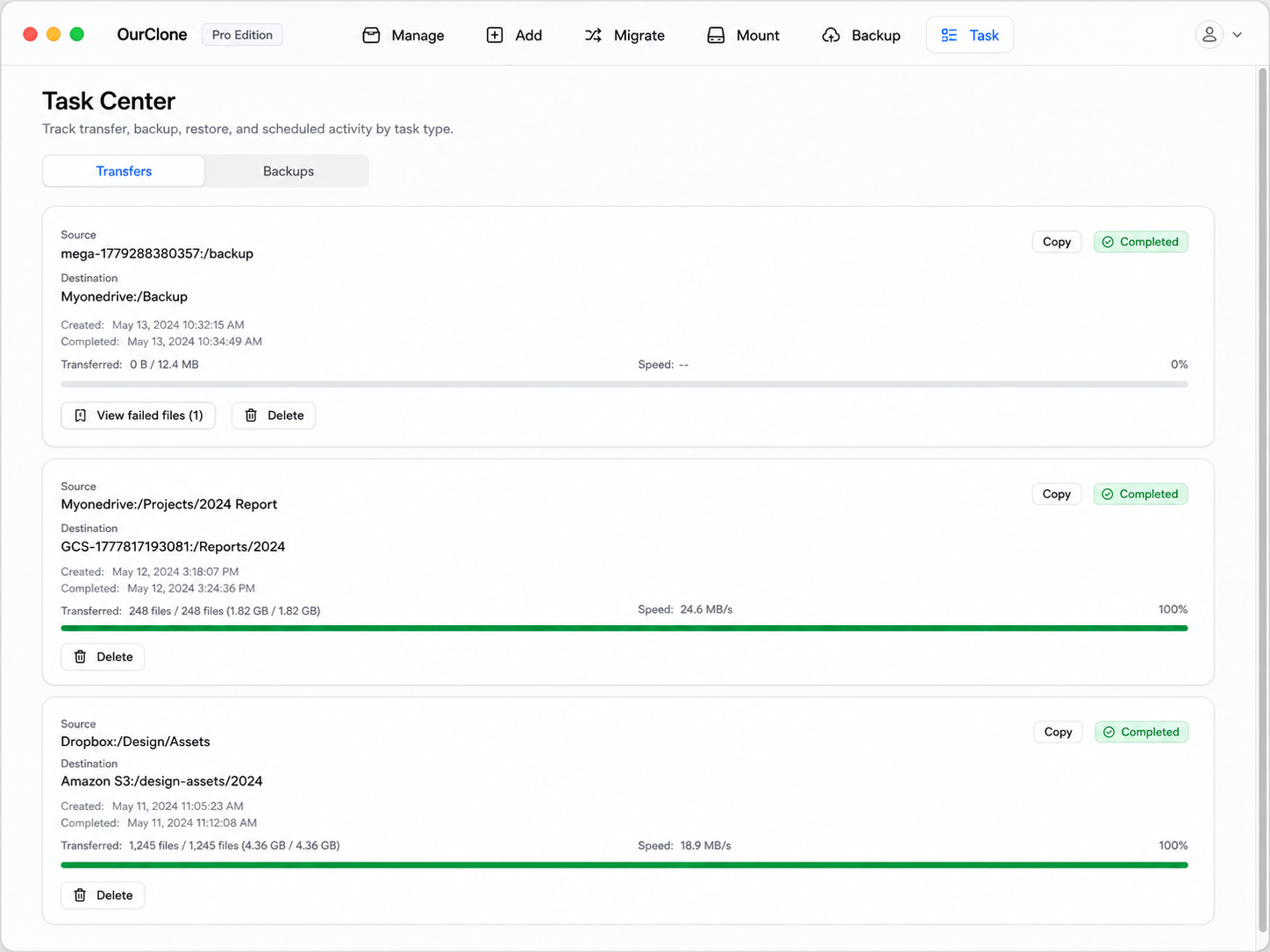
Because the transfer runs locally and respects the mode you choose, you control whether Google Drive keeps its copy — and a large company migration resumes after any hiccup rather than restarting.
Method 3: Transfer Google Drive to Box with rclone (Command Line)
OurClone is built on rclone, so admins comfortable in a terminal can script the Google-Drive-to-Box move — handy for repeatable, auditable migrations.
Step 1: Install rclone
Get it from the official downloads page, or run brew install rclone on macOS.
Step 2: Configure both remotes
Run rclone config and add a remote for Google Drive and one for Box. Both use OAuth, so rclone opens a browser for each sign-in. Name them gdrive and box.
Step 3: Run the transfer
Choose the verb matching OurClone's modes:
# Copy — keep Google Drive intact
rclone copy gdrive:TeamFiles box:TeamFiles --progress

# Move — delete the Google Drive originals after transfer
rclone move gdrive:TeamFiles box:TeamFiles --progress

# Sync — make Box mirror Google Drive (deletes extras in Box)
rclone sync gdrive:TeamFiles box:TeamFiles --progress
For example, rclone copy gdrive:Contracts box:Contracts --progress copies your Contracts folder into Box while leaving Google Drive untouched.
Caveats
- ⚠️
syncandmovedelete files — confirm the direction and run--dry-runfirst. - ⚠️ No GUI; progress and errors are terminal-only.
- ⚠️ Each remote's OAuth must be set up manually — the friction OurClone removes.
Common Google Drive → Box Migration Issues
Moving into an enterprise platform brings a few extra considerations — here are the usual ones.
- 📏 Box file-size limits — Free Individual plans cap single files at 250 MB; paid Business plans raise this substantially. Oversized files show up in the Task panel's failed list.
- 🐢 Google Drive zip downloads stall — The web route zips bulk downloads and can fail on large folders. OurClone and rclone stream file-by-file with resume.
- 📄 Google Docs need exporting — Native Google Docs, Sheets, and Slides aren't ordinary files. Decide whether to export them to Office or PDF formats before moving, since they won't land in Box as editable Google files.
- ⏳ API rate limits — Both the Google Drive and Box APIs throttle heavy jobs; OurClone retries with backoff so the migration keeps progressing.
- 🔐 Auth and admin approval — Enterprise Box accounts may need an admin to approve third-party apps, and OAuth tokens can expire mid-job. Re-authorize under
Add Storageif a transfer stalls.
FAQ
Will this delete my Google Drive files?
Only if you choose Move. Copy leaves Google Drive fully intact, and Sync only removes extra files in Box, never in Google Drive.
Do Google Docs keep working in Box?
Not as live Google Docs — they're Google-specific formats. Export them to .docx, .xlsx, or PDF before transferring if you need editable copies in Box.