Dropbox vs Google Drive: What Each One Is Good At
These two clouds attract very different crowds — Dropbox for its rock-solid sync engine, Google Drive for its productivity suite and generous free space. Knowing the contrast helps you set expectations before the move.
📦 Dropbox
Dropbox built its reputation on the most reliable file sync in the business.
- Just 2 GB free on the Basic plan; Plus jumps to 2 TB and Professional to 3 TB.
- Block-level sync only uploads the changed parts of a file — great for large, frequently edited documents.
- Generous version history (30 days on Plus, longer on paid tiers) and Dropbox Paper for notes.
- One of the widest third-party integration ecosystems of any cloud.
🌈 Google Drive
Google Drive trades Dropbox's sync purity for a full productivity ecosystem.
- 15 GB free, shared across Gmail and Google Photos; Google One scales to 100 GB, 2 TB and up.
- Google Docs, Sheets, and Slides for real-time browser collaboration.
- Best-in-class search across file contents, not just names.
- Bulk web downloads are zipped and can fail on huge folders — keep that in mind for the manual route.
Why Switch from Dropbox to Google Drive?
For most people it comes down to space and consolidation. Dropbox's 2 GB free tier fills up almost immediately, and if your email, documents, and photos already sit in Google, paying Dropbox for storage you barely use stops making sense.
- 🪙 2 GB Just Isn't Enough — Dropbox Basic's 2 GB is the smallest free tier of the major clouds. Google Drive's 15 GB lets you breathe before paying anything.
- 🔗 One Ecosystem, One Login — If you're already in Gmail and Google Docs, folding Dropbox files into Google Drive cuts a whole second app out of your day.
- 🤝 Easier Doc Collaboration — Google Docs co-editing is smoother for casual sharing than passing files around, especially with people who don't have Dropbox.
- 💵 Cheaper Entry Tiers — Google One's 100 GB plan is a low-cost step up, whereas Dropbox's smallest paid plan jumps straight to 2 TB whether you need it or not.
Method 1: Download from Dropbox and Upload to Google Drive by Hand
For a small batch of files, you can skip every tool and just route them through your Mac. It works — but it's slow and brittle once folders get big.
- 📥 Download from Dropbox — Sign in to the Dropbox web app, select your files or folders, and download them into a folder like
~/Downloads/dropbox-export. Folder downloads arrive as a zip. - 📤 Upload to Google Drive — Open the Google Drive web app, unzip if needed, and drag the files into your target folder.
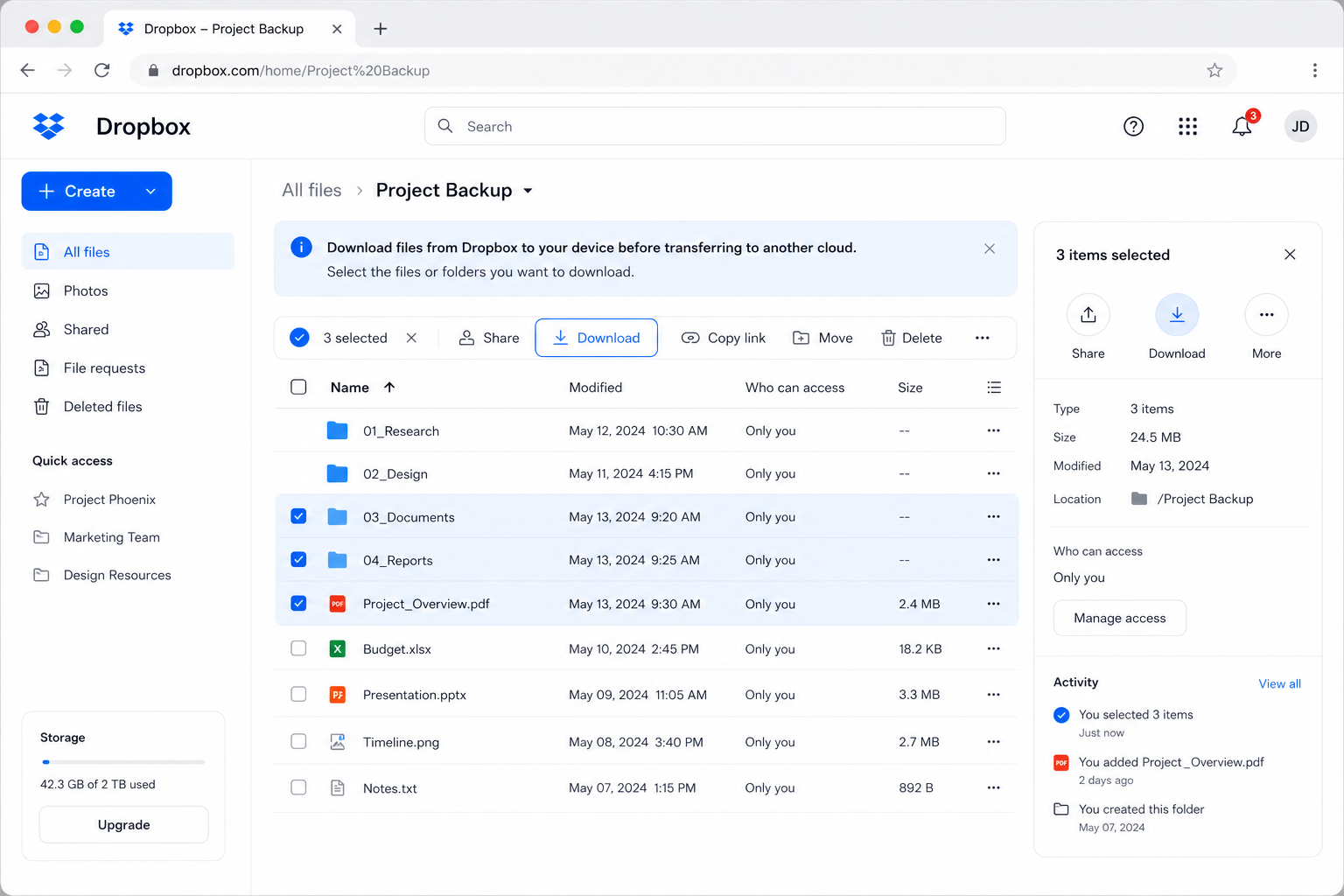
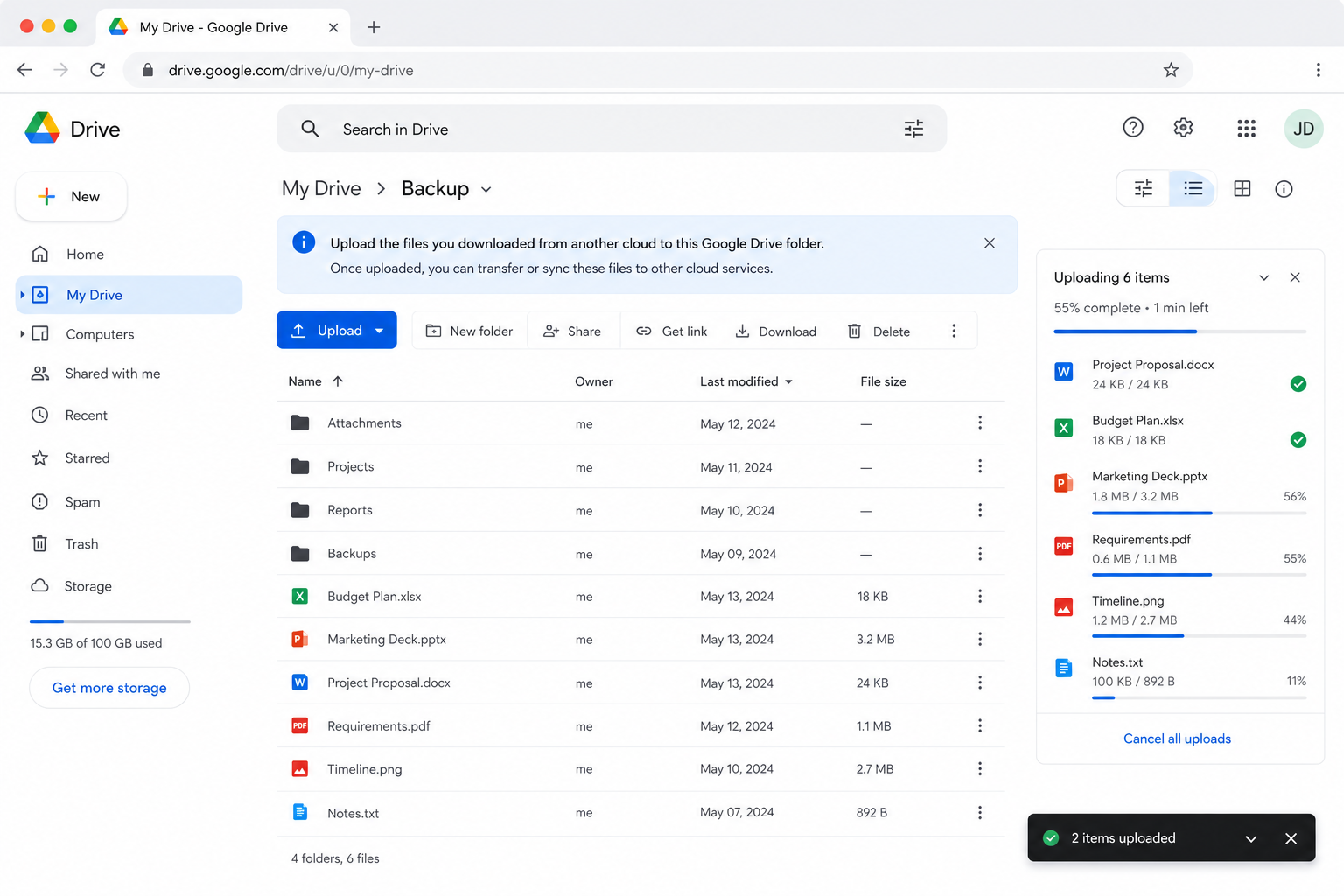
Fine for a few documents — but there's no resume, your files briefly occupy double the disk space, and large Dropbox zips love to time out. That's the cue to reach for OurClone.
Method 2: Transfer Dropbox to Google Drive with OurClone
OurClone shuttles files from Dropbox to Google Drive straight through your Mac — no relay server, full live progress. Add the source, add the target, run the migration.
- 🔗 Step 1: Add Dropbox as the Source (Browser Sign-In) — In OurClone open
Add Storageand pick Dropbox. A browser window opens — sign in to your Dropbox account and authorize OurClone. Once approved, Dropbox shows up in your storage list. - 🔗 Step 2: Add Google Drive as the Destination (Browser Sign-In) — Still in
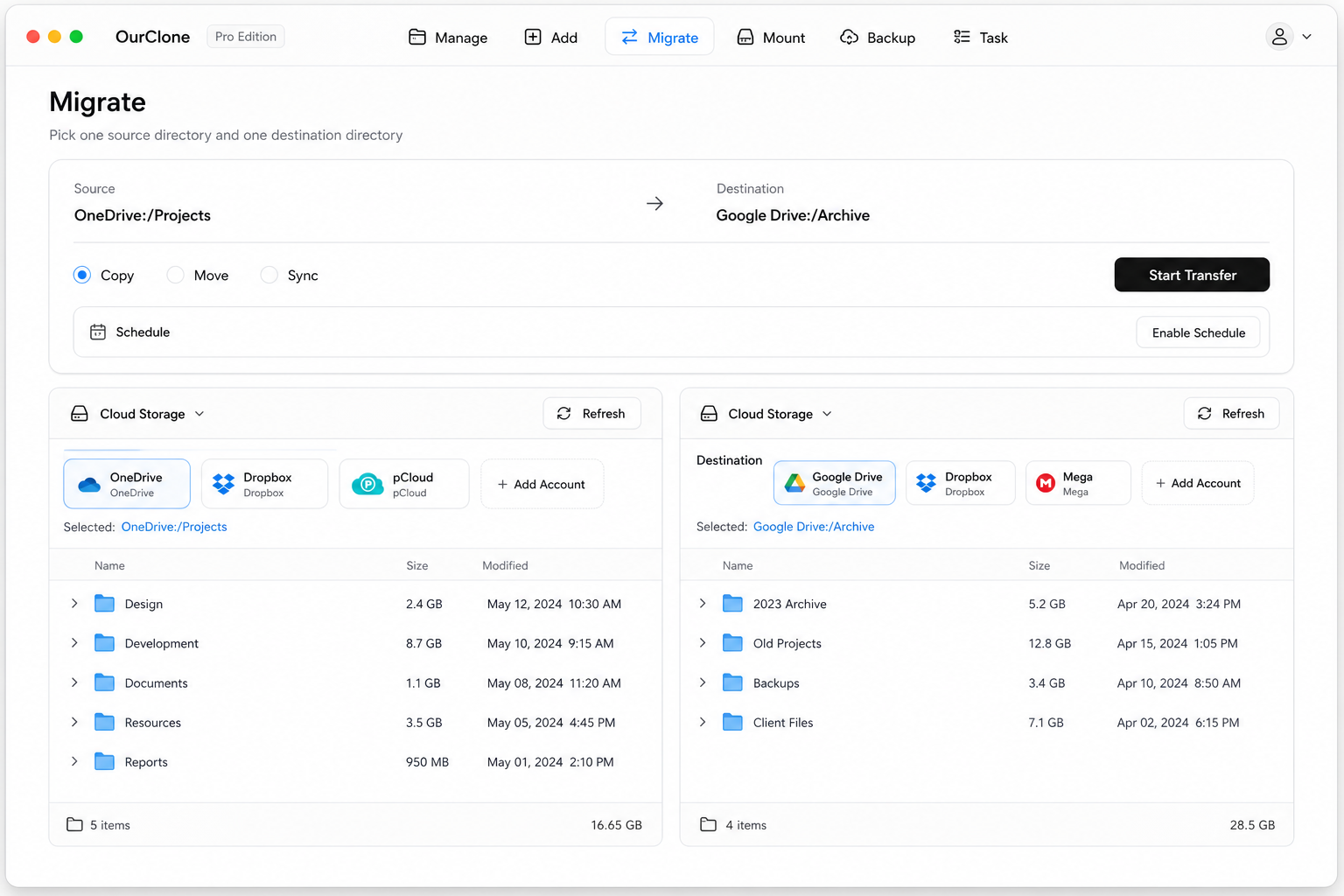
Add Storage, pick Google Drive. Log in to your Google account in the browser window and grant access. Google Drive now joins Dropbox in your storage list. - 🔀 Step 3: Set Source, Target and Mode on the Migrate Page — Open the
Migratetab. Pick Dropbox and browse to the files or folder to move, then pick Google Drive and choose (or create) the destination folder. Select a transfer mode:- Copy — duplicates files to Google Drive; nothing is deleted from Dropbox.
- Move — transfers to Google Drive, then deletes the originals from Dropbox.
- Sync — makes Google Drive mirror Dropbox; extra files in Google Drive are removed, but Dropbox is left untouched.
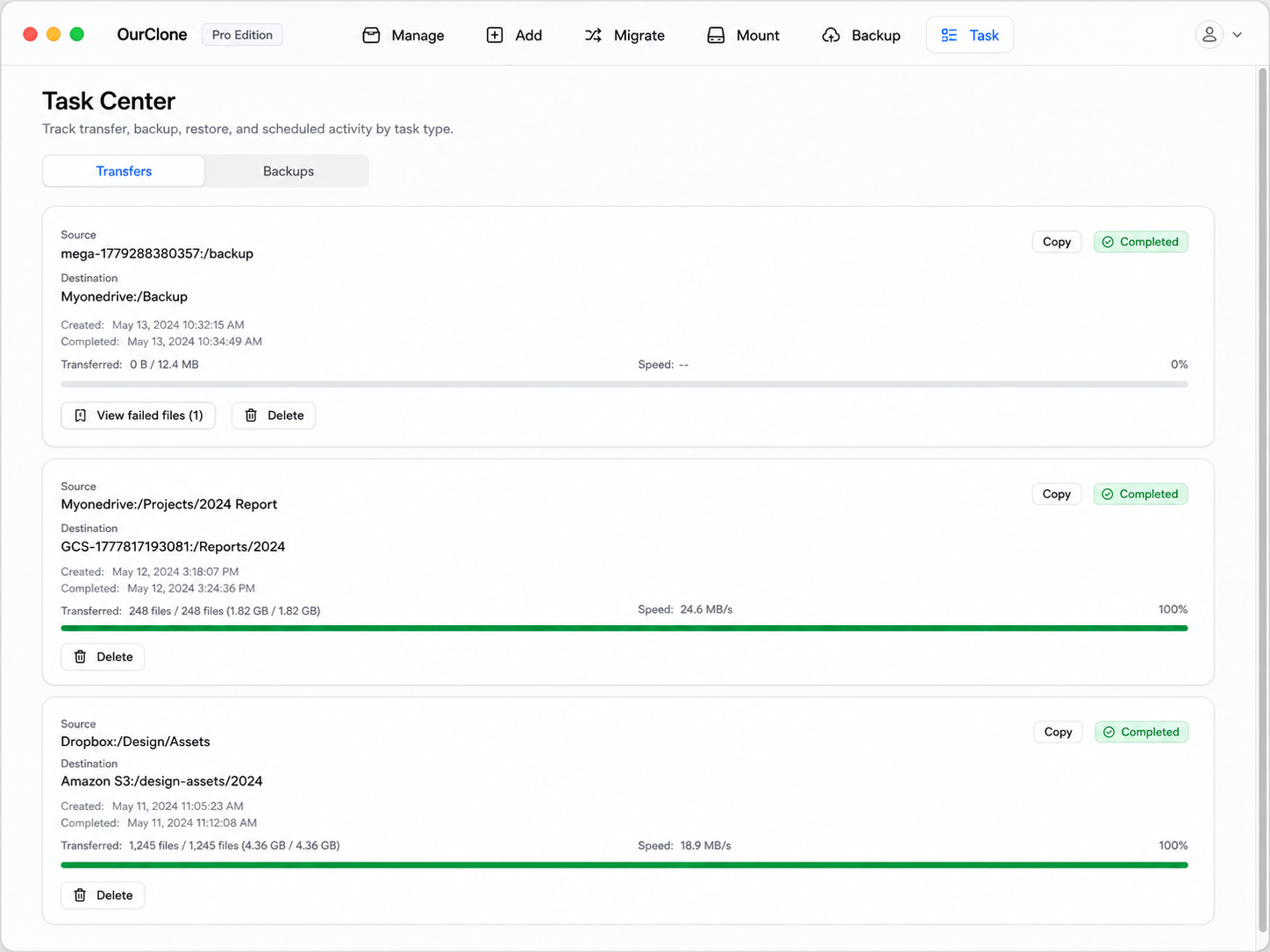
- 📊 Watch Progress and Confirm — The
Taskpanel shows live counts, speed, ETA, and failed files. When it reads completed, open Google Drive in OurClone (or at drive.google.com) to confirm. If you used Move, verify Dropbox is now empty of those files.
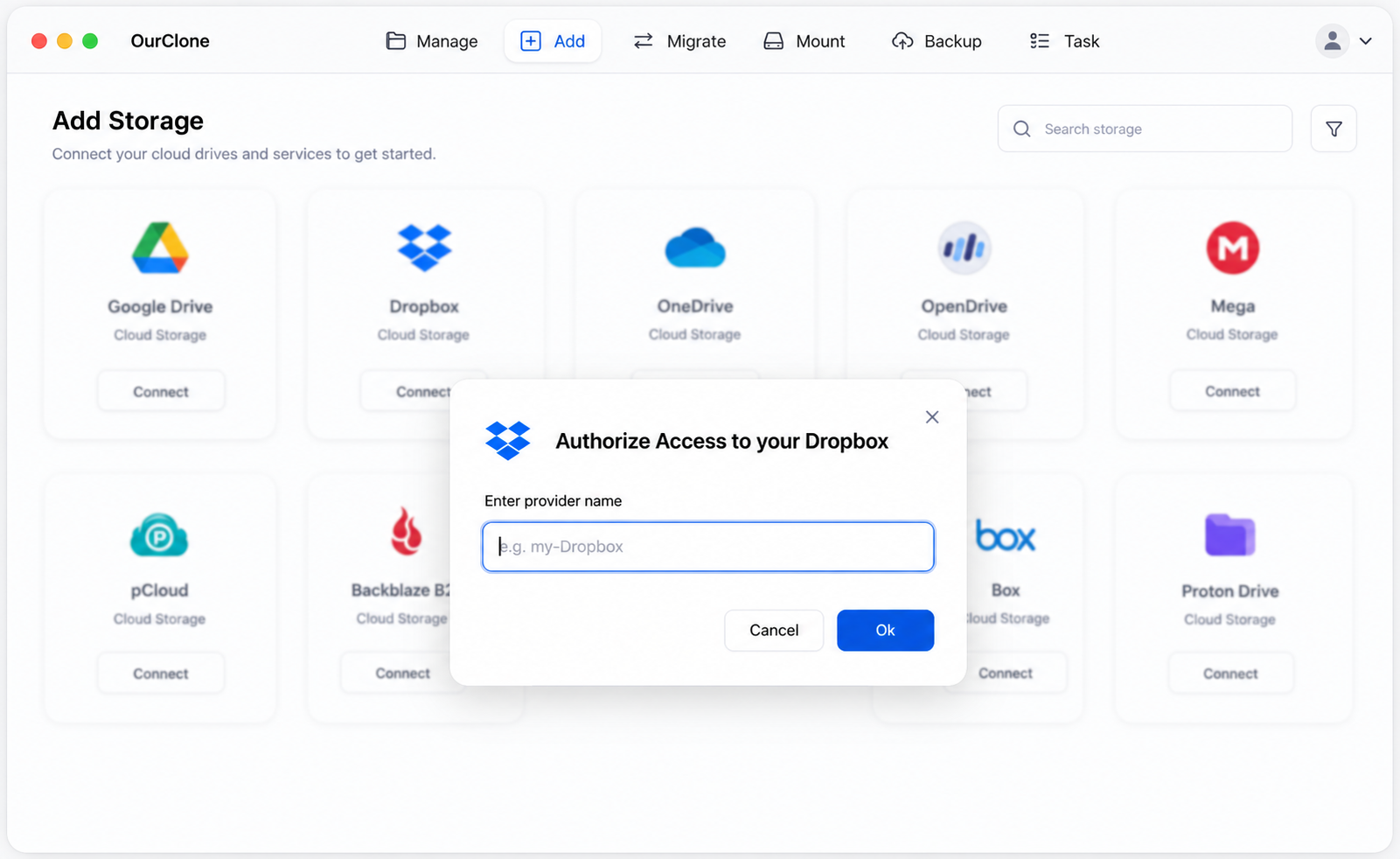
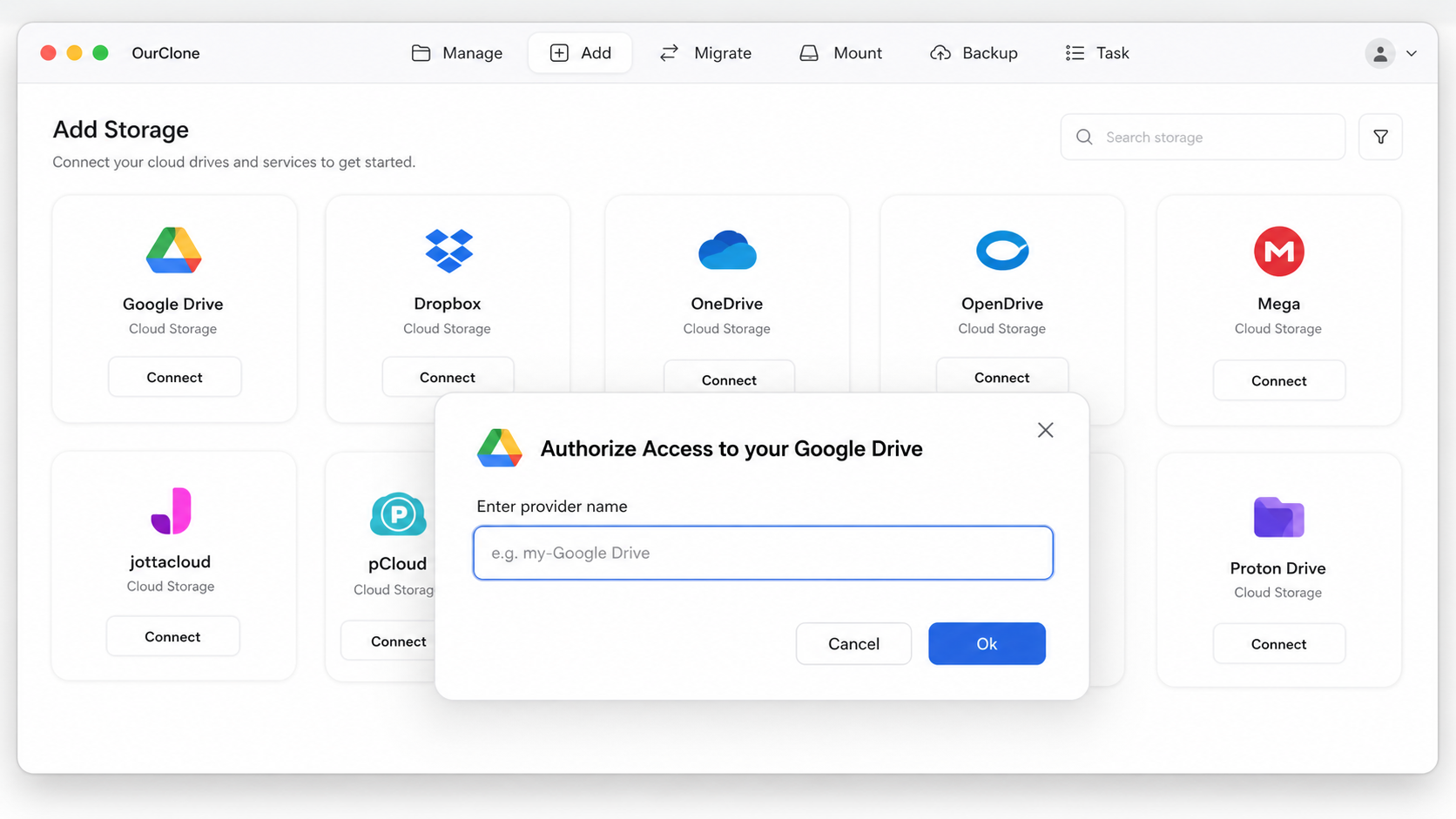
Running locally and mode-aware means you control whether Dropbox keeps a copy, and a large transfer resumes instead of restarting if it's interrupted.
Method 3: Transfer Dropbox to Google Drive with rclone (Command Line)
OurClone runs on rclone under the hood, so terminal fans can drive the same Dropbox-to-Google-Drive transfer directly — ideal for scripting and automation.
Step 1: Install rclone
Download it from the official downloads page or run brew install rclone on macOS.
Step 2: Configure both remotes
Run rclone config and create a remote for Dropbox and one for Google Drive. Both authenticate over OAuth, so rclone pops a browser for each — name them dropbox and gdrive.
Step 3: Run the transfer
Choose the verb that matches OurClone's modes:
# Copy — keep Dropbox intact
rclone copy dropbox:Projects gdrive:Projects --progress

# Move — delete the Dropbox originals after transfer
rclone move dropbox:Projects gdrive:Projects --progress

# Sync — make Google Drive mirror Dropbox (deletes extras in Google Drive)
rclone sync dropbox:Projects gdrive:Projects --progress
So rclone copy dropbox:Work gdrive:Work --progress duplicates your Work folder into Google Drive without touching Dropbox.
Caveats
- ⚠️
syncandmovedelete files — verify the direction and try--dry-runfirst. - ⚠️ No GUI; you only get terminal output.
- ⚠️ Each remote's OAuth must be configured manually — the very step OurClone automates.
Things That Trip Up a Dropbox → Google Drive Move
Most transfers go smoothly, but watch for these specifics between Dropbox and Google Drive.
- 🐢 Large zips stall on the web route — Both Dropbox folder downloads and Google Drive bulk downloads zip on the fly and can fail on big libraries. OurClone and rclone stream file-by-file with resume instead.
- 🔁 Duplicates and overwrites — Copy adds files alongside whatever's already in Google Drive; Sync makes Google Drive match Dropbox exactly, deleting anything extra on the Google side.
- ⏳ Rate limits on heavy jobs — The Google Drive API throttles big transfers; OurClone retries with backoff so the job keeps moving.
- 🔐 Tokens expire — Change your Dropbox or Google password and the OAuth token can drop. Re-authorize under
Add Storageto continue. - 📄 Dropbox Paper docs don't transfer cleanly — Paper files aren't ordinary documents and won't move as editable files. Export them from Dropbox first if you need them.
One Common Question
Will moving files delete them from Dropbox?
Only with Move. Copy leaves Dropbox completely intact, and Sync only trims extra files on the Google Drive side — it never deletes from Dropbox.