Why Move from Backblaze B2 to Cloudflare R2?
Both are cheap, so this isn't usually a cost-rescue migration like leaving S3 — it's about egress headroom and ecosystem. B2 includes a generous free download allowance but still meters egress beyond it; R2 removes egress charges entirely, which matters if you serve a lot of traffic or already run on Cloudflare.
- ♾️ Unmetered Egress — B2's free egress is generous but capped; R2 charges nothing for downloads at any volume, which suits heavy-traffic assets.
- 🌐 You're Already on Cloudflare — If your site runs through Cloudflare's CDN and Workers, R2 sits natively inside that stack with no cross-provider hops.
- ⚙️ Workers and Edge Compute — R2 buckets bind directly to Cloudflare Workers for edge-side processing, something B2 can't do natively.
- 🔌 Same S3 API — Both speak S3, so OurClone, rclone, and your tooling keep working through the move with just a credential and endpoint swap.
Backblaze B2 vs Cloudflare R2: What Each One Is Good At
Two low-cost object stores with slightly different philosophies — B2 leans simple-and-cheap, R2 leans egress-free-and-integrated.
🟥 Backblaze B2
Backblaze B2 is the no-frills, low-price object store popular for backup and archive.
- Storage around $0.006/GB/month — one of the cheapest on the market.
- Free egress up to 3× your stored data daily, plus free egress via the Cloudflare Bandwidth Alliance.
- Native B2 API alongside an S3-compatible endpoint.
- Simple, flat pricing managed in the Backblaze console.
🟠 Cloudflare R2
Cloudflare R2 is object storage with zero egress fees and deep edge integration.
- No egress charges at any volume — only storage and operations cost money.
- Storage around $0.015/GB/month.
- Native binding to Cloudflare Workers and the global CDN.
- S3-compatible endpoint at
https://<accountid>.r2.cloudflarestorage.com.
Method 1: Download from Backblaze B2 and Upload to Cloudflare R2 by Hand
You can shuttle objects through your Mac using each provider's web console. It's workable for a few files and tedious for a whole bucket.
- 📥 Download from Backblaze B2 — Sign in to the Backblaze web app, open your B2 bucket, select objects, and download them into a folder like
~/Downloads/b2-export. - 📤 Upload to Cloudflare R2 — In the Cloudflare dashboard, open R2, select your bucket, and drag the downloaded files in.
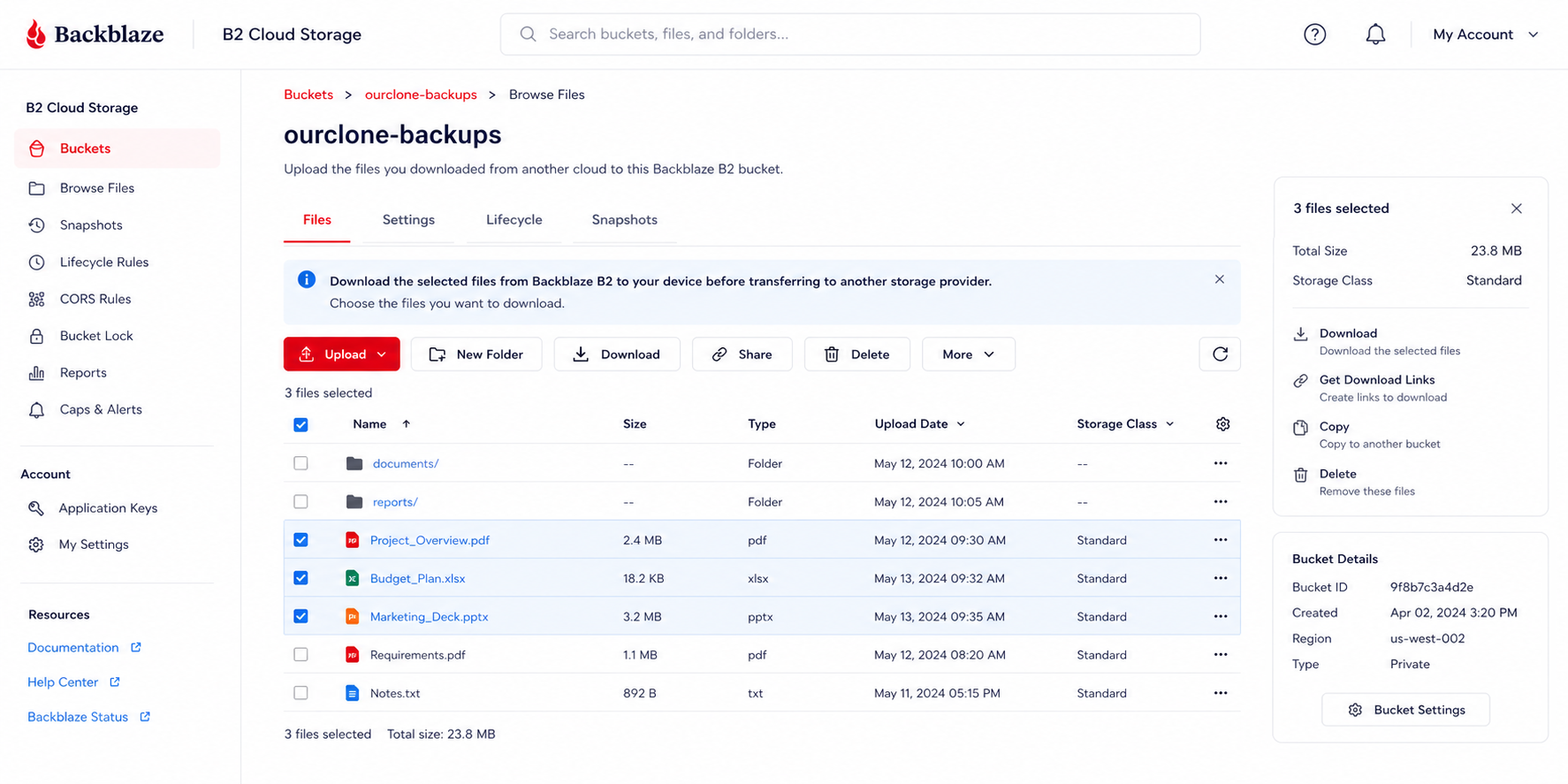
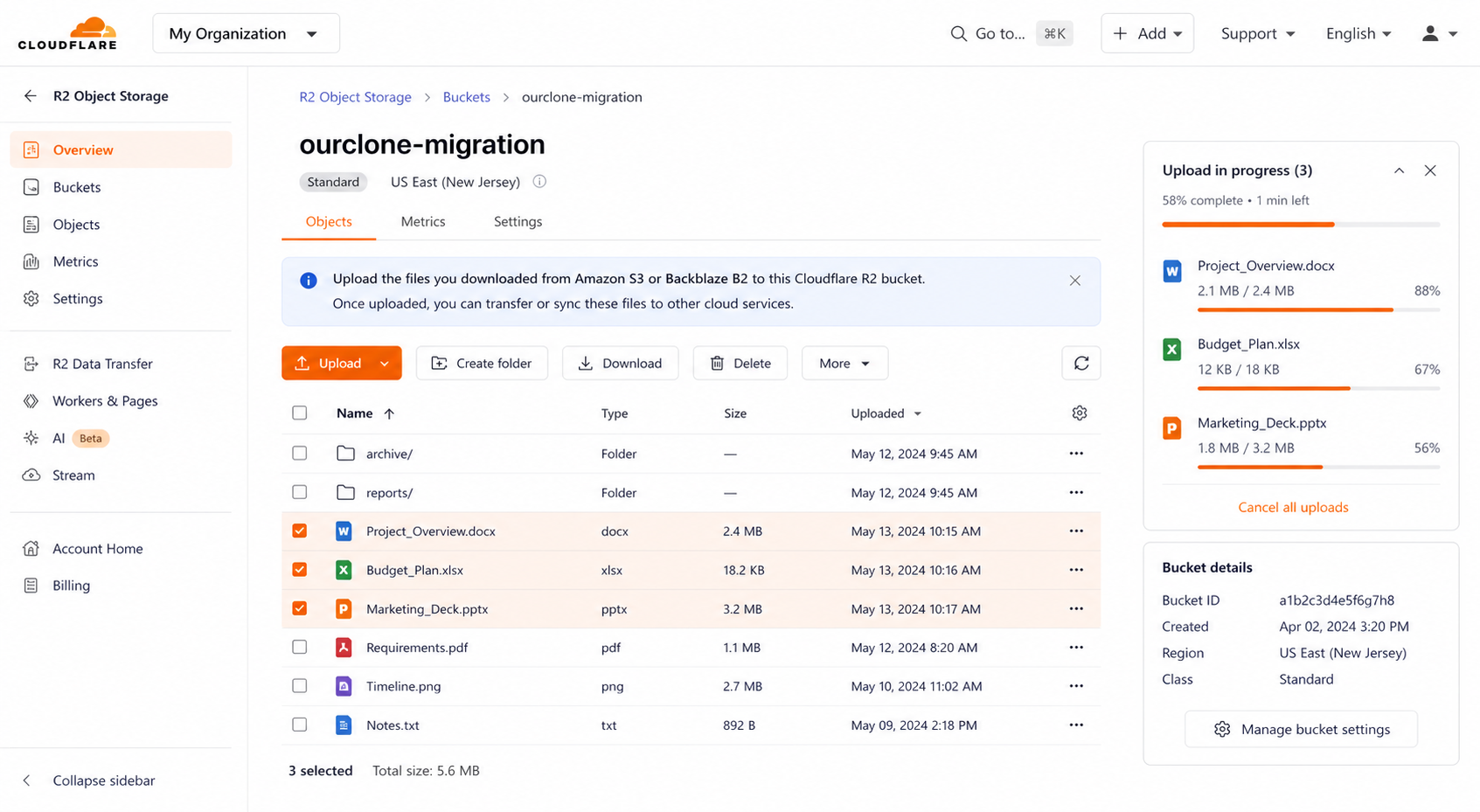
Good for a handful of objects, but there's no resume, no bulk selection at scale, and your Mac holds a full local copy in between. For real buckets, Method 2 is the saner path.
Method 2: Transfer Backblaze B2 to Cloudflare R2 with OurClone
OurClone moves objects from Backblaze B2 to Cloudflare R2 directly through your Mac, with live progress and no relay server. The flow is three steps: add the source, add the target, run the migration.
- 🔐 Step 1: Add Backblaze B2 as the Source — In OurClone open
Add Storageand choose Backblaze B2. Set a Remote Name, then enter your Account ID (keyID) and Account Key (applicationKey) — create these under App Keys in the Backblaze console. The Endpoint is optional. OurClone verifies and adds it. - 🔐 Step 2: Add Cloudflare R2 as the Destination — Still in
Add Storage, choose Cloudflare R2. Set a Remote Name, then enter the Access Key ID and Secret Access Key from an R2 API token (create one under R2 → Manage R2 API Tokens in the Cloudflare dashboard) and the Endpointhttps://<accountid>.r2.cloudflarestorage.com. R2 then joins B2 in your storage list. - 🔀 Step 3: Set Source, Target and Mode on the Migrate Page — Open the
Migratetab. Pick Backblaze B2 and browse to the bucket or prefix to move, then pick Cloudflare R2 and choose (or create) the destination bucket. Select a transfer mode:- Copy — duplicates objects to R2; nothing is deleted from Backblaze B2.
- Move — transfers to R2, then deletes the originals from Backblaze B2.
- Sync — makes R2 mirror B2; extra objects in R2 are removed, but Backblaze B2 is left untouched.
- 📊 Watch Progress and Confirm — The
Taskpanel shows live counts, speed, ETA, and any failed objects. When it reads completed, open Cloudflare R2 in OurClone (or the Cloudflare dashboard) to confirm. If you chose Move, verify the B2 bucket no longer holds the originals.
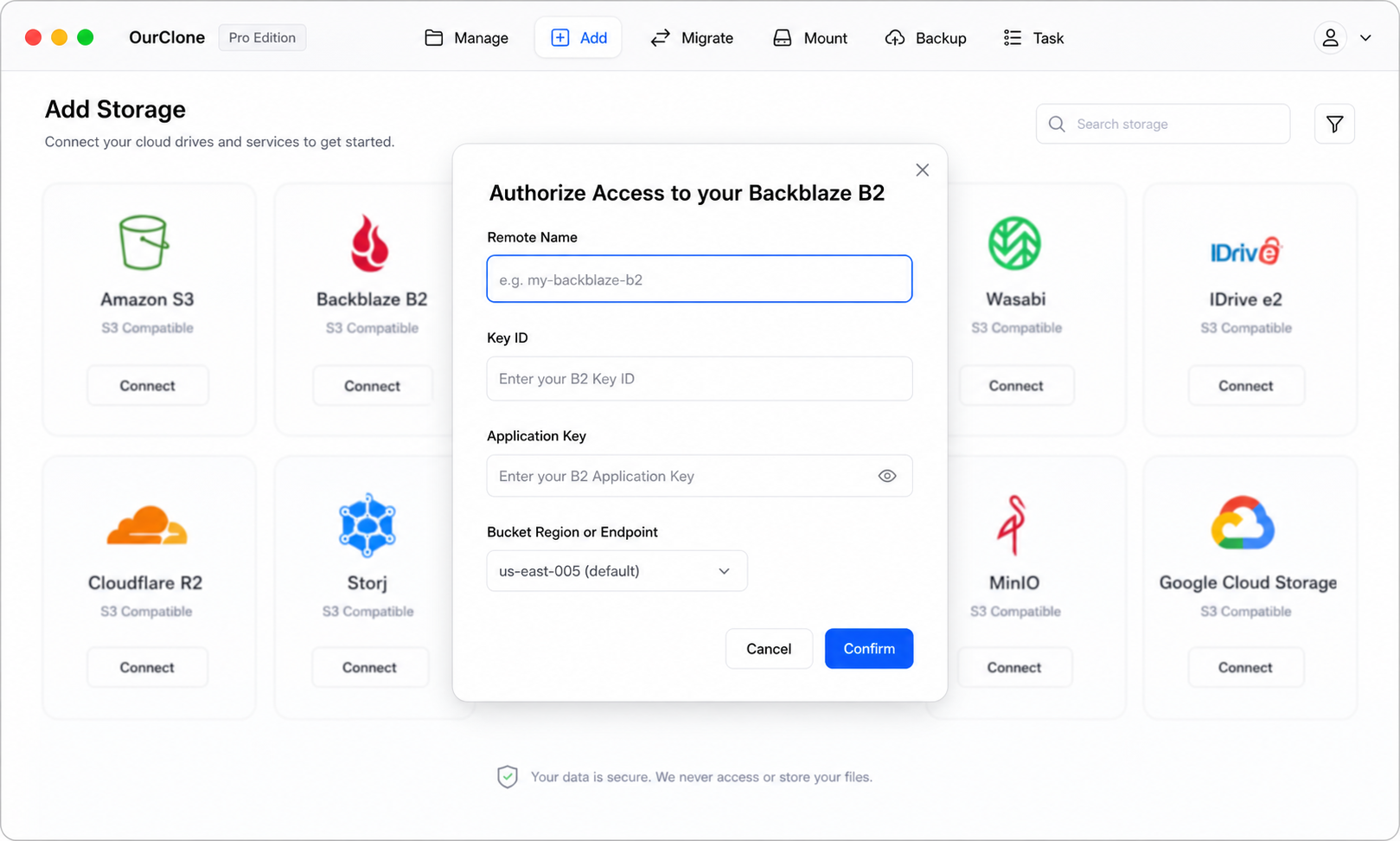
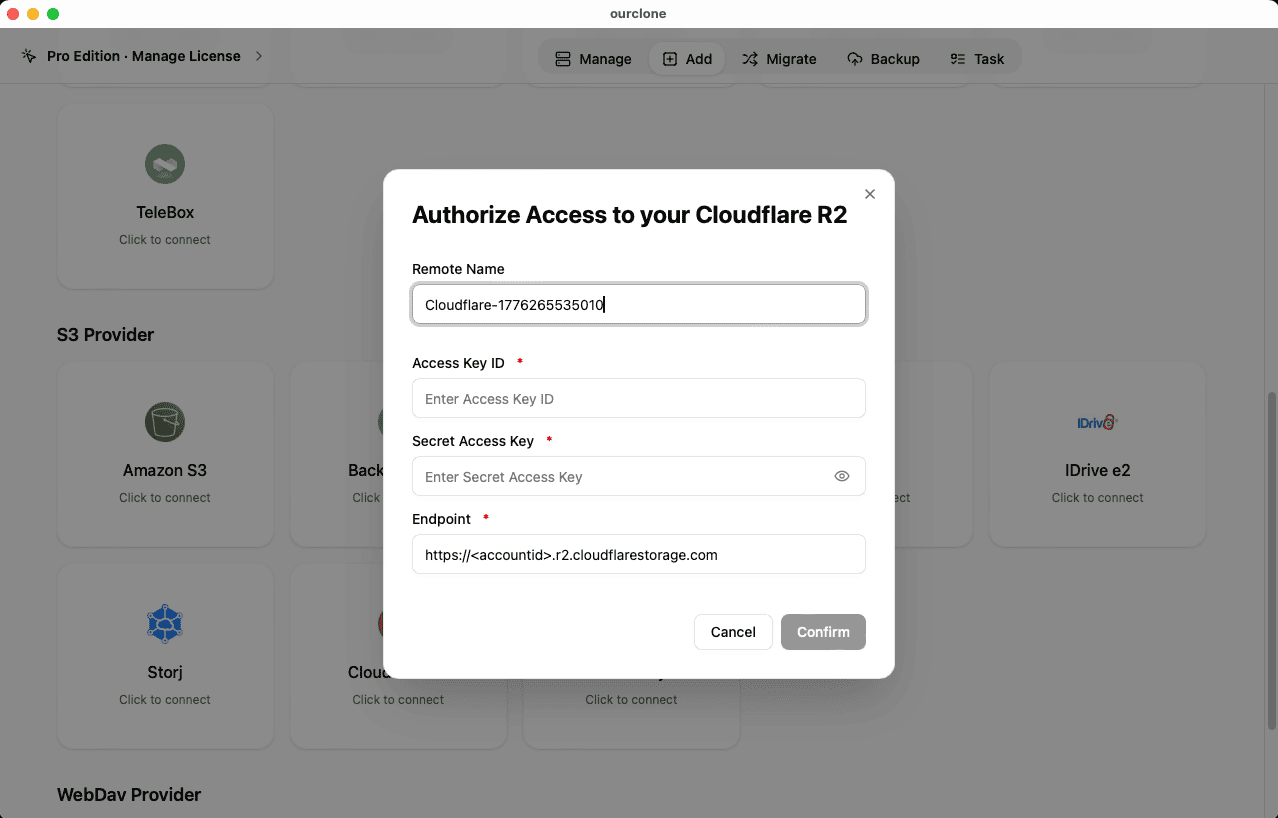
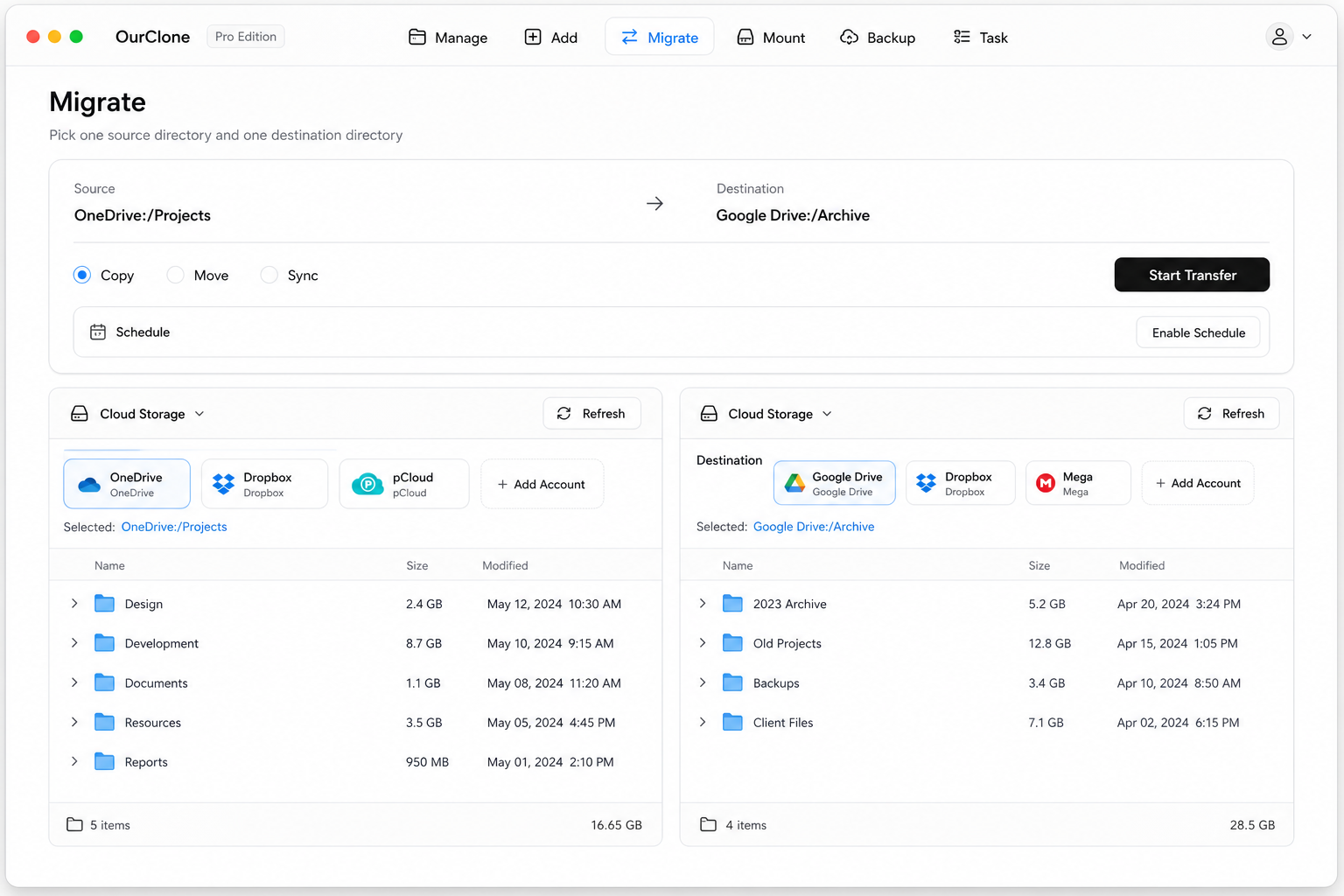
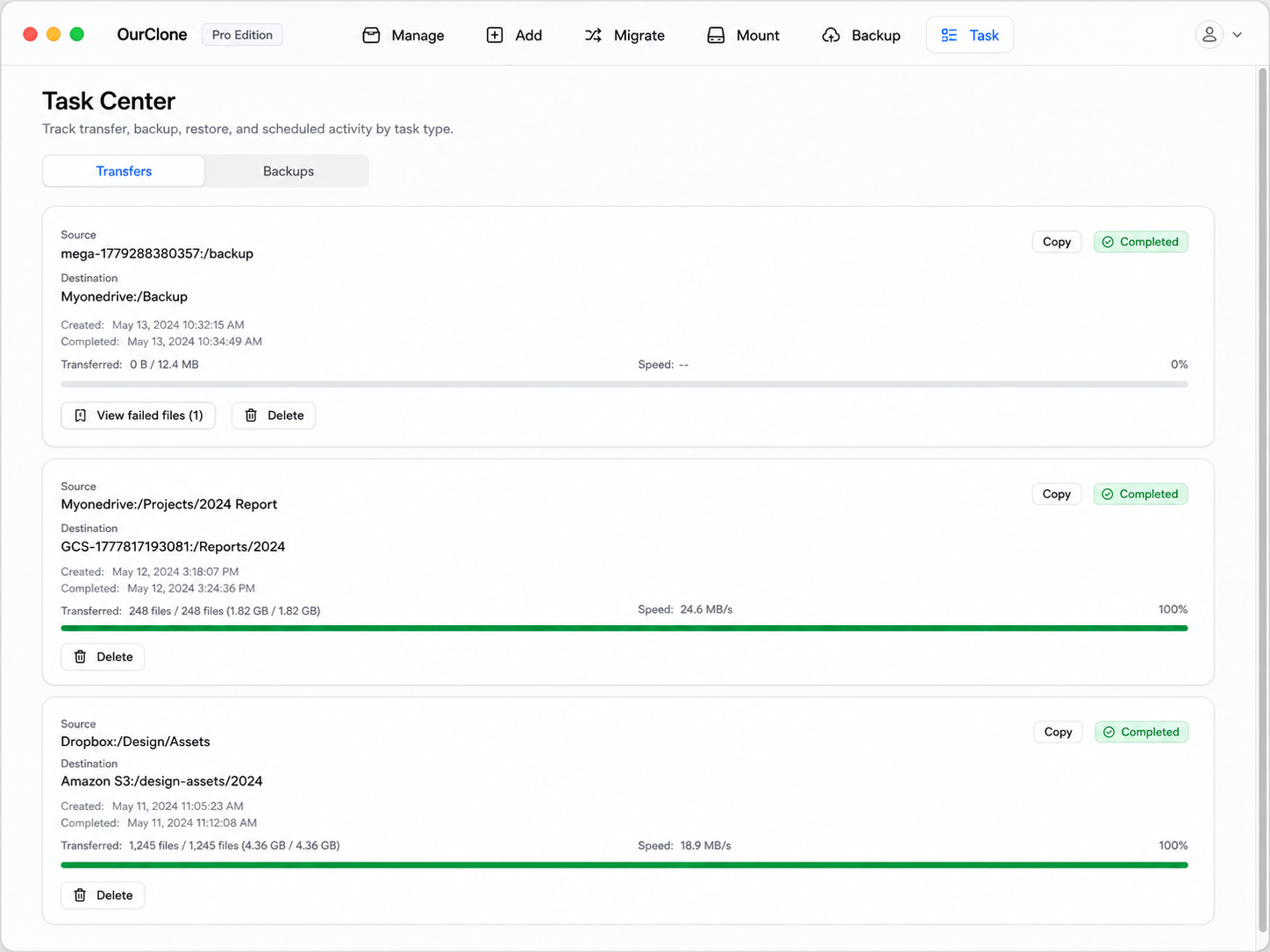
Since the transfer runs locally and respects your chosen mode, you control whether B2 keeps its copy — and a large migration resumes from where it stopped rather than restarting.
Method 3: Transfer Backblaze B2 to Cloudflare R2 with rclone (Command Line)
OurClone is built on rclone, so you can run the B2-to-R2 move straight from a terminal — useful for automation and scripted, repeatable jobs.
Step 1: Install rclone
Grab it from the official downloads page, or run brew install rclone on macOS.
Step 2: Configure both remotes
Run rclone config and add a b2 remote (with your keyID and applicationKey) and a Cloudflare R2 remote (provider Cloudflare, with the R2 token keys and the https://<accountid>.r2.cloudflarestorage.com endpoint). Name them b2 and r2.
Step 3: Run the transfer
Pick the verb that maps to OurClone's modes:
# Copy — keep the B2 bucket intact
rclone copy b2:archive r2:archive --progress

# Move — delete the B2 originals after transfer
rclone move b2:archive r2:archive --progress

# Sync — make R2 mirror B2 (deletes extras in R2)
rclone sync b2:archive r2:archive --progress
For example, rclone copy b2:site-backups r2:site-backups --progress copies your backups bucket to R2 and leaves B2 untouched.
Caveats
- ⚠️
syncandmovedelete objects — confirm direction and run--dry-runfirst. - ⚠️ No GUI; progress and errors are terminal-only.
- ⚠️ Each remote's keys and endpoint are configured by hand — the friction OurClone removes.
Common B2 → R2 Migration Snags
Both stores are S3-compatible, so issues are mostly about credentials and endpoints.
- 🔗 R2 endpoint must be exact — Use
https://<accountid>.r2.cloudflarestorage.com; a wrong account ID is the number-one cause of failed connections. - 🔑 B2 key capabilities — Your B2 application key needs read and list on the source bucket; restricted keys can stall the job with permission errors.
- 🐢 Web route doesn't scale — Manual download/upload has no resume and no real bulk handling. OurClone and rclone stream object-by-object.
- 🔁 Copy vs Sync behavior — Copy adds objects alongside whatever's in R2; Sync makes R2 match B2 exactly and deletes anything extra on the R2 side.
- 🧮 Object counts — B2 hides lifecycle-hidden file versions; check the Task panel's summary if your R2 count differs from what B2's console shows.
Will this delete my B2 objects?
Only if you choose Move. Copy leaves Backblaze B2 fully intact, and Sync only removes extra objects in R2 — never in B2.