Amazon S3 vs Wasabi: What Each One Is Good At
Both are S3-API object stores, but Wasabi strips away the variable fees that make S3 bills hard to predict — with a couple of trade-offs worth knowing.
🟧 Amazon S3
Amazon S3 is the gold-standard object store with the deepest ecosystem.
- 11 nines durability, dozens of regions, and tiered storage classes for every access pattern.
- Storage ~$0.023/GB/month, plus per-request fees and egress around $0.09/GB.
- Unmatched integration across the AWS service catalog.
- Keys and buckets are managed in the AWS Console.
🟩 Wasabi
Wasabi is flat-rate "hot" storage with no egress or request charges.
- Storage around $6.99/TB/month — one predictable line item.
- No egress fees and no API request fees, unlike S3's metered model.
- A 90-day minimum storage duration and a minimum monthly charge — best for data you keep, not churn.
- S3-compatible endpoint such as
s3.wasabisys.com, managed in the Wasabi console.
Why Switch from Amazon S3 to Wasabi?
It comes down to billing sanity. S3 charges separately for storage, requests, and egress, so a busy bucket produces a bill that's hard to forecast. Wasabi rolls it into one flat per-terabyte rate with no egress or request fees — provided your data sticks around rather than churning constantly.
- 🧾 One Predictable Price — Flat $6.99/TB/month with no surprise request or egress charges makes budgeting trivial.
- 📤 No Egress Fees — Pulling data back out of Wasabi is free, a stark contrast to S3's per-GB egress.
- 🔁 No Request Fees — Wasabi doesn't bill per GET/PUT, which helps workloads with lots of small operations.
- 🔌 S3-Compatible — Wasabi speaks the S3 API, so OurClone, rclone, and existing tools keep working after the move.
Method 1: Download from Amazon S3 and Upload to Wasabi by Hand
You can route objects through your Mac via each console — but the AWS Console can't download a whole bucket, so the manual approach only suits a small set of files.
- 📥 Download from Amazon S3 — In the AWS S3 Console, open your bucket, select objects, and download them into a folder like
~/Downloads/s3-export. You pay S3 egress on every byte pulled. - 📤 Upload to Wasabi — Sign in to the Wasabi console, open your bucket, and drag the downloaded files in.
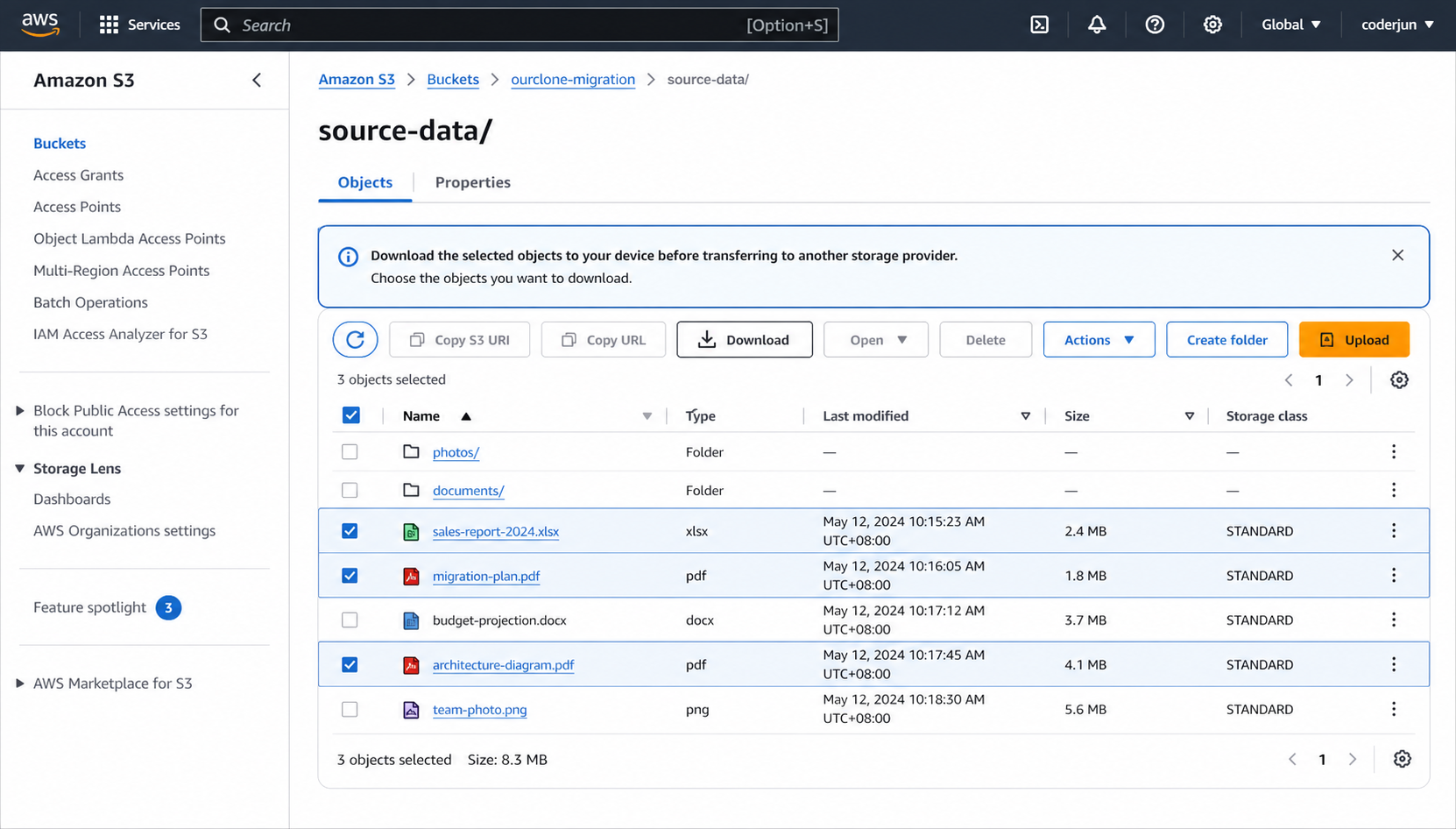
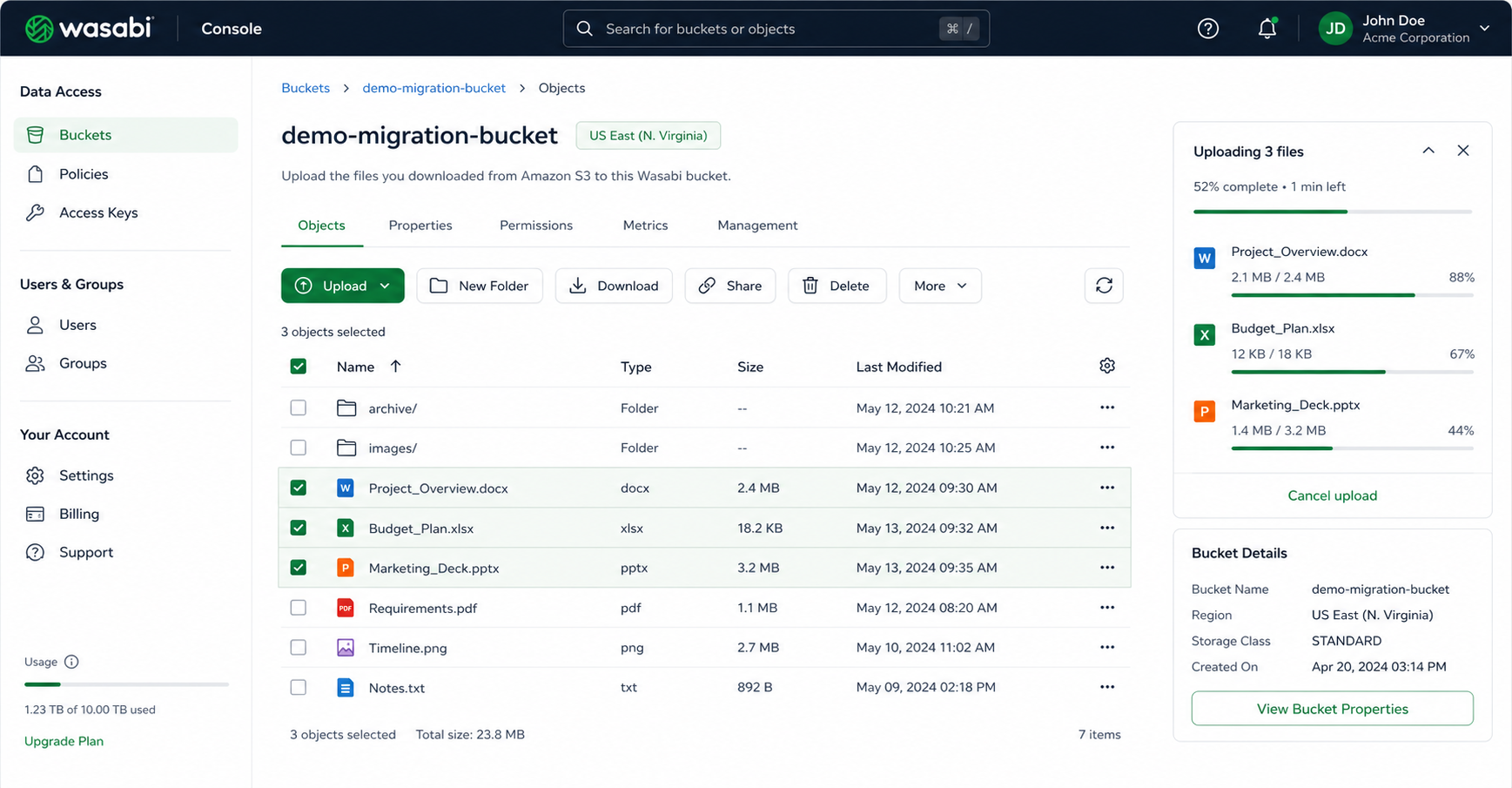
Fine for a quick handful of objects — but no bulk download, no resume, and full S3 egress on everything. That's exactly the pain Method 2 removes.
Method 2: Transfer Amazon S3 to Wasabi with OurClone
OurClone streams objects from Amazon S3 to Wasabi directly through your Mac, with live progress and no relay server. Three steps: add the source, add the target, run the migration.
- 🔐 Step 1: Add Amazon S3 as the Source — In OurClone open
Add Storageand choose Amazon S3 from the S3 list. Set a Remote Name, enter your Access Key ID and Secret Access Key (from Security Credentials in the AWS Console), and pick the bucket Region (e.g.us-east-1). OurClone verifies and adds it. - 🔐 Step 2: Add Wasabi as the Destination — Still in
Add Storage, choose Wasabi. Set a Remote Name, then enter the Access Key and Secret Key created under Access Keys in the Wasabi console, plus the Endpoint for your bucket's region (the default iss3.wasabisys.com). Wasabi then joins S3 in your storage list. - 🔀 Step 3: Set Source, Target and Mode on the Migrate Page — Open the
Migratetab. Pick Amazon S3 and browse to the bucket or prefix to move, then pick Wasabi and choose (or create) the destination bucket. Select a transfer mode:- Copy — duplicates objects to Wasabi; nothing is deleted from Amazon S3.
- Move — transfers to Wasabi, then deletes the originals from Amazon S3.
- Sync — makes Wasabi mirror S3; extra objects in Wasabi are removed, but Amazon S3 is left untouched.
- 📊 Watch Progress and Confirm — The
Taskpanel shows live counts, speed, ETA, and any failed objects. When it reads completed, open Wasabi in OurClone (or the Wasabi console) to confirm. If you used Move, verify the S3 bucket no longer holds the originals.
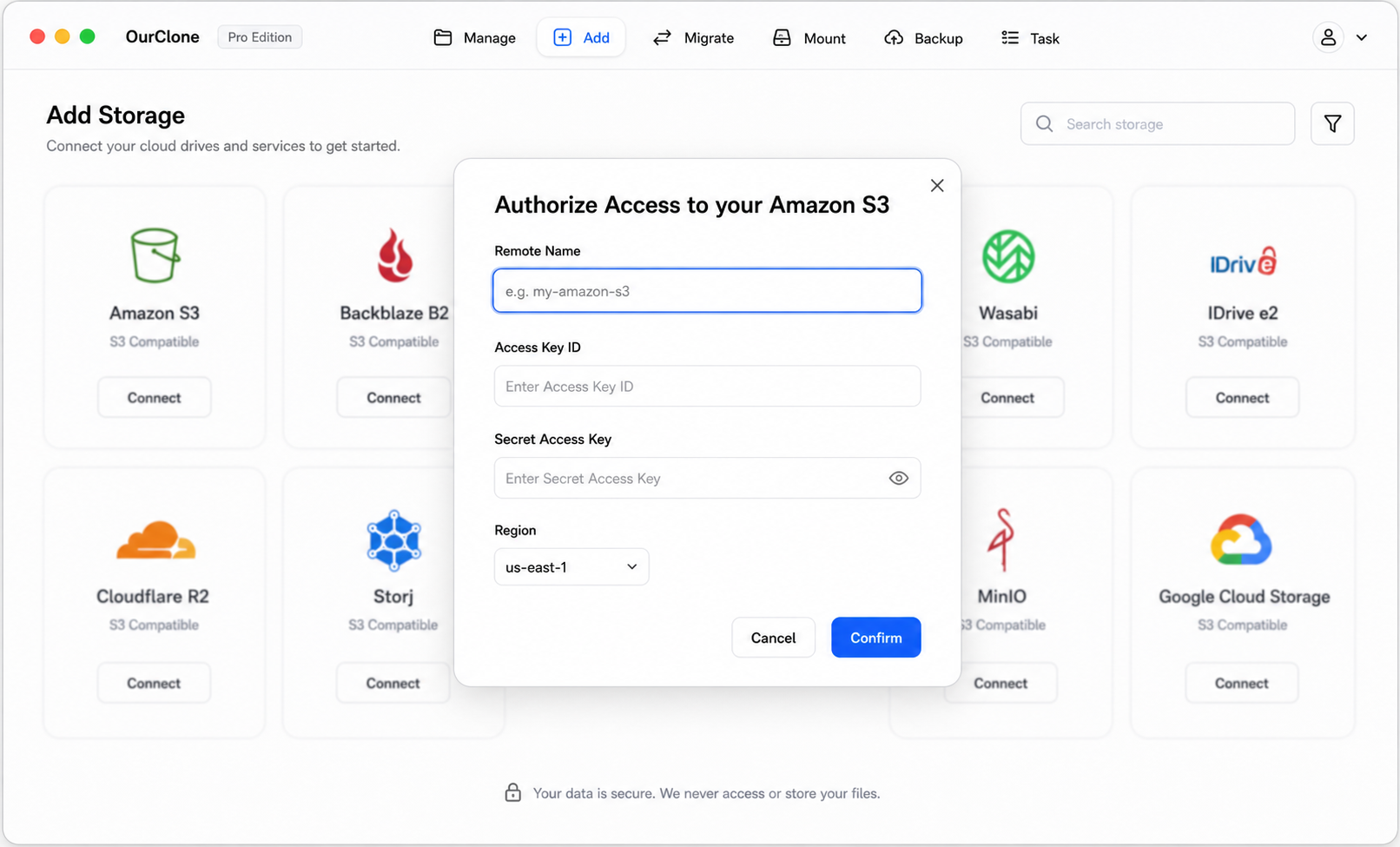
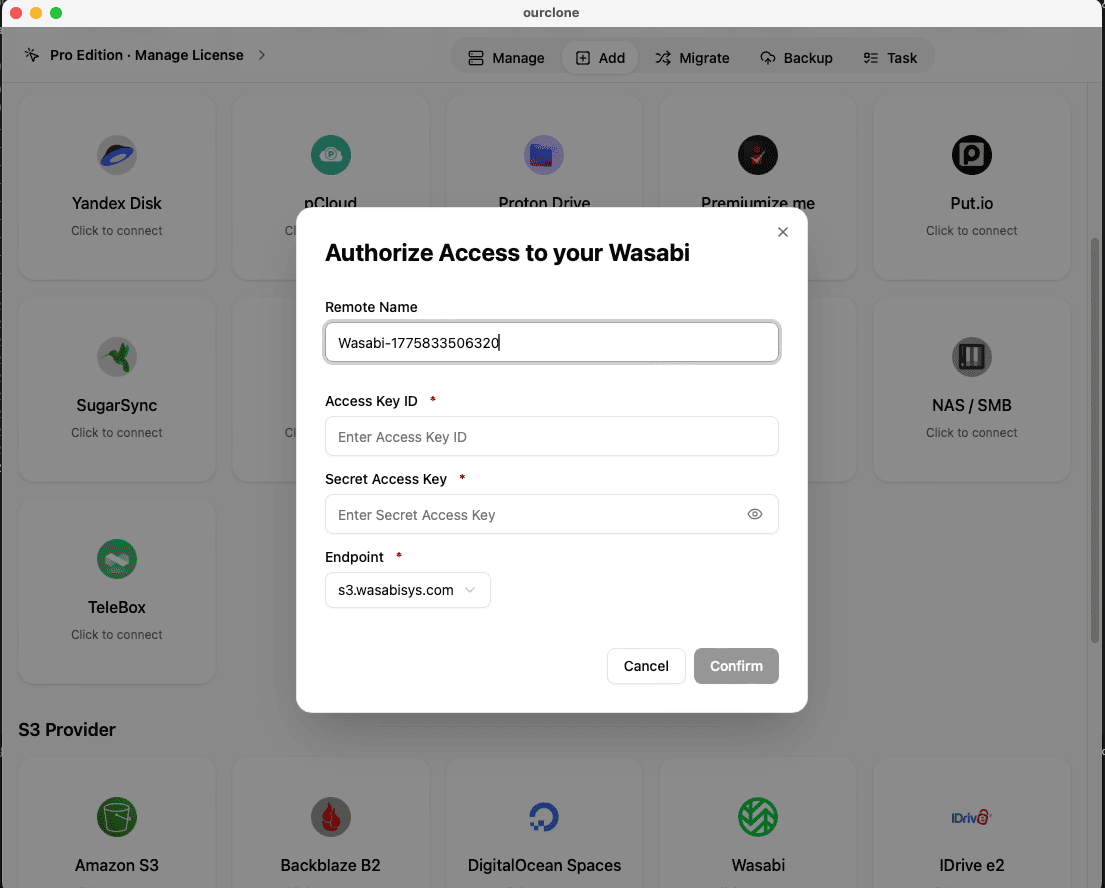
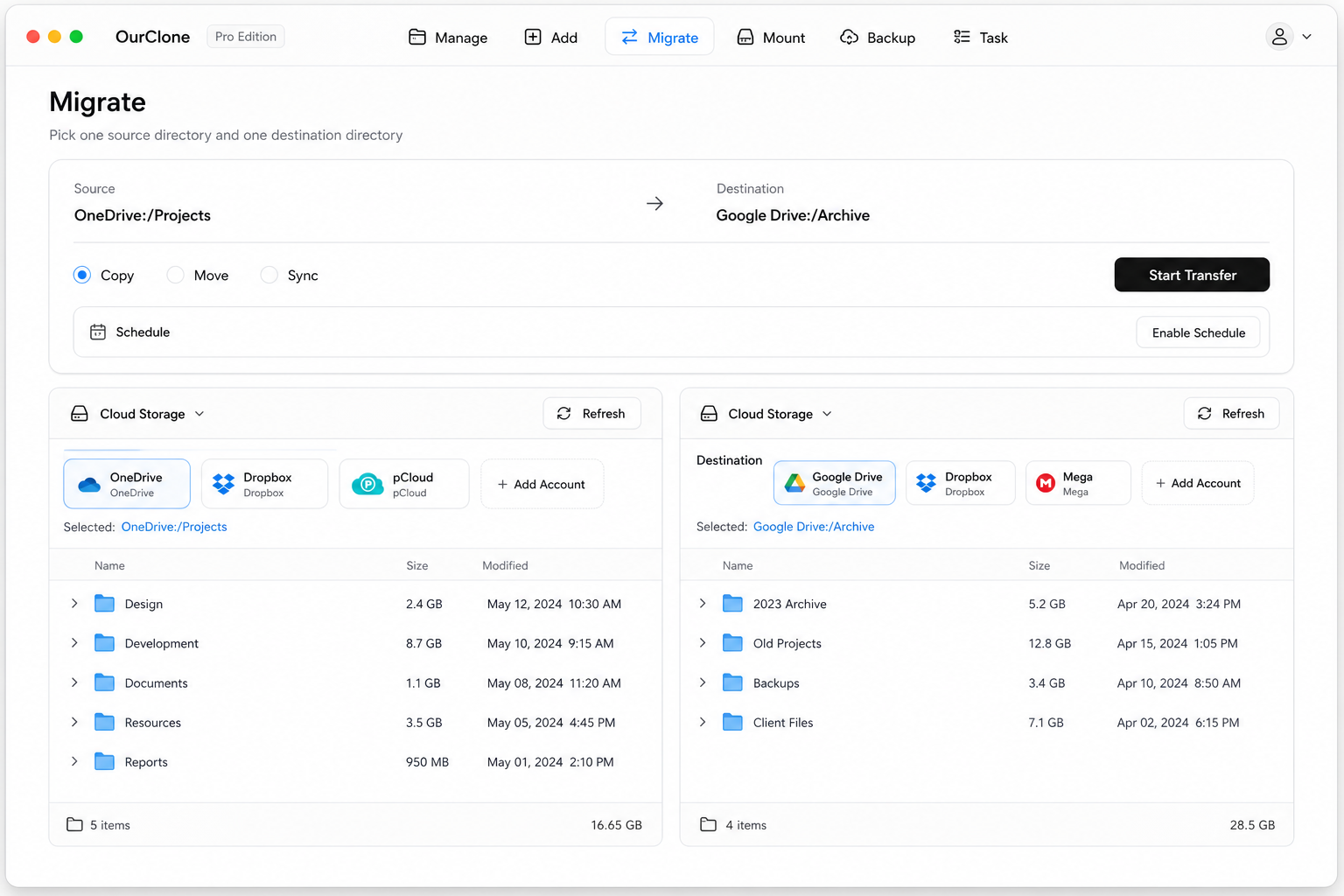
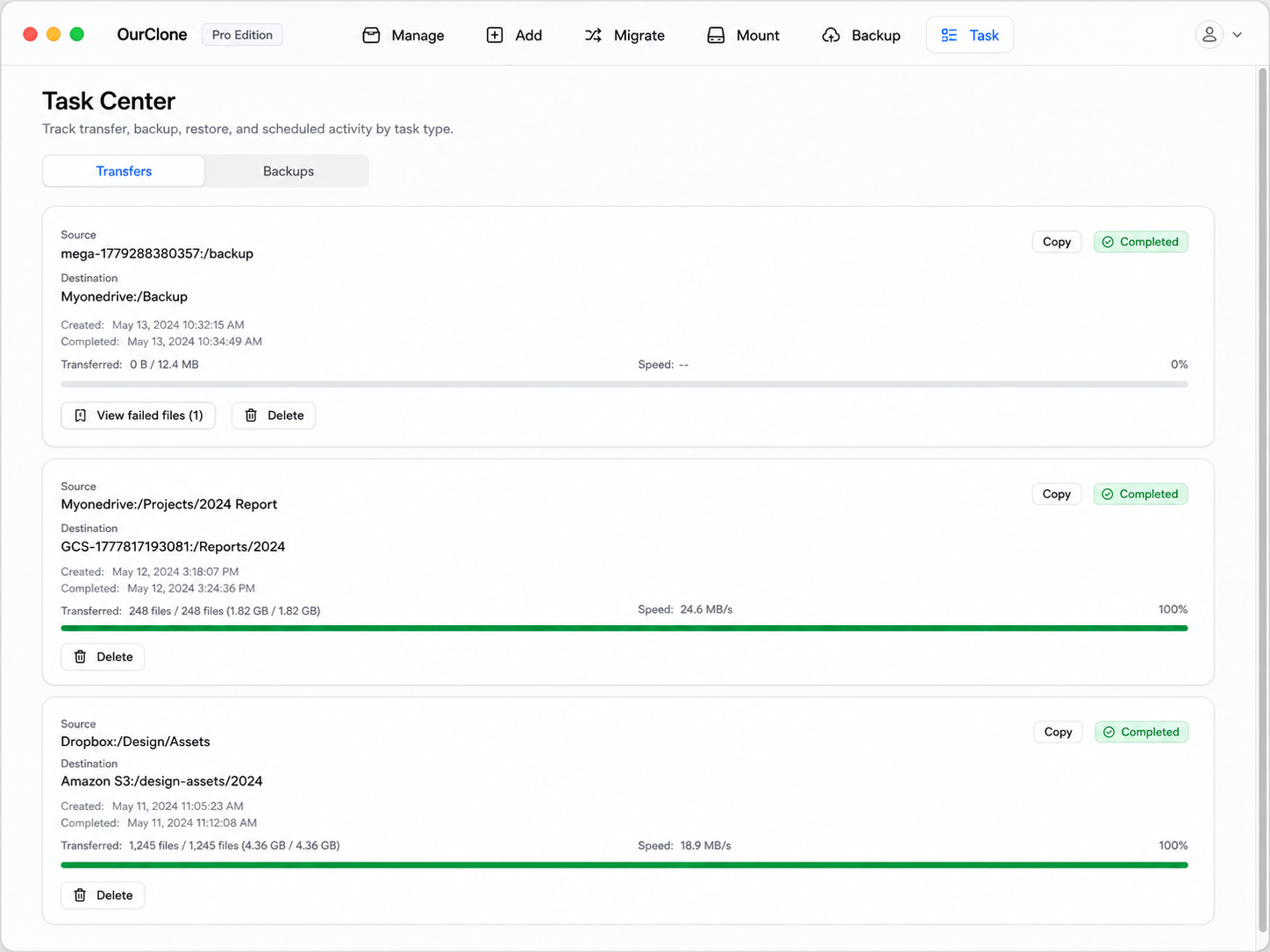
Running locally and mode-aware, OurClone lets you decide whether S3 keeps a copy — and a big transfer resumes after interruption rather than starting from scratch.
Method 3: Transfer Amazon S3 to Wasabi with rclone (Command Line)
OurClone is built on rclone, so the same S3-to-Wasabi move scripts cleanly from a terminal — great for automation or one-time bulk migrations.
Step 1: Install rclone
Download it from the official downloads page, or run brew install rclone on macOS.
Step 2: Configure both remotes
Run rclone config and add an s3 remote (provider AWS, with Access Key, Secret Key, region) and a Wasabi remote (provider Wasabi, with its keys and the s3.wasabisys.com endpoint). Name them s3 and wasabi.
Step 3: Run the transfer
Choose the verb that maps to OurClone's modes:
# Copy — keep the S3 bucket intact
rclone copy s3:backups wasabi:backups --progress

# Move — delete the S3 originals after transfer
rclone move s3:backups wasabi:backups --progress

# Sync — make Wasabi mirror S3 (deletes extras in Wasabi)
rclone sync s3:backups wasabi:backups --progress
For example, rclone copy s3:cold-archive wasabi:cold-archive --progress copies your archive bucket to Wasabi and leaves S3 untouched.
Caveats
- ⚠️
syncandmovedelete objects — confirm direction and run--dry-runfirst. - ⚠️ No GUI; progress and errors are terminal-only.
- ⚠️ Each remote's keys and endpoint are set up by hand — the friction OurClone removes.
Common Amazon S3 → Wasabi Migration Issues
A few specifics to keep in mind when moving into Wasabi.
- ⏳ 90-day minimum storage — Wasabi bills a 90-day minimum per object, so it rewards data you keep. Don't migrate fast-churning temporary files into it.
- 💸 S3 egress on the move — You'll pay S3 egress for the migration itself; once data is in Wasabi, pulling it back is free. Migrate once, cleanly.
- 🌍 Match the Wasabi region endpoint — Use the endpoint for your bucket's region (e.g.
s3.eu-central-1.wasabisys.com); a mismatched endpoint causes connection errors. - 🐢 No bulk download from the AWS console — The web route can't pull a whole bucket. OurClone and rclone stream object-by-object with resume.
- 🧮 Metadata mapping — Custom S3 metadata and ACLs may not transfer identically. Compare the Task summary if counts look off.
FAQ
Will this delete my S3 objects?
Only if you choose Move. Copy leaves Amazon S3 fully intact, and Sync only removes extra objects in Wasabi, never in S3.
Is Wasabi really cheaper for my workload?
For data you store long-term and read often, yes — flat pricing with no egress wins. For data deleted within 90 days, Wasabi's minimum-duration charge can erode the savings.
Which Method Should You Pick?
| What matters | Manual Console | OurClone | rclone CLI |
|---|---|---|---|
| Whole-bucket transfer | ❌ One selection at a time | ✅ | ✅ |
| Resume after interruption | ❌ | ✅ | ✅ |
| Copy / Move / Sync modes | ❌ | ✅ | ✅ |
| Setup effort | ✅ None | ✅ Key-based GUI | 🛠 Manual config |
| Live progress & failed-object list | ❌ | ✅ | 📉 Console |