Why WebDAV Storage Needs Encryption From Your Side
WebDAV extends plain HTTP into a file protocol, which is why WebDAV endpoints are everywhere — hosted drives, NAS devices, web servers with a module enabled. That universality comes with a catch: the protocol itself brings no encryption at all.
- 🌐 Transport security is the server's choice — over
https://the connection is TLS-protected; over plainhttp://, your files and your password cross the network readable. You inherit whatever the operator configured. - 💾 The server stores plaintext, always — WebDAV has no concept of encrypted content. Whatever arrives is written to the server's disk exactly as sent.
- 🧑💻 The operator can read everything — a hosted provider's staff, your NAS's admin account, or the root user of a self-hosted box all read your files like any other folder.
- 🔑 Basic credentials, broadly reused — WebDAV logins are usually a username and password typed into many apps; one leak opens every folder that account reaches.
- 🧩 Providers vary wildly — Koofr, HiDrive, Fastmail files, a rented Nextcloud, an old Apache module: each has different patching, logging and security discipline. Client-side encryption makes that variance stop mattering.
What OurClone's Encrypted Vault Actually Does
OurClone's Encrypted Remote wraps any connected WebDAV storage in a password-only layer — the one encryption model that works identically across every WebDAV endpoint.
- 🔐 Encrypted before it's sent — files are encrypted on your computer; the WebDAV server only ever receives ciphertext, whatever its transport looks like.
- 🕵️ File names hidden too — names and contents are both encrypted; the server's folder listing shows only scrambled text.
- 🔑 Your password is the only key — it never reaches the server, and OurClone keeps no recovery copy.
- 🧰 Open format, not lock-in — built on rclone crypt, an open and documented standard.
- 📁 One folder, not the whole account — everything else on the server stays untouched.
- ⚙️ Behaves like a normal remote — transfer into it, sync it, mount it, or use it as a backup destination.
The Encrypted Remote is an OurClone Pro feature, and a vault always wraps a plain remote — nesting isn't supported.
How to Create an Encrypted Vault on WebDAV Storage
Any WebDAV endpoint you can reach works — hosted drive, NAS, or your own server.
- 🔐 Connect via WebDAV URL — Open OurClone and go to
Add. Select WebDAV, then enter your server's WebDAV URL plus the username and password your provider or admin gave you. Prefer anhttps://URL whenever the server offers one. Already connected for mounting or backups? Skip ahead. - 🧭 Open the Encryption Category — In the
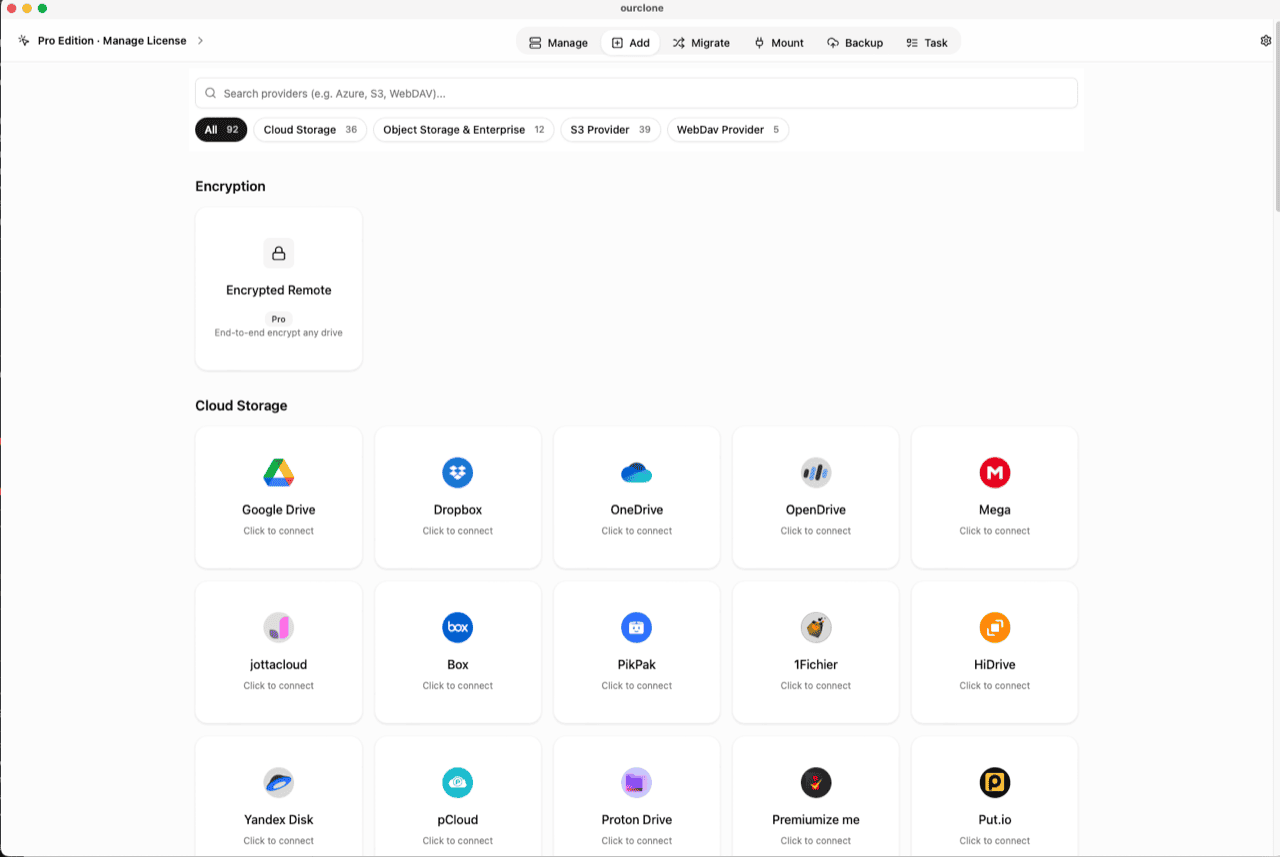
Addpage, the Encryption section sits above the provider grid. Click the Encrypted Remote card (marked Pro). - 🛠️ Create the Vault — Name it (e.g.
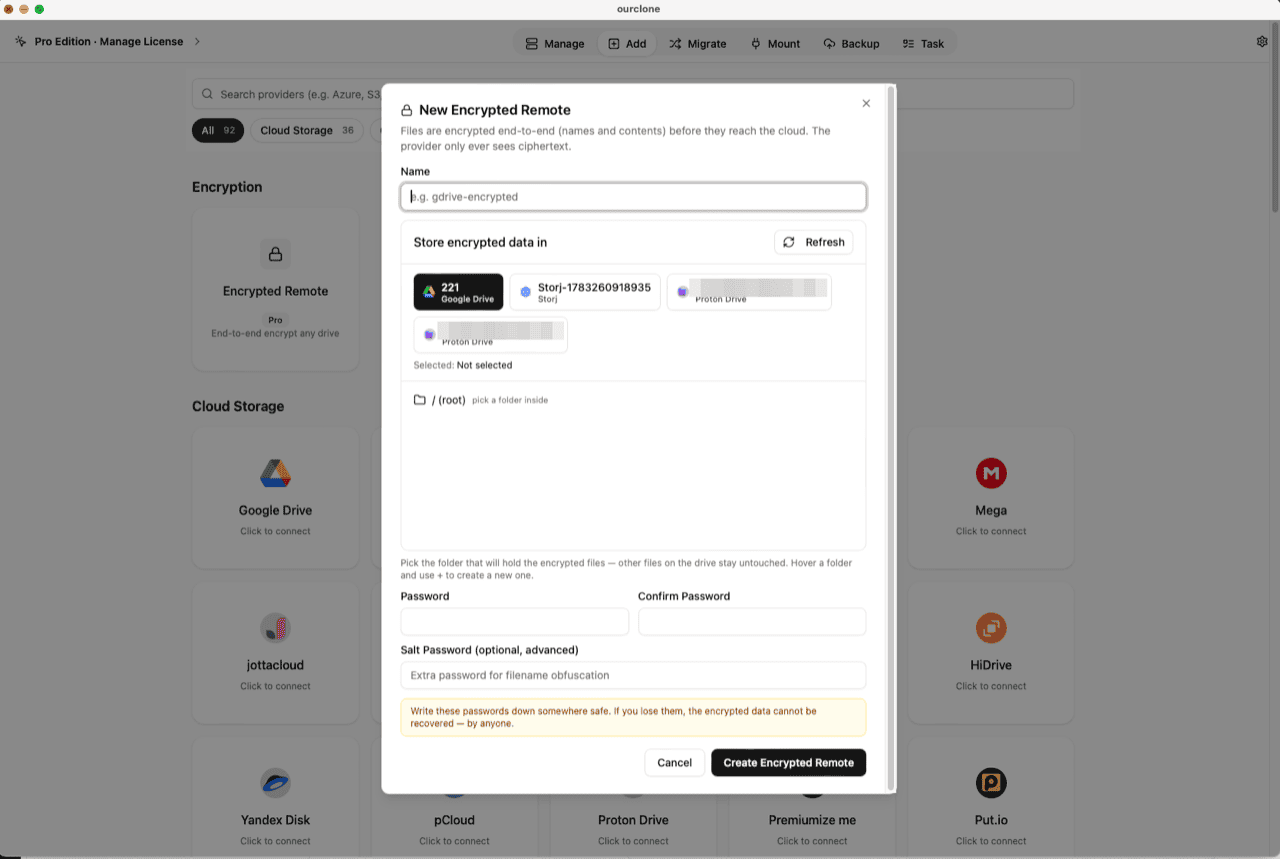
webdav-encrypted), pick your WebDAV remote as the base storage, then choose or create a folder on the server — the vault must live in a folder, not the root, and only that folder will hold encrypted data. Set your password (plus an optional salt password for extra filename obfuscation) and click Create Encrypted Remote. - 📦 Move Files Into the Vault — Open
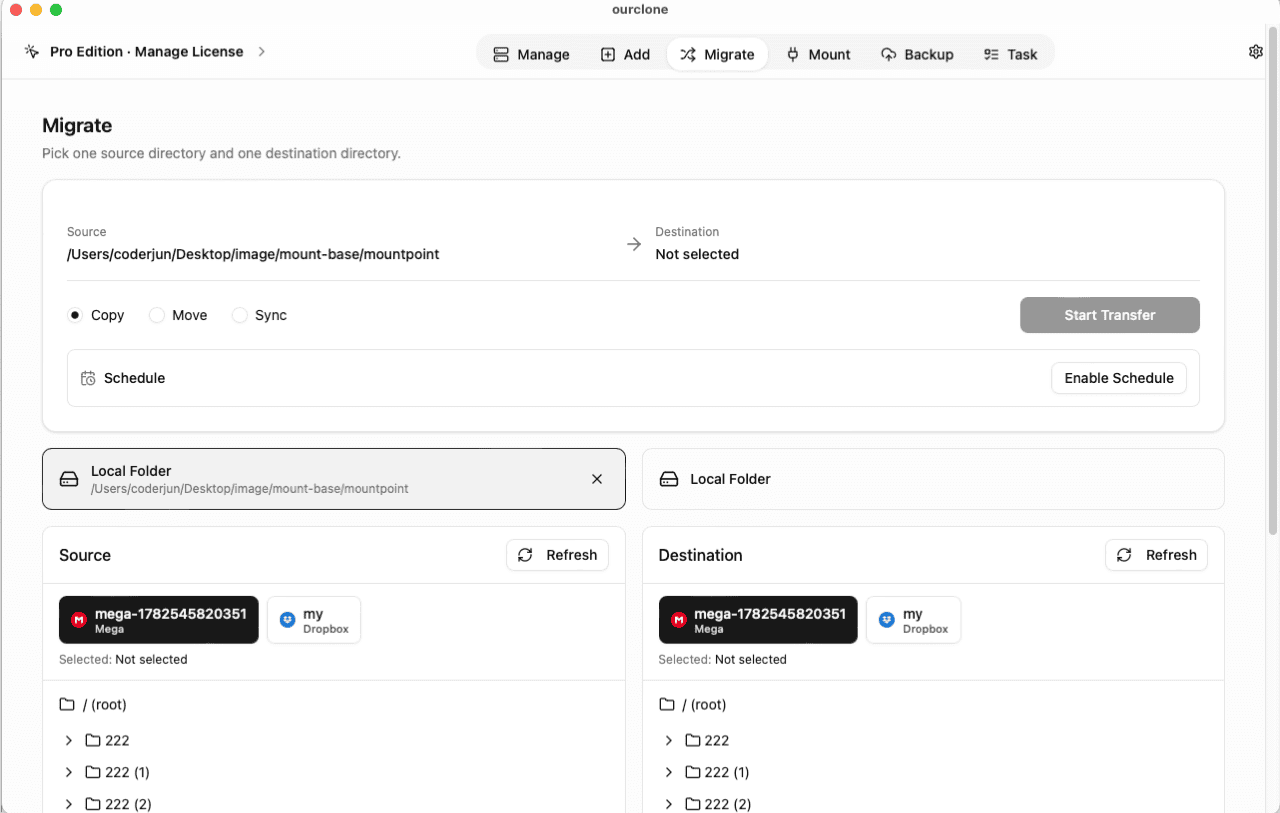
Migrate, choose a local folder (or a cloud remote) as the source and the vault as the destination, then run a copy, move, or sync. Files are encrypted on the fly as they upload. - 📊 Watch It in the Task Center — The
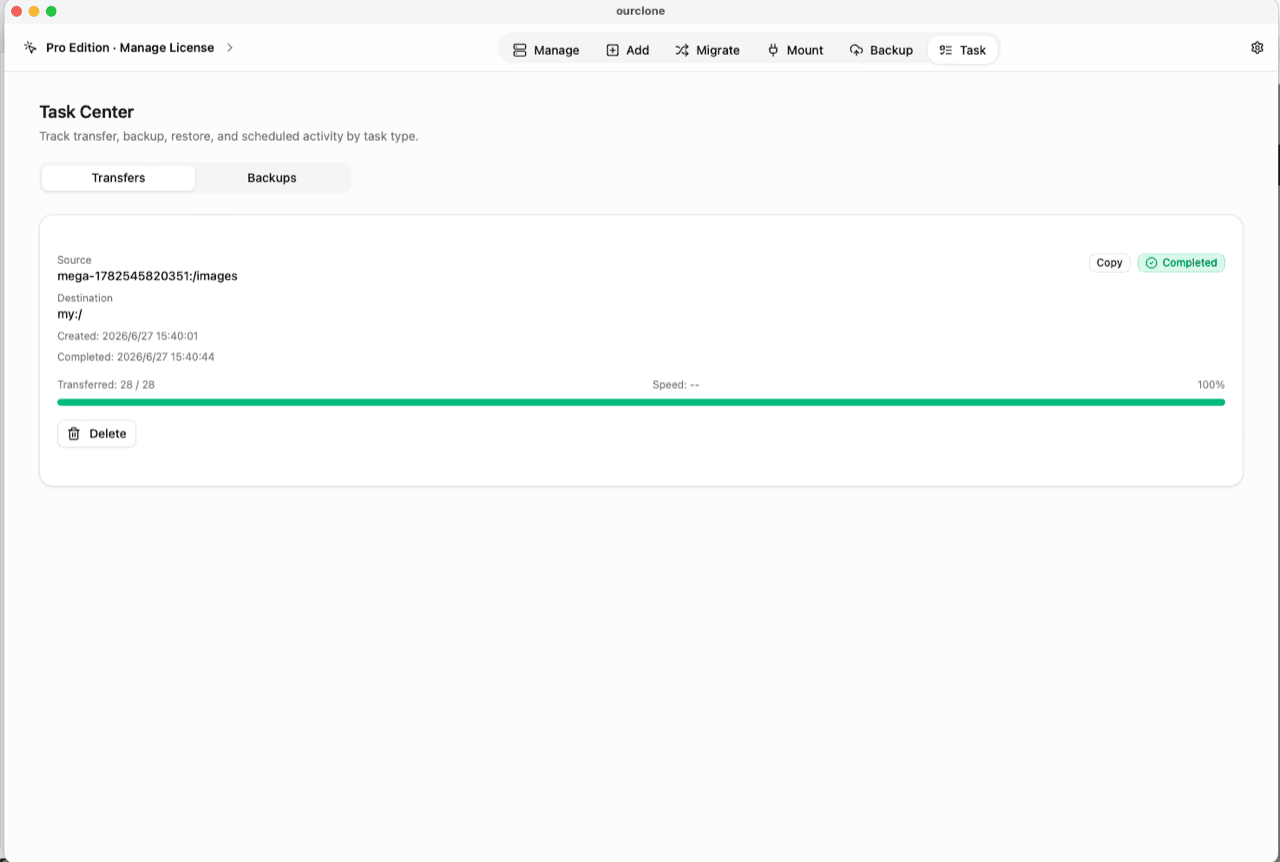
Tasktab shows live progress, speed and any failed files, and history survives app restarts.
Keep the vault password in a password manager — if it's lost, nobody can bring the data back, including the server's operator.
Check What the Server Can See Now
Open the storage the way its operator would — the provider's web interface, the NAS file manager, or a shell on your own server — and look at the vault folder: scrambled names, contents that read as noise. Even on a plain-HTTP server, what crossed the wire was already ciphertext.
In OurClone, the vault carries a lock badge and the Manage page lists your real files, decrypted locally. You can also mount the vault as a local drive and browse it in Finder or File Explorer (no extra driver on macOS; Windows needs WinFsp).
Frequently Asked Questions
Is the encrypted vault free?
No — it's an OurClone Pro feature. Connecting WebDAV storage, transfers and backups work on the free plan within its limits; see pricing.
What if I forget the vault password?
The data is permanently unreadable, by design. No reset, no backdoor — store it in a password manager.
What is the salt password?
An optional second password that strengthens file-name obfuscation. If set, both are required to read the vault — guard them equally.
Does the vault make plain HTTP safe?
It protects your file names and contents — they cross the network as ciphertext either way. Your WebDAV username and password still travel with the connection though, so prefer an https:// endpoint whenever possible.
Does this work with Nextcloud, Koofr, HiDrive and NAS WebDAV?
Yes — anything OurClone can connect over WebDAV can carry a vault. For Nextcloud specifically, see the dedicated guide to encrypting files on Nextcloud.
Can I open the vault from another computer?
Yes — install OurClone, connect the same WebDAV server, and add an Encrypted Remote pointing at the same folder with the same password (and salt, if set).