What Nextcloud's Own Encryption Does and Doesn't Cover
Nextcloud is the self-hosted cloud of choice — and it's honest about its encryption options. It's worth being precise about what each one protects before deciding you're covered.
- 💾 Default storage is plaintext — a stock Nextcloud writes your files to the server's data directory as-is. Root on the box, or your hosting provider, reads them like any other folder.
- 🔑 Server-side encryption keeps keys on the server — Nextcloud's encryption module encrypts stored files, but the keys live on (and are used by) the same server. An admin or an attacker with server access can still get plaintext; it mainly protects external/remote storage backends.
- 📁 The E2EE app is folder-scoped with trade-offs — Nextcloud's end-to-end encryption works on designated folders and locks them out of the web interface, previews and sharing; client support has historically been uneven across platforms.
- 👑 Admins administer everything — on a family, team or rented instance, the admin account is a single point of full access to unencrypted data.
- 🏢 Hosted Nextcloud adds a landlord — managed offerings (a hosting company's Nextcloud, storage-share products) put a provider between you and the disk, with the same plaintext visibility.
What OurClone's Encrypted Vault Actually Does
OurClone's Encrypted Remote encrypts on your computer and speaks to Nextcloud over ordinary WebDAV — no server apps, no modules, nothing for an admin to configure or a provider to support.
- 🔐 Encrypted before upload — files are encrypted on your device; your Nextcloud only ever receives ciphertext.
- 🕵️ File names hidden too — names and contents are both encrypted; the Nextcloud web app shows only scrambled text in the vault folder.
- 🔑 Your password is the only key — it never touches the server; admin credentials decrypt nothing.
- 🧰 Open format, not lock-in — built on rclone crypt, an open and documented standard.
- 📁 One folder, not the whole instance — synced folders, shares and apps everywhere else keep working normally.
- ⚙️ Behaves like a normal remote — transfer into it, sync it, mount it, or use it as a backup destination.
The Encrypted Remote is an OurClone Pro feature, and a vault always wraps a plain remote — nesting isn't supported.
How to Create an Encrypted Vault on Nextcloud
You'll connect over WebDAV — ideally with an app password rather than your main login.
- 🔐 Connect Nextcloud via WebDAV — Open OurClone and go to
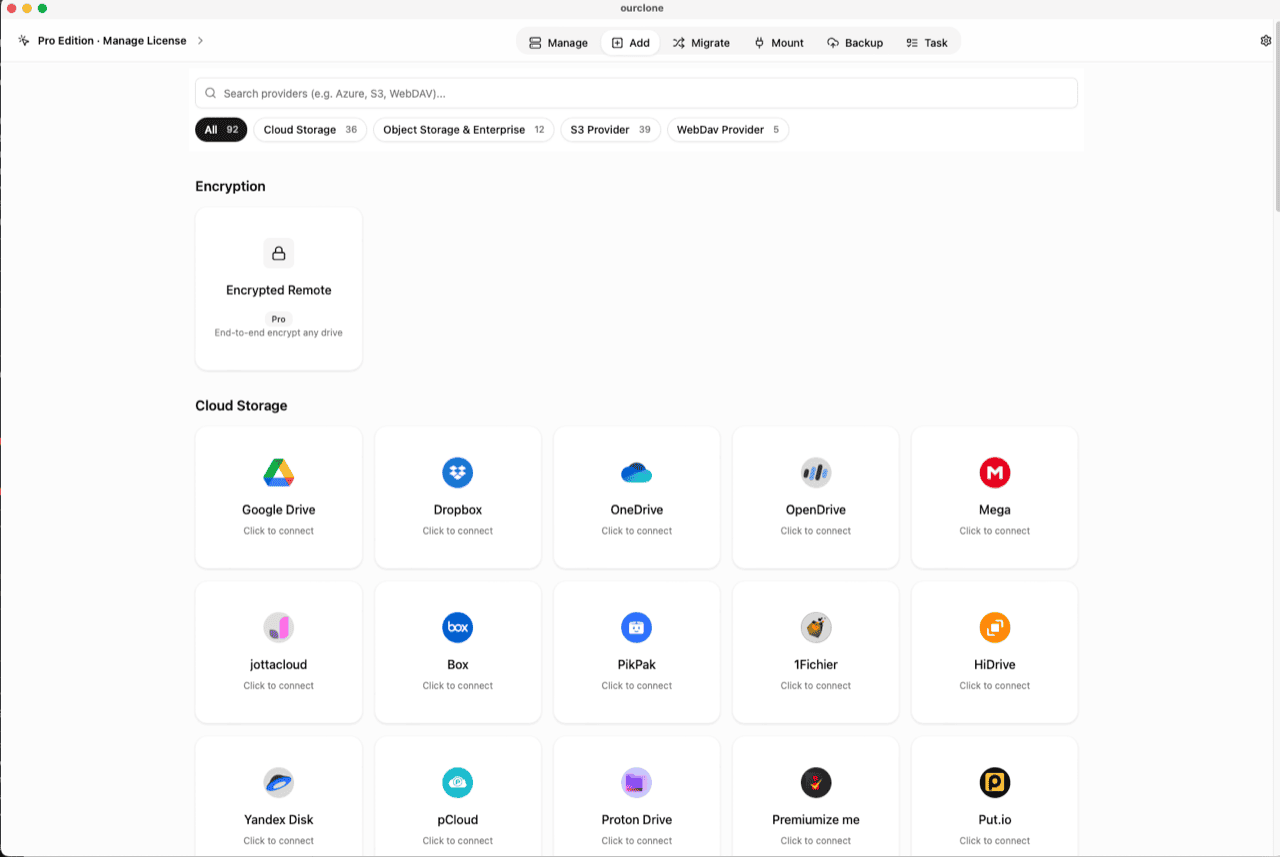
Add. Select NextCloud, then enter your server's WebDAV URL (shown under Settings → Files in Nextcloud, usuallyhttps://your-server/remote.php/dav/files/USERNAME/), your username, and an app password created under Personal settings → Security. Already connected for mounting or backups? Skip ahead. - 🧭 Open the Encryption Category — In the
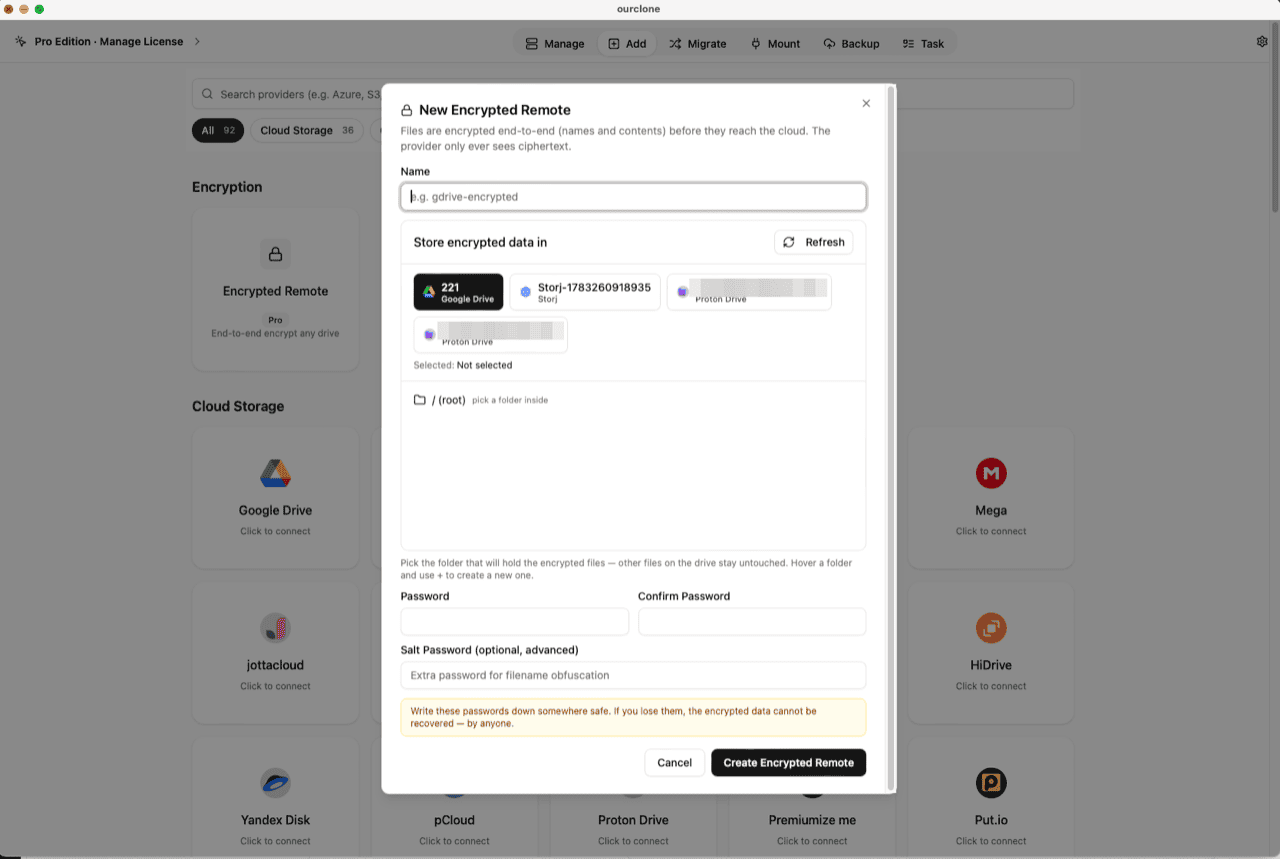
Addpage, the Encryption section sits above the provider grid. Click the Encrypted Remote card (marked Pro). - 🛠️ Create the Vault — Name it (e.g.
nextcloud-encrypted), pick your Nextcloud remote as the base storage, then choose or create a folder inside it — the vault must live in a folder, not the root, and only that folder will hold encrypted data. Set your password (plus an optional salt password for extra filename obfuscation) and click Create Encrypted Remote. - 📦 Move Files Into the Vault — Open
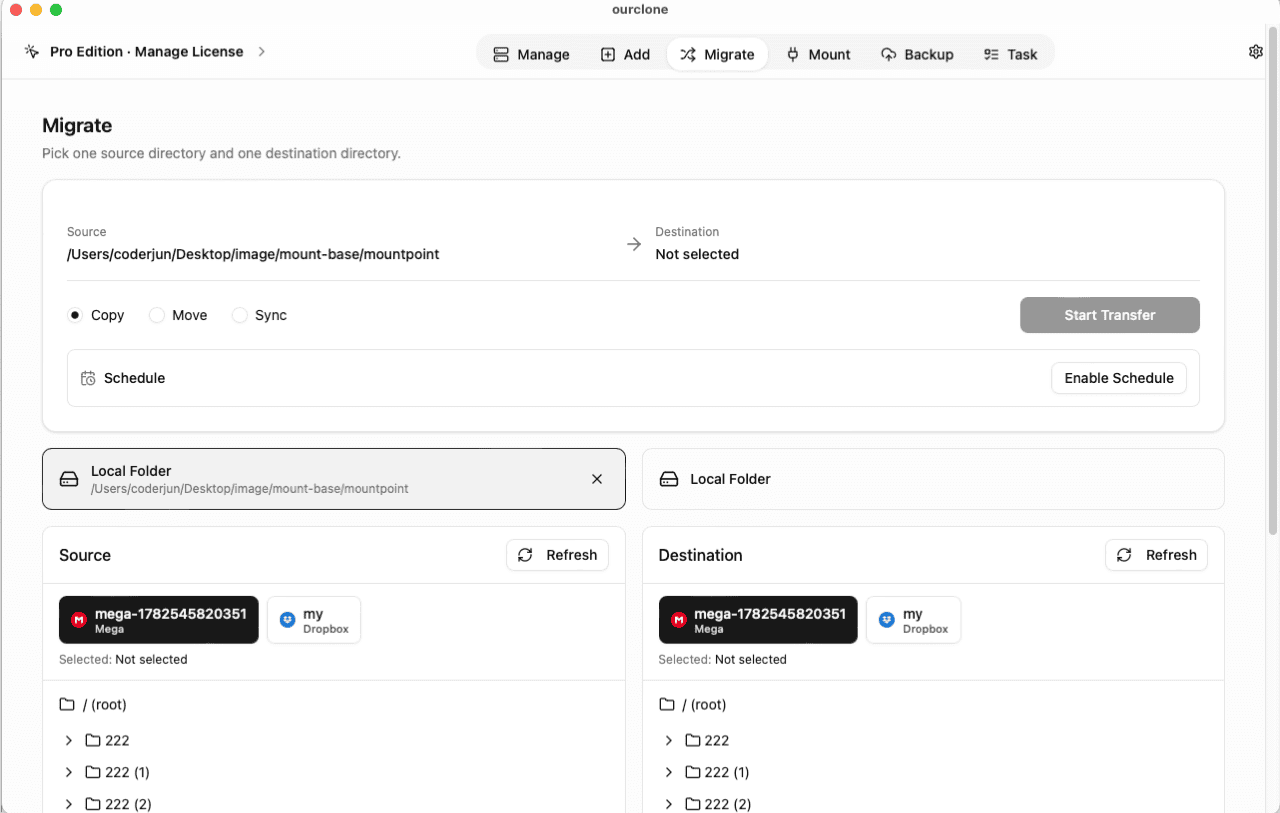
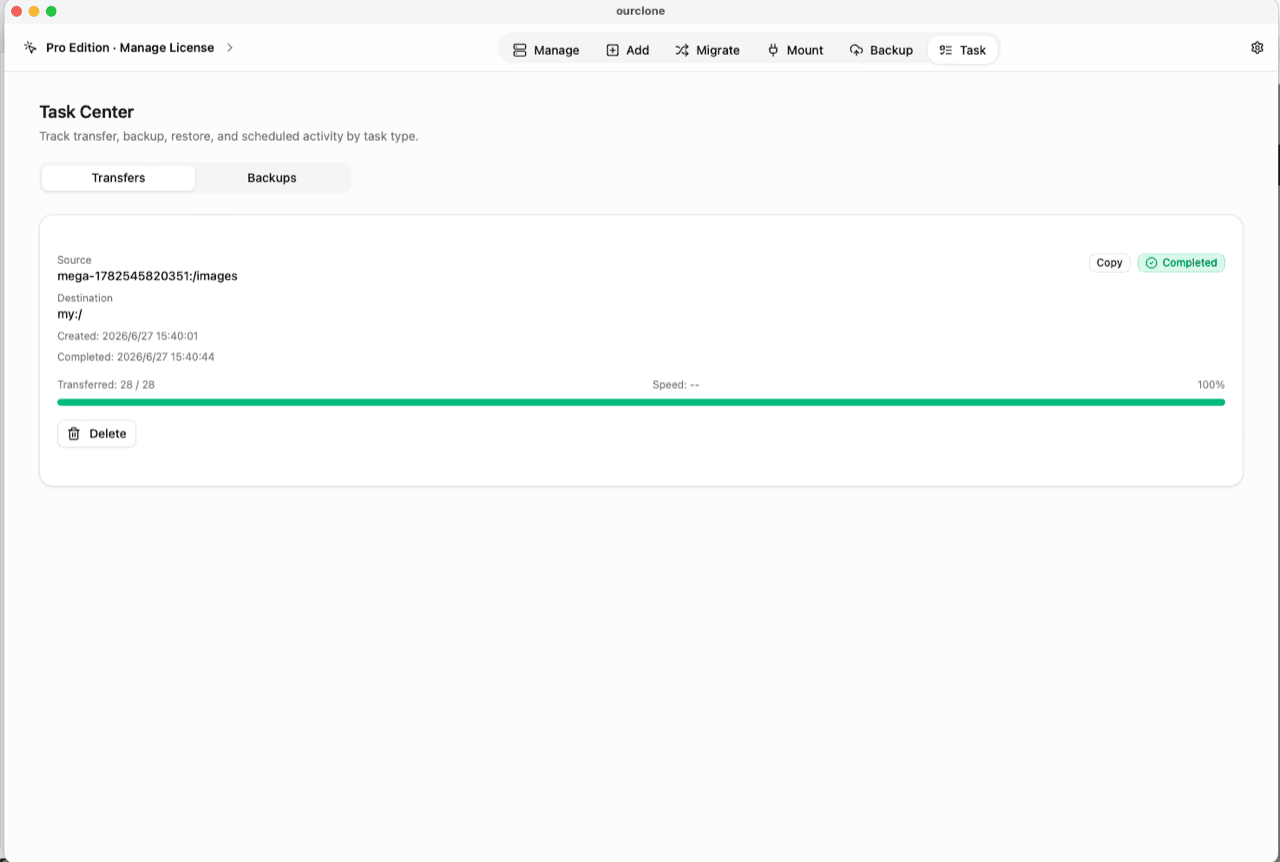
Migrate, choose a local folder (or another cloud) as the source and the vault as the destination, then run a copy, move, or sync. Files are encrypted on the fly — over your LAN if the server is local. - 📊 Watch It in the Task Center — The
Tasktab shows live progress, speed and any failed files, and history survives app restarts.
Save the vault password in a password manager — neither you-as-admin nor anyone else can recover the data without it.
Check What Your Nextcloud Can See Now
Open the Nextcloud web app — or list the data directory on the server itself — and look at the vault folder: scrambled file names, no previews, contents that read as noise. The admin view and the disk now agree: there's nothing readable there.
In OurClone, the vault carries a lock badge and the Manage page lists your real files, decrypted locally. You can also mount the vault as a local drive and browse it in Finder or File Explorer (no extra driver on macOS; Windows needs WinFsp).
Frequently Asked Questions
Is the encrypted vault free?
No — it's an OurClone Pro feature. Connecting Nextcloud, transfers and backups work on the free plan within its limits; see pricing.
What if I forget the vault password?
The data is permanently unreadable, by design. No reset, no backdoor — store it in a password manager.
What is the salt password?
An optional second password that strengthens file-name obfuscation. If set, both are required to read the vault — guard them equally.
How is this different from Nextcloud's server-side encryption or E2EE app?
The server-side module encrypts with keys that stay on the server — an admin can still decrypt. The E2EE app is genuinely end-to-end but folder-scoped, blocks web access and previews, and needs client support. The vault encrypts client-side over plain WebDAV: nothing to install server-side, and the key never leaves your devices.
Will the Nextcloud desktop or mobile apps sync the vault?
They'll happily sync the encrypted files — as ciphertext. To read the contents, open the vault through OurClone (Manage, or a mount) on a machine that knows the password.
Can I open the vault from another computer?
Yes — install OurClone, connect the same Nextcloud over WebDAV, and add an Encrypted Remote pointing at the same folder with the same password (and salt, if set).