Why Files on a NAS Deserve Their Own Encryption
Network-attached storage concentrates years of documents, photos and backups into one always-on box. That makes it convenient — and makes everything on it share the same fate if the device is breached, misused, or simply carried away.
- 💾 Shares store plain text — SMB can encrypt traffic (SMB 3), but the files themselves sit on the NAS disks readable to anyone with filesystem access.
- 👥 Shared box, shared exposure — family members, colleagues and the NAS admin account can often browse more than intended; one over-broad permission exposes a whole folder tree.
- 🦠 NAS devices are ransomware targets — internet-reachable Synology and QNAP units have been hit by real campaigns (QNAP's Qlocker in 2021 encrypted users' files for ransom). Attackers who reach the share read whatever is readable.
- 🏠 Hardware walks away — a burglary, an office move, a resold or RMA'd disk: plain-text data stays readable wherever the drives end up.
- 🌐 "LAN-only" erodes over time — port forwards, QuickConnect-style relays and VPN misconfigurations quietly turn local shares into remotely reachable ones.
What OurClone's Encrypted Vault Actually Does
OurClone's Encrypted Remote wraps your SMB share in a password-only encryption layer. The NAS keeps doing its job — storing and serving — but for the vault folder, what it stores is ciphertext it cannot interpret.
- 🔐 Encrypted before it crosses the LAN — files are encrypted on your computer; the NAS only ever receives ciphertext, whatever SMB version carries it.
- 🕵️ File names hidden too — names and contents are both encrypted; browsing the vault folder from any other device shows only scrambled strings.
- 🔑 Your password is the only key — it never touches the NAS; the admin account holds nothing that can decrypt the vault.
- 🧰 Open format, not lock-in — built on rclone crypt, an open and documented standard, independent of any NAS vendor's encryption scheme.
- 📁 One folder, not the whole share — media libraries, family photos and shared project folders stay exactly as they are; the vault claims only the folder you pick.
- ⚙️ Behaves like a normal remote — transfer into it, sync it, mount it, or use it as a backup destination.
The Encrypted Remote is an OurClone Pro feature, and a vault always wraps a plain remote — nesting one vault inside another isn't supported.
How to Create an Encrypted Vault on an SMB Share
Works with Synology, QNAP, TrueNAS, Windows shares — anything speaking SMB on your network.
- 🔗 Connect Your NAS via SMB — Open OurClone and go to
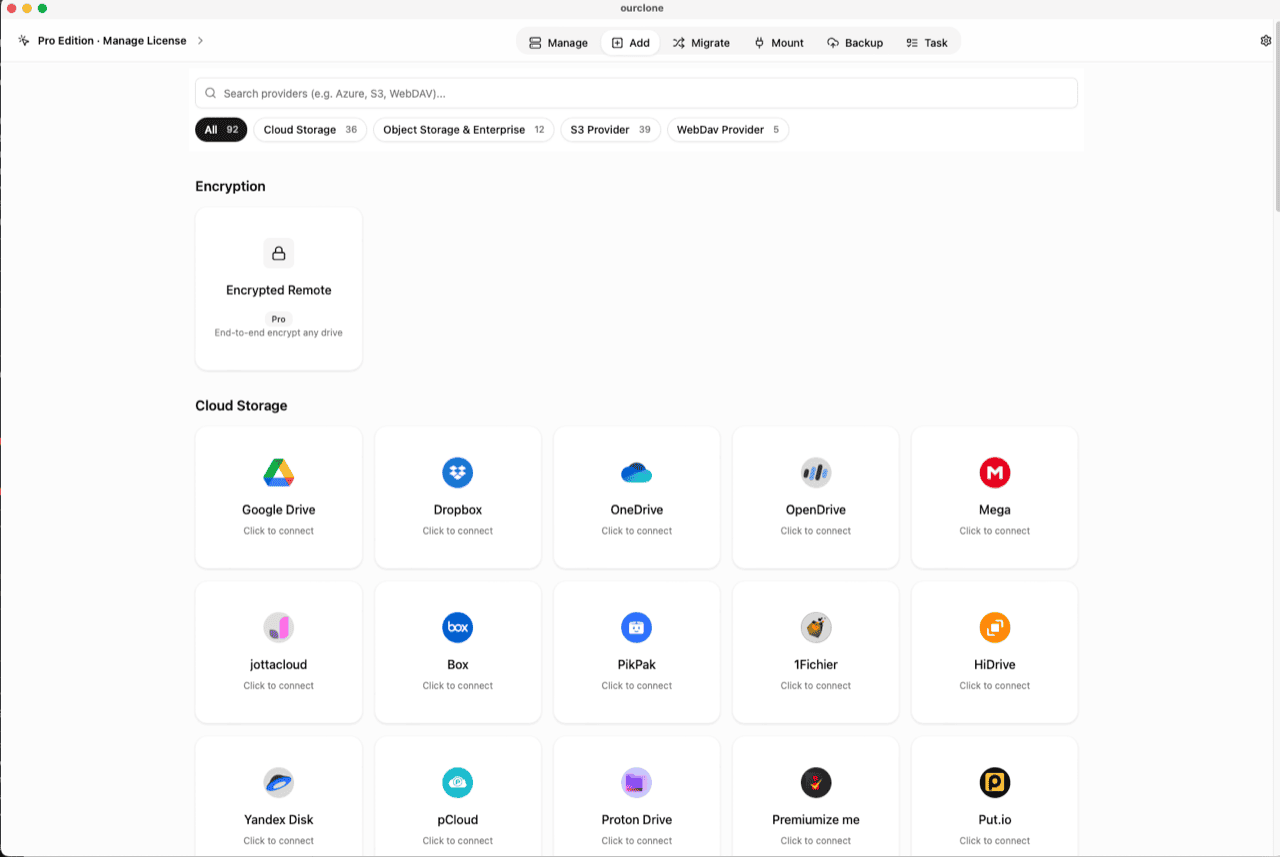
Add. Select SMB, then enter the IP address or hostname of your NAS (e.g.192.168.1.100), your username, password, and port (default 445). Once connected, the share appears as a storage destination. Already connected for backups? Skip ahead. - 🧭 Open the Encryption Category — In the
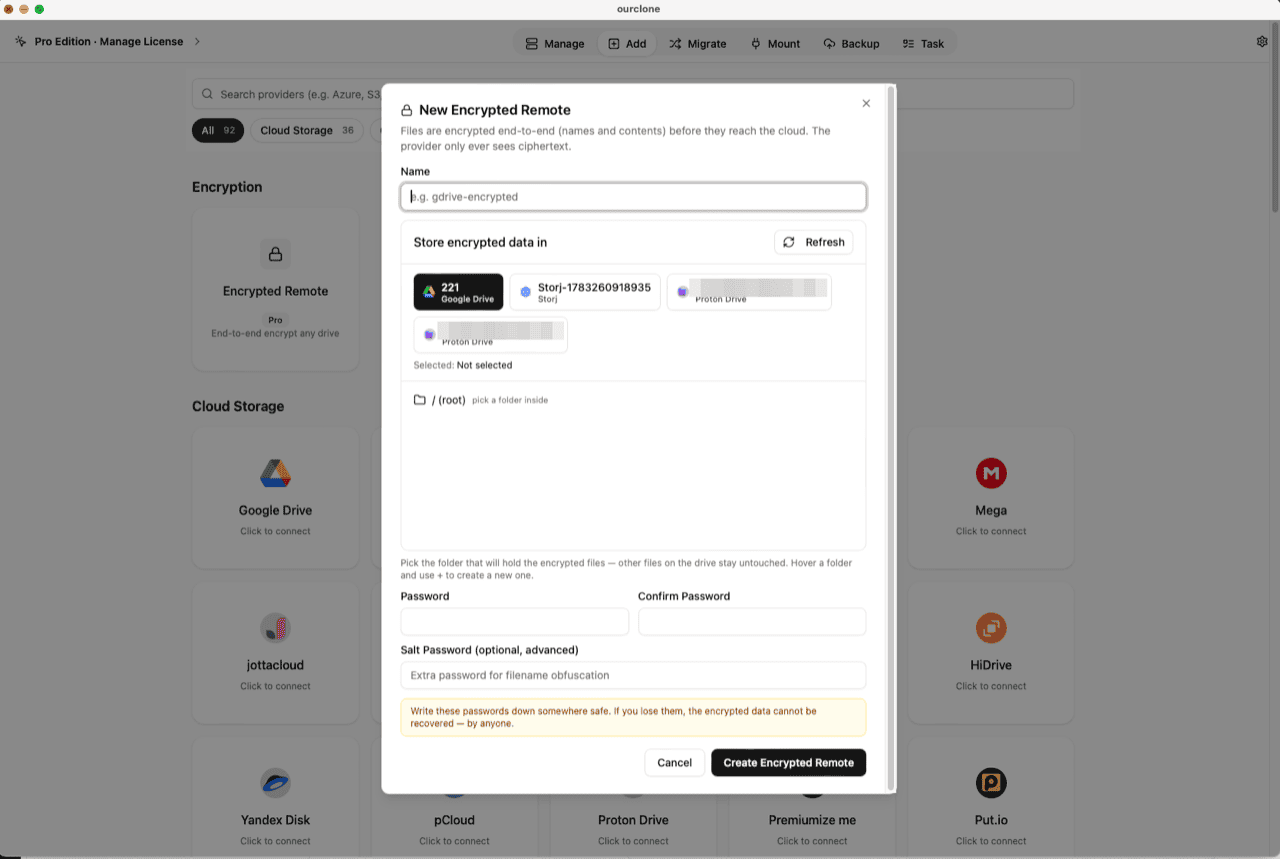
Addpage, the Encryption section sits above the provider grid. Click the Encrypted Remote card (marked Pro). - 🛠️ Create the Vault — Name it (e.g.
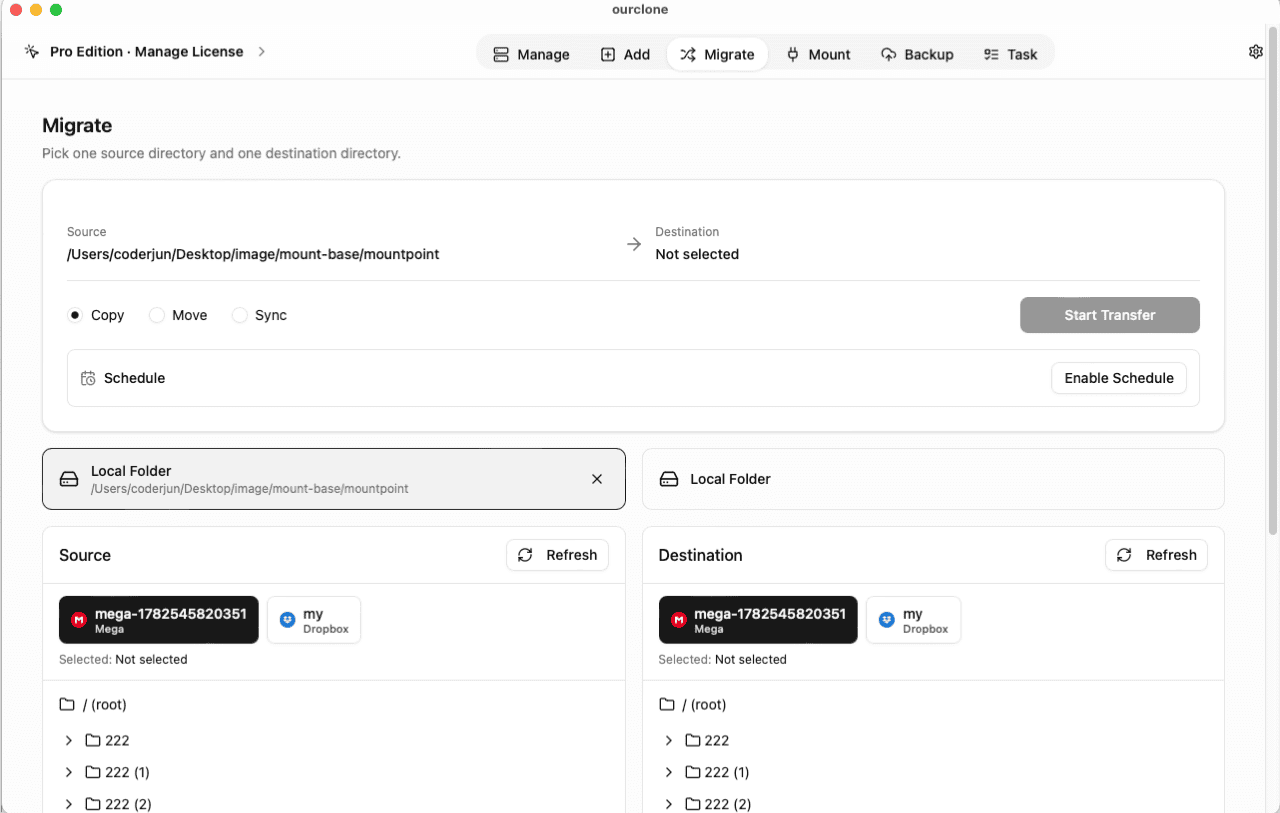
nas-encrypted), pick your SMB share as the base storage, then choose or create a folder inside it — the vault must live in a folder, not the share root, and only that folder will hold encrypted data. Set your password (plus an optional salt password for extra filename obfuscation) and click Create Encrypted Remote. - 📦 Move Files Into the Vault — Open
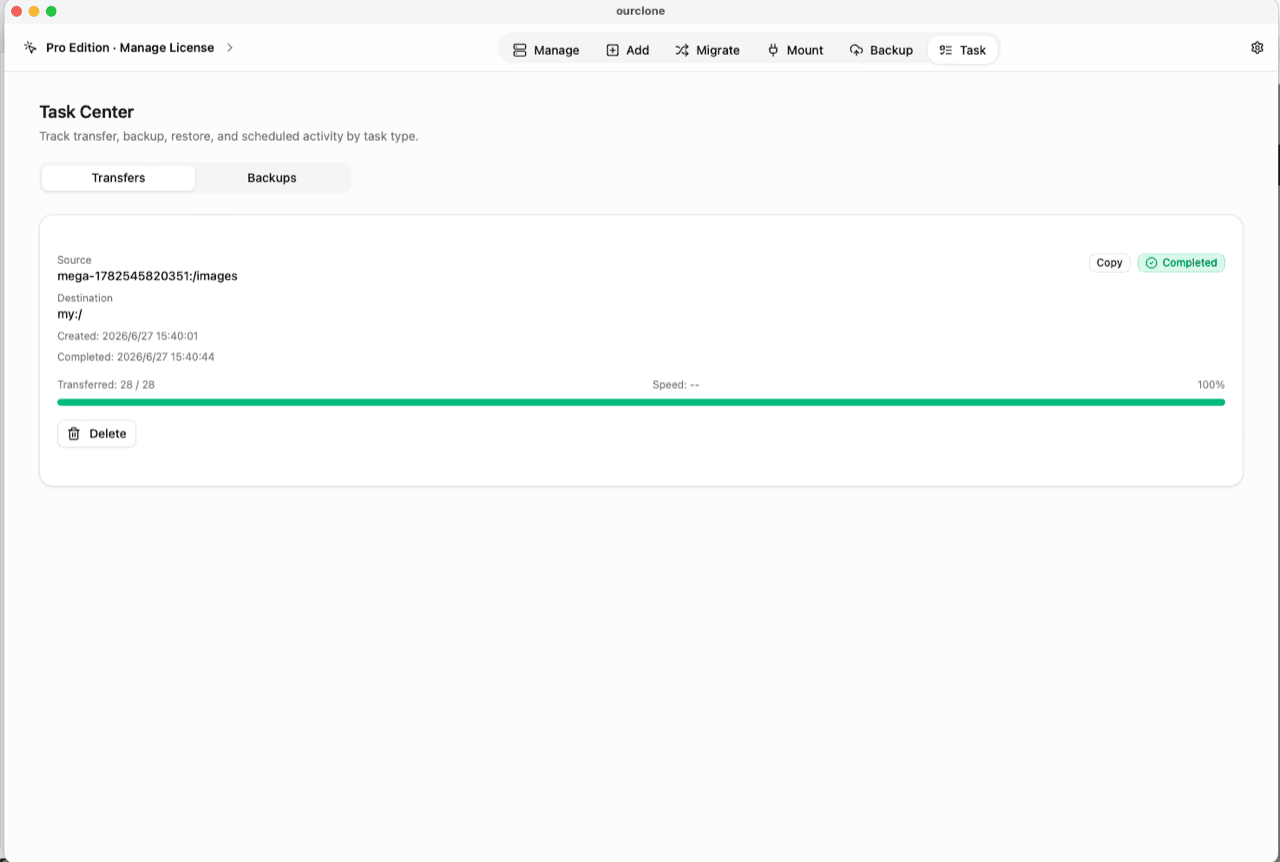
Migrate, choose a local folder (or a cloud remote) as the source and the vault as the destination, then run a copy, move, or sync. Files are encrypted on your machine before they cross the network to the NAS. - 📊 Watch It in the Task Center — The
Tasktab shows live progress, speed and any failed files, and history survives app restarts. Local-network transfers run at LAN speed — no internet round-trip involved.
Store the vault password in a password manager before moving anything important — if it's lost, the data cannot be recovered by anyone.
Check What the NAS Actually Stores Now
Open the vault folder from any other device — the NAS's own web file manager, another computer on the share, or the admin account itself. Every file and subfolder shows a scrambled name, previews stay blank, and copying a file out just copies ciphertext. Even a full-disk ransomware exfiltration of that folder yields nothing readable.
On your machine, OurClone's Manage page lists the vault's real contents — decryption happens locally, and the remote carries a lock badge. Prefer folders over apps? Mount the vault as a local drive and use Finder or File Explorer (no extra driver on macOS; Windows needs WinFsp).
Frequently Asked Questions
Is the encrypted vault free?
No — it's an OurClone Pro feature. Connecting SMB shares, transfers and backups work on the free plan within its limits; see pricing.
How is this different from my NAS's built-in encrypted folders?
Synology and QNAP encrypted shares are unlocked by keys the NAS itself holds — while mounted, files are readable to the device and its admin. The vault's key stays on your computer: the NAS stores ciphertext at all times and can never decrypt it.
What if I forget the vault password?
The data is permanently unreadable, by design. No reset, no backdoor — keep the password in a password manager.
What is the salt password?
An optional second password that strengthens file-name obfuscation. If set, both passwords are required to read the vault — guard them equally.
Can the rest of the family or team still use the NAS normally?
Yes. Media folders, shared documents and backups outside the vault work exactly as before. Only the vault folder is ciphertext — and only to those without the password.
Can I open the vault from another computer?
Yes — install OurClone, connect the same SMB share, and add an Encrypted Remote pointing at the same folder with the same password (and salt, if set).