Why Back Up Your Mac to a NAS over SMB
When your backup target sits on the same network, two things get better at once: speed and ownership. A Synology, QNAP, or even a shared Windows folder gives you terabytes of space you already paid for, and SMB is the protocol macOS uses to talk to all of them. OurClone turns that share into an encrypted backup repository.
Think of a photographer dumping a day's RAW shoot from ~/Pictures/Shoots onto a Synology in the next room -- the first copy finishes fast because it never leaves the LAN.
- ⚡ LAN-Speed Backups and Restores -- Local transfers aren't capped by your internet upload, so big folders move quickly.
- 🏠 Data Stays on Your Network -- Nothing leaves the building unless you choose to replicate it elsewhere.
- 🔐 Encrypted on the Mac -- OurClone encrypts repository data before it's written to the share, so the NAS holds only protected blocks.
- 💽 Use the Space You Have -- Multi-terabyte NAS volumes make generous retention easy compared with metered cloud tiers.
How Incremental Snapshots Save Time on a LAN
LAN transfers are quick, but a daily full copy of a large media library still wastes disk and time. Incremental snapshots only process what changed after the first run, so even a half-terabyte project folder stays cheap to re-snapshot.
The first backup writes everything to the NAS; from then on, OurClone adds just the new and modified data.
- 🚀 Only changed data is written after the initial snapshot
- 💽 Keeps NAS volume usage from ballooning with duplicates
- 🔐 Each snapshot is an encrypted restore point
- 📅 Multiple points in time without storing repeated full copies
Check These Before Your First NAS Backup
Most SMB backup problems are connection issues, not OurClone issues. Sort these first:
- 🌐 Confirm the NAS Hostname or IP -- Something like
192.168.1.100ormynas.local. A static IP or reserved DHCP lease keeps it from changing later. - 🔓 Enable SMB on the NAS -- On Synology DSM, turn on SMB under Control Panel → File Services; on QNAP, enable it in Network & File Services. Use a NAS account that can write to the target share.
- 🧱 Open Port 445 -- Make sure your Mac and NAS are on the same LAN and that any firewall allows SMB on port 445.
- 📁 Choose Folders Worth Restoring -- Prioritize
~/Documents,~/Desktop, or external-drive archives; leave out caches and temporary files. - 🧪 Start Small -- Snapshot one folder first to confirm the share, credentials, and restore flow before committing a large library.
Set Up an SMB Backup in OurClone
With SMB enabled and the NAS reachable, the rest happens inside OurClone.
- 🔗 Add the SMB Share -- In
Add Storage, choose SMB, enter a custom name, then the NAS hostname or IP, your NAS username and password, and port445. Confirm to connect. - 📦 Create a Backup Repository -- Open
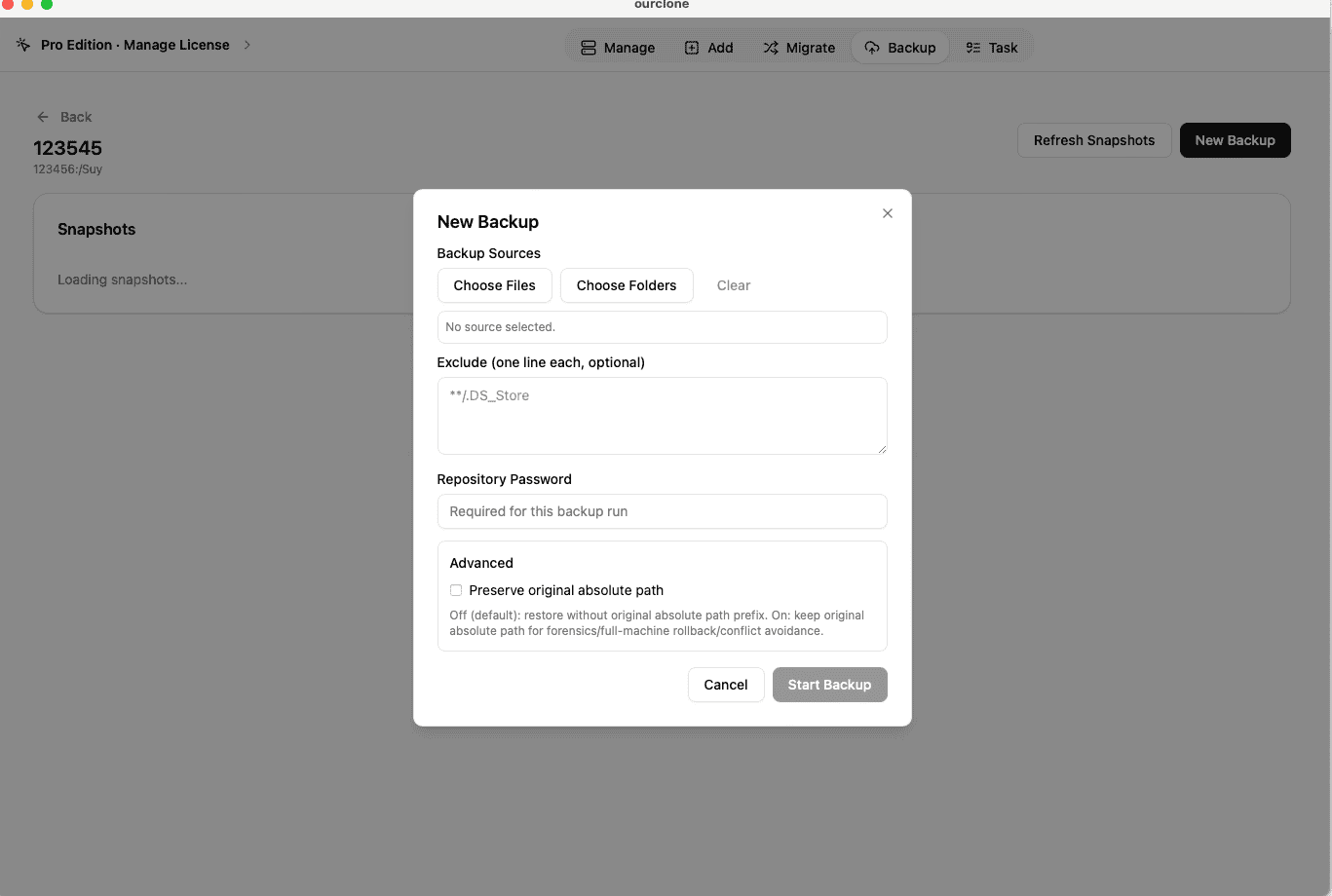
Backup, create a repository, and pick a path on the share (for example a/Backups/ourclonefolder). Name it and set a repository password that encrypts the backup -- you'll need it for every restore. - 🗂️ Select Mac Folders and Snapshot -- Open the repository, click
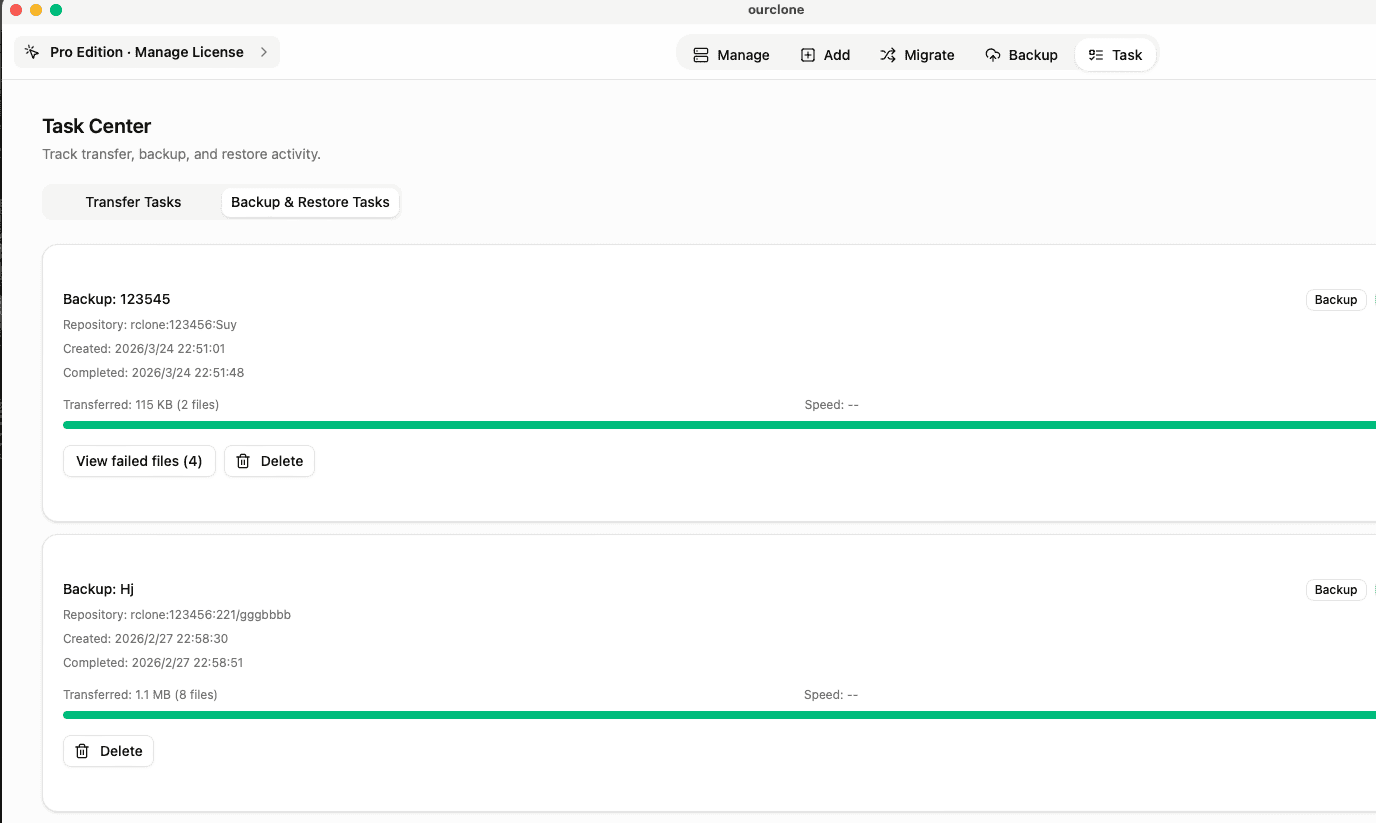
New Backup, choose folders like~/Picturesor a project directory, and start the snapshot. The first run is full; later runs are incremental. - 🕒 Monitor the Task -- Open
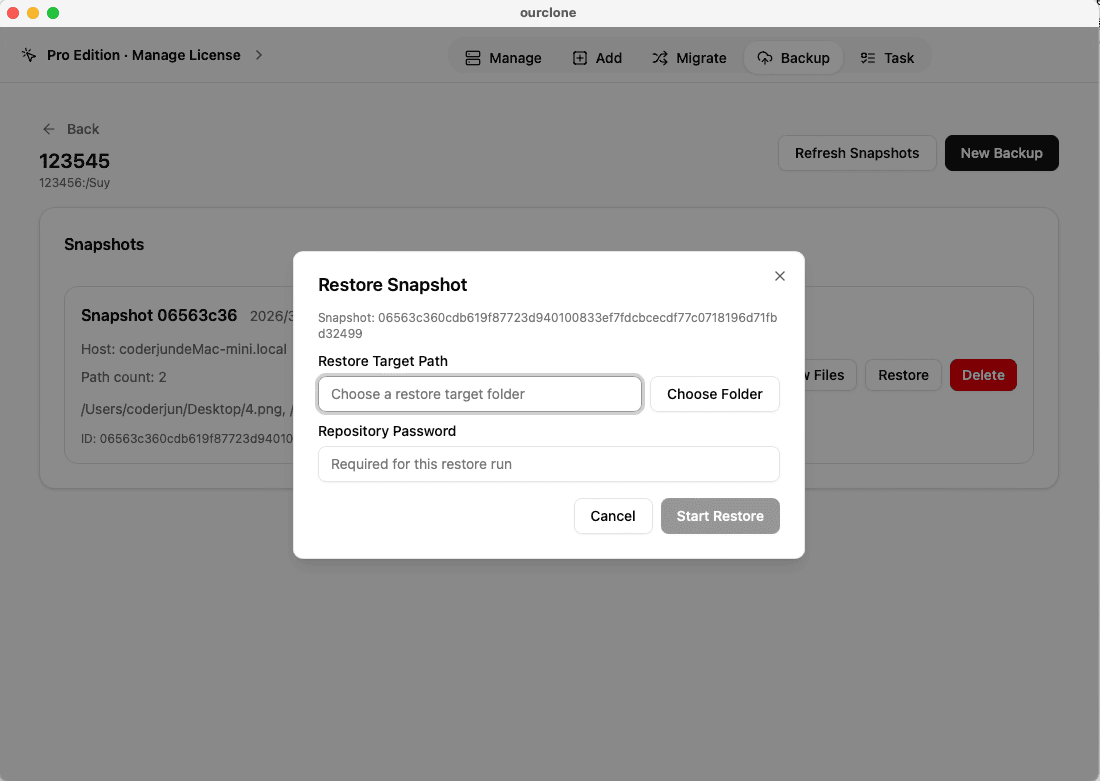
Task→Backup & Restoreto watch progress, throughput, and any skipped files. - 🔁 Restore from a Snapshot -- To recover, open the repository, select a snapshot, click
Restore, enter the repository password, and choose a local destination.


Confirm the Backup and Keep the Share Reachable
A backup to a NAS is only as good as the connection behind it -- verify both.
- 📄 Check Task Completion -- In
Task→Backup & Restore, confirm the snapshot finished without errors. Failed writes are flagged clearly. - 🧩 Review Skipped Files -- Permission problems on the share or locked files appear in the logs so you can address them directly.
- 🔐 Encryption Holds Locally -- Data is encrypted on the Mac before being written, so anyone browsing the NAS sees only encrypted repository blocks.
Watch for Network Changes
NAS backups break most often when the device's IP changes or its account password is updated. A reserved IP and a dedicated backup account keep things stable; if a run fails, confirm the NAS is online and reachable on port 445.
Test a Restore Before You Need One
Restore a small folder from a finished snapshot now and then. It proves the backups are usable and that the repository password still works -- both things you don't want to discover during a real recovery.