Why Mounting NextCloud on macOS Is a Smart Move
NextCloud is built for people who want to own their cloud, but the official desktop client wants to sync files down to your disk. Mounting flips that around: your NextCloud files appear in Finder and stream on demand, so you work on them like local files without filling up your Mac.
- 🗂️ Native Finder Access -- Your NextCloud files show up as a normal macOS volume, openable from any app.
- 💾 No Full Sync Required -- Stream only the files you open instead of mirroring the whole NextCloud instance to disk.
- 🔁 Live Two-Way Access -- Edits in the mount push back to NextCloud; changes from other devices appear after the next poll.
- 🛡️ Read-Only Safety -- Mount read-only when you just need to browse a shared library without risking accidental edits.
- 🏠 Self-Hosted Control -- Because NextCloud runs on your own server, mounting keeps both the data and the access path under your control.
How Mounting a Cloud Drive Works (and Why It's Different from Sync)
Sync downloads every file to your Mac and keeps duplicates in step. A mount is different: files live on NextCloud and only stream to your Mac when you actually open them.
OurClone handles reads, writes, and change detection through a local cache, so files you've opened recently stay fast while everything else waits on the server until needed.
You can mount NextCloud with a configurable polling interval and cache size, plus a read-only option when you only want to look.
- 🚀 Stream files on demand — no need to download the whole drive
- 💾 Saves Mac disk space by caching only what you actually open
- 🔁 Two-way sync — edits in the mounted folder push back to NextCloud
- 🛡️ Read-only mode prevents accidental writes when you only need to browse
What to Know Before You Mount NextCloud
A little planning makes the mount behave the way you expect.
- 🧩 No macFUSE Required -- On macOS, OurClone mounts through rclone's built-in
nfsmount, which relies on the NFS client already in macOS, so there is no kernel extension to install before your first mount. - 📁 Pick the Right Mount Source -- Mount a single folder like
/Photosfor focused access, or the whole NextCloud root for full Finder browsing. - 🖥️ Choose a Sensible Mount Point -- Use a dedicated empty folder such as
~/CloudMounts/NextCloud, not your Desktop or a folder that already holds files. - 🔒 Read-Only vs Read-Write -- Read-only is safer for browsing; read-write is required to upload, edit, or delete. Read-only mounts cannot upload.
- ⏱️ Set a Reasonable Polling Interval -- A shorter interval spots changes faster but makes more requests to your server; longer means less chatter.
- 💽 Plan Your Cache Size -- A bigger cache speeds up repeat access but uses local disk; match it to the files you open most.
How to Mount NextCloud on macOS with OurClone
OurClone connects to NextCloud over WebDAV, then mounts it as a local volume. Here's the full flow.
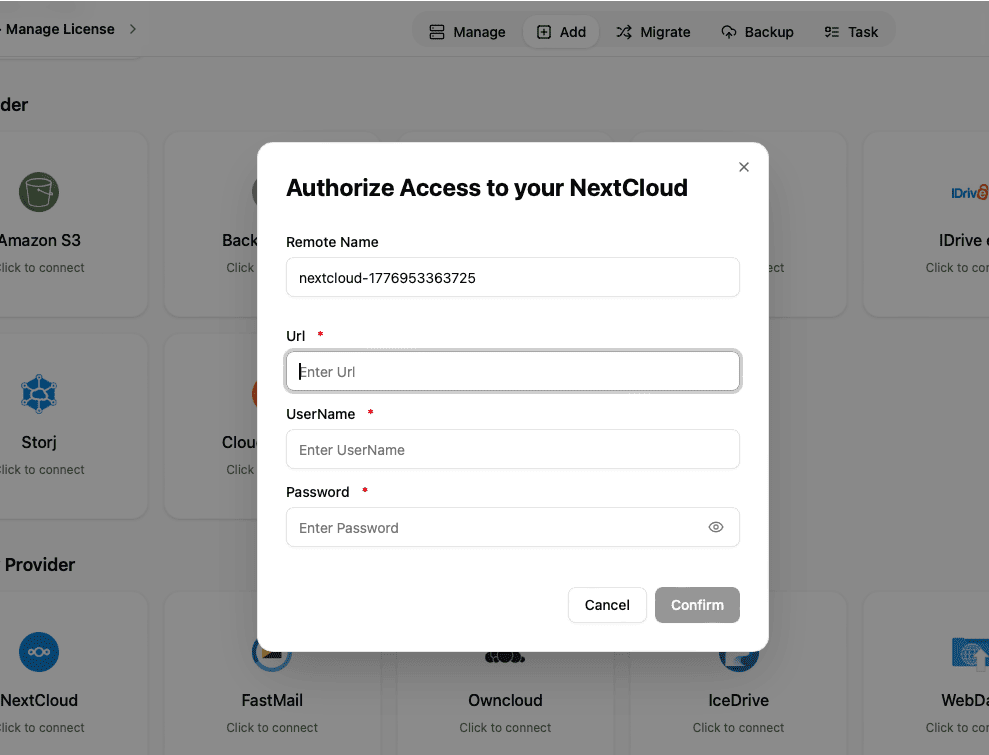
- 🔗 Add NextCloud via WebDAV -- Open OurClone and go to
Add Storage. Select NextCloud (or WebDAV). Enter the WebDAV URL (typicallyhttps://your-server.com/remote.php/dav/files/USERNAME/), your username, and password. If two-factor is enabled, create an app password under Settings → Security and use that instead. - 📂 Open the Mount Tab and Click New Mount -- Once NextCloud is connected, go to the
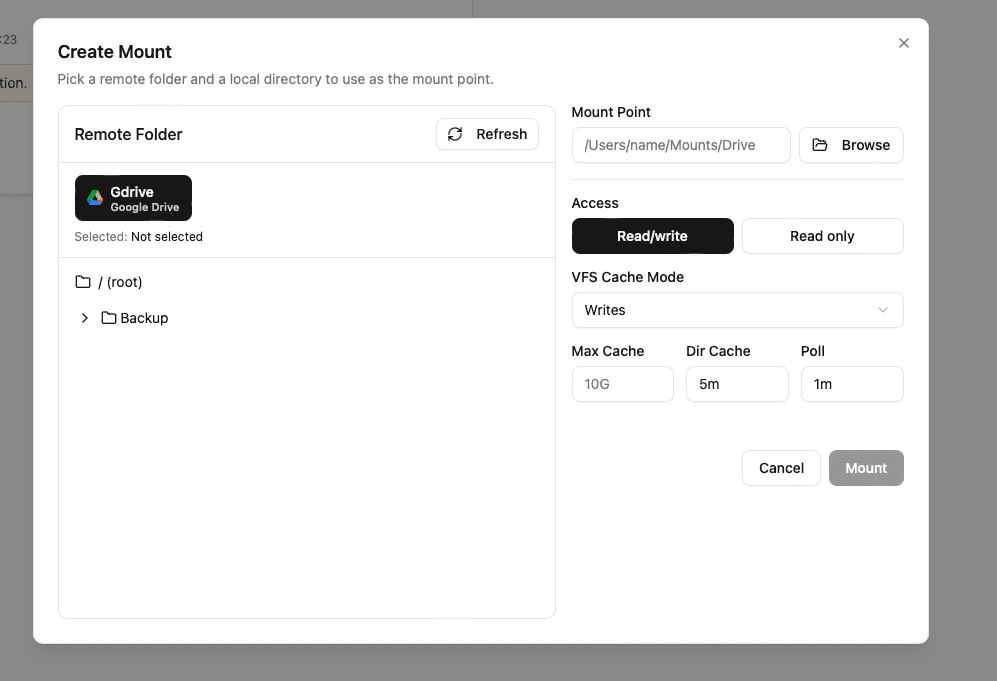
Mounttab in OurClone. Click New Mount in the top-right corner to open the mount configuration dialog. - ⚙️ Configure the Mount Settings -- In the dialog, pick NextCloud as the authorized source. Choose what to mount — a specific folder like
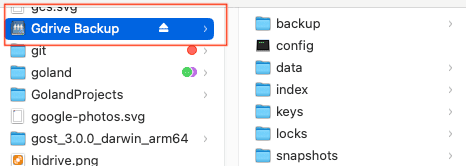
/Documentsor the whole drive. Pick a local mount point such as~/CloudMounts/NextCloud. Choose Read-only to browse or Read-write to edit and upload, then optionally adjust the polling interval and max cache size. Click Mount. - 🗂️ Use Your NextCloud Mount Like a Local Folder -- Open the mount point you chose. macOS treats it as a mounted volume — browse, open, create folders, drag in files, and delete items like any local folder. Create a
backupfolder and drop in a few files; OurClone streams the changes to NextCloud in the background. - ✅ Confirm the Sync on NextCloud -- Switch back to OurClone and open your NextCloud storage in the file browser — the new
backupfolder should be listed. For extra certainty, log in to your NextCloud web interface and confirm the files arrived.


A WebDAV connection plus OurClone's mount engine gives you a NextCloud volume that feels native on macOS — without syncing your whole server to disk.
Getting the Most Out of Your NextCloud Mount
A few things to keep in mind once the mount is running.
- 🔁 Edits Sync Both Ways -- Anything you add, rename, or delete in the mounted folder propagates to NextCloud. Changes from other devices appear after the next poll cycle.
- 🛑 Read-Only Means Read-Only -- If you mounted read-only, uploads and Save dialogs will fail. Remount as read-write to enable changes.
- 💽 Cache Lives on Your Mac -- Recently opened files are cached locally for speed. If disk space is tight, reduce the max cache size.
- ⏱️ Polling Interval Affects Freshness -- For a self-hosted NextCloud, a 30–60 second interval usually balances freshness against load on your server.
- 🔌 Unmount Cleanly Before Sleep -- OurClone reconnects on wake, but for long breaks click Unmount in the Mount tab to release the volume.
When Your Mount Stops Working
NextCloud mounts usually break for a handful of reasons: a changed account password, a revoked app password, an expired certificate, a server migration that changed the WebDAV URL, or a mount point that's no longer empty. Re-check the URL and app password, then remount.
Verify the Sync Anytime
Whenever you're unsure, open the NextCloud storage view inside OurClone or log in to your NextCloud web interface directly to confirm your files are there.