Why Backing Up Your macOS Folders to Nextcloud Is a Smart Move
If you want cloud backup without giving up control of your data location, Nextcloud Files is a compelling option. It combines self-hosted flexibility with strong security controls, while OurClone adds encrypted repositories, snapshot history, and a much cleaner backup workflow for your Mac.
- 🔐 Privacy and Access Control -- Nextcloud emphasizes file access control, password policies, brute-force protection, and ransomware protection. OurClone adds its own repository encryption before upload, so your backup data stays protected even beyond the platform's built-in safeguards.
- 💸 Flexible Pricing Paths -- Nextcloud can be self-hosted with open-source server software, which keeps the software layer free for many users, while Nextcloud Enterprise pricing starts at 71.29 EUR per user per year for 100 users. That gives you room to choose between low-cost self-hosting and a supported enterprise setup.
- 💻 Works Naturally with macOS -- Nextcloud offers desktop and mobile apps, but OurClone lets you back up any folder on your Mac instead of only mirroring a sync directory. That is especially useful for archives, project folders, and external-drive content.
- 📦 Deployment Flexibility -- You can point OurClone at a personal Nextcloud server, a business instance, or a hosted provider. That makes Nextcloud practical whether you are backing up one Mac or managing a more customized storage environment.
- 🌍 Cross-Device Recovery -- Because Nextcloud is accessible from multiple devices and web interfaces, your encrypted backup repository remains recoverable even if your original Mac is unavailable. Reconnect in OurClone and restore the files you need.
What Is Incremental Backup and Why Does It Matter?
A full backup every time may sound safe, but it becomes frustrating once your folders grow. Media libraries, design projects, and development workspaces take too long to re-upload if only a few files changed.
Incremental backup fixes that by sending only changed files and blocks after the first snapshot. Instead of rewriting the same content to Nextcloud over and over, you keep later runs much faster and lighter.
OurClone supports incremental backups to Nextcloud, which is what makes this setup practical in the long run. Nextcloud gives you a flexible storage target, and OurClone keeps recurring backups efficient enough to become a real habit.
- 🚀 Speeds up backup times by only syncing changed files
- 💾 Saves cloud storage space and bandwidth usage
- 🔐 Works with encrypted storage like Nextcloud for secure updates
- 📅 Allows versioning so you can access past edits when needed
What to Know Before You Start Backing Up
A little planning will make your Nextcloud backup easier to run and much easier to restore later.
- 📁 Pick the Right Folders -- Focus on folders with real recovery value, such as
~/Documents,~/Pictures, project folders, and exported work assets. Leave out macOS system files, caches, and temporary folders. - 📶 Make Sure Your Internet Can Handle It -- If your Nextcloud server is remote, the first upload may take a while. A stable connection matters most at the start, while later incremental backups should be much lighter.
- 🔒 Don't Forget Security -- If your Nextcloud instance uses two-factor authentication, create an app password when needed and store it securely. Keep your OurClone repository password separately, because you will need it for restores.
- 🧪 Start Small -- Test one smaller folder first so you can confirm the WebDAV URL, credentials, and restore flow before backing up larger archives.
- 📦 Know Your Backup Strategy -- The first run is a full backup, while later runs are incremental. That keeps your Nextcloud backup process much more manageable over time.
How to Back Up macOS Folders to Nextcloud Using OurClone
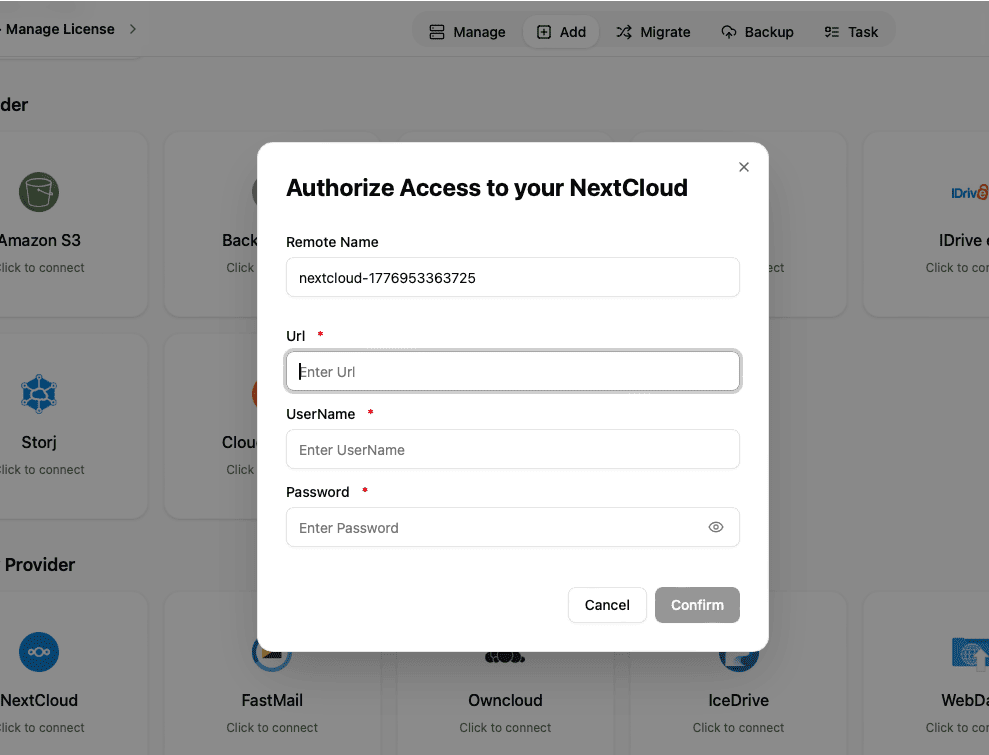
OurClone keeps the setup simple. Nextcloud works through WebDAV, so you'll prepare the correct WebDAV URL and your credentials first, then connect that storage target inside the app.
- 🔗 Add Nextcloud via WebDAV -- Open OurClone and go to
Add Storage. Select Nextcloud or WebDAV. Enter the WebDAV URL, typicallyhttps://your-nextcloud.com/remote.php/dav/files/username/, along with your username and password. If your Nextcloud setup uses two-factor authentication, you may need to create an app password in your Nextcloud settings or documentation. Once connected, Nextcloud will appear in your storage list. - 🗄️ Create a Backup Repository -- Go to the
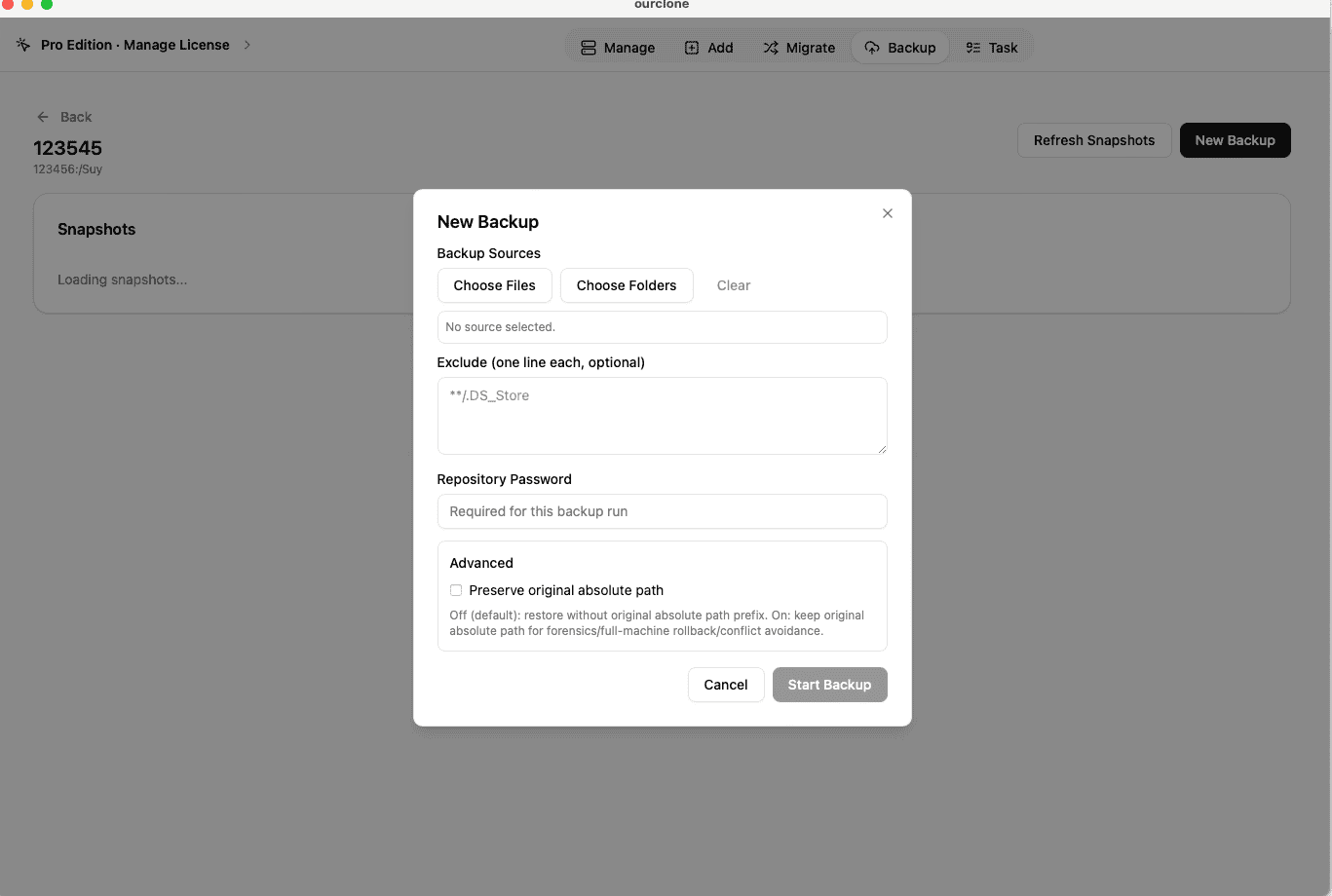
Backuptab and clickCreate Repository. Choose a destination path on Nextcloud like/macos-backup. Set a repository name and define your encryption password. This password is required to restore your files -- keep it safe. - 📁 Select Folders to Back Up -- Once your repository is ready, click
New Backupand select the local folders you want to protect. Whether it's~/Documents,~/Pictures, or folders on an external disk, OurClone will encrypt and send them securely to Nextcloud. - 📊 Track Backup Progress in Real Time -- Head over to the
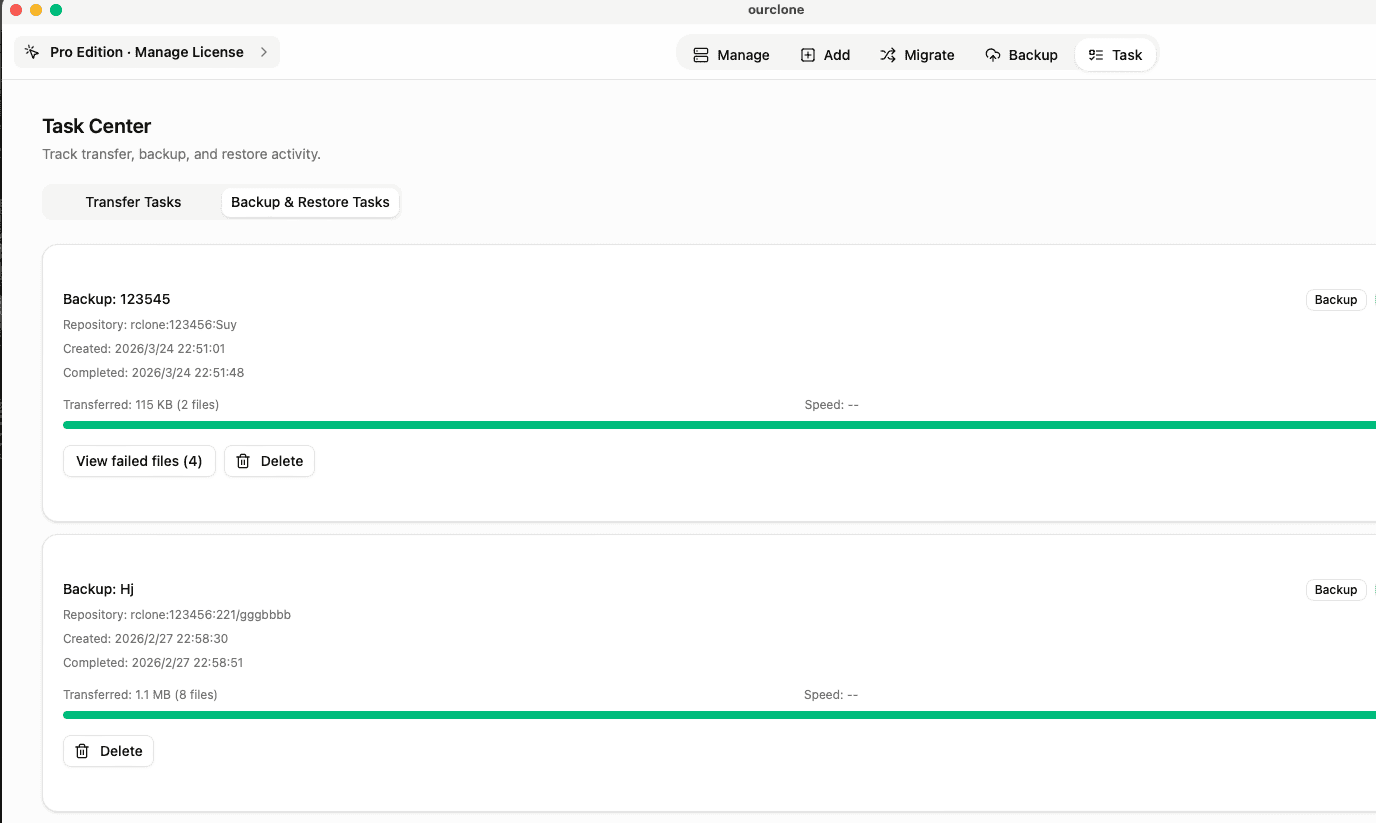
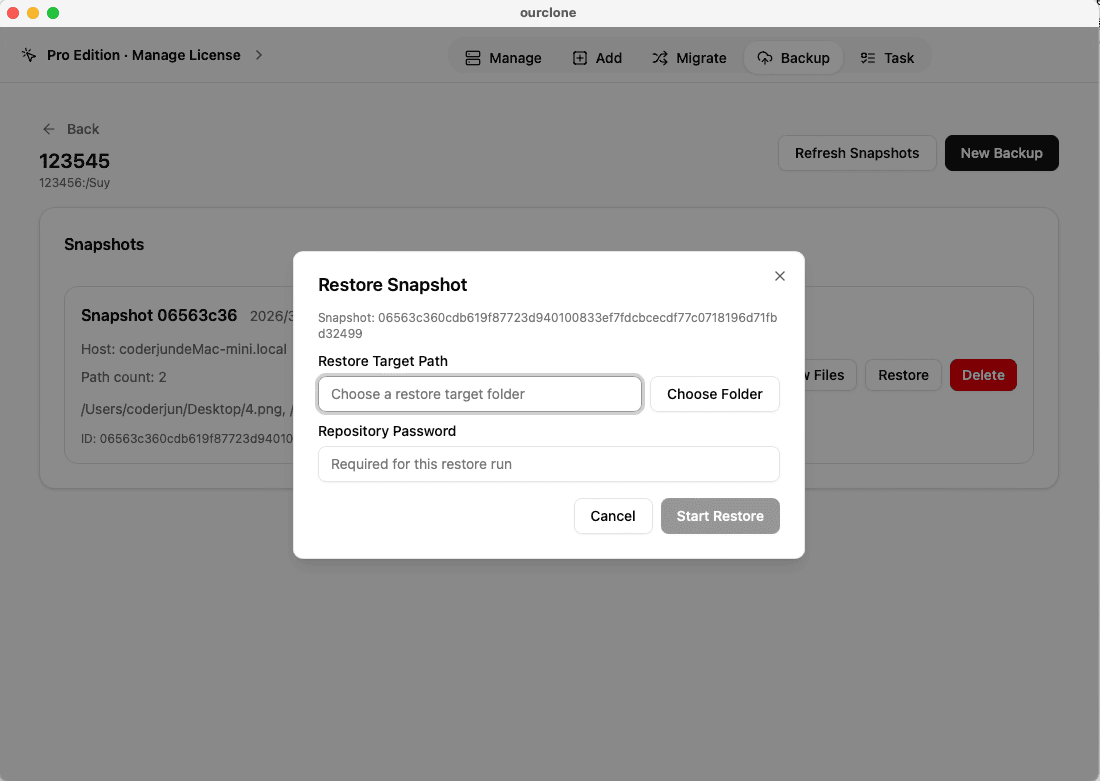
Tasktab to monitor your upload status. OurClone breaks files into blocks and uploads them efficiently -- even large backups can be paused and resumed without losing progress. - 🔄 Restore When Needed -- To recover data, open your repository, select a backup version, and click
Restore. After entering your encryption password, you can restore files to their original location or a new folder -- your directory structure stays intact.
Nextcloud gives you the flexibility of a private cloud or hosted provider, and OurClone gives you the encrypted backup workflow that makes it practical for everyday Mac protection. The result is a setup that feels much more robust than simple file syncing.
How to Confirm Your Backup in OurClone
When the backup finishes, verify it before you rely on it. A quick check makes sure your Nextcloud backup is ready for recovery and not just present on paper.
- 📄 Check Task Completion -- Review the latest backup task in the
Tasksection. If it completed without warnings, that is a good start. If uploads failed, OurClone will show the details clearly. - 🧩 Look for Partial Results -- Locked files, WebDAV path mistakes, or permission issues can cause skipped items. It is better to catch those now than during a real restore.
- 📜 Read the Detailed Logs -- Open the task log to confirm which files were included and how much data moved. That gives you a simple way to verify that the right folders were actually protected.
- 🔐 Protect Your Restore Path -- Verification also means making sure you still know the repository password, because Nextcloud storing the data is only half of what makes the backup usable later.
Regularly Check That Backups Are Still Running
Scheduled jobs still deserve occasional attention. Password changes, expired app passwords, or server updates can interrupt future Nextcloud uploads even when the repository itself still exists.
Test a Restore Before You Need One
Restore one smaller folder to a temporary location and open a few files. That confirms your Nextcloud connection, your repository password, and the integrity of your backup history before a real recovery becomes urgent.