Video Tutorial: Encrypt Dropbox Files Before Upload
Watch how to encrypt files before uploading them to Dropbox with OurClone, then follow the written vault setup steps below.
Does Dropbox Encrypt Your Files?
Yes — but not in the way most people hope. Dropbox has solid security engineering: AES-256 encryption at rest, TLS in transit, two-factor authentication. But like most mainstream clouds, Dropbox encrypts your files with keys that Dropbox manages — which means your content is technically readable on their side. The missing piece is client-side encryption: encryption that happens on your device, with a key only you hold.
| Dropbox's built-in encryption | Client-side encryption (OurClone vault) | |
|---|---|---|
| Where files are encrypted | On Dropbox's servers (at rest) | On your computer, before upload |
| Who holds the keys | Dropbox | Only you |
| File names | Visible to Dropbox | Encrypted along with contents |
| If your login is phished | Every file is readable | Attacker sees only ciphertext |
| On personal plans | Automatic | Via OurClone (Pro feature) |
- 🔑 Dropbox holds the keys — server-side AES-256 protects against outside attackers, not against the provider itself. Dropbox's own architecture can decrypt your files.
- 👥 Access is policy, not math — Dropbox states that employee access to file content is restricted and audited. That's an organizational promise; encryption with your own key is a mathematical one.
- 🧩 No personal end-to-end option — Dropbox acquired encryption vendor Boxcryptor's technology for its business tiers, but personal accounts have no built-in end-to-end encryption.
- 🎣 Account breaches expose readable files — a phished Dropbox login means every file is immediately usable by the attacker. Encrypted files are worthless without your vault password.
- 📄 Sensitive files sit in sync folders — contracts, scans of IDs, financial exports often end up in Dropbox by habit. Those are exactly the files worth encrypting first.
What OurClone's Encrypted Vault Actually Does
OurClone's Encrypted Remote wraps your Dropbox in a password-only encryption layer. Dropbox stays your storage — but inside the vault folder, it stores ciphertext it cannot interpret.
- 🔐 Encrypted before upload — files are encrypted on your computer; Dropbox only ever receives ciphertext.
- 🕵️ File names hidden too — names and contents are both encrypted; the vault folder on dropbox.com shows only scrambled text.
- 🔑 Your password is the only key — it never leaves your device, and OurClone keeps no recovery copy.
- 🧰 Open format, not lock-in — built on rclone crypt, an open and documented standard.
- 📁 One folder, not the whole account — the vault lives in a folder you pick; your shared folders and synced projects stay untouched.
- ⚙️ Behaves like a normal remote — transfer into it, sync it, mount it, or use it as a backup destination.
The Encrypted Remote is an OurClone Pro feature, and a vault can't be nested inside another vault — it always wraps a plain remote directly.
How to Encrypt a Dropbox Folder with OurClone
Setup happens in one dialog; here's the full path from zero.
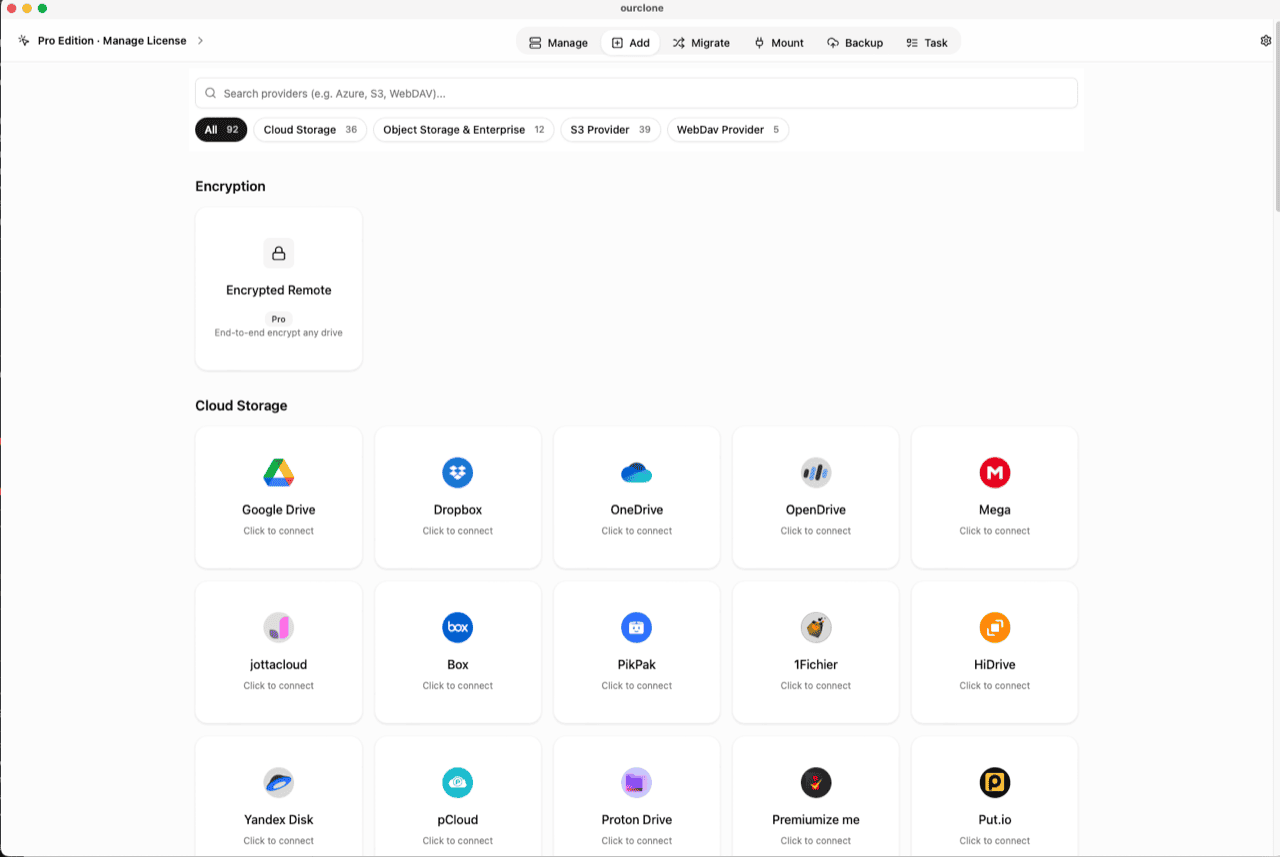
- 🔗 Connect Dropbox — Open OurClone and go to
Add. Select Dropbox; a browser window opens for login and authorization. Already connected Dropbox for mounting or transfers? Skip ahead. - 🧭 Open the Encryption Category — In the
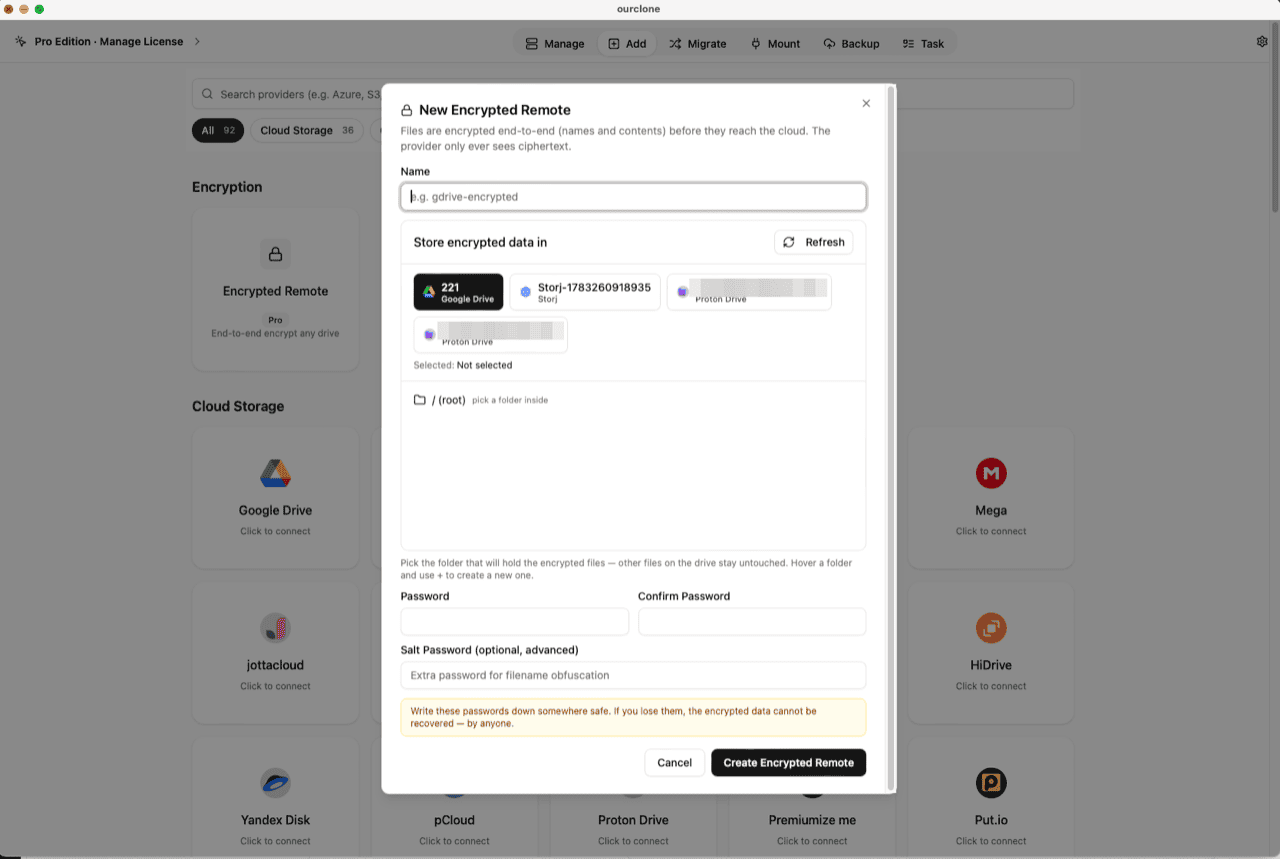
Addpage, the Encryption section sits above the provider grid. Click the Encrypted Remote card (marked Pro). - 🛠️ Create the Vault — Name it (e.g.
dropbox-encrypted), pick your Dropbox account as the base storage, then choose or create a folder inside it — the vault must live in a folder, not the account root, and only that folder will hold encrypted data. Set your password (plus an optional salt password for extra filename obfuscation) and click Create Encrypted Remote. - 📦 Move Files Into the Vault — Open
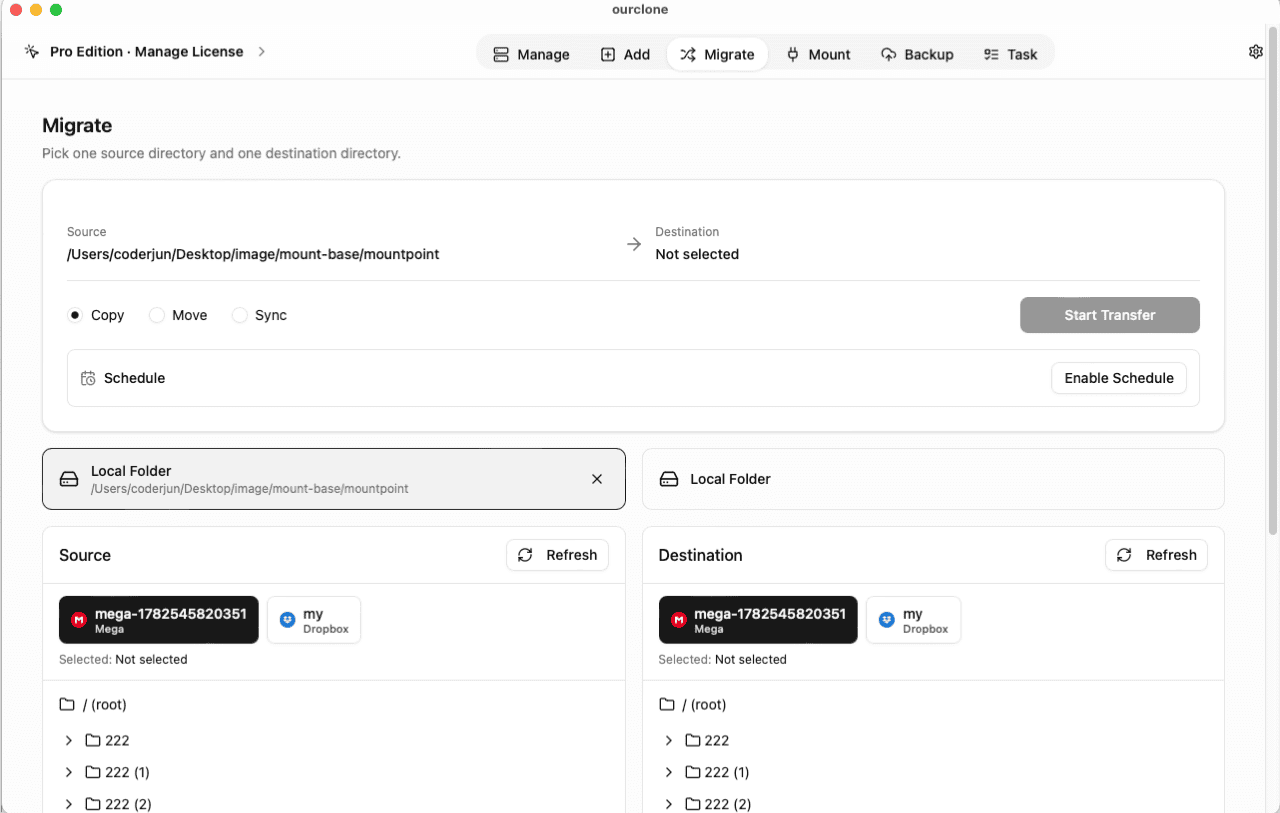
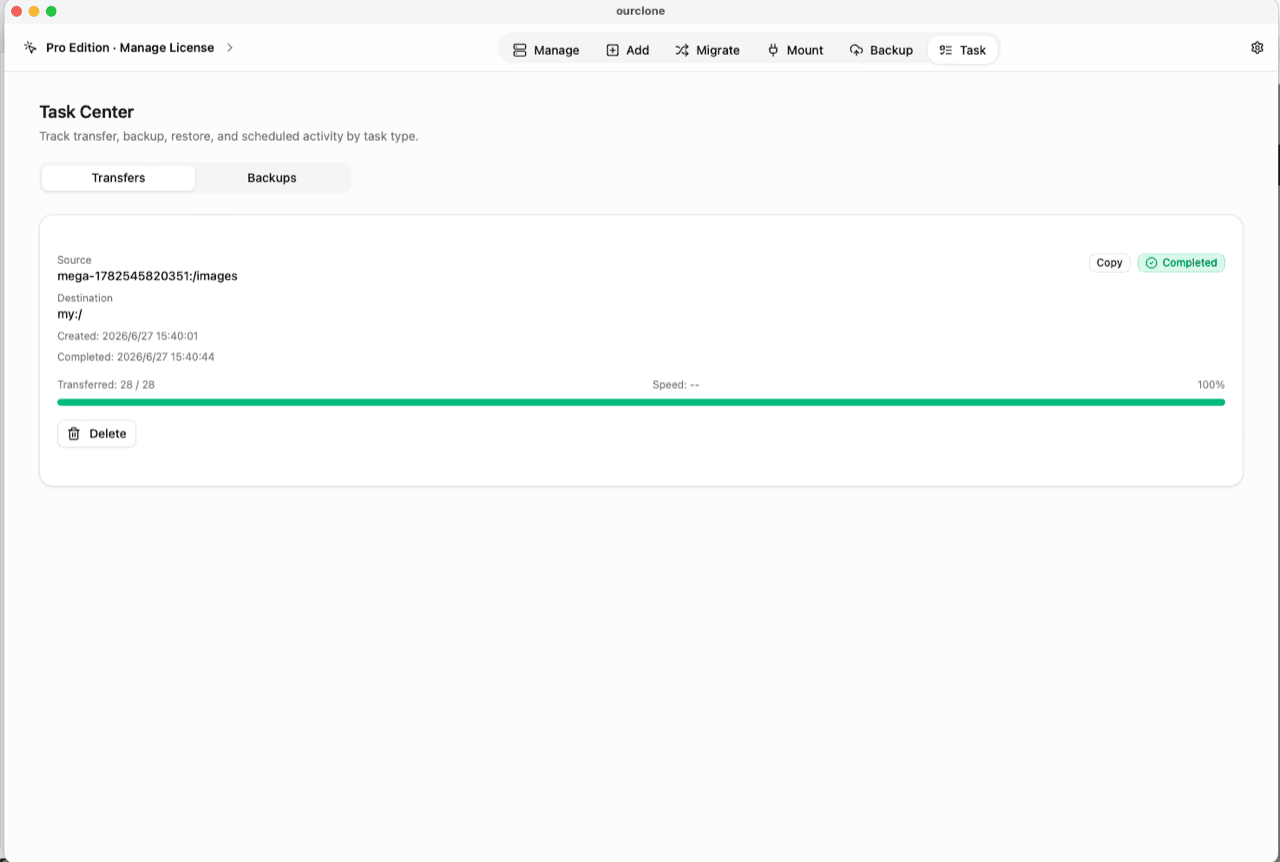
Migrate, pick a local folder (or another cloud) as the source and the vault as the destination, then run a copy, move, or sync. Encryption happens on the fly during upload. - 📊 Watch It in the Task Center — The
Tasktab shows live progress, speed and any failed files, and history survives app restarts.
One habit before the first big transfer: put the vault password in a password manager. If it's lost, no one can bring the data back.
Check What Dropbox Can See Now
Log in at dropbox.com and open the vault folder. Every file and subfolder appears with scrambled names, and previews are blank — Dropbox is faithfully storing data it cannot read. The same is true in the Dropbox desktop and mobile apps.
In OurClone's Manage page, the vault (marked with a lock badge) lists your real file names — decryption happens locally on your machine. Prefer a folder view? Mount the vault as a local drive and browse it in Finder or File Explorer (no extra driver on macOS; Windows needs WinFsp).
Frequently Asked Questions
Is the encrypted vault free?
No — it's an OurClone Pro feature. Connecting Dropbox, transferring and backing up work on the free plan within its limits; see pricing.
What if I forget the vault password?
The data becomes permanently unreadable — by design. There is no reset and no backdoor, so keep the password in a password manager.
What is the salt password?
An optional second password that strengthens file-name obfuscation. It must be kept as safely as the main password — both are needed to open the vault.
How is this different from Dropbox's own encryption?
Dropbox encrypts your files with keys Dropbox controls, so its systems can still process your content. The vault encrypts with a key only you hold — Dropbox stores ciphertext and nothing more.
Is this the same as Dropbox Vault?
No. Dropbox Vault is a PIN-protected folder: the PIN controls who can open the folder in Dropbox's apps, but the files inside are still encrypted server-side with keys Dropbox manages. OurClone's encrypted vault is client-side encryption — files leave your computer as ciphertext, so no PIN, access policy, or account breach can expose their contents.
Can I share files from the encrypted vault?
Not with a normal Dropbox share link — the link would deliver ciphertext, and the recipient would need OurClone plus your vault password to read it. Keep files you actively share outside the vault folder, and reserve the vault for data that should stay private to you.
Can I keep using the rest of my Dropbox normally?
Yes. Only the folder you picked holds encrypted data. Shared folders, team spaces, and everything else sync and share exactly as before.
Can I open the vault from another computer?
Yes — install OurClone, connect the same Dropbox account, and add an Encrypted Remote pointing at the same folder with the same password (and salt, if set).