Why Back Up a Mac to Dropbox (and Why Sync Isn't Backup)
Only backing up one folder? The quicker walkthrough is in back up a Mac folder to Dropbox — this guide covers the whole-Mac setup.
If you already pay for Dropbox, you're sitting on off-site storage that's perfect for backups — as long as you don't confuse backup with sync.
- 🔁 Sync mirrors your mistakes — the Dropbox desktop app faithfully replicates deletions, overwrites and ransomware damage. A backup keeps point-in-time snapshots you can rewind to.
- 🏠 Time Machine stays in the house — a Time Machine disk protects against drive failure, not against theft, fire or flood taking the Mac and the disk together. Dropbox is off-site by definition.
- 💾 Your quota goes further than you think — OurClone's backups are incremental and deduplicated: after the first run, only changed data uploads, and identical blocks are stored once.
- 🔐 Encrypted before upload — backups are restic repositories, encrypted on your Mac with AES-256; Dropbox stores ciphertext it cannot read.
- 🗂️ Versions, not just copies — every run is a snapshot. Need Tuesday's version of a file you mangled on Wednesday? It's there.
What to Back Up From Your Mac
You don't need a full-disk image in Dropbox — macOS itself reinstalls in an hour. What's irreplaceable is your data. A solid starting list:
- 📄
~/Documentsand~/Desktop— where real work accumulates. - 📷
~/Pictures— including the Photos library if it lives there. - 💼 Project folders — code, designs, client work, wherever you keep them.
- ⬇️
~/Downloads— optional; skip it if it's mostly re-downloadable clutter.
Skip ~/Library, caches and applications — they inflate the backup with data a reinstall recreates anyway, and OurClone's exclude patterns can filter out things like node_modules or .cache inside your project folders.
Set Up the Mac-to-Dropbox Backup in OurClone
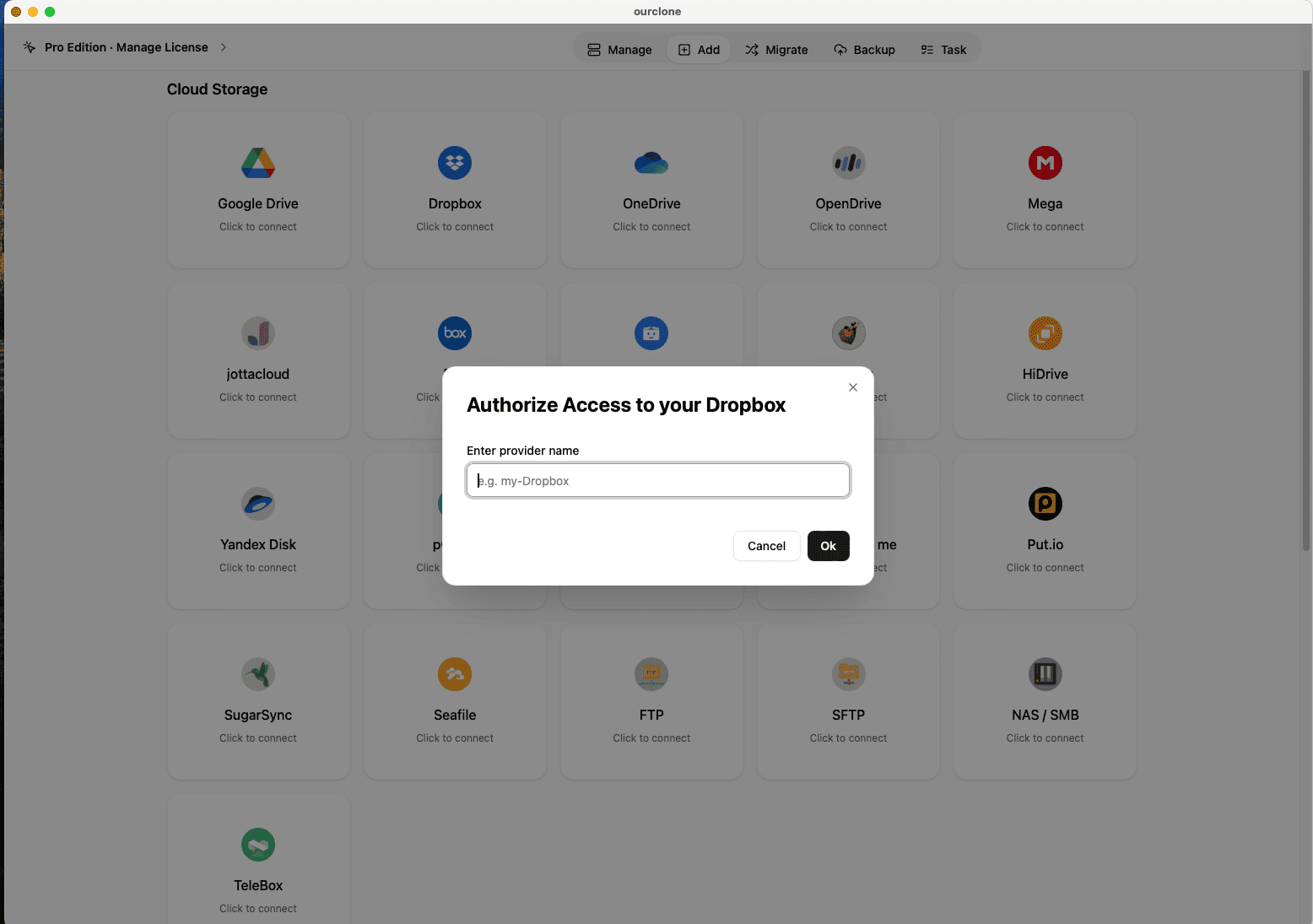
- 🔗 Step 1: Connect Dropbox — Open OurClone and go to
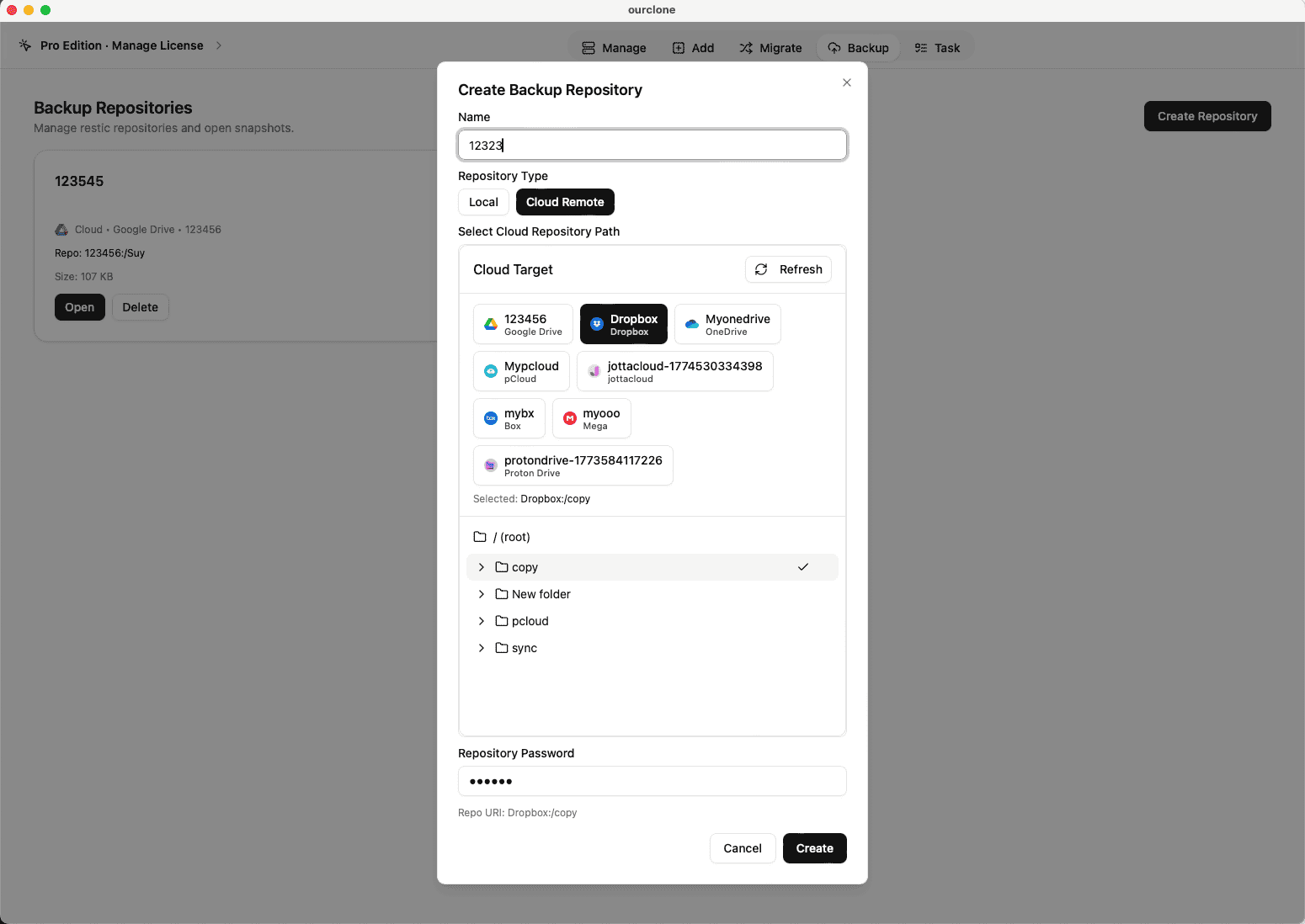
Add. Select Dropbox; a browser window opens for you to sign in and authorize — no password is typed into the app. - 🗄️ Step 2: Create an Encrypted Repository — Open the
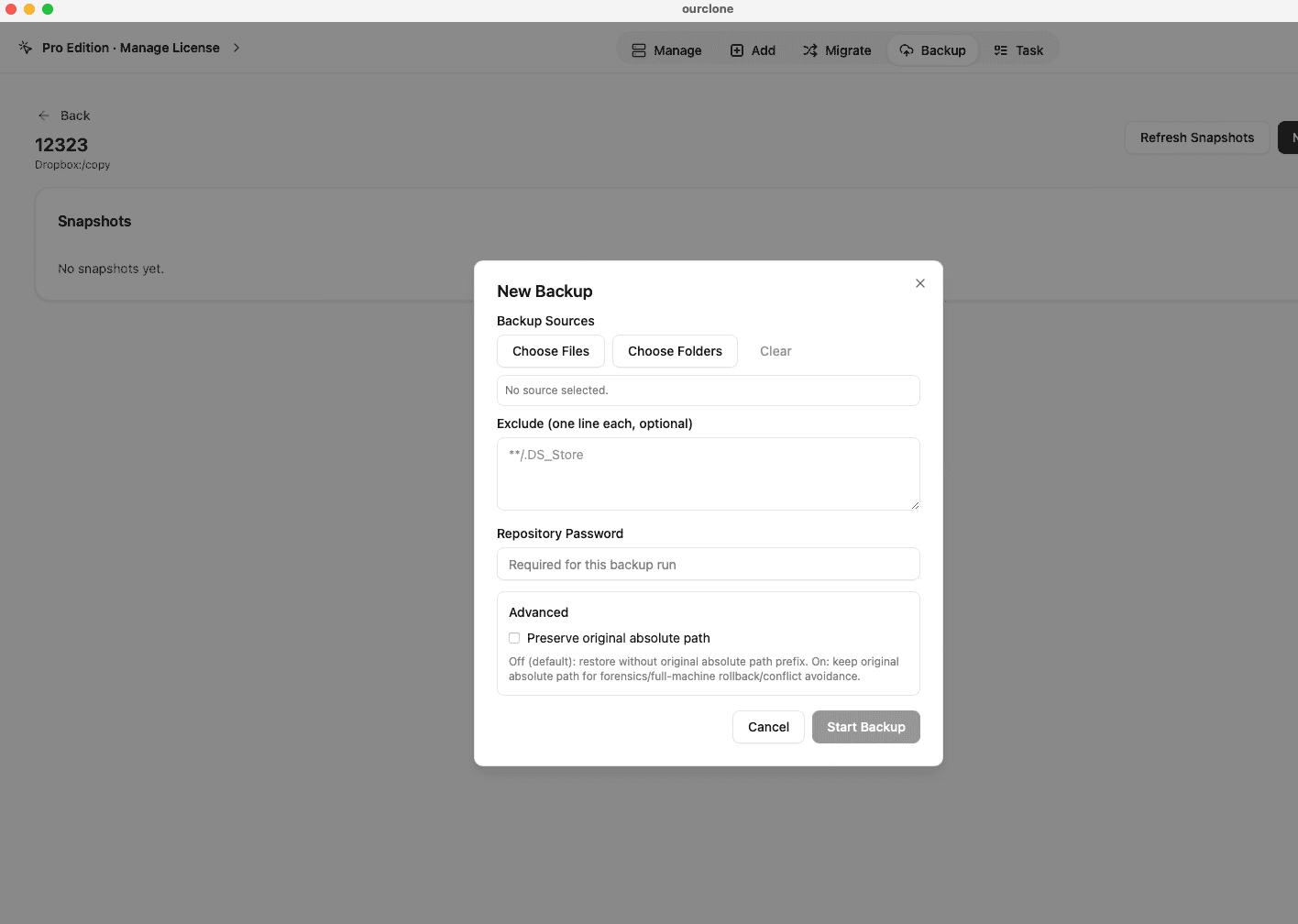
Backuptab and create a repository: pick (or create) a folder in your Dropbox — for example/mac-backup— then set a repository password and a display name. This password encrypts everything; store it in a password manager, because without it the backup is unreadable. - 📂 Step 3: Pick Your Mac Folders and Run — Inside the repository, click New Backup and select the folders from the list above. Add exclude patterns for anything you don't want (caches, build artifacts), then start the backup. The first run uploads everything; every later run uploads only what changed.
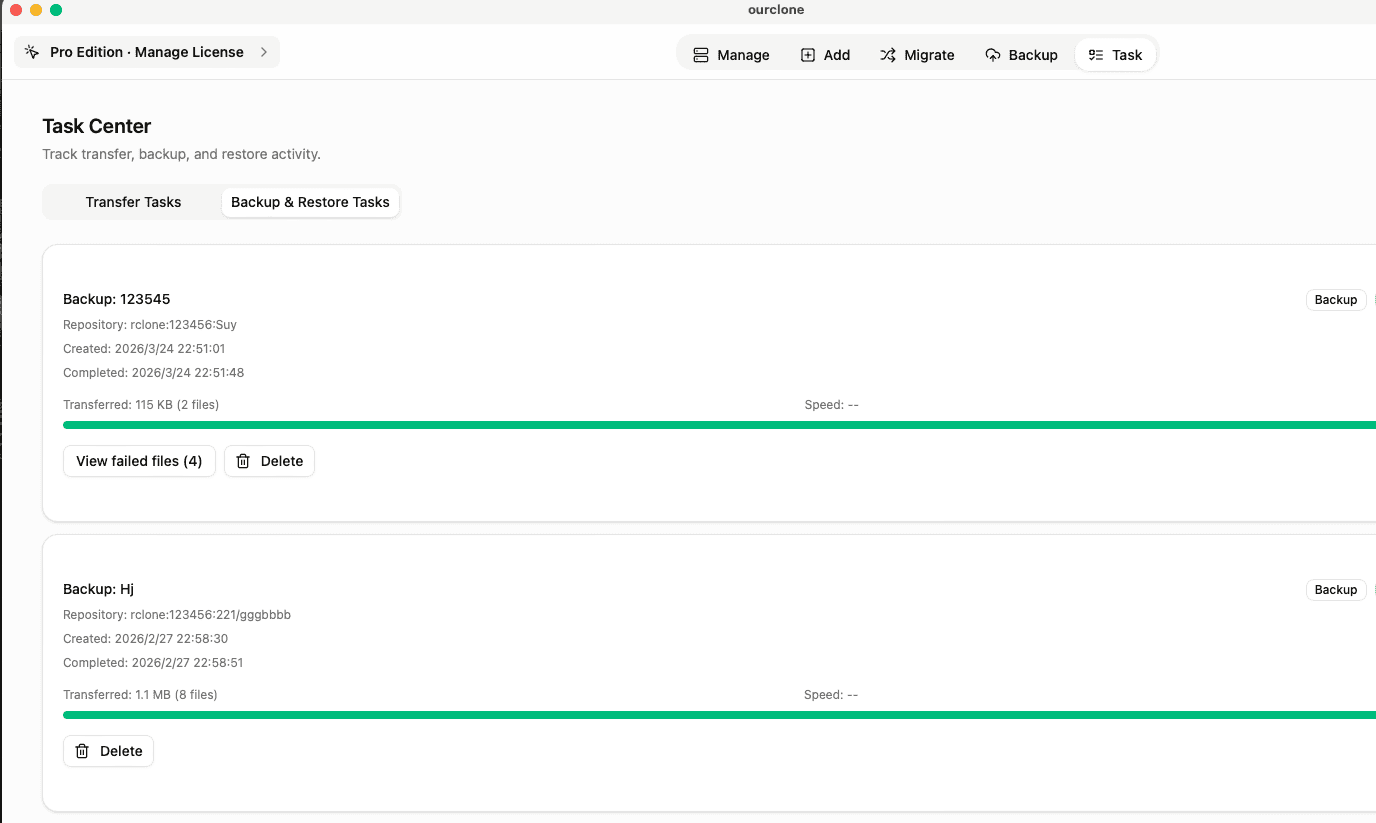
- 📊 Step 4: Watch It in the Task Center — The
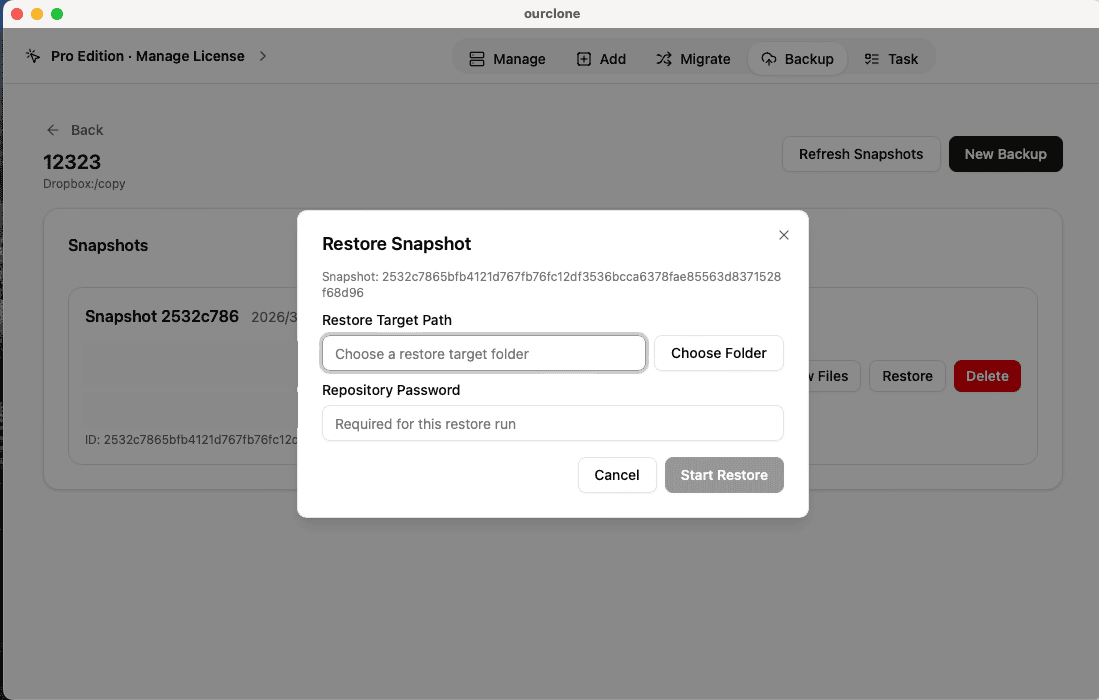
Tasktab shows live progress and speed, and history survives app restarts. Desktop notifications tell you when a run finishes or fails. - ♻️ Step 5: Restore When You Need It — Open the repository, pick a snapshot, and restore the whole thing or a single file back to your Mac. Test this once now — a backup you've never restored from is a hope, not a plan.
Keep It Running Without Thinking About It
A backup routine only works if it runs when you forget about it. Three OurClone features cover that:
- 🕒 Schedule the job (Pro) — save the backup to run automatically on a one-time, weekly, or monthly plan; scheduled runs appear in the Task Center like any other backup.
- 🫥 Tray & start at login — OurClone keeps working from the system tray when the window closes, and can launch at sign-in so scheduled backups actually fire.
- 🧹 Retention policies — keep the last N snapshots plus daily/weekly/monthly/yearly history, with optional automatic cleanup after each successful run, so old snapshots don't eat your Dropbox quota.
Want Dropbox files as a local drive too? See mount Dropbox on macOS. And for plain files you copy to Dropbox outside backups, the encrypted vault keeps those private as well.
Frequently Asked Questions
Do I need the Dropbox desktop app for this?
No — OurClone talks to Dropbox directly over its API. No sync client, no local Dropbox folder, and the backup doesn't count against the three-device limit on Dropbox Basic.
Can Dropbox read my backup?
No. Backups are restic repositories encrypted on your Mac before upload — Dropbox stores ciphertext. The repository password never leaves your device, so keep it safe: it cannot be reset.
How much Dropbox space do I need?
Roughly the size of the data you select, plus snapshot history — deduplication and compression usually keep the repository smaller than the source. Retention policies cap how much history accumulates.
Can it back up automatically every day?
Scheduling (Pro) supports one-time, weekly, and monthly plans — a weekly schedule can run on one or several chosen days of the week at a time you set. There's no continuous background sync; runs happen when a saved schedule fires (OurClone can be running in the tray).
Is this free?
The free tier includes backup with up to 2 repositories and 2 connected remotes — enough for exactly this setup. Scheduling and some advanced features are Pro.
Does this replace Time Machine?
They complement each other: Time Machine gives fast, local, full-system recovery; the Dropbox backup gives off-site, encrypted protection for your data. If you can only have one, off-site protects against more disasters.