Many users start with Mega for its generous free tier and easy file sharing, but at some point you may want your data stored in a service that focuses on long-term reliability and strong privacy rules. That’s where Jottacloud comes in. In this article, I’ll walk you through how I moved my files from Mega to Jottacloud with the help of OurClone — a simple desktop tool that runs locally and gives you full control over the process.
In short: You only need a few steps — install OurClone, log in with your Mega account, then generate a Personal Token from your Jottacloud profile to connect the two. The migration itself usually takes less than 20 minutes, even if you’re moving large folders.
🌍 Why Move to Jottacloud?
Unlike Mega, which is headquartered in New Zealand but operates under more flexible data policies, Jottacloud is based in Norway and follows strict GDPR compliance by default. That means your files benefit from some of the strongest privacy protections in Europe. On top of that, Jottacloud offers smooth desktop and mobile integration, along with unlimited photo storage in its personal plans, making it a trustworthy choice if you want a safe long-term archive.
✅ Before You Move Mega Files
Mega archives often contain large ZIP files, shared folders, and old project exports. A little preparation makes the migration cleaner and reduces the chance of surprises after the transfer.
- Check Mega login requirements -- OurClone needs your Mega email and password. If you use two-factor authentication, confirm whether you need an app-specific password or an updated login flow before starting.
- Choose a destination structure -- Create a Jottacloud folder such as
/Mega Archiveso migrated files do not mix with existing sync folders. - Run a small test -- Copy one folder first, then verify file names, nested folders, and timestamps before moving hundreds of gigabytes.
- Decide whether Mega stays active -- If Mega is only a source archive, use Copy first. Use Move only after you have confirmed the Jottacloud copy.
⚙️ Step-by-Step Migration
1. Install OurClone
First, grab the installer from Windows or macOS. The setup process is simple and doesn’t take more than a couple of minutes — very similar to installing other sync clients like Dropbox.
2. Connect Your Mega Account
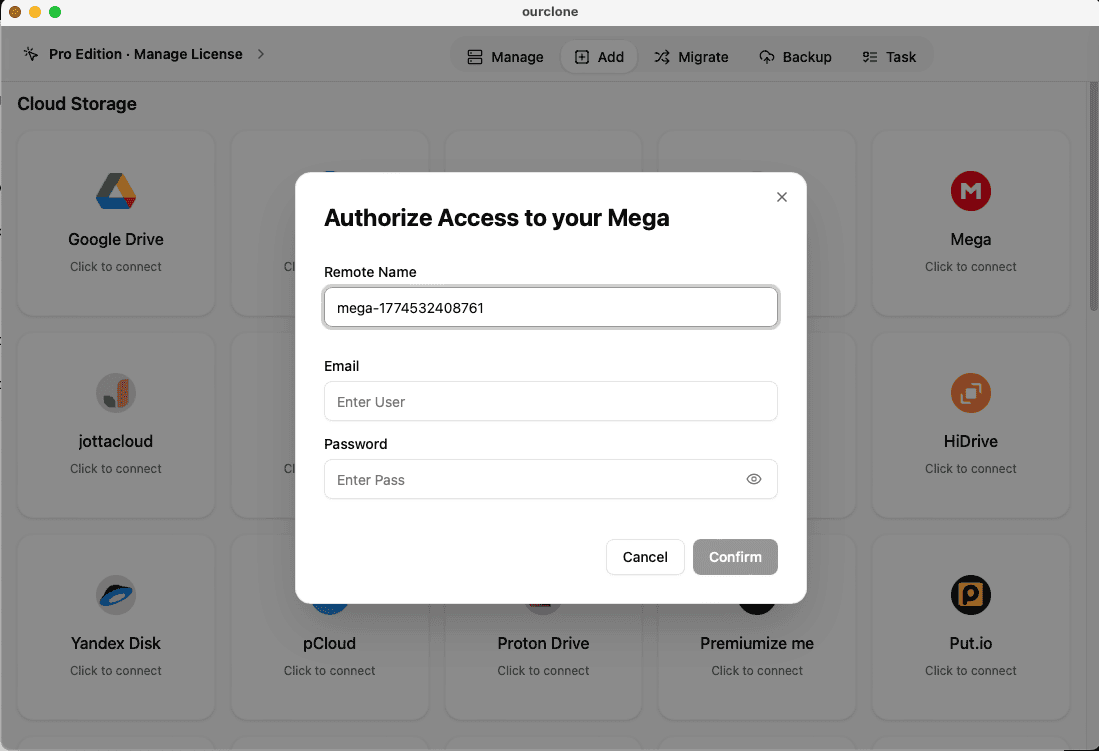
Open OurClone and click Add Cloud. This time, choose Mega from the list. Unlike Google Drive, you won’t be redirected to an OAuth screen — instead, OurClone requires your Mega email and password to establish a secure connection. Once logged in, you’ll see your Mega directories available inside the app.
3. Connect Jottacloud (Personal Token)
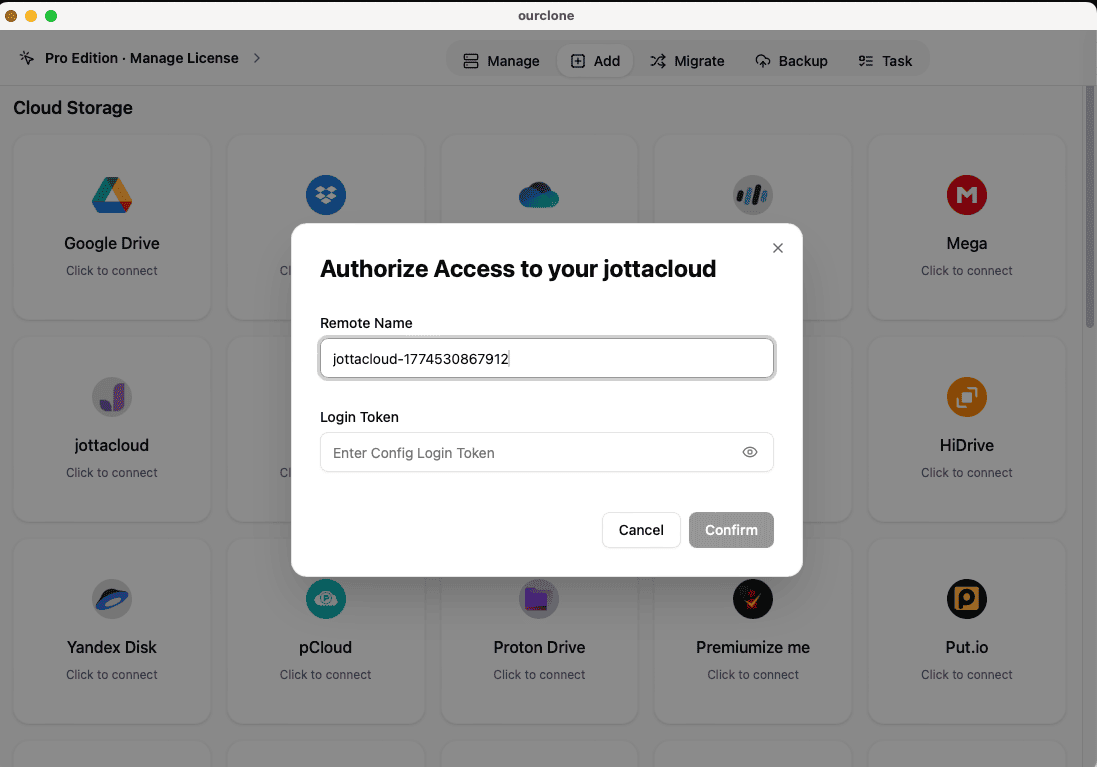
Jottacloud uses a different approach: instead of your account password, you’ll need to create a Personal Token:
- Log into your Jottacloud account
- Go to Settings → Security
- Generate a Personal Token and confirm with your password
- Copy the token and paste it into OurClone when adding Jottacloud
4. Configure the Transfer
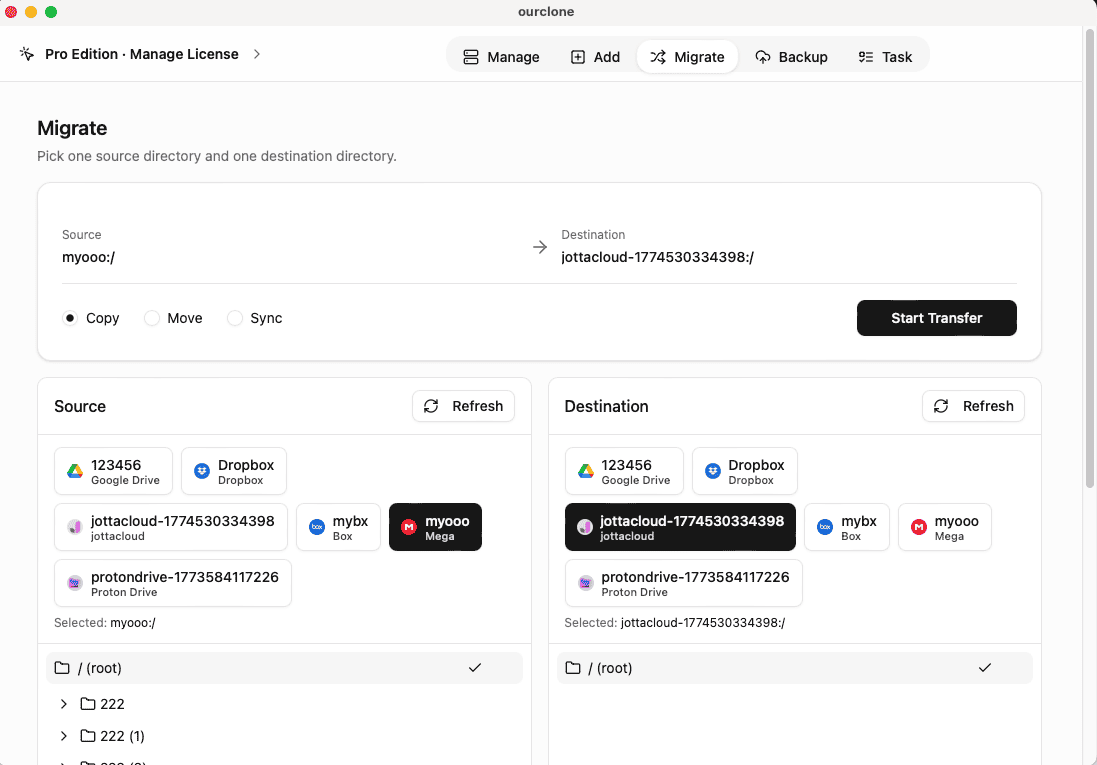
Once both accounts are connected, head over to the Migrate tab. Set Mega as the source and Jottacloud as the destination. Then choose your preferred mode of operation:
-
Copy→ Keeps your Mega files intact and duplicates them to Jottacloud -
Sync→ Mirrors changes between Mega and Jottacloud so both stay the same -
Move→ Transfers files to Jottacloud and deletes them from Mega
Hit Start, and the transfer will begin. You can watch the live progress and logs as files move over.
5. Track Progress in Task View
After launching the job, go to Task in the sidebar. This panel shows you transfer speed, total progress, and any errors that might occur. If something goes wrong — for example, a network interruption — you can retry or resume without starting over.
✅ After Moving Your Files
Once the transfer finishes, take a few minutes to double-check that key folders — such as Photos, Projects, or Work Documents — are safely in Jottacloud. To make the most of your new setup, it’s worth doing the following:
- Enable two-factor authentication on your Jottacloud account
- Organize your Jottacloud directories so navigation is easier
- Set up recurring jobs in OurClone if you plan to keep Mega and Jottacloud in sync
- Keep an eye on your Jottacloud storage plan to avoid space issues
🧭 Recommended Mode for Mega to Jottacloud
| Goal | Recommended Mode | Reason |
|---|---|---|
| Keep Mega as-is and create a Jottacloud backup | Copy | Safest for the first migration because nothing is deleted from Mega. |
| Retire Mega after validating the transfer | Move | Useful after a successful test run, but confirm files in Jottacloud first. |
| Keep both services updated for a while | Sync | Good for transition periods, but deletion and conflict rules should be reviewed carefully. |
⚠️ Troubleshooting Tips
If Jottacloud refuses the connection, head to Settings → Security → Personal Token and generate a new one.
Large Mega archives can quickly eat up your quota. Check your Jottacloud subscription and consider upgrading if needed.
If your internet drops mid-transfer, use OurClone’s resume option rather than starting over.
Files with the same name might be skipped or duplicated. Adjust your sync preferences in OurClone before re-running the job.
❓ FAQ
Should I use Copy or Move when leaving Mega?
Use Copy first. After you confirm the files in Jottacloud, you can run a Move task or manually clean up Mega. This avoids losing files because of a wrong destination or accidental filter.
Can OurClone transfer very large Mega folders?
Yes, but the speed depends on your computer, connection, and both providers' API behavior. For huge archives, split the work by folder and use the Task view to confirm each batch.
What if Mega login fails?
Check your email, password, and two-factor authentication settings. If your account security changed recently, reconnect Mega in OurClone before rerunning the migration.
Can I schedule Mega to Jottacloud sync?
Yes, scheduled jobs are useful if Mega remains an active source for a few weeks while Jottacloud becomes your long-term storage destination.
🚀 Ready to give it a try?
Download OurClone today and move your files from Mega to Jottacloud with ease: https://www.ourclone.app/download