What Is Jottacloud?
Jottacloud is a cloud storage and photo backup service based in Norway. OurClone can connect Jottacloud with a login token for sync, transfer, backup, and mount operations.
Official website: https://www.jottacloud.com/
- Good fit for photo libraries and personal file archives.
- Uses a login token rather than your main password.
- Helpful for backing up local folders into Jottacloud or copying Jottacloud data elsewhere.
What OurClone Supports for Jottacloud
| Operation | How it works in OurClone |
|---|---|
| Sync | Keep a folder on Jottacloud synchronized with another cloud storage account or a local folder. OurClone compares file changes and updates only what needs to change. |
| Transfer | Copy or move files between Jottacloud, your Mac, and other connected cloud providers. Transfers run through your local computer, so you stay in control of the data path. |
| Backup | Create an encrypted backup repository on Jottacloud, then save snapshots of local folders. Later snapshots are incremental, so unchanged files do not need to be uploaded again. |
| Mount | Mount Jottacloud as a local directory in macOS or Windows, then browse and manage remote files from the operating system file manager. |
Jottacloud Upload and Download Limits
These limits come from the storage provider or protocol, not from OurClone. OurClone still has to respect provider file-size caps, API quotas, bandwidth rules, account storage quota, and server-side throttling.
| Upload limits | No fixed public per-file upload limit was found in the provider documentation checked for this page. Practical limits depend on account storage quota, provider API throttling, file path rules, and network reliability. |
| Download limits | No fixed public download cap was found in the provider documentation checked for this page. Downloads may still be limited by bandwidth policy, sharing limits, API rate limits, or server configuration. |
| OurClone tip | For large OurClone sync, transfer, backup, or mount jobs, start with a small test folder, keep the computer awake, and check the Task log for provider throttling or quota errors. |
How to Add Jottacloud in OurClone
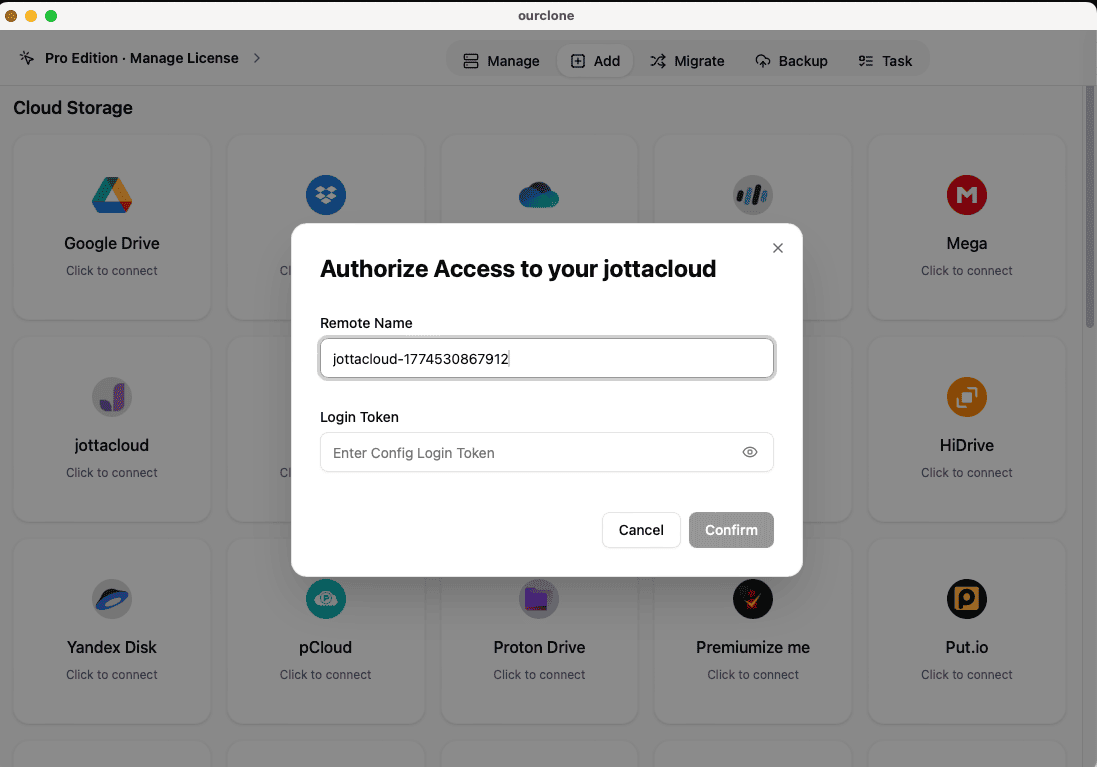
Jottacloud uses a token or API key for authorization in OurClone.
- Sign in to the Jottacloud web portal.
- Open account settings, then security or personal login tokens and generate a new login token.
- Copy the login token. Keep it private because it grants access to your storage.
- In OurClone, open Add Storage, select Jottacloud, paste the login token, and connect.
Sync and Transfer Workflow
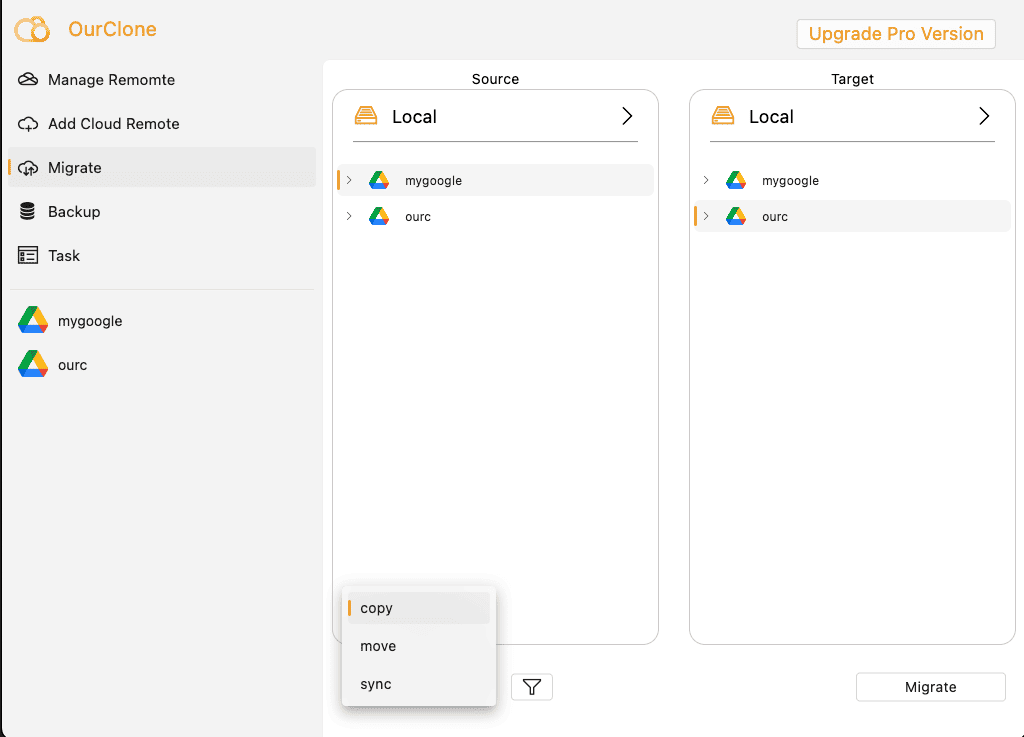
After Jottacloud is connected, open the Migrate area in OurClone. Choose Jottacloud as the source or destination, select the folders you want to work with, then choose the task mode.
- Copy duplicates files while keeping the source unchanged.
- Move transfers files and removes them from the source after completion.
- Sync keeps the destination aligned with the source folder.
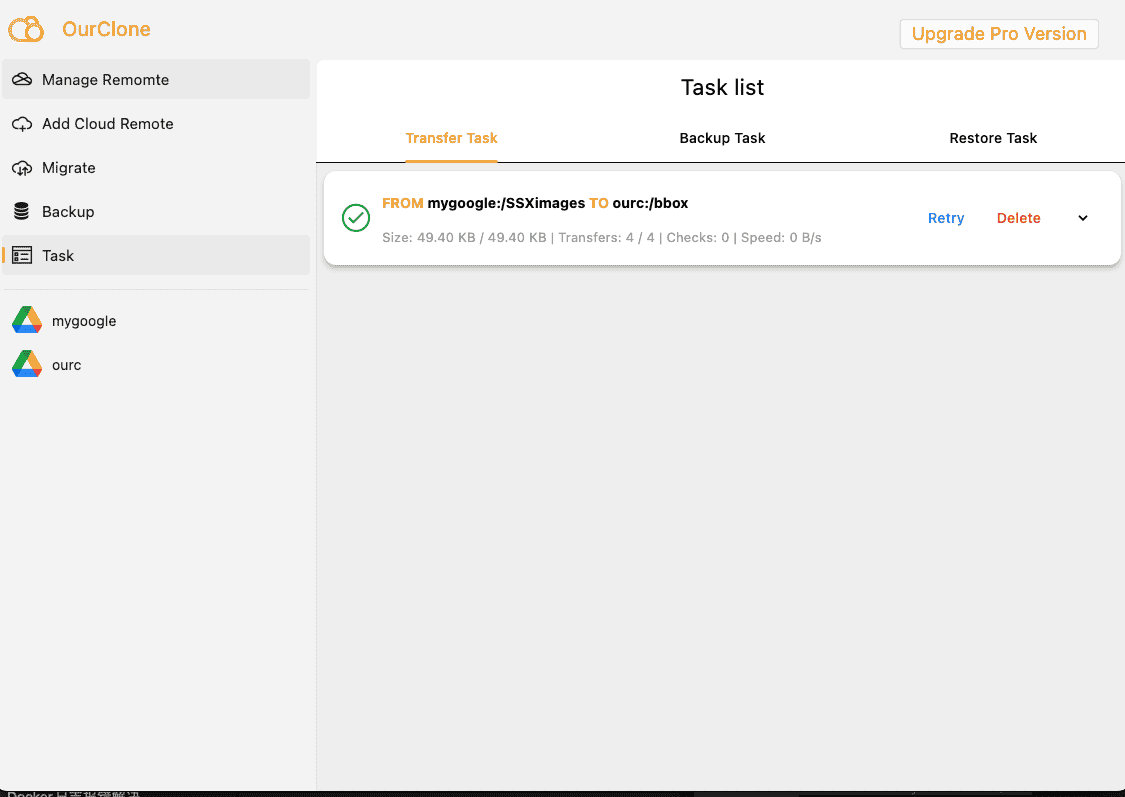
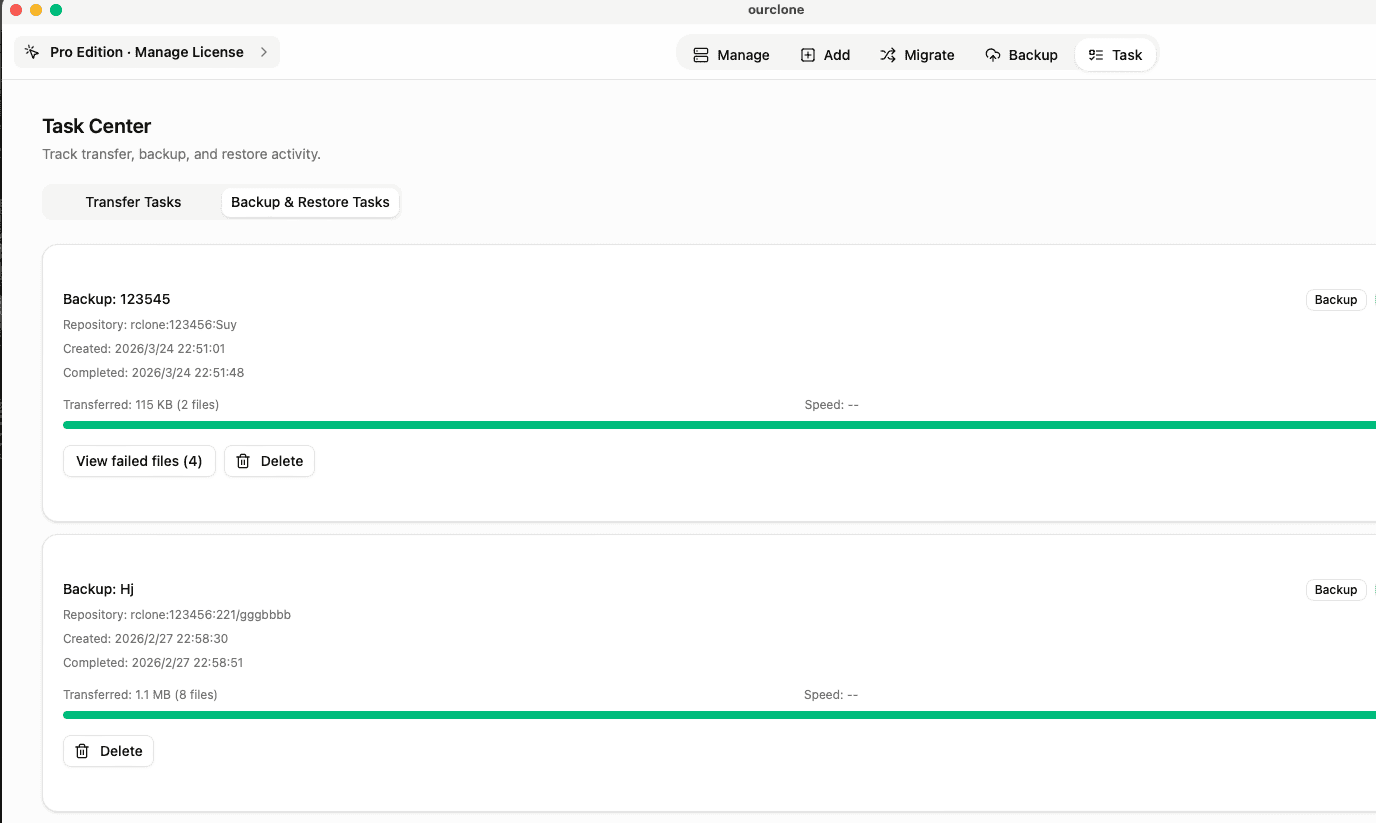
Task progress is visible in the Task tab, including completed, skipped, and failed files.
Backup Workflow
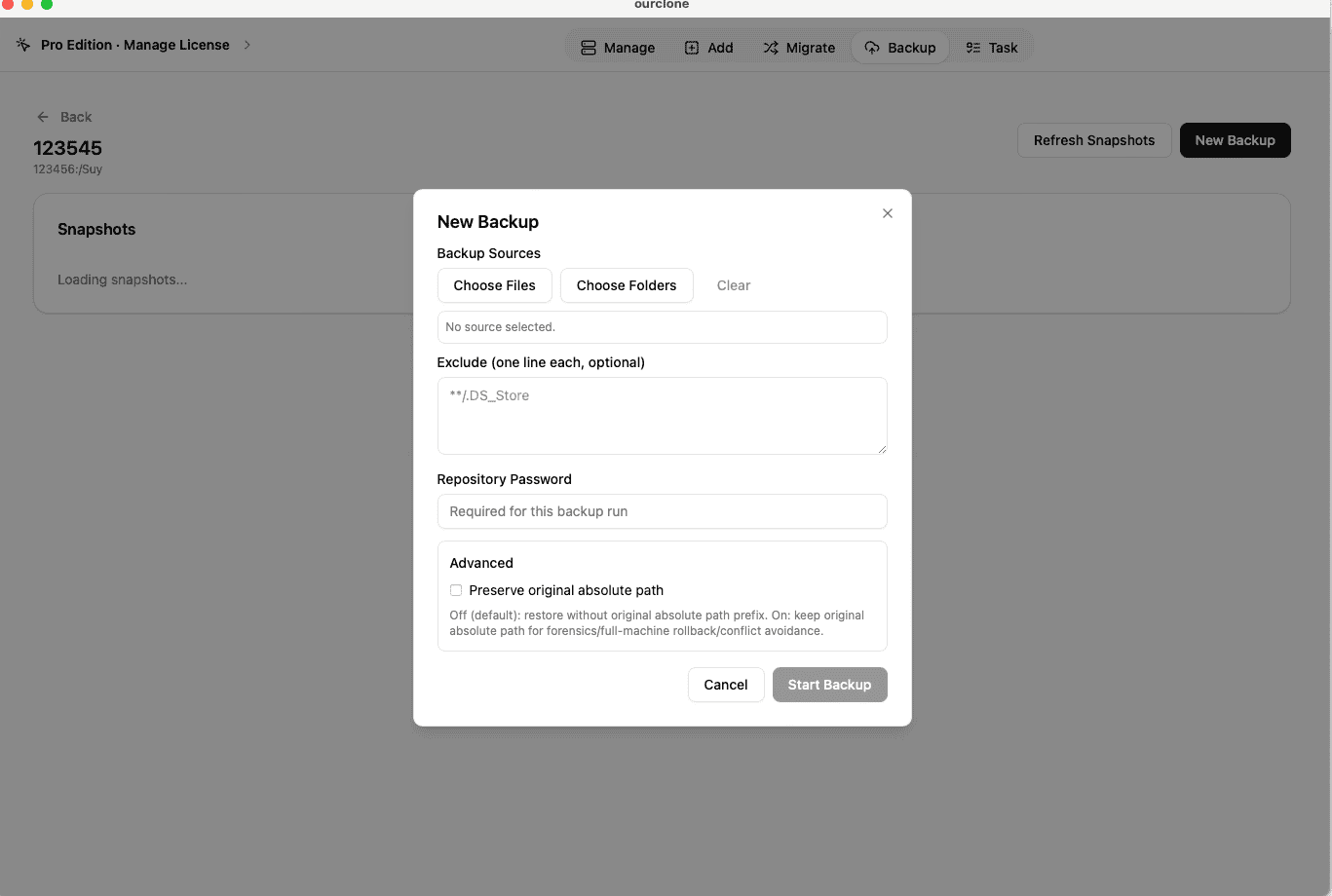
For backups, first create a backup repository on Jottacloud. A repository needs a name, a storage path, and an encryption password. Keep this password safe because it is required for both future snapshots and restores.
- Open Backup and create or choose a repository on Jottacloud.
- Open the repository and click New Backup.
- Select local folders such as
~/Documents,~/Pictures, or a project folder. - Start the snapshot. The first run uploads the full selection; later runs are incremental.
- Use Restore from a backup record when you need to recover files to a local directory.
Mount Jottacloud as a Local Folder
OurClone can mount Jottacloud as a local operating-system directory. This is useful when you want to browse cloud files in Finder or File Explorer, open files from desktop apps, or copy files with the same habits you use for local folders.
- Open the mount area in OurClone and select your connected Jottacloud account.
- Choose the remote path you want to expose locally.
- Pick a local mount point, then start the mount.
- When finished, unmount cleanly from OurClone before disconnecting your network or shutting down.
Best Practices for Jottacloud
- Use a clear folder naming convention such as
/ourclone-backups,/sync, or/archive. - Confirm that your Jottacloud account has enough storage before running a large migration or backup.
- Run a small test sync or restore before relying on a new workflow for important files.
- For large first-time jobs, keep your computer awake and connected to a stable network.
- If authentication fails later, reconnect the account or refresh the token before restarting the task.
Jottacloud Tutorial Cluster
This Jottacloud pillar page connects the main provider overview with practical OurClone guides. Use these supporting articles when you want to transfer, sync, back up, or mount Jottacloud without changing the existing guide URLs.
Back Up Your Mac to Jottacloud (Any Folder, Encrypted)
Discover how to securely back up your macOS files to Jottacloud using its official tools and smart techniques—no tech jargon, just straightforward steps.
Sync Google Drive with Jottacloud — Directly and Privately
A practical guide to syncing Google Drive data with Jottacloud using your PC — featuring OurClone for secure, private, and high-speed transfers.
How to Transfer Files from Mega to Jottacloud (Step-by-Step Guide)
Learn how to securely move your data from Mega to Jottacloud using your computer — with OurClone ensuring privacy, speed, and full control.
Sync OneDrive to Jottacloud: Direct from Your Computer
Learn how to safely sync your OneDrive data into Jottacloud using OurClone — a privacy-first tool that runs entirely on your own computer.
Getting Started: How to Transfer Files Between Cloud Storages Using OurClone
Learn how to efficiently and securely transfer data from one cloud provider to another using OurClone on your local machine.
How to Mount Jottacloud as a Local Drive on macOS: A Practical Guide
Learn how to mount Jottacloud as a local drive on macOS using OurClone — browse, edit and upload your Jottacloud files as if they live on your Mac.
Use Jottacloud from a desktop app
OurClone lets you connect Jottacloud once, then use it for local-first sync, transfer, mount, and encrypted backup workflows.
The macOS download is for Apple Silicon (M1 or later). Using an Intel Mac? Download the Intel version