Why Mounting MinIO on macOS Is a Smart Move
When you run MinIO, the bucket lives on infrastructure you own — a NAS, a homelab box, or a VM. Mounting it on macOS means those objects appear in Finder and stream on demand, so you skip the download-edit-upload loop entirely.
- 🗂️ Native Finder Access -- Browse MinIO buckets as a normal macOS volume from any app.
- 💾 No Full Download -- Stream only the objects you open instead of pulling whole buckets to disk.
- 🔁 Live Two-Way Access -- Files dropped into the mount upload to MinIO; remote changes appear after the next poll.
- 🛡️ Read-Only Safety -- Browse a production bucket read-only to avoid accidental writes.
- ⚡ Self-Hosted and Fast -- MinIO's high-performance, S3-compatible storage runs on infrastructure you control, often on the same LAN.
How Mounting a Cloud Drive Works (and Why It's Different from Sync)
Sync downloads every object to your Mac and keeps both ends matched. A mount leaves objects on MinIO and streams them to your Mac only when you open them.
OurClone handles reads, writes, and change detection through a local cache, keeping recently used files fast while the rest of the bucket stays on the server.
You can mount MinIO with a configurable polling interval and cache size, plus a read-only option for safe browsing.
- 🚀 Stream objects on demand — no need to download whole buckets
- 💾 Saves Mac disk space by caching only what you actually open
- 🔁 Two-way sync — edits in the mounted folder push back to MinIO
- 🛡️ Read-only mode prevents accidental writes when you only need to browse
What to Know Before You Mount MinIO
Sort these out before mounting.
- 🧩 No macFUSE Required -- On macOS, OurClone mounts through rclone's built-in
nfsmount, which relies on the NFS client already in macOS, so there is no kernel extension to install before your first mount. - 🌐 Use the API Endpoint, Not the Console -- MinIO's API endpoint (e.g.
http://127.0.0.1:9000orhttps://minio.example.com) is what OurClone connects to, not the web console address. - 📁 Pick the Right Mount Source -- Mount a single bucket for focused access, or a wider scope for broad Finder browsing.
- 🖥️ Choose a Sensible Mount Point -- Use a dedicated empty folder like
~/CloudMounts/MinIO, not your Desktop or a populated folder. - 🔒 Read-Only vs Read-Write -- Read-only suits browsing; read-write is needed to upload, edit, or delete. Read-only mounts can't upload.
- 💽 Confirm Network Reachability -- If MinIO uses a self-signed certificate or an internal address, make sure your Mac can reach the endpoint directly.
How to Mount MinIO on macOS with OurClone
OurClone connects to MinIO with S3 access keys and an endpoint, then mounts it as a local volume.
- 🔐 Connect to MinIO via Access Keys -- Open OurClone and go to
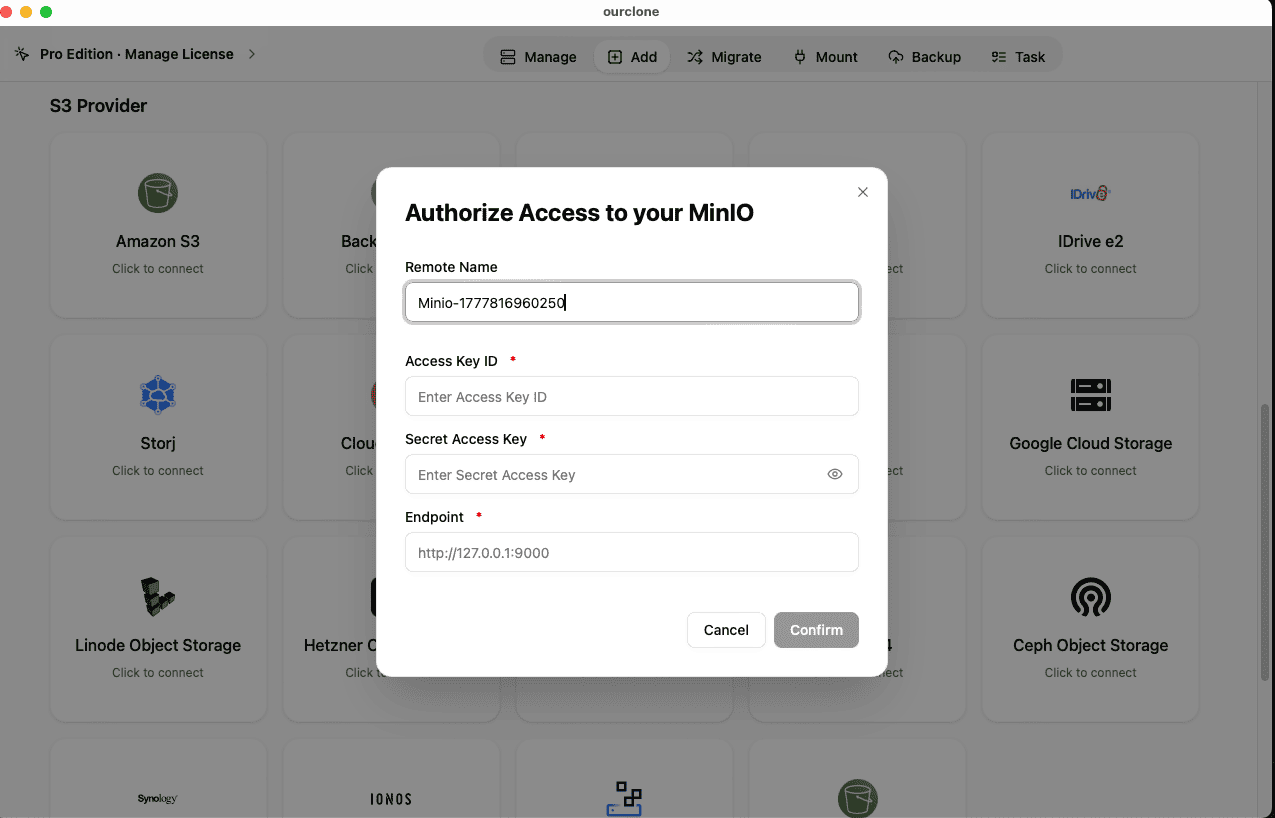
Add Storage. Choose the MinIO provider from the S3 list, then fill in your Remote Name, Access Key ID, Secret Access Key, and the MinIO API Endpoint (for examplehttp://127.0.0.1:9000). OurClone verifies the credentials and MinIO appears as a connected backend. - 📂 Open the Mount Tab and Click New Mount -- With MinIO connected, go to the
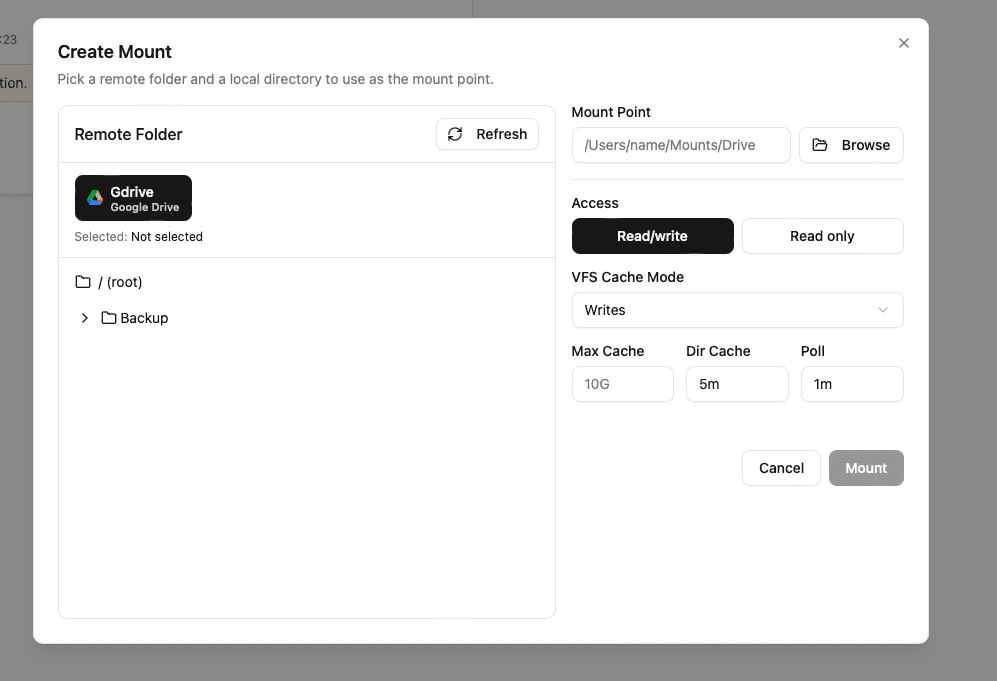
Mounttab and click New Mount in the top-right corner. - ⚙️ Configure the Mount Settings -- Pick MinIO as the source. Choose a specific bucket or the whole scope, then a local mount point like
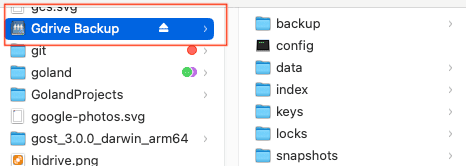
~/CloudMounts/MinIO. Select Read-only or Read-write, optionally adjust polling interval and max cache size, and click Mount. - 🗂️ Use Your MinIO Mount Like a Local Folder -- Open the mount point in Finder. It behaves as a mounted volume — browse, open, create folders, drag in files, and delete items. Add a
backupfolder and a few files; OurClone streams them to MinIO in the background. - ✅ Confirm the Sync on MinIO -- Back in OurClone, open the MinIO storage in the file browser to see the new
backupfolder. For extra certainty, open the MinIO Console and confirm the objects landed in the bucket.


S3 keys and an endpoint plus OurClone's mount engine turn self-hosted MinIO into a native-feeling drive on macOS.
Getting the Most Out of Your MinIO Mount
Keep these in mind once your MinIO mount is live.
- 🔁 Edits Sync Both Ways -- Adds, renames, and deletes in the mount push to MinIO; changes from elsewhere appear after the next poll cycle.
- 🛑 Read-Only Means Read-Only -- A read-only mount blocks uploads and saves. Remount read-write to make changes.
- 💽 Cache Lives on Your Mac -- Recently opened objects are cached locally; lower the max cache size if disk space is tight.
- ⏱️ Polling Interval Affects Freshness -- On a fast LAN connection to MinIO, a 30–60 second interval usually balances freshness and load.
- 🔌 Unmount Cleanly Before Sleep -- OurClone reconnects on wake; for long breaks, click Unmount to release the volume.
When Your Mount Stops Working
MinIO mounts usually break when access keys are rotated, the server moves to a new IP or certificate, the endpoint becomes unreachable behind a VPN, or the mount point is no longer empty. Re-check the endpoint and keys, confirm reachability, then remount.
Verify the Sync Anytime
When in doubt, open the MinIO storage view inside OurClone or sign in to the MinIO Console to confirm your objects.