Why Mac Users Are Pointing Backups at Their Own MinIO Server
MinIO is the S3-compatible object storage that runs on your own hardware -- a NAS, a small Linux box in a closet, or a VM at a hosting provider. For a developer or homelab user backing up a Mac, that combination is hard to beat: bucket-style storage, S3 tooling, but on infrastructure you control.
- 🏠 You Own the Storage -- The bucket lives on your hardware, not on a vendor's pricing page. Rates do not change quietly under you, and the data does not move regions without your say-so.
- ⚡ LAN-Speed First Snapshots -- When the MinIO server sits on the same network, the first big snapshot can finish in minutes instead of overnight, which makes the backup habit much easier to start.
- 🔧 Real S3 Behavior -- MinIO speaks the S3 API faithfully, so OurClone treats it the same way it treats hosted S3 services -- bucket path, Access Key ID, Secret Access Key, done.
- 🔐 Encryption End to End -- OurClone encrypts the repository on your Mac before it ever touches the MinIO bucket, so even an admin browsing the underlying disk only sees opaque encrypted objects.
- 🧱 Per-Project Repositories -- Run one OurClone repository per project folder or per machine, all inside the same MinIO bucket. Restores stay focused and you do not have to dig through one giant blob.
Why Incremental Snapshots Make MinIO Backups Sustainable
Pushing a full copy of a project folder to your MinIO server every night sounds thorough, but it stops being practical the moment the folder grows past a few gigabytes. Most files do not change between runs, so most of that traffic is wasted.
OurClone runs the first snapshot in full and then only ships changed data on every snapshot after that. The MinIO bucket grows roughly with the new content you actually produce, not with repeated copies of the same files.
On a self-hosted MinIO server that often shares its disks with other workloads, that restraint matters: smaller incremental snapshots mean less write churn and a much more predictable storage footprint.
- 🚀 Skips re-uploading files that have not changed
- 💾 Keeps your MinIO disks from filling with duplicate data
- 🔐 Each snapshot still goes through the encrypted repository
- 📅 Lets you walk back through snapshots and recover an older version
Get Your MinIO Server Ready for Mac Backups
Before you open OurClone, take a couple of minutes to make sure the MinIO side is reachable and properly scoped. Most "first backup failed" reports come down to one of these.
- 🌐 Use the API Endpoint, Not the Console -- OurClone needs the MinIO API URL (something like
http://192.168.1.20:9000orhttps://minio.example.com), not the Console URL. Pasting the Console address in is a common cause of failed connections. - 🔑 Create a Backup-Only Access Key -- In the MinIO Console, create a service account or user just for backups, with write access to the bucket you plan to use. Avoid reusing your admin key for OurClone.
- 🔒 Confirm Your Mac Can Actually Reach It -- If your MinIO server is LAN-only or behind a VPN, your Mac needs to be on the same network when backups run. Self-signed certificates and split-DNS setups are also worth checking once before the first snapshot.
- 📁 Pick the Right Folders -- Focus on folders that would actually hurt to lose:
~/Documents,~/Pictures, code project trees, and external drive folders. Skip caches, build artifacts, and dependency directories such asnode_modules. - 🧪 Start Small -- Run the first OurClone snapshot against a small folder. That single test confirms the endpoint, the keys, the bucket path, and the restore flow before you commit a multi-gigabyte project to MinIO.
Backing Up a Mac Folder to MinIO With OurClone
With the MinIO endpoint and access key ready, the rest happens entirely inside OurClone. Five steps cover the full path from connecting MinIO to restoring a file.
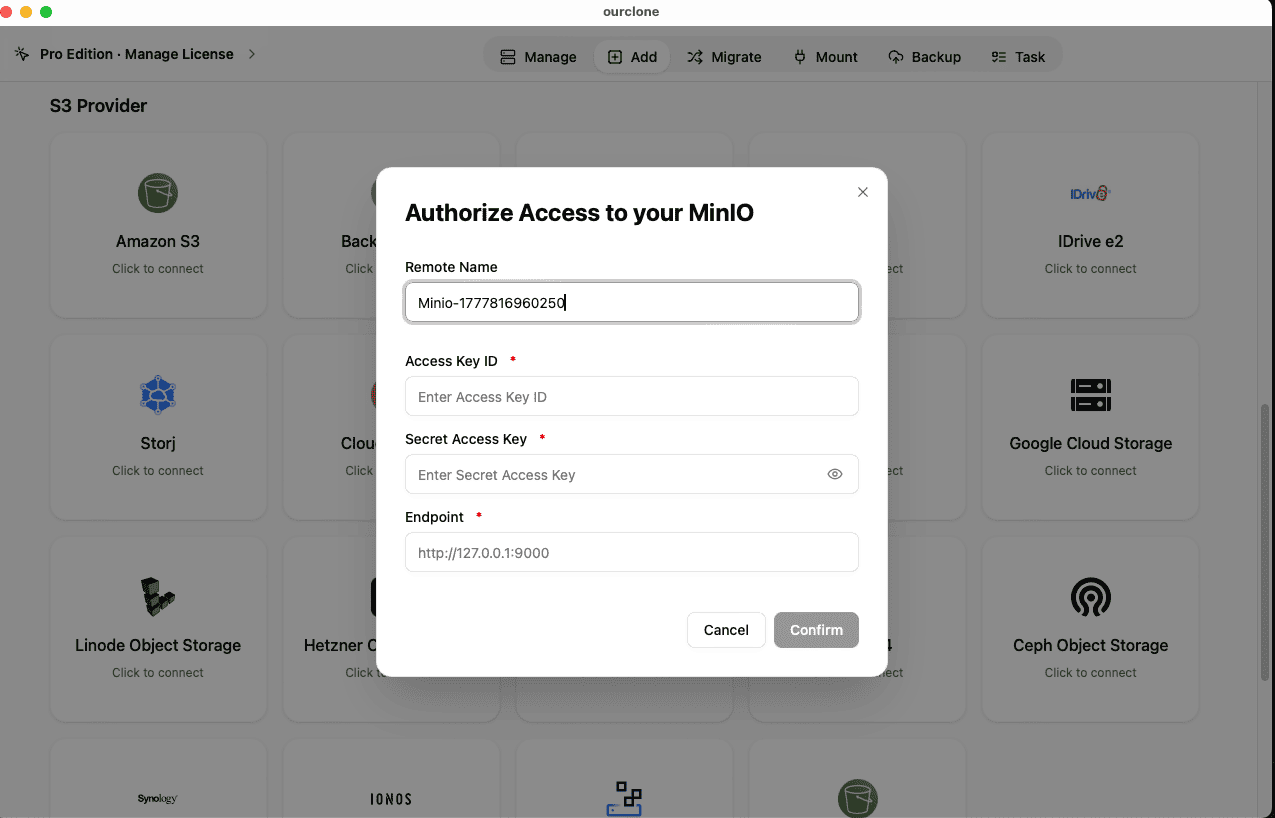
- 🔗 Add MinIO in Add Storage -- In OurClone, open
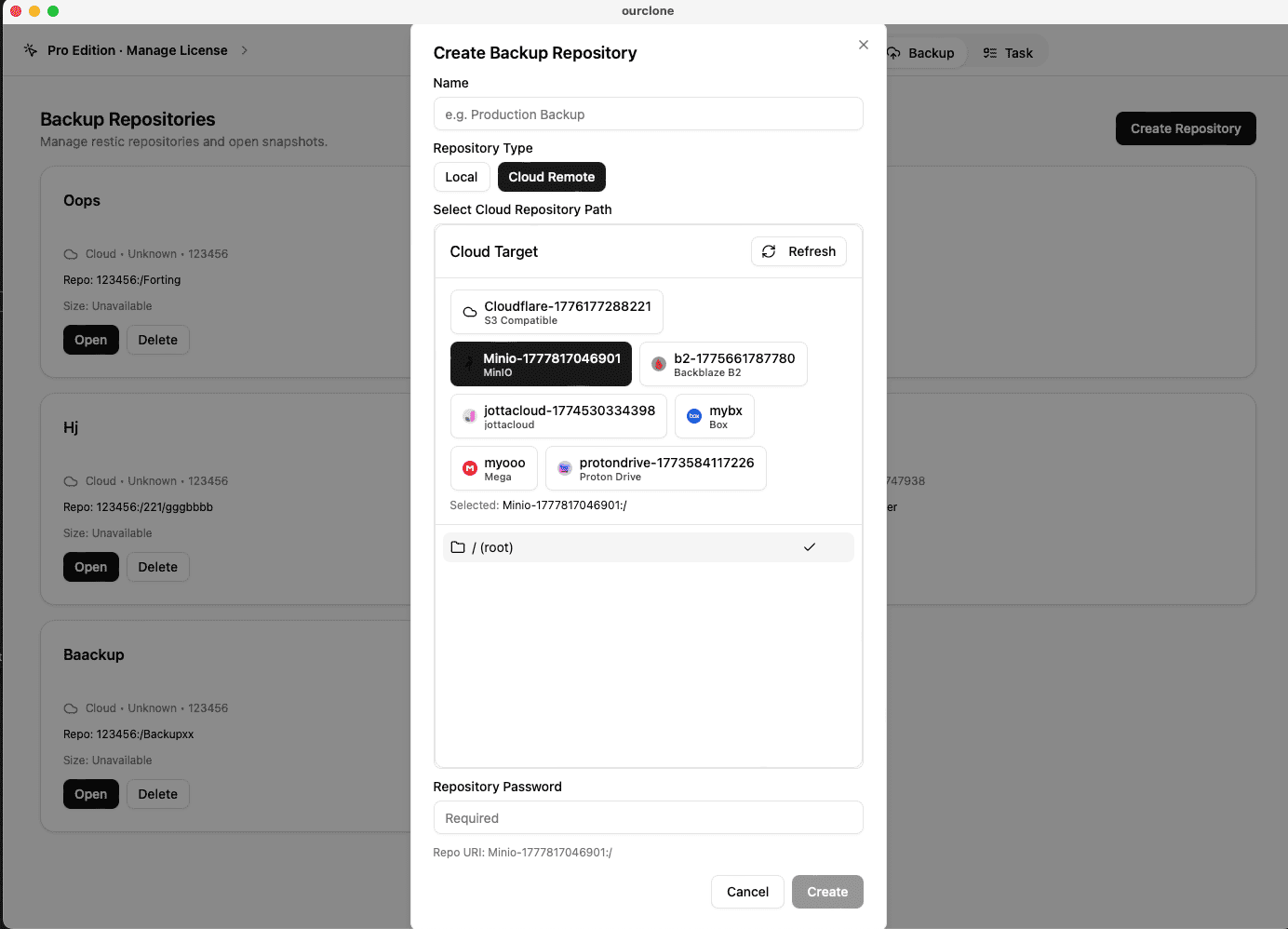
Add Storageand choose MinIO. Give the connection a custom name like "Homelab MinIO", then paste your Access Key ID and Secret Access Key. The Endpoint field is required for MinIO -- enter the API URL exactly, including the protocol and port (for examplehttp://192.168.1.20:9000). Save the connection. - 📦 Create a Backup Repository on MinIO -- Open the
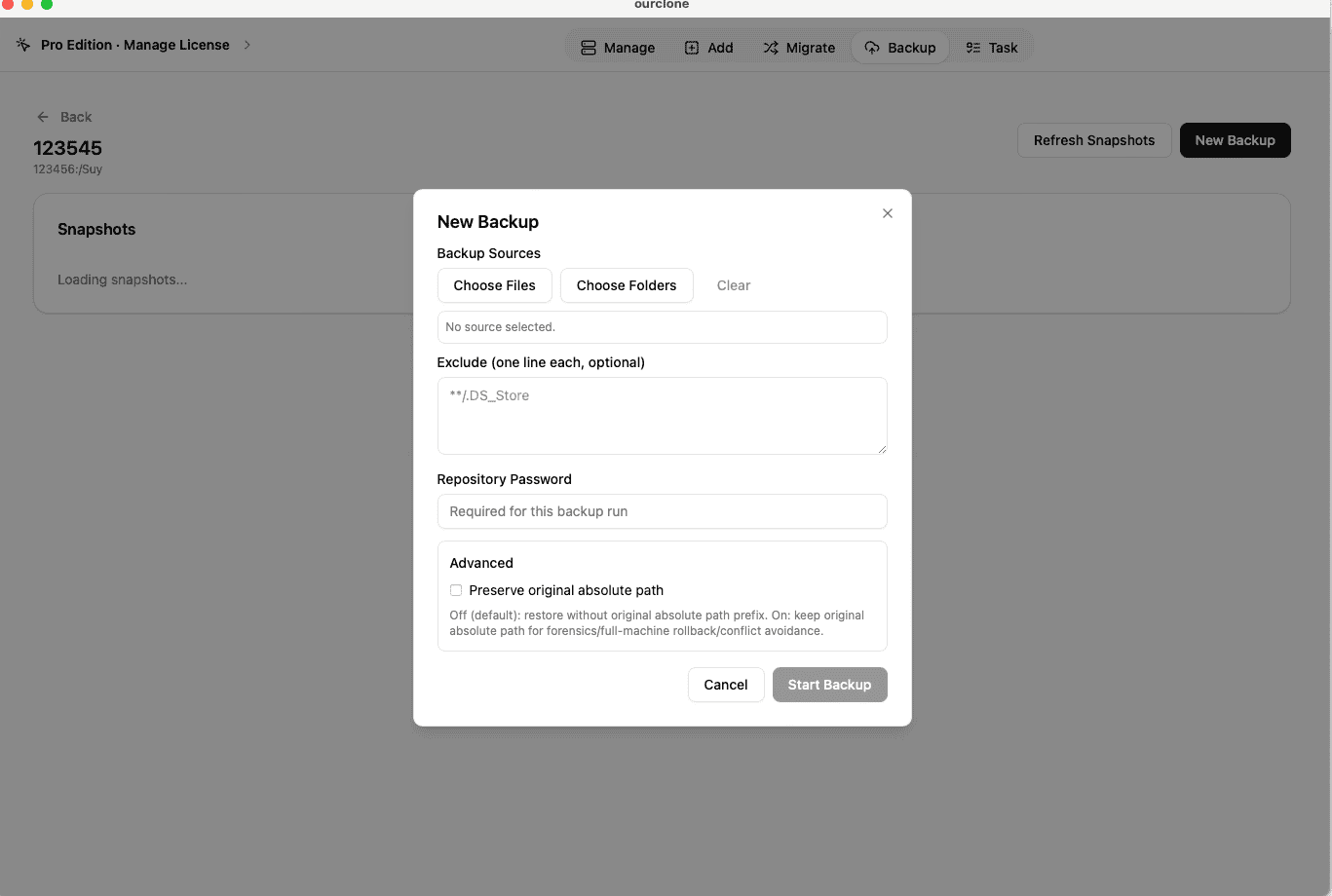
Backuptab and create a new repository. Pick your MinIO connection as the destination, choose a path inside an existing bucket (for examplebackups/mac-projects), give the repository a memorable name, and set a strong repository password. That password encrypts the entire repository and is required for snapshots and restores -- save it in a password manager. - 🗂️ Snapshot Your Local Folders -- Open the new repository and create a snapshot. Select macOS folders such as
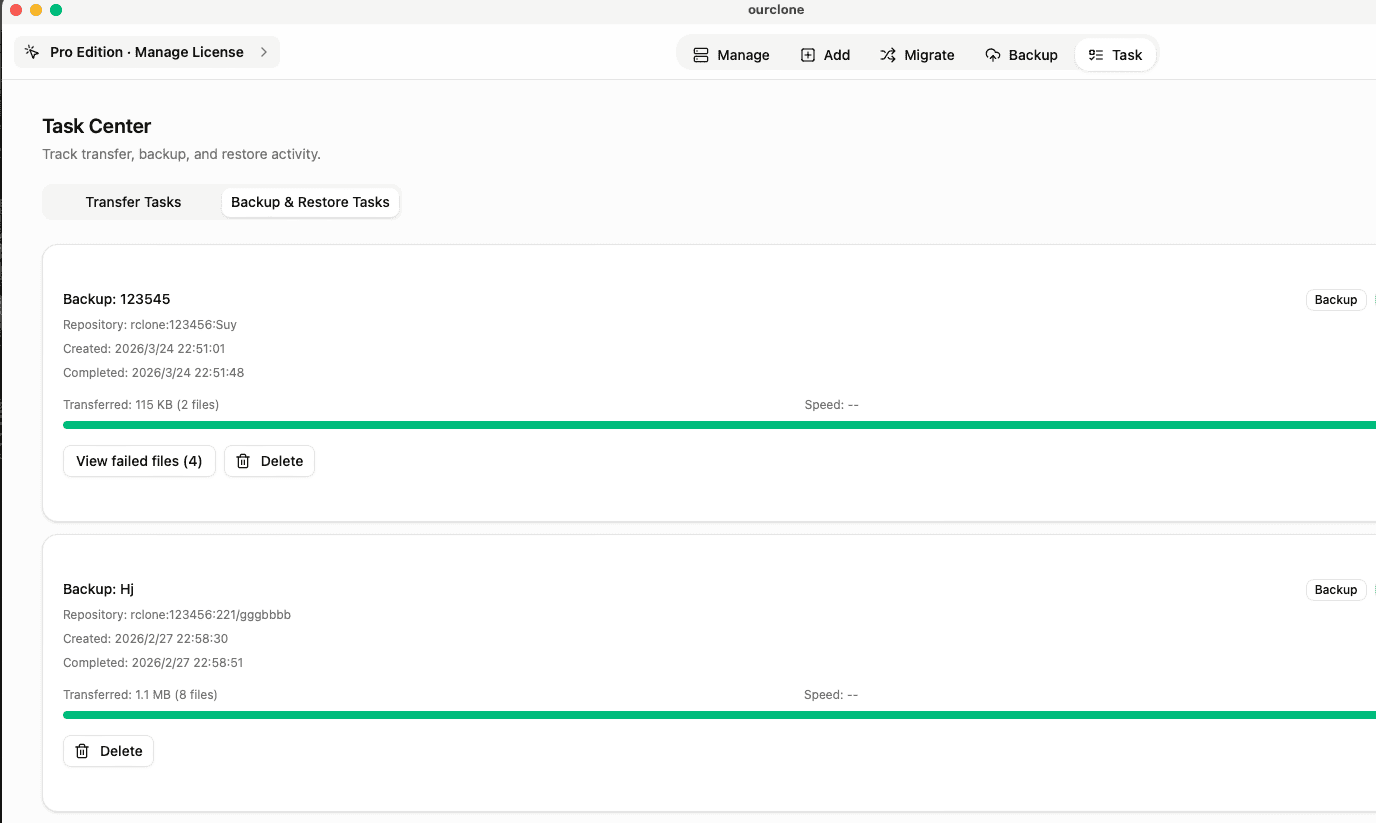
~/Documents, a working~/Projectsdirectory, or a folder on an external drive. OurClone packages, encrypts, and uploads the data to your MinIO bucket. The first run is a full snapshot; later runs of the same folders are incremental. - 🕒 Watch It Run From Task -- Backup & Restore -- Open the
Tasktab and switch toBackup & Restore. The active MinIO task shows progress, throughput, and any warnings as the snapshot uploads. Chunked uploads mean a brief network hiccup does not force the whole snapshot to start over. - 🔁 Restore From a Snapshot -- In the MinIO repository, open the snapshot you want, click
Restore, enter the repository password, and choose a local destination folder. OurClone decrypts the data and writes the files back. You can restore a single folder, a subset, or the whole snapshot.
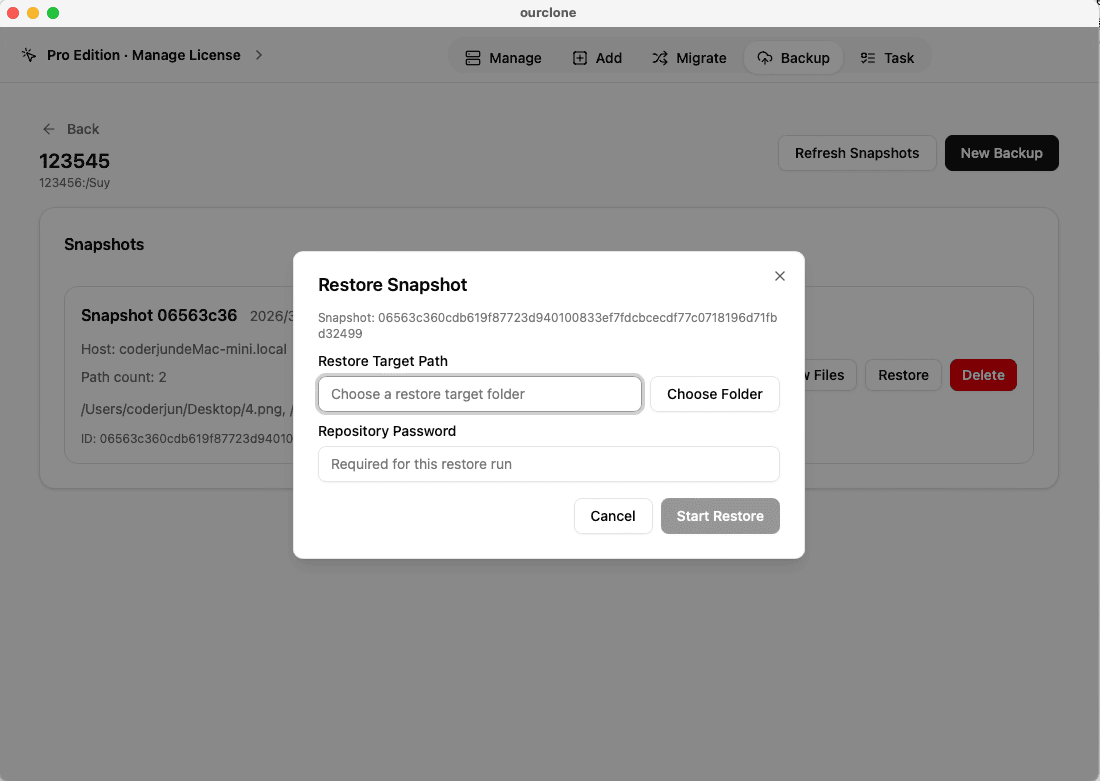
Because everything goes over MinIO's S3 API in chunks, even a multi-gigabyte project folder finishes cleanly across a normal home or office network.
Confirm Your MinIO Backup and Keep It Healthy
A self-hosted setup gives you control, but it also means you are the one who has to notice when something quietly breaks. A short check-in routine keeps your MinIO backups trustworthy.
- 📄 Check Task Status After Each Run -- In
Task->Backup & Restore, confirm the latest MinIO snapshot finished cleanly. A stale "running" task or repeated failures usually points back to the endpoint or the access key. - 🧩 Read the Skipped File Notes -- macOS file permissions occasionally block OurClone from reading specific files. The task log lists exactly which files were skipped, so you can fix permissions or move the file and re-run.
- 📜 Inspect the Detailed Log -- Open a finished MinIO task to see what was actually new, what was unchanged, and how much data the incremental run uploaded. That makes it easy to spot a folder that has unexpectedly ballooned.
- 🔐 Treat the Repository Password as Critical -- The MinIO bucket only holds encrypted repository data. Without the password, even an admin with full server access cannot read your snapshots -- that is the point, but it means you must keep the password somewhere reliable.
Watch for Endpoint and Access Key Drift
Self-hosted setups change. The MinIO server might move to a new IP, switch to a real certificate, or rotate access keys. If OurClone suddenly cannot connect, recheck the endpoint URL and re-paste a valid Access Key ID and Secret Access Key. If the server moved behind a VPN, make sure your Mac is connected before the next scheduled run.
Run a Restore Drill Before You Need It
Pick a small folder from a recent MinIO snapshot and restore it into a throwaway directory. That dry-run confirms the endpoint, the keys, the repository password, and the OurClone restore flow are all still in working order -- which is the only way to actually trust a self-hosted backup.