Why Mounting MEGA S4 on macOS Is a Smart Move
MEGA S4 is MEGA's S3-compatible object storage service -- a different product from the consumer MEGA cloud drive (for that one, see our guide to mount MEGA on macOS). Object storage normally means consoles, CLIs, and API calls; mounting it with OurClone means your buckets simply appear in Finder, where you can browse and manage objects like ordinary files.
- 🗂️ Buckets in Finder -- Browse S4 buckets and prefixes as normal macOS folders from any app.
- 💾 No Full Download Required -- Stream only the objects you open instead of pulling entire buckets to disk.
- 🔁 Live Two-Way Access -- Files dropped into the mount upload to the bucket; new objects appear after the next poll.
- 🛡️ Read-Only Safety -- Mount a production bucket read-only so nothing can be overwritten by accident.
- 🔐 Scoped Access Keys -- Connect with an S4 access key pair instead of your MEGA account login, and rotate keys without touching the mount workflow.
How Mounting Object Storage Works (and Why It's Different from Sync)
Sync downloads every object to your Mac and keeps both ends matched. A mount leaves objects in your S4 bucket and streams them to your Mac only when you open them.
OurClone handles reads, writes, and change detection through a local cache, keeping recently used files fast while the rest stays in the bucket until needed.
Because S4 is object storage, every listing and download is an API request. Mounting a specific bucket or prefix keeps request volume sensible, and the polling interval controls how often OurClone checks for remote changes.
- 🚀 Stream objects on demand -- no need to download whole buckets
- 💾 Saves Mac disk space by caching only what you actually open
- 🔁 Two-way access -- files added to the mounted folder upload to the bucket
- 🛡️ Read-only mode prevents accidental writes to important data
What to Know Before You Mount MEGA S4
Plan these before mounting.
- 🧩 No macFUSE Required -- On macOS, OurClone mounts through rclone's built-in
nfsmount, which relies on the NFS client already in macOS, so there is no kernel extension to install before your first mount. - 🔑 Create an S4 Access Key -- Generate an access key pair in the MEGA S4 console. OurClone only needs the Access Key ID and Secret Access Key -- no endpoint field is required for S4.
- 🪣 Pick a Bucket or Prefix -- Mount a single bucket, or a prefix inside it, rather than everything at once; it keeps Finder listings fast and API requests low.
- 🖥️ Choose a Sensible Mount Point -- Use a dedicated empty folder like
~/CloudMounts/MegaS4, not your Desktop or a populated folder. - 🔒 Read-Only vs Read-Write -- Read-only suits browsing backups and archives; read-write is needed to upload, edit, or delete objects.
- 💽 Plan Your Cache Size -- A larger cache speeds repeat access but uses local disk; size it to the files you open most.
How to Mount MEGA S4 on macOS with OurClone
OurClone connects to MEGA S4 with an access key pair, then mounts a bucket as a local volume.
- 🔐 Connect MEGA S4 via Access Keys -- Log in to your MEGA account, open the S4 object storage section, and create an access key pair. Then open OurClone, go to
Add Storage, select MEGA S4 in the S3 provider list, confirm the Remote Name, and enter your Access Key ID and Secret Access Key. - 📂 Open the Mount Tab and Click New Mount -- With MEGA S4 connected, go to the
Mounttab and click New Mount in the top-right corner. - ⚙️ Configure the Mount Settings -- Pick MEGA S4 as the source. Choose the bucket (or a folder inside it), then a local mount point like
~/CloudMounts/MegaS4. Select Read-only or Read-write, optionally adjust polling interval and max cache size, and click Mount. - 🗂️ Use Your S4 Bucket Like a Local Folder -- Open the mount point in Finder. It behaves as a mounted volume -- browse, open, create folders, drag in files, and delete items. Add a
backupfolder and a few files; OurClone streams them to the bucket in the background. - ✅ Confirm the Upload on MEGA S4 -- Back in OurClone, open the MEGA S4 storage in the file browser to see the new
backupfolder. For extra certainty, check the bucket in the MEGA S4 console and confirm the objects arrived.
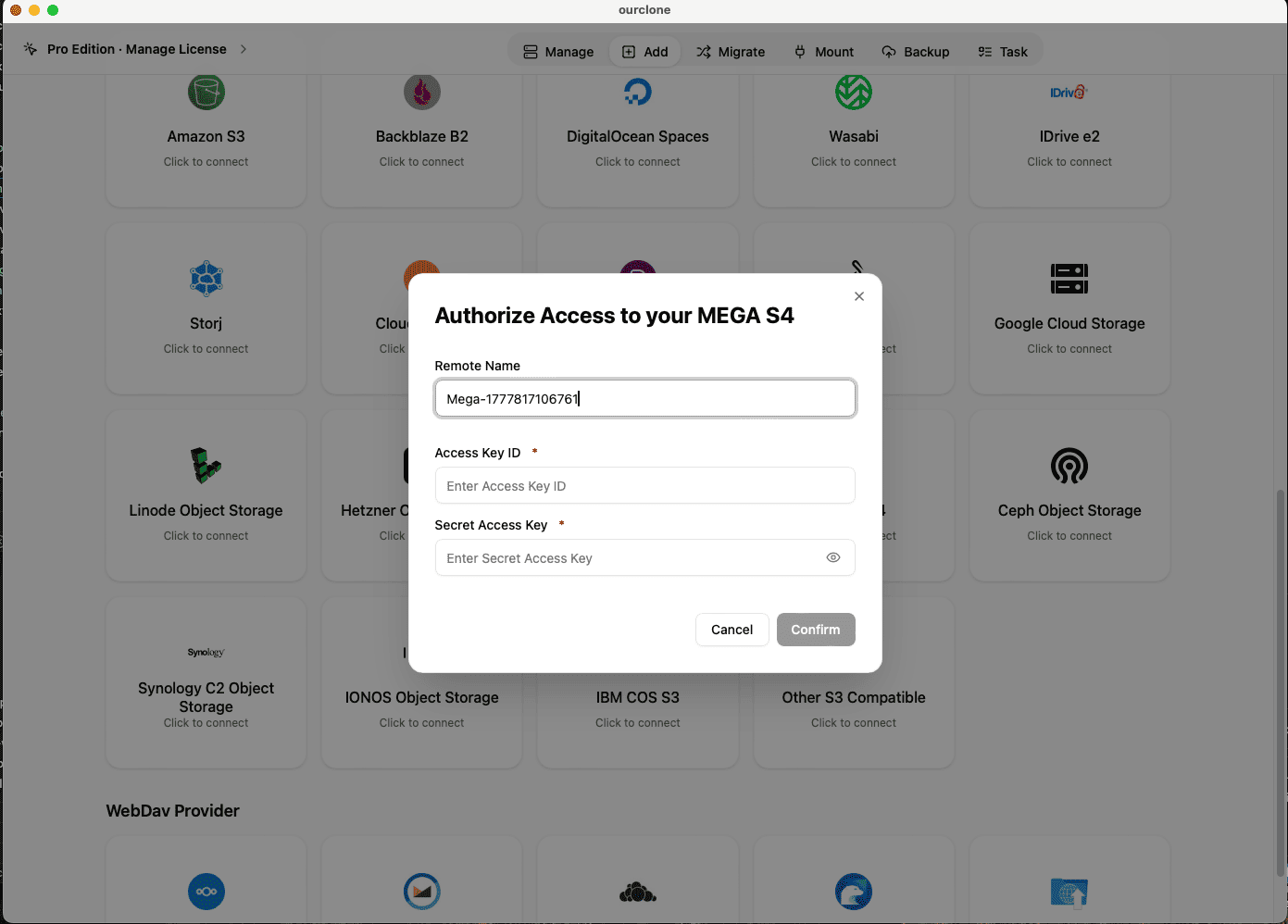
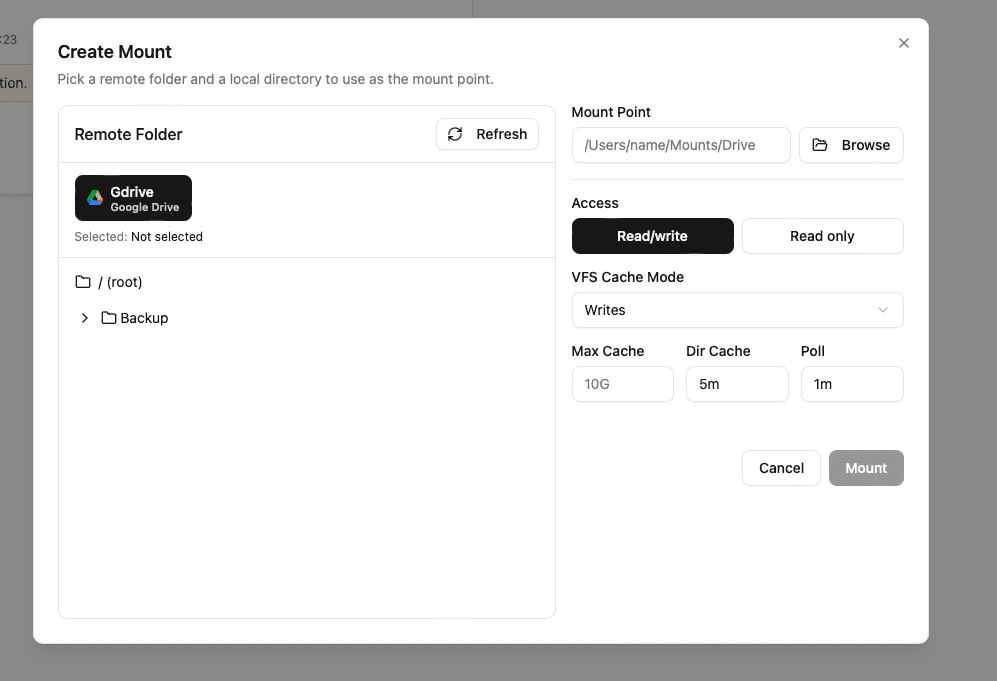

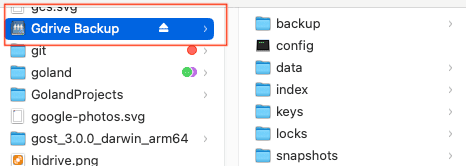
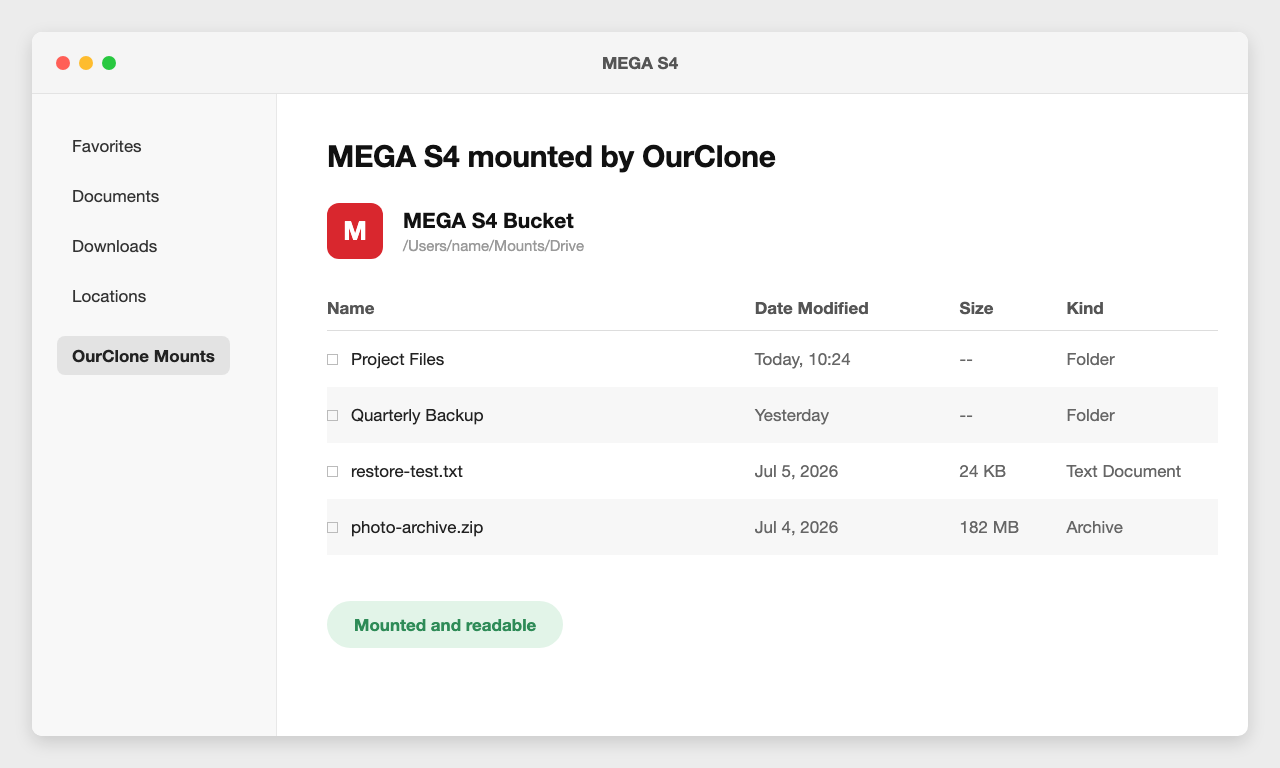
An access key pair plus OurClone's mount engine turns a MEGA S4 bucket into a native-feeling folder on macOS.
Getting the Most Out of Your MEGA S4 Mount
Keep these in mind once your MEGA S4 mount is live.
- 🔁 Edits Sync Both Ways -- Adds, renames, and deletes in the mount push to the bucket; objects uploaded elsewhere appear after the next poll cycle.
- 🛑 Read-Only Means Read-Only -- A read-only mount blocks uploads and saves. Remount read-write to make changes.
- 💽 Cache Lives on Your Mac -- Recently opened objects are cached locally; lower the max cache size if disk space is tight.
- ⏱️ Polling Interval Affects Freshness and Requests -- Every poll lists the bucket via the S3 API. A longer interval means fewer requests; a shorter one means fresher listings.
- 🔌 Unmount Cleanly Before Sleep -- OurClone reconnects on wake; for long breaks, click Unmount to release the volume.
When Your Mount Stops Working
S4 mounts usually break when an access key is deleted or rotated, bucket permissions change, the network drops, or the mount point is no longer empty. Create a fresh access key pair in the S4 console, update the connection in OurClone, and remount.
Verify the Sync Anytime
When in doubt, open the MEGA S4 storage view inside OurClone or check the bucket in the S4 console to confirm your objects.