SFTP's Blind Spot: Encrypted in Transit, Plain Text at Rest
SFTP runs over SSH, so nobody on your network — or between you and a remote server — can read files mid-transfer. That part is genuinely solved. The overlooked part is what happens after the transfer: the server writes your files to disk exactly as you sent them.
- 🚇 The tunnel ends at the server — SSH encrypts the connection, not the storage. On disk, your files are as readable as they were on your desktop.
- 👑 Root reads everything — on a VPS or shared server, the hosting provider and every admin with root access can open any file you've uploaded.
- 🏠 Homelab servers are still computers — a Raspberry Pi or NAS running SSH in your LAN can be compromised, misconfigured, or simply end up in someone else's hands along with its disk.
- 🦠 A breached server exposes its whole disk — one leaked key or weak password on the server side, and everything stored in plain text is immediately usable by the attacker.
- 🗑️ Disks outlive servers — decommissioned drives, resold hardware, and old backups keep plain-text data readable long after you stopped thinking about it.
What OurClone's Encrypted Vault Actually Does
OurClone's Encrypted Remote wraps your SFTP server in a password-only encryption layer. The SSH tunnel keeps protecting the ride — and now the cargo is ciphertext before it even gets on board.
- 🔐 Encrypted before upload — files are encrypted on your computer; the server only ever receives ciphertext.
- 🕵️ File names hidden too — names and contents are both encrypted; an
lson the server shows only scrambled strings. - 🔑 Your password is the only key — it never leaves your device; root on the server holds nothing useful.
- 🧰 Open format, not lock-in — built on rclone crypt, an open and documented standard.
- 📁 One directory, not the whole server — the vault lives in a folder you pick; every other path on the server stays untouched.
- ⚙️ Behaves like a normal remote — transfer into it, sync it, mount it, or use it as a backup destination.
The Encrypted Remote is an OurClone Pro feature, and a vault always wraps a plain remote directly — nesting vaults isn't supported.
How to Create an Encrypted Vault on an SFTP Server
Any machine you can reach over SSH works — a VPS, a home server, or a NAS with SFTP enabled.
- 🔗 Connect via SFTP — Open OurClone and go to
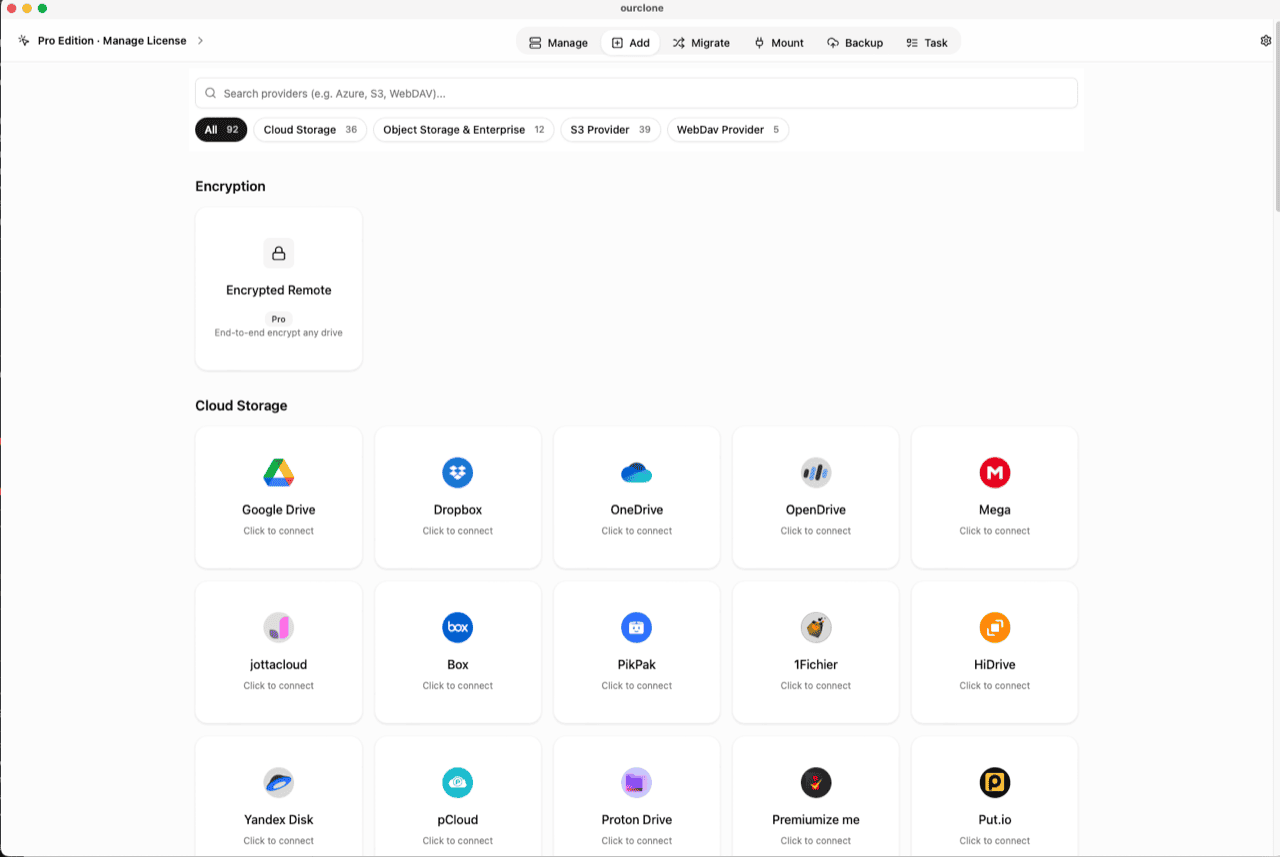
Add. Select SFTP, then enter your server host, username, password, and port (default 22). Once verified, the server appears as a connected storage. Already using it for mounting or backups? Skip ahead. - 🧭 Open the Encryption Category — In the
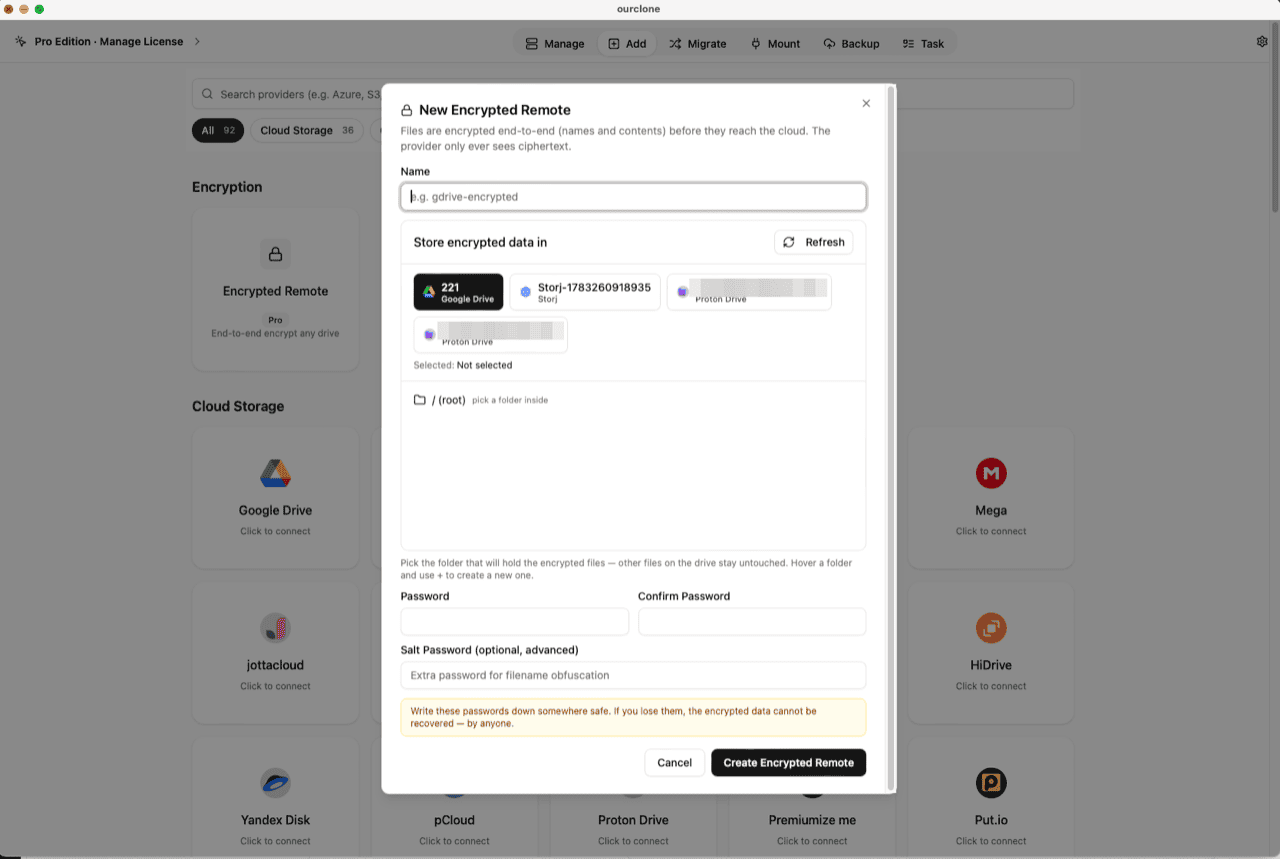
Addpage, the Encryption section sits above the provider grid. Click the Encrypted Remote card (marked Pro). - 🛠️ Create the Vault — Name it (e.g.
sftp-encrypted), pick your SFTP server as the base storage, then choose or create a directory inside it — the vault must live in a folder, not the server root, and only that folder will hold encrypted data. Set your password (plus an optional salt password for extra filename obfuscation) and click Create Encrypted Remote. - 📦 Move Files Into the Vault — Open
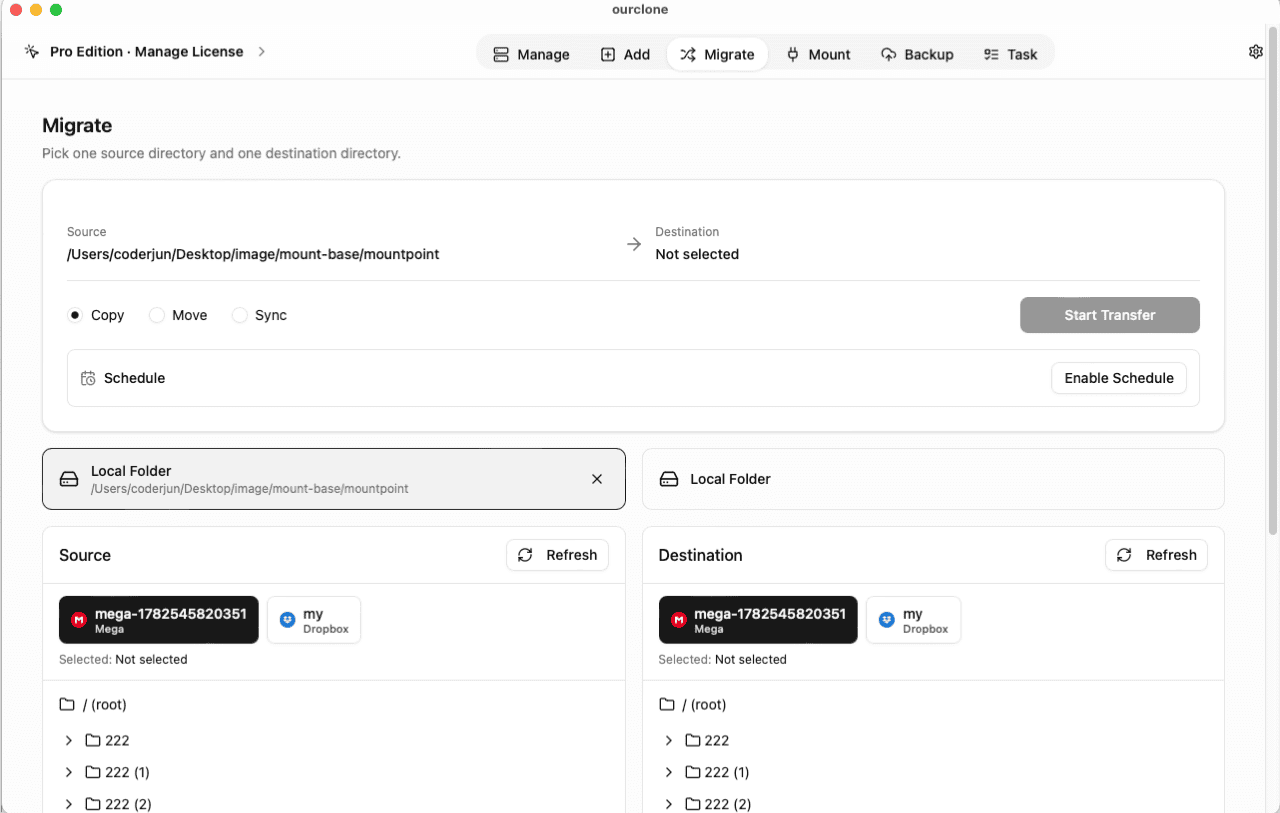
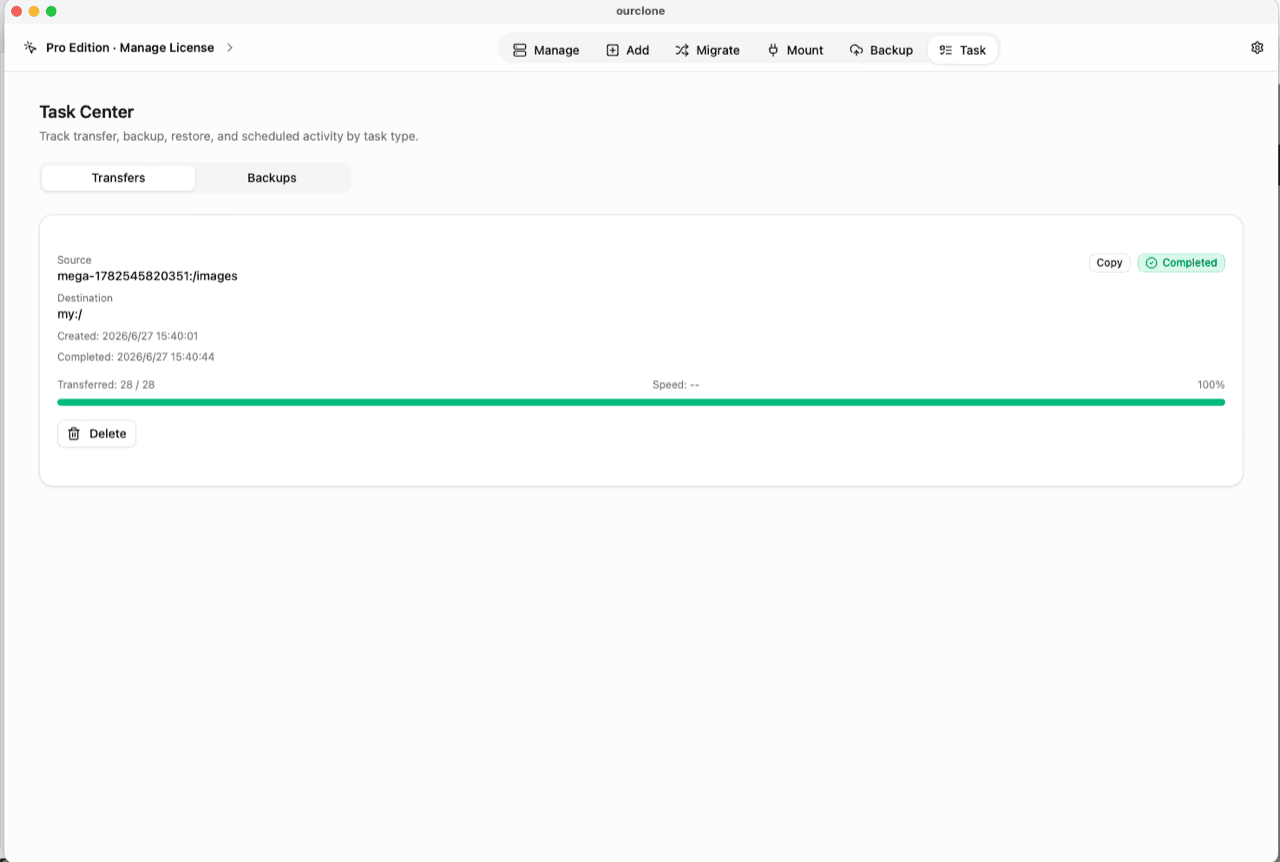
Migrate, choose a local folder (or a cloud remote) as the source and the vault as the destination, then run a copy, move, or sync. Files are encrypted on the fly before they enter the SSH tunnel. - 📊 Watch It in the Task Center — The
Tasktab shows live progress, speed and any failed files, and history survives app restarts.
Put the vault password in a password manager before the first real upload — there is no recovery if it's lost.
Check What the Server Actually Stores Now
SSH into the server and list the vault directory — or open it in any SFTP client. Instead of your file names you'll see scrambled strings, and cat on any of them prints binary noise. Root can copy those files anywhere it likes; without your password they stay meaningless.
In OurClone, the vault carries a lock badge and the Manage page lists your real file names, decrypted locally on your machine. You can also mount the vault as a local drive and browse it in Finder or File Explorer (no extra driver on macOS; Windows needs WinFsp).
Frequently Asked Questions
Is the encrypted vault free?
No — it's an OurClone Pro feature. Connecting SFTP servers, transfers and backups work on the free plan within its limits; see pricing.
Isn't SFTP already encrypted?
In transit, yes — SSH protects the connection. At rest, no — the server stores exactly what you send. The vault makes what you send ciphertext, so both halves are covered.
What if I forget the vault password?
The data is permanently unreadable, by design. No reset, no backdoor — store it in a password manager.
What is the salt password?
An optional second password that strengthens file-name obfuscation. If set, it's required together with the main password — guard both equally.
Can I still use the rest of the server normally?
Yes. The vault claims one directory. Web roots, scripts, other users' homes — everything else on the server is untouched.
Can I open the vault from another computer?
Yes — install OurClone, connect the same SFTP server, and add an Encrypted Remote pointing at the same directory with the same password (and salt, if set).