FTP Encrypts Nothing — On the Wire or On the Disk
FTP predates the idea of network encryption entirely. Unless your server speaks FTPS (many NAS boxes and embedded devices don't), every session is fully readable to anyone positioned on the network path — and the server stores files exactly as they arrive.
The walkthrough covers FTP, SFTP and FTPS — or keep reading for the step-by-step.
- 📡 Plain-text transfers — file contents cross your LAN unencrypted. Anyone capturing packets on the network segment — a compromised router, a rogue device on the Wi-Fi — can reassemble your files.
- 🔓 Plain-text passwords too — FTP sends your login credentials in the clear, so a single capture exposes the whole account.
- 🏠 LAN doesn't mean private — home and office networks host phones, IoT gadgets, guests and old machines; any one of them being compromised turns "internal traffic" into an open book.
- 💾 The server stores plain text — whatever reaches the FTP server sits on its disk readable to admins, other accounts with path access, and whoever ends up with the hardware.
- 🧓 FTP boxes are rarely patched — the devices still speaking plain FTP (NAS units, routers, legacy servers) are often the least-updated machines on the network.
What OurClone's Encrypted Vault Actually Does
OurClone's Encrypted Remote doesn't try to fix FTP — it makes FTP's weakness irrelevant for your file contents. Encryption happens on your computer, before the protocol ever touches the data.
- 🔐 Ciphertext on the wire — files are encrypted before upload, so even FTP's plain-text transfer only ever carries unreadable data across your network.
- 🕵️ File names hidden too — names and contents are both encrypted; a directory listing on the server shows only scrambled strings.
- 🔑 Your password is the only key — it never crosses the network and never reaches the server; OurClone keeps no recovery copy.
- 🧰 Open format, not lock-in — built on rclone crypt, an open and documented standard.
- 📁 One folder, not the whole server — the vault lives in a directory you pick; everything else served over FTP stays untouched.
- ⚙️ Behaves like a normal remote — transfer into it, sync it, mount it, or use it as a backup destination.
One honest caveat: the vault protects your file names and contents, not the FTP login itself — your server password still crosses the network the way FTP always sends it. The Encrypted Remote is an OurClone Pro feature, and vaults can't be nested.
How to Create an Encrypted Vault on an FTP Server
Works with any FTP server OurClone can reach — a NAS share, a router's USB drive, or a legacy office box.
- 🔗 Connect via FTP — Open OurClone and go to
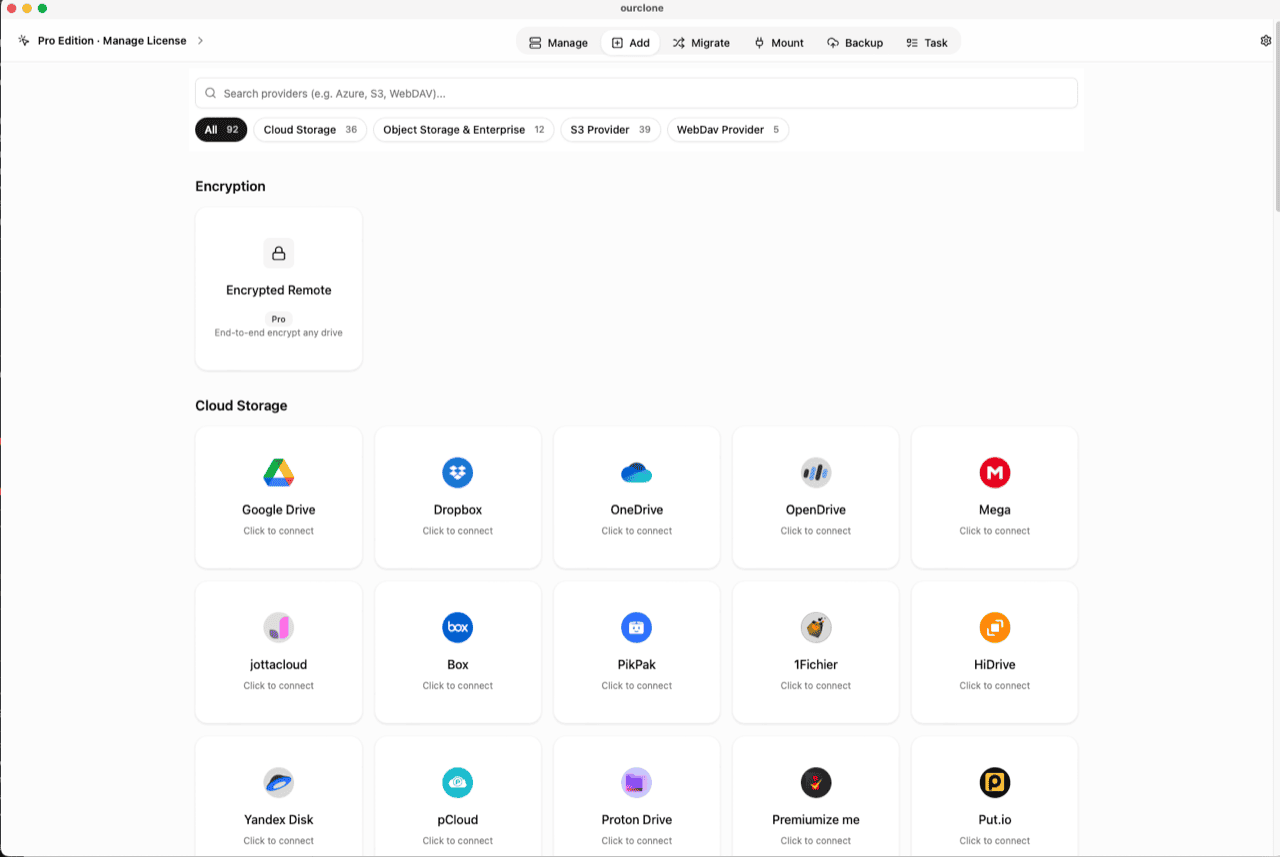
Add. Select FTP, then enter your server host, username, password, and port (default 21). Once verified, the server appears as a connected storage. Already connected for backups? Skip ahead. - 🧭 Open the Encryption Category — In the
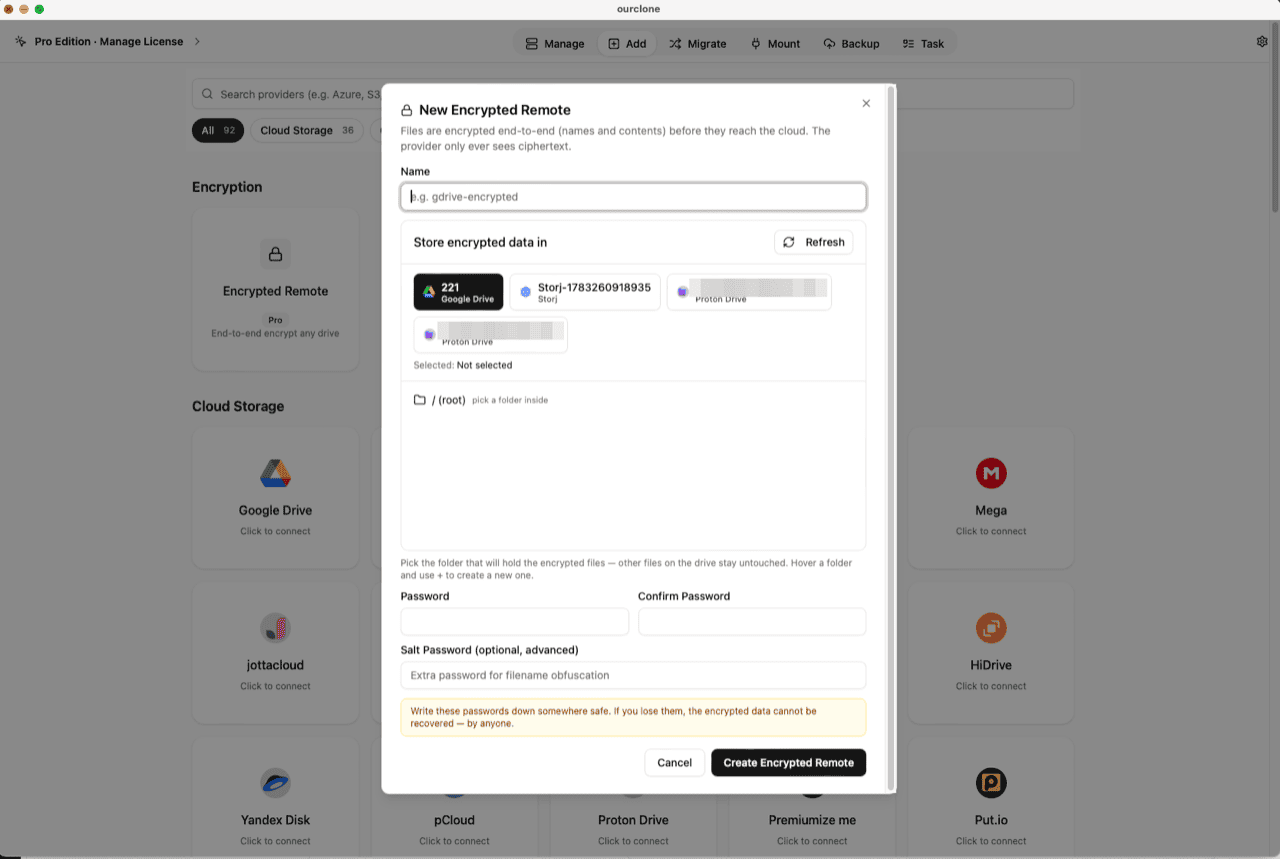
Addpage, the Encryption section sits above the provider grid. Click the Encrypted Remote card (marked Pro). - 🛠️ Create the Vault — Name it (e.g.
ftp-encrypted), pick your FTP server as the base storage, then choose or create a directory inside it — the vault must live in a folder, not the server root, and only that folder will hold encrypted data. Set your password (plus an optional salt password for extra filename obfuscation) and click Create Encrypted Remote. - 📦 Move Files Into the Vault — Open
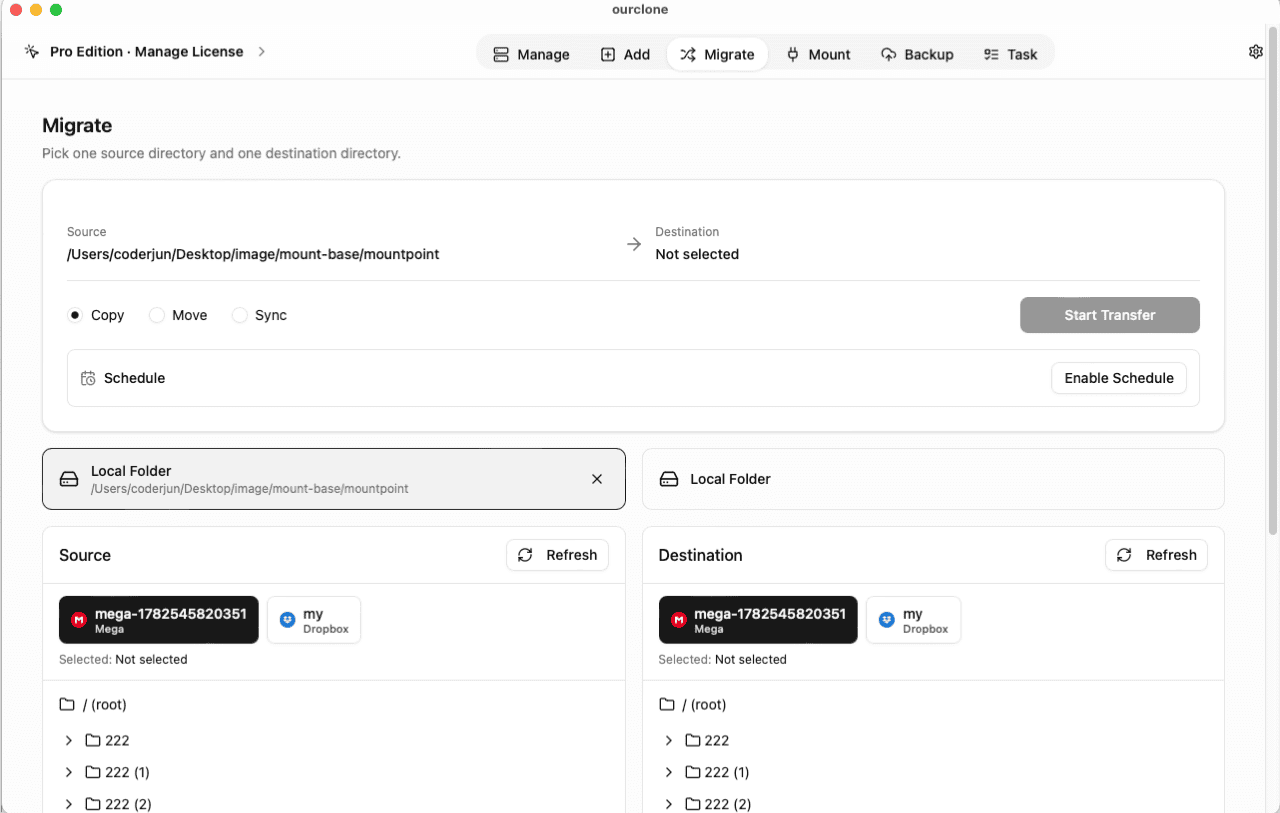
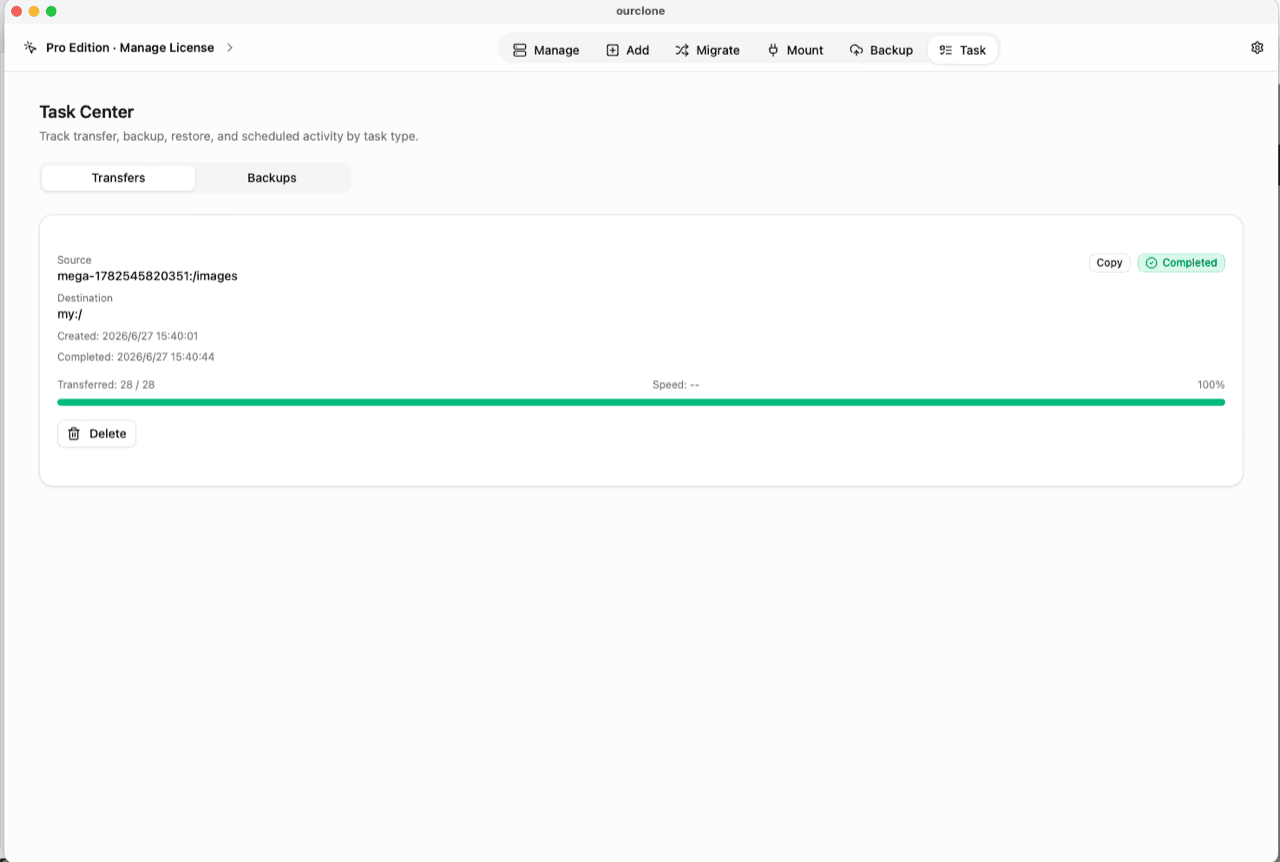
Migrate, choose a local folder (or a cloud remote) as the source and the vault as the destination, then run a copy, move, or sync. Every file is encrypted on your machine before the FTP connection carries it. - 📊 Watch It in the Task Center — The
Tasktab shows live progress, speed and any failed files, and history survives app restarts.
Save the vault password in a password manager before you rely on it — lost passwords mean permanently unreadable data.
Check What Crosses the Network — and What the Server Stores
Browse the vault directory in any FTP client (or the NAS's own file manager): scrambled names, unreadable contents. And if you ever ran a packet capture on the transfer, you'd see the same thing on the wire — because the ciphertext was created before FTP got involved, not by the connection.
In OurClone, the vault shows a lock badge, and the Manage page lists your real files, decrypted locally. You can also mount the vault as a local drive for Finder or File Explorer access (no extra driver on macOS; Windows needs WinFsp).
Frequently Asked Questions
Is the encrypted vault free?
No — it's an OurClone Pro feature. Connecting FTP servers, transfers and backups work on the free plan within its limits; see pricing.
Does this make plain FTP safe to use?
It makes your files safe on FTP: contents and names are ciphertext on the wire and on disk. Your FTP login credentials are still handled by the protocol as usual, so prefer SFTP where the server offers it — the vault works identically on both.
What if I forget the vault password?
The data is permanently unreadable, by design. No reset, no backdoor — keep it in a password manager.
What is the salt password?
An optional second password that strengthens file-name obfuscation. If set, both passwords are needed to read the vault — guard them equally.
Can I still use the rest of the FTP server normally?
Yes. The vault claims one directory; every other path on the server serves files exactly as before.
Can I open the vault from another computer?
Yes — install OurClone, connect the same FTP server, and add an Encrypted Remote pointing at the same directory with the same password (and salt, if set).