Why Mounting FTP on macOS Is a Smart Move
If you still manage files on a hosting account, appliance, or legacy server over FTP, mounting it on macOS is more convenient than opening a separate FTP client for every change. OurClone presents the remote directory in Finder, streams files on demand, and lets you manage FTP beside your cloud storage connections from the same desktop app.
The walkthrough covers both FTP and SFTP — or keep reading for the step-by-step.
- 🗂️ Native Finder Access -- Browse FTP folders as a normal macOS location instead of switching between Finder and a separate client.
- 💾 No Full Server Download -- Stream only the files you open instead of copying the whole remote directory to your Mac.
- 🔁 Live Read-Write Workflow -- Add, rename, edit, or delete files in the mounted folder when the FTP account has permission.
- 🛡️ Read-Only Safety -- Mount read-only when you only need to inspect hosted files or pull a copy without risking accidental changes.
- 🧰 Useful for Hosting and Legacy Storage -- FTP is common on web hosting panels, older NAS devices, and simple file drop servers where a lightweight workflow matters.
How Mounting an FTP Server Works
A traditional sync job copies remote files down to your Mac and then keeps two locations matched. A mount works differently: the folder tree appears in Finder, but file contents are fetched only when you open or copy them.
OurClone manages the FTP connection through a local mount layer. Recently used files are cached on your Mac for faster repeat access, while writes made in a read-write mount are sent back to the FTP server.
You can adjust the polling interval, cache size, and read-only setting for the mount. For slower FTP servers, a slightly longer polling interval and a modest cache usually feel better than forcing constant refreshes.
- 🚀 Stream files on demand -- no full remote-folder download required
- 💾 Save local disk space by caching only files you actually open
- 🔁 Push edits back to the FTP server when using read-write mode
- 🛡️ Use read-only mode when you only need safe browsing
What to Know Before You Mount FTP
A few checks before mounting will prevent most FTP connection and file-access problems.
- 🧩 No macFUSE Required -- On macOS, OurClone mounts through rclone's built-in
nfsmount, which relies on the NFS client already in macOS, so there is no kernel extension to install before your first mount. - 🌐 Have the Server Details Ready -- You need the FTP host, username, password, and port. Standard FTP usually uses port
21. - 📁 Pick the Right Remote Source -- Mount a specific path such as
/public_htmlor/uploadsinstead of the whole account when you only work in one directory. - 🖥️ Choose a Dedicated Mount Point -- Use an empty folder such as
~/CloudMounts/FTP. Do not use Desktop or a folder that already contains files. - 🔒 Understand FTP Security -- Standard FTP does not encrypt traffic. Use trusted networks, avoid sensitive credentials on public Wi-Fi, and prefer SFTP when encryption is required.
- 💽 Plan Cache and Polling -- Larger cache helps repeat access, while a longer polling interval reduces load on slower or rate-limited FTP servers.
How to Mount FTP on macOS with OurClone
OurClone connects to FTP with the same server credentials you would use in a normal FTP client, then exposes the remote folder as a local mount on your Mac.
- 🔗 Connect via FTP -- Open OurClone and go to
Add Storage. Select FTP, then enter the server host, username, password, and port. The default FTP port is21. Once verified, the FTP server appears as a connected storage destination. - 📂 Open the Mount Tab and Click New Mount -- With the FTP server connected, go to the
Mounttab in OurClone. Click New Mount in the top-right corner to open the mount configuration dialog. - ⚙️ Configure the Mount Settings -- Pick your FTP connection as the source. Choose a remote folder such as
/public_htmlor the accessible server root, then select an empty local mount point like~/CloudMounts/FTP. Choose Read-only for safe browsing or Read-write for uploads and edits. Adjust polling interval and max cache size if needed, then click Mount. - 🗂️ Use Your FTP Mount Like a Local Folder -- Open the mount point in Finder. The FTP server now behaves like a mounted folder: browse directories, open files, create folders, upload files, or remove items when read-write permissions allow it.
- ✅ Confirm the Files on the FTP Server -- Back in OurClone, open the FTP storage view and confirm your new folder or uploaded file appears. You can also check from your hosting control panel or another FTP client if you want a second verification path.
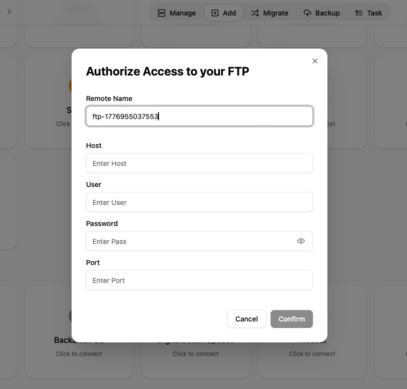
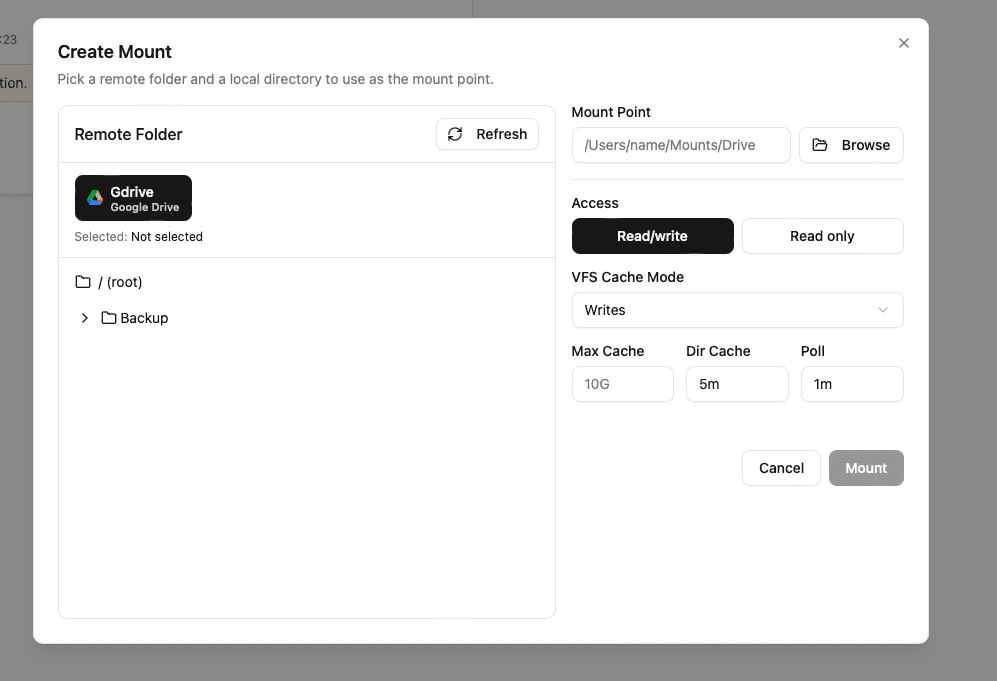
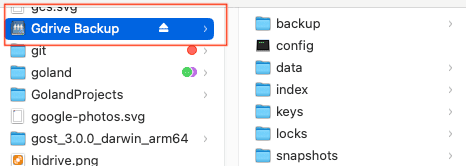
With the FTP account connected and the mount active, routine server file work becomes a Finder workflow instead of a download-edit-upload loop.
Getting the Most Out of Your FTP Mount
A mounted FTP server is convenient, but FTP is older and less forgiving than modern cloud APIs. Keep these habits in mind.
- 🔁 Edits Sync Back to the Server -- Adds, renames, and deletes in a read-write mount are sent to FTP. Use read-only when you only need to inspect files.
- 🛑 Read-Only Means Read-Only -- Uploads and Save dialogs will fail when the mount is read-only. Remount as read-write when you need to make changes.
- 💽 Cache Lives on Your Mac -- Recently opened files are cached locally. Reduce max cache size if disk space gets tight.
- ⏱️ Polling Interval Affects Freshness -- Short polling spots remote changes sooner but makes more FTP requests. For many servers, 30-60 seconds is a practical starting point.
- 🔌 Unmount Cleanly Before Sleep -- For long breaks, click Unmount in OurClone before putting the Mac to sleep or changing networks.
When Your Mount Stops Working
FTP mounts usually fail when the host changes, the password is reset, the hosting provider blocks the account, port 21 is closed, passive mode is restricted by a firewall, or the mount point is no longer empty. Re-check the host, username, password, and port in Add Storage, then remount.
Verify the Mount Anytime
When in doubt, open the FTP storage view inside OurClone and compare it with Finder. If your provider offers a hosting file manager or another FTP client, use that as a second check for important uploads.