Why Move from Mail.ru Cloud to pCloud?
The two services overlap in what they store — photos, documents, phone backups — but differ in where the data lives and how you pay for it.
- 🇪🇺 Choose where your data lives — pCloud lets you pick EU (Luxembourg) or US storage when you sign up. Mail.ru Cloud is run by VK in Russia.
- 💳 Payment that works where you are — If you've moved abroad, paying for a Russian service can get complicated; pCloud takes international cards.
- ♾️ Lifetime plans — pCloud sells one-time lifetime storage alongside yearly subscriptions, which appeals to people tired of renewing.
- 🎞️ Media-friendly — pCloud streams video and audio from the web and apps, so a photo and video archive stays usable after the move.
Mail.ru Cloud and pCloud at a Glance
📧 Mail.ru Cloud
Mail.ru Cloud (Облако Mail) is tied to a Mail.ru account and is widely used for phone photo uploads.
- Free accounts get 8 GB; paid tiers add more space and larger upload limits.
- Third-party apps, including OurClone and rclone, connect with an app password rather than your regular password.
- The interface and support are primarily in Russian.
☁️ pCloud
pCloud is a Swiss company known for lifetime plans and fast media streaming.
- Free accounts get up to 10 GB; storage region (EU or US) is fixed at sign-up.
- Optional client-side encryption is available as the paid pCloud Crypto add-on, for one special folder.
- Apps for macOS, Windows, iOS and Android, plus a virtual drive for desktop use.
Method 1: The Manual Way — Download, Then Upload
Fine for a few albums or a folder of documents.
- 📥 Download from Mail.ru Cloud — Sign in at cloud.mail.ru, select files or folders and click Скачать (Download). Folders and multiple items come down as a zip archive; unzip it on your Mac.
- 📤 Upload to pCloud — Sign in at my.pcloud.com, open the destination folder and drag the files in, or click Upload.
With years of phone photos this gets slow: you need disk space for the whole download, and an interrupted upload has to be restarted by hand.
Method 2: Move Mail.ru Cloud to pCloud with OurClone
OurClone connects both accounts and copies folders straight across from your Mac — no zip files, no re-uploading by hand.
- 🔑 Step 1: Create a Mail.ru App Password — Mail.ru doesn't let outside apps use your normal password. In your Mail.ru account, open the security settings, find Пароли для внешних приложений (passwords for external apps), create one for "OurClone" with access to Cloud, and copy it.
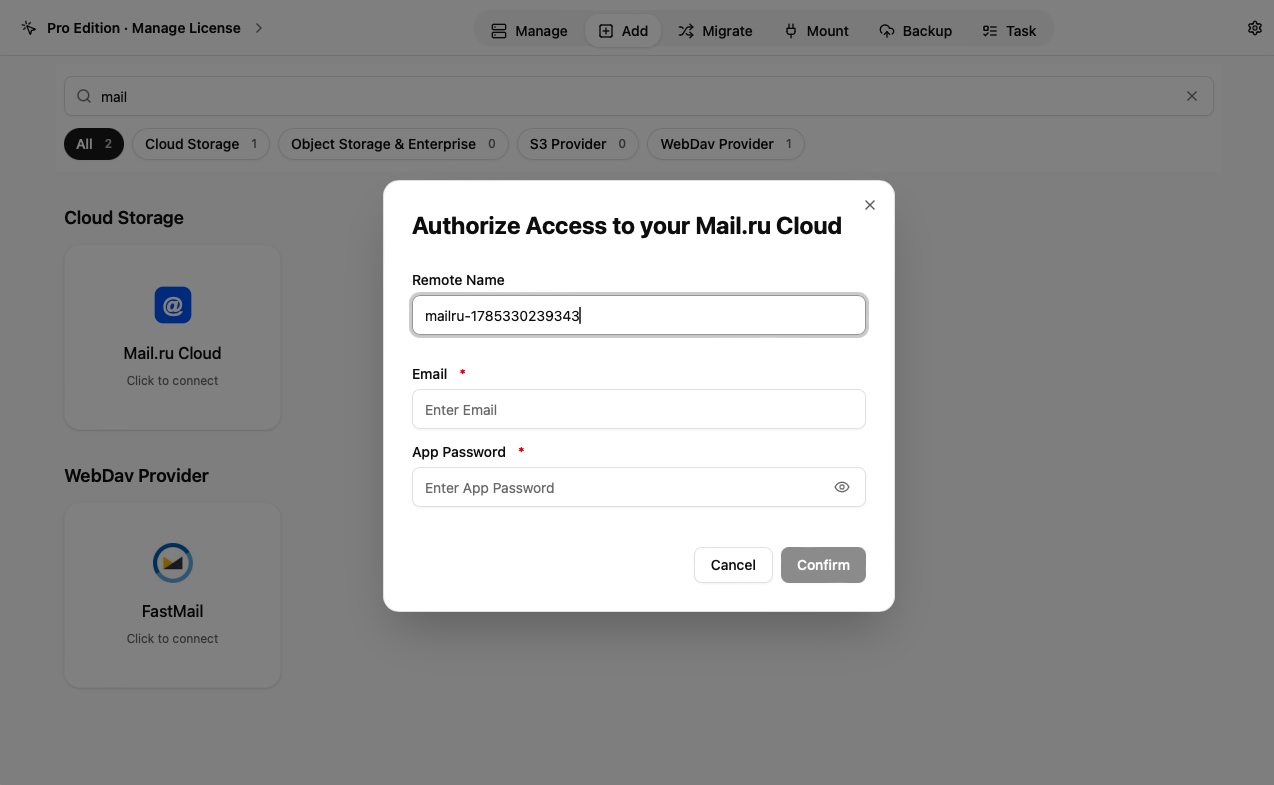
- 📧 Step 2: Add Mail.ru Cloud as the Source — In OurClone, go to the Add tab, search for mail and pick Mail.ru Cloud. Enter a Remote Name (here
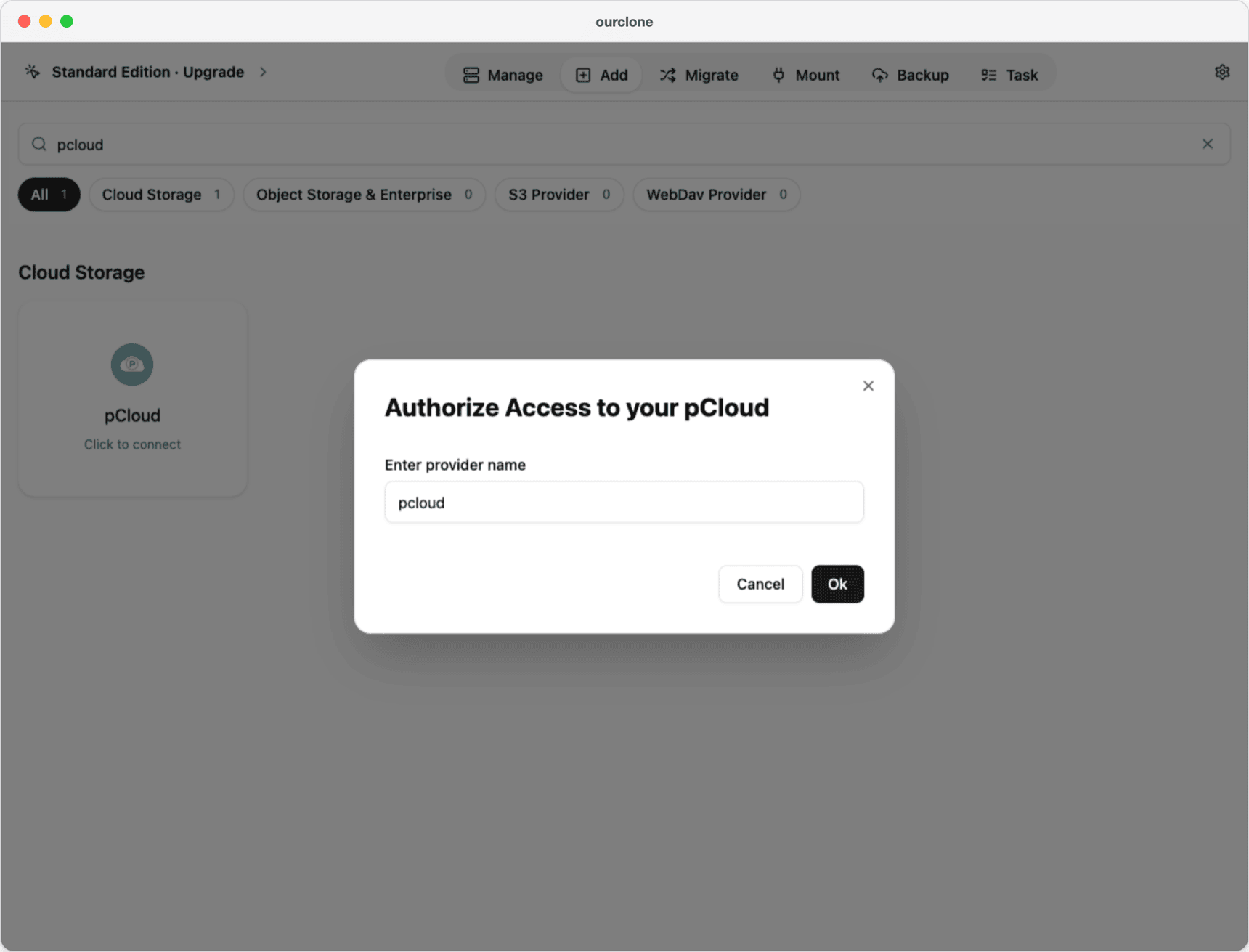
mailru), your Mail.ru email, and the app password from Step 1, then click Confirm. OurClone doesn't test the password when saving; if the folder list stays empty in the next step, check the app password. - 🔗 Step 3: Add pCloud as the Destination — Search for pcloud, pick pCloud, enter a name (here
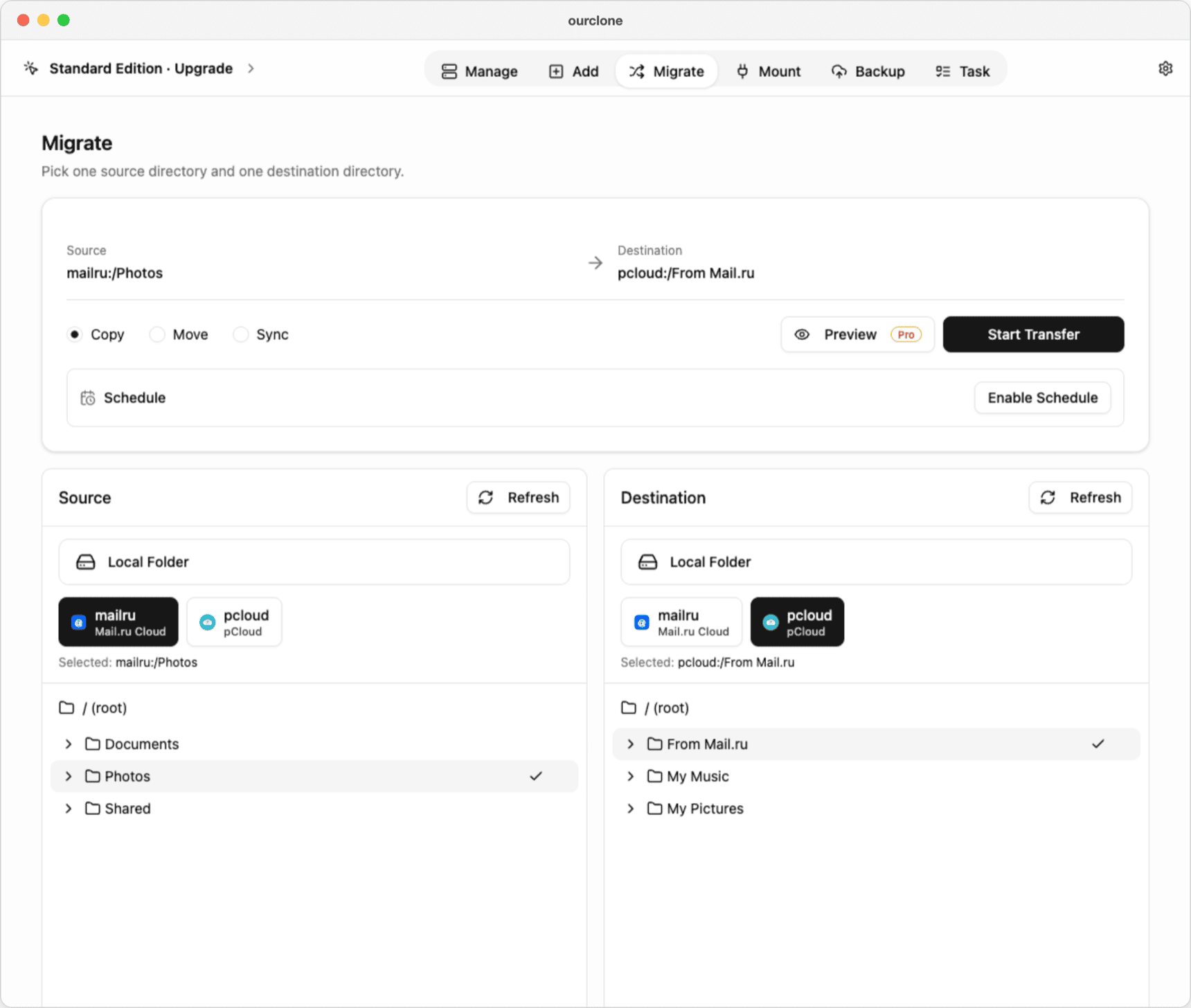
pcloud) and click Ok. Sign in to pCloud in the browser window that opens and allow access. - 🔀 Step 4: Start the Transfer — Open Migrate. In Source, choose
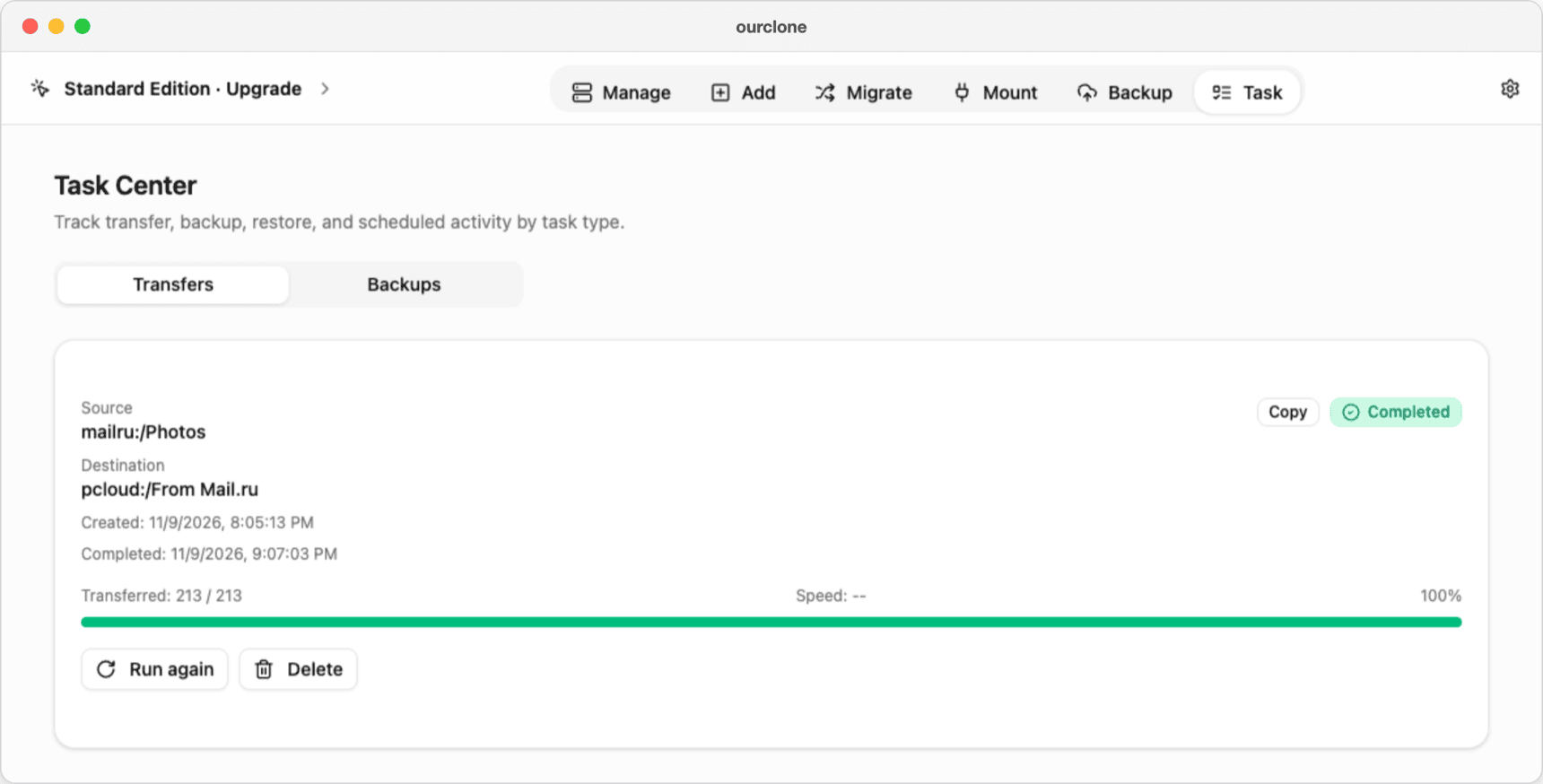
mailruand the folder to move (herePhotos); in Destination, choosepcloudand a folder for it (hereFrom Mail.ru). Pick a mode — Copy leaves Mail.ru Cloud as it is, Move deletes the files from Mail.ru Cloud after they're copied, Sync makes the pCloud folder an exact mirror and deletes files that exist only there — and click Start Transfer. - 📊 Follow It in the Task Center — The Task tab shows progress and then Completed. If a few files fail, retry them with Run again; files that already arrived are skipped.
Method 3: Mail.ru Cloud to pCloud with rclone
rclone has backends for both services. Install it (brew install rclone or the downloads page), then run rclone config: the mailru backend asks for your email and the app password, and the pcloud backend signs you in through a browser.
# Copy one folder, keeping Mail.ru Cloud as it is
rclone copy mailru:Photos pcloud:"From Mail.ru" --progress

# Move: delete from Mail.ru Cloud once copied (try --dry-run first)
rclone move mailru:Photos pcloud:"From Mail.ru" --progress
rclone sync makes the pCloud folder an exact copy and deletes anything extra there — use --dry-run before running it for real.
Questions About Moving from Mail.ru Cloud
My Mail.ru password is rejected — why?
OurClone and rclone need an app password, not your regular Mail.ru password. Create one under passwords for external apps and use that.
Will my Mail.ru Cloud files be deleted?
Only with Move. Copy leaves them, and Sync only deletes extra files on the pCloud side.
Do file names in Cyrillic survive?
Yes. Names are transferred as they are, including Cyrillic characters; if a file fails, the Task Center lists it so you can rename it and run the job again.
Can I copy new photos over regularly until I switch for good?
With Pro, save the transfer as a schedule that runs one time, weekly or monthly at a time you choose. The Mac must be on when it runs; files already copied are skipped.
Are shared links kept?
No — only files and folders move. Share them again from pCloud.