Why Mounting Synology C2 Object Storage on Windows Is a Smart Move
Synology C2 Object Storage gives Synology users an S3-compatible cloud for archives and offsite copies that live beyond the NAS itself. Mounting it on Windows means those buckets appear in File Explorer and stream on demand, so you work with C2 objects like local files.
- 🗂️ Native File Explorer Access -- Browse Synology C2 buckets as a normal Windows drive from any app.
- 💾 No Full Download -- Stream only the objects you open instead of pulling whole buckets to your PC.
- 🔁 Live Two-Way Access -- Files dropped into the mount upload to Synology C2; remote changes appear after the next poll.
- 🛡️ Read-Only Safety -- Browse an archive bucket read-only to avoid accidental writes.
- 🔗 S3-Compatible Beyond the NAS -- C2 extends the Synology ecosystem into cloud object storage you can reach independently of your NAS.
How Mounting a Cloud Drive Works (and Why It's Different from Sync)
Sync downloads every object to your PC and keeps both ends matched. A mount leaves objects in Synology C2 and streams them to Windows only when opened.
OurClone presents your buckets as a virtual filesystem through WinFsp -- the folder structure is visible immediately, while file contents are fetched on demand. Recently used files are cached locally, and writes are pushed back to Synology C2 in the background.
You can mount Synology C2 Object Storage with a configurable polling interval and cache size, plus a read-only option for safe browsing.
- 🚀 Stream objects on demand -- no need to download whole buckets
- 💾 Saves PC disk space by caching only what you actually open
- 🔁 Two-way sync -- edits in the mounted drive push back to Synology C2
- 🛡️ Read-only mode prevents accidental writes when you only need to browse
What to Know Before You Mount Synology C2 Object Storage
Plan these before mounting.
- 🧩 Install WinFsp First -- Mounting on Windows relies on WinFsp (Windows File System Proxy), a free, open-source driver that lets OurClone expose your bucket as a real Windows volume. Install it once before your first mount -- without it, the mount won't start.
- 🔑 Have Your C2 Access Keys Ready -- Create an Access Key and Secret Key in the Synology C2 console for the bucket you want to mount.
- 📁 Pick the Right Mount Source -- Mount a single bucket for focused access, or a wider scope for broad File Explorer browsing.
- 🖥️ Choose a Sensible Mount Point -- Use a dedicated empty folder like
C:\CloudMounts\SynologyC2, not your Desktop or a populated folder. - 🔒 Read-Only vs Read-Write -- Read-only suits browsing; read-write is needed to upload, edit, or delete. Read-only mounts can't upload.
- 💽 Plan Your Cache Size -- A larger cache speeds repeat access but uses local disk; size it to the objects you open most.
How to Mount Synology C2 Object Storage on Windows with OurClone
OurClone connects to Synology C2 with S3-compatible access keys, then mounts it as a local drive through WinFsp.
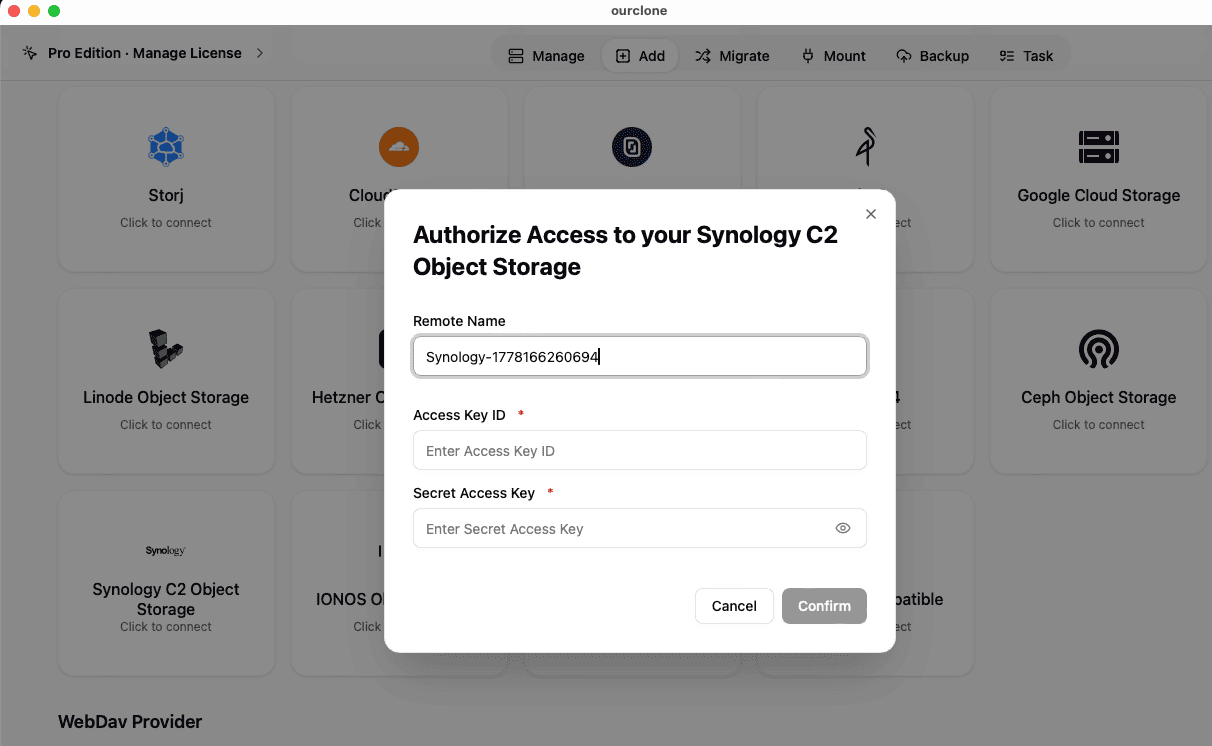
- 🔐 Connect to Synology C2 via Access Keys -- Open OurClone and go to
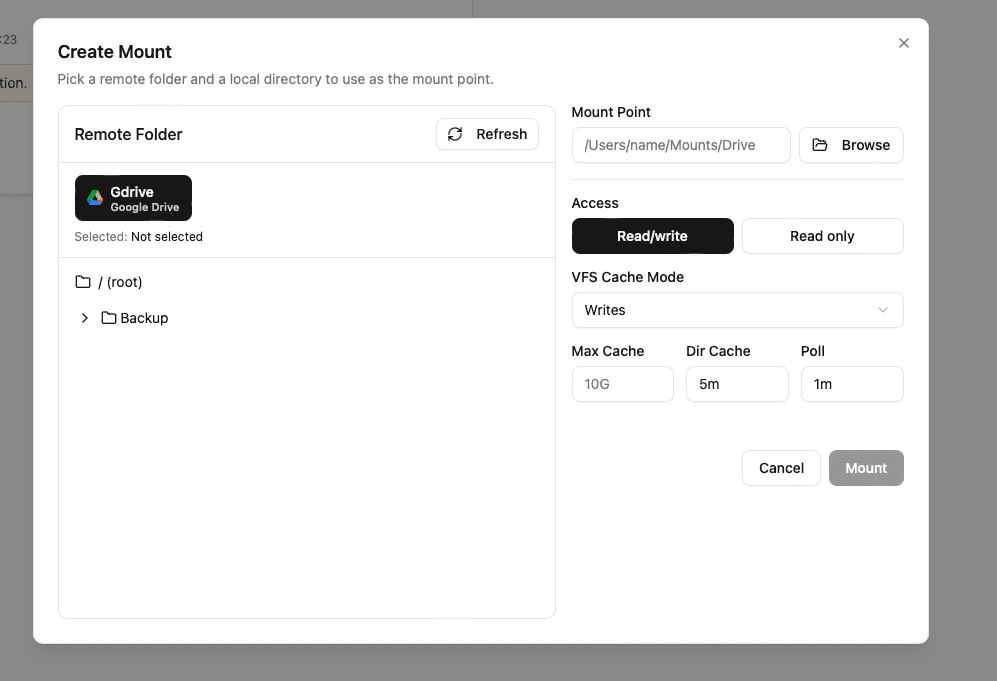
Add Storage. Choose the Synology C2 Object Storage provider from the S3 list, then fill in your Remote Name, Access Key ID, and Secret Access Key (create these in the Synology C2 console). OurClone verifies the credentials and Synology C2 appears as a connected backend. - 📂 Open the Mount Tab and Click New Mount -- With Synology C2 connected, go to the
Mounttab and click New Mount in the top-right corner. - ⚙️ Configure the Mount Settings -- Pick Synology C2 Object Storage as the source. Choose a specific bucket or the whole scope, then a local mount point like
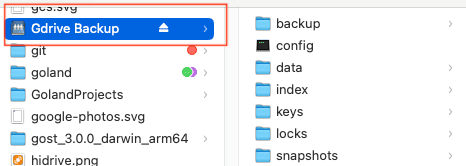
C:\CloudMounts\SynologyC2. Select Read-only or Read-write, optionally adjust polling interval and max cache size, and click Mount. - 🗂️ Use Your Synology C2 Mount Like a Local Drive -- Open the mount point in File Explorer. It behaves as a mounted drive -- browse, open, create folders, drag in files, and delete items. Add a
backupfolder and a few files; OurClone streams them to Synology C2 in the background. - ✅ Confirm the Sync on Synology C2 -- Back in OurClone, open the Synology C2 storage in the file browser to see the new
backupfolder. For extra certainty, log in to the Synology C2 console and confirm the objects landed in the bucket.


S3-compatible access keys plus OurClone's mount engine turn Synology C2 Object Storage into a native-feeling drive on Windows.
Getting the Most Out of Your Synology C2 Mount
Keep these in mind once your Synology C2 mount is live.
- 🔁 Edits Sync Both Ways -- Adds, renames, and deletes in the mount push to Synology C2; changes from elsewhere appear after the next poll cycle.
- 🛑 Read-Only Means Read-Only -- A read-only mount blocks uploads and saves. Remount read-write to make changes.
- 💽 Cache Lives on Your PC -- Recently opened objects are cached locally; lower the max cache size if disk space is tight.
- ⏱️ Polling Interval Affects Freshness -- For Synology C2, a 30-60 second interval usually balances freshness against API calls.
- 🔌 Unmount Cleanly Before Shutdown -- For long breaks or before shutting down, click Unmount to release the drive cleanly.
When Your Mount Stops Working
Synology C2 mounts usually break when access keys are rotated or revoked, key permissions are scoped down, WinFsp is missing after a system refresh, the network drops, or the mount point is no longer empty. Re-create the keys, re-enter them, and remount.
Verify the Sync Anytime
When in doubt, open the Synology C2 storage view inside OurClone or sign in to the Synology C2 console to confirm your objects.