Why Synology Owners Pair Their NAS With C2 Object Storage
Synology C2 Object Storage is a natural off-site companion for anyone who already uses a Synology NAS at home or in a small office. Your NAS handles the everyday on-prem storage; C2 covers the cloud copy you reach for when something on the LAN goes wrong. OurClone makes that second leg easy from a Mac.
- 🏠 Off-Site Without Leaving the Synology World -- For Synology owners, C2 fits the same trust model you already use for the NAS, so the off-site copy of your Mac data does not introduce a new vendor relationship.
- 🪣 S3-Compatible Buckets -- C2 Object Storage exposes an S3 API, which is exactly what OurClone needs to treat it like any other backup destination.
- 🔐 Encryption Before Upload -- OurClone encrypts the repository on your Mac with a password you set, so what lands in C2 is already opaque -- regardless of any platform-side controls.
- 📦 NAS-First, Cloud-Second Backup Story -- Keep one OurClone repository on your Synology NAS for fast local restores, and a second repository on C2 for the off-site copy. If the NAS is unavailable, the C2 snapshot is still there.
- 🍎 Mac-Native Workflow -- OurClone runs on macOS and treats C2 as a plain S3 destination, so there is no extra package to install on the Mac side beyond OurClone itself.
Why Incremental Snapshots Suit a NAS-and-Cloud Setup
Pushing a full copy of a Mac folder to C2 every night is wasteful when most files have not changed since yesterday. The NAS already has the bulk; the cloud copy only needs to reflect the new and changed pieces.
OurClone runs the first snapshot in full and then sends only changed data on each later run. The C2 bucket grows roughly with the new content you actually create, not with daily duplicates of files that never change.
For a NAS owner whose home connection has limited upstream, that restraint matters -- shorter upload windows mean the off-site copy can keep up without saturating the Wi-Fi every evening.
- 🚀 Cuts upload time on every run after the first snapshot
- 💾 Keeps C2 usage proportional to actual changes, not raw folder size
- 🔐 Each incremental snapshot still goes through the encrypted repository
- 📅 Lets you walk back through snapshots and restore an older version
Get the C2 Side Ready Before You Back Up
Synology C2 is straightforward to set up, but a quick pass through the C2 console makes the OurClone steps frictionless.
- 🔑 Create a Backup-Only C2 Access Key -- In the C2 Object Storage console, generate an Access Key ID and Secret Access Key just for backups. A backup-only key is much easier to rotate later than a key shared with other workloads.
- 🪣 Pick a Bucket Layout That Matches Your Devices -- A common pattern is one bucket per household or team and one OurClone repository per Mac inside that bucket. That keeps restores focused without sprawling multi-bucket setups.
- 📁 Pick the Right Folders -- Focus on folders that would actually hurt to lose:
~/Documents,~/Pictures, project trees, and external drive folders that hold material not stored on the NAS. - 📶 Plan the First Upload -- The first snapshot is always the heavy one. Run it overnight or while plugged in so the initial upload to C2 finishes without competing with active work.
- 🧪 Start Small -- Run the first OurClone snapshot against a small folder to confirm the C2 keys, the bucket path, and the restore flow before committing a multi-gigabyte archive.
Backing Up macOS Folders to Synology C2 With OurClone
With C2 keys ready, the rest of the workflow happens entirely inside OurClone. Five steps cover everything from connecting C2 to restoring a file.
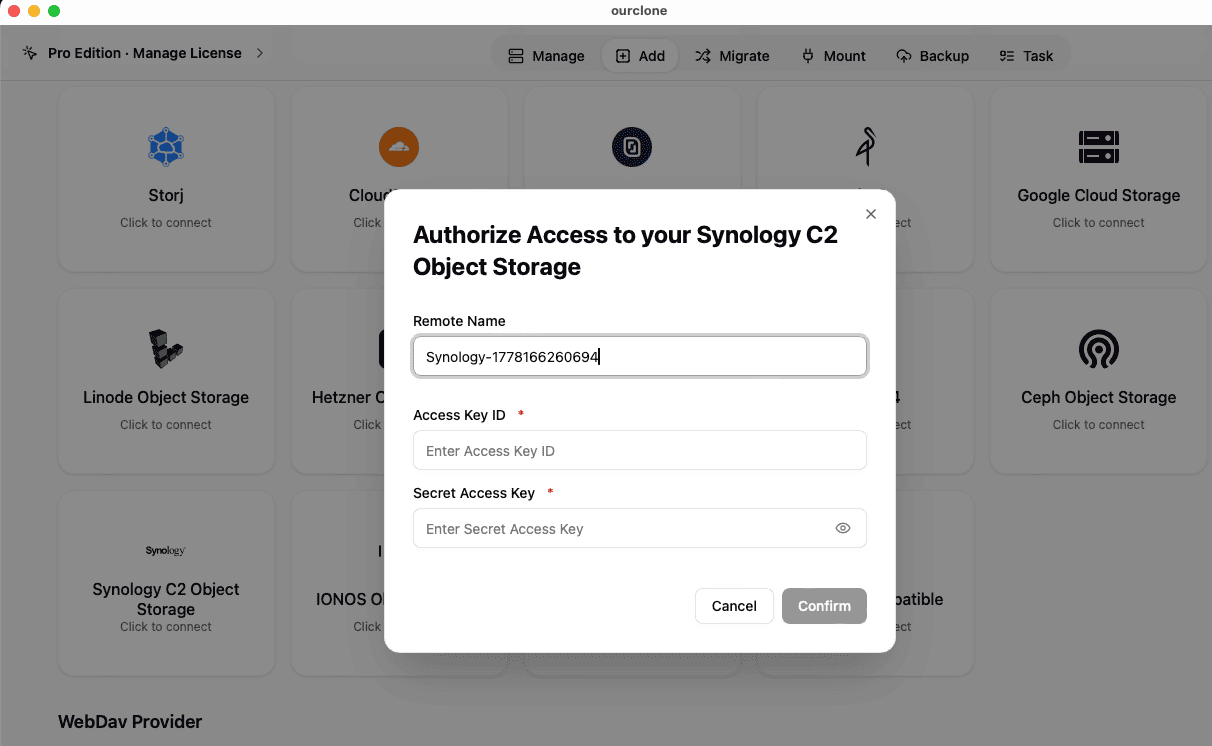
- 🔗 Add Synology C2 in Add Storage -- In OurClone, open
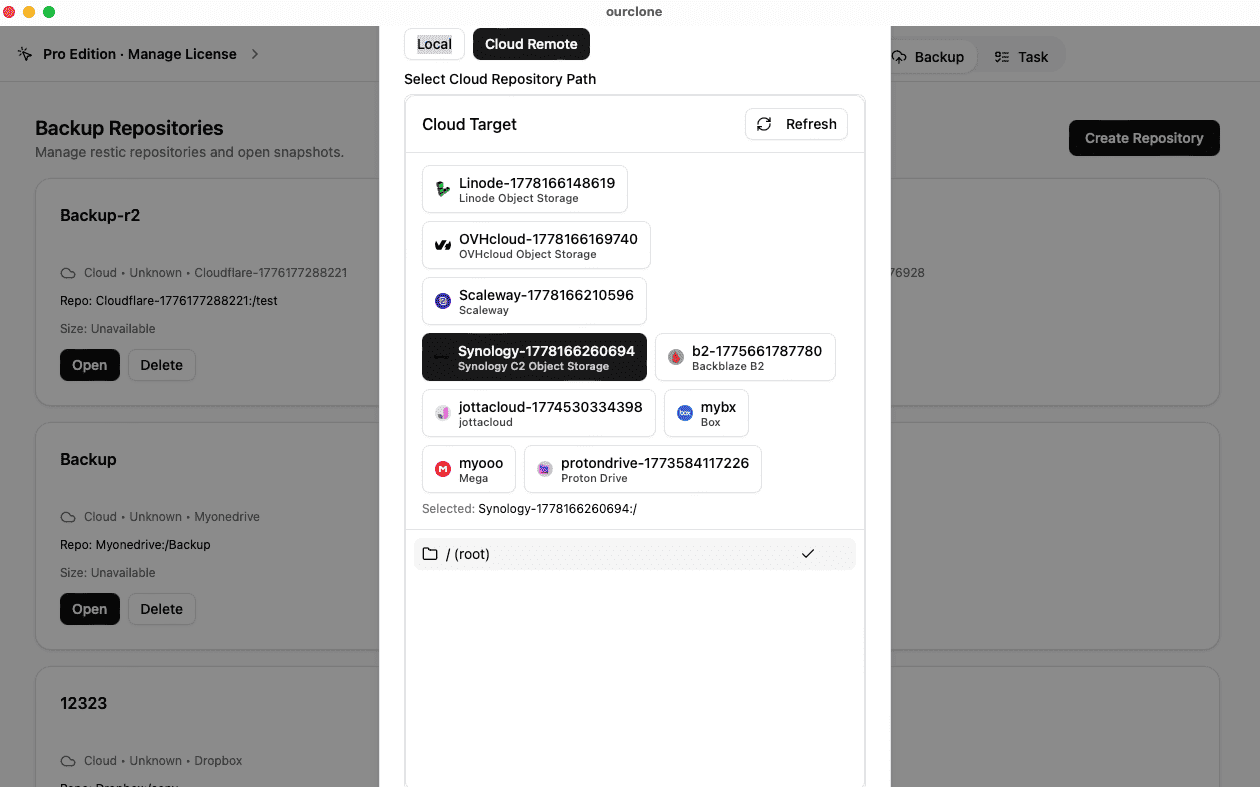
Add Storageand pick Synology C2 Object Storage. Give the connection a custom name like "C2 -- Off-Site Mac Backup", then paste your Access Key ID and Secret Access Key. OurClone uses the Synology C2 provider profile, so you do not need to fill in a separate endpoint. Save the connection. - 📦 Create a Backup Repository in Your C2 Bucket -- Open the
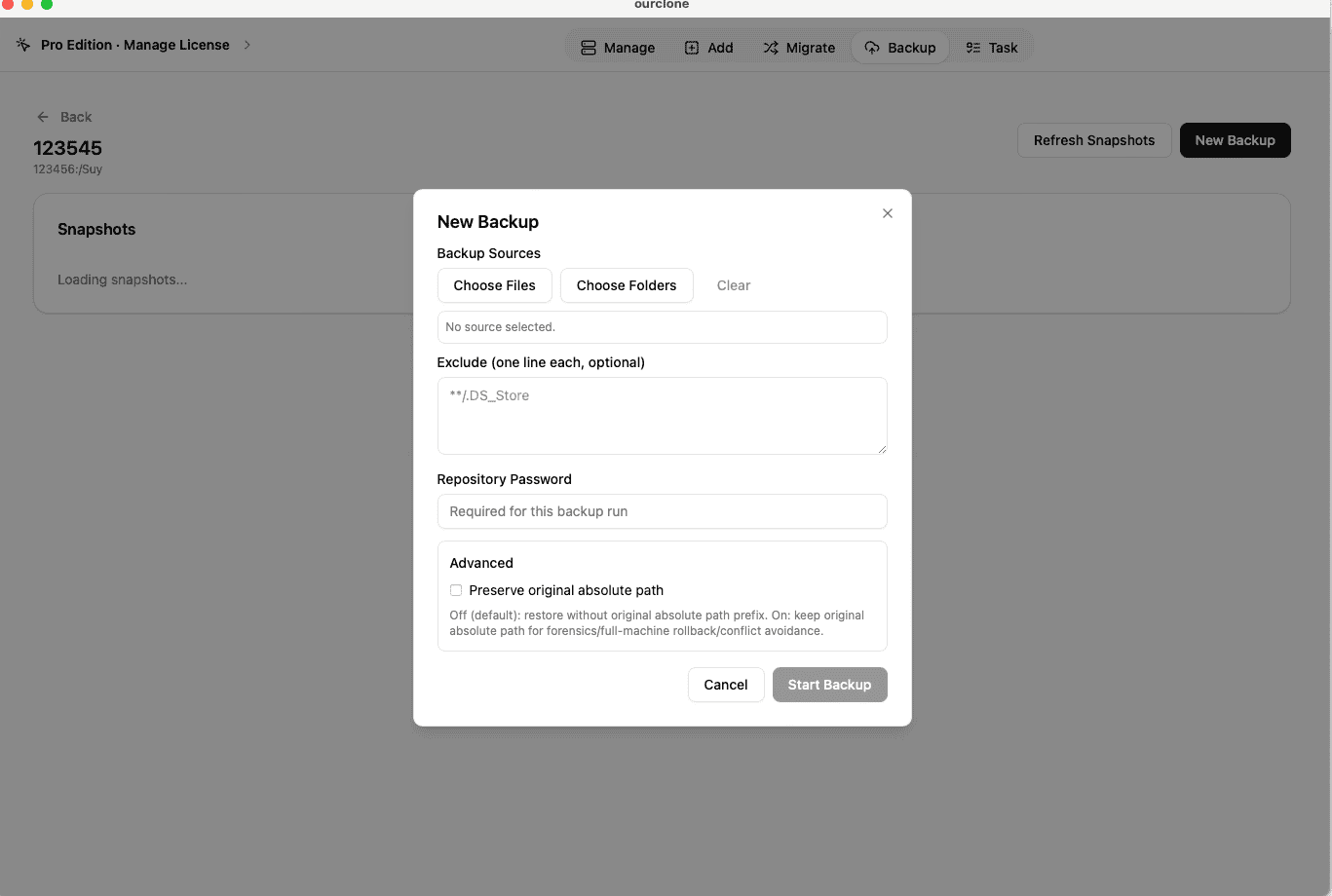
Backuptab and create a new repository. Choose your C2 connection as the destination, point it at a path inside your bucket (for examplemac-laptop/offsite), give the repository a clear name, and set a strong repository password. That password encrypts the repository and is required for every snapshot and restore -- save it in a password manager. - 🗂️ Snapshot Local Folders -- Open the new repository and create a snapshot. Pick macOS folders such as
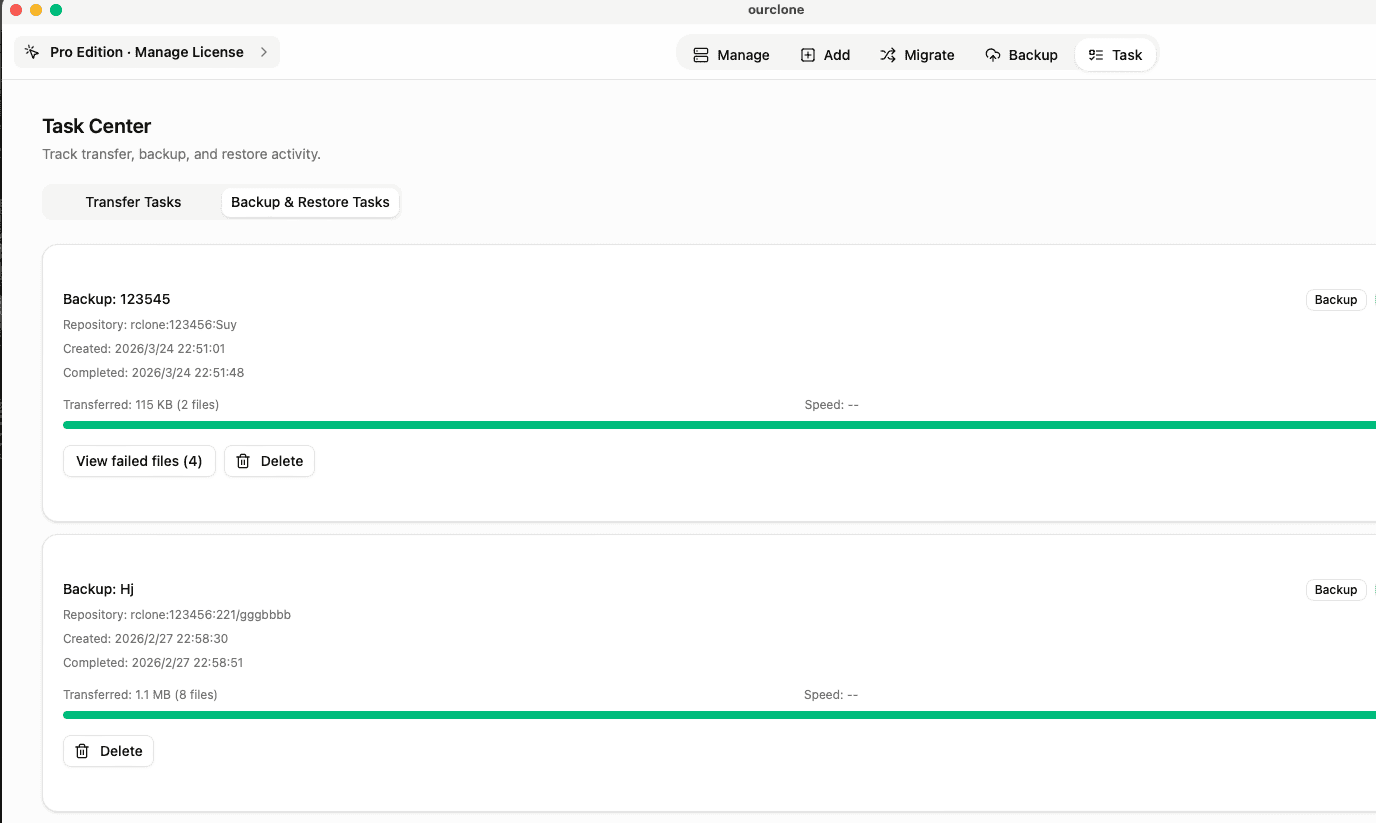
~/Documents, a project tree, or an external drive folder. OurClone packages, encrypts, and uploads the data into your C2 bucket. The first run is a full snapshot; later runs of the same folders are incremental. - 🕒 Watch It Run From Task -- Backup & Restore -- Open the
Tasktab and switch toBackup & Restore. The active C2 task shows progress, throughput, and any warnings. Chunked uploads keep the snapshot moving even when the home connection wobbles. - 🔁 Restore From a Snapshot -- In the C2 repository, pick the snapshot with the files you need, click
Restore, enter the repository password, and choose a local destination. OurClone decrypts the data and writes the files back. You can restore one folder, a subset, or the whole snapshot -- whether the original NAS-side copy is still accessible or not.
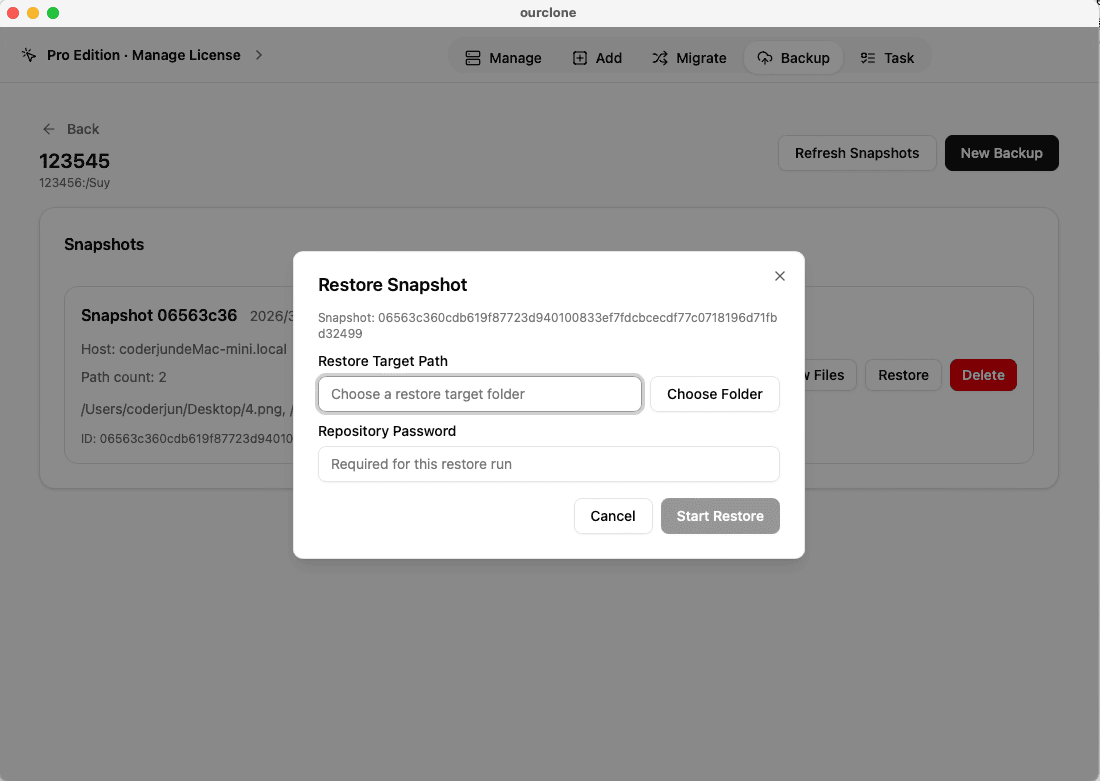
Pairing OurClone's encrypted snapshots on C2 with your existing NAS-side copy is what turns "data on a Synology" into a real 3-2-1 style backup story for a Mac.
Confirm Your C2 Backup and Keep It Healthy
An off-site copy you never look at is hard to trust. A short check-in routine keeps the C2 backup honest alongside your NAS-side snapshots.
- 📄 Check Task Status After Each Run -- In
Task->Backup & Restore, confirm the latest C2 task finished cleanly. A clean completion is the first signal the off-site copy actually landed. - 🧩 Read Skipped File Notes -- macOS sometimes blocks OurClone from reading specific files. The task log lists which files were skipped so you can grant the right permissions or move the file and re-run.
- 📜 Inspect the Detailed Log -- Open a finished C2 task to see which files were new, which were unchanged, and how much data the incremental run actually uploaded. That makes it easy to spot a folder that has unexpectedly grown.
- 🔐 Treat the Repository Password as Critical -- The C2 bucket only stores encrypted repository data. Without the repository password, even your own Synology account cannot read the snapshots.
Rotate C2 Keys and Keep the NAS-Side Copy in Sync
C2 access keys can be rotated or revoked at any time, and your local Synology backup pattern can drift over time as new shares appear. If a backup task fails, generate a fresh C2 key, paste it into OurClone, and confirm the NAS-side and C2-side repositories still cover the same set of folders you actually care about.
Run a Practice Restore Before You Need One
Pick a small folder from a recent C2 snapshot and restore it into a throwaway directory on your Mac. That dry-run is the only honest way to confirm that the off-site copy is recoverable -- and that the day your NAS is offline, your C2 snapshot will actually save the day.